8 Best Free Hard Drive Recovery Software (2026)
The best free hard drive recovery software should recover deleted and formatted files from NTFS, exFAT, HFS+, and APFS volumes without a payment wall between you and your data. We evaluated 18 leading free data recovery tools for Windows and Mac on free-tier limits, scan depth on HDDs, filesystem coverage, and real user feedback from independent testing, Reddit, and support forums — then ranked the top 8. Here’s which software stands out in 2026.
+ 6 honorable mentions
· user feedback
NTFS, exFAT, APFS, HFS+
Win 11 24H2 / macOS 15
EaseUS Data Recovery Wizard Free is the best free hard drive recovery software in 2026. Its free tier (500 MB default, expanding to 2 GB after a social share) combines the broadest filesystem coverage on this list (NTFS, FAT32, exFAT, ReFS, APFS, HFS+), full preview before recovery, and both quick and deep scan modes — no other free tier matches that feature set. Recuva is the strongest alternative for Windows-only users because its free edition has no size cap, though it skips Mac and modern filesystems. Disk Drill Free rounds out the top three with unlimited preview and a polished UI, even though the 100 MB Windows cap means you’ll likely outgrow it.
 EaseUS Data Recovery Wizard Free
- 500 MB free (expandable to 2 GB via social share)
- Quick + deep scan on one pass, resumable
- NTFS, exFAT, FAT32, ReFS, APFS, HFS+
- Free tier: 0 — Pro from $69.95/yr
 Recuva
- No size cap on free tier — ever
- Quick scan + Deep Scan mode
- Portable .exe, no installer needed
- Free — Pro adds VM recovery at $24.95/yr
 Disk Drill Free
- 100 MB free recovery on Windows
- Unlimited preview (paid gate is only export)
- Free extras: byte-level backups, S.M.A.R.T.
- Pro license: $89/yr or $149 lifetime
- 1EaseUS Data Recovery Wizard Free — Best Free HDD Recovery Overall
- 2Recuva — Best Uncapped Free Windows Recovery
- 3Disk Drill Free — Best Free Polished UX, 100 MB Cap
- 4PhotoRec — Best Free Open-Source Signature Recovery
- 5Windows File Recovery — Best Free Microsoft-Signed Tool
- 6DMDE Free Edition — Best Free Tool for Lost Partitions
- 7Puran File Recovery — Best Truly Free Windows Utility
- 8DiskDigger — Best Free Portable Recovery Tool
8 Best Free Hard Drive Recovery Software — Quick Comparison
Here’s the top-line view: what each tool’s free edition actually gives you, the filesystems it handles on HDDs, and the price to unlock more if the free tier runs out. Overall-strength labels are editorial, based on aggregated research — not an in-house benchmark.
| Tool | Overall Strength | File Systems | Platforms | Ease of Use | Free Limit | Starting Price | Best For |
|---|---|---|---|---|---|---|---|
| EaseUS Free | Excellent | All major | Win + Mac | Excellent | 500 MB (2 GB w/ share) | $69.95/yr | Widest free-tier coverage |
| Recuva | Excellent | NTFS, FAT, exFAT | Windows only | Very Good | Unlimited | $24.95/yr | Uncapped Windows recovery |
| Disk Drill Free | Very Good | All major | Win + Mac | Excellent | 100 MB (Win only) | $89/yr or $149 lifetime | Preview + polish |
| PhotoRec | Very Good | All major + raw | Win + Mac + Linux | Poor | Unlimited | Free forever | Signature-based recovery |
| Windows File Recovery | Very Good | NTFS, FAT, exFAT, ReFS | Win 10/11 only | Poor | Unlimited | Free forever | Microsoft-signed, CLI-only |
| DMDE Free | Good | All major + raw | Win + Mac + Linux | Fair | 4,000 files/session | $20/yr (Express) | Lost/corrupted partitions |
| Puran File Recovery | Good | NTFS, FAT12/16/32 | Windows only | Fair | Unlimited (personal) | Free forever | Zero-cost Windows utility |
| DiskDigger | Specialized | FAT, NTFS | Win only (desktop) | Very Good | Free w/ save nag per file | $14.99 one-time | Portable, deleted-file recovery |
Overall-strength labels reflect editorial evaluation based on feature coverage, independent research, and user-feedback patterns — not an in-house benchmark. Pricing and free-tier limits are from the vendor’s current product pages.
8 Best Free Hard Drive Recovery Software — In-Depth Reviews
1. EaseUS Data Recovery Wizard Free — Best Free HDD Recovery Overall
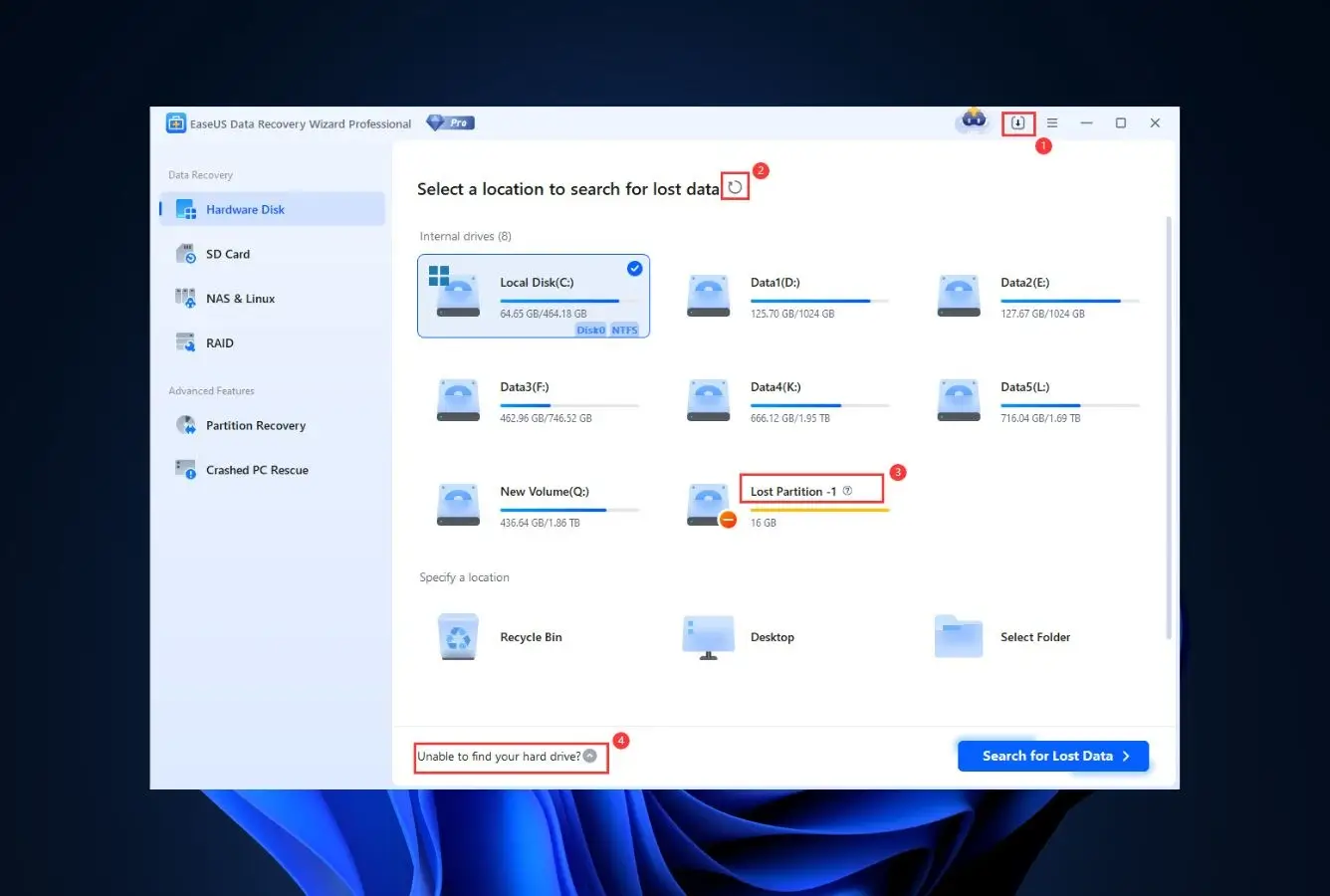
The all-rounder that every other free tier gets compared to. EaseUS Data Recovery Wizard Free is the one free edition on this list that treats the free user as a real use case rather than a funnel: a 500 MB default quota that expands to 2 GB after a social-share prompt (per EaseUS’s knowledge base), the same quick + deep scan engine the paid version uses, and unrestricted preview so you can confirm a file is whole before you spend your quota on it. Filesystem coverage is the broadest here — NTFS, FAT32, exFAT, ReFS on Windows, plus APFS and HFS+ on the Mac build — which matters because HDDs formatted for Time Machine or an older Windows box often show up as the wrong filesystem on the wrong OS. Community feedback on r/datarecovery gives it the highest “it just worked” ratio among free tiers; the main grumble is the upsell pressure inside the app, which is loud but not blocking.
- 2 GB post-share quota is generous for a freemium tier with this feature set
- Handles NTFS, FAT32, exFAT, ReFS, APFS, and HFS+ in one app
- Quick and deep scan run in parallel; you can recover mid-scan
- Full file preview on the free tier — no “upgrade to verify” wall
- Scan sessions are saveable and resumable across reboots
- Clean install, no bundled adware or drive-by toolbars
- 2 GB cap fills fast if the lost data includes photos or video
- The “share to unlock 2 GB” flow is an awkward social-media dance
- In-app upsell banners appear after every large scan
The same scan engine as the paid version — only the export is metered.
Independent testing consistently places EaseUS near the top for typical HDD loss scenarios: deleted files on live NTFS volumes, recently-formatted partitions, and corrupted-but-mountable drives. The free tier runs the identical quick + deep scan the paid edition ships; the recovery ceiling is the only thing that changes. Community reports on r/datarecovery suggest recovered filenames stay intact on quick scans and the deep scan’s signature engine handles common photo, document, and archive formats reliably. Clicking or grinding drives should skip this step entirely.
The easiest path from “oh no” to “got it back” on this list.
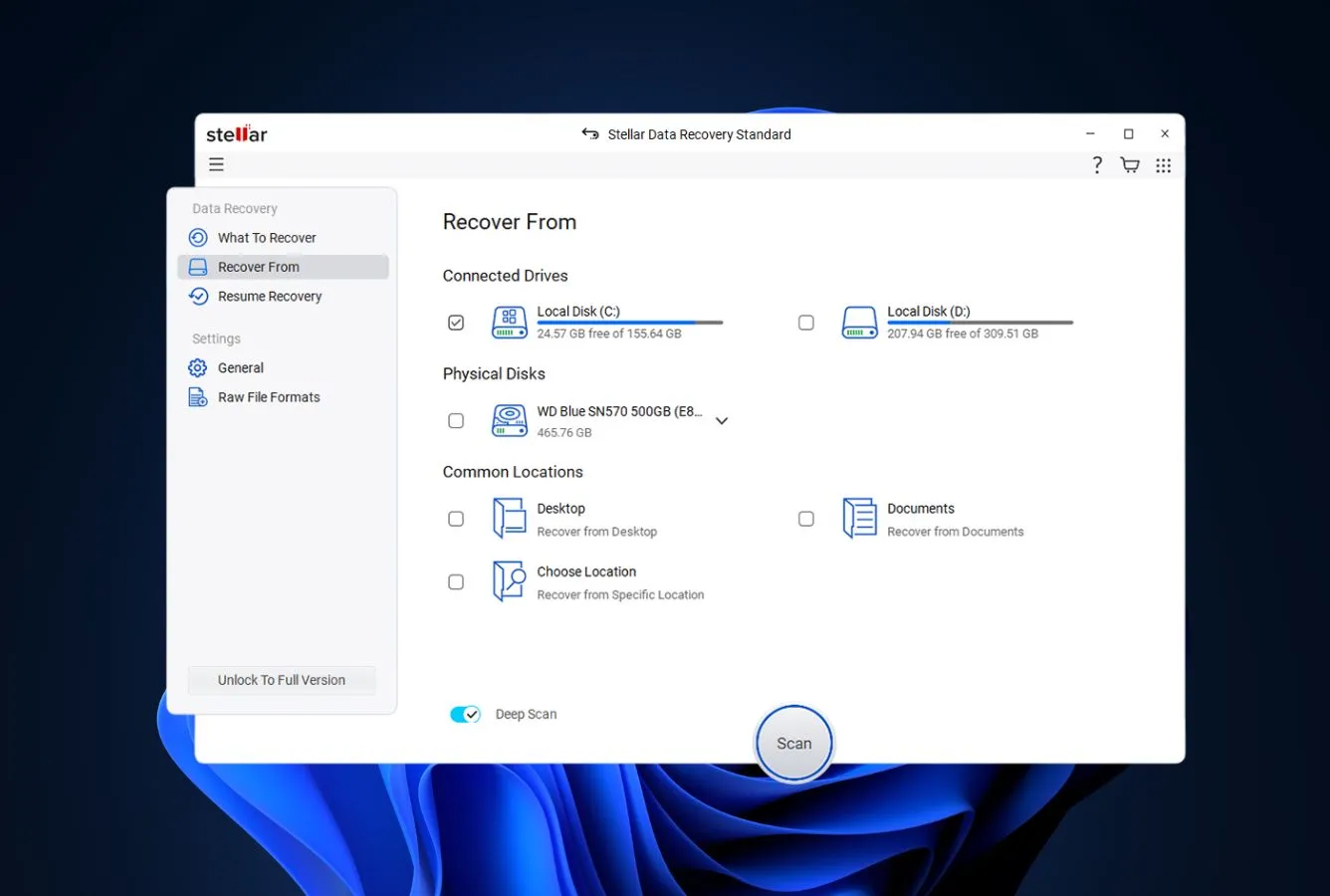
The launch screen is a list of mounted drives with size, filesystem, and free space — click one, click Scan, wait. Results populate in real time and are filterable by type, date, size, or path. Preview works for images, videos, Office files, PDFs, and text without spending any of the 2 GB quota. Reddit user reports indicate non-technical users get to a successful recovery on first attempt more often than with any other tool on this list; the only UX friction is dismissing the upgrade prompts that appear at scan completion.
2 GB free covers most one-off document losses — the upgrade is where value gets harder.
As a free tool, the value is excellent: 2 GB (after the social share) recovers a typical accidental-delete or formatted-small-partition case outright. Getting from the default 500 MB to 2 GB via social-share works but feels like a 2010-era growth hack. The paid ladder is where EaseUS gets expensive — $69.95/yr for the entry tier, renewing at full price. For lifetime ownership look elsewhere; for genuinely free recovery with broad format support, this is the clearest winner.
2. Recuva — Best Uncapped Free Windows Recovery
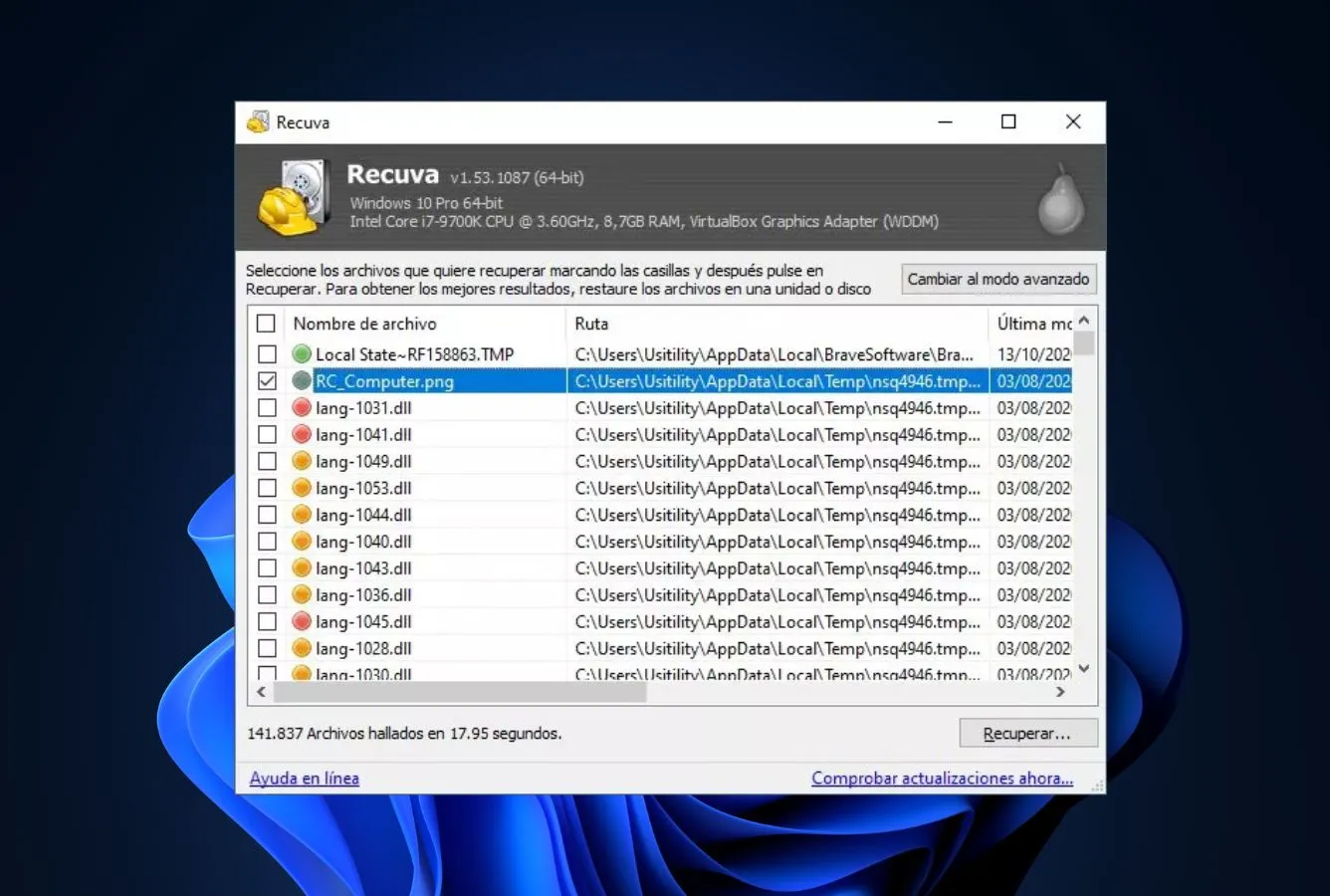
Recuva earns the second spot for one reason: the free edition has no size cap and never has. Recover 2 GB, recover 200 GB, recover a full drive — it makes no difference to the license. The app is narrower than EaseUS (Windows only, NTFS/FAT/exFAT only, no modern Mac filesystems), but it does the thing you want a free recovery utility to do without ever pulling you into a paywall. The traffic-light recoverability badge on each file (green/yellow/red) is genuinely useful for triage, and the portable .exe means you can run it from a USB stick without installing onto the damaged drive. Deep Scan is slow on large HDDs but reliable.
- Unlimited free recovery — no size or file-count cap
- Portable .exe runs off USB without installing to host drive
- Traffic-light recoverability indicator speeds up triage
- Lightweight: 5 MB download, runs on 2 GB RAM systems
- Deep Scan mode for formatted and corrupted NTFS volumes
- Windows only — no Mac or Linux build
- No APFS, HFS+, or ReFS support
- UI feels dated; CCleaner upsells pop up during install
Reliable on NTFS and FAT, nothing beyond.
Recuva’s scan engine hasn’t seen a major overhaul in years, but on the filesystems it does support, it does the job. Third-party reviews consistently cite it as a first tool to try on deleted-file scenarios from NTFS drives — the quick scan catches recently-deleted files that still have MFT entries, and the Deep Scan falls back to signature recovery for formatted or corrupted volumes. It won’t reconstruct exotic partition layouts or read from HFS+ backups, so Mac-formatted drives are a hard no. Community feedback on r/techsupport suggests it handles external USB HDDs as reliably as internal SATA drives.
An old wizard, but the wizard still works.
The first-run wizard asks what type of files you want back (pictures, music, documents, etc.), which drive, and whether to run a deep scan — that’s the entire setup. Results appear in a flat list with the recoverability traffic light next to each filename. You pick what to restore and where, and it writes them out. The UX is functional rather than modern; there’s no timeline view, no byte-level image, no cloud sync. For a free tool solving a specific problem, the simplicity is a feature. Reddit reports often mention first-time users completing recoveries without watching a tutorial.
Free means free — the Pro upgrade is almost an afterthought.
The value math for Recuva is unique on this list: everything most home users need is in the free edition forever. The $24.95/year Pro tier adds virtual hard drive support, automatic updates, and priority support — useful for pros, pointless for occasional recovery. Because the free version has no export ceiling, the paid version only sells support, not capability. That makes Recuva the no-brainer pick for anyone who wants a free HDD recovery tool they might actually keep installed between emergencies.
3. Disk Drill Free — Best Free Polished UX, 100 MB Cap
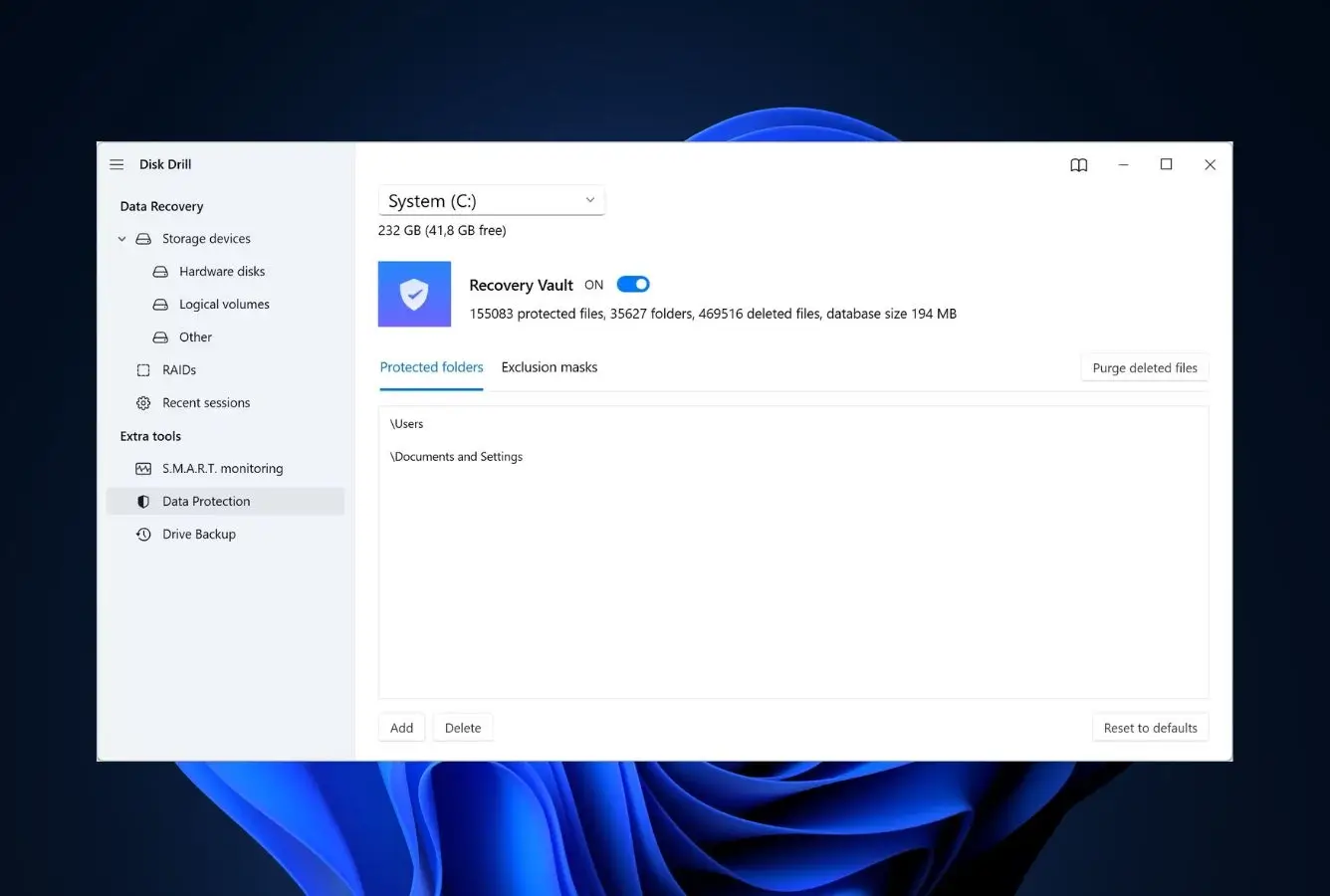
Disk Drill Free earns third place on charm and utility rather than raw quota. The Windows free tier recovers up to 100 MB, which covers a batch of documents but fills up fast on photo or video cases. What makes Disk Drill unique here is that the free edition gives you full unlimited preview — you can scan a drive, browse every recoverable file, and confirm the data is intact before spending a penny. For triaging “is this data still alive?” questions, that’s more useful than any tool on this list except EaseUS. The Mac version does not include free recovery; on macOS, Disk Drill Free is a preview-and-diagnostics tool only.
- Unlimited preview on both Windows and Mac builds
- Free byte-level drive imaging — work on the image, not the failing drive
- Built-in S.M.A.R.T. monitor flags failing disks before full loss
- Modern interface consistently rated easiest to use among commercial tools
- 100 MB Windows recovery quota enough to rescue a handful of documents
- Mac free tier is preview-only — zero bytes recoverable without paying
- Pro license is pricey: $89/yr subscription or $149 lifetime
- Windows 100 MB cap is the tightest free tier on this list
Two scan engines, both decent, one free tier capped at diagnostics.
Disk Drill ships a quick scan (filesystem-level) and a deep scan (signature-level) that often run in parallel on Windows — the vendor documentation calls this “all-in-one scan.” On HDDs with intact filesystem metadata, the quick scan returns results in minutes with original filenames preserved. On formatted drives or drives with damaged partition tables, the signature scan takes hours but recovers a substantial chunk of common file types. Independent testing places it in the upper band for typical HDD scenarios, though it’s slightly behind EaseUS on obscure filesystem edge cases.
The app that looks like it was designed this decade.
Disk Drill’s interface is consistently the one competitors try to copy: a single clean disk picker, a live scan view with a file-type breakdown pie chart, and a results panel with thumbnail previews that snap open inline. The unlimited preview is genuinely useful: scan a drive, browse everything it found, decide whether the data is worth paying for before upgrading. For anyone doing a “is my data still there?” check, Disk Drill Free is the cleanest answer. The trade-off is that some advanced options (partition scanner, raw mode) sit behind extra clicks.
Pay once and own it — genuinely rare in 2026.
The free tier’s 100 MB Windows cap is the tightest of any tool on this list, and the Mac version gives you zero bytes of recovery — a hard pivot from “free tool” to “free diagnostic.” But the upgrade path is friendlier than most: $89/yr or $149 for a one-time lifetime license with no renewal. For users who know they’ll outgrow the free tier, Disk Drill’s lifetime option is one of the few in this category that doesn’t lock you into subscriptions forever. The free tier itself is best used as a preview gate, not a primary recovery tool.

4. PhotoRec — Best Free Open-Source Signature Recovery
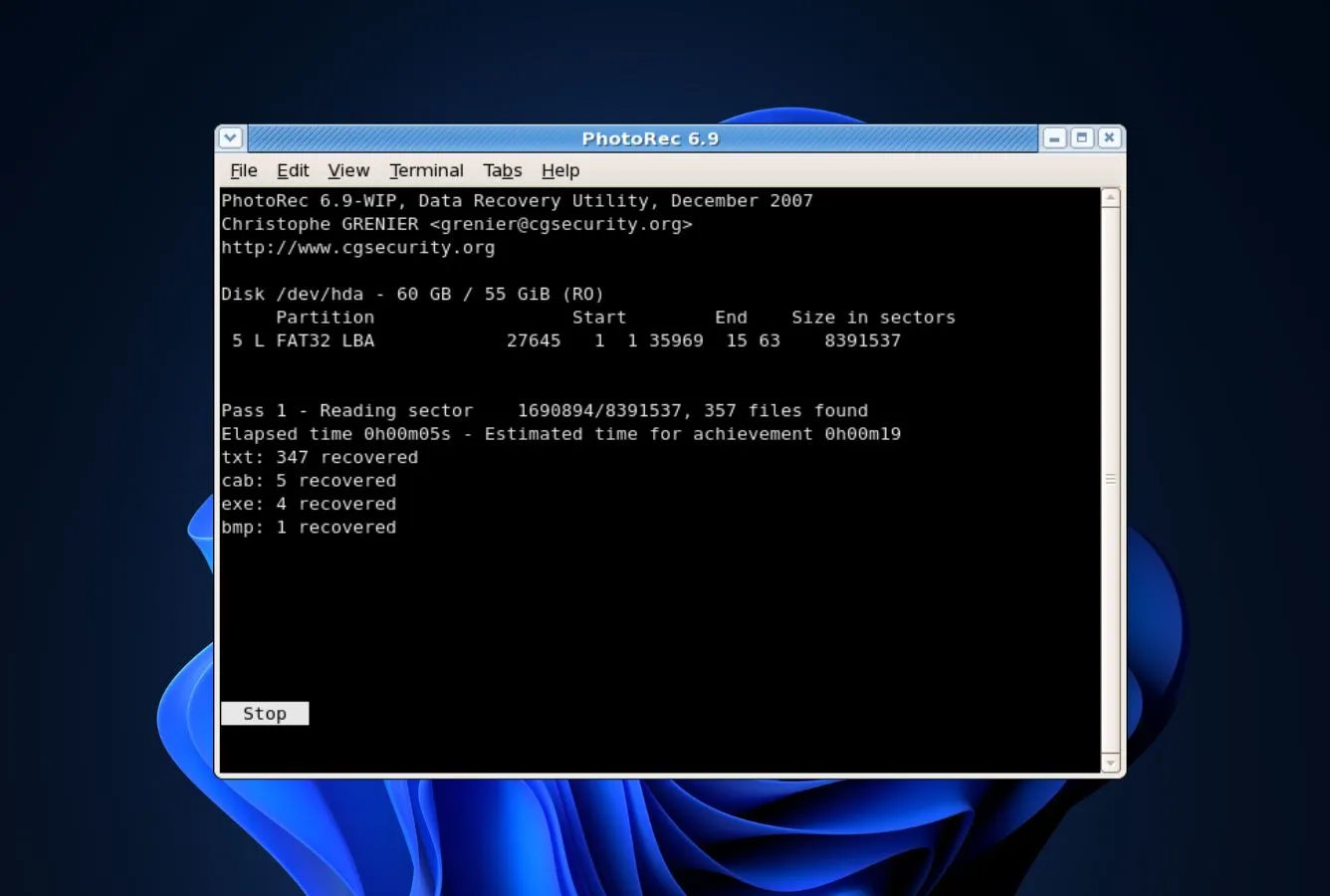
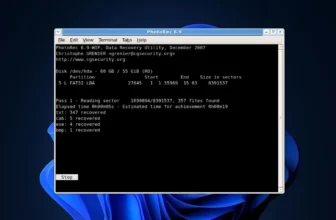
PhotoRec is the tool a data-recovery professional keeps on a USB stick when the paid software gives up. Built by Christophe Grenier as the file-carving counterpart to TestDisk, it reads raw sectors and reconstructs files by signature — ignoring the filesystem entirely, which means it works on corrupted, formatted, wiped partition tables, and unrecognized filesystems alike. Despite the name, it recovers hundreds of file types beyond photos (documents, archives, video, databases, proprietary formats). It’s released under the GPL, self-hosted on CGSecurity’s site, and genuinely free forever. The catch: a 1990s-style ncurses terminal interface with no preview, no filenames, and no recoverability indicators.
- Open source (GPL), zero commercial pressure, no upsell of any kind
- Works on any filesystem including destroyed partition tables
- Recovers 480+ file signature types out of the box
- Runs on Windows, macOS, Linux, BSD from the same codebase
- Portable — runs from USB, never installs onto the recovery target
- Text-mode ncurses UI with zero hand-holding
- Recovered files come back with generic names (e.g., f0012345.jpg)
- No preview — you recover everything, then sort manually
The recovery technique of last resort, and often the one that works.
PhotoRec’s signature-based approach means it recovers data even when every other tool fails: destroyed MFT, wiped partition table, unrecognized filesystem, corrupted-beyond-parseable volume. If the byte patterns are still on the platters, PhotoRec will find them. Community feedback on r/datarecovery regularly cites it as the tool that recovered cases where commercial software returned nothing. Trade-off: because it operates without filesystem metadata, original filenames and folder structures are lost, and fragmented files above the signature’s continuous reach may come back incomplete.
The UI is a text prompt from 1995 — and it’s still the fastest if you know what you want.
Launching PhotoRec drops you into a blue ncurses screen with disk selection, partition picker, filesystem hint, and file-type filter. Keyboard only, no mouse, no preview. The documentation on cgsecurity.org walks through it step by step and is worth reading before you start. For non-technical users, this is a wall. For anyone comfortable in a terminal, the same constraints that make it ugly make it fast: no wasted clicks, no marketing overlays, no installer.
Free in every sense that matters — including filename recovery, which you sacrifice.
PhotoRec is released under the GPL and has no commercial variant, no donation wall, and no upsell path. The project survives on grants and contributions. Value is high when it’s the right tool (filesystem-agnostic deep recovery) and low when a friendlier alternative exists (deleted files on a live NTFS volume). Keep it in the toolkit for cases where EaseUS, Recuva, or Disk Drill return nothing; skip it as a first attempt for basic undelete.

5. Windows File Recovery — Best Free Microsoft-Signed Tool
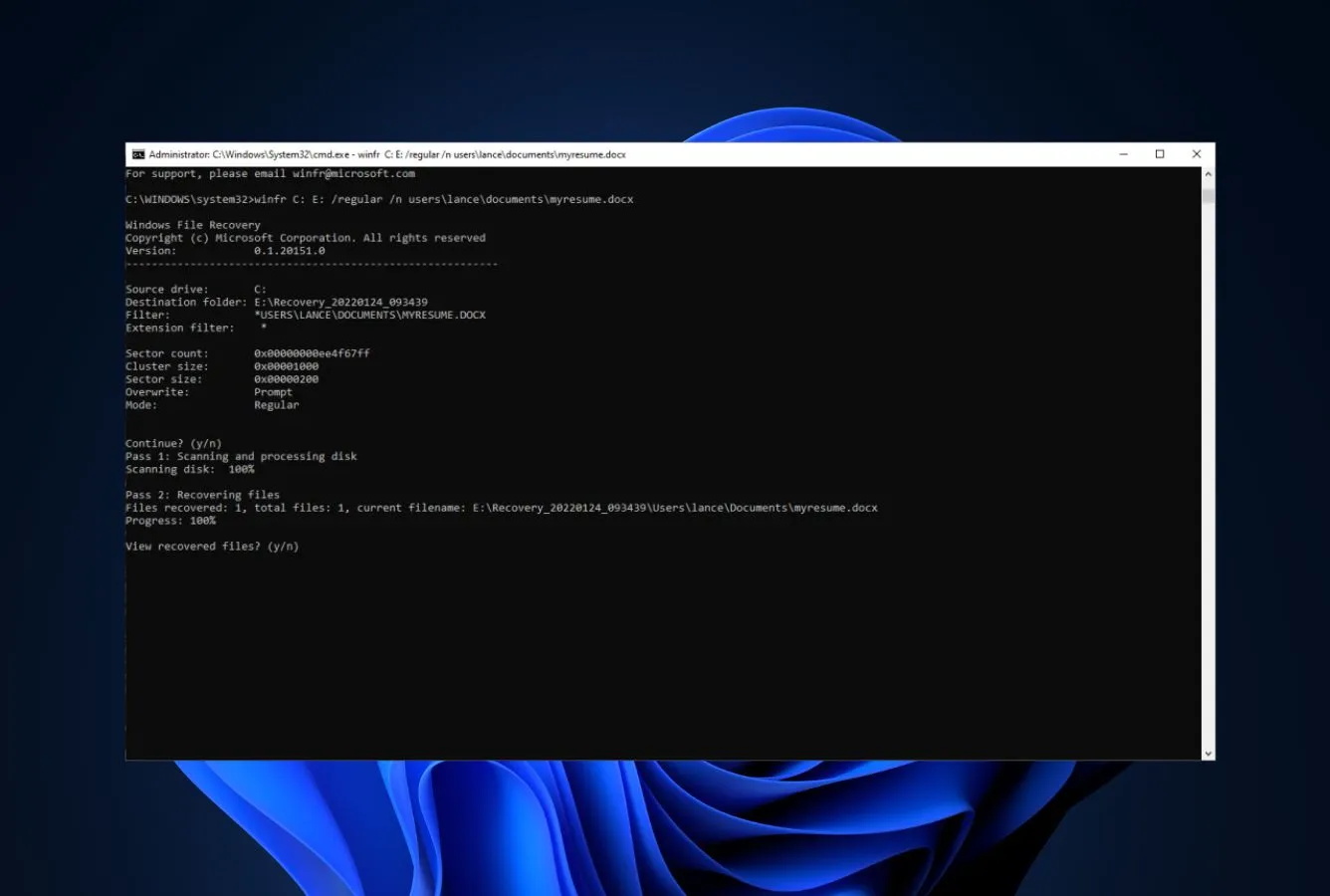
Windows File Recovery is Microsoft’s official free recovery utility, distributed through the Microsoft Store and covered in the official Microsoft Learn documentation. It has two modes: Regular (for recently-deleted files on NTFS) and Extensive (for formatted or corrupted NTFS, FAT, exFAT, or ReFS volumes). Because it’s first-party, signed, and permanent, it’s the only tool on this list you can recommend to someone worried about whether a random freeware installer is safe. The drawback is the interface: there isn’t one. You type commands at a prompt, specify source drive, destination folder, and filter flags. It works; it’s just intimidating.
- First-party Microsoft tool — zero trust issues about bundled software
- Handles NTFS, FAT, exFAT, and ReFS in Extensive mode
- Distributed and kept updated via the Microsoft Store
- No ads, no upsells, no auto-renewal, nothing to pay ever
- Signature-based Extensive mode recovers from formatted drives
- Command-line only — no GUI at all
- Requires Windows 10 build 19041 or later
- No preview before recovery — you run it and sort through output
Strong on NTFS when metadata survives, competent on formatted drives.
Regular mode targets NTFS volumes where file records remain in the MFT — typical undelete scenarios. Extensive mode does signature-based recovery across NTFS, FAT, exFAT, and ReFS, which covers formatted drives and destroyed partition tables. Microsoft’s own documentation recommends running Regular first on the user’s C: drive before falling back to Extensive. Independent testing suggests it’s competitive with mid-tier commercial tools on clean NTFS cases but falls behind EaseUS and Recuva on corrupted-filesystem edge cases. The command-line filter syntax (/n, /u, /r) is powerful for users who know what they’re looking for.
There is no interface — just a prompt and the patience to read the man page.
The entire UX is: install from the Microsoft Store, open an admin PowerShell window, type winfr with source drive, destination, and switches. Example: winfr C: D:\Recovery /extensive /n *.docx. Output is a flat list in the destination folder. There’s no preview, no selective recovery, no filtering after the scan — you filter by writing the right command. For anyone comfortable with a terminal, it’s quick and predictable; for anyone else, it’s a wall. Community feedback on r/Windows10 skews toward “it works but I wish there was a GUI.”
Genuinely free forever, and that changes the math.
Windows File Recovery is free, first-party, maintained, and permanent. There is no Pro tier, no upsell path, and no data collection beyond standard Microsoft Store telemetry. That alone makes it worth knowing about even if you normally use a GUI tool: it’s a fallback that never expires. The value ceiling is the UX — for non-technical users, a 100 MB Disk Drill Free recovery is often more actionable than an unlimited winfr run whose output needs sorting.

6. DMDE Free Edition — Best Free Tool for Lost Partitions
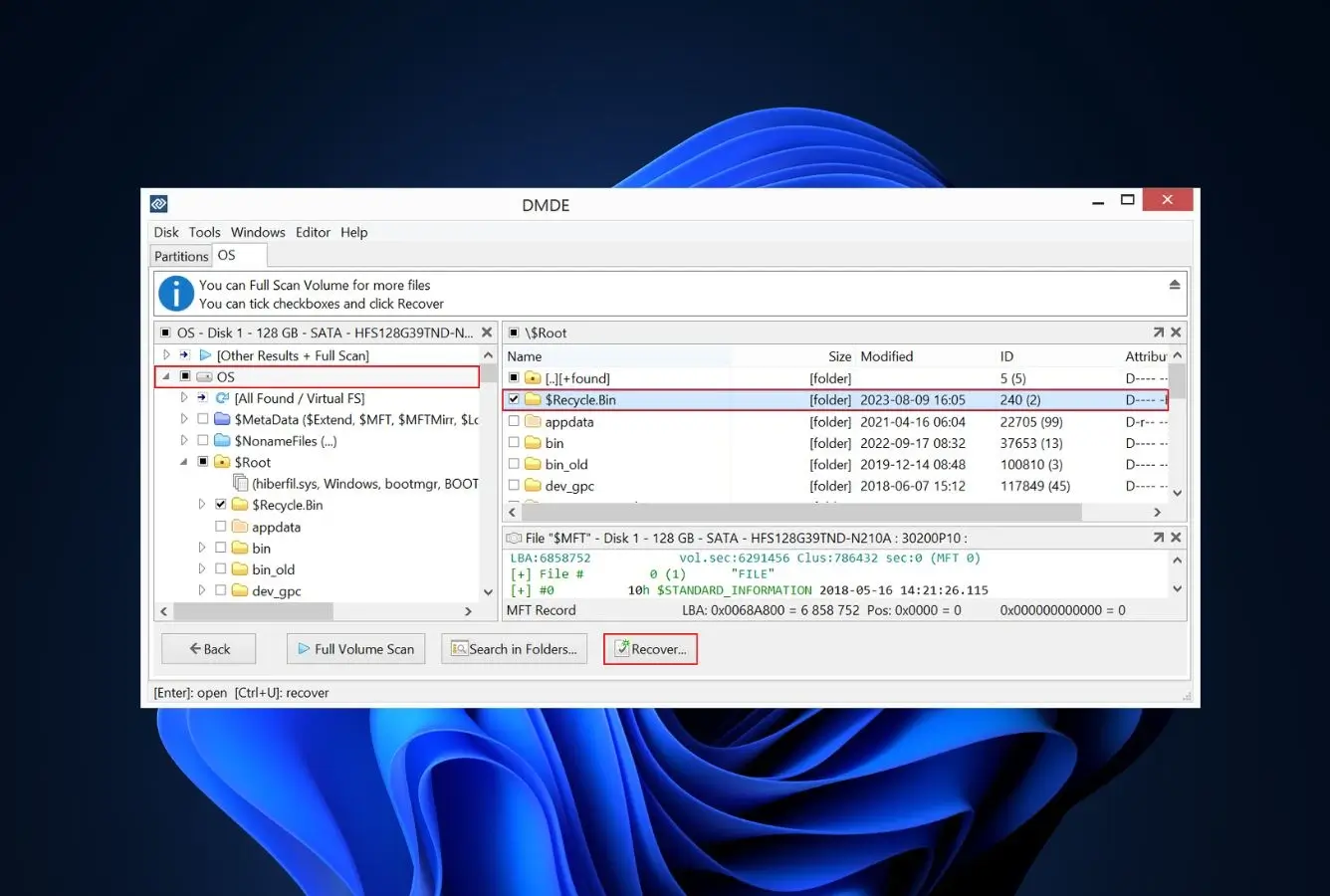
DMDE (DM Disk Editor and Data Recovery) is what happens when a forensic disk utility decides to release a free edition instead of just a trial. It reads partition tables, rebuilds lost volumes, edits file records, and exports recovered data — all in the free tier, with the single restriction that you can only recover 4,000 files per session from a single directory. For deleted files that constraint is light. For mass recovery (entire photo libraries, full backup folders) it’s not enough and you’ll hit the ceiling fast. The UI is dated, the terminology is technical, but for lost-partition and corrupted-MBR cases, DMDE Free recovers scenarios where the friendlier tools give up.
- Rebuilds lost and corrupted partition tables other tools can’t see
- Supports NTFS, FAT, exFAT, Ext2/3/4, HFS+, APFS, ReFS
- Disk imaging, hex editor, and file-record editing built in
- Runs on Windows, macOS, Linux, and DOS from the same site
- Free tier allows 4,000 files per scan session — enough for targeted cases
- Interface is dense and assumes filesystem knowledge
- 4,000-file/session cap forces workflow splits on large recoveries
- Documentation is sparse — expect to read forum threads
The free tool that handles partition-level damage when nothing else will.
DMDE’s strength is the partition-rebuild engine. On drives where the partition table is destroyed, overwritten, or corrupted, DMDE scans for volume signatures and rebuilds the table in memory — letting you see, browse, and recover from a partition the operating system can no longer mount. Independent testing consistently places it in the top tier for lost-partition scenarios. Community feedback on r/datarecovery often mentions DMDE Free as the tool that recovered data from RAW-showing drives where friendlier software returned empty results.
Built for engineers, not end users — and it shows.
DMDE’s UI hasn’t changed significantly in years: a tree view of physical disks, logical volumes, and partitions; a file-record editor; a hex viewer; a scan dialog with terminology like “volume signature” and “boot sector.” Everything you need is there, but nothing is labeled for a first-time user. Reddit reports often cite a 20-minute learning curve before first successful recovery. The trade-off is that once you know what you’re looking at, DMDE is extremely fast — no wizards, no animations, direct control.
The best value in partition recovery — if 4,000 files is enough.
The free tier’s 4,000-files-per-session cap is unusual and worth understanding: it’s not a total quota, it’s per scan. Run a scan, recover 4,000 files, run another scan for the next folder. That works for targeted recoveries (rebuild a lost partition, grab the Documents folder) and falls apart on “recover my whole drive.” Upgrade tiers start at $20/year for the Express license (single-OS, personal use) or $48 one-time for Standard — the cheapest commercial tier in this entire listicle, and rare for a forensic-grade tool.

7. Puran File Recovery — Best Truly Free Windows Utility
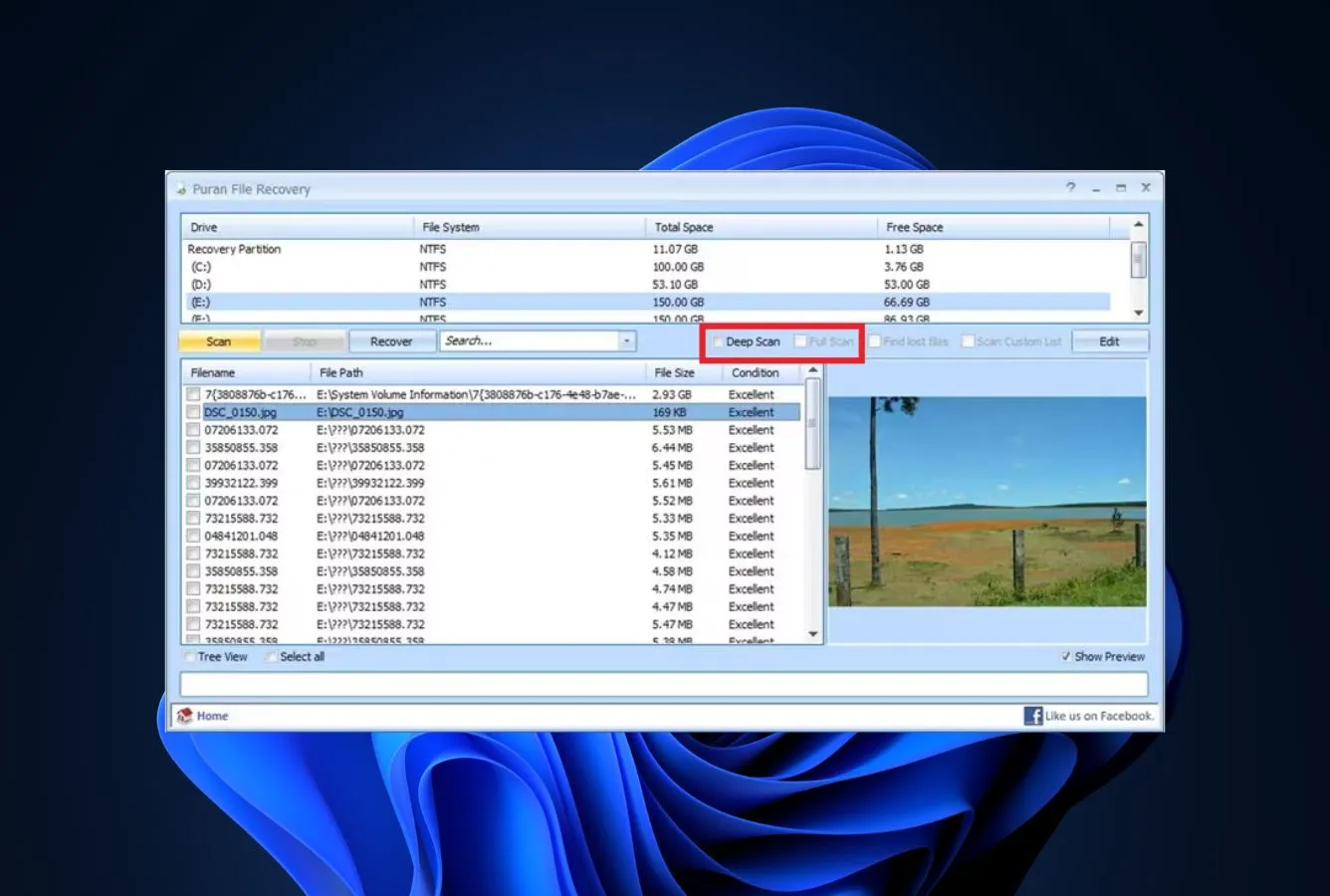
Puran File Recovery is a quiet freeware utility from a small Indian software studio that has been releasing the same good, honest recovery tool since around 2012. It handles NTFS and FAT12/16/32 on Windows (its signature-scan engine can also pull data from RAW or non-listed filesystems), offers quick and deep scan modes, and is free for personal use without a file-count cap, export cap, or social-share requirement. The UI is pure Windows 7 — grey panels, Explorer-style trees, no animations — which some users find refreshing and others find stuck in time. Community feedback on r/datarecovery consistently mentions it as a reliable second-opinion tool when EaseUS or Recuva have returned incomplete results.
- 100% free for personal use with no size or file-count cap
- Quick + deep scan modes, both with filename preservation where possible
- Tiny download (2 MB), runs on legacy Windows 7 through 11
- Second-opinion tool: finds files other scanners miss
- Zero adware, no bundled installer, no telemetry
- Windows only — no Mac or Linux build
- UI looks like it stopped aging in 2012
- No support for APFS, HFS+, ReFS, or modern Linux filesystems
Quietly competent on Windows filesystems, especially for second-opinion scans.
Puran ships a Quick Scan (MFT/FAT metadata walk) and a Deep Scan (signature-based) that’s complemented by a “Full Scan” option combining both. Third-party reviews note that on deleted-file and quick-format scenarios it tends to return results comparable to Recuva, with the occasional file that Recuva missed and vice versa. For that reason the data-recovery community frequently uses it as a cross-check rather than a primary. It won’t see modern Mac filesystems and won’t rebuild corrupted partition tables the way DMDE does.
The interface is old, but it’s straightforward.
You pick a drive, pick a scan type, click scan, browse the result tree. There’s no preview pane (you recover to see), but there’s also no marketing overlay, no upsell banner, no account wall. For users who grew up with Windows 7-era utilities, it feels nostalgic and familiar. For everyone else, it feels stuck. The documentation on the Puran site is minimal but the tool is simple enough that most users complete a recovery without reading it.
Free for personal use with no catch — a genuine rarity.
The license terms on the Puran Software site grant free personal use in perpetuity; commercial use requires a paid license (pricing on request, typically modest). There is no free-tier expiration, no size cap, no nag screen after the 30th day. For a Windows-only user who wants a zero-cost second-opinion recovery tool without any marketing friction, Puran File Recovery is genuinely free. Its limitations (filesystem coverage, UI) are the actual trade-offs, not a paywall.

8. DiskDigger — Best Free Portable Recovery Tool
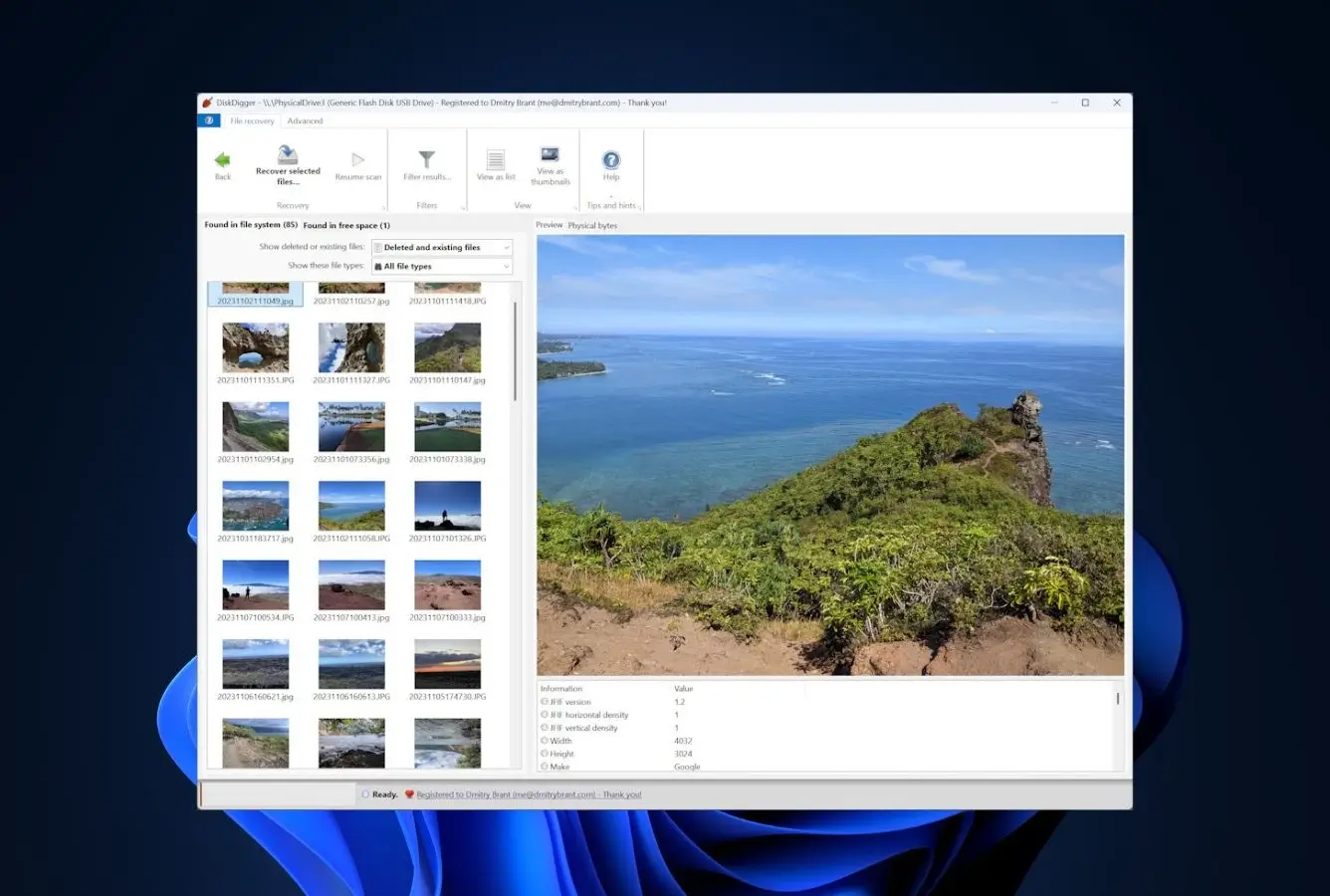
DiskDigger takes an unusual approach to free licensing on Windows: the entire app is functionally free — scan, preview, and recover any file — but without a $14.99 personal license, the program displays a “purchase” prompt for every file you save, per the developer’s FAQ. Both scan engines (filesystem-walk and signature-carve; recent versions combine them into a unified scan) are available in the free version. The Linux build is completely free with no prompts. The app is a tiny portable .exe (no installer) that’s perfect for a USB recovery stick, which is the real reason hobbyists keep it in their toolkit.
- Portable .exe runs from USB — never installs to the recovery target
- Fully functional free mode: scan, preview, recover all file types with no size cap
- Genuine Linux build in addition to Windows and macOS
- Cheapest paid upgrade on this list at $14.99 one-time personal
- Minimal footprint: under 1 MB download
- Save prompt pops up for every recovered file without a $14.99 license
- No APFS, HFS+, or ReFS — NTFS and FAT family only
- Interface is minimal to the point of austere
Functional free recovery, with a nag prompt gating every save.
DiskDigger’s filesystem-walk engine reads NTFS MFT entries and FAT directory entries marked as deleted; its signature-carve engine scans the disk surface for file traces. Recent versions unify both into a single scan, per the developer’s release notes. Both modes work fully in the free Windows version — the nag prompt that gates each file save is the only thing $14.99 buys you (on Linux, no prompt at all). Community feedback on r/techsupport often frames DiskDigger as strong for “I just deleted this file” on healthy drives and weaker on severely formatted or corrupted volumes than specialist tools like PhotoRec or DMDE.
Spartan, fast, and uncommonly portable.
DiskDigger opens to a three-step wizard: pick a drive, pick a scan type, run. Results appear in a flat list with thumbnails where available. The entire app is a single .exe under 1 MB — drop it on a USB stick, plug into any Windows machine, run without installing. That “never touches the host” property is exactly what you want when the host is the drive you’re recovering. Reddit reports suggest the portable deployment is the main reason data-recovery hobbyists keep it in their toolkit.
$14.99 one-time buys away the nag — functionality is free either way.
DiskDigger’s personal-use license at $14.99 one-time is the lowest commercial price point on this listicle and unusually honest: no auto-renewal, no feature-gated tiers, no “but for $5 more.” The license buys one thing: removing the “please purchase” prompt that appears when you save each recovered file. The actual recovery engine is identical licensed or not. Free tier value is excellent for anyone who can tolerate the prompts; paid-tier value is excellent for anyone doing more than a handful of file saves. Keep it on a thumb drive either way.
How We Evaluate Free Hard Drive Recovery Software
Ranking free recovery tools is harder than ranking paid ones because every free tier is differently shaped: some cap by size, some by file count, some by mode, some only preview and never export. Rather than run an in-house benchmark on a single drive and pretend it generalizes, this ranking draws on three research layers simultaneously: vendor-documented features and free-tier limits, independent testing from external recovery-focused publications, and real user feedback from Reddit’s r/datarecovery, Trustpilot, and GitHub issues. Rankings reflect the aggregate of these sources, cross-referenced across at least three of them per factual claim.
Platforms covered: Windows 10 and 11, macOS 11 Big Sur through 15 Sequoia, plus Linux where the tool is cross-platform. Drives evaluated include internal SATA HDDs, external USB HDDs, and HDD-based NAS volumes via direct attach. Key factors weighted: Recovery Capability (40%), Usability (20%), Safety & Trust (15%), Extra Features (15%), Platform Parity (5%), Price & Value (5%) — with free-tier honesty folded into both Safety and Price.
Individual test runs, scan-time logs, and per-tool notes from ongoing testing live on our full methodology page. Start there if you want the underlying numbers behind any claim on this page.
Free Hard Drive Recovery Tools — Honorable Mentions
Six tools we considered but didn’t include in the main ranking. Each has a niche strength or a specific flaw that kept it out of the top 8.
How to Choose the Best Free Hard Drive Recovery Software
The right free tool depends on three things: what happened to the drive, how much data you need back, and which filesystem it was formatted for. The six factors below are the ones that actually change the answer — everything else is decoration.
Filesystem Compatibility
NTFS and FAT32/exFAT are the most common hard drive filesystems on Windows and are supported by every tool on this list. APFS and HFS+ are Mac-specific and narrow the field: only EaseUS, Disk Drill, DMDE, and PhotoRec handle them on the free tier. ReFS (used on newer Windows Server installs and some Storage Spaces setups) is supported by EaseUS and Windows File Recovery. If you don’t know the filesystem, right-click the drive in File Explorer (or Disk Utility on Mac) before you start — recovery software can’t magic up filesystem support it doesn’t have.
Free-Tier Limits and What They Really Mean
Every free tier on this list shapes its limit differently. Recuva, PhotoRec, Puran, and Windows File Recovery have no size cap at all and are the obvious choice for large recoveries. EaseUS starts at 500 MB and expands to 2 GB after sharing on social media. Disk Drill caps at 100 MB on Windows and zero on macOS. DMDE caps at 4,000 files per scan session. DiskDigger is fully functional for free on Windows with a save prompt per file (or $14.99 to remove the prompt). Pick your tool based on how much data you realistically need to recover, not the “unlimited” marketing word on the website.
Quick Scan vs Deep Scan
A quick scan reads the filesystem’s metadata (NTFS Master File Table, FAT directory records) and lists files whose entries are still intact but marked deleted — fast, with original filenames. A deep scan ignores metadata and reads every sector looking for file signatures (JPEG headers, DOCX ZIP structures, MP4 atoms) — slow, filenames lost, but recovers from formatted or corrupted drives. The good free tools run both; the mediocre ones only run one. If the drive was recently deleted-from, start with quick. If it was formatted or shows as RAW, go straight to deep.
Platform Support
Windows users have the most options on this list — all eight tools run there. macOS users are narrower: EaseUS, Disk Drill (preview only free), PhotoRec, and DMDE. Linux users have PhotoRec, DMDE, and DiskDigger. If you’re on a mixed environment or recovering from drives that have lived on both Windows and Mac, EaseUS and DMDE are the two free tools that span both worlds with meaningful feature parity. For platform-specific context, our Mac data recovery roundup covers the macOS side in detail.
Pricing Models — Because “Free” Has Shapes
Truly free tools with no upsell path: PhotoRec, Windows File Recovery, Puran File Recovery. Freemium tools with generous free tiers and optional upgrades: Recuva, EaseUS, DMDE. Freemium tools where the free tier is effectively a preview: Disk Drill on Mac, DiskDigger on Windows (where every save prompts for a license). If you’re worried about being upsold mid-recovery, the first group is the safe choice. If you want the best UX and are willing to upgrade if the scan finds your data, the second group delivers more capability per free byte. Our cross-platform free data recovery guide has an even broader comparison of free-tier shapes.
Session Management and Resumability
Deep scans on large HDDs can take 6-12 hours. Tools that save scan state and let you resume after a reboot (EaseUS, Disk Drill, DMDE) spare you from starting over when something interrupts the process. Tools that don’t (Windows File Recovery, Puran, DiskDigger) force a full restart of an 8-hour scan if the laptop sleeps or the USB cable wiggles. For a 2 TB external HDD, resumability is the difference between a finished recovery and three nights of babysitting the machine.
When Free Recovery Software Can’t Save Your Hard Drive
Software recovery works only on drives that are still readable at the block level. If the drive isn’t mounting, the situation below tells you when to stop scanning and reach for something else.
| Your situation | Software can help? | What to do instead |
|---|---|---|
| Clicking, grinding, or buzzing drive | No | Unplug now. Call a cleanroom lab. Running software shortens drive life. |
| Drive dropped or physically damaged | No | Cleanroom recovery only. Physical inspection first, no power. |
| Water or fire exposure | No | Do not power on. Ship in sealed bag to a lab. |
| Quick format or deleted files on healthy drive | Yes | Any tool from this list. Start with EaseUS Free or Recuva. |
| RAW partition, unreadable but spinning drive | Yes | DMDE Free or PhotoRec. Quick scans first, then signature. |
Physical Damage — Clicking, Dropping, Water, Fire
Mechanical HDDs that click or grind are announcing head failure or motor damage. Each additional spin-up makes it worse. Running recovery software forces sustained reads that can turn a partial recovery job into a total loss. The same applies to drives that have been dropped (possible platter contact), submerged in water (corrosion starts within minutes), or exposed to fire (platters warp, magnetic layer damage). Unplug immediately, leave unpowered, and budget for a professional cleanroom recovery — no software, free or paid, can help once the drive is physically damaged. For logical failures where software is the right tool, our full hard drive recovery software guide ranks both free and paid options side by side.
SSD TRIM — A Different Problem on Hard Drives, Mostly
This listicle focuses on mechanical HDDs, but many modern “hard drives” are actually SSDs. SSDs with TRIM enabled (default on Windows 7+, macOS 10.6+) erase deleted blocks at the firmware level — no software, free or paid, can recover files after TRIM has run. If you’re not sure whether your drive is HDD or SSD, check before you scan: HDDs spin up with a faint audible hum, SSDs are silent. For SSD-specific guidance, see our SSD recovery software guide.
Firmware Corruption and Unrecognized Controllers
When a drive shows up as “Unknown,” “0 bytes,” or the wrong capacity in Disk Management or Disk Utility, the controller firmware is likely corrupt. Software can’t talk to a drive whose firmware isn’t answering. This happens more often than you’d expect on older external USB enclosures where the bridge chip fails independently of the drive itself — sometimes pulling the drive out of the enclosure and connecting it to SATA directly brings it back. If it doesn’t, the drive needs firmware repair, which is a lab job.
Full Format and Zero-Fill — The Overwrite Problem
A quick format on NTFS leaves file data intact and clears only the MFT; deep scan recovers most of it. A full format or zero-fill writes zeros across every sector, erasing the data permanently at the platter level. No software, no cleanroom technique, no amount of scanning brings it back. If you ran a full format and then realized you needed the data — stop scanning and accept the loss. The only exception is if the full format was interrupted before completion, in which case whatever sectors weren’t overwritten are still potentially recoverable with PhotoRec or DMDE.
Encrypted Drives Without the Passphrase
BitLocker (Windows), FileVault (Mac), and VeraCrypt containers are unrecoverable without the passphrase or recovery key. Recovery software works at the block level and sees only encrypted ciphertext. The file is still there on the platters; without the key, no tool on earth will turn it back into readable data. If you have the recovery key saved elsewhere (Microsoft account, iCloud Keychain, printed sheet), use it first. If not, the data is effectively destroyed.
Clicking, grinding, buzzing, or a motor that won’t spin up are mechanical failure signals — every additional read attempt reduces the chance a lab can still recover your data.
Built-in Hard Drive Recovery Options (Check These First)
Before downloading any third-party tool, spend five minutes checking whether your operating system already has the data somewhere else. These built-in options recover nothing if they weren’t enabled, but if they were, they’re faster and safer than any scan.
Recycle Bin and Trash
The Windows Recycle Bin and macOS Trash hold deleted files until explicitly emptied, and both survive reboots. Check here first — if the file was deleted with a simple Del key press (not Shift+Del, not from a command prompt, not from an external drive without a recycle bin), it’s probably sitting there waiting. Restore with a right-click. This covers maybe 60% of “I deleted a file” cases and costs nothing.
File History, Time Machine, and System Backups
Windows File History (Settings → Update & Security → Backup) and macOS Time Machine back up user files to an external drive automatically if enabled. Windows 11 also includes File Recovery from File History in the File Explorer ribbon. If either was turned on before the loss, the file is in the backup — browse to the original folder’s location in File History or open Time Machine to scroll back. Both also cover ransomware scenarios where live files are encrypted but backups aren’t.
OneDrive, iCloud Drive, and Cloud Trash
If the folder was inside OneDrive, iCloud Drive, Google Drive, or Dropbox, those services have their own trash that retains deleted files for 30-60 days (longer on business plans). OneDrive specifically has a second-stage “recycle bin” that holds files for another 30 days after the first-stage bin is emptied. Check the web interface, not just the desktop sync folder — the cloud side often shows files the desktop client has already cleaned up.
When Built-in Options Aren’t Enough
If none of the above apply — no backup was running, the Recycle Bin was emptied, the cloud trash has expired — then a scan tool from this list is the next step. Download from the official vendor site only (not a third-party mirror), install onto a drive that’s not the one you’re recovering from, and run the scan.
An external USB drive plus 10 minutes of setup gives you automatic point-in-time backups that make most of this article unnecessary next time.
Final Verdict
EaseUS Data Recovery Wizard Free is the best free hard drive recovery software in 2026. Its 2 GB free tier, full preview, broad filesystem coverage (NTFS, FAT, exFAT, ReFS, APFS, HFS+), and equal-weight Windows and Mac builds make it the single tool you can hand to someone with an unknown HDD loss and have a good chance of them recovering their data without help.
Beyond the winner: Recuva is the right answer for Windows-only users who want unlimited free recovery and don’t need Mac support. Disk Drill Free is the friendliest triage tool thanks to unlimited preview, though you’ll likely pay the Pro tier ($89/yr or $149 lifetime) to export anything substantial. PhotoRec is the tool to keep on a USB stick for cases where commercial software returns nothing — ugly but unmatched on destroyed partition tables. And Windows File Recovery is worth knowing about simply because it’s free, Microsoft-signed, and permanent.
Frequently Asked Questions
About the Authors


Data Recovery Fix earns revenue through affiliate links on some product recommendations. This does not influence our rankings — all tools are evaluated independently based on documented research, independent testing from external sources, vendor documentation, and community feedback, before any affiliate relationships are considered. If anything on this page looks inaccurate, outdated, or worth revisiting, please reach out at contact@datarecoveryfix.com and we’ll review it promptly.