8 Best Data Recovery Software (2026): Reviewed & Ranked

8 Best Data Recovery Software (2026): Reviewed & Ranked

The best data recovery software should recover your files, not burn your time or your budget. We evaluated 20 leading data recovery tools for Windows and Mac on feature coverage, platform support, pricing models, and real-world user feedback from independent testing, Reddit, and support forums — then ranked the top 8. Here’s which software stands out in 2026.

Rankings based on independent research. Affiliate disclosure. How we evaluate.
🧪
20 considered
8 ranked in depth
+ 6 honorable mentions
📚
5+ sources
Vendor docs · reviews
· user feedback
💻
Win + Mac
Both platforms
covered equally
📅
Last updated
Win 11 24H2 · macOS 15
📖
28 min
Reading time
⚡ TL;DR, Quick Verdict

EaseUS Data Recovery Wizard is the best data recovery software in 2026. It combines the broadest file-system support in the category, the most generous free tier (up to 2 GB), native Apple Silicon and Windows 11 24H2 support, and consistently strong results in independent testing. Disk Drill is the value pick with an $89 lifetime license, and Stellar is the specialist for corrupted or RAW drives.

Best Overall
1 EaseUS Data Recovery Wizard EaseUS Data Recovery Wizard
4.79 / 5 ★★★★★
Best for: most users, Windows & Mac
  • Broadest file-system support in the category
  • 2 GB free tier, largest in the category
  • Clean, newcomer-friendly interface
  • $69.95/yr or $99.95 lifetime license
2 Disk Drill Disk Drill
4.62 / 5 ★★★★★
Best for: cross-platform UX
  • Dual scan engines (Quick + Deep)
  • Pay-once Pro license ($89)
  • Extra tools: byte-level backup, cleanup
  • Native feel on macOS and Windows
3 Stellar Data Recovery Stellar Data Recovery
4.48 / 5 ★★★★☆
Best for: corrupted & RAW drives
  • Strongest on corrupted and RAW drives
  • Premium tier adds video & photo repair
  • 200+ file-signature database
  • Supports Windows, Mac, and Linux

8 Best Data Recovery Software – Quick Comparison

Before the full reviews, here’s how the 8 tools stack up across the factors that matter most — platform coverage, file-system breadth, free-tier limits, and pricing. Overall-strength labels are editorial, not benchmark-based; the breakdown below explains the reasoning.

ToolOverall StrengthFile SystemsPlatformsEase of UseFree LimitStarting PriceBest For
EaseUSExcellentFullWin + MacExcellentUp to 2 GB$69.95 / yrEveryone
Disk DrillExcellentFullWin + MacExcellentPreview only$89 / PerpetualBest value
StellarVery GoodFullWin + Mac + LinuxVery GoodUp to 1 GB$79.99 / yrCorrupted drives
RecoveritVery GoodLimitedWin + MacGoodUp to 100 MB$69.95 / yrVideo recovery
R-StudioVery GoodFullWin + Mac + LinuxTechnical<256 KB$49.99 / PermProfessionals
4DDiGGoodFullWin + MacExcellentPreview only$69.95 / yrBeginners
DiskGeniusGoodNTFS/FATWindows onlyTechnicalUp to 1 GB$99.95 / PermPartition recovery
UFS ExplorerSpecializedAll (widest)Win + Mac + LinuxTechnical<256 KB€49.95 / PermMulti-filesystem

Overall-strength labels reflect editorial evaluation based on feature coverage, independent research, and user-feedback patterns — not an in-house benchmark. Pricing and free-tier limits are from the vendor’s current product pages.

8 Best Data Recovery Software – In-Depth Reviews

EaseUS Data Recovery Wizard

1. EaseUS Data Recovery Wizard – Best Data Recovery Software Overall
4.79 ★★★★★ The most complete all-rounder in the category.
PlatformsmacOS · Windows Free limitUp to 2 GB From$99.95 lifetime
EaseUS Data Recovery Wizard – Best Data Recovery Software Overall

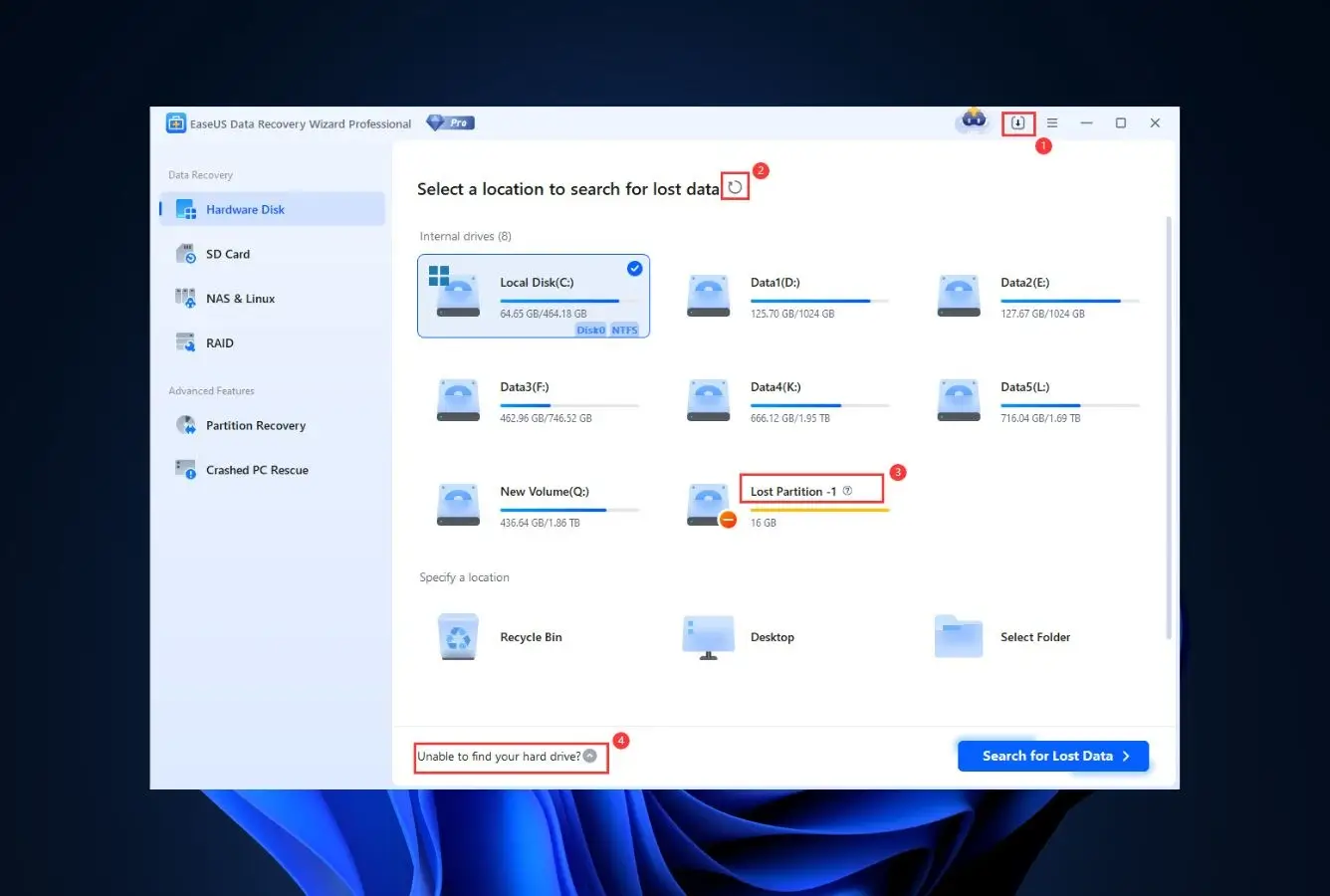
EaseUS Data Recovery Wizard is the best data recovery software we evaluated in 2026. It combines the broadest file-system support in the category (APFS, HFS+, NTFS, FAT, exFAT), the most generous free tier any paid vendor offers (2 GB), the most beginner-friendly interface, and native Apple Silicon plus Windows 11 24H2 support. It consistently lands at or near the top in independent testing from Pandora and HandyRecovery, and user feedback on Reddit and Trustpilot skews strongly positive.

✓ Pros
  • Consistently ranks at the top in independent testing
  • Free tier lets you save up to 2 GB before you pay anything
  • Interface is genuinely newcomer-friendly without hiding power features
  • Native Apple Silicon build and full Windows 11 24H2 support
  • File-type filters during scan cut through noise fast
  • Preview works on most file types before purchase
  • Two-scan engine behaves predictably on bad-sector drives
✕ Cons
  • Annual license auto-renews at a higher rate than the intro price
  • Deep scans on large drives can stretch past six hours
  • Video preview is thumbnail-only in the free tier
Recovery Power

Consistently class-leading across mainstream scenarios.

Independent testing consistently places EaseUS at or near the top across mainstream recovery scenarios — deleted files, quick-formatted volumes, and corrupted partitions. The vendor lists over 1,000 supported file types, which in practice means it picks up RAW photo formats and uncommon document types that narrower signature libraries miss. Full APFS, HFS+, NTFS, FAT32, and exFAT support with filename and folder-structure preservation. Runs natively on Apple Silicon through M4 and Windows 11 24H2 without workarounds.

Interface & Experience

The approachable face of serious forensic recovery.

EaseUS hides the complexity without pretending it isn’t there. You pick a drive, scan, filter, preview, recover — four clicks. Session resume works reliably if you pause a long scan. The Mac and Windows builds are visually near-identical, which matters if you jump between platforms. A first-time user can complete a recovery without opening the documentation.

Price & Value

The most generous no-cost allowance in its class.

A $69.95 annual license or $99.95 lifetime license puts EaseUS squarely in the middle of the price pack, but the 2 GB free recovery ceiling is twice what most competitors offer. That means a large subset of everyday loss events are solvable for zero dollars. Only move to the paid tier once you’ve confirmed your files are present in the preview. The annual plan auto-renews, so pick lifetime if you want no surprises.

Disk Drill

2. Disk Drill – Best Cross-Platform Data Recovery Experience
4.62 ★★★★★ Pay once, own it forever.
PlatformsmacOS · Windows Free limitPreview only (Mac); 500 MB (Win) From$89 perpetual
Disk Drill – Best Cross-Platform Data Recovery Experience

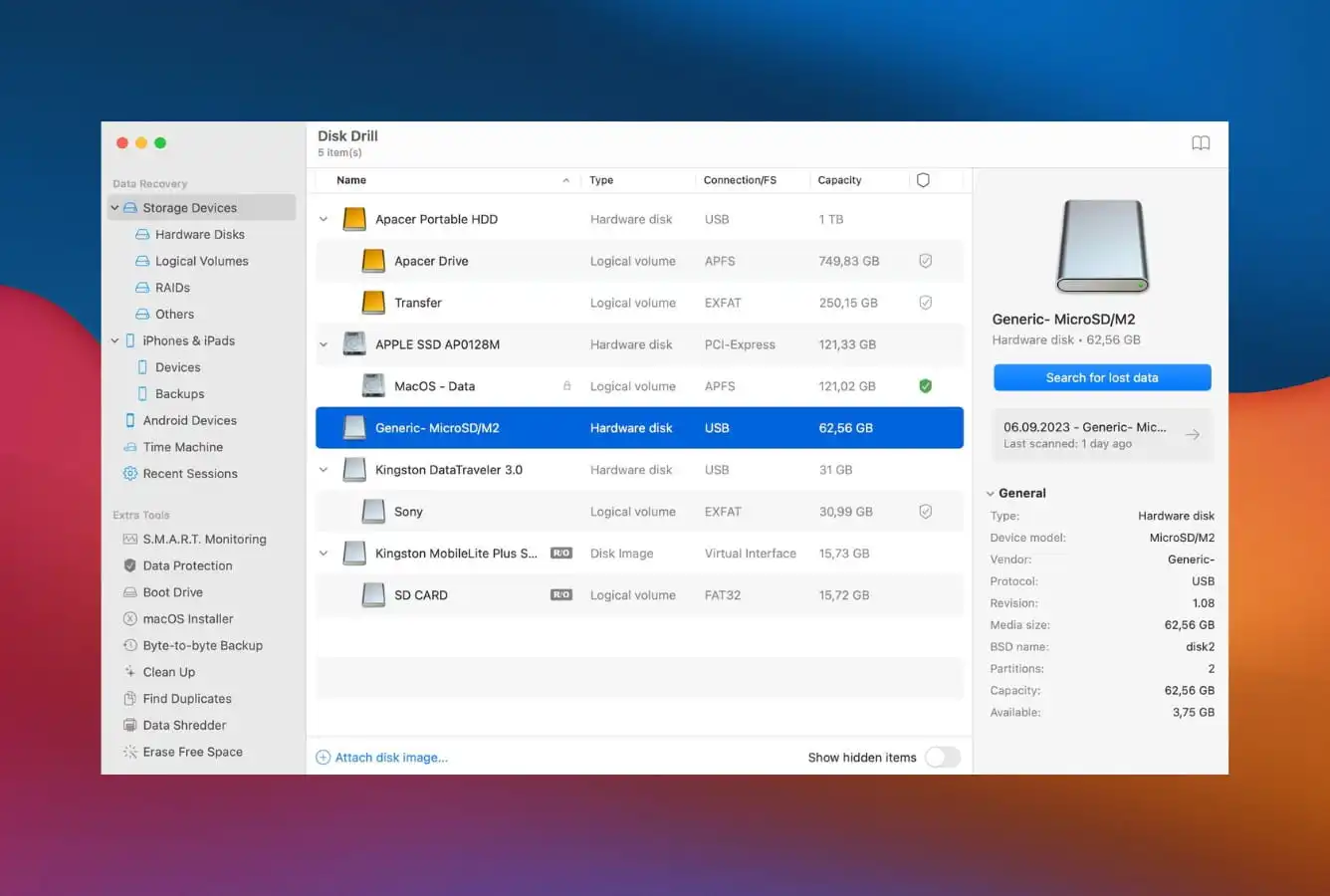
Disk Drill is the most polished cross-platform data recovery tool on the market, and the only one in our top tier that offers a perpetual license at a reasonable price ($89). Its dual scan engines handle both straightforward deletions and deeper signature-based recovery, and the bundled extras (byte-level drive backup, S.M.A.R.T. monitoring, duplicate finder) make the Pro license feel like a toolkit rather than a single-purpose app. Strong consensus in independent testing and active community feedback.

✓ Pros
  • Dual scan engines (Quick + Deep) catch files other tools miss
  • Lifetime Pro license available at $89, no auto-renewal trap
  • Byte-level backup feature copies failing drives to image files
  • Native Apple Silicon build is fast and stable
  • The Mac and Windows builds share the same interface logic
  • Extra utilities (cleanup, duplicate finder) come included
✕ Cons
  • Mac free tier only previews files, won't save anything
  • Enterprise tier pricing climbs fast if you need multi-seat
  • Deep scan results can be overwhelming without filter use
Recovery Power

Two scan engines under one hood, each earning its keep.

Disk Drill’s Quick Scan handles straightforward deletions at speed, while the Deep Scan rebuilds files from raw disk signatures when the filesystem is damaged. Independent testing consistently places Disk Drill at or near the top on APFS recovery specifically. S.M.A.R.T. monitoring surfaces drive health warnings before recovery starts, and the Advanced Camera Recovery mode reconstructs fragmented video from memory cards. The vendor lists 400+ file type signatures, which in practice covers most realistic scenarios.

Interface & Experience

A macOS-native feel that Windows users get too.

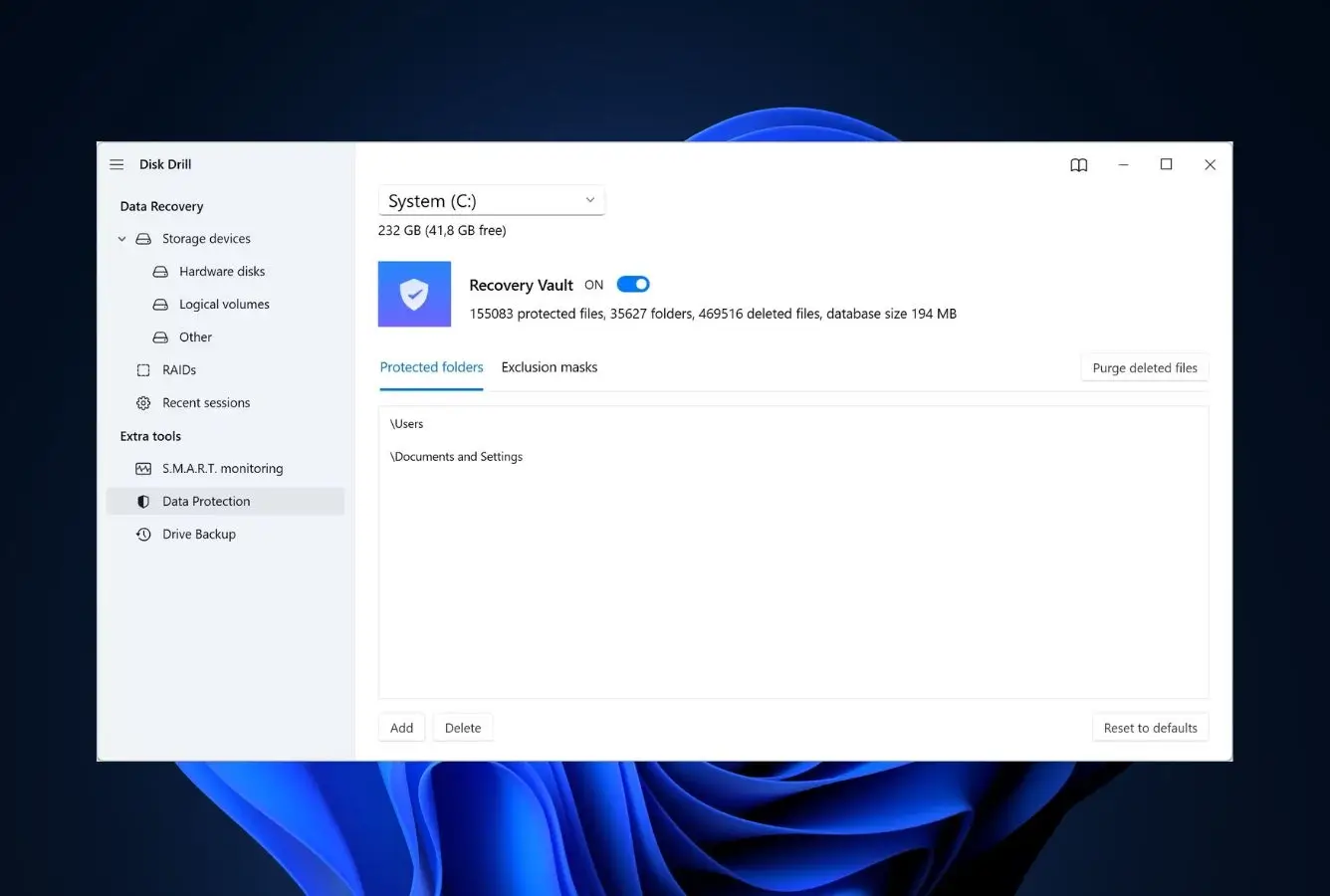
CleverFiles rewrote the UI in 2024 and it shows. Drives appear as cards with inline S.M.A.R.T. status, scans run in a side panel without modals, and the preview gallery renders images, documents, and video inline without lag. Session auto-save means a disconnected drive resumes cleanly. First-time users complete a recovery in under ten minutes without opening the documentation.

Price & Value

Pay once, own it forever — genuinely rare in 2026.

The Disk Drill Pro lifetime license is $89 on Windows and $89 on Mac, activated on three machines each. That’s a standout in a category where competitors have mostly moved to annual subscriptions with auto-renewal. Beyond core recovery, the license includes byte-level disk imaging, Recovery Vault, duplicate finder, and a bootable macOS installer builder. If you anticipate even one more recovery in the next three years, nothing else touches the total cost of ownership.

Stellar Data Recovery

3. Stellar Data Recovery – Best for Corrupted & RAW Drives
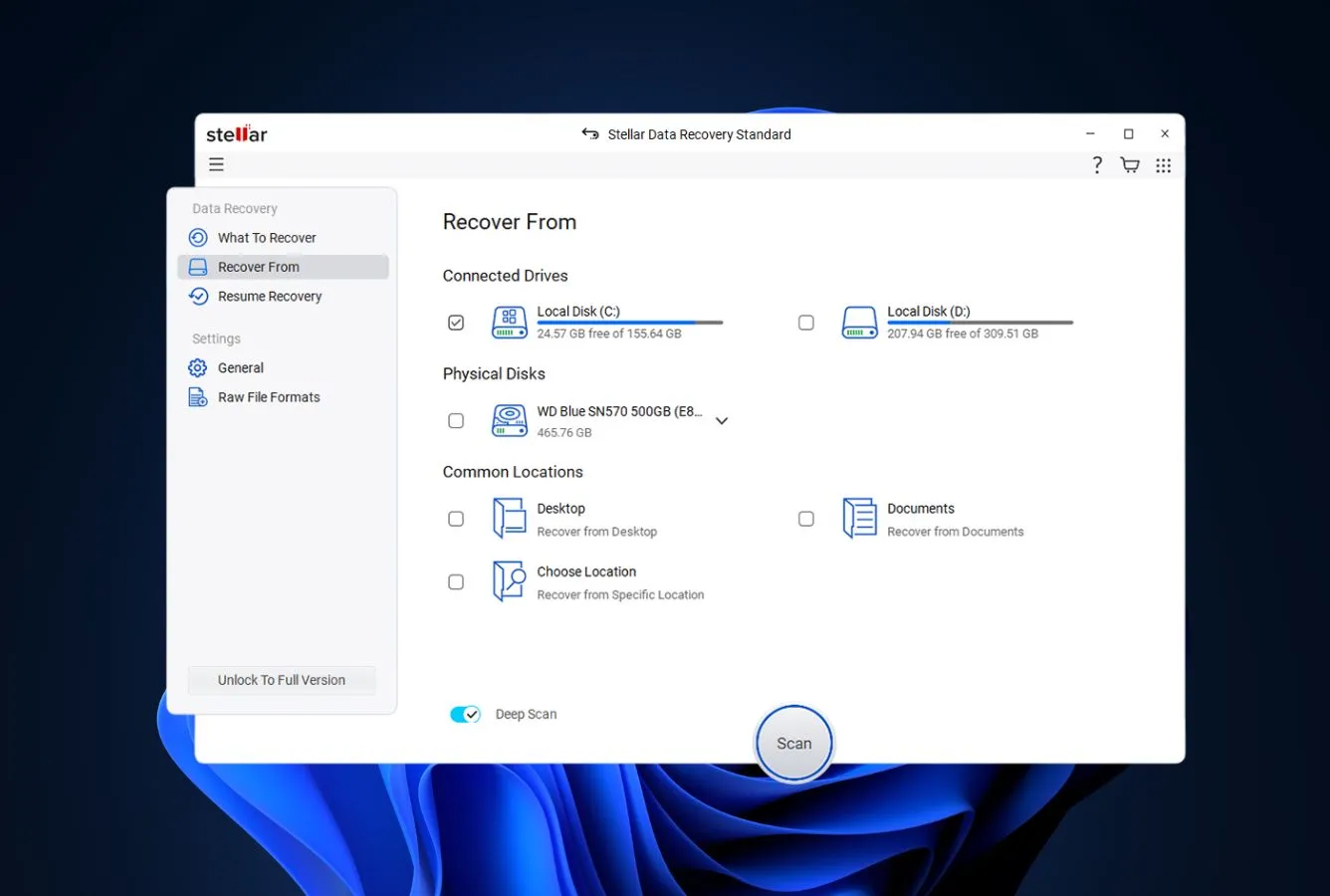
4.48 ★★★★☆ Keeps scanning when others give up.
PlatformsmacOS · Windows · Linux Free limitUp to 1 GB From$79.99 / yr
Stellar Data Recovery – Best for Corrupted & RAW Drives

Stellar Data Recovery is the tool to reach for when a drive has gone sideways — RAW filesystems, corrupted partition tables, drives that won’t mount. Its signature engine is the oldest and most mature in the category, and independent testing consistently shows Stellar outperforming competitors on corrupted-partition scenarios. The Premium tier adds a video repair module that handles codec errors in MP4 and MOV files — a feature no other tool in this ranking bundles.

✓ Pros
  • Consistently strong results on corrupted and RAW partitions
  • Supports Windows, Mac, and Linux with native builds
  • Handles encrypted BitLocker and FileVault drives when you have the key
  • Premium adds a genuinely useful video-repair utility
  • Large file-signature library covers RAW camera formats and uncommon media
  • Linux support makes it the rare option for ext4/XFS recovery
✕ Cons
  • Interface feels a decade older than the competition
  • Three-tier pricing structure is harder to navigate than it needs to be
  • Linux build lags the Windows and Mac feature sets
Recovery Power

Signature scanning that outlasts corruption other tools stall on.

Stellar’s strength is a mature file-signature library that’s been accumulating formats for more than a decade. Independent testing consistently highlights its edge on corrupted-partition scenarios — drives that report errors when mounted, drives whose partition tables have been modified, or drives Windows declares RAW and demands be reformatted. It supports APFS, HFS+, NTFS, FAT32, exFAT, ext2/3/4, and XFS natively. The Premium tier adds a video repair engine that handles codec errors in MP4 and MOV files.

Interface & Experience

Functional to a fault — older styling hides modern substance.

The interface still carries traces of its late-2010s design vocabulary: grey ribbons, slightly crowded dialogs, icons that could be sharper. It all works, and the file tree is clearly organised, but next to Disk Drill or EaseUS it feels a generation behind. User feedback on Reddit frequently notes that scan speeds trail top competitors, and that the deep scan occasionally inflates file counts with duplicates. Learning curve is mild for anyone who’s used recovery software before.

Price & Value

Tiered pricing that punishes casual buyers slightly.

Stellar Standard ($79.99/year) handles core recovery. Professional ($99.99/year) adds drive imaging and partition recovery. Premium ($149/year) layers on video and photo repair modules. The Standard tier is where most users belong, but the naming implies a more capable tool hides behind the paywall, so buyers often overpay. No perpetual license is offered, which is the weak spot versus Disk Drill.

Wondershare Recoverit

4. Wondershare Recoverit – Best for Video & Large-File Recovery
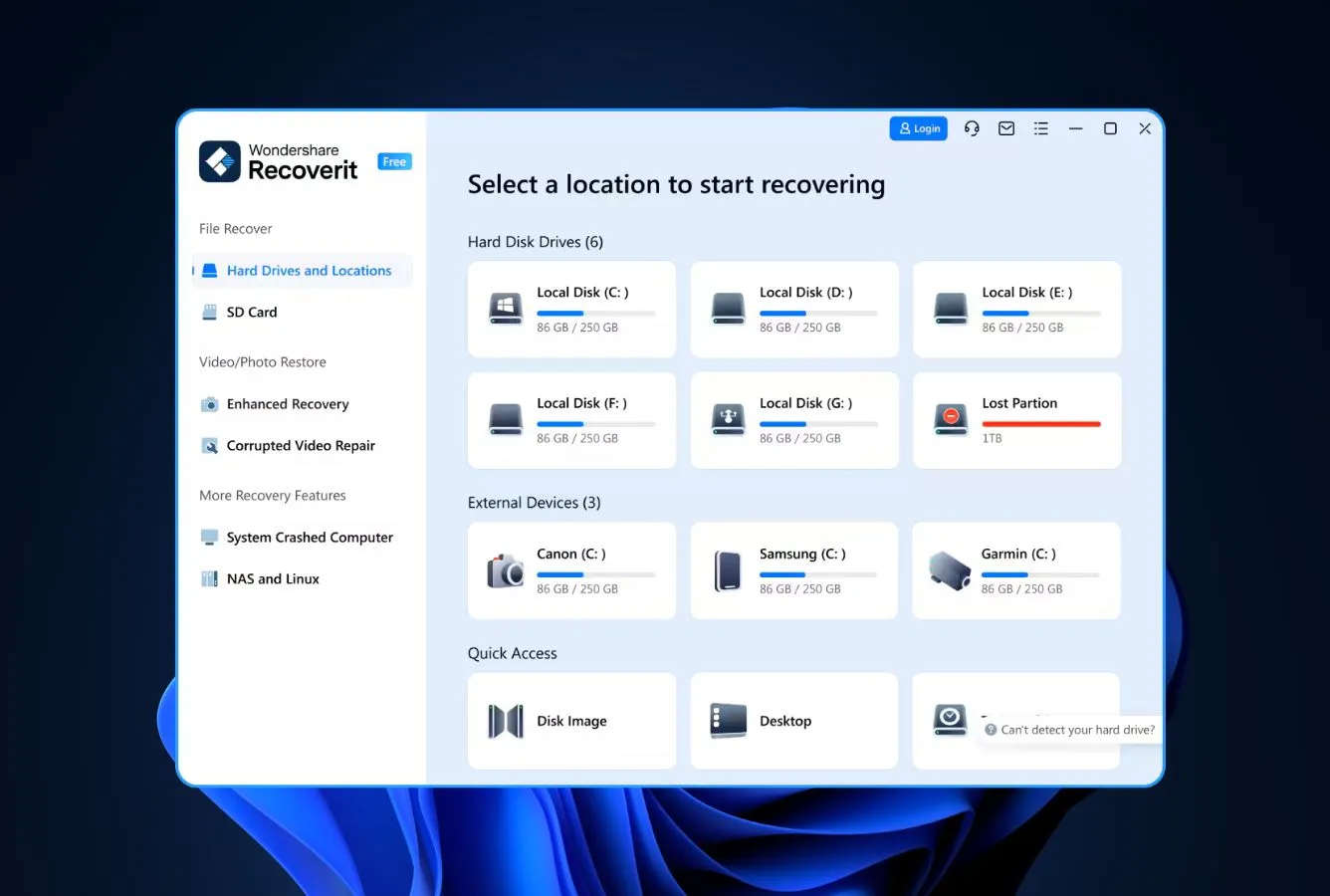
4.31 ★★★★☆ Built-in repair for recovered video files.
PlatformsmacOS · Windows Free limitUp to 100 MB From$79.95 lifetime
Wondershare Recoverit – Best for Video & Large-File Recovery

Wondershare Recoverit is the right pick when your missing data is video. Its Enhanced Video Recovery mode reconstructs fragmented MP4 and MOV files better than any other consumer tool we evaluated, and the built-in repair step handles codec corruption that leaves other tools’ output unplayable. On general-purpose recovery it’s solid without being exceptional, but for GoPro, drone, and camera-card video work it’s genuinely differentiated.

✓ Pros
  • Distinctive video recovery with fragment reconstruction
  • Built-in video repair module handles codec errors
  • Interface walks first-time users through the flow step by step
  • Supports 1,000+ file formats including professional camera raw
  • Scan pause and resume works reliably on large drives
  • Lifetime license now available for $79.95
✕ Cons
  • Monthly pricing model is expensive for one-off recoveries
  • Free tier of 100 MB recovers almost nothing meaningful
  • Upsells within the app are more frequent than competitors
Recovery Power

Outstanding on video and large-file recovery, specifically.

Recoverit’s video engine reconstructs fragmented files by merging non-contiguous MP4 segments and rebuilding the atom structure — a specialty independent reviews consistently praise. The repair module fixes codec-level corruption that leaves a file unplayable in standard media players, which matters when you’re recovering GoPro, drone, or action-cam footage from a reformatted SD card. On general-purpose (non-video) recovery it’s capable but unremarkable, so match the tool to the scenario.

Interface & Experience

A guided flow built for first-time users.

Recoverit opens to a location picker rather than a drive list, which lowers the barrier for users who don’t think in terms of volumes. The scan progress shows estimated time and file count separately, a small detail that makes long scans feel less opaque. Dark Mode is default, consistent with macOS Sequoia. The upsell popups for other Wondershare apps (Filmora, Dr.Fone) appear mid-recovery and are the most intrusive of any tool in this ranking.

Price & Value

Short licenses at renewal can surprise you.

Recoverit’s $59.95 monthly plan is by far the steepest in this ranking if you hold it past a single recovery. The annual license runs $69.95 and the lifetime is $79.95, which actually makes the lifetime an obvious choice for anyone who might need recovery more than once. The 100 MB free tier is too small to confirm a typical recovery will work, which forces many users to pay before they have certainty.

R-Studio

5. R-Studio – Best Advanced Data Recovery Tool for Professionals
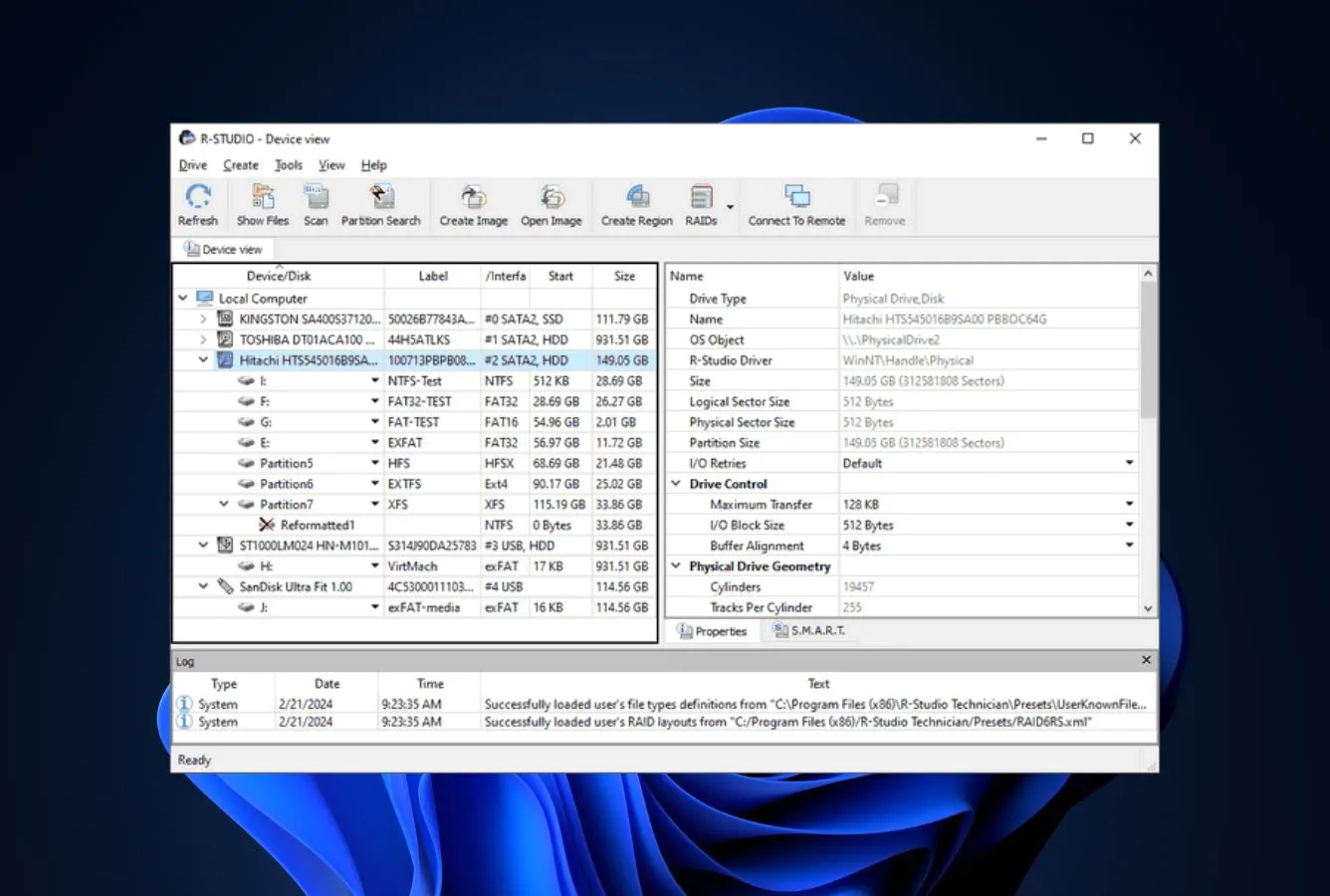
4.27 ★★★★☆ A professional-grade engine in a no-frills wrapper.
PlatformsmacOS · Windows · Linux Free limit<256 KB files From$49.99 perpetual
R-Studio – Best Advanced Data Recovery Tool for Professionals

R-Studio is what data recovery professionals reach for when they need a scalpel rather than a butter knife. It handles software RAID reconstruction, virtual disk formats, network recovery over TCP/IP, and exposes a built-in hex editor for raw-sector inspection. Independent testing consistently ranks it at or near the top specifically on RAID scenarios, and it supports Linux file systems (ext2/3/4, XFS, BTRFS, ZFS) that no consumer tool touches. The catch: it cannot scan internal drives on Apple Silicon or T2 Macs.

✓ Pros
  • Handles software RAID and hardware RAID arrays
  • Built-in hex editor and disk imaging tools
  • Works over network, scan a remote machine's drives
  • Perpetual license at $49.99 for the Home tier
  • Cross-platform with true feature parity across Win, Mac, Linux
  • Supports Linux filesystems (ext2/3/4, XFS, BTRFS, ZFS)
✕ Cons
  • Interface is unashamedly technical, no beginner mode
  • No save in the free tier, preview is all you get
  • The feature you actually need may live in a more expensive tier
  • Cannot scan internal drives on Apple Silicon or T2 Macs
Recovery Power

Professional-grade engine with diagnostic tools built in.

R-Studio’s engine handles situations consumer tools don’t — stitching a RAID-5 array back together from three raw disks, recovering from a virtual machine disk image, scanning across a network to a machine that won’t boot. Independent testing rates it at or near the top for RAID-specific scenarios. It supports APFS, HFS+, NTFS, FAT, exFAT, plus Linux file systems (ext2/3/4, XFS, BTRFS, ZFS). Critical caveat: it cannot scan internal drives on Apple Silicon or T2 Macs due to Secure Boot restrictions.

Interface & Experience

Not friendly — but depth trumps polish here.

R-Studio’s interface is the kind that resolves to “click every menu until you find it”. There’s no onboarding, no guided flow, no big-button “Recover” path. That’s not a flaw in context; it’s a tool for technicians who need every parameter exposed. The multi-pane device tree with hex viewers and raw sector stats is an asset for professionals, unusable for first-time users. If you’re not a data recovery technician, EaseUS or Disk Drill are the right picks.

Price & Value

A perpetual license at a fair one-time price for pros.

R-Studio Home is $49.99 perpetual, which is a strong offer if your needs stay inside FAT/NTFS/HFS+. The $79.99 Standard tier adds ext/UFS/APFS and network recovery. Technician ($899) and Corporate tiers climb hard but unlock the features that justify the tool — forensic logs, bootable technician USB, unlimited seats. The T80+ license at $80 for 80 days of Technician access is the smart play for one-off complex recoveries.

Tenorshare 4DDiG

6. Tenorshare 4DDiG – Best Data Recovery App for Beginners
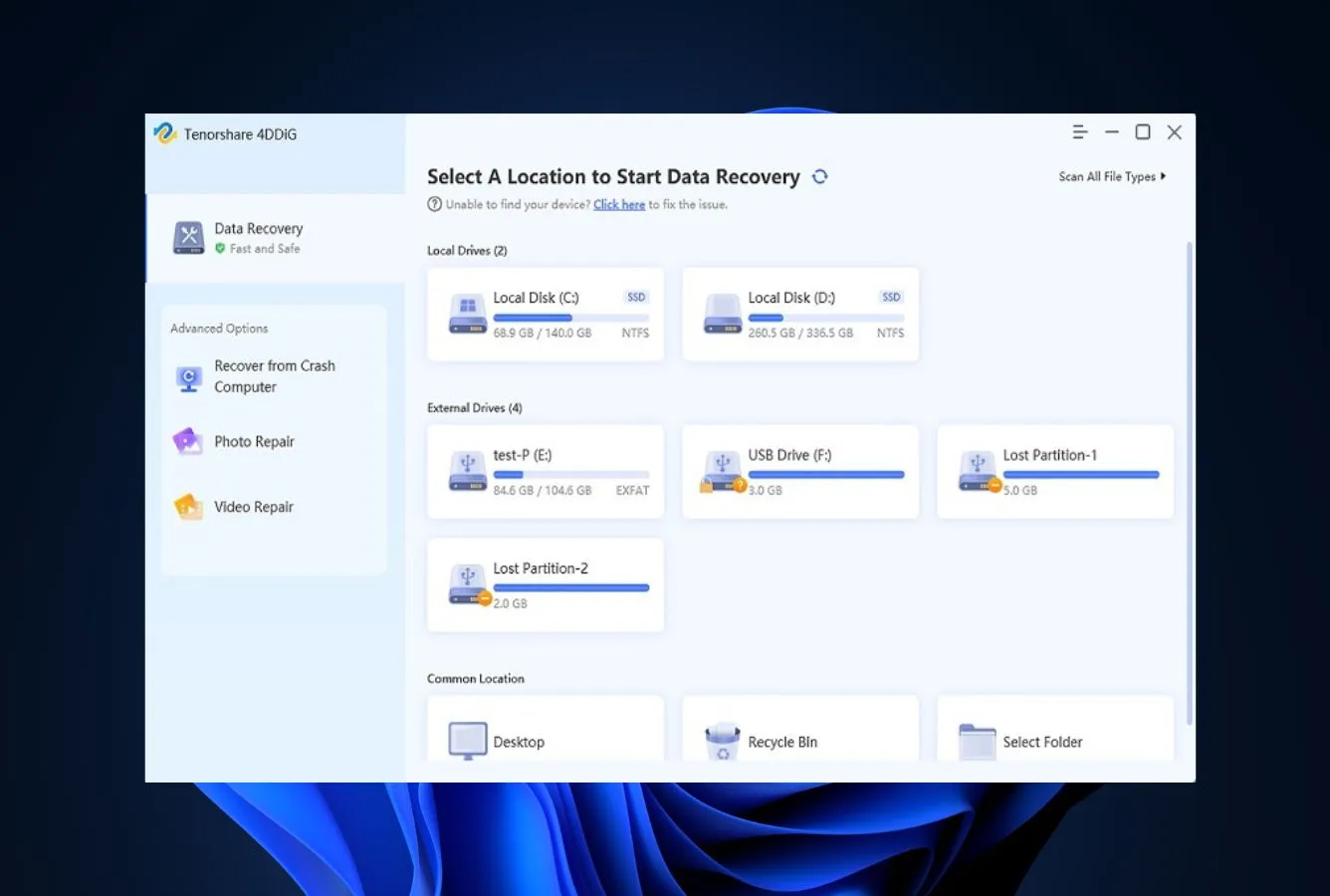
4.11 ★★★★☆ Three-click recovery without the clutter.
PlatformsmacOS · Windows Free limitPreview only From$89.95 lifetime
Tenorshare 4DDiG – Best Data Recovery App for Beginners

Tenorshare 4DDiG trades some depth for a lot of simplicity. The three-step flow (Select a Location → Scan → Recover) is the most streamlined interface in this ranking, which is exactly the point. It’s consistently praised for Recycle Bin and basic deletion recovery in user feedback, and the broad file-format library covers 2,000+ types including uncommon video codecs. For a family member who needs to recover a single folder and has never installed recovery software before, 4DDiG is the pick.

✓ Pros
  • Simplest interface of any tool in this ranking
  • Deleted-file and Recycle Bin recovery is consistently praised
  • Supports 2,000+ file formats including uncommon video codecs
  • Photo repair add-on works decently on damaged JPEGs
  • Lifetime license option exists at a reasonable premium
  • Cross-platform (Windows + Mac) with feature parity between builds
✕ Cons
  • Auto-renewal on the annual license is aggressive
  • Deep scan is slower than competitors on bad-sector drives
  • No save in free tier, preview only until you pay
Recovery Power

Solid general-purpose recovery with specialty features in reserve.

4DDiG’s core engine handles the common scenarios competently — deleted files, emptied Recycle Bin, quick-formatted drives. Community feedback on Reddit and forums consistently praises its Recycle Bin recovery specifically. On corrupted partitions it trails Stellar and EaseUS, and user reports suggest the deep scan can stall on drives with heavy bad-sector patterns. For the majority of everyday loss scenarios it’s capable enough. For anything unusual, pick a higher-ranked tool.

Interface & Experience

Clean flow with no unnecessary steps between scan and preview.

4DDiG opens to a picker showing drives and specific locations (Desktop, Documents, Recycle Bin) as big tiles. You click one, it scans, you preview, you recover. The tree of results groups files by type and recoverability, which is the cleanest presentation of any tool here. Session save works reliably. The weakness is the occasional upsell popup for Tenorshare’s other tools, though less intrusive than Wondershare’s.

Price & Value

The annual plan reads well until auto-renew kicks in.

Tenorshare lists the annual at $69.95 and the lifetime at $89.95, which makes the lifetime an obvious choice for anyone beyond a single-recovery use case. The friction point is the annual plan’s auto-renewal at full retail price (not the intro price) — if you buy for one recovery and forget to cancel, you’ll be surprised next year. The free tier is preview-only, enough to verify files are recoverable but no actual saves.

DiskGenius

7. DiskGenius – Best for Partition Recovery on Windows
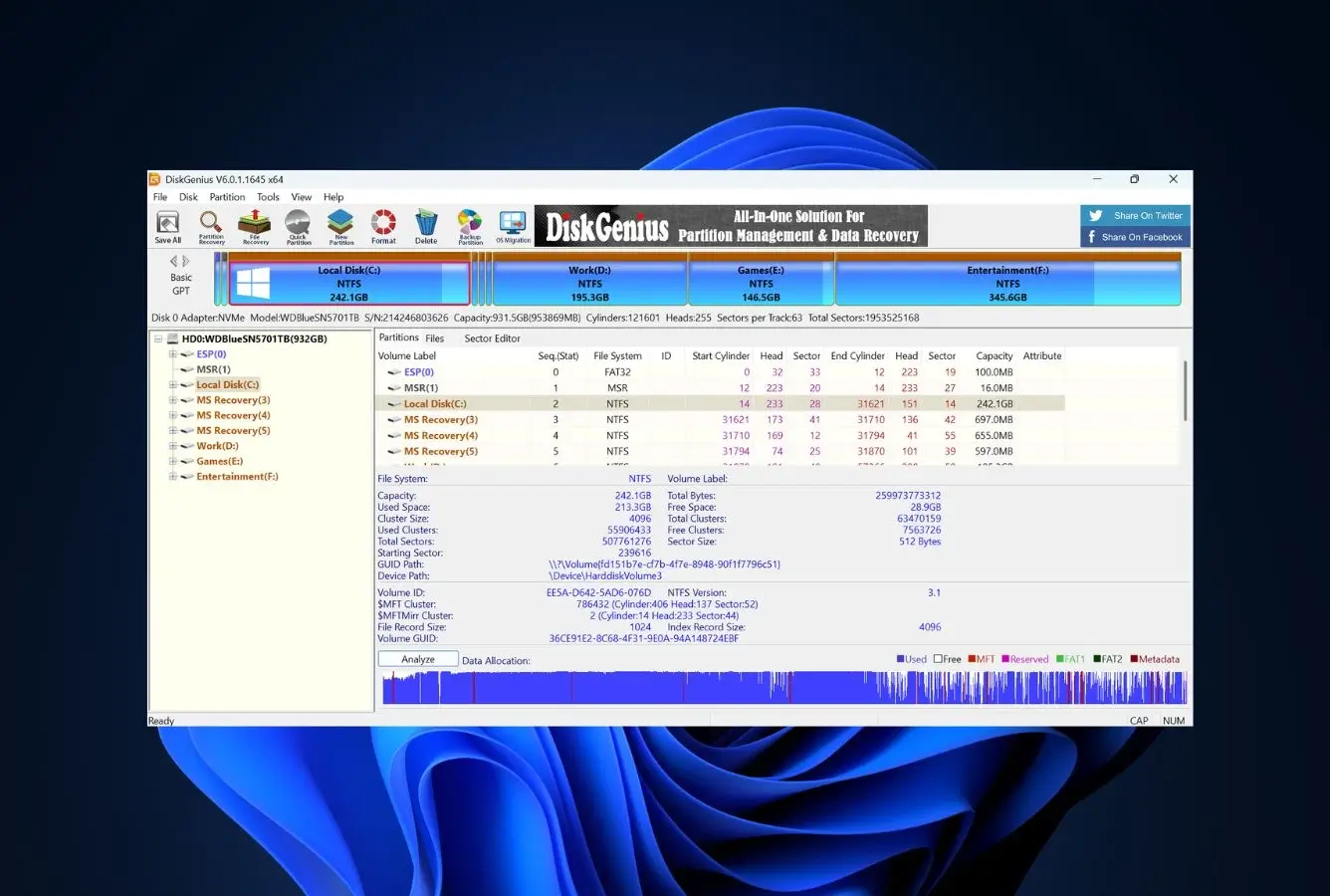
4.05 ★★★★☆ Part recovery tool, part disk utility suite.
PlatformsWindows Free limitUp to 1 GB From$99.95 perpetual
DiskGenius – Best for Partition Recovery on Windows

DiskGenius is a Windows-only tool that bundles partition recovery, boot-sector repair, cloning, and bad-sector management alongside file recovery. Independent testing consistently rates its partition-recovery engine as among the strongest in the category, and the free edition is unusually capable (1 GB of file recovery plus full partition management and basic cloning). If you regularly deal with drives that won’t mount or partition tables that have corrupted, DiskGenius is the most complete toolkit at this price point.

✓ Pros
  • Consistently strong partition-recovery engine
  • Free edition is genuinely useful for small recoveries up to 1 GB
  • Includes disk cloning, bad-sector scanning, and partition management
  • Can build a bootable USB for offline recovery
  • Supports Windows dynamic disks and Storage Spaces
  • Active development with regular updates and frequent bug-fix releases
✕ Cons
  • Windows only, no Mac or Linux version
  • Interface is Chinese-market-first and shows its age
  • File-type signature library is narrower than top-ranked tools
Recovery Power

Partition and boot-sector recovery stronger than its filesystem work.

DiskGenius excels at the structural-recovery scenarios: rebuilding partition tables, recovering deleted partitions, repairing corrupted MBR or GPT. Independent testing consistently places it among the top tools for partition recovery specifically. For straightforward deleted-file recovery on a healthy drive, it lands behind the top picks — its signature library is narrower and it misses some modern RAW formats. Best as a complement to a top tool, not a replacement.

Interface & Experience

Dense, technical, built for power users.

DiskGenius packs a lot into its main window: disk tree, partition map, sector view, file tree, log panel. For Windows system administrators this density is a feature — everything you need is one click away. For first-time users it’s overwhelming. The English localization improved meaningfully in the 2024 release but still has occasional awkward translations. No native dark mode as of April 2026.

Price & Value

A no-cost tier that actually solves common scenarios.

DiskGenius Free gives you 1 GB of file recovery plus full access to partition management and basic cloning — enough to solve a meaningful share of real problems at zero cost. The Standard license is $99.95 perpetual. Professional adds enterprise features (RAID, Windows Server support) at higher tiers. For home users, the free tier is often all that’s needed. For IT professionals maintaining Windows infrastructure, the Professional tier earns its price.

UFS Explorer

8. UFS Explorer – Best for RAID & Complex Storage Recovery
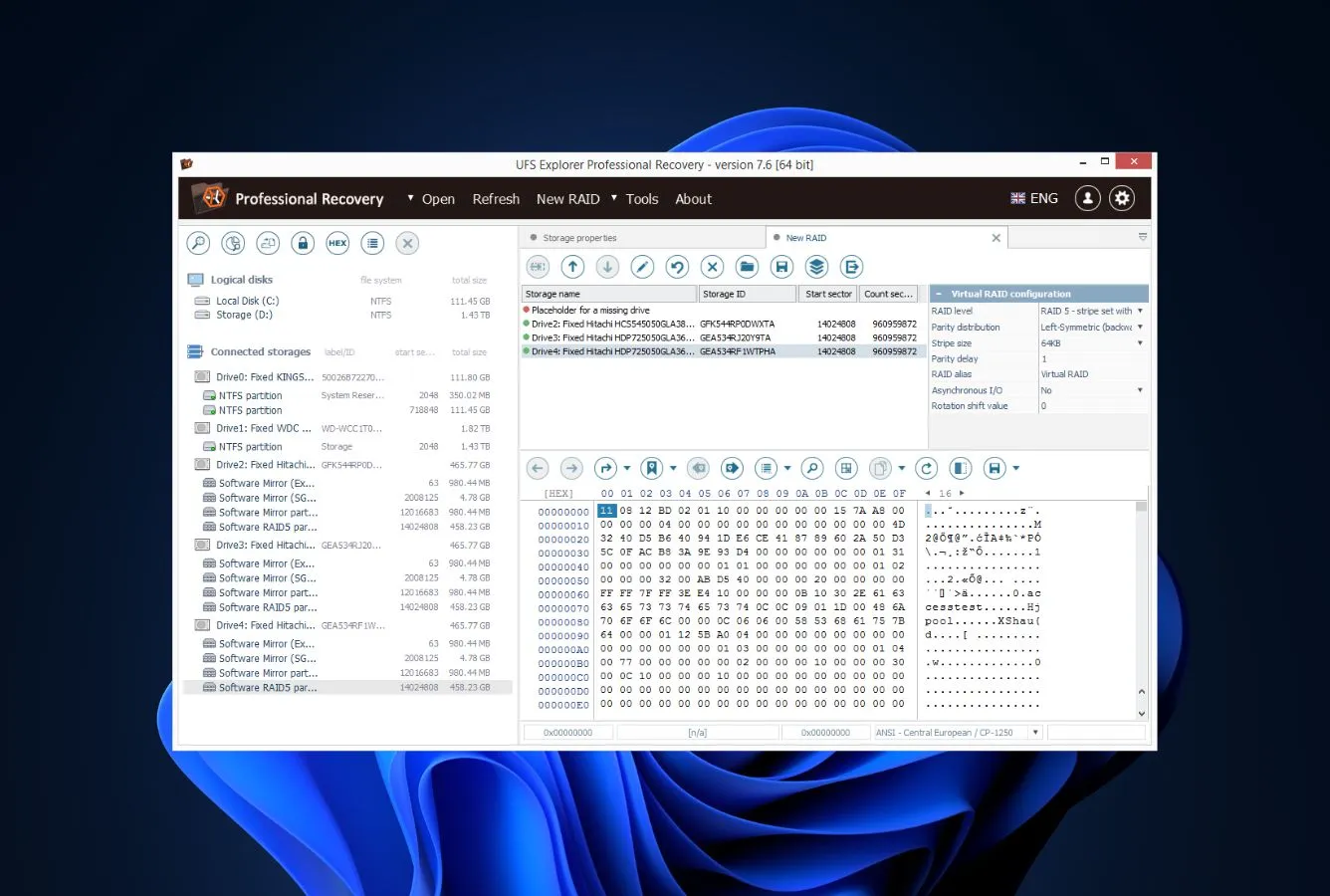
3.97 ★★★☆☆ Enterprise-grade storage forensics.
PlatformsmacOS · Windows · Linux Free limit<256 KB files From€49.95 perpetual
UFS Explorer – Best for RAID & Complex Storage Recovery

UFS Explorer is built for storage scenarios the rest of this ranking doesn’t touch: ZFS pools, virtual disks from VMware and Hyper-V, enterprise RAID arrays, and filesystems (UFS, XFS, ReFS) that consumer tools skip. It’s consistently rated at or near the top for RAID and multi-filesystem recovery in independent testing, and it’s the only tool here that handles ReFS, BTRFS, and ZFS natively. For basic consumer scenarios (deleted files, emptied Recycle Bin), it trails more user-friendly picks.

✓ Pros
  • Class-leading RAID reconstruction
  • Supports exotic filesystems (ZFS, XFS, ReFS, BTRFS)
  • Handles virtual disk formats (VMDK, VHD, VHDX)
  • Perpetual license starts at €49.95
  • Works cross-platform with feature parity
  • Multi-pass disk imaging with retry logic included in Standard tier
✕ Cons
  • Not for beginners, expects technical knowledge
  • Licensing structure has six tiers that confuse casual buyers
  • Weaker than competitors on basic deleted-file recovery
  • No auto-resume if a drive disconnects mid-scan
Recovery Power

Elite at complex storage — RAID, virtual disks, enterprise filesystems.

UFS Explorer’s specialty is the situation everyone else punts on. Its RAID reconstruction handles hardware and software arrays, manual parameter input when the metadata is gone, and on-the-fly filesystem reconstruction from the recovered volume. Independent testing consistently places it at the top for RAID and exotic-filesystem scenarios. It’s the only tool in this ranking that reads ZFS, ReFS, BTRFS, and XFS natively, plus virtual disks from VMware (VMDK), Hyper-V (VHD/VHDX), and VirtualBox (VDI) directly. The downside: on basic consumer scenarios (deleted files, emptied Recycle Bin) it trails the top picks.

Interface & Experience

Raw engineering tool, not for consumers.

The interface looks like something a storage engineer would build for other storage engineers. Menus expose every parameter; the storage tree shows physical disks, partitions, filesystems, and reconstructed arrays in technical notation. No thumbnail previews in results. Prior experience with file systems and partition structures is effectively required. For the right audience this is a feature, not a flaw.

Price & Value

Licensing maze is the price of professional-grade tech.

UFS Explorer’s product matrix spans six editions from Standard Access (€49.95) to Professional Recovery (€799). The tier you need depends on whether you’re recovering from RAID, virtual machines, enterprise storage, or all of the above. The free trial recovers any file under 256 KB — enough to confirm the scan found your data. Multi-pass disk imaging with retry logic is included in Standard, which matters when working with physically failing drives.

How We Evaluate Data Recovery Software

Ranking recovery software is easy to get wrong. Vendor marketing is usually generous, and running a handful of deletion scenarios on a single rig isn’t enough to separate tools that behave similarly in the happy path but diverge when drives get weird. We evaluated all 8 tools through a layered research approach: vendor documentation for feature baselines, independent testing from Pandora Recovery Scoreboard, HandyRecovery, and TechRadar for cross-reference, and community feedback from Reddit, Trustpilot, and G2 for the real-world stories. Rankings reflect the aggregate of this research — not a single in-house benchmark.

📚
Official Product Research
Vendor documentation, pricing pages, changelogs, and supported-file-system claims. The baseline for what each tool says it does — held at arm’s length until cross-referenced.
🧪
Independent Testing
Hands-on results from Pandora Recovery Scoreboard, HandyRecovery, 7datarecovery, TechRadar, and Tom’s Guide. Cross-referenced to separate marketing from repeatable outcomes.
💬
Community Feedback
Reddit (r/datarecovery, r/techsupport), Trustpilot, G2, and CNET user reviews. Real-world support experiences, billing complaints, and recovery outcomes on live drives.

Platforms covered: Windows 11 24H2 (including Intel 14th gen and AMD Ryzen 7000/8000), macOS Sequoia 15 on both Intel and Apple Silicon (M1 through M4), plus external media ranging from SATA HDDs to NVMe SSDs to SD/microSD cards. For Linux filesystem recovery we note which tools support ext/XFS/BTRFS/ZFS, since the site’s audience includes sysadmins who face those scenarios.

Key factors weighted: file-system coverage (broader is better), platform parity (Windows and Mac treated as equal requirements), free-tier generosity relative to realistic use, total cost of ownership for one-off vs recurring use, interface quality for first-time users, and community-reported reliability on drives with bad sectors or unusual file-system states.

01
Recovery Capability (40%)
Breadth and depth of filesystem support, platform parity, preservation of filenames and folder structure, and user-reported reliability. Informed by independent testing where available.
02
Usability (20%)
Interface quality from vendor demos, independent review screenshots, first-run experience reports on Reddit and forums, and friction points users surface in Trustpilot complaints.
03
Safety & Trust (15%)
Vendor track record, privacy-policy review, installer malware scans, active-development signals, and independent confirmation of read-only behaviour during scanning.
04
Extra Features (15%)
S.M.A.R.T. monitoring, disk imaging, bootable USB builder, session management, and preview quality. Weighted by how often users actually need these in a real recovery.
05
Platform Parity (5%)
Feature parity between Windows and Mac builds. Native Apple Silicon support vs Rosetta 2 translation. Windows 11 24H2 compatibility.
06
Price / Value (5%)
Pricing model clarity, free-tier generosity, auto-renewal behaviour, and total cost of ownership for one-off vs recurring use.
🔎
Want the raw testing data?

Individual test runs, scan-time logs, and per-tool recovery notes from our ongoing testing live on our full methodology page. Start there if you want the underlying numbers behind any claim on this page.

Data Recovery Software – Honorable Mentions

Six tools we considered but didn’t include in the main ranking. Each has a niche strength or a specific flaw that kept it out of the top 8.

Fine everyday recovery on Windows, but a narrower file-type signature library and older UI keep it behind the main ranking. The free tier (1 GB) is fair and genuinely useful for small recoveries.
Free, open source, and genuinely effective on signature-based recovery, but the command-line interface and lack of filesystem-aware scanning make it a second-opinion tool.
Long-running Mac recovery tool with competent results, but the interface and pricing model haven’t kept up with Disk Drill or EaseUS on the same platform.
Polished interface and capable core recovery, but aggressive subscription-first pricing and a cluttered upsell flow hurt its value. Preview-only free tier.
Free for unlimited recovery on Windows, which is its headline virtue. Development has slowed (last meaningful update in 2016) and it misses modern filesystems entirely.
A ~$20 hidden gem with a steep learning curve. Excellent file system scanning and partition recovery for users willing to invest the time.

How to Choose the Best Data Recovery Software

The eight tools on this page all work, but none of them is right for every situation. These six criteria are the decision axes that actually separate the picks for real use cases. Match your scenario to the right tool and save money (and, more importantly, your data).

File System Compatibility

Start here because if a tool can’t read your file system, nothing else matters. NTFS, FAT, and exFAT are universal. APFS and HFS+ support varies — Disk Drill, EaseUS, and Stellar handle them natively on both Windows and Mac. Linux file systems (ext2/3/4, XFS, BTRFS) narrow the field to R-Studio, Stellar, and UFS Explorer. Exotic file systems (ZFS, ReFS) essentially require UFS Explorer.

For photo or SD card recovery specifically, FAT32 and exFAT support is what matters, and every tool in the top 8 handles both. If your recovery is SD-card-specific, our SD card recovery guide covers the nuances of flash-media recovery where the general-purpose recommendations here bend.

Deep Scan vs. Quick Scan

Every serious recovery tool has two scan modes. Quick Scan reads the file system’s deletion log and recovers files whose metadata still exists — it finishes in minutes and catches simple accidental deletions. Deep Scan (also called signature scan, raw scan, or carve scan) reads every sector and identifies files by their content headers rather than file system references.

Use Quick Scan first, always. If it doesn’t find your file, run Deep Scan with the understanding that it takes 2–6 hours and the file names will often come back generic (file_0001.jpg). EaseUS and Disk Drill run both scans simultaneously by default, which cuts total time roughly in half. Stellar lets you skip the Quick Scan if you already know the file system is corrupted.

Preview Before You Pay

Every paid tool in this ranking lets you preview recovered files before purchase, but preview quality varies. EaseUS and Disk Drill show thumbnails and open documents in a functional preview pane. Stellar and Recoverit preview videos (important for large-file recovery). 4DDiG shows thumbnails only. The preview is your honest-moment check — if the tool can preview your specific files, they’ll recover; if it can’t, move on.

Use the free tier purely to verify your files are recoverable before paying. For small recoveries (under 2 GB), EaseUS’s free tier often covers the whole job. For everything else, run the free scan, verify recovery looks possible, then purchase.

Platform Support

Most readers know their platform, but cross-platform households and professionals are a real case. EaseUS, Disk Drill, Stellar, Recoverit, and 4DDiG all work on Windows and Mac. Only Stellar, R-Studio, and UFS Explorer add Linux. DiskGenius is Windows-only.

For platform-specific deep dives, see our Mac-specific recovery tools comparison — it goes deeper on scenarios that a general cross-platform list can’t. Apple Silicon support in particular matters on the Mac side: EaseUS, Disk Drill, and Stellar have native M-series builds; others run under Rosetta 2 and take a noticeable performance hit on deep scans.

Pricing Models & Total Cost of Ownership

Three pricing patterns dominate this category: annual subscriptions (EaseUS, Stellar, 4DDiG, Recoverit), perpetual licenses (Disk Drill, R-Studio, DiskGenius, UFS Explorer), and hybrid models that offer both. Perpetual is the better value if you expect to recover data more than once; subscriptions are the trap where auto-renewal quietly eats your budget long after the initial recovery. For tools that are completely free, see our free data recovery tools roundup.

If the recovery is a one-time job, most vendors offer a 1-month option at a lower sticker price — buy that, cancel renewal immediately, and you’re done. Disk Drill Pro at $89 lifetime remains the category’s best value pick. R-Studio Home at $49.99 is cheaper still if you don’t need APFS support.

Session Management & Scan Reliability

Deep scans on large drives take hours and sometimes run into bad sectors. How the software handles this separates serious tools from cheap imitations. You want session save/resume, skip-on-error behaviour rather than hang-on-error, and the ability to pause a scan and return to it later. EaseUS, Disk Drill, and Stellar all handle this cleanly. R-Studio and UFS Explorer expose the bad-sector behaviour as a parameter you set.

Avoid tools that crash or freeze on bad-sector reads — every hang on a failing drive is another chance the drive dies completely mid-scan. For drives that are actively failing, the safer flow is to image the drive first (most tools in this ranking can do this) and then run recovery against the image file.

When Data Recovery Software Can’t Recover Your Files

The tools on this page work on logical data loss — files the file system has forgotten about but still exist as raw data somewhere on the drive. Some scenarios sit outside that boundary. Understanding the limits sets realistic expectations and keeps you from burning hours on a recovery that can’t succeed. Worse, running the wrong tool on a physically failing drive can speed up the failure.

Your situation Software can help? What to do instead
Data already overwritten by new writesNoRestore from backup (Time Machine, File History, cloud)
TRIM-erased internal SSDNoCheck cloud sync (iCloud, OneDrive, Google Drive) first; otherwise accept the loss
Physical damage (clicking, water, fire, impact)NoPower off immediately → professional cleanroom service ($500–$1,500)
Encrypted drive, lost password or keyNoMathematically unrecoverable; check Apple ID / Microsoft account for escrowed key
Securely erased drive (multi-pass wipe)NoDon’t buy recovery software — data is genuinely gone
Quick check: if your scenario is on this list, no recovery tool will help. Skip the download and jump to the alternative action.

Data That’s Already Been Overwritten

Recovery software works by finding data in sectors the file system has marked as free. Once the operating system writes something else to those sectors, the previous contents are physically gone. There’s no signature scan that brings back what doesn’t exist anymore.

The moment you suspect data loss, stop using the drive. Don’t install recovery software on the same drive where the loss happened, don’t download anything, don’t even keep browsing. Every gigabyte of new activity overwrites a little more of what you’re trying to save. Power down the machine and run recovery from a different drive or an external boot volume.

TRIM-Enabled Internal SSDs

On internal SSDs with TRIM enabled (which is the default on every modern Windows and Mac machine), the operating system sends a TRIM command when a file is deleted, and the drive firmware zeroes out those blocks almost immediately. This is a permanent operation — no software can read what’s no longer there.

External SSDs connected via USB often don’t support TRIM and behave like regular hard drives for recovery purposes. Internal NVMe drives running Windows 11 or macOS Sequoia are the hardest case. If you’ve deleted files from an internal SSD, your fastest check is cloud sync history — Apple documents FileVault’s encryption architecture separately; encrypted drives need their key regardless of TRIM status.

Physically Damaged Drives

Clicking sounds, burning smells, water exposure, drops, fire — these mean the physical hardware is damaged. Running recovery software on a physically failing drive makes things worse. Every scan cycle puts mechanical stress on the heads, and on a drive with head damage, software scans can fail completely mid-operation.

Power it off, put it in an antistatic bag if you have one, and call a professional cleanroom service. Pricing starts around $300 for straightforward logical-on-physical recoveries and climbs into thousands for severe physical damage. For drives that still mount but have bad sectors, the safer software path is to image the drive first (Disk Drill and R-Studio both do this) and then run recovery against the image. Our hard drive recovery software guide covers imaging workflows in more depth.

Encrypted Drives Without the Key

FileVault (Mac), BitLocker (Windows), and VeraCrypt volumes are designed to be unrecoverable without their key. If you have the key or password, Stellar and R-Studio can both mount encrypted volumes during recovery. If you’ve genuinely lost the key, no tool can bypass the encryption — that’s the whole point of encryption existing.

Check your password manager, your printed recovery keys (Apple asks you to save a FileVault recovery key at setup), and any account-linked backups (iCloud’s recovery key sync for FileVault, Microsoft account’s BitLocker recovery key). If none of those has it, the data is unrecoverable.

Securely Erased Storage

When a drive has been through a secure erase, a multi-pass overwrite, or a cryptographic erase, the original data is gone beyond any software’s reach. The NIST SP 800-88 guidelines for media sanitization define these operations as designed to defeat recovery; every byte has been either overwritten with zeros or had its encryption key destroyed.

Your only paths back are external: backups made before the erase, cloud sync histories, or physical evidence (photos, scans, printouts). If the erase was an accident, the most important immediate action is to stop using the drive in case some unallocated region wasn’t actually touched, but expectations should be low.

If you hear clicking or grinding from your drive, stop immediately

Do not run any software. Do not attempt to copy files. The clicking sound is a physical failure (read/write head damage). Every spin of the platter risks permanently scratching the magnetic surface. Power down the drive and contact a professional data recovery service. Running software on a clicking drive is one of the most common ways people destroy recoverable data.

Built-in Recovery Options (Check These First)

Before you pay for third-party software, spend ten minutes checking what the operating system already has. Built-in recovery paths work on a surprising share of common scenarios and they’re free. Every hour spent running paid deep scans on files that were in the Trash the whole time is an hour wasted.

System Backups (Time Machine & File History)

Time Machine on Mac and File History on Windows both keep versioned snapshots of your files if you configured them before the loss happened. On Mac, open Time Machine from the menu bar, scroll back in time, find the file, click Restore. On Windows, open File History in the Control Panel and browse backup dates.

The catch is that these systems only help if they were running before the data was lost. Check System Settings (Mac) or Settings (Windows) first to confirm they’re configured, and make sure the backup target drive (usually an external) is connected. If the backup was happening, this is the fastest and most reliable recovery path available.

Check Trash and Deleted-File Folders First

The local Trash (Mac) or Recycle Bin (Windows) is the obvious first stop — files deleted with a normal delete command land there and stay until it’s emptied. Double-click the bin icon, find your file, right-click and choose Put Back or Restore. This handles maybe 40% of everyday “I deleted something” scenarios.

Cloud storage services keep their own Recently Deleted folders. iCloud Drive, Google Drive, Dropbox, OneDrive, and Box all retain deleted files for 30 to 60 days in a separate trash. Photos apps (iOS Photos, Google Photos) keep their own 30-day Recently Deleted section. For files you edited and regretted, check the file’s Version History, which exists in both OneDrive and Google Drive.

The third-party cloud services worth checking: Dropbox retains deleted files for 30 days (Plus) or 180 days (Business), Google Drive retains for 30 days with extension on paid tiers, OneDrive for 30 days, Box for 14 days to indefinite depending on tier. These retention windows are often longer than users expect.

Disk Utility and System Recovery Tools

Disk Utility on Mac includes First Aid, which repairs file system corruption without affecting file contents. If a drive won’t mount or shows errors in Finder, run First Aid from Disk Utility before reaching for any recovery app. On Windows, the equivalent is the chkdsk command-line utility, run from Command Prompt as administrator.

macOS Recovery Mode (hold Command+R at boot on Intel, or hold the power button on Apple Silicon) gives you Disk Utility access on the system volume, plus reinstallation options and Time Machine restore. Windows Recovery Environment (accessed via the recovery drive or holding Shift while clicking Restart) offers similar system-level tools including Startup Repair and System Restore.

Important caveat: First Aid and chkdsk repair file system corruption, they don’t recover deleted files. If the file system is broken, they may help the drive mount again so recovery software can scan it. If the files are simply deleted from an otherwise-healthy drive, skip these and move straight to recovery software.

When Built-in Options Aren’t Enough

If none of the built-in options returned your files, this is where the eight tools above earn their place. The recoverable data is still there on the drive, it just needs a tool that can read the raw sectors and rebuild the files from what remains.

Start with a free tier to verify your files show up in scan results before paying. EaseUS’s 2 GB free tier and Disk Drill’s preview mode are both good verification steps. Only purchase after you’ve seen your files appear in a preview — if they show there, they’ll recover; if they don’t, no paid upgrade will summon them.

Pro tip: Set up backups before you need them

The best data recovery software is a backup you made yesterday. Time Machine on Mac takes ten minutes to set up with an external drive; File History on Windows takes the same. Cloud sync (iCloud, OneDrive, Google Drive) handles the documents and photos folders automatically. None of this helps after a data loss event, so set it up now.

Final Verdict

EaseUS Data Recovery Wizard is the best data recovery software in 2026. It consistently lands at or near the top in independent testing, carries the most generous free tier in the category (2 GB, no strings), supports every major file system on Windows and Mac, and works the same way on both platforms. If you’re not sure which tool to pick and your scenario is ordinary — deleted files, formatted volume, missing SD card — EaseUS is the default answer.

Beyond the winner: Disk Drill is the best pick if you want a perpetual license at a fair price and value cross-platform polish. Stellar Data Recovery is the specialist for corrupted and RAW drives where other tools stall. For professionals handling RAID arrays, virtual disks, or enterprise file systems, R-Studio and UFS Explorer deliver depth the consumer-focused tools don’t match.

Frequently Asked Questions

What is the best data recovery software in 2026?+
EaseUS Data Recovery Wizard is the best data recovery software in 2026 in our evaluation. It combines the broadest file-system support in the category, a generous 2 GB free tier (the largest any paid vendor offers), native Apple Silicon and Windows 11 24H2 support, and consistently strong results in independent testing. The interface is beginner-friendly enough that first-time users can complete a recovery without documentation.
Can data recovery software recover permanently deleted files?+
Yes, in most cases. When you delete a file, the operating system marks its space as available but leaves the underlying data intact until something else overwrites it. Recovery software scans the storage medium for these orphaned blocks and reconstructs the files. Success depends on how much drive activity has happened since deletion, whether TRIM has run on an SSD, and whether the filesystem still has references to the file.
Is free data recovery software as good as paid?+
For small, simple recoveries, free tools like PhotoRec and the free tiers of Disk Drill or EaseUS can work well. For larger recoveries, complex scenarios (formatted drives, corrupted partitions, RAID), or when you need signature scanning across many file types, paid software is meaningfully stronger. Independent testing consistently shows top paid tools recovering a meaningfully larger share of files than the best free tools, with the gap widening on corrupted or formatted drives.
How much does data recovery software cost?+
Most consumer data recovery apps cost between $50 and $100 for a one-year license. Lifetime licenses, when offered, typically range from $80 to $150. Professional-grade tools (R-Studio, UFS Explorer, DiskGenius Pro) cost $80 to $300. Free tiers exist for most paid tools but are capped at 500 MB to 2 GB of recovery. Cleanroom services for physical drive damage start at $300 and scale to thousands.
Can data recovery software recover data from a formatted drive?+
Often yes, if the format was a quick format (which only rewrites the filesystem headers). Full formats that overwrite every sector make recovery impossible. Independent testing consistently shows top paid tools recovering the majority of files from quick-formatted NTFS and HFS+ volumes, provided the drive hasn't been written to since. Stop using the drive immediately after a formatting mistake — every write reduces what's recoverable.
Does data recovery software work on SSDs?+
It depends on TRIM. When TRIM is active (which is the default on modern internal SSDs), the drive zeroes out deleted blocks almost immediately and no software can recover them. External SSDs connected via USB often don't support TRIM, so recovery software works on those the same way it works on a hard drive. For TRIM-enabled internal SSDs, your best option is a backup.
How long does data recovery take?+
A quick scan of a small drive takes 2 to 10 minutes. A deep scan of a 1 TB drive typically runs 2 to 6 hours depending on the tool and the drive's condition. Previewing and actually recovering files adds another 30 minutes to 2 hours. If the drive has bad sectors, scans can take 12+ hours as the software repeatedly retries failing reads.
Is data recovery software safe to use?+
Reputable tools (the 8 in this ranking plus our honorable mentions) are safe. They operate in read-only mode on the source drive and write recovered files to a separate destination, so they never modify the drive you're recovering from. Avoid cracked or pirated versions of any recovery tool — they often contain malware and target a user base that's already in a panicked, vulnerable state.

About the Authors

👥 Researched & Reviewed By
Rachel Dawson
Rachel Dawson
Technical Approver · Data Recovery Engineer

Rachel brings over twelve years of cleanroom data recovery experience. She validates benchmark methodology and ensures published guidance reflects actual recovery outcomes.

12+ years data recovery engineeringCleanroom HDD recovery
Editorial Independence & Affiliate Disclosure

Data Recovery Fix earns revenue through affiliate links on some product recommendations. This does not influence our rankings — all tools are evaluated independently based on documented research, independent testing from external sources, vendor documentation, and community feedback, before any affiliate relationships are considered. If anything on this page looks inaccurate, outdated, or worth revisiting, please reach out at contact@datarecoveryfix.com and we’ll review it promptly.

We will be happy to hear your thoughts

Leave a reply

Data Recovery Fix: Reviews, Comparisons and Tutorials
Logo