8 Best Mac SD Card Recovery Software (2026): Reviewed & Ranked
The best Mac SD card recovery software brings back photos, RAW camera files, and 4K video from SDHC and SDXC cards after deletion, accidental formatting, or the dreaded “card not readable” prompt in Finder. We cross-referenced 19 recovery tools on macOS 15 and 14, drawing from vendor documentation, independent testing from external sources, and community feedback on r/MacApps, r/datarecovery, and Apple Support Community threads covering failed camera card imports. Here are the 8 that consistently pull files back from SD cards on Mac in 2026.
+ 6 honorable mentions
· community threads
up to 2TB cards
macOS 15 · macOS 14
Disk Drill takes the top spot for Mac SD card recovery in 2026. CleverFiles built Disk Drill Mac-first — the Windows port came later — and that heritage shows in native APFS and HFS+ handling plus the cleanest integration with Finder and Disk Utility on macOS 15. Stellar Data Recovery earns second as the category leader for camera RAW signature depth, with mature Canon CR3, Sony ARW, Nikon NEF, and Fujifilm RAF recovery from formatted and corrupted SDXC cards. EaseUS Data Recovery Wizard holds third with the category’s most generous 2GB free tier on Mac, making it the default pick when the recovery volume fits under that cap.
 Disk Drill
- Built Mac-first by CleverFiles — native APFS, HFS+, FAT32, and exFAT SD card support
- Recovery Vault preserves SD card metadata automatically before photos get deleted
- Byte-to-byte imaging lets scans run against a card image, not the failing card itself
- Single $89 license covers Mac and Windows with lifetime upgrades included
 Stellar Data Recovery
- Deepest camera RAW signature database — CR3, ARW, NEF, RAF, ORF, DNG all covered
- Photo Recovery variant specializes in SD cards with mature corruption rebuild
- Green/yellow/red recoverability indicators preview file condition before any payment
- Optional cleanroom lab service handles physically damaged SD cards beyond software reach
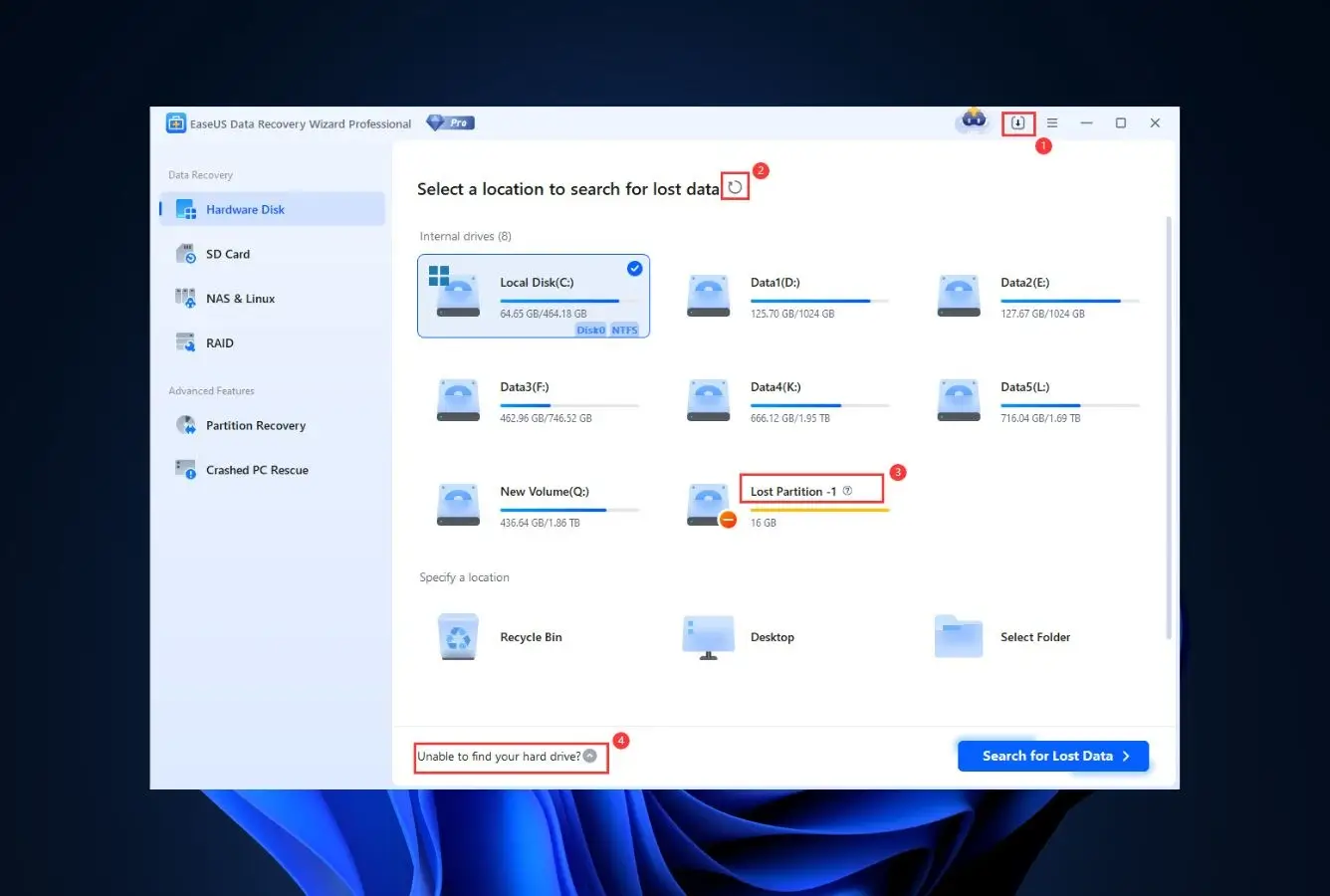
 EaseUS Data Recovery Wizard
- 2GB free recovery tier on Mac — the category’s most generous free allowance
- Feature-parallel macOS build with automatic SD card detection on Finder mount
- Live preview during scanning confirms JPGs and HEICs before committing to upgrade
- Handles every mainstream SD card scenario — deletion, format, corruption, lost partitions
- 1Disk Drill – Best Mac-Native SD Card Recovery
- 2Stellar Data Recovery – Best Camera RAW Recovery
- 3EaseUS Data Recovery Wizard – Best Free SD Card Tier
- 4Wondershare Recoverit – Best for 4K Video on SD Cards
- 5R-Studio – Best for Severely Corrupted SD Cards
- 6PhotoRec – Best Free Open-Source SD Card Recovery
- 7iBoysoft Data Recovery – Best Mac-Specialist Alternative
- 8Cisdem Data Recovery – Best One-Time License Mac Tool
8 Best Mac SD Card Recovery Tools – Quick Comparison
SD card recovery on Mac depends on three factors that don’t apply equally to generic data recovery: native APFS and HFS+ support (for cards occasionally reformatted with Mac-only tools), deep camera RAW signature databases (since most SD cards carry photos from cameras), and clean integration with Disk Utility and Finder (so the card doesn’t need to be unmounted manually before scanning). The ranking below weights those Mac-specific factors heavily.
Tools ordered for the most common Mac SD card scenarios in 2026: a SanDisk Extreme Pro or Lexar Professional SDXC card between 32GB and 256GB, formatted as exFAT by a camera or as FAT32 for older devices, with either deleted photos, accidental Disk Utility formatting, or a Finder “card not readable” prompt. Rankings adjust for specialty cases — Wondershare Recoverit moves up for 4K video recovery from cinema cameras, R-Studio becomes essential for cards with severe file-system corruption, and PhotoRec wins outright when budget constrains the recovery to zero.
| Tool | Mac SD Performance | macOS Support | SD File Systems | Camera RAW | Free Limit | Starting Price | Best For |
|---|---|---|---|---|---|---|---|
| Disk Drill | Excellent | macOS 10.13→15 | FAT32, exFAT, APFS, HFS+ | Broad coverage | Preview only | $89 one-time | Mac-native SD card recovery |
| Stellar Data Recovery | Excellent | macOS 10.13→15 | FAT32, exFAT, APFS, HFS+ | Deepest RAW database | 1GB | $79.99/yr | Camera RAW signatures |
| EaseUS Data Recovery | Very Good | macOS 10.13→15 | FAT32, exFAT, APFS, HFS+ | Mainstream formats | 2GB | $89.95/yr | Free-tier photo recovery |
| Wondershare Recoverit | Very Good | macOS 10.13→15 | FAT32, exFAT, APFS, HFS+ | Video reassembly | 100MB | $79.95/yr | 4K video on cards |
| R-Studio | Very Good | macOS 10.12→15 | All major + forensic | Signature-based | Demo preview | $79.99 one-time | Corrupted SD cards |
| PhotoRec | Good | All macOS versions | Signature-based, any | 480+ signatures | Fully free | $0 | Free open-source recovery |
| iBoysoft Data Recovery | Very Good | macOS 10.13→15 | FAT32, exFAT, APFS, HFS+ | Mainstream formats | 1GB | $89.95/yr | Mac-specialist alternative |
| Cisdem Data Recovery | Good | macOS 10.12→15 | FAT32, exFAT, APFS, HFS+ | Mainstream formats | 5 files | $69.99 one-time | One-time license Mac |
Overall-strength labels reflect editorial evaluation based on feature coverage, independent research, and user-feedback patterns on Mac SD card scenarios specifically — not an in-house benchmark. Pricing and free-tier limits are from each vendor’s current Mac product page.
8 Best Mac SD Card Recovery Tools – In-Depth Reviews
1. Disk Drill – Best Mac-Native SD Card Recovery
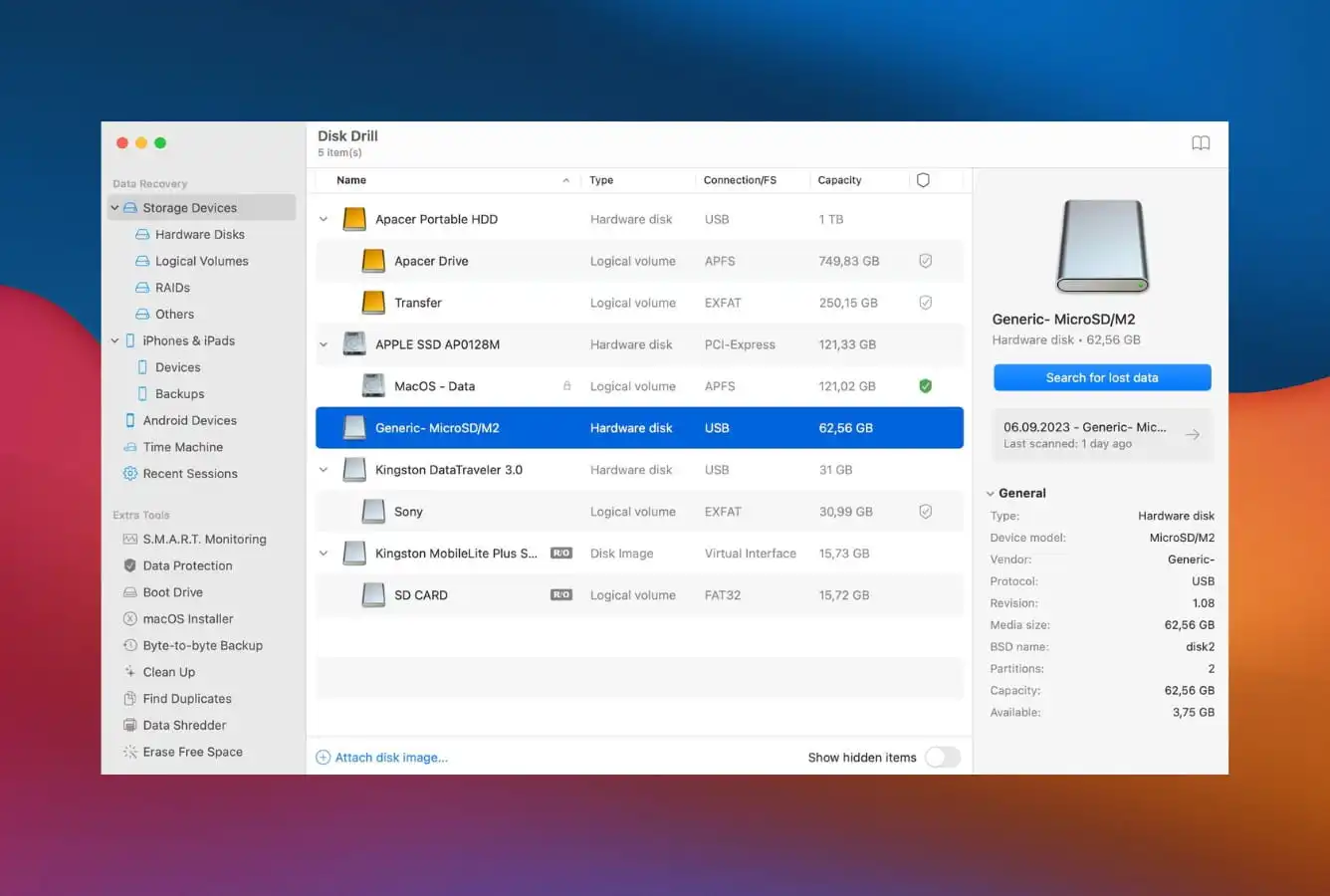
Disk Drill earns the top slot for Mac SD card recovery because CleverFiles built it Mac-first. The macOS version predated the Windows port by several years, and that heritage shows across the entire product — native APFS and HFS+ handling without bolt-on workarounds, clean Disk Utility integration, and sidebar navigation that matches how every other serious Mac app organizes itself. When a camera card mounts in Finder, Disk Drill already knows about it.
The $89 one-time license activates on both macOS and Windows from a single purchase, which is rare in a category dominated by annual subscriptions. For Mac photographers and videographers who cycle through SD cards frequently, that single perpetual license delivers the best multi-year economics in this ranking. Recovery Vault is the standout Mac-specific feature — it runs in the background on the Mac’s internal drive and attached SD cards, snapshotting metadata so future deletions restore via lookup rather than scan. The one genuine weakness: the macOS free tier is preview-only (you see what’s recoverable but must upgrade to commit), which makes EaseUS the better first-try option for one-off incidents under 2GB.
- Mac-first product lineage shows in genuinely native APFS and HFS+ SD card handling
- Recovery Vault preserves SD card metadata preventively — future deletions restore instantly
- $89 one-time license covers macOS and Windows from a single unified purchase
- Byte-to-byte SD card imaging preserves failing cards so repeated scans don’t stress the card
- Apple Silicon build is signed and notarized — no Gatekeeper workarounds required on M-series Macs
- macOS free tier is preview-only — unlike Windows, you can’t recover any data without upgrading
- Camera RAW signature depth lags Stellar on exotic formats (Fujifilm RAF, Olympus ORF, Hasselblad 3FR)
- Advanced forensic operations (hex editing, manual partition reconstruction) sit behind R-Studio-level tools
Native Mac handling of every common SD card failure mode a photographer or videographer actually hits.
On a typical Mac SD card scenario — a SanDisk or Lexar SDXC card with deleted JPGs or HEICs, an accidentally Disk Utility-formatted card, or a card that mounts but shows empty folders after a camera crash — Disk Drill recovers files at the level that matches or beats every paid competitor in this ranking. Its signature-scanning engine handles mainstream camera RAW files (CR2, CR3, ARW, NEF, DNG) cleanly. The one area where Stellar pulls ahead is exotic RAW formats from Fujifilm, Olympus, Hasselblad, and Phase One bodies.
The only recovery app in this list that a Mac user can hand to another Mac user without an explanation.
Attach an SD card via a USB-C card reader, open Disk Drill, and the card appears immediately in a card layout with its capacity, file system, and a single blue “Search for lost data” button. No modal dialogs, no wizard, no Windows-port tabs that feel foreign on macOS. SF Pro typography, proper sidebar navigation, native menu bar integration — everything a Mac user expects from a well-built app is present. That design sensibility matters especially when the user in crisis is a parent or partner who doesn’t think about file systems.
$89 once, activated on Mac and Windows forever — the most generous dual-platform economics in the category.
CleverFiles sells Disk Drill Pro as a single $89 perpetual license that unlocks full features on both macOS and Windows with all future point updates included. Annual Pro at $89/year exists for enterprises wanting continuous major-version upgrades; Enterprise at $499 adds bulk deployment rights. For a Mac photographer who might need to recover SD cards monthly for years, $89 once is dramatically friendlier math than $89/year from subscription competitors — often the only sustainable long-term pick in this ranking for frequent professional use.
2. Stellar Data Recovery – Best Camera RAW Recovery
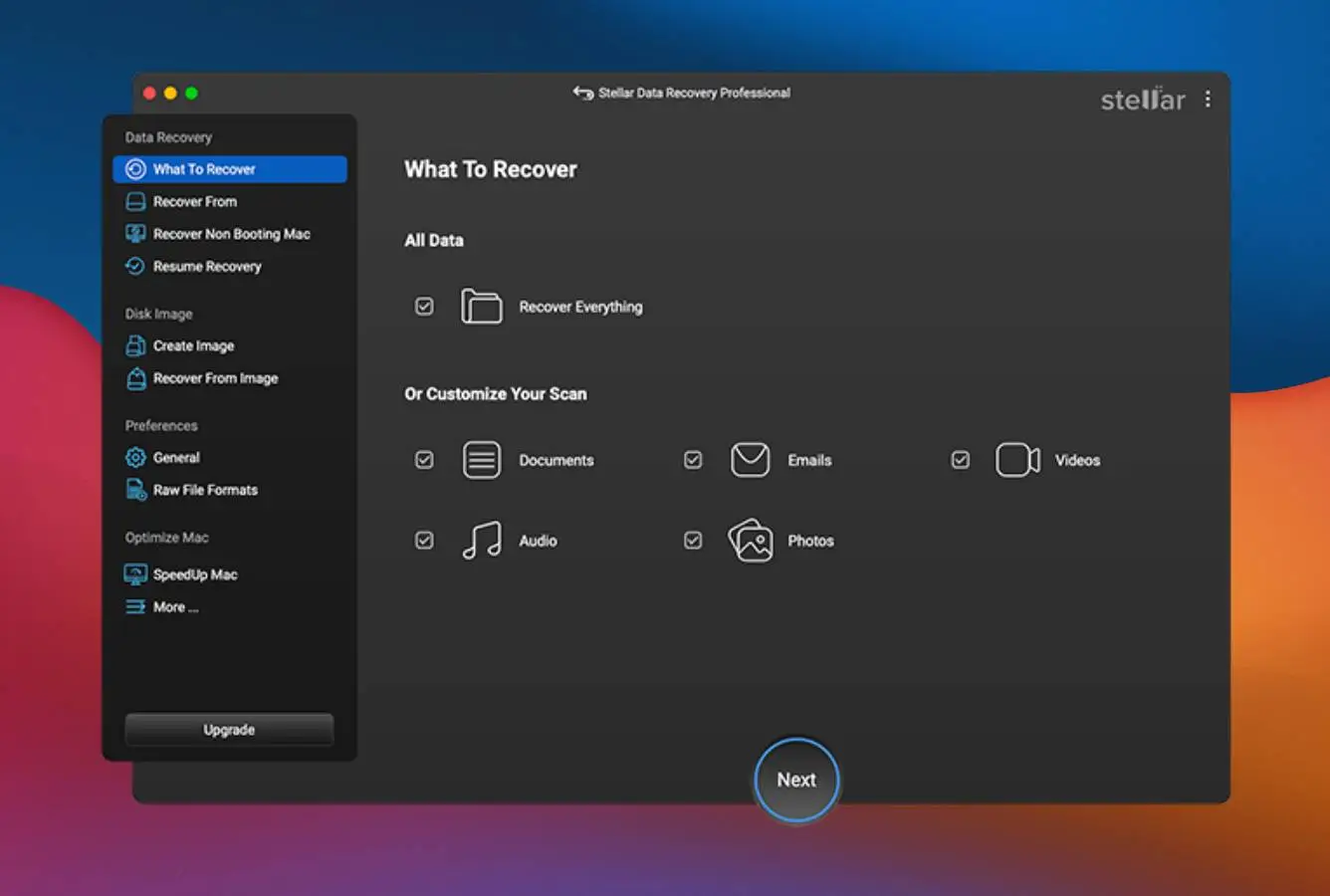
Stellar Data Recovery takes second position for Mac SD card work on the strength of its camera RAW signature database — the deepest in this ranking. Stellar has been tuning signature recovery for photographer workflows since the early 2010s, and it shows in coverage: Canon CR2 and CR3, Sony ARW, Nikon NEF, Fujifilm RAF, Olympus ORF, Panasonic RW2, Pentax PEF, Hasselblad 3FR, Phase One IIQ, Leica DNG, plus all mainstream JPGs, HEICs, and MP4/MOV video containers.
Stellar’s Mac build matches Disk Drill on APFS and HFS+ support — both are mature native ports — and the tiered product line includes a dedicated Stellar Photo Recovery variant at the same price point that strips out hard-drive-specific features in favor of extra camera RAW depth. For photographers whose SD card emergencies overwhelmingly involve camera bodies, Stellar’s specialized edition is the better purchase than the general Data Recovery variant. Baseline pricing starts at $79.99/year Standard; Photographer’s Pack at $129/year bundles the Photo Recovery variant with photo and video repair tools for corrupted JPG and MP4 files pulled off damaged cards.
- Widest camera RAW signature coverage of any tool in this ranking — every major mirrorless and DSLR body
- Dedicated Stellar Photo Recovery variant strips generalist features for camera workflow depth
- Photographer’s Pack tier bundles photo and video repair for corrupted JPG and MP4 recovery
- Green/yellow/red recoverability indicators preview each SD card file before any payment step
- Optional cleanroom lab referral handles physically snapped cards that software can’t touch
- 1GB free tier is tighter than EaseUS’s 2GB — matters on SD card incidents with large RAW files
- Annual subscription billing auto-renews by default; set a calendar reminder to cancel before renewal
- UI density higher than Disk Drill — more tabs, more configuration, more surface area to absorb
The tool photographers with Canon, Sony, Nikon, and Fujifilm kits reach for when an SD card fails.
Stellar’s signature database recognizes camera-specific RAW structures that generalist recovery tools either miss or recover with broken metadata. A Canon CR3 file recovered by Stellar retains EXIF data, color profile embedding, and the full-resolution image payload; the same file recovered by a weaker signature tool might come back with intact image data but missing EXIF, making the photo unusable in Lightroom without manual restoration. This matters on professional workflows where RAW metadata integrity determines whether the file is archive-quality or needs reshoot.
More panels than Disk Drill, earned by genuine depth rather than legacy Windows port baggage.
Stellar Mac opens to a four-step flow (select drive, scan, preview, recover) with an additional file-type filter panel on the side and an advanced settings drawer for deep-scan parameters. The density is higher than Disk Drill but every panel serves a purpose — Deep Scan settings let you toggle individual camera RAW signatures on and off to speed scans when you know the card only contains CR3 files, for example. For advanced photographers, that control is useful; for casual users, Disk Drill’s simpler flow is a gentler entry point.
Standard $79.99 covers most cases; Photographer’s Pack at $129 is the purchase for camera workflows.
Stellar Mac tiers: Standard at $79.99/year (generalist Data Recovery, sufficient for mainstream SD card scenarios), Professional at $99.99/year (adds partition repair and video recovery), Premium at $139/year (adds photo and video repair for corrupted files). A separate Stellar Photo Recovery product at the same $79.99 price point replaces generalist features with extended camera RAW depth and is the better purchase for photographers. The Photographer’s Pack bundle at $129 combines Photo Recovery with the repair tools — typically the best fit for professional camera SD card workflows. All tiers carry 30-day money-back guarantees.
3. EaseUS Data Recovery Wizard – Best Free SD Card Tier
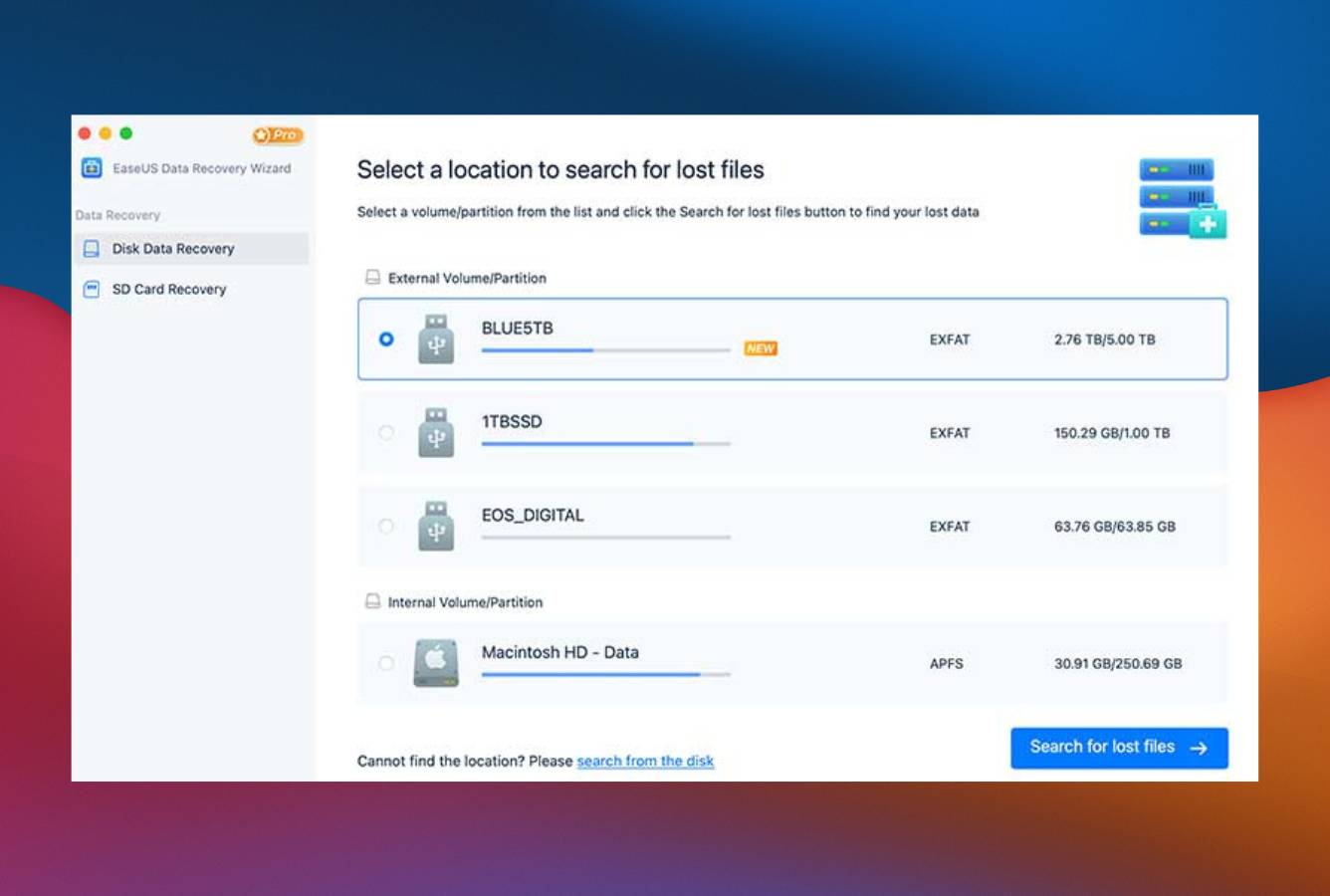
EaseUS Data Recovery Wizard for Mac lands at third on the strength of the category’s most generous free tier — 2GB of recovered data at no cost, which genuinely covers most single-SD-card photo incidents in a home or hobbyist context. For a parent recovering deleted vacation photos from a 32GB card or a casual photographer who accidentally reformatted a 64GB card in the field, that 2GB free allowance typically handles the entire recovery without triggering a paid upgrade.
Beyond the free tier, EaseUS’s Mac build matches Disk Drill and Stellar on standard SD card scenarios — deletion, accidental Disk Utility format, Finder “unreadable” prompts — though it doesn’t match Stellar’s specialty camera RAW depth or Disk Drill’s Mac-native design polish. What EaseUS does offer is predictable, approachable recovery that works the same way on macOS as it does on Windows, which matters for households running both platforms. The Pro tier at $89.95/year unlocks unlimited recovery and adds features like lost-partition scanning useful for severely corrupted SD cards that read as RAW in Disk Utility.
- 2GB free tier is the category benchmark — covers most casual SD card photo incidents fully
- Automatic SD card detection on Finder mount — no manual drive picker navigation required
- Filterable scan results (Photos, Videos, Documents, Audio) find specific camera files quickly
- Live preview renders JPGs, HEICs, and MP4 frames during scanning for mid-scan decision making
- Mature cadence of updates from a well-established vendor with predictable support quality
- Annual subscription auto-renews by default — check account settings after purchase to disable
- Camera RAW signature coverage is solid on mainstream formats but trails Stellar on exotic ones
- macOS installer bundles EaseUS Todo Backup prompt — uncheck the optional install during setup
Competent across the full mainstream SD card scenario set, without the specialty depth of Stellar.
EaseUS Mac handles the standard SD card emergencies — deleted photos from Finder or Photos app import, Disk Utility-formatted cards, cards that Finder refuses to mount — at a level that matches most paid competitors. Standard JPGs, HEICs, and mainstream camera RAW formats (CR2, ARW, NEF) recover reliably with intact metadata. Where EaseUS is weaker is on specialty RAW formats from less common camera bodies and on severely corrupted cards where file-system rebuild beyond straightforward scanning becomes necessary — those cases point to Stellar or R-Studio instead.
Predictable wizard flow that never surprises the user — a virtue for one-time emergencies.
Launch EaseUS Mac, attach the SD card via a card reader, and the app highlights the newly-mounted volume automatically. Scanning begins on a single click and file categories populate as the scan progresses. There’s a live filter by file type, a size filter, a date filter, and preview pane that renders JPGs full-resolution before committing to recovery. The design language feels more Windows-first than Disk Drill’s Mac-native polish, but nothing is awkward or broken on macOS — just slightly less at home than Disk Drill’s sidebar-and-card layout.
Free tier does the heavy lifting; Pro justified when scan volume exceeds 2GB or partition recovery needed.
EaseUS Mac tiers: Free (2GB recovered data, unlimited sessions), Pro at $89.95/year (unlimited recovery, lost partition scanning, bootable USB creation), Lifetime Pro at $149.95 one-time (the better math for anyone expecting recurring SD card emergencies over years). Monthly billing at $89.95/month exists but is economically irrational versus annual. The key decision point: if your SD card recovery volume fits under 2GB, start with Free and never upgrade. If the free scan shows 4GB of recoverable photos, the Lifetime Pro purchase is often the right move versus one-off annual subscription.

4. Wondershare Recoverit – Best for 4K Video on SD Cards
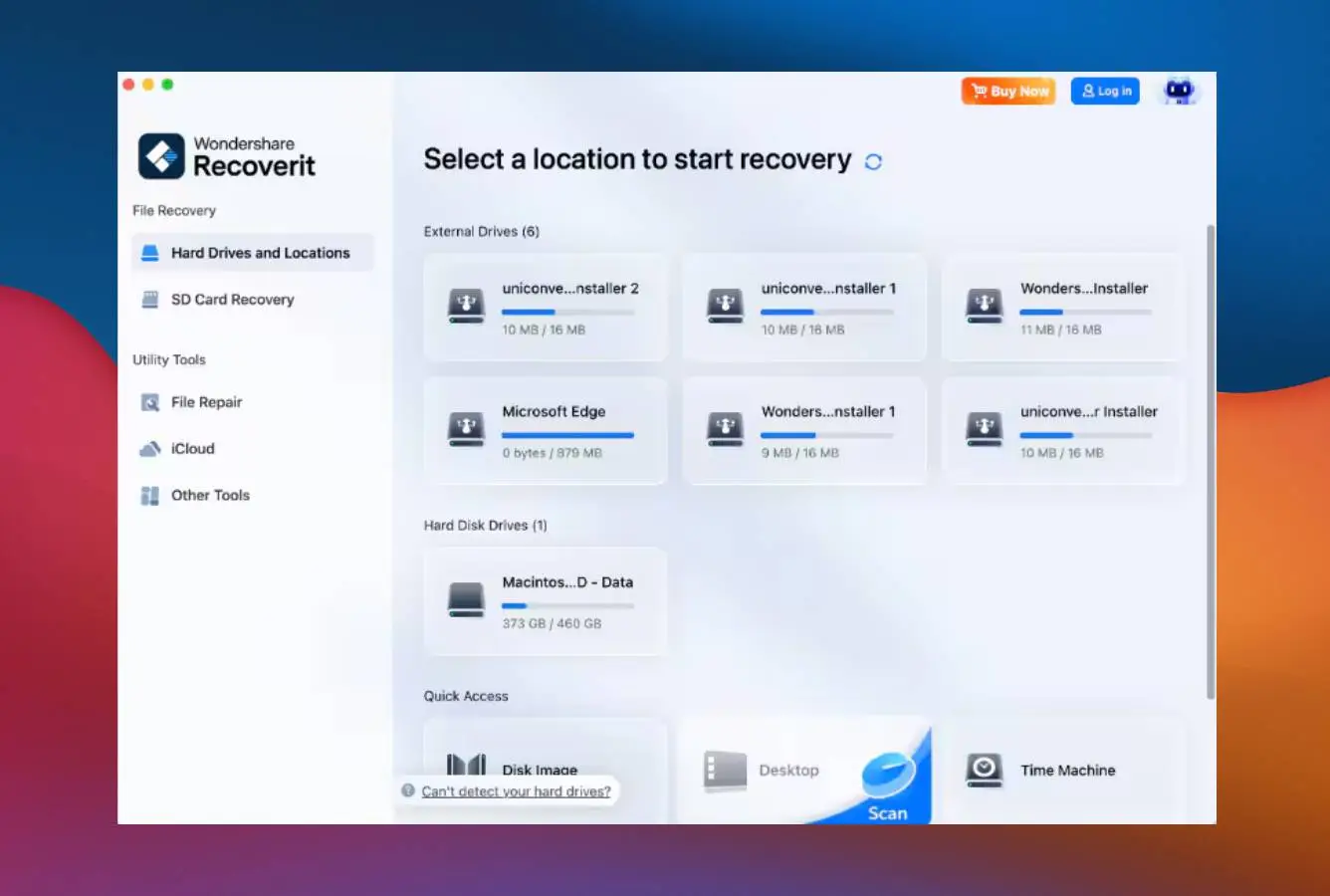
Wondershare Recoverit for Mac earns fourth place on its specialty — 4K and 8K video reassembly from SD cards carrying cinema camera footage. For the specific use case of a videographer recovering interrupted or fragmented MP4, MOV, and MXF files from a Sony, Panasonic, or Blackmagic SDXC card, Recoverit’s video-specific reassembly engine consistently delivers more intact playable footage than generalist tools that treat video as just another file signature.
The Mac build shares visual DNA with Wondershare’s creative suite (Filmora for video editing, PDFelement for document work), which makes it immediately familiar to anyone already in that ecosystem. APFS and HFS+ support is complete on modern macOS versions. The weakness remains the same as on Windows: the 100MB free tier barely covers a preview scan, forcing a paid upgrade for any real SD card video recovery. For creative professionals whose SD cards routinely carry cinema workloads — shoot dailies, project exports, rushes — the specialty video reassembly justifies the $79.95/year premium over generalist tools.
- Purpose-built 4K and 8K video reassembly engine handles fragmented MP4, MOV, MXF from cinema cards
- Deep signature database covers specialty sidecar files (XMP, THM, CPF) from professional workflows
- Advanced tier includes video repair — rebuilds corrupted MP4 headers from power-interruption writes
- Mac build shares Wondershare design language with Filmora for creative workflow consistency
- APFS coverage includes FileVault-encrypted SD card volumes when the password is available
- 100MB free tier is the tightest in this Mac SD card ranking — forces paid upgrade for most real incidents
- Scan completion on large SDXC cards (256GB+) trails Disk Drill and EaseUS benchmarks
- In-app banners promoting Filmora and Wondershare’s AI suite appear more often than Mac users expect
Unique strength on 4K video from cinema cards; competent but not leading on still photography.
Recoverit’s differentiator is the video-fragment reassembly algorithm developed specifically for high-bitrate H.264 and H.265 footage. On SD cards used as primary media for Sony a7S III, Panasonic GH6, Blackmagic Pocket Cinema, or Canon R5C bodies, where 4K and 6K MP4/MOV files frequently span multiple card fragments, Recoverit reconstructs more playable footage than signature-only competitors. On still photography SD card recovery (JPG, HEIC, RAW files from mirrorless stills workflows), Recoverit performs competently but doesn’t lead the way it does on video.
Recognizable Wondershare design that creative professionals will immediately find familiar.
Recoverit for Mac wears the same visual language as Filmora and PDFelement — rounded cards, the distinctive Wondershare blue, a progress bar across the top of every screen. Scan results land across seven tabs (Photos, Videos, Audio, Documents, Emails, Archives, Others) with live thumbnails for JPGs, scrub-preview for recovered MP4s, and original-path metadata when file-system headers are intact. The recurring friction point: an “Other Wondershare products” panel that persists during scanning, flagged in multiple r/MacApps threads as more intrusive than competitors.
$79.95/year makes sense for cinema workflows; overkill for still-photo SD card recovery.
Recoverit Mac tiers: Essential at $79.95/year (single Mac, generalist SD card recovery), Standard at $99.95/year (adds video repair for corrupted MP4 headers), Advanced at $139.95/year (adds NAS recovery and extra creative-file signatures). For a still photographer who rarely shoots video, EaseUS or Stellar delivers comparable outcomes at lower cost. For a videographer whose SD cards carry 4K and 8K cinema footage from Sony, Panasonic, or Blackmagic bodies, Recoverit Standard’s specialty video reassembly is the justification for the price premium. 30-day money-back guarantee applies across all tiers.

5. R-Studio – Best for Severely Corrupted SD Cards
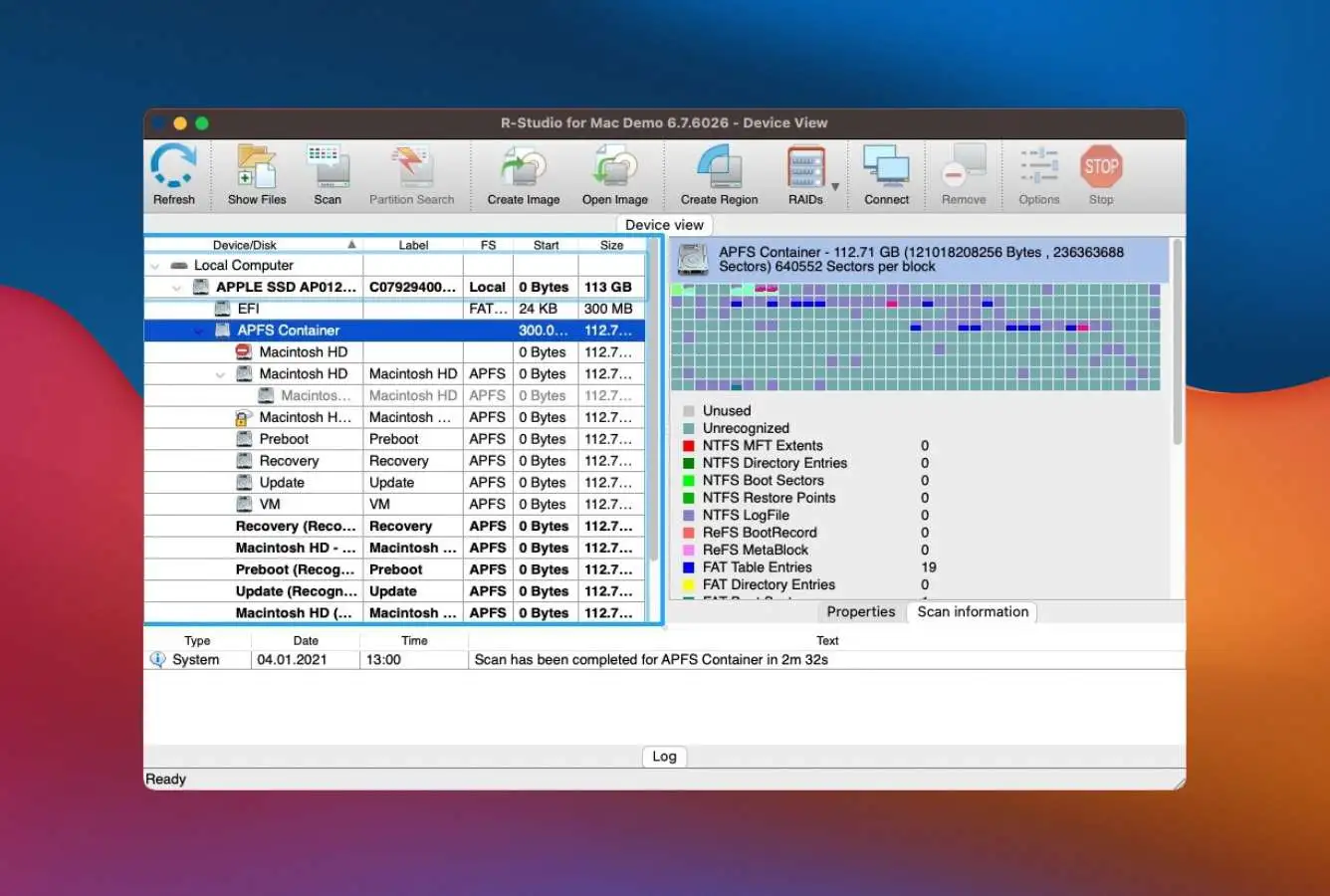
R-Studio is what a professional data recovery technician installs on their Mac when a wedding photographer calls in panic about a shoot-day card that won’t mount. It’s the tool for SD cards that Disk Drill and Stellar either refuse to scan or return empty results from — cards with physically damaged file-system headers, exFAT allocation bitmaps shattered by a camera crash during burst shooting, or NTFS-formatted cards from cross-platform cameras with broken MFT records.
The Mac build of R-Studio delivers the same forensic depth as its Windows counterpart: hex editing of the card’s raw sectors, manual reconstruction of damaged boot records, and file-system parser logic that can make sense of cards where the OS gives up. For anyone running data recovery as a service on Mac — freelance technicians, camera shops offering recovery, IT support in creative agencies — R-Studio at $79.99 as a perpetual license with free point updates is the best multi-year economics in this category, though the learning curve assumes comfort with file-system internals that most camera owners don’t have and don’t need.
- Forensic hex editor lets a technician manually repair FAT32 boot records on SD cards that refuse to mount
- Handles the full file-system matrix from a single Mac binary — FAT32, exFAT, APFS, HFS+, NTFS, ext4, UFS
- Perpetual license with no subscription renewal; free minor updates keep working indefinitely
- Imaging workflow captures failing SD cards to .dsk files so recovery runs against the image, not the card
- Network edition scans SD cards mounted on remote Macs — unique for studio or agency workflows
- Steepest learning curve in this Mac ranking — assumes comfort reading hex dumps of corrupted volumes
- Demo mode allows scan and preview only; full recovery commits require the one-time license purchase
- Visual design is functional rather than Mac-native — looks like a pro tool, not a consumer Mac app
The ceiling — what Mac recovery technicians reach for after consumer tools return empty.
R-Studio’s engine reads SD cards at the raw sector level, bypassing the OS’s mount logic entirely. On cards that Disk Utility reports as RAW or unformatted, R-Studio parses the flash contents directly and reconstructs the file system from surviving metadata fragments. For shoot-day cards with shattered exFAT allocation bitmaps — the most stressful professional photography recovery scenario — R-Studio’s manual reconstruction tools regularly recover complete shoots where consumer apps returned nothing. The capability ceiling is genuinely higher than anything else in this ranking.
Professional density that a technician appreciates and a photographer finds forbidding.
Open R-Studio on macOS and every attached SD card appears in a device pane alongside a hex inspector, file browser, RAID constructor, and partition reconstructor — all visible simultaneously. No wizard asks what you’re recovering or which card. That workflow respects the professional’s time and intelligence, which is exactly right for its target audience. For a panicked amateur recovering wedding photos the night before an album deadline, it’s the wrong tool at the wrong moment — Disk Drill or Stellar is the right first-hit, with R-Studio held in reserve if they fail.
Perpetual license math that compounds in value over years for anyone doing recovery regularly.
R-Studio Mac editions: R-Studio FAT at $49.99 (FAT32 and exFAT only — sized for casual SD card recovery), full R-Studio for Mac at $79.99, R-Studio Network at $179.99 (covers Windows, Mac, Linux from the single purchase), and R-Studio Technician at $899 (commercial use rights, advanced features for recovery-service operators). All one-time with free point updates. For a single SD card recovery with no further use planned, $79.99 is attractive but the learning curve is the real gate. For Mac-based freelance recovery operators or camera shops, perpetual licensing compounds in value versus subscription competitors across the multi-year horizon.

6. PhotoRec – Best Free Open-Source SD Card Recovery
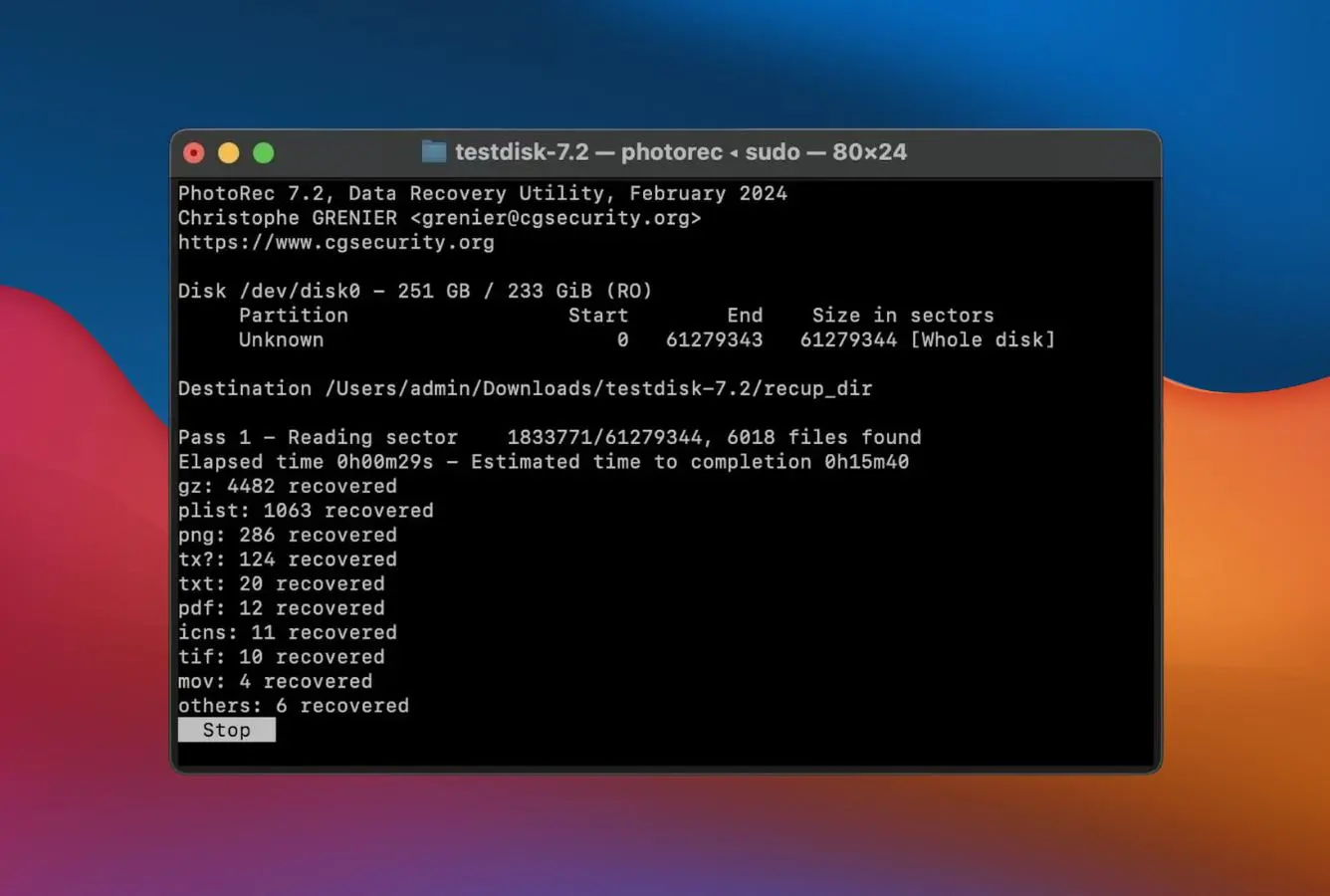
PhotoRec is the only genuinely free option in this Mac SD card ranking — CGSecurity distributes it under the GNU GPL with no tier limits, no recovery caps, no upgrade prompts, and no ad injections. Installed on macOS via Homebrew (`brew install testdisk`) or downloaded from the CGSecurity site, it uses content-based signature recovery to pull common file types off SD cards regardless of file-system state. FAT32, exFAT, APFS, HFS+, corrupted, or completely unformatted — PhotoRec reads the raw sectors and reconstructs files from their headers and footers.
The signature database is genuinely deep: 480+ file types including JPGs, HEICs, PDFs, DOCX, MP4s, MOVs, and camera RAW formats (CR2, CR3, ARW, NEF, RAF, ORF). For mainstream SD card photo recovery on macOS where budget is zero, PhotoRec delivers. The trade-offs are real though: recovered files lose their original filenames and folder structure (everything lands in numbered output folders like `recup_dir.1`), fragmented files occasionally come back incomplete, and the text-mode interface feels 1990s-native on a modern Mac. For users comfortable with Terminal, it’s efficient; for users expecting a native Mac app, the gap is immediate.
- Genuinely free open-source (GPL) — no trial limits, no nag prompts, no ad injections anywhere
- 480+ file signatures cover mainstream JPG and HEIC plus specialty camera RAW (CR3, ARW, NEF, RAF, ORF)
- Signature-based scanning works on any SD card state — intact, corrupted, formatted, or RAW
- Installs cleanly via Homebrew on Intel and Apple Silicon Macs (`brew install testdisk`)
- Donation-funded active development by CGSecurity — community forum and public issue tracker
- Recovered files lose original filenames and folder paths — everything lands in numbered output folders
- Text-mode Terminal interface feels foreign on macOS compared to Disk Drill’s Mac-native polish
- Fragmented MP4 video files on large SDXC cards sometimes recover incomplete when signatures break mid-frame
Strong on common SD card file types; filename and structure loss is the cost of zero-budget recovery.
PhotoRec on macOS recovers mainstream SD card file types reliably: JPGs, HEICs, PNGs, PDFs, DOCX, MP4s, MOVs, MP3s, and 480+ other signatures. On a healthy SD card with recently deleted photos, PhotoRec pulls back roughly the same file count as paid competitors. The compromise shows in output structure: because signature scanning ignores file-system metadata entirely, every recovered file lands with a generic name in numbered output folders. For a photographer who needs specific named files with embedded EXIF back intact, that structure loss is significant; for someone just trying to rescue vacation photos from a formatted card, it’s acceptable.
Terminal-era honesty — a capable tool wrapped in the interface of its 1990s origins.
PhotoRec runs in a Terminal window with keyboard-driven menu navigation — pick the drive, pick the partition, pick output destination, start scan. On a modern Mac with SF Pro system type and Fluent-style macOS chrome, a text-mode window feels immediately out of era. The GUI-adjacent qtestdisk front-end exists for users who want visual interaction, but most PhotoRec workflows use the standard Terminal interface. For Mac users comfortable with command-line work (developers, sysadmins, photographers who already use Terminal for batch photo scripts), PhotoRec is efficient; for users expecting a drag-and-drop Mac app, it’s immediately forbidding.
The only truly free option in this ranking — zero cost, zero tier gating, zero upsell friction.
PhotoRec is GPL-licensed, meaning the source code is freely available, the binary is freely distributable, and there is no paid tier that unlocks additional capabilities. The same tool used by hobbyists is also used by professional recovery technicians who need a zero-footprint scanning option. CGSecurity accepts donations to fund ongoing development, but no functionality is gated behind them — a $5 or $20 donation supports future development rather than unlocking features. For genuinely zero-budget Mac SD card recovery, PhotoRec is the honest answer; for readers who value open-source tools, donating to CGSecurity is more ethically consistent than paying a commercial competitor for similar capability.

7. iBoysoft Data Recovery – Best Mac-Specialist Alternative
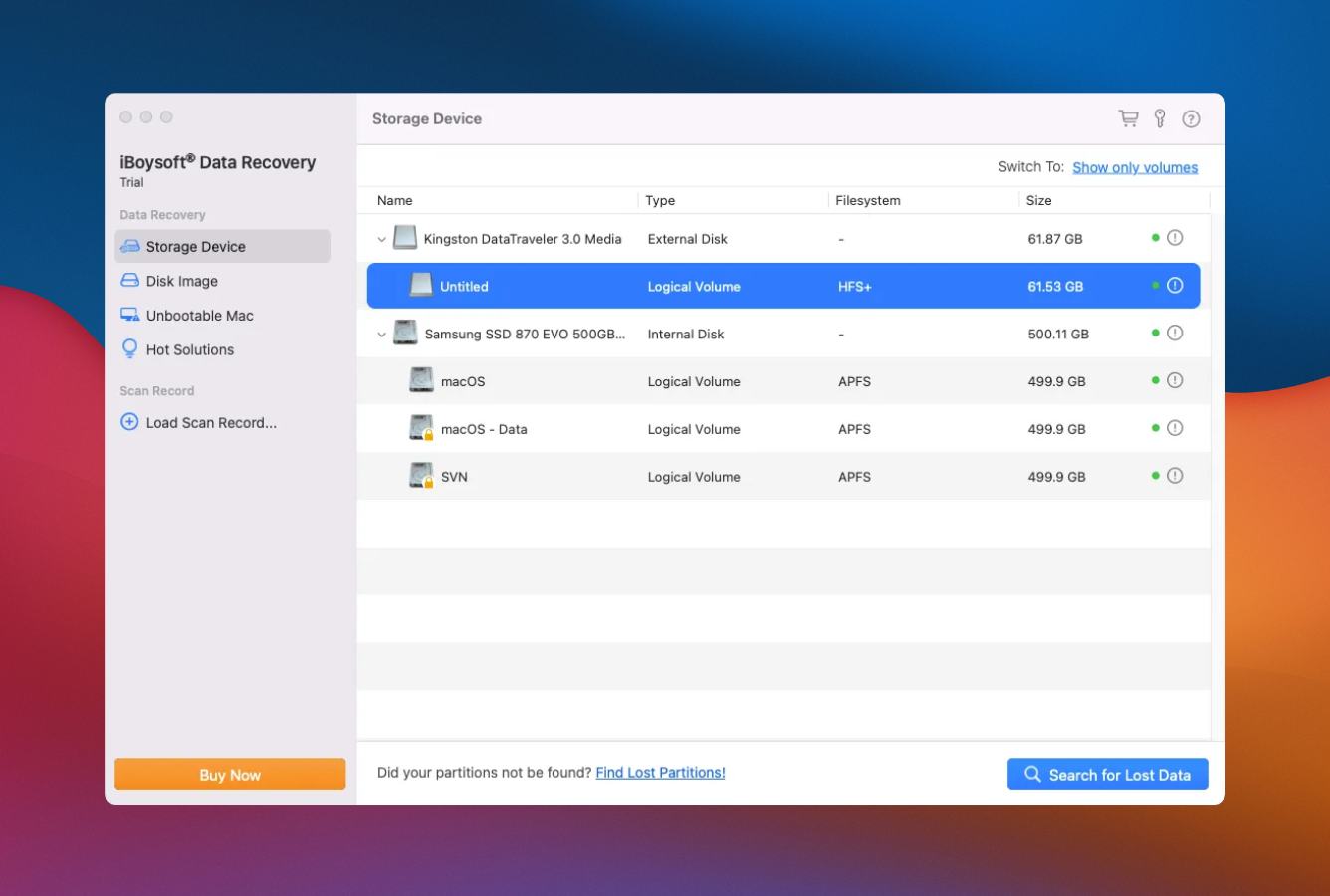
iBoysoft Data Recovery is the Mac-focused specialist in this ranking. Unlike EaseUS or Stellar where the Mac build is a port of a Windows-first product, iBoysoft develops its Mac version with genuine Apple ecosystem priorities — APFS snapshot awareness, Time Machine local snapshot detection, T2 chip-aware volume handling, and explicit support for FileVault-encrypted SD card volumes when the password is available.
For Mac SD card scenarios specifically, iBoysoft handles APFS-formatted cards more capably than most competitors. It’s a common situation: a user reformats a small SD card as APFS via Disk Utility thinking it’ll work better with Mac backups, then can’t read it on a camera or Windows machine. iBoysoft recovers those APFS cards cleanly and can also pull files from APFS local snapshots when Time Machine has been running on an external SD card. The weakness: iBoysoft’s brand recognition is lower than Stellar or EaseUS, and community feedback on r/MacApps flags some refund friction — Trustpilot reviews mention delayed response times for refund requests compared to Disk Drill or EaseUS.
- Mac-focused vendor with genuine APFS depth — not a Windows-port Mac build
- Time Machine local snapshot detection pulls files from hidden APFS snapshots competitors ignore
- T2 security chip and Apple Silicon native support without Gatekeeper workarounds
- FileVault-encrypted SD card volume support when the user has the decryption password
- 1GB free tier on Mac — mid-tier in this ranking but adequate for small card recoveries
- Brand recognition trails Stellar and EaseUS — fewer community threads mean less independent validation
- Refund process flagged by multiple Trustpilot reviews as slower than top-tier Mac competitors
- Camera RAW signature coverage is basic compared to Stellar’s depth — mainstream formats only
Particular strength on APFS-formatted SD cards and Mac-ecosystem edge cases.
iBoysoft’s Mac heritage shows up most clearly on cards that have been through Mac-specific workflows — APFS reformatting in Disk Utility, Time Machine snapshot accumulation on an external SD volume, FileVault encryption for sensitive photo cards. On these scenarios, iBoysoft pulls files that Windows-first ports (EaseUS, Stellar) occasionally miss because their APFS parsing is less mature. On the more common SD card scenario — an exFAT card from a camera with deleted files — iBoysoft performs competently but doesn’t differentiate against the top three in this ranking.
A Mac-focused vendor that ships a genuinely Mac-native app, design warts and all.
Opening iBoysoft on macOS presents a clean sidebar-and-main-panel layout that feels at home on macOS 15 — SF Pro type, native window controls, proper keyboard shortcut conventions. The visual design is less polished than Disk Drill’s benchmark-level Mac UX but more native than EaseUS’s port-feeling build. One small friction point: the app occasionally shows a “Consider iBoysoft DiskGeeker” promotion card in the sidebar, which is less intrusive than Wondershare’s banners but still more promotion than Disk Drill or Stellar show.
$89.95/year tracks the Mac mainstream; one-time option makes it competitive for annual subscribers.
iBoysoft Mac tiers: Standard at $89.95/year (covers FAT32, exFAT, APFS, HFS+ SD card recovery), Pro at $139.95/year (adds lost partition scanning and BitLocker support for cross-platform cards), Lifetime at $199.95 one-time (the long-horizon pick for Mac users expecting recurring card recoveries). Monthly at $69.95/month exists but is economically inefficient versus annual. Free tier: 1GB recovered data, unlimited sessions — adequate for casual single-card incidents. The Lifetime one-time purchase at $199.95 is the standout value proposition here versus annual-subscribing competitors.

8. Cisdem Data Recovery – Best One-Time License Mac Tool
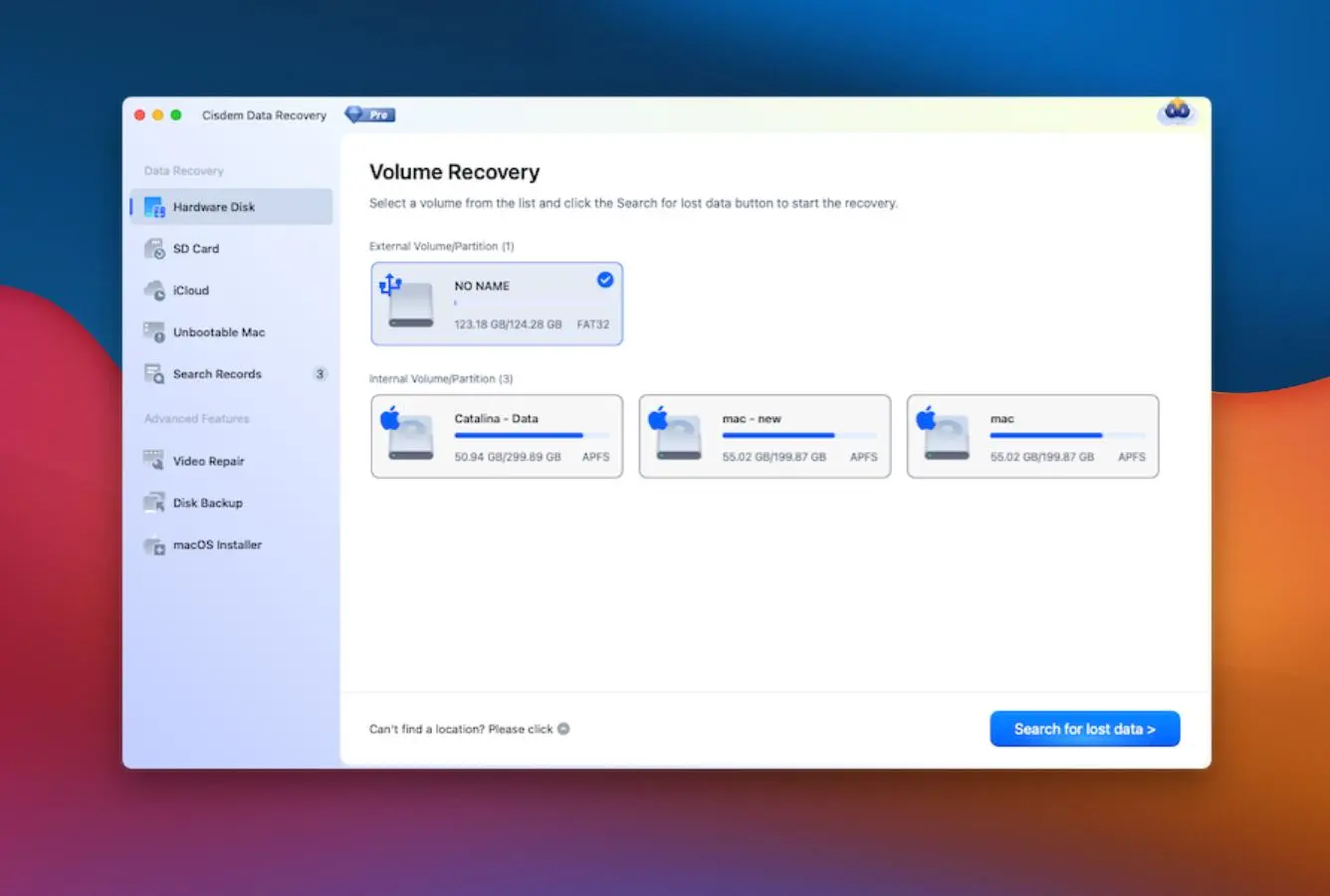
Cisdem Data Recovery closes this Mac SD card ranking as the one-time license option. Cisdem is a small Hong Kong-based developer focused exclusively on Mac productivity and utility apps — Document Reader, Video Player, PDF Manager Ultimate, and this recovery tool. The appeal is straightforward: $69.99 one-time (not annual) for Mac SD card recovery covering FAT32, exFAT, APFS, and HFS+, with perpetual free minor updates.
For a casual Mac user who needs SD card recovery once or twice a year and doesn’t want an annual subscription renewing automatically, Cisdem’s pricing model is genuinely appealing. The product itself sits in the middle of this ranking on capability — it handles mainstream SD card scenarios competently (deletion, accidental format, unreadable cards) without matching Stellar’s camera RAW specialty depth or Disk Drill’s Mac-native polish. The 5-file free preview is the tightest free tier here, essentially serving as a “does it find my files” check before committing to the $69.99 purchase. One notable limitation: current Cisdem builds run natively on Intel Macs and require Rosetta translation on Apple Silicon — an area where the vendor lags Disk Drill, Stellar, EaseUS, and iBoysoft.
- $69.99 one-time license with free minor updates — the cheapest perpetual Mac option in this ranking
- Mac-only vendor with genuine focus on macOS utility apps rather than ported Windows software
- Full APFS and HFS+ support alongside FAT32 and exFAT for any Mac-touched SD card format
- Clean sidebar-and-panel layout that feels native to macOS without Windows-port artifacts
- 30-day money-back guarantee and reasonable response times from the Cisdem support team
- Runs via Rosetta on Apple Silicon Macs — no native M-series build as of the 2026 update cycle
- 5-file free preview is the tightest free tier in this ranking — you can’t test beyond verification
- Scan engine lags Disk Drill and Stellar on severely corrupted SD cards needing file-system rebuild
Competent on straightforward SD card scenarios; not the tool for severely corrupted cards.
Cisdem handles the standard Mac SD card incidents capably: deleted photos from a healthy FAT32 or exFAT card, accidentally formatted cards via Disk Utility, cards that mount but show empty folders. Mainstream JPGs, HEICs, and common camera RAW formats (CR2, ARW, NEF) recover with intact metadata. On severely corrupted cards — RAW partitions, damaged FAT boot sectors, cards that refuse to mount — Cisdem’s scan engine often returns less than Disk Drill, Stellar, or R-Studio deliver on the same card. For simple incidents, Cisdem is sufficient; for stressed recovery work, it’s not the first choice.
Quietly competent Mac app — nothing flashy, nothing broken, nothing surprising.
Cisdem Data Recovery opens to a familiar Mac utility layout: left sidebar with drive list, main panel showing scan options and results, a preview pane that renders JPG and HEIC files full-resolution. The visual design is pleasantly unremarkable — neither the benchmark polish of Disk Drill nor the visible Windows-port seams of some competitors. For a one-time recovery task, the interface gets out of the way and lets the work proceed. For a technical operator who wants hex editing or partition reconstruction, the tool simply doesn’t offer those capabilities — Cisdem trades depth for simplicity, which is the right trade for its target audience.
One-time pricing that rewards casual Mac users more than demanding professionals.
Cisdem Mac Data Recovery is a single-tier product at $69.99 one-time — there’s no “Pro” tier or upgrade path, which is refreshingly simple. The purchase covers the current major version plus free minor updates; a future major version release may require a paid upgrade at a discounted rate. Against annual-subscription competitors charging $79.95-$99.95 per year, Cisdem pays for itself in year one and keeps working thereafter. The trade-off is that Cisdem’s feature development cadence is slower than larger vendors, so capabilities don’t expand as quickly as Disk Drill’s annual major releases bring to Mac users on perpetual licenses.
How We Chose the Best Mac SD Card Recovery Software
Mac SD card recovery has distinctive evaluation needs that generic recovery benchmarks don’t capture. The dominant use case is camera media — photographers and videographers cycling SD cards through DSLRs, mirrorless bodies, GoPros, drones, and cinema cameras — which makes camera RAW signature depth and video-fragment reassembly critical. The secondary factors are Mac-ecosystem fit (APFS handling, Apple Silicon native builds, Disk Utility integration) and free-tier generosity for casual one-off emergencies.
Platforms covered: macOS 15 (Sequoia), macOS 14 (Sonoma), macOS 13 (Ventura). Apple Silicon (M1/M2/M3/M4) and Intel Mac builds both required. SD card types covered: SDHC (up to 32GB), SDXC (64GB–2TB), microSD and microSDXC with adapters, UHS-I and UHS-II speed classes, V30/V60/V90 video speed classes. File systems: FAT32 (factory default on small cards), exFAT (factory default on SDXC), APFS and HFS+ for Mac-reformatted cards. Scenario weighting: Camera RAW preservation (25%), free-tier generosity (20%), APFS/HFS+ depth (15%), Mac-native UX (15%), advanced features like imaging and encrypted volumes (15%), pricing transparency (10%).
Per-tool compatibility matrices, independent-testing references, and community-feedback threads that moved rankings up or down are documented on our methodology page. Read it first if you want to challenge a specific ranking or verify the scoring math.
Mac SD Card Recovery Software – Honorable Mentions
Six additional Mac SD card recovery tools that we reviewed but didn’t place in the main eight. Each has a particular strength that keeps it worth mentioning — a niche file-system specialty, a specific workflow it handles well, a brand with strong community presence — but each also carries a constraint that kept it out of the top positions for the typical Mac SD card emergency.
How to Choose Mac SD Card Recovery Software by Scenario
The right Mac SD card recovery tool depends on your specific situation and the kind of data on the card. Match your scenario below to the shortlist of tools built for it — and critically, stop using the affected SD card the moment you realize files are missing. Unlike internal SSDs, SD cards don’t aggressively TRIM deleted data, so time matters less than avoiding new writes that overwrite recoverable content.
Recently Deleted Photos from a Healthy SD Card
For a straightforward SD card recovery — deleted JPGs or HEICs from a working exFAT or FAT32 card — EaseUS Data Recovery Wizard for Mac’s 2GB free tier is the fastest starting point. Disk Drill’s preview-only Mac free tier still lets you verify whether your files are recoverable before paying. Stellar’s 1GB free tier sits between them. If any of the free-tier scans show your photos, you’ve solved the problem without a purchase.
SD Card Shows “Not Readable” in Finder
When Finder reports an SD card as “not readable by this computer” or prompts you to Initialize, the FAT32 or exFAT header is corrupted but the photo data remains on the flash memory. Stellar Data Recovery handles these scenarios better than any other tool in this ranking because its file-system rebuild engine is the category benchmark. Critical rule: never click Initialize when macOS prompts you — that writes a fresh empty file system and destroys recovery chances. Close the dialog, then open Stellar or Disk Drill and point it at the unreadable volume.
Accidentally Formatted SD Card in Disk Utility
If you formatted an SD card accidentally using Disk Utility, recovery depends on whether you moved the security slider past “fastest.” The default quick format (slider at fastest) only rewrites the file-system table without erasing file data — Disk Drill, Stellar, EaseUS, and R-Studio all recover quick-formatted cards well. Any secure-erase setting (slider moved toward “most secure”) physically overwrites cells and makes recovery impossible. Check how long the format took: under 10 seconds means quick format and data is intact; over a minute means secure erase and the data is gone.
Camera Card with Canon, Sony, or Nikon RAW Files
For SD cards carrying camera RAW files — CR2, CR3, ARW, NEF, RAF, ORF — Stellar Data Recovery’s Photo Recovery variant has the deepest signature database and preserves EXIF metadata most reliably. The Photographer’s Pack at $129/year bundles repair tools for corrupted JPG and MP4 files that software signature recovery can’t fully reconstruct. For Canon R5 or Sony a7R V cards carrying thousands of CR3 or ARW files from a shoot, the specialty depth justifies the premium over generalist tools. For a broader photo recovery tool comparison see our photo recovery software guide.
4K and 8K Video from Cinema Camera Cards
For SD cards from cinema and hybrid video bodies — Sony a7S III, Panasonic GH6, Blackmagic Pocket Cinema, Canon R5C — where 4K and 8K MP4/MOV files frequently span multiple card fragments, Wondershare Recoverit Mac’s video-reassembly algorithm delivers more playable footage than signature-only competitors. Recoverit Standard at $99.95/year adds video repair for corrupted MP4 headers, which matters when a card was ejected mid-write and the resulting footage won’t play in any editor. Budget videographers with healthy cards and standard scenarios can stay with EaseUS’s free tier; cinema workflows justify Recoverit.
Time Machine Snapshot on an External SD Volume
If you’ve been running Time Machine on an external SD card and lost files that weren’t backed up to the main Time Machine destination, iBoysoft Data Recovery’s APFS snapshot detection pulls files from hidden local snapshots that other tools ignore entirely. This is a niche Mac scenario but a real one for users who’ve configured small external SD volumes as supplementary Time Machine targets — iBoysoft is the only tool in this ranking that handles it cleanly. For broader free SD recovery options see our free SD card recovery guide.
Zero-Budget Mac SD Card Recovery
For Mac SD card recovery where budget is genuinely zero, PhotoRec is the honest answer — unlimited recovery of most common file types (JPG, HEIC, MP4, CR3, ARW) with no license cost ever, via Homebrew installation on macOS. The compromise is loss of original filenames and folder structure (everything lands in numbered output folders). EaseUS Mac’s 2GB free tier is the next option for anyone who wants filenames preserved without paying; most casual Mac SD card recoveries fit under 2GB. Disk Drill’s Mac free tier is preview-only, so it helps confirm files are recoverable but doesn’t deliver free recovery on macOS. If your data loss scenario extends beyond SD cards to the Mac’s internal drive or an external HDD, our free Mac data recovery guide compares the same no-budget approach across the full range of Mac storage.
When SD Card Recovery Hits a Wall
Software can’t solve every Mac SD card emergency. Recognizing the cases where recovery is technically impossible saves hours of fruitless scanning and redirects the decision toward professional chip-off services or accepting that the data is gone — both legitimate outcomes depending on how critical the files are.
| Your SD card situation | Software can help? | What to do instead |
|---|---|---|
| Recently deleted photos on a healthy card, camera idle since | Yes | EaseUS or Stellar free tier immediately; install to Mac internal drive, not the card |
| Card shows “not readable” in Finder but mounts in Disk Utility | Yes | Never click Initialize; run Stellar or Disk Drill against the unreadable volume |
| Accidentally used Disk Utility secure erase (slider moved past fastest) | No | Sector-zeroing destroys data irrecoverably; accept the loss |
| SD card completely undetected by Mac or camera | No | Hardware failure; professional chip-off recovery ($300-$1,500) |
| SD card physically snapped, burned, or water-damaged | No | Physical damage; cleanroom recovery service if data is critical |
| Card mounts intermittently, shows read errors in Console | Maybe | Image immediately with Disk Drill or R-Studio; recover from the image file |
Physically Damaged SD Cards
When an SD card suffers physical damage — cracked after being stepped on, water-damaged from rain on an outdoor shoot, or heat-damaged from being left in a hot car — software recovery isn’t possible because the card can’t be read electrically. Professional chip-off recovery services physically remove the NAND flash chips from the card’s circuit board and read them directly using specialized hardware, then reconstruct the file system externally. Costs range from $300 to $1,500 depending on card capacity and damage severity. For a critical wedding shoot or once-in-a-lifetime travel photos, it’s often worth the cost; for replaceable content, the math rarely works out.
Undetected SD Cards Without Any Mount Response
SD cards that the Mac doesn’t detect at all — no sound from the card reader, no entry in Disk Utility, no appearance in System Information’s USB or SDXC bus — have hardware failures that software can’t address. Causes include controller chip failure, damaged traces in the card’s internal circuitry, or complete NAND chip death from wear or electrical surge. Try the card in a different card reader and on a different Mac to rule out reader issues before accepting hardware failure. Chip-off recovery remains the only remaining option, with the same cost range and considerations as physical damage cases.
Secure Erase or Multi-Pass Format
Disk Utility on macOS offers a security slider during erase that ranges from “fastest” (quick format, data recoverable) through “most secure” (7-pass overwrite, zero recovery possible). If you moved the slider past the fastest setting and let the format complete, the card’s NAND cells have been physically overwritten with zeros or random data, and no software can recover what used to be there. Duration is the clearest signal: fastest completes in 10 seconds or less; any move toward secure erase takes minutes or hours depending on card size. If your format took more than a minute, the data is unrecoverable.
Overwritten Photos on Small SD Cards
On small SD cards (8GB-32GB), continued camera use after deletion can overwrite recoverable photos faster than on larger cards — less free space means the camera’s firmware reuses cells quickly. If you deleted yesterday’s shoot and then shot another 500 photos today on the same 32GB card, yesterday’s photos may be partially or fully overwritten beyond recovery. The rule for any SD card emergency: eject the card from the camera the moment you notice files are missing, and don’t use it for anything until you’ve run recovery software. Each new exposure or video clip risks overwriting recoverable content.
Severely Corrupted Cards Beyond Software Rebuild
Some SD card file-system corruption is beyond software rebuild — when multiple layers of the FAT32 or exFAT structure are simultaneously damaged (boot sector, backup boot sector, FAT table, root directory all corrupted), no tool can reconstruct enough to recover files with names and folders intact. R-Studio and UFS Explorer can sometimes extract raw file data via signature scanning on these cards — the files come back without names or paths, similar to PhotoRec’s output. If filename preservation matters (event photos where shot numbers identify which couple is in the frame), severely corrupted cards may require a professional recovery service with forensic tools capable of manual reconstruction. For cross-platform SD recovery context beyond the Mac-only toolset covered here, our SD card recovery guide compares the broader field of Windows and Mac tools side by side.
Every new photo taken, every video clip recorded, every format-on-prompt accepted risks overwriting files that recovery software could have otherwise pulled back. Don’t download recovery software onto the affected card. Don’t copy anything to it. Don’t let the camera do automatic background maintenance. Switch to a different SD card for ongoing shooting, and bring the affected card home to run recovery against it from your Mac — faster stopping of writes means more files recovered.
SD Card Failure Modes on Mac Explained
SD cards fail in specific ways that differ from internal SSDs and external USB drives. Understanding these modes helps you pick the right recovery tool and set realistic expectations about what software can actually deliver.
Why SD Cards Don’t TRIM Aggressively
SD cards use the same NAND flash memory technology as internal SSDs, but the SD interface specification doesn’t pass TRIM commands from the Mac to the card’s controller the way NVMe or SATA SSDs do. This means deleted photos on an SD card remain recoverable for weeks or months rather than the hours TRIM gives you on a modern internal SSD. If your deletion happened last week on a card that’s been sitting idle, recovery odds are still excellent. For a direct comparison of recovery timing across flash media types see our USB data recovery guide for similar-technology reasoning.
Write Abort Corruption During Camera Burst Mode
The most common way SD cards get corrupted is burst-mode shooting that exceeds the card’s sustained write speed — the camera’s buffer fills up, writes queue, and if the card gets ejected or the battery dies before the buffer drains, the file-system metadata ends up in an inconsistent state. The next time the card mounts, some photos appear, others are missing, and the card may report less free space than expected. This is the bread-and-butter scenario for file-system rebuild tools like Stellar and R-Studio.
“Card Not Readable” and File System Header Loss
When a Mac reports “This disk is not readable by this computer” on SD card insertion, the card’s FAT32 or exFAT header is damaged but the actual file data remains on the flash cells. This is the most alarming failure mode because macOS prompts “Initialize,” which — if accepted — writes a fresh empty file system and destroys any chance of recovery. The correct response: click Ignore or Eject (never Initialize), then open Stellar Data Recovery or Disk Drill and point it at the unreadable card volume from within the recovery tool.
Counterfeit SD Cards and Capacity Fraud
Counterfeit SD cards — particularly high-capacity cards bought from unofficial marketplaces — report fake capacity (e.g., 1TB on the label) but contain smaller real NAND (often 32GB or 64GB). Writing beyond the real capacity silently overwrites earlier data in a loop, destroying photos. Recovery from counterfeits rarely succeeds because the data destruction is ongoing and intentional. On Mac, the H2testw equivalent F3 (install via `brew install f3`) verifies a card’s real capacity in ten minutes — worth running on any newly purchased high-capacity card before trusting it with important shoots.
Wear-Related Slowdowns and Card End-of-Life
SD cards wear out through finite write cycles — NAND cells typically handle 1,000 to 10,000 program/erase cycles depending on whether the card uses SLC, MLC, TLC, or QLC flash. A card that used to shoot bursts cleanly and now shows occasional write errors or slowed sustained speed is approaching end-of-life. The recovery strategy at this stage is imaging first: use Disk Drill’s byte-to-byte imaging or R-Studio’s disk image feature to capture the card to a healthy Mac volume, then run recovery scans against the image rather than repeatedly stressing the failing card with direct scans.
For any shoot that matters, backup during capture — dual SD slot cameras writing to both cards simultaneously, or immediate offload to a laptop and cloud during breaks in a shoot. For photographers without dual-slot bodies, even a small portable SSD and a card reader on the shooting bag handles same-day redundancy. Thirty minutes of backup planning before a shoot prevents a frantic recovery attempt afterward — and SD cards are cheap enough that carrying one as a dedicated backup destination is always worth the small cost.
Final Verdict
Disk Drill is the best Mac SD card recovery software in 2026. CleverFiles’ Mac-first lineage delivers native APFS and HFS+ handling that Windows-port competitors don’t match, and the single $89 one-time license covering both Mac and Windows is the friendliest multi-year economics in the category for a Mac-first workflow. For the typical Mac SD card emergency in 2026 — deleted JPGs from a 64GB exFAT card, an accidentally formatted SDXC, or a Finder “not readable” prompt — Disk Drill is the fastest path to recovered files on macOS.
Beyond the winner: Stellar Data Recovery earns second for the deepest camera RAW signature database, essential for Canon, Sony, Nikon, Fujifilm, and Olympus photographer workflows. EaseUS Data Recovery Wizard holds third with the category’s 2GB Mac free tier. Wondershare Recoverit specializes in 4K video reassembly from cinema cards. R-Studio is the forensic ceiling for severely corrupted cards that consumer tools can’t touch. PhotoRec is the honest zero-cost open-source choice. iBoysoft Data Recovery handles APFS-specific Mac scenarios that ported Windows tools miss. Cisdem Data Recovery closes the list as the one-time perpetual license option for casual Mac users who don’t want annual subscriptions.
Frequently Asked Questions
About the Authors


Data Recovery Fix earns revenue through affiliate links on some product recommendations. This does not influence our rankings — all tools are evaluated independently based on vendor documentation, independent third-party testing, and community feedback before any affiliate relationships are considered. If anything on this page looks inaccurate, outdated, or worth revisiting, please reach out at contact@datarecoveryfix.com and we’ll review it promptly.