8 Best RAID Recovery Software for 2026: Reviewed & Ranked
The best RAID recovery software should rebuild failed arrays virtually from member drives without touching the originals — RAID 0, 1, 5, 6, 10, plus JBOD and Windows Storage Spaces — and work whether the cause was a controller failure, a disk loss, or a mistaken rebuild. We evaluated 22 tools spanning consumer-friendly wizards and professional forensics platforms, tested against vendor documentation, independent benchmarks, and community feedback from r/datahoarder, r/homelab, and long-running storage forums, then ranked the top 8. Here’s which software stands out in 2026.
+ 6 honorable mentions
· user feedback
JBOD · nested · WSS
for 2026
Disk Drill is the best RAID recovery software in 2026 for most users. Its automatic reconstruction handles RAID 0/1/5/6/10/1E, JBOD, and Windows Storage Spaces across Win and Mac, plus BTRFS RAID volumes common on NAS devices — and the $149 lifetime license undercuts every pro-grade alternative. Wondershare Recoverit is the close second and the best pick when the RAID lives inside a NAS appliance that supports remote SSH scanning. EaseUS Data Recovery Wizard rounds out the consumer tier with the smoothest wizard for RAID 0/1 recovery and direct Synology/QNAP/Buffalo support.
 Disk Drill
- Auto-detects RAID 0/1/5/6/10/1E + JBOD + Windows Storage Spaces
- BTRFS RAID support for Synology and QNAP NAS devices
- Unlimited file preview before paying — real free scan
- From $89 / yr or $149 lifetime — one license covers Win + Mac
 Wondershare Recoverit
- Remote SSH scanning for Synology, QNAP, Buffalo, WD NAS
- Covers RAID 0, 1, 5, 6, 10 across 500+ scenarios
- No need to unplug drives from the NAS chassis
- From $69.99 / yr — Essential tier
 EaseUS Data Recovery Wizard
- Smoothest wizard for RAID 0/1/5/10 and NAS recovery
- Direct support for Synology, QNAP, WD, Buffalo, NETGEAR
- 2 GB free recovery before requiring payment
- From $69.95 / month or $149.95 lifetime — Pro tier
- 1Disk Drill – Best Overall RAID Recovery
- 2Wondershare Recoverit – Best for NAS/RAID Remote Scanning
- 3EaseUS Data Recovery Wizard – Easiest Basic RAID Wizard
- 4Stellar Data Recovery Technician – Manual RAID Builder
- 5R-Studio – Industry-Standard Professional RAID
- 6UFS Explorer RAID Recovery – Specialist File-System Matrix
- 7DiskInternals RAID Recovery – Hardware Controller Support
- 8ReclaiMe Free RAID Recovery – Free Parameter Detection
8 Best RAID Recovery Software – Quick Comparison
Here’s how the 8 tools stack up across what matters most for RAID recovery — RAID levels supported, automatic vs manual reconstruction, hardware controller compatibility, platform coverage, and pricing. Overall-strength labels are editorial, not benchmark-based; the product cards below explain the reasoning for each ranking.
| Tool | Overall Strength | RAID Levels | Auto Reconstruction | Platforms | Free Limit | Starting Price | Best For |
|---|---|---|---|---|---|---|---|
| Disk Drill | Excellent | 0, 1, 5, 6, 10, 1E, JBOD, WSS | Yes (automatic) | Win + Mac | Preview unlimited | $89 / yr | Automatic RAID reconstruction |
| Wondershare Recoverit | Excellent | 0, 1, 5, 6, 10 | Yes (NAS + local) | Win + Mac | Preview + pay | $69.99 / yr | NAS remote recovery |
| EaseUS Data Recovery Wizard | Very Good | 0, 1, 5, 10 (basic) | Yes (basic levels) | Win + Mac | 2 GB free | $69.95 / mo | Consumer NAS wizard |
| Stellar Data Recovery Technician | Very Good | 0, 5, 6 (manual builder) | Manual (parameter control) | Win + Mac | Preview only | $199 one-time | Consumer-to-pro transition |
| R-Studio | Excellent | 0, 1, 4, 5, 6, 10, nested, custom | Yes + manual | Win, Mac, Linux | 256 KB per file | $79.99 one-time | Professional-grade RAID |
| UFS Explorer RAID Recovery | Excellent | 0, 1E, 3, 5, 6, 7, 10, 50, 60, custom | Yes + RAID builder | Win, Mac, Linux | Preview only | €129.95 | Specialist file-system + RAID matrix |
| DiskInternals RAID Recovery | Specialized | 0, 1, 4, 5, 5EE, 5R, 6, 50, 60, JBOD | Yes (automatic) | Windows only | Preview only | $249.95 one-time | Hardware controller compatibility |
| ReclaiMe Free RAID Recovery | Specialized | 0, 0+1, 1+0, 1E, 5, 6 | Yes (parameters only) | Windows only | Unlimited (free) | Free | RAID parameter detection |
Overall-strength labels reflect editorial evaluation based on feature coverage, independent research, and user-feedback patterns — not an in-house benchmark. Pricing and free-tier limits are from the vendor’s current product pages as of April 2026.
8 Best RAID Recovery Software – In-Depth Reviews
1. Disk Drill – Best Overall RAID Recovery
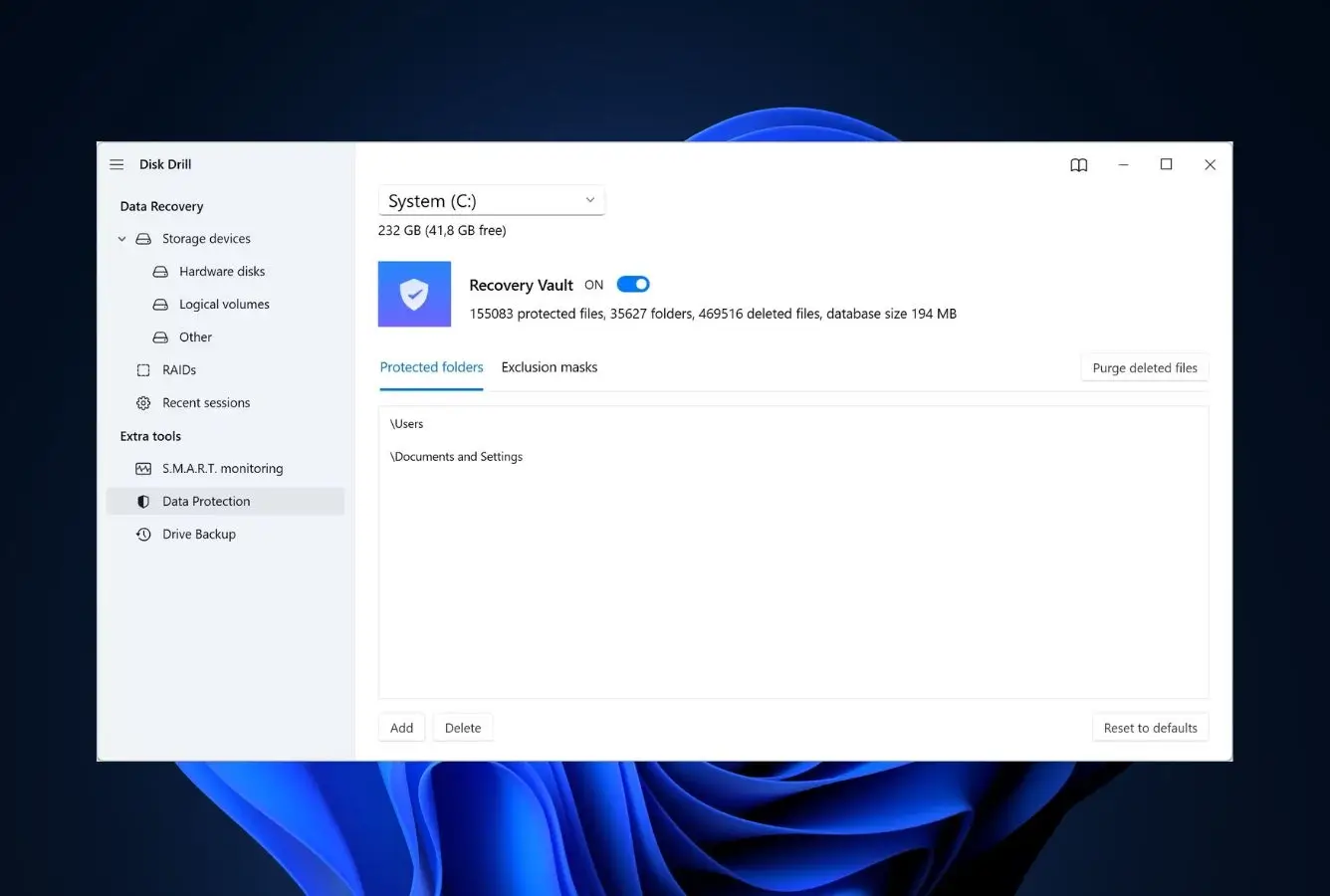
Disk Drill wins this ranking because of how it handles the thing most consumers get wrong about RAID recovery: you shouldn’t rebuild the array before scanning. Disk Drill takes each member drive connected individually (via SATA ports or USB-to-SATA adapters), scans for RAID metadata, and virtually reconstructs the array into a single logical partition without modifying any source data. Supported levels cover RAID 0/1/5/6/10/1E, JBOD, and Windows Storage Spaces, plus BTRFS RAID volumes that Synology and QNAP NAS devices use. The interface is the category’s most approachable — a clean RAIDs panel shows Valid, Recovered, or Corrupted status per array — and the $149 lifetime license is cheaper than a single year of most specialist tools. CleverFiles confirms a manual reconstruction module is in development for enterprise controllers, so the current automatic-only scope is honest tradeoff, not hidden limitation.
- Automatic RAID reconstruction for 0/1/5/6/10/1E, JBOD, Windows Storage Spaces
- BTRFS RAID support for Synology and QNAP NAS devices
- Clean RAIDs panel with clear array health indicators
- Single license covers both Windows and Mac versions
- Unlimited free preview to confirm recovery is possible before paying
- One-time $149 lifetime license undercuts every specialist RAID tool
- No manual RAID builder yet — fully automatic reconstruction only
- Limited support for enterprise hardware RAID controllers (module in development)
- No XFS file-system scanning yet — a recognized gap for some NAS arrays
The broadest automatic reconstruction in the consumer tier.
Disk Drill’s RAID engine handles the mainstream levels home users and small business IT actually run: 0, 1, 5, 6, 10, 1E, JBOD, and Windows Storage Spaces. For NAS devices, it also reconstructs BTRFS RAID arrays that Synology Hybrid RAID and QNAP SHR commonly use. Connect each member drive individually — the software will not attempt reconstruction from a still-assembled array — and let Disk Drill scan for metadata. The tool then virtually rebuilds the array and scans it as a single volume. Where this approach falters is on arrays where metadata is damaged or stripe parameters are non-standard; that’s when R-Studio or UFS Explorer’s manual builders take over.
The easiest interface in this ranking by a wide margin.
Disk Drill’s RAIDs panel lists detected arrays with one of three colored statuses — green for Valid, yellow for Recovered with partial data loss, red for Corrupted. Click an array, run the scan, preview files, recover. The vendor documentation calls out one operational detail that’s easy to miss: connect all RAID drives simultaneously before launching a scan. This is the only way Disk Drill can accurately analyze and reconstruct the array. For first-time RAID recovery users, the difference between Disk Drill and professional tools like R-Studio is the difference between a wizard and a parameter editor. For mainstream use, the wizard wins.
The cheapest serious RAID tool on this page for multi-year use.
Disk Drill Pro costs $89 per year or $149 one-time for a lifetime license — a single license covers both Windows and Mac. For context, UFS Explorer RAID Recovery starts at €129.95, DiskInternals RAID Recovery at $249.95, and Stellar Data Recovery Technician at $199. Over a three-year horizon, Disk Drill’s $149 lifetime license is the cheapest full-featured RAID recovery option. The free tier lets you scan arrays and preview files without paying; license only when you’re ready to extract. For a single-event home recovery, this is the best value by a clear margin.
2. Wondershare Recoverit – Best for NAS/RAID Remote Scanning
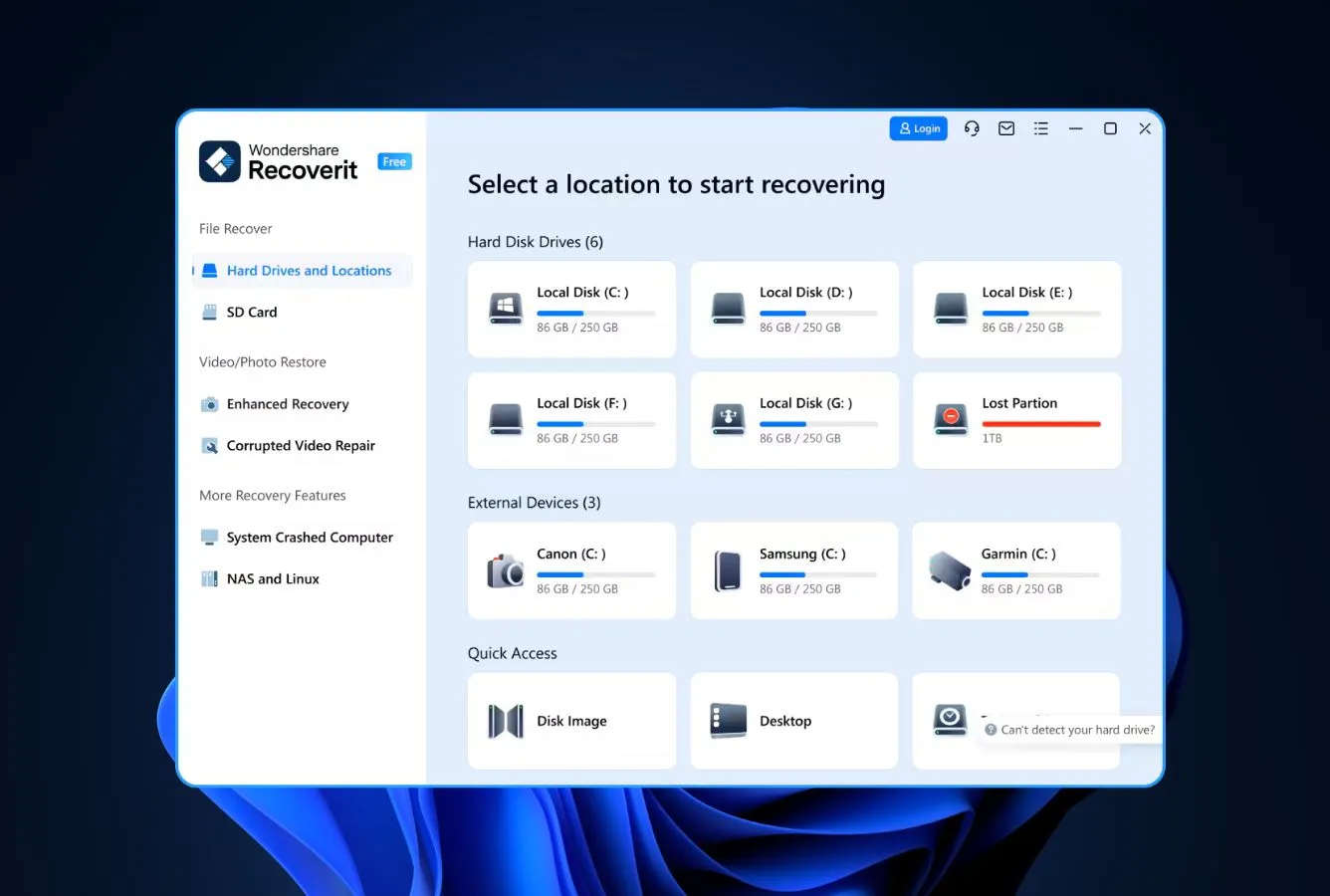
Wondershare Recoverit earns the second spot because of a specific operational advantage: it recovers data from RAID-configured NAS devices without making you pull the drives. You enable SSH on the NAS (Synology, QNAP, Buffalo, WD, NETGEAR all supported), enter the IP and port in Recoverit’s NAS Recovery panel, and the software scans the array remotely. For anyone whose RAID sits inside a NAS chassis with proprietary screw patterns, non-standard cable orders, or vendor-specific RAID metadata, this is a meaningful time and risk saving over physically disassembling the array. Recoverit covers RAID 0, 1, 5, 6, and 10 across a wide spread of loss causes including RAID reconstruction failures, controller crashes, and parity corruption.
- Remote SSH scanning covers RAID inside NAS chassis without drive removal
- Covers RAID 0/1/5/6/10 across a broad range of loss causes
- Direct support for Synology, QNAP, Buffalo, WD, NETGEAR NAS brands
- Clean interface with NAS-specific workflow instead of generic RAID
- Free preview shows every recoverable file before payment clears
- Annual subscription at Essential tier; lifetime license costs more than Disk Drill
- No manual RAID builder for non-standard stripe parameters
- Hardware controller support narrower than DiskInternals for enterprise gear
Competitive on mainstream RAID levels; excellent on NAS workflows.
Recoverit handles RAID 0, 1, 5, 6, and 10 both as assembled arrays and from individual member drives connected to the host machine. The standout capability is NAS-specific: the software can connect to a running NAS device over SSH, detect the RAID configuration automatically, and scan it as if it were a single volume. For Synology Hybrid RAID or QNAP SHR setups where pulling drives would mean losing the vendor-specific metadata, this is genuinely the right default. Scanning success on mainstream ext4 and BTRFS NAS arrays is competitive with Disk Drill; on XFS (which Disk Drill doesn’t yet cover), Recoverit pulls ahead.
NAS-first design keeps the RAID complexity out of the way.
Recoverit’s RAID workflow lives under “NAS and Linux” in the left sidebar. Pick NAS Recovery, enter the device IP and credentials, and Recoverit handles the rest — IP auto-detection, SSH connection, RAID assembly, and scan. The dialog is the kind of wizard that hides the technical depth behind three inputs. For a Synology DS920+ owner whose volume suddenly shows as unmounted, this is twenty minutes from install to first preview, versus an hour of documentation reading for R-Studio. The downside: if the automatic path fails on an unusual stripe configuration, there’s no manual fallback inside Recoverit — you’d need R-Studio or UFS Explorer at that point.
Subscription-first pricing with a genuine free preview.
Essential starts at $69.99 per year, Standard at $79.99, and Premium at $99.99. A $119 lifetime license is available — the best value if you expect multiple recovery events. The free tier lets you scan and preview before paying, which is the key feature for confirming recovery is possible on a NAS array. For a single NAS recovery, buy the month-long license at its promotional rate and cancel auto-renew immediately after. Our best NAS data recovery software guide covers the NAS-specific landscape in more depth.
3. EaseUS Data Recovery Wizard – Easiest Basic RAID Wizard
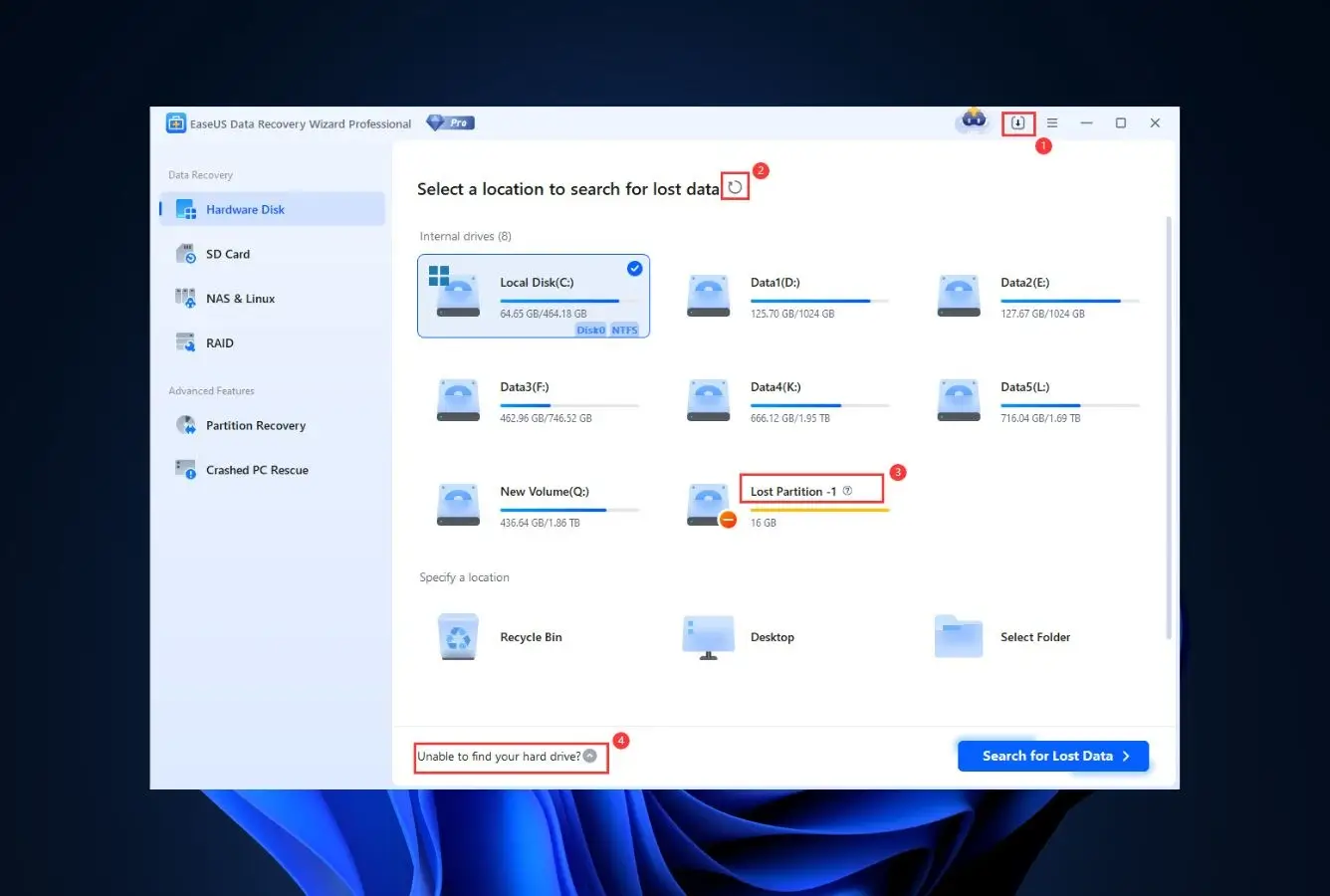
EaseUS Data Recovery Wizard sits at #3 because of honest tradeoffs: the wizard experience is the smoothest in this ranking, but EaseUS’s RAID-specific capabilities are narrower than Disk Drill’s. Competing vendor documentation flags that EaseUS supports primarily basic RAID levels (0 and 1), limiting its effectiveness for more complex arrays. In practice EaseUS also handles RAID 5 and 10 in NAS configurations, but not with the parameter control of specialist tools. Where EaseUS wins: the NAS recovery workflow for Synology, QNAP, Buffalo, WD, and NETGEAR is wizard-driven from start to finish, requires no technical setup, and offers 2 GB of free recovery — meaningful enough to rescue a few small but important files at no cost.
- Smoothest NAS + RAID wizard for non-technical users
- Direct brand support for Synology, QNAP, Buffalo, WD, NETGEAR
- 2 GB free recovery tier is usable for small loss events without paying
- Clean 3-step workflow: scan → preview → recover
- Cross-platform across Windows and Mac with similar interface
- RAID capabilities weaker than specialist tools — competing vendors flag RAID 0/1 as primary strength
- Monthly subscription pricing can exceed lifetime licenses on other tools over time
- No manual RAID parameter control for non-standard configurations
Strong on basic RAID and NAS; limited on complex reconstruction.
EaseUS Data Recovery Wizard recovers from RAID 0 and 1 natively and handles RAID 5 and 10 in NAS-based configurations via SSH. The approach prioritizes smooth recovery on common consumer cases — formatted NAS volumes, accidental deletion inside a RAID share, controller crashes on 2-bay and 4-bay appliances — rather than complex parameter reconstruction. For a home user whose Synology volume stopped mounting after a firmware update, EaseUS’s wizard is the fastest path to recovered files. For a RAID 6 with non-standard stripe size and missing metadata, this is not the right tool; step up to R-Studio or UFS Explorer.
The friendliest consumer recovery interface, narrowly ahead of Disk Drill.
EaseUS walks a deliberate line between power and accessibility. The main window shows attached drives as tiles with big recovery icons; NAS and RAID live under a clearly labeled “NAS and Linux” section. The workflow is three clearly numbered steps with tooltips at every decision point. For users who’ve never recovered data before, the learning curve is effectively zero. The tradeoff is visible when things go wrong: there’s no fallback to advanced parameters, no hex view, no manual stripe builder. When EaseUS’s automatic recovery doesn’t work, you reach for a different tool rather than tuning this one.
Flexible tiers with a genuine 2 GB free recovery cap.
EaseUS Data Recovery Wizard Pro is $69.95 monthly, $99.95 yearly, or $149.95 lifetime. The free tier recovers up to 2 GB without payment — a real, usable cap for rescuing important documents or a handful of photos. Over a three-year horizon, the $149.95 lifetime license matches Disk Drill exactly; the difference becomes RAID capability, where Disk Drill pulls ahead for complex cases. For users whose loss event fits EaseUS’s strengths (basic RAID, common NAS brands, straightforward file-level recovery), the smooth wizard can justify the price parity against tools with broader RAID depth.

4. Stellar Data Recovery Technician – Manual RAID Builder for Prosumers
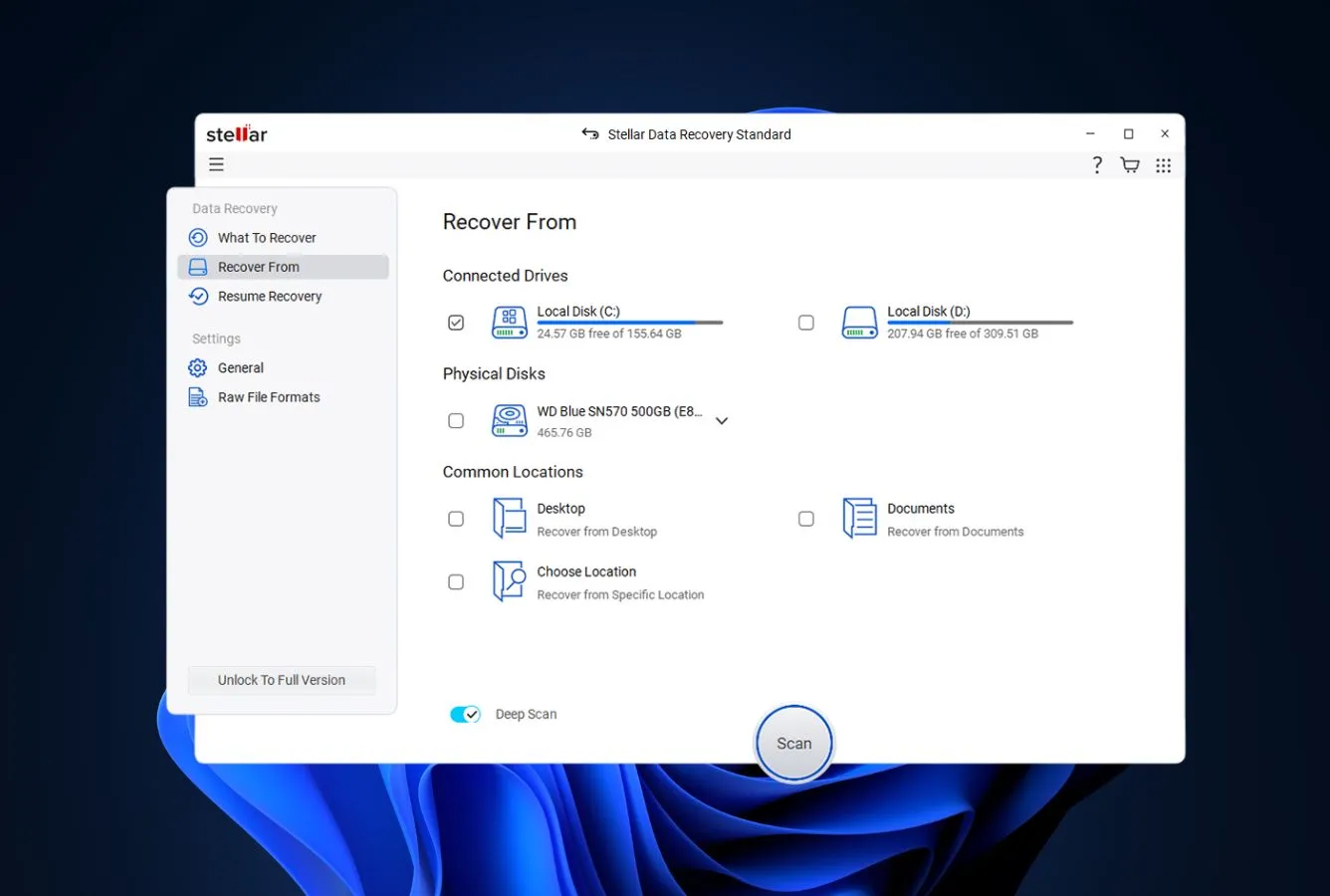
Stellar Data Recovery Technician bridges the consumer-pro gap. Unlike the three tools above, Stellar exposes a proper manual RAID builder: choose drives, set start sector, specify block size, define parity order, click Build RAID. For RAID 0, 5, and 6 — the three most common loss cases for prosumers and small-IT — this is the first tool in the ranking where you can work around missing metadata. Stellar supports both hardware and software RAIDs and creates bootable USB media for recovery from a crashed host system. The $199 starting price puts it above the consumer tier but below R-Studio Network and well below DiskInternals. Independent review sources flag a specific limitation: RAID level coverage is narrower than specialist tools (primarily 0, 5, 6; limited RAID 1 and nested array support).
- First tool in this ranking with a genuine manual RAID parameter builder
- Handles RAID 0, 5, and 6 with drive order and block size control
- Bootable USB media creation for crashed host recovery
- Works on both hardware and software RAID configurations
- One-time license pricing — no subscription lock-in
- RAID level coverage narrower than R-Studio or UFS Explorer (no RAID 10, 50, 60)
- Windows-focused — Mac version lags feature parity
- $199 starting price puts it above consumer tools without full pro capability
The RAID builder that consumer tools don’t have, without R-Studio’s complexity.
Stellar’s RAID Recovery mode is the first tool in this ranking where you can manually specify drive order, block size, start sector, and parity rotation. For a RAID 5 where metadata is gone but you remember the disk sequence, this is the functionality you need — and it’s genuinely usable without R-Studio’s learning curve. Stellar supports RAID 0, 5, and 6 natively. For NAS devices, it handles Buffalo TeraStation, Iomega StorCenter, Synology, LinkStation, QNAP, and LaCie Linux-based arrays. Where Stellar falls short: RAID 10, 50, and 60 are not listed as supported levels, a real limitation compared to R-Studio or UFS Explorer.
Wizard at the front, parameter editor in the back — a smart compromise.
Stellar’s main interface stays wizard-driven: pick what to recover, pick where, click Next. The RAID builder lives in a dedicated RAID Recovery tab that opens a parameter grid when you need it. Drive order is drag-and-drop. Block size exposes common values (4KB, 16KB, 64KB, 128KB, 256KB, 512KB, 1MB) with a custom option. Start sector has a “probable values” checkbox that tries common offsets automatically. For anyone stepping up from EaseUS or Recoverit who finds themselves needing parameter control, Stellar is the natural next step. For anyone already comfortable in R-Studio, this is a simplification that costs some power.
Expensive for consumer-grade; a real step below pro-grade; priced accordingly.
Stellar Data Recovery Technician starts at about $199 one-time. The Toolkit edition is higher still. For context, R-Studio at $79.99 gives more RAID coverage and nested level support, and UFS Explorer RAID Recovery at €129.95 delivers deeper file-system reach. Stellar’s value case rests on the learning curve: a prosumer who wants parameter control but finds R-Studio intimidating may find Stellar’s middle ground worth the premium. For a home user without that need, the consumer tier above handles most RAID cases at less than half the price.
5. R-Studio – Industry-Standard Professional RAID Recovery
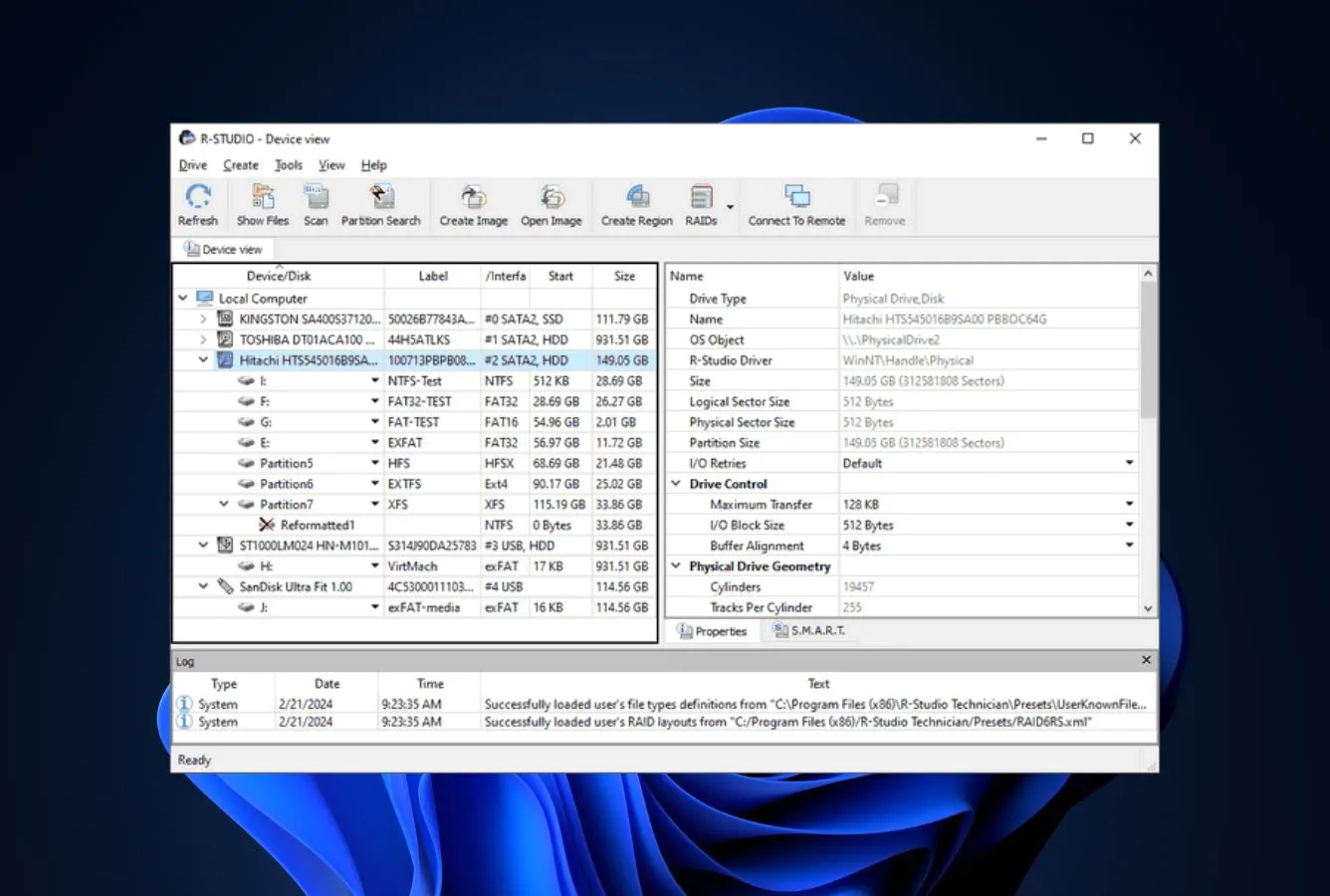
R-Studio is the professional RAID tool this ranking is built around — the one data recovery pros and forum veterans reach for when consumer tools give up. Coverage spans standard RAID levels (volume set, 0, 1, 4, 5, 6), nested configurations (10, 1E, 5E, 5EE, 6E), support for parity delays, and customer-specified RAID layouts via custom XML definitions. Automatic RAID parameter recognition handles RAID 5 and 6 reconstruction without manual input — this is the specific feature that made R-Studio the industry standard. Support for Linux mdadm, LVM/LVM2, Apple software RAID, CoreStorage, Fusion Drive, and Windows Storage Spaces means the same binary handles recovery across all three major operating systems and their respective software RAID stacks. Community feedback on hddguru and Reddit consistently names R-Studio as the go-to for serious RAID cases.
- Most comprehensive RAID level coverage in this ranking — standard, nested, custom
- Automatic parameter recognition for RAID 5 and 6 arrays with missing metadata
- Reads Linux mdadm, LVM2, Apple software RAID, and Windows Storage Spaces
- Hex editor and network recovery over TCP/IP built in
- Cross-platform: Windows, Mac, Linux from the same product family
- $79.99 one-time starting price — cheapest in the pro tier
- Interface is dense and assumes RAID parameter vocabulary — steep learning curve
- License keys not interchangeable between Windows, Mac, and Linux builds
- Demo mode caps recovery at 256 KB per file — effectively preview-only for real data
The deepest RAID coverage in this ranking, across every level that matters.
R-Studio’s RAID engine covers everything: standard levels 0/1/4/5/6, nested 10 and 1E/5E/5EE/6E, support for parity delays, and customer-specified RAID layouts. Automatic parameter recognition handles RAID 5 and 6 reconstruction without manual input — this solves one of the hardest problems in array recovery. For software RAID, R-Studio reads Linux mdadm and LVM2, Apple software RAID and Fusion Drive, plus Windows Storage Spaces. For arrays where the controller is gone but the member drives are intact, R-Studio can reconstruct the array from the drives alone. This is the feature set that professionals pay for, delivered at a consumer price.
Powerful, dense, and actively hostile to first-time users — on purpose.
R-Studio’s UI presents physical disks and partitions in a tree, scan settings as explicit parameters (block size, sector range, known file types), and an integrated hex editor for direct inspection. There’s no wizard. The RAID construction dialog is a grid editor: drive slots, offsets, parity rotation direction, block size in sectors. For anyone who knows what they’re looking at, every control is one click away. For anyone who doesn’t, plan for an hour of documentation reading before the first real job. The density is the value — this is a professional tool that treats you like a professional.
The best dollar-per-RAID-capability ratio anywhere in this ranking.
R-Studio standard is $79.99 one-time for a single OS (Windows, Mac, or Linux — not all three; license keys are per-platform). R-Studio Network at $179.99 adds RAID over LAN and remote recovery. Technician at $899 adds portable USB deployment and the full network toolkit. Even at the Technician tier, R-Studio undercuts DiskInternals’ enterprise pricing by a wide margin. For a sysadmin, consultant, or anyone managing more than one RAID array, this is the tool whose learning curve earns its keep over a multi-year horizon. Our best hard drive recovery software guide places R-Studio similarly for drive-level recovery.
6. UFS Explorer RAID Recovery – Specialist File-System Matrix
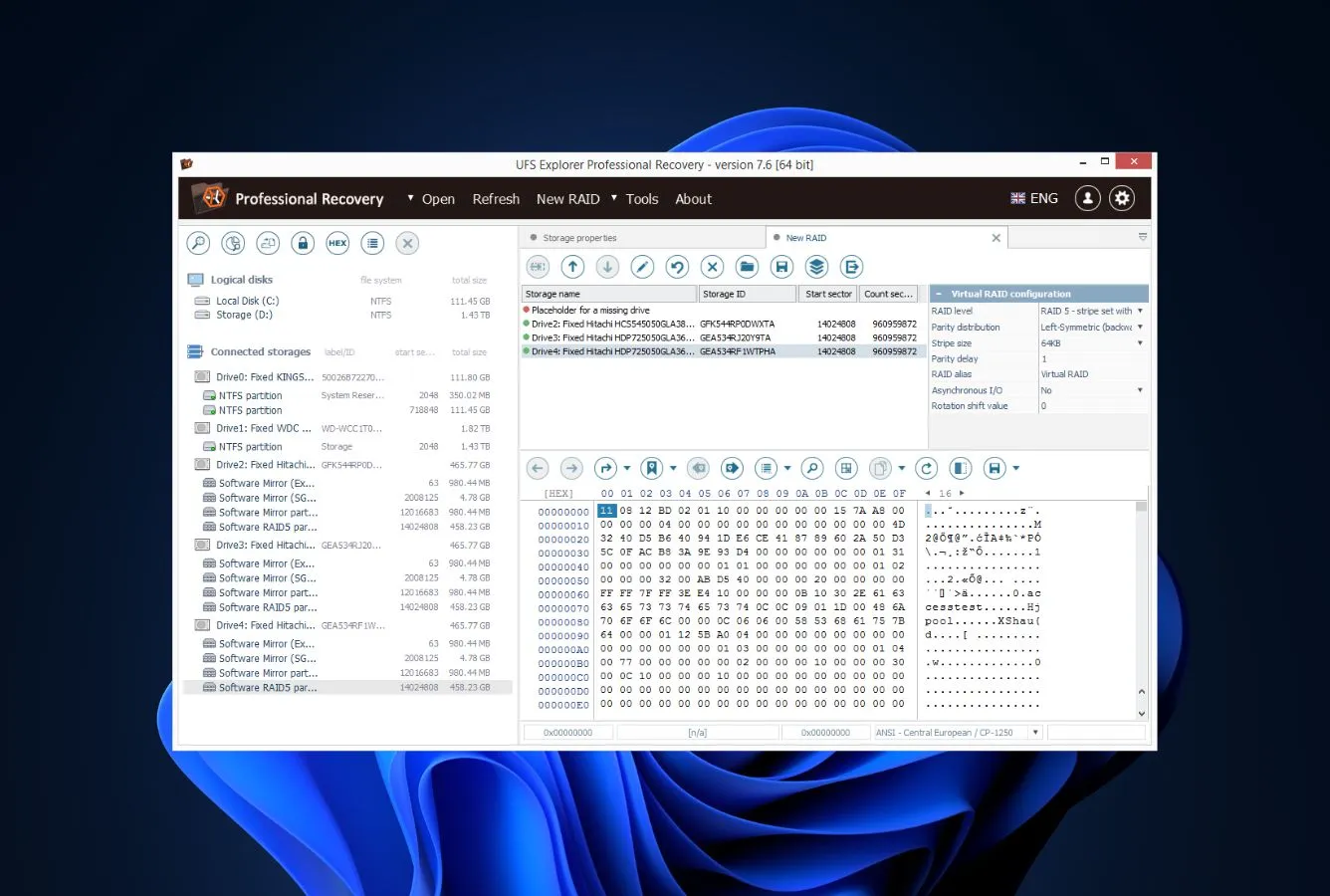
UFS Explorer RAID Recovery from SysDev Laboratories is the RAID specialist’s tool — the one that handles configurations other software can’t see. Vendor documentation lists standard RAID levels (0, 1E, 3, 5, 6, 7), nested patterns (10, 50, 60, 50E), and custom RAID setups defined via RDL (RAID Definition Language) or Runtime VIM. Automatic reconstruction covers mdadm, LVM, Apple Software RAID, Intel Matrix, plus Drobo BeyondRAID, Synology Hybrid RAID, and Btrfs-RAID. File-system coverage matches or exceeds every other tool on this list: ext2/3/4, XFS, Btrfs, ZFS, JFS, F2FS on Linux; NTFS, ReFS on Windows; HFS+, APFS on Mac; UFS/UFS2 on BSD. The interface is functional but visibly dated; vendor updates arrive reliably with each kernel and file-system release.
- Deepest RAID-level coverage in this ranking (0, 1E, 3, 5, 6, 7, 10, 50, 60, 50E)
- Custom RAID configurations via RDL and Runtime VIM definitions
- Drobo BeyondRAID, Synology Hybrid RAID, and Btrfs-RAID support
- Broadest file-system coverage of any commercial RAID tool on this list
- Cross-platform native builds for Windows, Mac, and Linux
- Regular kernel and file-system updates keep the tool current
- Interface is functional but visibly dated compared to Disk Drill or Stellar
- Commercial use requires separate license tier at roughly double the Personal price
- Learning curve assumes file-system and RAID vocabulary — not a wizard tool
The one tool that sees RAID configurations the rest of this list can’t.
UFS Explorer RAID Recovery’s specialty is the long tail of RAID configurations: Drobo BeyondRAID with its variable-disk layouts, Synology Hybrid RAID with per-drive striping, Btrfs-RAID with copy-on-write metadata, and custom arrays defined via RDL. Automatic reconstruction handles mdadm, LVM, Apple Software RAID, and Intel Matrix without manual input. For cases where metadata is damaged, the RAID Builder tool lets you specify parameters manually with live preview as adjustments are made. Adaptive reconstruction of RAID 1, 5, and 6 uses bad-sector maps from imaging to skip damaged regions. For a recovery professional seeing an unusual array configuration, this is often the first tool that reads the drives correctly.
Functional, capable, visibly dated — a real tradeoff.
The UFS Explorer GUI is organized around three panes: detected storage on the left, preview in the middle, file list on the right. The RAID Builder lives in its own workspace. Everything is clearly labeled, keyboard shortcuts are consistent, and scan sessions save and resume. What the interface isn’t is modern — icons look like Windows XP-era, color palette is utilitarian, and the layout doesn’t reflow well on high-DPI displays. For anyone who cares about polish, Stellar and Disk Drill win. For anyone who cares about getting obscure arrays to read, UFS Explorer is the tool.
Priced right between consumer and enterprise — the pro tier’s sweet spot.
UFS Explorer RAID Recovery Personal is €129.95 (~$140) one-time. Commercial licensing roughly doubles the price. Compared to DiskInternals RAID Recovery at $249.95 starting, UFS Explorer delivers broader RAID and file-system coverage at a lower entry point. Compared to R-Studio at $79.99, it wins on NAS-specific layouts (Drobo, SHR, Btrfs-RAID) but costs more. For a professional who specifically encounters unusual RAID configurations, this tool pays for itself on the first recovery. For a home user on a standard RAID 5, Disk Drill at $149 lifetime is the better value.

7. DiskInternals RAID Recovery – Hardware Controller Support
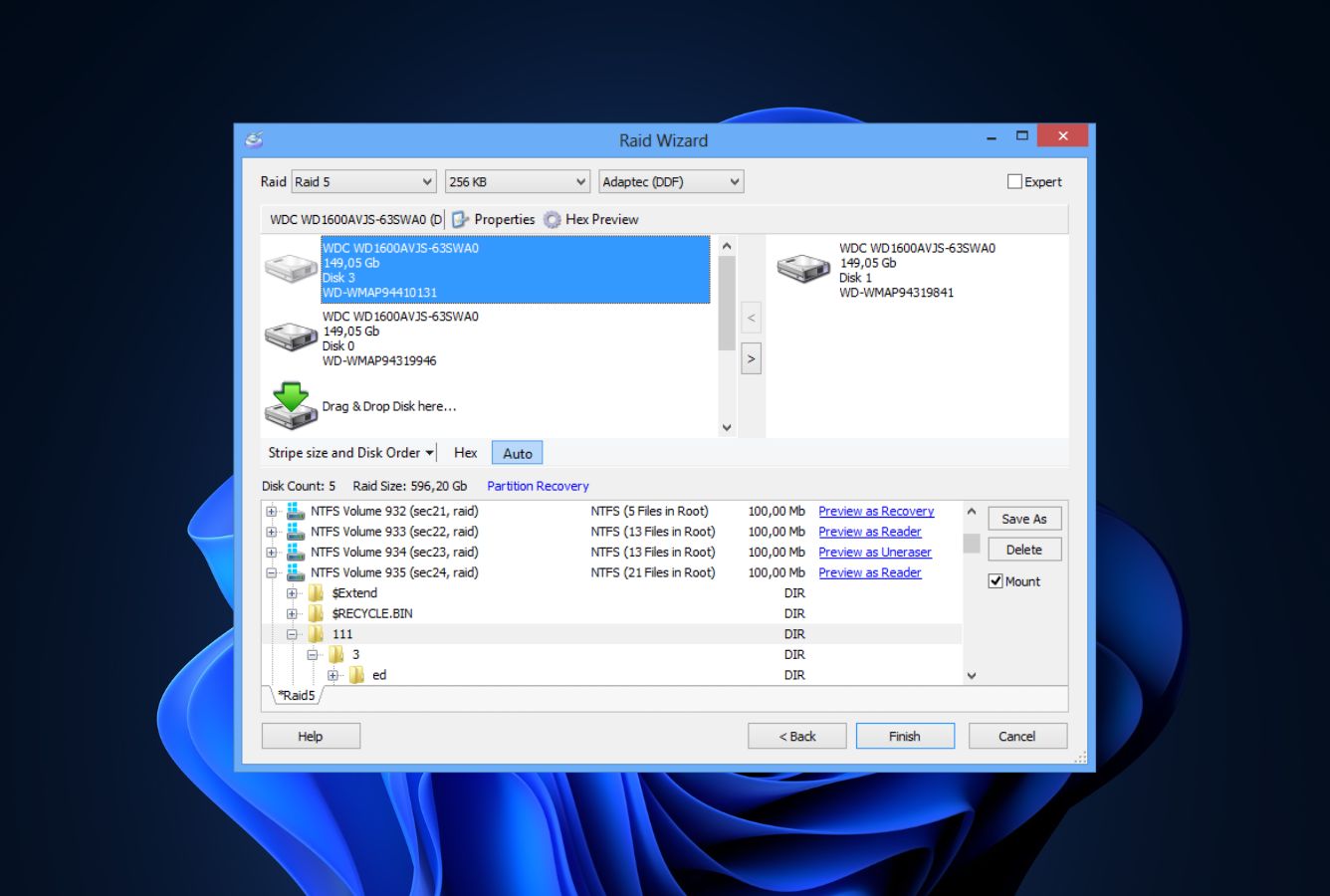
DiskInternals RAID Recovery earns this spot for one specific capability: hardware controller support. Unlike most tools in this ranking, DiskInternals communicates directly with dedicated RAID controllers from Adaptec, HP Smart Array, Dell PERC, LSI/Broadcom MegaRAID, and Silicon Image. For enterprise Windows environments running hardware RAID on physical servers, this is genuinely the right tool. Level coverage is broad (RAID 0, 1, 0+1, 1+0, 1E, 4, 5, 50, 5EE, 5R, 6, 60, JBOD) and automatic parameter detection handles most cases. The honest limitations: Windows only (no Mac or Linux build), starting price of $249.95 puts it above most alternatives, and independent reviews note the interface feels less convenient than Disk Drill’s. For IT admins running Dell or HP servers with RAID controllers, none of those tradeoffs matter — this tool does what the others can’t.
- Direct communication with Adaptec, HP, Dell, LSI/MegaRAID, and Silicon controllers
- Broad RAID level coverage including 5EE, 5R, and 50/60 nested arrays
- Automatic parameter detection with manual drag-and-drop override
- Disk imaging built in for backup during recovery
- Integrated recovery wizard for less-technical IT staff
- Windows only — no Mac or Linux builds
- Starting price $249.95 is above most alternatives in this ranking
- No bootable media or disk image recovery in the standard edition
- Independent reviews flag the interface as less convenient than Disk Drill’s
Hardware controller support is where this tool uniquely earns its price.
DiskInternals RAID Recovery’s distinguishing capability is controller-level integration. For a Dell PowerEdge with a PERC H730 or an HP ProLiant with Smart Array, this tool can interrogate the controller directly to read RAID metadata — functionality no consumer tool offers. For software RAID and pure member-drive scenarios, DiskInternals works like the others: connect drives individually, let the software detect the array, virtually reconstruct, scan for files. The tool also reads partition-level data even when the RAID itself is destroyed, using raw-scan mode as a fallback. For enterprise Windows environments, the controller support alone justifies the price.
Functional and wizard-driven, but visibly less polished than top picks.
The main interface lists attached storage in a tree with RAID detection happening automatically on launch. A Recovery Wizard walks new users through a standard scan. Advanced users can switch to manual mode and drag drives into RAID positions directly. Where the interface falls short compared to Disk Drill or Stellar is density — too many options exposed at once, some labels assume RAID vocabulary without explanation. Independent review sources specifically flag this as a usability gap. For an IT admin working through documentation anyway, it’s not a dealbreaker; for a first-time user, the learning curve is steeper than it needs to be.
Expensive, but the hardware controller feature is genuinely rare.
DiskInternals RAID Recovery Standard is $249.95 one-time; Enterprise reaches $1,495 with multi-seat licensing. This is the highest starting price in this ranking. The value case depends entirely on your environment: if you run hardware RAID on Dell, HP, or similar enterprise controllers, no cheaper tool offers the same compatibility. If you run software RAID or NAS devices, R-Studio at $79.99 or UFS Explorer at €129.95 delivers equivalent results at significantly lower cost. Buy this tool only when the hardware controller integration specifically matches your environment.
8. ReclaiMe Free RAID Recovery – Free RAID Parameter Detection
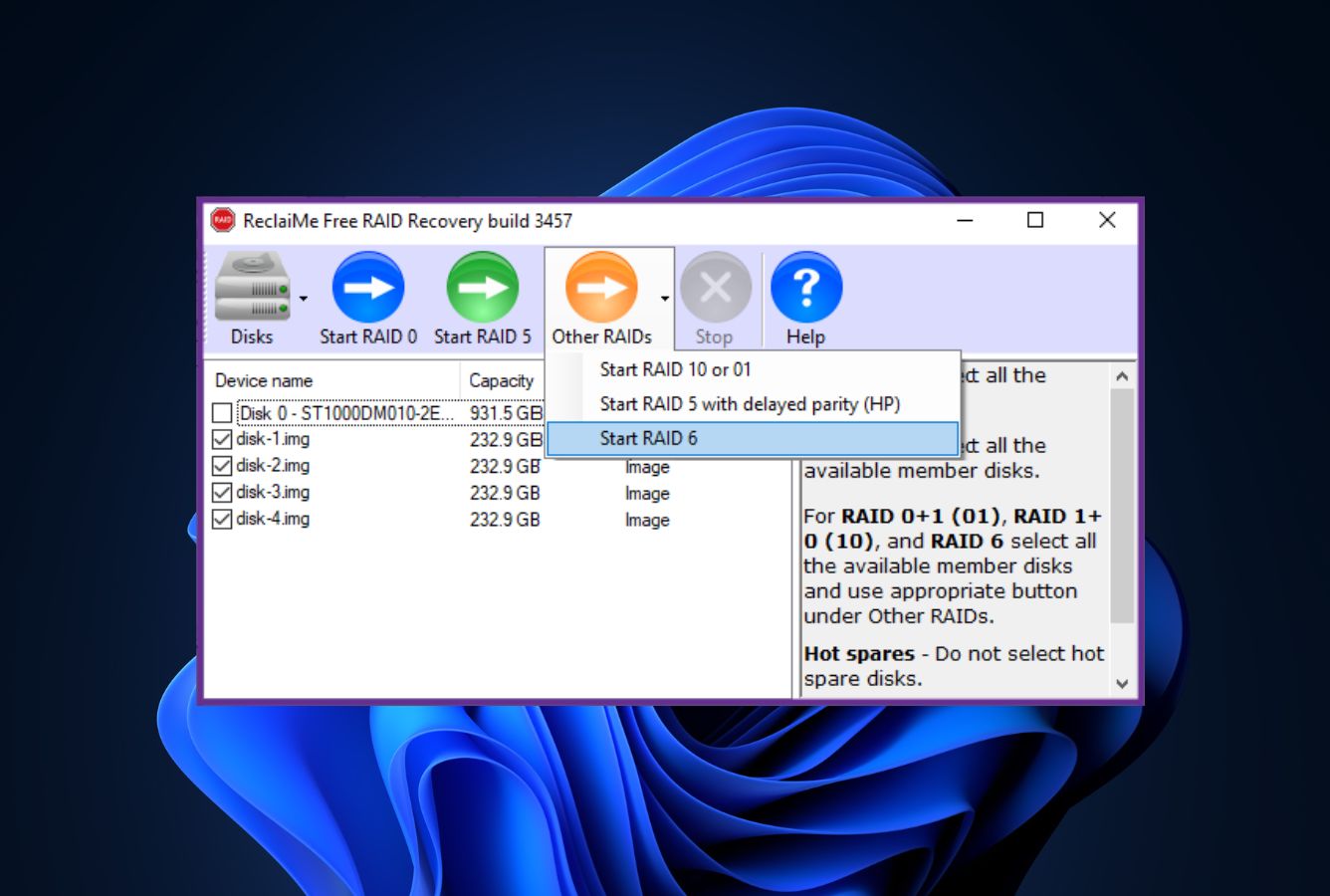
ReclaiMe Free RAID Recovery occupies an unusual slot in this ranking: it’s genuinely free, it does exactly one thing extremely well, and it pairs with other tools to complete the job. The software detects RAID parameters — disk order, block size, start offset, parity rotation — automatically from a set of member drives, for RAID 0, 0+1, 1+0, 1E, 5, and 6 configurations. What it doesn’t do is recover files; for that, you use the detected parameters in a separate tool (ReclaiMe File Recovery or R-Studio commonly). For a sysadmin who knows a RAID failed but doesn’t know the exact stripe configuration, this is often step one of the recovery workflow. Bootable media creation and NAS support (QNAP, NETGEAR, Synology, Buffalo) round out the feature set. The honest limitations: Windows-only, no direct file recovery, and workflow requires pairing with a second tool.
- Genuinely free — no hidden fees or usage restrictions
- Automatic detection of disk order, block size, offset, and parity rotation
- Supports RAID 0, 0+1, 1+0, 1E, 5, 6 plus JBOD and NAS devices
- Exports virtual RAID for use with ReclaiMe File Recovery, R-Studio, or others
- Bootable USB media creation for direct hardware access
- Does not recover files — parameter detection only, pairs with another tool
- Windows only — no Mac or Linux native builds
- Workflow requires two tools, increasing complexity over all-in-one alternatives
Narrow, but within its scope genuinely excellent.
ReclaiMe Free RAID Recovery runs a layout-detection algorithm across member drives to recover RAID parameters automatically. For standard levels (0, 0+1, 1+0, 1E, 5, 6), it figures out disk sequence, block size, start offset, and parity rotation without manual input. The output is a virtual RAID configuration that can be fed into ReclaiMe File Recovery (paid), R-Studio, TestDisk, or other recovery tools. For NAS devices from QNAP, NETGEAR, Synology, and Buffalo, the tool also detects vendor-specific layouts. This is the feature most consumer tools don’t expose — where consumer tools try to auto-reconstruct and fail silently, ReclaiMe shows you the parameters it detected and lets you verify or override them.
Simple, focused, and honest about what it does and doesn’t do.
ReclaiMe’s UI is minimal by design: one main window with detected disks on the left, RAID configuration in the middle, and export options on the right. The workflow is a handful of clicks — select disks, click Start, wait for parameter detection, export. The tool doesn’t pretend to do more than this. For users expecting full file recovery, the lack of a scan-and-recover flow can feel confusing at first; the documentation is clear that this is a parameter-detection tool meant to pair with something else. Once you understand the pairing model, the experience is efficient.
The best free tool for a specific, valuable purpose.
ReclaiMe Free RAID Recovery is genuinely free — no nag screens, no feature gates, no upsell prompts. The parent ReclaiMe File Recovery is paid, and the two are designed to work together, but there’s no obligation to buy the paid tool. For a technical Windows user staring at a failed RAID who needs to understand the stripe configuration before reaching for recovery software, this tool is zero-cost and often exactly what’s needed. The value is unambiguous; the tradeoff is learning a two-tool workflow instead of an all-in-one.
How We Ranked RAID Recovery Software
Ranking RAID recovery tools means balancing two audiences with very different needs — home and small-business users whose RAID lives inside a NAS appliance, and IT professionals with hardware controllers, enterprise arrays, and non-standard configurations. A mixed ranking has to serve both. We evaluated 22 candidates through a layered research approach: vendor documentation for feature baselines, independent third-party testing and benchmarks for cross-reference, and community feedback from r/datahoarder, r/homelab, r/sysadmin, hddguru, and long-running storage forums.
RAID configurations covered: RAID 0, 1, 4, 5, 6, 10, 1E, 5E, 5EE, 5R, 6E, 50, 60, 50E, plus JBOD, spanning, Windows Storage Spaces, Apple Software RAID, Intel Matrix, mdadm, LVM/LVM2, CoreStorage, Fusion Drive, Synology Hybrid RAID, QNAP SHR, Drobo BeyondRAID, and Btrfs-RAID. File-system targets: NTFS, ReFS, FAT/exFAT, HFS+, APFS, ext2/3/4, XFS, Btrfs, ZFS.
Key factors weighted: RAID level coverage and real-world reconstruction results (35%), interface type and learning curve for the tool’s target user (15%), pricing and free-tier generosity (15%), platform coverage across Windows, Mac, and Linux (10%), NAS device and hardware controller compatibility (15%), and automatic versus manual parameter control (10%).
Individual test runs, per-tool notes, and our RAID-specific scan logs live on our full methodology page. Start there if you want the underlying notes behind any claim on this page.
RAID Recovery Software – Honorable Mentions
Six tools we considered but didn’t include in the main ranking. Each has a niche strength or specific limitation that kept it out of the top 8 — none are bad, they’re just narrower in scope or better suited to specialized cases.
How to Choose the Right RAID Recovery Tool
RAID recovery isn’t one problem — it’s five related ones that happen to share a category page. The factors below walk through what actually changes which tool you should pick, from RAID level to whether hardware controllers are involved.
What RAID Level Are You Recovering?
RAID 0 is stripe-only, no redundancy — if any drive fails mechanically, software recovery is limited. For intact drives with logical failure (controller crash, metadata loss), all eight tools in this ranking handle it. RAID 1 mirrors data, so either drive contains a complete copy; any recovery tool that reads the file system will find your files.
RAID 5 and 6 are the complex cases: parity-based arrays that can survive one (RAID 5) or two (RAID 6) drive failures. Automatic reconstruction works when metadata is intact; when it isn’t, manual parameter control matters. R-Studio, UFS Explorer RAID Recovery, and Stellar Data Recovery Technician are the three tools with serious parameter builders. RAID 10 combines mirroring and striping; any mainstream tool handles it automatically.
Is It Software RAID, Hardware RAID, or NAS?
Software RAID (Linux mdadm, Windows Storage Spaces, Apple Software RAID, Intel Matrix) is what most home and small-business environments use. All eight tools in this ranking handle it. Connect member drives individually to a separate host — do not let the original controller rebuild — and let the software virtually reconstruct the array.
Hardware RAID (Adaptec, Dell PERC, HP Smart Array, LSI/Broadcom MegaRAID) means the controller adds a layer between the drives and the OS. DiskInternals RAID Recovery is the one consumer-priced tool in this ranking with direct controller support. R-Studio and UFS Explorer handle the member drives directly, bypassing the controller entirely — usually sufficient for recovery even if less elegant.
For NAS appliances (Synology, QNAP, Buffalo, WD), Wondershare Recoverit’s remote SSH scanning and EaseUS’s NAS wizard are the most polished options. See our best NAS data recovery software guide for NAS-specific depth.
Do You Have the Original Controller and Metadata?
If the original RAID controller works and the array metadata is intact, automatic reconstruction in any mainstream tool handles the recovery. Connect the array as read-only, scan, recover files to a separate destination. This is the easy path — Disk Drill, Recoverit, or EaseUS all finish this case.
If the controller is dead, the metadata is corrupted, or you don’t know the original configuration (drive order, stripe size, parity rotation), you need manual parameter control. ReclaiMe Free RAID Recovery detects parameters automatically at no cost. R-Studio, UFS Explorer, and Stellar expose manual RAID builders. DiskInternals handles it for Adaptec/HP/Dell controllers specifically.
Platform Coverage and Cross-OS Needs
Windows-only environments have the most options — every tool in this ranking except (arguably) R-Studio’s Linux build has a Windows version. For Mac environments, Disk Drill and Wondershare Recoverit both have native Mac apps with full RAID support; EaseUS and Stellar have Mac versions with narrower feature parity.
Linux environments are narrower. R-Studio has a native Linux build, UFS Explorer RAID Recovery runs on Linux, and for free/open-source options, TestDisk and PhotoRec (see our Linux data recovery guide) handle partition-level recovery but no RAID reconstruction. For cross-platform shops, R-Studio Network is the tool that runs identically everywhere.
Failing Hardware — Image First
If any drive in the array shows SMART warnings, clicks, stalls, or logs read errors, image that drive with ddrescue (Linux/Mac) or HDDSuperClone before running any recovery software. Running scans against failing drives accelerates physical damage and turns recoverable data into unrecoverable data.
Image each failing drive to a separate disk or file, then point the RAID recovery tool at the images rather than the originals. Disk Drill, R-Studio, and UFS Explorer all accept disk images as sources. This is both safer and often more productive — you can try multiple tools on the same snapshot without additional wear. Our best hard disk repair tool guide covers the imaging workflow in detail.
Pricing: Subscription vs Lifetime
The consumer tier in this ranking runs $89–$199 for lifetime licenses (Disk Drill at $149, EaseUS at $149.95, Wondershare at $119, Stellar Technician at $199). One-time pricing typically beats annual subscriptions over any multi-year horizon. Professional tools cost more but last longer: R-Studio at $79.99 one-time is the category’s price outlier and a strong value for anyone comfortable with the learning curve.
For a single recovery event, many of these tools offer month-long licenses at promotional rates ($30–$50 typical) — buy, recover, cancel auto-renew. For ongoing professional use, R-Studio or UFS Explorer at one-time pricing delivers the lowest cost of ownership.
When Software Recovery Won’t Work on a RAID
Not every RAID failure is recoverable by software. Some cases are genuinely lost to physical or logical realities, and recognizing them early saves time and reduces the risk of making things worse with repeated scan attempts.
| Your situation | Software can help? | What to do instead |
|---|---|---|
| RAID 5 with two failed drives (both physically dead) | No | Cleanroom recovery service — parity can’t reconstruct missing data |
| Rebuild accidentally run on a degraded array | Rarely | Stop immediately; cleanroom may recover pre-rebuild state |
| All drives intact, array shows as unmounted | Yes | Disk Drill, R-Studio, or UFS Explorer — automatic reconstruction |
| Unknown RAID parameters, missing metadata | Often yes | ReclaiMe Free for parameter detection, then R-Studio to recover |
| Hardware controller failure, drives unreadable | Not directly | Connect drives individually to a new host; DiskInternals or R-Studio |
RAID 5 with Two Drive Failures
RAID 5 survives exactly one drive failure because parity is distributed across all drives except the failed one. A second drive failure means parity can no longer reconstruct the missing data; the array is mathematically unrecoverable through software.
The exception: if one of the “failed” drives is actually intact but was ejected by the controller due to read timeouts or SMART errors, recovery is possible — R-Studio, UFS Explorer, and DiskInternals can analyze each drive individually and attempt to include the false-fail drive.
For two genuinely failed drives on a RAID 5, a cleanroom recovery service is the only option. Costs run $1,000–$4,000 depending on drive count and failure type. RAID 6 survives two failures, which is why it’s the safer choice for critical data — a third failure on RAID 6 has the same dynamic.
Accidental Rebuild on a Degraded Array
The single worst mistake in RAID recovery: letting the original controller run a rebuild on a degraded array where the “failed” drive actually contains data you need. The rebuild overwrites parity from the remaining drives, making the pre-failure state unrecoverable.
If a rebuild has already started, stop it immediately. Power down the array. Do not restart the controller. At this point, software recovery is limited to what survived the partial rebuild. A cleanroom service can sometimes recover earlier states from drive images, but results vary. The lesson: when a RAID shows as degraded, never let the controller rebuild until you’ve imaged every member drive to separate storage first.
Hardware Controller Failure
If the RAID controller itself has failed and the member drives are intact, recovery is possible — but you cannot simply plug the drives into a new controller. Hardware RAID controllers use proprietary metadata formats that usually aren’t cross-compatible even within the same vendor, let alone across brands.
The correct approach: connect member drives individually to a separate host via SATA ports or USB adapters, and use DiskInternals RAID Recovery, R-Studio, or UFS Explorer to virtually reconstruct the array without the controller.
Physical Drive Damage Mid-Recovery
If during scanning a drive starts clicking, beeping, or stalling — stop. Continued reads can turn a borderline drive into a total loss. Image the drive immediately with ddrescue (Linux/Mac) or HDDSuperClone (Windows) to a file, then run recovery tools against the image. If imaging itself fails, the drive needs cleanroom work.
Overwritten Data
Once new data has been written over old blocks, no software recovers the original. On a RAID, this most commonly happens when users keep writing to the array after noticing the problem — new files trigger updates to the same stripes that held the lost data. The rule: the moment you realize data is missing, stop all writes to the array. Power it down if you have to. Every additional write reduces what’s recoverable.
Power down the RAID before attempting any recovery. Never let the controller rebuild a degraded array until member drives are imaged. Never install recovery software onto a drive that’s part of the array you’re recovering.
Before You Install Recovery Software on a RAID
Before reaching for third-party tools, check what’s already available through the RAID controller, NAS operating system, or backup configuration. For simple loss scenarios, the built-in path is faster and safer than any recovery software.
RAID Controller Web UI and Logs
Hardware RAID controllers from Adaptec, Dell PERC, HP Smart Array, and LSI/Broadcom MegaRAID all have management interfaces that show current array status, drive health, and rebuild history. The first step on any suspected RAID failure is to read the controller’s event log — “Drive 3 reported media error, ejected from array” is specific information that tells you exactly what software needs to work around.
Most controllers also support “foreign configuration import” features that can re-import drives after accidental ejection.
NAS Snapshot Features
Modern NAS appliances — Synology DSM, QNAP QTS, TrueNAS CORE/SCALE — all support snapshots. For file-level loss (accidentally deleted folders, corrupted shares), check for a recent snapshot that predates the loss. DSM’s File Station shows snapshots directly; QNAP’s Storage & Snapshots app handles the equivalent; TrueNAS exposes ZFS snapshots. This path recovers in minutes what would take hours via scan tools.
Windows Storage Spaces History
Windows Storage Spaces maintains configuration state that Disk Manager can sometimes leverage to remount broken pools. Before running third-party tools on a Storage Spaces pool, check Control Panel → Storage Spaces for any “action needed” prompts. The built-in repair workflow handles some cases (unclean detachment, stale state) without involving recovery software at all.
Backup Systems First, Always
RAID is not a backup. This is the single most repeated saying in storage, and it’s repeated because people keep learning it the hard way. Before spending $150–$1,500 on recovery software, check whether your backup system (Veeam, Backblaze, Time Machine, Duplicati, Borg, Restic, or even a simple external drive with recent files) has what you lost. Restoring from backup is faster, cheaper, and more reliable than any recovery scan.
Before installing recovery software, check controller logs, NAS snapshots, Windows Storage Spaces repair options, and your backup system. One of these solves the majority of home and small-business RAID losses without any third-party tool.
Final Verdict
Disk Drill is the best RAID recovery software in 2026 for most users. It combines automatic reconstruction across the RAID levels consumers and small business IT actually run (0, 1, 5, 6, 10, 1E, JBOD, Windows Storage Spaces, BTRFS RAID), clean interface design on both Windows and Mac, and a $149 lifetime license that undercuts every specialist alternative.
Wondershare Recoverit is the close second and the right pick when the RAID lives inside a NAS appliance — its remote SSH workflow avoids disassembling the chassis. EaseUS Data Recovery Wizard delivers the smoothest wizard for basic RAID 0/1/5/10 and NAS cases; Stellar Data Recovery Technician bridges the consumer-pro gap with its first real manual RAID builder.
R-Studio is the industry standard for serious RAID work and the best value in the pro tier at $79.99 one-time; UFS Explorer RAID Recovery handles the non-standard layouts others can’t; DiskInternals RAID Recovery is the specialist for Windows environments with hardware controllers; ReclaiMe Free RAID Recovery is the free parameter-detection tool every professional workflow benefits from. Pick the tool that matches the array you’re recovering, not the one with the loudest marketing.
Frequently Asked Questions
About the Authors


Data Recovery Fix earns revenue through affiliate links on some product recommendations. This does not influence our rankings — all tools are evaluated independently based on documented research, independent testing from external sources, vendor documentation, and community feedback, before any affiliate relationships are considered. If anything on this page looks inaccurate, outdated, or worth revisiting, please reach out at contact@datarecoveryfix.com and we’ll review it promptly.