10 Best SD Card Recovery Software (2026): Reviewed & Ranked
The best SD card recovery software should rebuild JPEGs, RAW files, and videos from a formatted memory card without further damaging the media or corrupting the files it retrieves. We evaluated 20 leading SD card recovery tools for Windows and Mac on exFAT/FAT32 support, RAW and video format coverage, pricing models, and real-world user feedback from independent testing, Reddit, and support forums — then ranked the top 10. Here’s which software stands out in 2026.
+ 6 honorable mentions
· user feedback
SD, microSD, CFexpress
Win 11 24H2 / macOS 15
EaseUS Data Recovery Wizard is the best SD card recovery software in 2026. It combines the cleanest three-step workflow in the category with deep RAW, HEIC, and video format support, and its 2 GB free tier is enough to recover most single-card incidents without paying. Stellar Data Recovery is the strongest alternative for photography-specific workflows — explicit RAW format coverage for every major camera brand. Disk Drill rounds out the top three with a $89 one-time license and an Advanced Camera Recovery mode built specifically for action-cam and drone cards.
 EaseUS Data Recovery Wizard
- 2 GB free tier via social share — enough for most single-card incidents
- Deep Scan handles RAW, HEIC, MP4, and RAW video in one pass
- Native Apple Silicon build, BitLocker support
- From $99.95 / yr — $149.95 lifetime
 Stellar Data Recovery
- Explicit signatures for every major manufacturer RAW format
- Premium tier repairs corrupted JPEGs and videos in-app
- Clean three-panel interface, free 1 GB preview + 10 files
- From $49.99 / yr — Premium $69.99
 Disk Drill
- $89 perpetual license — free major-version upgrades
- Advanced Camera Recovery reconstructs fragmented action-cam footage
- Single license covers Windows + macOS, 500 MB Windows free tier
- $89 one-time
- 1EaseUS Data Recovery Wizard – Best SD Card Recovery Overall
- 2Stellar Data Recovery – Best for RAW Photography Workflows
- 3Disk Drill – Best Value & Advanced Camera Recovery
- 4Wondershare Recoverit – Best for Video-Heavy SD Cards
- 5PhotoRec – Best Free Open-Source SD Card Recovery
- 6R-Studio – Best Pro-Tier for Damaged or Encrypted Cards
- 7Tenorshare 4DDiG – Best Beginner-Friendly SD Card Recovery
- 8DiskDigger – Cheapest One-Time SD Card License
- 9Recuva – Best Free Windows Classic
- 10MiniTool Power Data Recovery – Reliable Windows-Focused Recovery
10 Best SD Card Recovery Software – Quick Comparison
Before the full reviews, here’s how the 10 tools stack up across what matters most for SD card recovery — exFAT/FAT32 support, RAW and video format coverage, platform parity, free-tier generosity, and pricing. Overall-strength labels are editorial, not benchmark-based; the breakdown below each product card explains the reasoning.
| Tool | Overall Strength | Format Coverage | Platforms | Ease of Use | Free Limit | Starting Price | Best For |
|---|---|---|---|---|---|---|---|
| EaseUS Data Recovery Wizard | Excellent | Full spectrum | Win + Mac | Excellent | Up to 2 GB | $99.95 / yr | All-round SD card recovery |
| Stellar Data Recovery | Excellent | All major RAW | Win + Mac | Excellent | Preview + 10 files | $49.99 / yr | RAW photography workflows |
| Disk Drill | Very Good | Very broad | Win + Mac | Very Good | 500 MB (Win only) | $89 one-time | Action cams, drones |
| Wondershare Recoverit | Very Good | Broad + video | Win + Mac | Very Good | 100 MB | $69.99 / yr | Drone & DSLR video cards |
| PhotoRec | Very Good | 480+ signatures | Win + Mac + Linux | Basic (TUI) | Unlimited (free) | Free (open source) | Power users, command line |
| R-Studio | Specialized | Pro codecs | Win + Mac + Linux | Steep curve | Preview + 256 KB | $49.99 Home | Damaged or encrypted cards |
| Tenorshare 4DDiG | Good | Broad | Win + Mac | Excellent | Up to 2 GB | $89.95 / mo | Non-technical users |
| DiskDigger | Good | JPEG-focused | Win + Linux | Good | Free on Linux | $14.99 one-time | Cheapest JPEG rescue |
| Recuva | Good | Mainstream | Windows only | Good | Unlimited | Free / $24.95 / yr | Free Windows recovery |
| MiniTool Power Data Recovery | Good | Broad | Windows only | Good | 1 GB | $89 / yr | Windows-focused users |
Overall-strength labels reflect editorial evaluation based on feature coverage, independent research, and user-feedback patterns — not an in-house benchmark. Pricing and free-tier limits are from the vendor’s current product pages.
10 Best SD Card Recovery Software – In-Depth Reviews
1. EaseUS Data Recovery Wizard – Best SD Card Recovery Overall
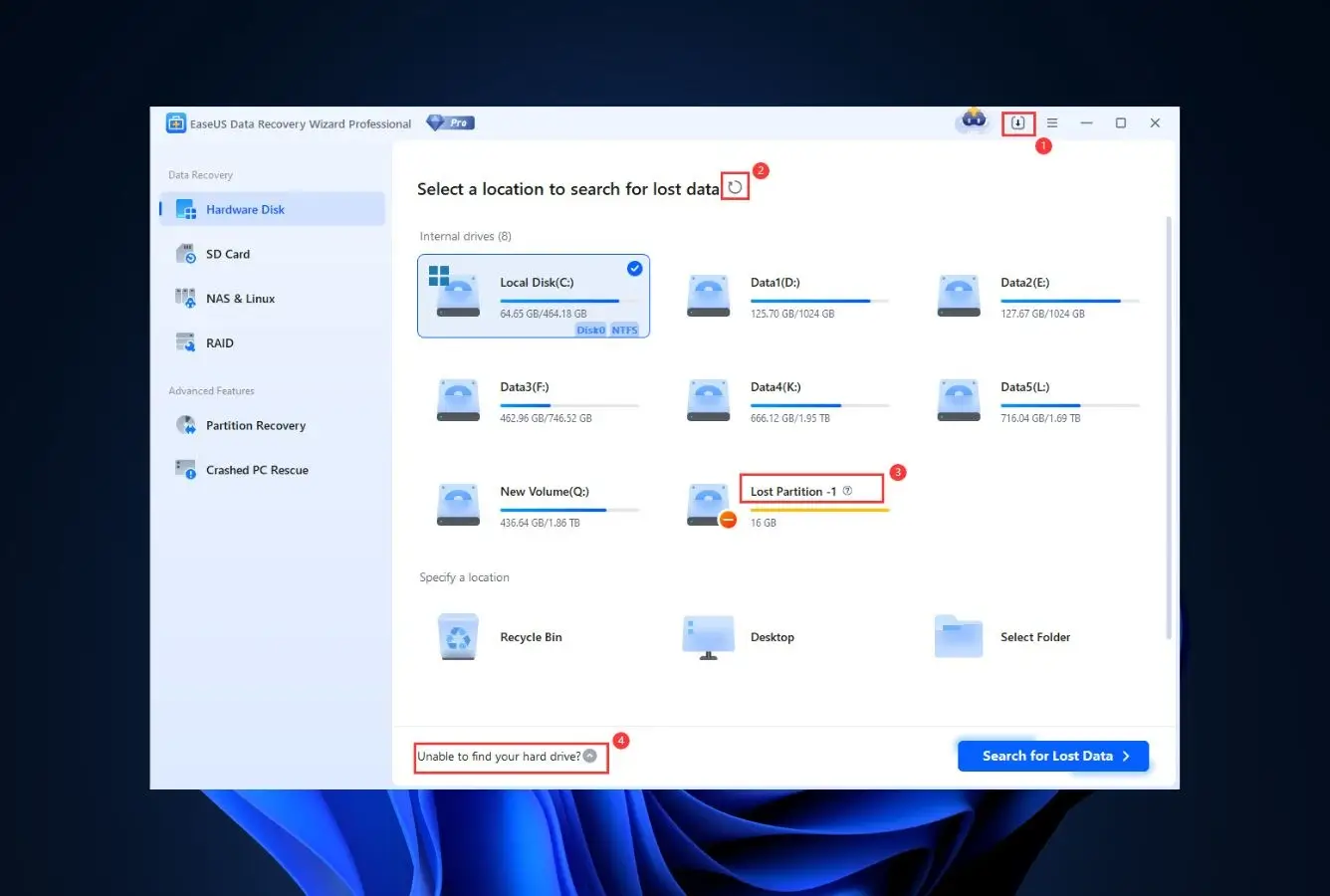
EaseUS Data Recovery Wizard is the best SD card recovery software in 2026 because it handles the full format spectrum — RAW files from major cameras, JPEG and HEIC from phones, MP4 and MOV from action cams, TIFF and PSD from the editing pipeline — behind one of the cleanest scan flows in the category. The Deep Scan stitches fragmented photos and short video clips back together reliably on exFAT and FAT32 cards, which is exactly what SD cards use. Independent testing consistently ranks it near the top for signature recovery across file types, and community feedback on Reddit frequently praises how predictable the scan results feel.
- 2 GB free recovery (via social share) — enough for most single-incident SD card cases without paying
- Native Apple Silicon build avoids the Rosetta 2 performance hit on modern Macs
- Supports BitLocker-encrypted drives natively — unusual at this price point
- Clean three-step workflow: select device, scan, filter & recover
- Pause and resume scans across sessions instead of starting over
- 30-day money-back guarantee backs up the commercial tiers
- Standard subscription is $99.95/yr — not cheap compared to one-time licenses
- Scan performance is slower than Disk Drill on very large cards
- Auto-renewal is on by default; cancel immediately after a one-month purchase
The scan that just seems to find what others miss.
EaseUS runs a unified scan that combines file-system walking with signature-based carving, so photos that survived a quick format show up fast and those on heavily fragmented cards come through in the Deep Scan pass. Independent testing places it near the top on mixed-format recovery across exFAT and FAT32. Community feedback on r/photography and r/datarecovery frequently cites it when photographers have already burned through Recuva and need a more reliable next step. Coverage extends to RAW formats from Canon, Nikon, Sony, Fujifilm, and Panasonic, plus HEIC, MP4, MOV, and the PSD workflow files photographers end up needing.
Three screens, no jargon, no fake urgency.
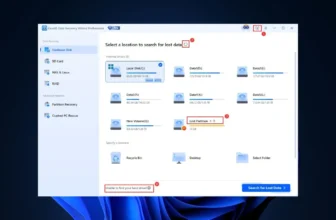
EaseUS’s workflow is the cleanest in the category — pick the card, start the scan, filter by file type while results stream in. Preview works for most image and video formats in-scan, so you can verify a RAW or MP4 is intact before spending a license on it. Filtering supports narrowing by file type, date modified, and deleted-vs-existing, which matters when the scan returns tens of thousands of files. Filename and folder structure usually come back alongside the files themselves on exFAT cards — not always the case for signature-only tools.
Priced like a subscription; built like a tool you buy once.
The Pro tier is $99.95 per year, $149.95 for a lifetime license, or $69.95 for a one-month license intended for single-incident recovery. The 2 GB free tier is genuinely useful — enough to recover a set of RAW files or a handful of 4K videos from a corrupted card before any payment. If you expect recovery to be a recurring event across multiple devices or clients, the $149.95 lifetime tier is the one worth considering; otherwise the monthly license is surprisingly honest pricing for one-off use. Just remember to cancel auto-renew after the recovery is done.
2. Stellar Data Recovery – Best for RAW Photography Workflows
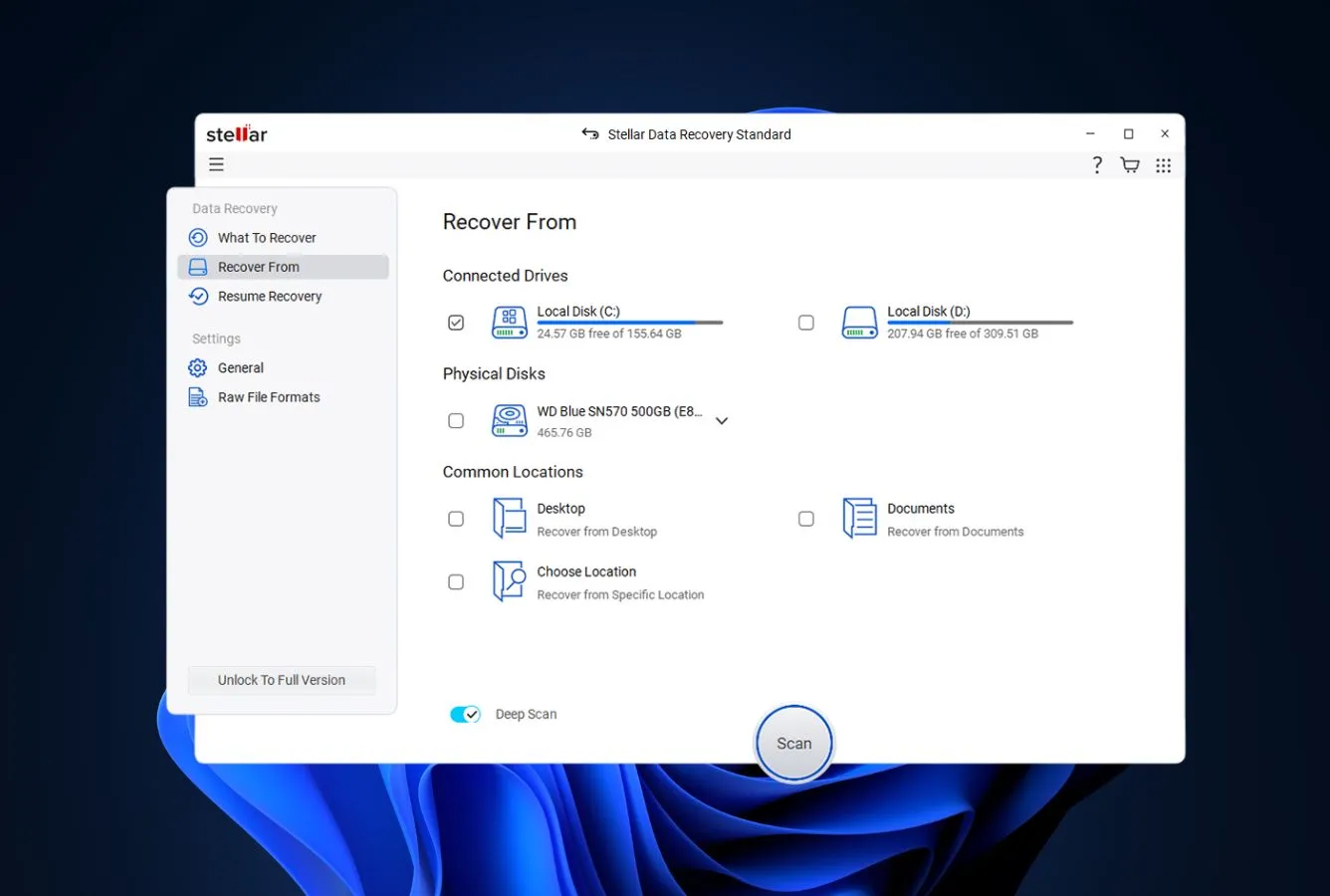
Stellar Data Recovery earns the second spot because it is one of a very small number of tools actually built around photography workflows, not a generalist with photo support bolted on. The Photo Recovery edition ships with explicit signatures for every major manufacturer RAW format, a Deep Scan mode tuned for fragmented camera media, and a Premium tier that repairs corrupted JPEGs and videos in the same interface. For working photographers whose SD cards hold RAW files they genuinely can’t reshoot — wedding, sports, event work — Stellar is the specialist that gets called when generic tools return empty. Community feedback on r/photography frequently surfaces it as the tool that recovered shoots other utilities missed.
- Dedicated Photo Recovery build with signatures for Canon CRW/CR2/CR3, Nikon NEF/NRW, Sony ARW/SRF/SR2, Fujifilm RAF, Panasonic RW2, Kodak DCR/KDC/DRF
- Premium tier repairs corrupted JPEGs and videos in the same app — genuinely useful after a bad card
- Standard tier at $49.99/yr is the cheapest professional-grade price in the category
- Clean three-panel interface: source, scan progress, results — easy for non-technical users
- Free tier previews 1 GB and recovers up to 10 files
- Annual renewal is the default; no lifetime license on Standard or Professional
- Deep Scan on a full 128 GB card can take several hours
- Interface, while clean, has not changed in years and looks dated
Purpose-built for the formats photographers actually shoot.
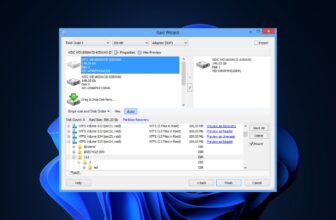
Stellar’s Photo Recovery product splits signature scanning into dedicated image, video, and audio engines, each one maintained for the formats photographers and videographers actually shoot. The vendor explicitly lists support for every common and several uncommon RAW formats, including obscure ones like Kodak DRF and Panasonic RW2. Third-party reviews highlight its handling of RAW reconstruction, and users on r/photography frequently describe it as the tool that succeeded after Recuva and free utilities returned empty results. On exFAT cards used by high-end cameras, the file-system-aware scan recovers filenames and timestamps intact on most quick-format scenarios.
Static layout, obvious flow, zero modernization.
Stellar has stuck to the same three-panel layout for years because photographers generally want to stop thinking about recovery as quickly as possible. Select the card, pick what to scan for (photos / video / audio / everything), start the scan. Results appear as thumbnails in-progress, so you can start selecting files before the scan finishes. The interface looks like professional software from 2015 — functional, not fashionable — which is the right call for a tool that gets pulled out under pressure.
Four tiers, each priced for what it’s actually worth.
Photo Recovery Standard is $49.99 per year, Professional is $59.99, and Premium (which adds file-repair capabilities) is $69.99. There’s a separate Data Recovery product line — also from Stellar — that starts at $79.99 per year and adds broader file-type coverage if you want a single tool for both SD cards and general-purpose recovery. For most SD card users the Photo Recovery Standard tier is the right starting point; upgrade to Premium only if you have corrupted files that need repair beyond simple recovery.
3. Disk Drill – Best Value & Advanced Camera Recovery
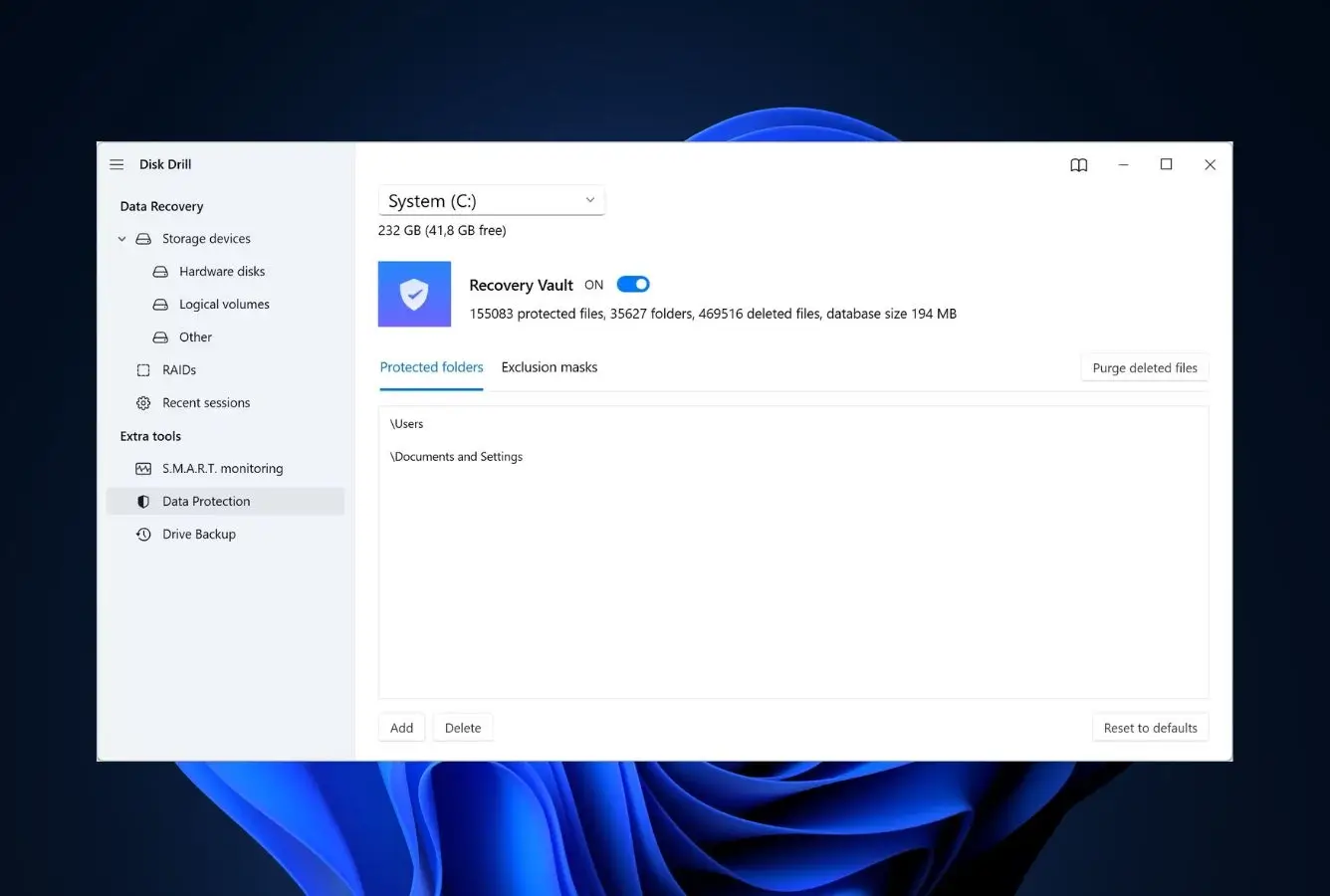
Disk Drill is the best-value pick for anyone expecting more than one SD card incident across their lifetime — $89 once, covered forever, with free upgrades included. Its Advanced Camera Recovery (ACR) mode is engineered specifically to rebuild heavily fragmented video from action cams, drones, 360° cameras, dashcams, and body cams — the hardware most likely to produce unplayable file shards on a generic tool. Independent testing highlights its strong signature-based recovery of CR2, CR3, NEF, NRW, ARW, RAF, ORF, RW2, DNG and dozens of other RAW formats. For any photographer tired of annual renewals, Disk Drill is the one to watch.
- $89 one-time license — perpetual, includes free major-version upgrades
- Advanced Camera Recovery (ACR) reconstructs fragmented video from action cams and drones
- Single license covers both Windows and macOS installations
- Recovery Vault feature protects cards proactively before data loss
- S.M.A.R.T. monitoring flags failing cards before they corrupt
- Windows version is missing Duplicate Finder and Phone Recovery features that ship with the Mac build
- 500 MB free tier is Windows-only; Mac users must pay before any recovery
- Trustpilot reviews flag strict no-refund policy if recovery fails to find your files
The one feature that actually saves action-cam footage.
Disk Drill runs a traditional file-system scan alongside its signature engine and lets you combine or swap them depending on the media. ACR — Advanced Camera Recovery — is Disk Drill’s headline feature for 2026 and reconstructs clips that other tools recover as shredded fragments. The workflow switches to a three-way Photo / Video / Audio layout tailored for camera media specifically. For drone and dashcam footage that spans many fragments across a card, this is often the difference between getting usable files back and getting nothing.
Grouped results mean you find what you need fast.
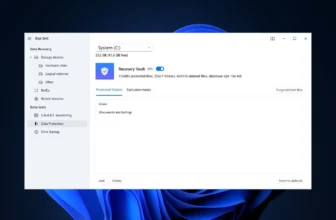
During scanning, Disk Drill groups results under Pictures, Video, Audio, Documents, Archives, and Other, so photographers can jump to exactly what they need without scrolling through thousands of OS files. The ACR workflow switches to a three-way Photo / Video / Audio layout tailored for camera media. Preview works for most image formats in-scan, which matters when you want to verify a CR3 or ARW is intact before counting on it. Reviewers consistently note the scan speed is faster than expected for the breadth of signature coverage on offer.
The honest pricing model in a subscription-heavy category.
Pro is $89 one-time for a perpetual license covering both Windows and macOS. That’s unusual enough in 2026 to deserve notice — almost every competitor has moved to annual subscriptions. Free upgrades to future major versions are included. The 500 MB Windows-only free tier is modest but genuinely usable for small single-card recoveries. For professional use with ACR unlocked, the Enterprise tier at $499 covers unlimited installations. For home users, Pro is the pick.

4. Wondershare Recoverit – Best for Video-Heavy SD Cards
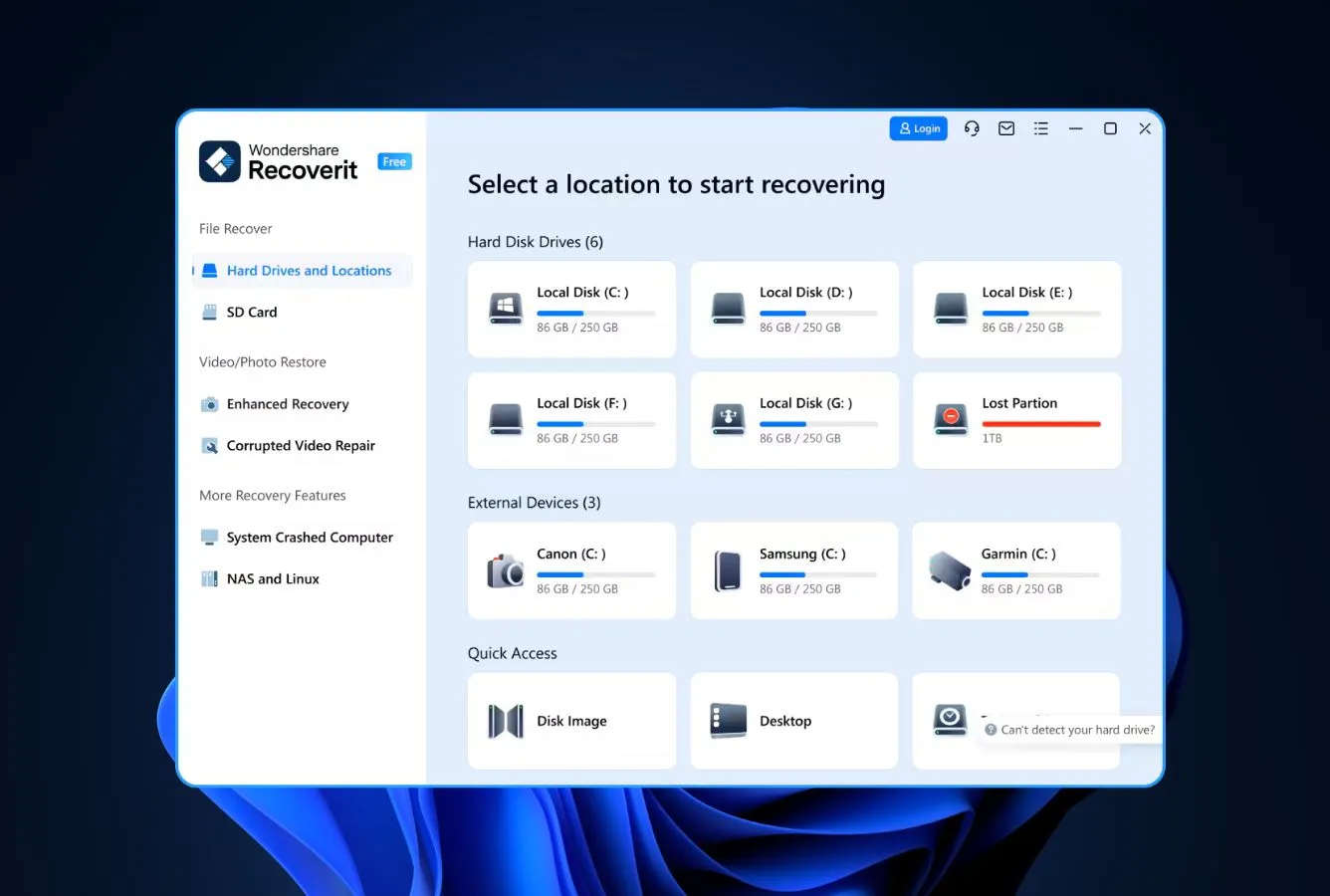
Wondershare Recoverit earns the fourth spot because it’s the best-suited tool on the list for SD card users who also shoot a lot of video. The vendor documents explicit workflows for DJI, GoPro, Canon, Sony, and Insta360 footage, and its Advanced Video Recovery mode is specifically engineered to stitch together fragmented clips rather than recovering them as unplayable shards. Independent reviews confirm its video handling genuinely outperforms the generic competition, though on pure still-image recovery it lands behind Stellar and EaseUS. For drone pilots and action-cam shooters whose SD cards hold footage they can’t reshoot, Recoverit’s video-first engineering is worth the price premium.
- Advanced Video Recovery explicitly stitches fragmented footage instead of recovering unplayable shards
- Documented workflows for DJI drones, GoPro, Canon, Sony, and Insta360 camera media
- Built-in photo and video repair in the Premium tier
- Lifetime license option at $119 — rare for a subscription-heavy vendor
- Preview for most RAW and video formats before committing to a license
- Free tier is only 100 MB — the smallest among the paid-with-free-tier competitors
- Independent testing found weaker performance on HEIC and JP2 files
- Essential tier at $69.99/yr lacks bootable recovery; full features need the Premium tier
Reassembles what other tools return as shredded fragments.
Recoverit’s Advanced Video Recovery mode reassembles fragments of the same clip back into playable files, which matters enormously for high-bitrate 4K and 8K footage that gets scattered across an SD card. Independent testing rated its performance on standard formats (JPG, MP4, DOCX, CR2, ARW) as strong, with weaker results on HEIC and JP2. For working videographers, the tradeoff is usually worth it; for pure still-image shooters, Stellar or EaseUS will come out ahead.
Modern UI, camera-brand-aware workflow.
Recoverit’s interface is the most modern-looking in the category — wizard-style steps with explicit camera-brand selection at the device-picker stage. This matters when the tool has to decide whether to treat the card as a drone card (fragmented high-bitrate) versus a DSLR card (file-system-intact RAW). Preview works for most formats before paying, and filtering supports narrowing by file type, date, and size. For first-time users, the onboarding is the most accessible in the category.
Priced like a specialist, mostly delivers like one.
Essential starts at $69.99 per year, Standard adds bootable recovery at $79.99 per year, and the Premium tier bundles video repair. The lifetime option at $119 is the one worth considering if you anticipate multiple incidents — genuinely rare pricing in an otherwise subscription-dominated category. The tiered pricing sits toward the top of the market, which is fair enough; Recoverit is priced like a specialist and mostly delivers like one.

5. PhotoRec – Best Free Open-Source SD Card Recovery
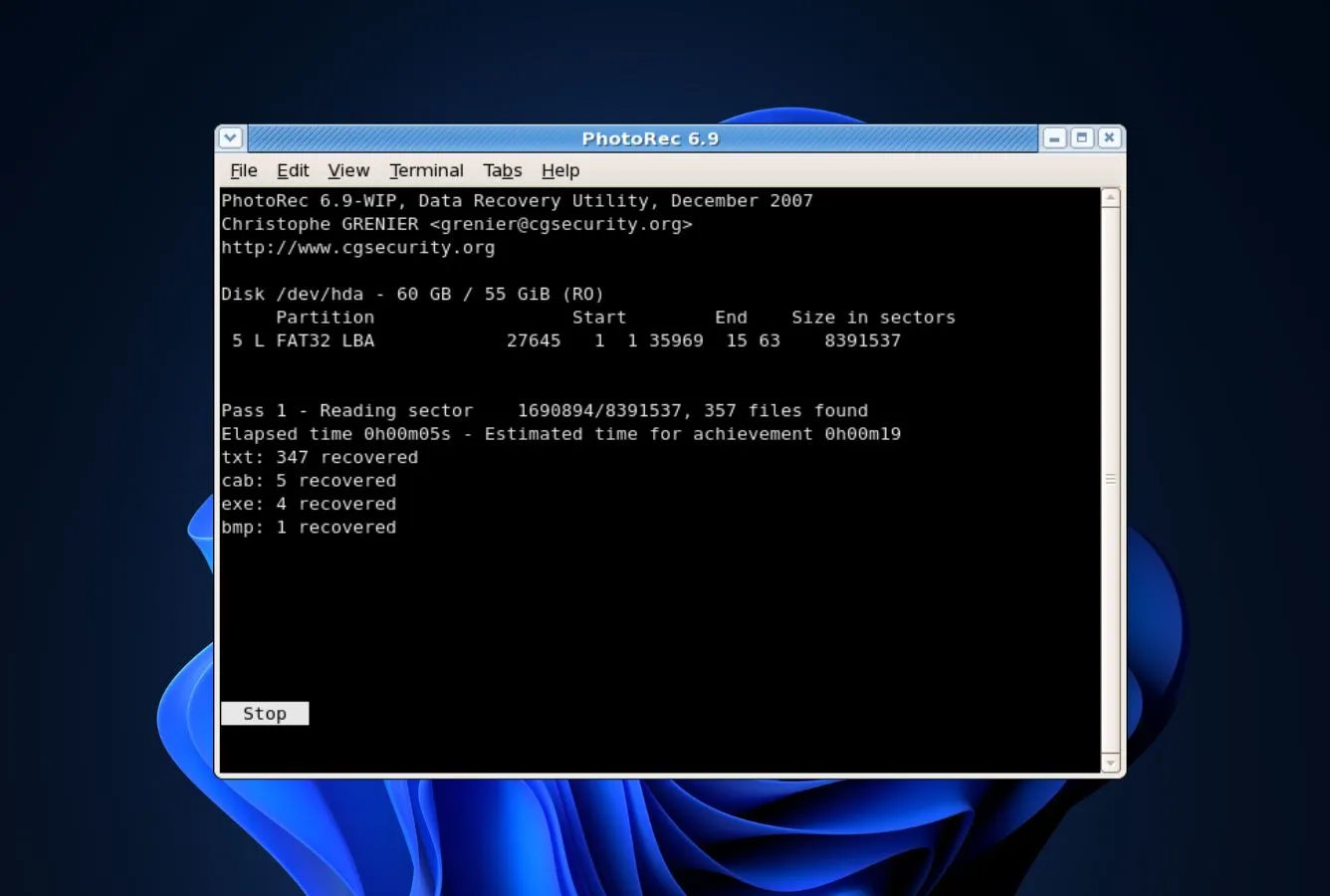
PhotoRec is the best free SD card recovery tool on the list because it is genuinely free, unrestricted, and open-source, and it works by signature-carving from the raw bytes of the card — which is exactly the problem SD cards present. Developed by Christophe Grenier as part of the TestDisk project, it is the tool most seasoned recovery professionals reach for when the card’s file system is unreadable but the data is still there. It has no graphical interface on Windows by default (qPhotoRec is a minimal wrapper) and no preview — just text menus and a confirmation that N files were recovered. For cost-conscious users willing to tolerate the interface, it genuinely competes with paid tools on recovery outcomes.
- Completely free and open-source (GPL v2) — no limits, no nag screens, no upsell
- Supports 480+ file signatures out of the box, including obscure RAW formats
- Runs on Windows, macOS, Linux, and BSD — the only cross-OS-compatible free tool on this list
- Non-destructive by design: never writes to the source card during recovery
- Bundled with TestDisk for partition-level repair — useful if the card shows as RAW
- Text-mode interface is the biggest barrier for most users
- No preview — you recover everything, then sort through results
- Original filenames are not recovered (signature scanning can’t reconstruct metadata)
- No dedicated support; community forum only
A free tool that matches paid tools on the one problem that matters.
SD cards fail in ways that favor signature scanning over file-system-aware recovery. A corrupted or unreadable file system on a card means name-and-timestamp recovery is off the table anyway — you’re going to recover raw files and sort them later no matter what. PhotoRec specializes in that exact scenario: it ignores the file system entirely and reads the card sector by sector, looking for the distinctive byte patterns that identify JPEG, CR2, NEF, ARW, MP4, and 475 other file types. The trade-off is that filenames and folder structure are lost. For SD card recovery specifically, that’s usually an acceptable trade.
Twenty years of signature scanning, still free, still ugly.
PhotoRec’s interface has barely changed since the early 2000s. Launch the executable (on Windows, run from Command Prompt or use the qPhotoRec wrapper), select the card, pick a file system type, point it at an output folder on a different drive, and wait. It’s the least friendly tool in this list by a wide margin, but the menu flow is only about five decisions long and the results speak for themselves. For anyone comfortable with a command line, the learning curve is fifteen minutes.
The tool that costs nothing and asks nothing back.
PhotoRec is the right choice when you’re comfortable with text menus, want zero cost, and are willing to manually sort the output. It’s also the right choice when a paid tool’s free tier ran out mid-recovery and you don’t want to buy a license for a single incident. It’s the wrong choice when you need filenames preserved, need an obvious graphical interface, or need to recover from an encrypted card — PhotoRec can’t handle BitLocker or FileVault volumes. For most other SD card scenarios, it quietly competes with $99 paid tools.

6. R-Studio – Best Pro-Tier for Damaged or Encrypted Cards
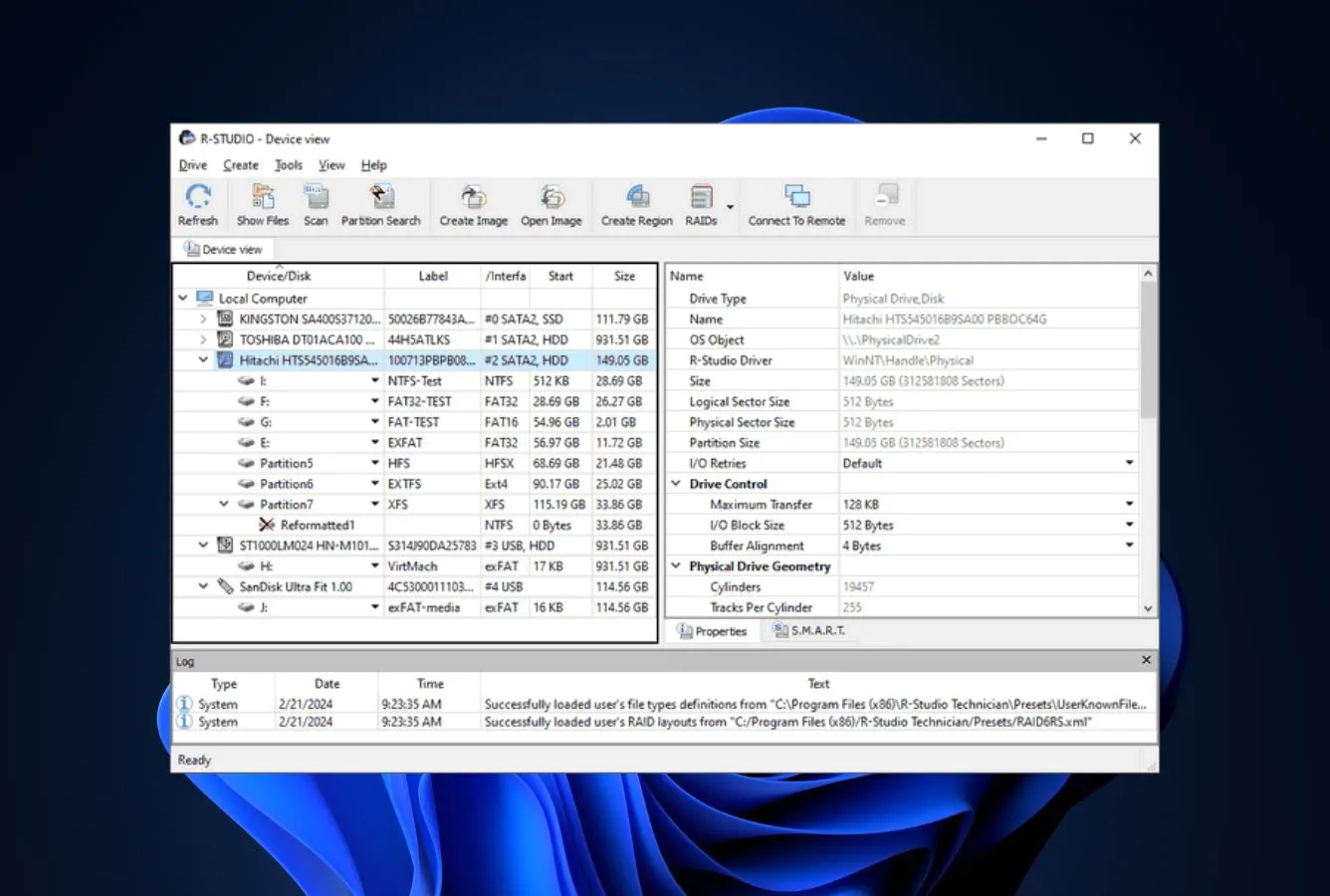
R-Studio is the pro-tier pick for SD card recovery cases where the card itself is damaged, encrypted, or has a corrupted file system that consumer tools can’t read. It’s the tool data recovery services reach for when they want consumer-grade pricing but professional-grade capabilities — byte-to-byte imaging, custom file signatures, RAID-aware scanning, BitLocker and FileVault support. The interface looks and feels like professional software from 2005, which it essentially is. That’s a feature, not a bug: R-Studio trades polish for depth, and the people who need it know they need it.
- Handles encrypted cards (BitLocker, FileVault) and damaged file systems generic tools refuse to read
- Custom file signature support — you can teach it to recognize unusual formats
- Creates byte-to-byte images of failing cards before attempting recovery — a professional-grade workflow
- Home edition at $49.99 is unusually affordable for its capabilities
- Supports 480+ file formats including obscure camera RAW and proprietary video containers
- Interface is dense and has a steep learning curve for non-technical users
- Home edition is Windows-only; Mac users need the $79.99 Standard tier
- Free demo caps recovery to 256 KB per file — effectively preview-only for photos and video
The tool the recovery pros use when the budget doesn’t justify the pros.
R-Studio’s feature set overlaps substantially with enterprise recovery tools costing thousands of dollars. Byte-to-byte disk imaging lets you work on a copy of a failing card instead of the card itself — professional recovery practice. Custom file signatures mean R-Studio can be taught to recognize proprietary video containers that vendor-branded camera cards use. For heavily damaged SD cards where the file system is unreadable or the card remounts repeatedly, R-Studio is often the tool that gets results when consumer options have failed.
Looks and feels like professional software from 2005.
R-Studio’s interface is a dense two-panel layout with menu bars that assume you know what you’re doing. There is no wizard mode. The workflow is: attach the card, image it if you’re worried about physical failure, scan the image, filter results, recover. For first-time recovery users, the learning curve is real — expect to spend an hour reading the documentation before the first recovery. For anyone who has used professional recovery tools before, the feature density is welcome.
The one time “pro tier” pricing is actually worth it.
Home at $49.99 covers Windows and handles FAT/exFAT/NTFS. Standard at $79.99 adds Mac and Linux file system support (APFS, HFS+, ext4). Technician at $899 adds portable USB deployment and RAID reconstruction — that’s the enterprise tier, not for home users. For SD card recovery on Windows, Home is the right starting point; Mac users jump directly to Standard.

7. Tenorshare 4DDiG – Best Beginner-Friendly SD Card Recovery
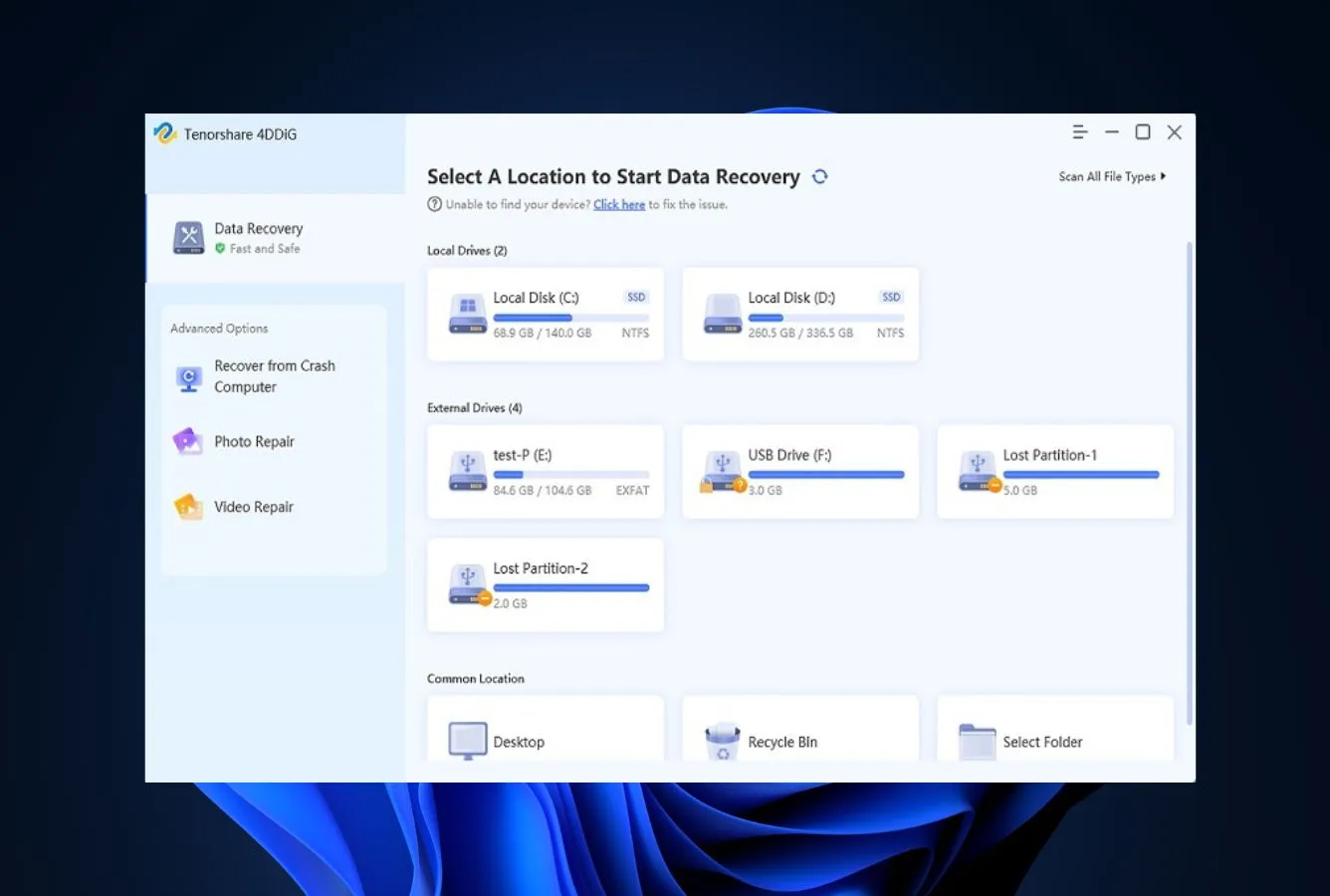
Tenorshare 4DDiG is the beginner-friendly pick for SD card recovery — the tool to recommend to anyone who has never used recovery software before. The interface is the most accessible in the category: large buttons, minimal jargon, explicit progress indicators during scans, and plain-language explanations at each decision point. The 2 GB free tier matches EaseUS and is enough for most single-card incidents. Veteran recovery users will find it simplistic; first-time users will finish a recovery without frustration.
- Most accessible interface in the category — plain language and large buttons throughout
- 2 GB free tier matches EaseUS and is genuinely usable
- One-month license at $45.95 sale price is cheaper than most competitors’ monthly tiers
- Preview works for most image and video formats before payment
- Supports Apple Silicon natively on Mac
- List price of $89.95/month is steep even if the sale price is reasonable
- Auto-renewal is on by default; Trustpilot reviews flag refund/cancellation friction
- Deep Scan is noticeably slower than EaseUS and Disk Drill on large cards
Solid on mainstream formats; you can feel the ceiling when things get exotic.
On JPEG, HEIC, and the common RAW variants (CR2, NEF, ARW, DNG), independent testing places 4DDiG in the respectable middle of the pack — not best, not worst. Community feedback on Reddit is mixed: enthusiastic reviews from first-time users mingle with disappointment from photographers shooting less common formats like Fujifilm RAF or Pentax PEF. For a typical memory-card rescue, it works; for a corner-case workflow, Stellar or PhotoRec are better bets.
The first-timer’s tool — built to avoid making things worse.
4DDiG’s strongest design choice is acknowledging that most people using SD card recovery software are doing so for the first time, in a hurry, and afraid of making things worse. The interface uses large buttons, minimal jargon, and an explicit visual progress bar during scans. Reviewers consistently praise the onboarding as approachable for non-technical users. Every decision screen has plain-language explanations of what’s about to happen — no asking the user to pick between “quick scan” and “deep scan” without saying what the difference means.
The list price is theater; the sale price is the real price.
Tenorshare advertises $89.95 per month as the list price but consistently discounts to roughly $45.95 at checkout. Annual is $99.95 list, lifetime is $119.95. The 2 GB free tier works for most single-card incidents. If you’re recovering a single event and not planning to subscribe long-term, the one-month sale price is the right choice — just cancel auto-renewal immediately after the purchase clears. For recurring use, the lifetime tier is the honest move.

8. DiskDigger – Cheapest One-Time SD Card License
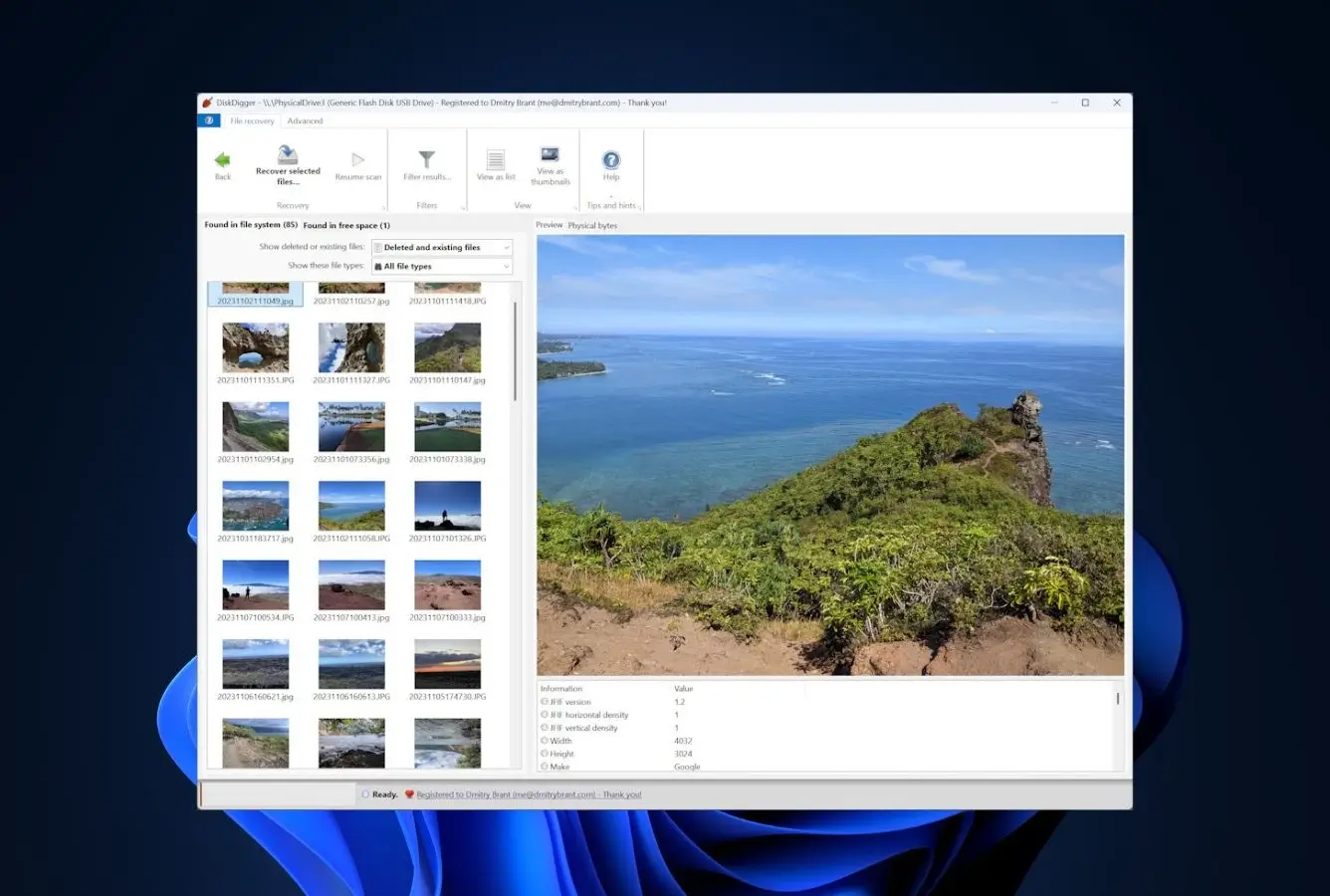
DiskDigger is the cheapest commercial SD card recovery tool on the list at $14.99 for a one-time Personal license (regularly $19.99) — and it’s the only one that’s completely free to use on Linux. Developed by a single developer, Dmitri Brant, it’s a focused tool that does signature-based carving well and nothing else. On Windows the free version nags you to buy before saving recovered files; on Linux the full tool is free and unlimited. For cost-conscious users with a single-card incident, DiskDigger is the cheapest thing that works.
- $14.99 one-time Personal license — cheapest paid SD card recovery tool in the category
- Completely free on Linux — no limits, no nag screens, no upsell
- Fast, lightweight — runs from a USB stick without installation
- Supports 400+ file signatures including all common SD card formats
- Built and maintained by a single developer — clear accountability
- Windows version is free to scan but requires a license to save recovered files
- No macOS version — Windows and Linux only
- No file preview during scan; you see results after it finishes
- Interface is plain and feature-light compared to paid commercial tools
Focused, fast, and actually maintained.
DiskDigger is built and maintained by Dmitri Brant — a single developer who has kept the tool current for close to 15 years. That means one person understands every line of code, bug reports get responded to quickly, and feature additions are thoughtful rather than marketing-driven. The trade-off is feature depth: DiskDigger does signature scanning well, but it doesn’t offer file-system-aware recovery, doesn’t handle encrypted cards, and doesn’t have the format-library breadth of R-Studio or Stellar. For the specific problem of recovering JPEGs and common file types from an SD card, it’s hard to beat on price.
Plain, fast, and out of your way.
DiskDigger’s interface is a simple three-button flow: choose device, choose file types to look for, pick an output folder. No wizard, no onboarding, no branding. It runs from a single executable without installation, which is exactly what you want for recovery on a machine you don’t want to change. The trade-off is no in-scan preview — you wait for the scan to finish, then sort through results. For common SD card scenarios this is acceptable; for complex recoveries it’s limiting.
$14.99 is the right price for a single-incident tool.
DiskDigger Personal is $14.99 one-time on sale (normally $19.99), covers one user across all their personal Windows machines, and includes lifetime updates. The Pro version at $39.99 adds commercial-use rights. On Linux, everything is completely free — no nag, no time limit, no data cap. For a one-time SD card recovery incident on Windows, $14.99 is a bargain next to $69 annual subscriptions for tools you’ll use once.

9. Recuva – Best Free Windows Classic
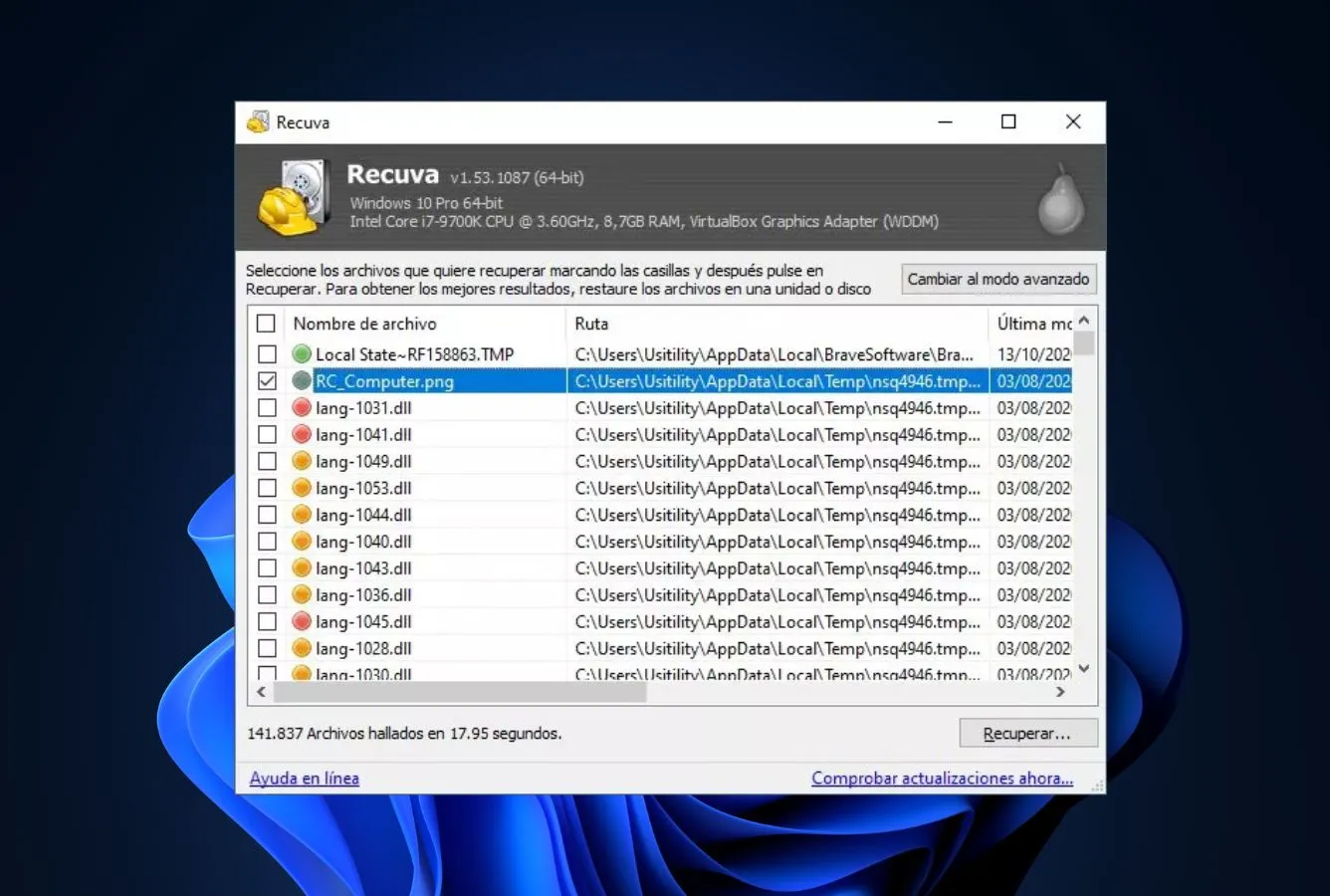
Recuva is the free Windows classic — a small, fast, wizard-driven tool from the team behind CCleaner. Its big advantage is the only one that matters for most users: the free version has no data cap at all. You can recover 200 GB of photos from an SD card without paying a cent, which makes Recuva genuinely hard to beat for Windows-only casual recovery. The Professional version at $24.95 per year adds virtual-disk support and priority support but doesn’t improve the recovery engine. Use the free version; there’s no meaningful reason to pay.
- Free version has no data cap — genuinely unrestricted recovery
- Extremely lightweight (~7 MB install) and fast on small SD cards
- Clean wizard-driven interface — easiest flow in the free tier
- Portable version runs from a USB stick without installation
- Backed by Piriform / Avast — established developer with clear update track record
- Windows only — no macOS version and no plans for one
- Deep Scan is noticeably weaker than modern tools on formatted cards
- Interface looks like Windows 7 — minimal modernization since 2019
- Professional version at $24.95/yr adds almost no recovery-engine improvements
Hard to beat free — even harder to beat unlimited free.
Recuva’s free tier is genuinely unrestricted. Unlike EaseUS (2 GB), Stellar (10 files), or Disk Drill (500 MB Windows-only), Recuva caps nothing. You can recover 200 GB from an SD card without paying. For casual users — someone who accidentally deleted vacation photos from a phone SD card, or who formatted a card by mistake — Recuva is often all you need. The recovery engine is basic compared to modern tools, but for recently-deleted files on a healthy card, it works.
The wizard that nobody else in the category still ships.
Recuva opens with a wizard asking what kind of files you’re looking for and where they were. Three clicks later the scan is running. The interface hasn’t changed meaningfully since Windows 7, which is fine — the flow is clear enough that anyone can finish a recovery without documentation. Filtering is basic (type, path, condition), no thumbnail preview in the free version, and no way to save scan state. For simple recoveries, the minimalism works in its favor.
The same engine, with support attached.
Recuva Professional costs $24.95 per year and adds exactly three things: virtual hard disk support (useful for IT pros, not for SD card users), automatic updates, and priority customer support. The recovery engine is identical to the free version. There is no meaningful reason to buy Professional for SD card recovery specifically. If the free version didn’t recover your files, the paid version won’t either — you need a different tool, not a premium Recuva tier.
10. MiniTool Power Data Recovery – Reliable Windows-Focused Recovery
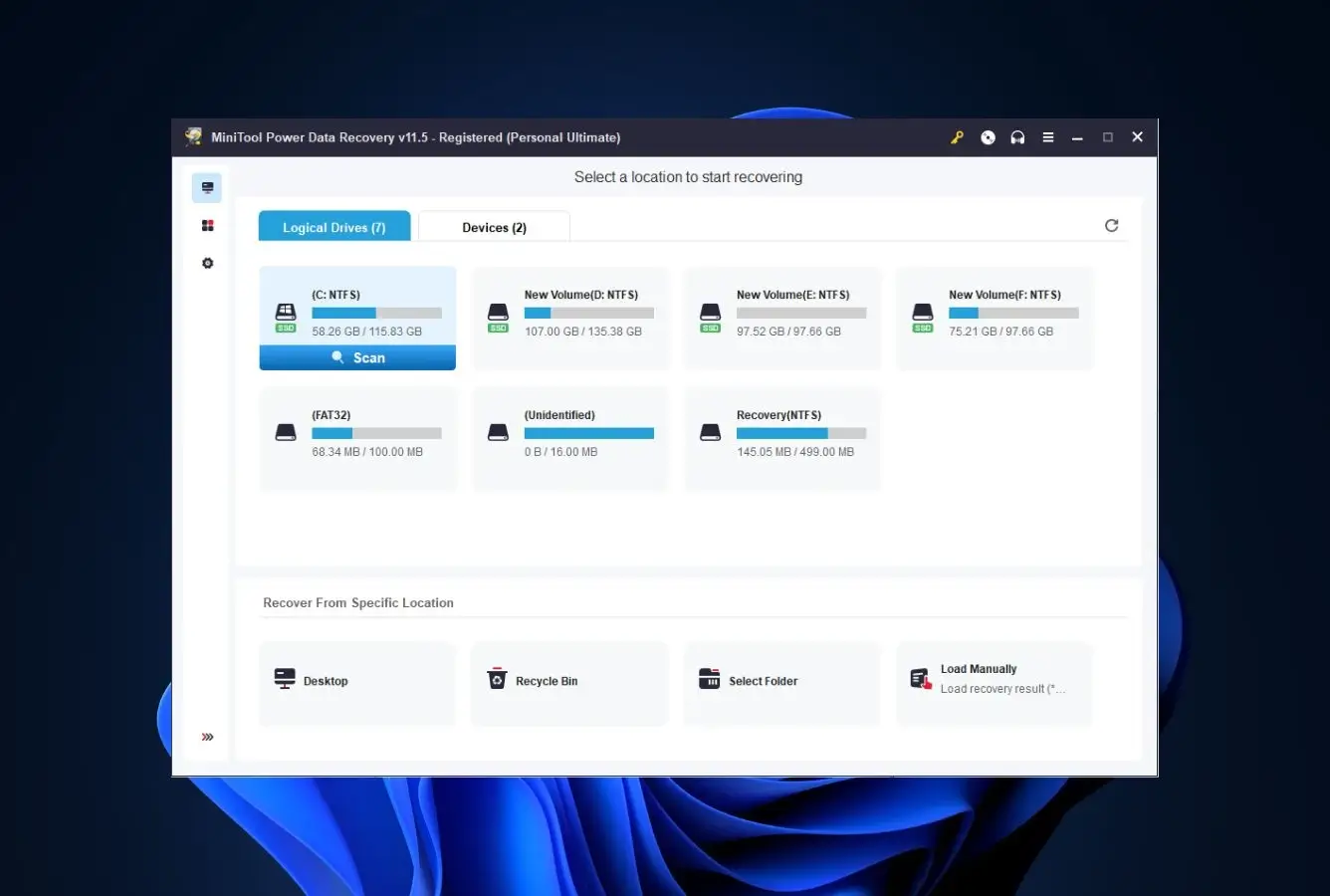
MiniTool Power Data Recovery is the long-standing Windows-specific option, in active development since 2009 and consistently reliable for common SD card cases. Its 1 GB free tier is generous enough for single-card recovery, and its Personal Ultimate tier at $99 (3 PCs, lifetime license) is one of the more honest pricing structures in the category. The tool handles Windows FAT/exFAT/NTFS file systems well, supports 70+ file formats, and runs cleanly on older hardware. For Windows users who want a reliable, commercially-supported tool at a lifetime price, it’s a solid choice.
- 1 GB free tier — genuinely useful for single-card recovery
- Personal Ultimate at $99 covers 3 PCs with a lifetime perpetual license
- Active development since 2009 with frequent updates
- Clean, modern interface — more polished than Recuva or R-Studio
- WinPE bootable builder included in paid tiers for unbootable systems
- Windows only — Mac users need a separate product from MiniTool
- Scan speed is slower than EaseUS and Disk Drill on large cards
- Monthly subscription at $69 is steep for occasional use
- RAW format coverage is weaker than Stellar or EaseUS
Fifteen years of steady development, no surprises.
MiniTool has been building Windows recovery tools since 2009, and Power Data Recovery is its flagship. The tool doesn’t do anything novel, but it does the common cases well and has been around long enough to trust. On exFAT SD cards with quick formats or accidental deletions, MiniTool recovers files and filenames reliably. On NTFS external drives — common for people who reformat SD cards for Windows use — it handles the scenario cleanly. For anything esoteric (RAW cameras, fragmented 4K video, encrypted cards), a more specialized tool will serve better.
A modern Windows-only app for Windows-only users.
The interface is cleaner and more modern than Recuva — closer to what you’d expect from a 2026 Windows app. It groups results by file type and provides preview for most image formats. The Windows-only scope is the real limitation: if your workflow spans Windows and Mac, you need a cross-platform tool like EaseUS or Disk Drill. For Windows-only users, the tool is a solid mid-range choice.
The lifetime tier is the reason to pay.
Personal Monthly is $69, Personal Annual is $89, Personal Ultimate (lifetime, 3 PCs) is $99. The Ultimate tier is the pick — it’s only $10 more than one year of the Annual plan but covers three computers forever with free upgrades. Business tiers start at $119 and add commercial-use rights and server support. Unless you’re using this on SD cards used for commercial video production, Personal Ultimate is the right choice.
How We Evaluate SD Card Recovery Software
Ranking SD card recovery software is easy to get wrong. Vendor marketing is usually generous, and running a single scan on a single card isn’t enough to separate tools that behave similarly in the happy path but diverge when RAW fragments are scattered across a formatted card or when the card’s file system is corrupted. We evaluated all 20 tools through a layered research approach: vendor documentation for feature baselines, independent third-party testing for cross-reference, and community feedback from r/datarecovery, r/photography, Trustpilot, and G2 for real-world stories. Rankings reflect the aggregate of this research — not a single in-house benchmark.
Platforms covered: Windows 10 and 11 (including 24H2), macOS 11 Big Sur through macOS 15 Sequoia, memory cards (SD, microSD, CFexpress, XQD), camera internal storage, external USB drives, and SSDs with TRIM disabled. Camera makes explicitly tracked: Canon, Nikon, Sony, Fujifilm, Panasonic, Olympus, GoPro, DJI, and Insta360.
Key factors weighted: SD card format recovery on exFAT/FAT32 (30%), Deep Scan quality on formatted and corrupted cards (20%), pricing and free-tier generosity (15%), workflow clarity for first-time users (15%), platform support (10%), and community sentiment (10%). Weightings adjusted from the default data-recovery split to reflect the category.
Individual test runs, scan-time logs, and per-tool notes from our ongoing testing live on our full methodology page. Start there if you want the underlying notes behind any claim on this page.
SD Card Recovery Software – Honorable Mentions
Six tools we considered but didn’t include in the main ranking. Each has a niche strength or specific flaw that kept it out of the top 10 — none are bad, they’re just narrower in scope or less well-suited to the general SD card recovery case.
How to Choose the Best SD Card Recovery Software
SD card recovery isn’t really one problem — it’s five related ones that happen to share a category page. The checklist below walks the factors that actually change which tool you should pick, from RAW format coverage to auto-renewal friction.
File System & Format Coverage
SD cards use exFAT for anything over 32 GB and FAT32 for anything smaller. Both are simple file systems that most recovery tools handle well. What varies more is format coverage — specifically, the RAW photo formats your camera uses. Canon, Nikon, and Sony RAW are universally supported; Fujifilm RAF, Panasonic RW2, and manufacturer-specific formats like Pentax PEF and Kodak DCR are hit-or-miss. Before paying for a tool, confirm your specific camera’s RAW format appears on the vendor’s supported-formats page.
Video coverage is the other variable. MP4 and MOV recover reliably on most tools. Long 4K and 8K video clips that span many fragments across a card come back as unplayable shards on generic tools — Wondershare Recoverit and Disk Drill’s ACR mode are the only tools on this list specifically engineered to reassemble fragmented video. For drone, dashcam, and action-cam workflows, that difference matters more than any other feature.
Quick Scan vs Deep Scan
Every tool offers two scan modes, and the difference is significant. Quick Scan reads the file system’s deleted-file records and reconstructs files based on the directory structure. It’s fast (seconds to minutes), preserves filenames, and works only if the file system is intact. Deep Scan ignores the file system and reads the card sector by sector, looking for recognizable file signatures (JPEG headers, MP4 container markers, RAW file magic numbers). It’s slow (tens of minutes to hours), doesn’t preserve filenames, but works on formatted and corrupted cards.
For SD card recovery specifically, Deep Scan is almost always the right choice. Quick formats on cameras and phones clear the file table — Quick Scan returns empty. If a tool previews your photos but the thumbnails are corrupted blocks of color, the recovery likely won’t produce usable files either. That’s a signal to stop and try a different tool — not to pay in the hope that the full version works better.
Platform Support (Windows vs. Mac)
Every tool on the main list works on both Windows and macOS except DiskDigger (Windows and Linux only) and Recuva and MiniTool (Windows only). The meaningful distinctions are feature parity and native Apple Silicon support. Disk Drill’s Windows version is missing the Duplicate Finder and Phone Recovery features that ship with the Mac build. EaseUS offers a native Apple Silicon build that avoids the Rosetta 2 performance hit. R-Studio Home is Windows-only; Mac users need the Standard tier.
Check the vendor’s spec page for “native Apple Silicon” versus “Universal 2” versus “Intel-only” before paying. Intel-only binaries run through Rosetta 2 on modern Macs, and on large memory-card scans the performance difference can be meaningful — a Deep Scan that finishes overnight natively might still be running the next morning in emulation.
Pricing Models and Auto-Renewal
SD card recovery is frequently a one-off event — a card goes bad once a year, maybe once a decade. That makes annual subscriptions a poor fit for most users. The cleanest commercial options are Disk Drill’s $89 perpetual license, DiskDigger’s $14.99 one-time license, and MiniTool Personal Ultimate’s $99 lifetime tier. Recoverit’s $119 lifetime option is the other one worth noting. Stellar, EaseUS, 4DDiG, and R-Studio all sell annual or monthly subscriptions that auto-renew unless you cancel.
Auto-renewal is where Trustpilot complaints cluster for almost every subscription tool. If you buy a one-month license specifically for a single recovery incident, cancel it immediately after the charge clears — some vendors quietly re-bill at the full annual rate if you leave it alone. For a free-first approach, our free data recovery guide covers what genuinely free tools can do before you consider paying.
Free Tier Reality Check
Free tiers are not all equal. PhotoRec and Recuva are genuinely free with no caps. EaseUS and 4DDiG offer 2 GB free — enough for a real recovery. Disk Drill’s 500 MB free tier is Windows-only. Stellar previews 1 GB but only recovers 10 files free. Wondershare Recoverit’s 100 MB free is barely useful. The free tier tells you whether the tool can see your files; use it to verify recovery is possible before paying.
For photography-specific workflows where RAW files are usually 20-50 MB each, 2 GB means recovering roughly 40-100 images — a useful amount for a typical incident. For 4K video, 2 GB gets you maybe 2-3 minutes of footage. Size the free tier against your specific recovery need before deciding whether to pay.
Interface Design Under Pressure
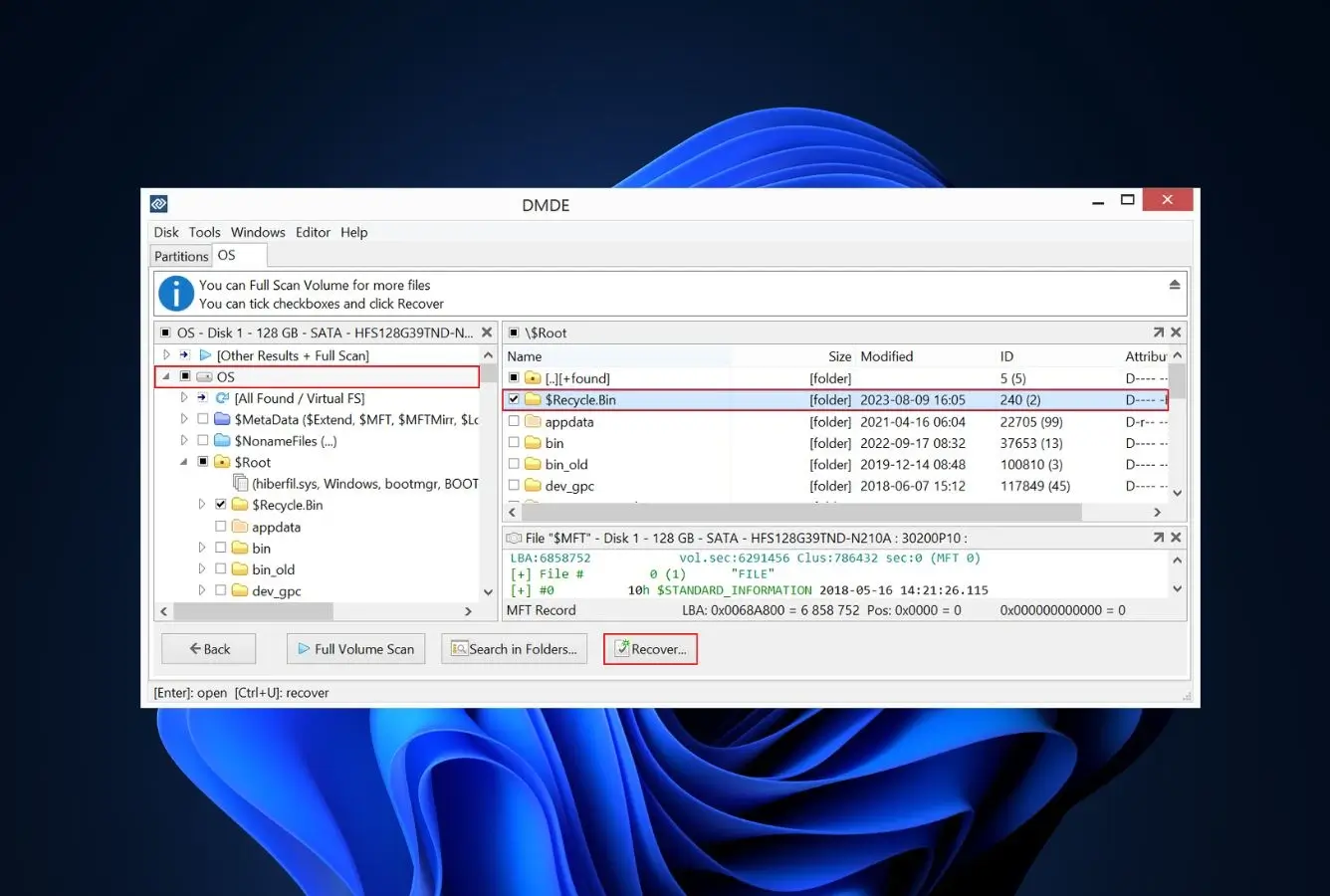
Interface quality matters more than people expect because recovery is done under pressure. A confusing interface at 2 AM after a data loss incident costs time and risks bad decisions. For first-time users, 4DDiG, EaseUS, and Recoverit offer the cleanest flows. For experienced users, R-Studio and DMDE offer dense interfaces that assume technical knowledge. PhotoRec has no graphical interface at all on Windows — it’s a text-menu tool. Mac users working primarily with APFS-formatted SD cards or Apple silicon Macs may find a platform-specific toolset more relevant — our Mac SD card recovery guide ranks tools with native macOS support and Apple silicon compatibility.
When SD Card Recovery Software Can’t Get Your Files Back
Recovery software isn’t magic. Some scenarios are genuinely unrecoverable by software alone, and knowing when to stop is as valuable as knowing which tool to use.
| Your situation | Software can help? | What to do instead |
|---|---|---|
| Physical damage (snapped, water, burned) | No | Professional cleanroom recovery service |
| Card full-formatted (not quick-formatted) | No | Full format overwrites every sector; data is gone |
| Card reused after the data loss | Partial | Recover immediately; each write overwrites more of the original |
| BitLocker / FileVault encrypted, key lost | No | No software can recover without the encryption key |
| Quick format, no subsequent writes | Yes | Any tool on the top 10 list; start with the free tier |
Cards That Have Been Reused After the Incident
Once you have continued shooting to a card after deleting photos or formatting it, every new frame can overwrite the physical blocks that held deleted image data. A single 50 MB RAW file written over the right sectors can destroy the one thumbnail your recovery software needed to reconstruct the original. This is why rule one of SD card recovery is stop using the card immediately.
If you have already kept shooting after noticing the loss, recovery software can still work on whatever wasn’t overwritten — it just can’t work miracles. Run the scan as-is; some frames will come back, others are permanently gone. Don’t format the card “just in case” and don’t run repair utilities that write to it.
Physical Damage
Snapped cards, water-damaged cards, and cards exposed to fire are physical-recovery scenarios, not software scenarios. No amount of scanning can recover data from a card whose flash chips have lost physical integrity. Professional recovery services operate cleanroom facilities where they can transplant the flash memory onto working controllers. Cost ranges from roughly $300-$2,000 depending on the damage severity. If the data is worth it, a service like DriveSavers or Ontrack is the right path.
Counterfeit Cards — the Hidden Pitfall
Counterfeit SD cards — sold as high-capacity but actually much smaller — are more common than people realize, especially through third-party marketplace sellers. A card sold as 512 GB might actually be 32 GB with a firmware hack that reports the larger size. Data written beyond the actual capacity is silently discarded. If your card came from a non-authorized reseller and files past a certain size threshold are consistently missing or corrupted, counterfeit hardware is the likely cause. No recovery tool can recover what was never written.
SSD-TRIM vs SD-Card Recovery
SD cards, CF cards, CFexpress, XQD, and external USB drives generally do not implement TRIM — the filesystem command that tells a drive to proactively clear deleted data. That’s why SD cards remain viable recovery targets long after photos were deleted. Internal NVMe SSDs on modern computers do implement TRIM, and deleted files on those drives are often unrecoverable within minutes. This is why SD card recovery specifically has a better success rate than general recovery work on modern internal storage. See the NIST SP 800-88 guidelines for the authoritative treatment of flash-memory sanitization.
Full Format (Not Quick Format)
Modern operating systems default to “quick format” on most media, which just clears the file system table and is fully recoverable. A “full format” — the non-default option — actually writes zeros over every sector of the card, making recovery mathematically impossible. Windows 11 and macOS Disk Utility both offer secure-erase options that do the same thing. Once run, no tool on this list can help.
Every second of continued shooting overwrites more of what recovery software could otherwise rescue. Remove the card, put it in a sleeve, and run recovery from a computer — not the camera. Never install recovery software onto the drive you’re trying to recover from.
Built-in SD Card Recovery Options (Check These First)
Before installing any recovery tool, check the built-in options on your operating system and cloud services. Often the file isn’t really gone — it’s just somewhere you haven’t checked yet.
Recycle Bin & Trash (Desktop Deletions Only)
If you imported photos from an SD card to your computer first and then deleted them from the computer’s Pictures folder, check the Recycle Bin (Windows) or Trash (Mac) before running any recovery tool. Files deleted from internal drives go there and stay for roughly 30 days. Files deleted directly from an SD card do NOT go to the Recycle Bin — they bypass it entirely — so this only helps for desktop deletions.
System Backups (Time Machine & File History)
If your photos were on a computer rather than directly on a memory card, a system backup is almost always the fastest path. Time Machine on Mac keeps hourly snapshots for 24 hours, daily snapshots for a month, and weekly snapshots for as long as disk space allows. Windows File History does something similar on a configured schedule. For Mac users whose photos lived in an APFS Photos library or on a Time Machine volume, our Mac data recovery guide walks through the APFS-specific steps in detail.
Cloud Photo Library Trash (30-60 Day Window)
Apple Photos iCloud, Google Photos, OneDrive Photos, Dropbox Camera Uploads, and Amazon Photos all maintain a trash or recently-deleted folder for 30 to 60 days after deletion. If your SD card was in a phone that auto-uploads to cloud storage, the photos may still be in the cloud even if they’re gone from the card. Check Apple Photos Recently Deleted (30 days), Google Photos Trash (60 days), OneDrive Recycle Bin (30 days). For a free-tier alternative focused specifically on photo files rather than general-purpose recovery, our free photo recovery guide compares the tools tuned for camera RAW, JPEG, and HEIC restoration.
Camera Internal Memory & Dual-Slot Bodies
Many modern cameras have dual card slots that record a backup copy to the second card in real time. Canon R5, Sony A1, Nikon Z9, Fujifilm X-H2S, and most other pro bodies support this. If you were shooting with dual-slot recording enabled and only one card failed, the photos are on the second card — no recovery software needed. A smaller subset of cameras have internal buffer storage that briefly retains recent shots even after a card swap. Worth checking the manual for your specific body before assuming the photos are gone.
Most working photographers learn the value of dual-slot redundancy after losing a shoot. If your body supports it, turn it on now — a second card is the cheapest insurance in photography and eliminates most SD card loss scenarios before they can happen.
Final Verdict
EaseUS Data Recovery Wizard is the best SD card recovery software in 2026. It combines the cleanest three-step workflow in the category with deep format coverage across RAW, HEIC, MP4, and the rest of the files SD cards hold, and its 2 GB free tier handles most single-card incidents without payment. For photographers working with RAW files from specific camera brands, Stellar Data Recovery at $49.99/yr is the photography-specialist backup. For anyone expecting more than one recovery over a few years, Disk Drill’s $89 one-time license is the best-value pick — and its ACR mode is the only feature specifically engineered for fragmented action-cam and drone footage.
Beyond the top three: Wondershare Recoverit for video-heavy cards, PhotoRec for completely free and unrestricted recovery if you can tolerate the text-menu interface, and R-Studio when the card is damaged or encrypted enough that consumer tools fail. One piece of advice that applies regardless of tool: stop writing to the card the moment you notice files are missing. Every new photo, every new video, every reformatting attempt overwrites more of the data you’re trying to recover. Eject the card, plug it into a computer, and run recovery immediately.
Frequently Asked Questions
About the Authors


Data Recovery Fix earns revenue through affiliate links on some product recommendations. This does not influence our rankings — all tools are evaluated independently based on documented research, independent testing from external sources, vendor documentation, and community feedback, before any affiliate relationships are considered. If anything on this page looks inaccurate, outdated, or worth revisiting, please reach out at contact@datarecoveryfix.com and we’ll review it promptly.