PhotoRec Review (2026): The Best Free Open-Source Carver
PhotoRec is the file carver data recovery professionals quietly keep alongside their paid tools. Developed by Christophe Grenier at CGSecurity since 2007 and distributed under the GNU GPL v2+, it is genuinely 100% free — no paid tiers, no data caps, no delays, no registration. With 480+ file signatures across roughly 300 file families, its signature library is the broadest available in the open-source recovery space and competitive with most commercial tools. PhotoRec ships bundled with TestDisk and runs as a portable executable on Windows, Linux, macOS, and BSD. Our review aggregates vendor documentation, independent external evaluation, and verified user feedback for v7.2 to map exactly where pure file carving is the right tool for the job — and where it isn’t.
evaluation, user reports
cross-platform
open source GPL v2+

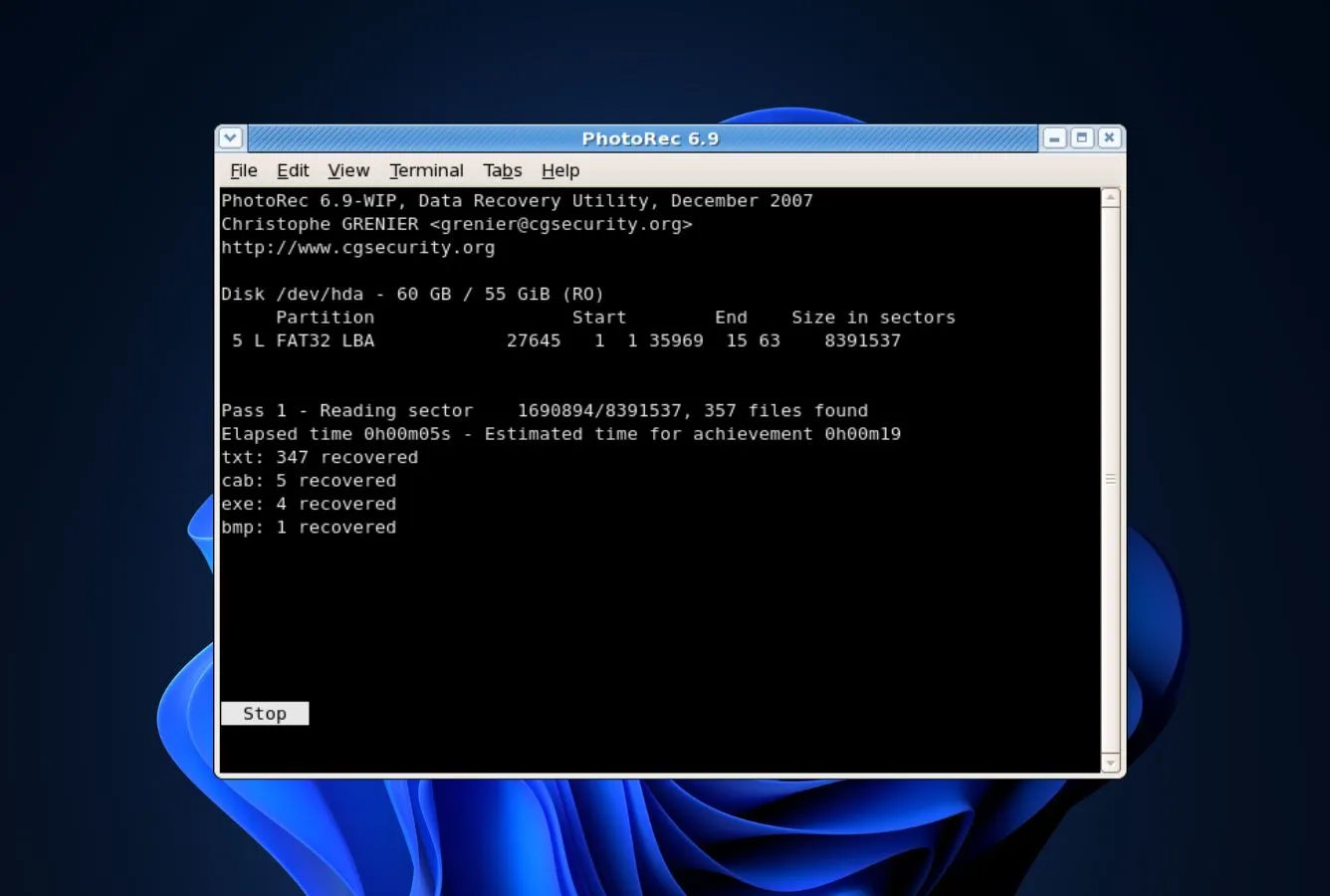
PhotoRec is the strongest free file carver available and the only open-source recovery tool that consistently goes head-to-head with paid mid-tier alternatives on formatted and corrupted drives. Its 480+ signatures and filesystem-agnostic design produce remarkably consistent results across formatted, corrupted, and deleted scenarios — because the scanner doesn’t care about filesystem state. For SD card, USB, and camera memory recovery, the breadth of RAW format coverage matches commercial tools costing $50–$90.
The trade-offs are deliberate, not accidental. PhotoRec never preserves filenames — every recovered file gets a sequential name like f0012345.jpg, dumped into recup_dir folders. There’s no preview, no progress estimate, no file repair, and the QPhotoRec GUI is functional but bare. If your filesystem is intact and you just need recently deleted files back, a filesystem-aware tool will recover them faster and with names attached. But when the filesystem is gone, PhotoRec is hard to beat at any price.
✓ What We Liked
- 100% free — no paid tiers, no data caps, no delays, no registration, no upsell of any kind
- 480+ file signatures across ~300 families — broadest free signature library available
- Strong formatted and corrupted drive recovery — competitive with paid mid-tier tools
- Open-source under GNU GPL v2+ — publicly auditable code, no telemetry, no bundled software
- Fully portable — no installer, runs from USB stick, strict read-only on source media
- Cross-platform — identical engine on Windows, Linux, macOS, FreeBSD, Solaris
- Custom signatures — add your own file types via simple text configuration
✕ What We Didn’t
- Never preserves filenames — sequential names only, no folder structure ever recovered
- No file preview before recovery — files dump straight to recup_dir folders, sort manually
- Bare interface — text-mode CLI by default, QPhotoRec GUI is functional but minimal
PhotoRec Alternatives
Brief selection A quick shortlist of our top alternative picks, based on aggregated independent research. |
Best Alternative  EaseUS Data Recovery Wizard Best overall · 2 GB free |
 Stellar Data Recovery Best for photos · 1 GB free |
 Wondershare Recoverit Best for video · 100 MB free |
|---|---|---|---|
| Deep Scan | ✓ | ✓ | ✓ |
| Formatted Drive Recovery | ✓ | ✓ | ✓ |
| RAW Photo Support | Broad | Broad | Limited |
| File Repair | ✓ | ✓ | Video only |
| Free Tier | 2 GB | 1 GB | 100 MB |
Research Methodology
This review aggregates three evidence types for the current PhotoRec 7.2 build (with awareness of the 7.3 beta): vendor documentation (the official cgsecurity.org wiki, the GitHub repository, the supported file format list, the TestDisk + PhotoRec changelogs), independent external evaluation cross-referenced across long-running editorial sources, and verified user feedback from primary platforms — Trustpilot, SourceForge, AlternativeTo, the Reddit r/datarecovery and r/forensics communities, and the testdisk-users mailing list. Tier assignments (Excellent / Very Good / Good / Fair / Limited / Not supported) reflect the aggregate of that evidence per capability. Where vendor positioning diverges from independent results, we follow the independent evidence and note the gap. Full methodology details are on our How We Test page.
Is PhotoRec Safe?
PhotoRec is among the safest recovery tools available, by both architecture and track record. Developed by Christophe Grenier at CGSecurity since 2007, the project is fully open-source under the GNU GPL v2+ — the source code lives on the public CGSecurity Git repository and has been audited by thousands of users, security researchers, and digital forensics professionals over nearly two decades. The tool operates in strict read-only mode on the source media: it never writes to the drive being scanned. Recovered files go to a separate destination directory you choose. PhotoRec is fully portable — no installer, no registry changes, no background services, no system modifications. It ships as part of the TestDisk bundle and should only be downloaded from the official cgsecurity.org domain. Low-level disk tools sometimes trigger antivirus heuristic flags — these are well-documented false positives.
How to Use PhotoRec
PhotoRec offers two interfaces: the text-based CLI (photorec_win.exe) and QPhotoRec, a Qt-based GUI. Both use the identical recovery engine. Here’s the QPhotoRec workflow:
Download and extract
Download the TestDisk bundle from cgsecurity.org. Extract the ZIP. Run qphotorec_win.exe for the GUI, or photorec_win.exe for the CLI. No installation needed. Administrator rights required to scan physical drives.
Select disk and filesystem
Choose the physical disk or partition to scan. Select the filesystem type (FAT, NTFS, ext, or “Other”) — PhotoRec doesn’t auto-detect this. Choose whether to scan the whole partition or free space only. For formatted or corrupted drives, scan the whole partition.
Configure file types
Open “File Formats” to select which signatures to scan for. Narrowing the list dramatically reduces scan time and clutter — if you only need photos, disable everything else. By default all 480+ signatures are enabled.
Choose destination and scan
Select a destination folder on a different drive than the source — never recover to the same disk. Start the scan. Recovered files are automatically saved to recup_dir.* subfolders with sequential names. Sort manually after recovery using file metadata or content.
Saving recovered files back to the source drive risks overwriting other recoverable files. Use a second internal drive, an external USB drive, or a network location. PhotoRec actively warns you if you try to recover to the source — pay attention to that warning.
Who PhotoRec Is For
PhotoRec fits three specific users genuinely well. The first is anyone facing a formatted, corrupted, or otherwise damaged drive where the filesystem is gone — this is the scenario PhotoRec was built for, and it consistently produces results competitive with paid mid-tier tools. The second is the photographer or hobbyist with a corrupted SD card or memory stick: PhotoRec’s RAW format coverage (CR2, CR3, ARW, NEF, RAF, RW2, ORF, PEF, DNG, and more) is genuinely best-in-class for free software, and the tool’s name is literal — photo recovery is its origin story. The third is the technically comfortable user who wants serious recovery capability without spending money or accepting data caps: 100% free with no caps means the tool scales to any recovery job without budget pressure.
A concrete example: a sysadmin recovering files from a 2 TB external drive that’s showing as “RAW” in Windows Disk Management after a power failure. Try TestDisk first to see if the partition can be repaired with filenames intact. If TestDisk can’t fix it, run PhotoRec — you’ll lose the filenames, but the file content comes back. No subscription required, no data cap to worry about on a 2 TB drive.
If you need filenames and folder structure preserved, want to preview files before recovery, or expect a polished modern interface, the next section explains exactly where PhotoRec’s design choices push you toward a different tool.
PhotoRec’s Strengths in Real-World Use
Aggregated independent evaluation and verified user feedback consistently surface four areas where PhotoRec matches or exceeds paid commercial tools.
Genuinely free with zero limitations
PhotoRec sits in a category of one. Every other tool in the broader recovery space either caps free recovery (typically 100 MB to 2 GB) or limits functionality in the free tier. PhotoRec has no such restrictions: the full recovery engine, all 480+ signatures, and every feature ship to every user at zero cost. Vendor documentation and the public GPL v2+ license confirm there is no premium version, no upgrade tier, and no commercial split — donations are voluntary and don’t unlock anything. For users with large drives, this matters in practice: there’s no “you’ve recovered 2 GB, please pay” wall partway through a 500 GB scan.
Filesystem-agnostic recovery on damaged media
PhotoRec’s design deliberately bypasses the filesystem and reads raw sectors directly. This is what lets it recover from drives where filesystem-aware tools simply fail — corrupted partition tables, formatted volumes, RAW disk states. Independent evaluation consistently rates formatted-drive and corrupted-drive recovery as Very Good — competitive with paid mid-tier tools and noticeably better than several free alternatives that depend on filesystem metadata. The trade-off is that filenames are gone, but on heavily damaged media that’s the only realistic option anyway.
Best-in-class RAW camera format coverage
The tool’s name is literal: “Photo Recovery.” Vendor documentation lists support for an unusually broad RAW format set: Canon CR2 and CR3, Sony ARW and SR2, Nikon NEF and DCR, Pentax PEF, Fujifilm RAF, Panasonic RW2, Olympus ORF, Adobe DNG, Sigma X3F, and many others. Across the 480+ total signatures and ~300 file families, this is the broadest free signature library available — broader even than several tools in the $50–$90 commercial range. For photographers facing a corrupted SD card, PhotoRec is frequently the tool that finds RAW files other budget tools miss entirely. Custom signatures can also be added via a simple text configuration file.
Open-source transparency and forensic credibility
PhotoRec is one of a handful of recovery tools accepted in digital forensics workflows because the source code is publicly auditable, the read-only design is verifiable, and there’s a 19-year history of consistent maintenance. Verified user feedback from r/forensics, the testdisk-users mailing list, and academic literature consistently cites the open-source design as a primary reason it’s used in court-admissible recovery work. The same transparency benefits ordinary users: no hidden telemetry, no bundled software, no surprise licensing.
Where PhotoRec Falls Short
PhotoRec is deliberately a focused tool — these gaps reflect deliberate scope choices, not bugs.
Filenames and folder structure are never preserved
The fundamental architectural trade-off. Because PhotoRec ignores the filesystem entirely and scans raw sectors for file headers, every recovered file gets a sequential name (f0001234.jpg, f0001235.docx) and dumps into recup_dir.* folders containing up to 500 files each. Original filenames, dates, and folder paths are gone. For simple Recycle Bin recoveries on an intact NTFS volume, this is genuinely worse than what a filesystem-aware tool delivers. The recommended workflow for that scenario is a filesystem-aware tool like Recuva or one of the options in our best Windows data recovery software roundup.
No file preview before recovery
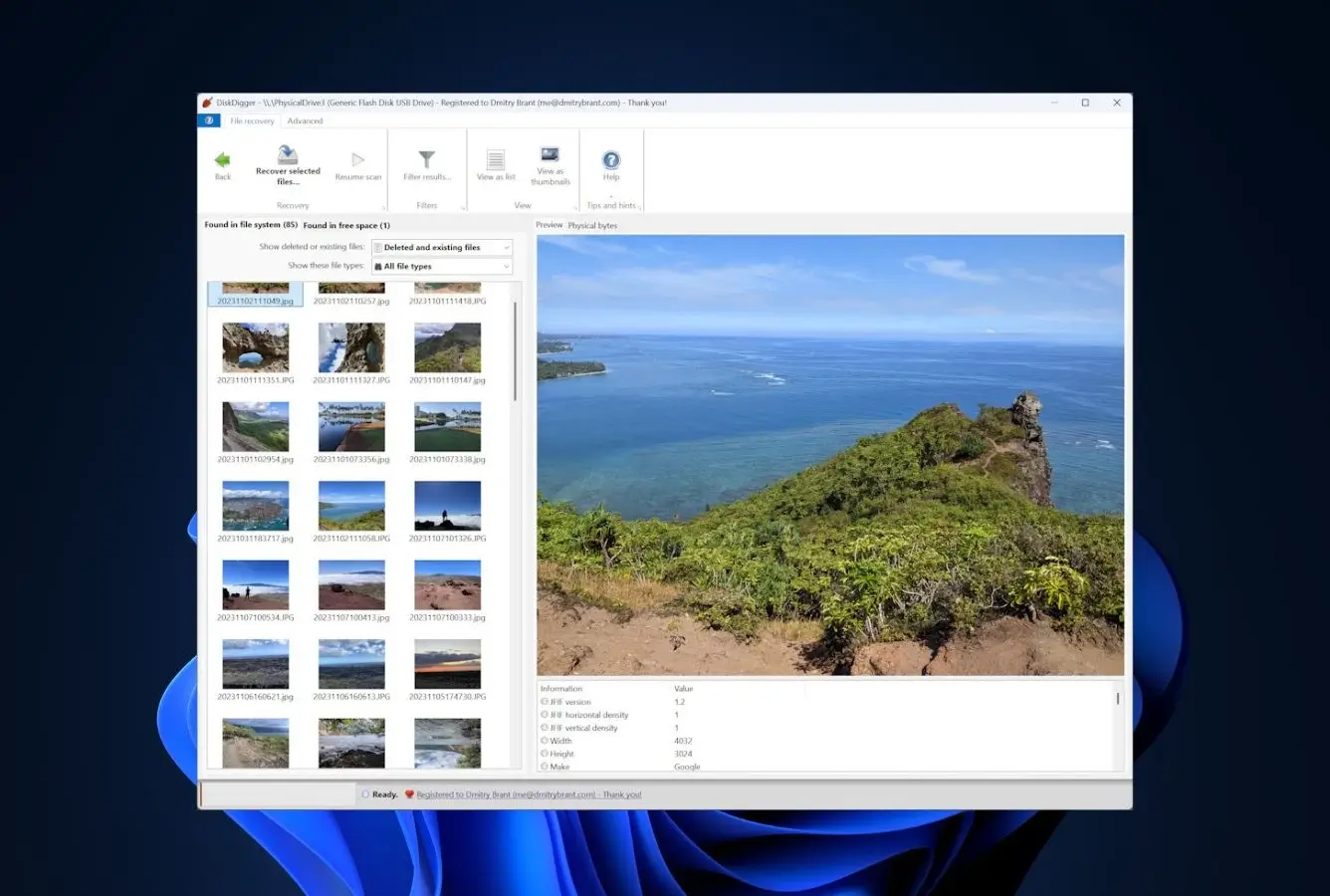
You cannot see files before recovering them. There’s no thumbnail view, no document text preview, no audio playback. Everything dumps to recup_dir folders, and you sort through afterward. For small recoveries this is workable; for large scans (10,000+ files), post-recovery sorting becomes a real time investment. Most paid tools and even some free tools (Recuva, DiskDigger) include preview, which lets you confirm recoverability before committing to a long scan.
Bare interface — CLI by default, basic GUI
The default interface is a text-mode CLI that walks through prompts using arrow keys and Enter. QPhotoRec adds a Qt-based GUI with drive selection, filesystem type dropdowns, and file type checkboxes — but it’s intentionally minimal. There’s no progress time estimate (only sectors scanned vs. total), no auto-refresh when devices connect, and no styling beyond the default Qt look. Verified user feedback consistently flags the interface as the steepest barrier for non-technical users; for anyone comfortable with command-line tools or basic dialog boxes, it’s a non-issue.
No file repair, imaging, partition manager, or RAID
The feature set is intentionally narrow. There’s no module for repairing corrupted JPEGs or fragmented videos, no disk imaging or cloning capability for working with failing drives, no partition manager beyond what TestDisk provides, no RAID constructor for assembling virtual arrays, and no S.M.A.R.T. monitoring. If your scenario involves any of these, you’ll need a more complete tool — DMDE for filesystem-level reconstruction with RAID, R-Studio for professional forensics workflows, or a paid suite like Disk Drill for an integrated experience.
PhotoRec Capability Summary
How PhotoRec performs, capability by capability, based on aggregated independent evaluation and vendor documentation:
| Capability | Tier | Notes |
|---|---|---|
| Deleted-file recovery (NTFS) | Good | Recovers files, but filenames lost — filesystem-aware tools do better here |
| Recycle Bin recovery | Good | Works, but no filename preservation — Recuva is more efficient for this |
| Formatted-drive recovery | Very Good | One of PhotoRec’s strongest scenarios — filesystem state irrelevant |
| Corrupted-partition recovery | Very Good | Standout strength — pair with TestDisk for partition repair attempt first |
| USB / external HDD recovery | Very Good | Strong on FAT and NTFS removable drives; clean integrity |
| SD card & camera recovery | Very Good | Standout strength — broadest RAW format coverage in free tier |
| RAW camera format support | Excellent | CR2, CR3, ARW, SR2, NEF, DCR, PEF, RAF, RW2, ORF, DNG, X3F, more |
| FAT12/16/32 support | Very Good | Works well on legacy and removable FAT volumes |
| NTFS support | Very Good | Reads NTFS-formatted media — filenames not preserved |
| exFAT support | Good | Adequate, less optimized than FAT/NTFS |
| Ext / HFS+ support | Very Good | One of few free tools handling Linux and macOS filesystems |
| Custom signatures | Very Good | Add proprietary or uncommon formats via text config |
| Filename preservation | Not supported | By architectural design — sequential names only |
| File preview before recovery | Not supported | No preview — files dump straight to recup_dir folders |
| Filesystem reconstruction | Not supported | Pure carving — TestDisk handles partition repair separately |
| File repair (photo / video) | Not supported | Recovery only — no repair module |
| RAID reconstruction | Not supported | No RAID constructor |
| Disk imaging / cloning | Not supported | No imaging for failing drives |
| Portability & cross-platform | Excellent | Win/Linux/macOS/BSD/Solaris, no installer, USB-friendly |
| Value for money | Excellent | 100% free, no caps — category of one |
Tier scale: Excellent / Very Good / Good / Fair / Limited / Not supported. Aggregated from independent evaluation and verified user feedback, 2026.
PhotoRec Cost
There’s nothing to explain: PhotoRec is 100% free. No paid tiers, no premium version, no Pro upgrade, no data caps, no delays, no registration, no account creation. The project is open-source under the GNU GPL v2+ and funded entirely by voluntary donations — donations don’t unlock anything because there’s nothing locked. You get the complete recovery engine — all 480+ signatures, all platforms, every feature — at zero cost, today and in perpetuity.
This puts PhotoRec in a category of one within data recovery software. Most consumer tools in our free Windows recovery tools guide either cap free recovery (Disk Drill at 100 MB, EaseUS at 2 GB, Stellar at 1 GB) or limit functionality. Recuva offers unlimited free recovery but reserves its deep scan for the $24.95 Pro tier. PhotoRec has no such restrictions — and no commercial split between consumer and business use either.
The implicit “cost” is the learning curve and the time spent post-sorting recovered files without filenames. For users comfortable with that trade-off, PhotoRec is genuinely the best-priced serious recovery tool available — and one of the few open-source projects that competes head-to-head with commercial alternatives on capability rather than just on principle.
PhotoRec vs. Competitors (2026)
| Tool | Deleted-file Recovery | Formatted Drive | Corrupted Drive | Free Tier | Price |
|---|---|---|---|---|---|
| Disk Drill | Excellent | Excellent | Very Good | 100 MB | $89/yr |
| R-Studio | Excellent | Very Good | Excellent | <256 KB | $79.99 one-time |
| EaseUS DRW | Very Good | Very Good | Very Good | 2 GB | $99.95/yr |
| Stellar | Very Good | Good | Good | 1 GB | $79.99/yr |
| Recuva | Good | Fair | Not supported | Unlimited | Free / $24.95 |
| DiskDigger | Good | Fair | Fair | Unlimited (nag) | $14.99 lifetime |
| PhotoRec ← | Good | Very Good | Very Good | Unlimited | Free (open source) |
Tier assignments based on aggregated independent evaluation and verified user feedback. 2026.
Download PhotoRec
Portable. 100% free. Open source. Bundled with TestDisk.
PhotoRec Features & Tools
PhotoRec’s feature philosophy is deliberately narrow: it is a pure file carver, and nothing else. There’s no filesystem reconstruction, no disk imaging, no partition repair (that’s TestDisk’s job), no file preview, no file repair, and no GUI beyond the basic QPhotoRec wrapper. This isn’t a budget limitation — it’s a 19-year design choice. Christophe Grenier has focused development on one thing: making the carving engine as broad and reliable as possible.
The result is a signature library of 480+ file extensions across roughly 300 file families — the broadest free signature database available. This includes RAW camera formats (CR2, CR3, ARW, NEF, RAF, RW2, ORF, PEF, DNG, X3F), office documents (DOCX, XLSX, PPTX, PDF, ODT), archives (ZIP, RAR, 7z, TAR), audio (MP3, FLAC, WAV, OGG), video (MP4, MOV, AVI, MKV), database files, and many more. Custom signatures can be added via a simple text configuration file for proprietary or uncommon formats.
The TestDisk + PhotoRec workflow
PhotoRec ships bundled with TestDisk, and the two tools are designed to complement each other. The recommended workflow for data loss: try TestDisk first to see if the partition table can be repaired. If TestDisk restores the partition, files come back with original names and folder structure intact. If TestDisk cannot fix the partition, switch to PhotoRec to extract whatever files it can find by signature. You lose filenames and folder structure, but you keep the actual file content. Together, the CGSecurity bundle covers more ground than either tool alone.
PhotoRec User Reviews
PhotoRec enjoys an unusually strong reputation among technical users, sysadmins, and digital forensics practitioners — the reception in editorial reviews aimed at general consumers is more mixed, almost entirely because of the interface. Verified user feedback across SourceForge, AlternativeTo, the Reddit r/datarecovery and r/forensics communities, and the testdisk-users mailing list converges on the same pattern: praise for the recovery engine and price; reservations about the bare GUI and the lack of filename preservation.
PhotoRec is my go-to for formatted media recovery. Found my photos when other free tools showed me nothing. Just expect to spend time sorting afterward.
Best free option for SD card photo recovery. The CLI is easier than people make it sound — just follow the prompts.
Found files Recuva and EaseUS missed on a formatted drive. Just don’t expect filenames. The TestDisk + PhotoRec combo is unbeatable for the price.
Saved 3,000 family photos from a corrupted SD card after my paid tool gave up. Open source and free — donated to the project afterward.
PhotoRec is in my standard toolkit alongside Autopsy. Read-only design and open-source code make it defensible in court-admissible work.
19 years of consistent maintenance from a single developer is itself impressive. The signature library keeps growing release after release.
The pattern across sources is clear: technical users and forensics professionals praise the recovery engine and price; casual users new to recovery software are frustrated by the interface and the lack of filename preservation. If you’re comfortable with basic CLI navigation or don’t mind a bare GUI, the recovery performance more than justifies the learning curve. If you expect modern UI polish, look elsewhere.
When to Choose Something Else
PhotoRec excels at file carving from damaged media. Step up to a different tool when your scenario doesn’t fit that profile:
Frequently Asked Questions
Is PhotoRec completely free?+
Does PhotoRec preserve filenames?+
What is QPhotoRec?+
Is PhotoRec safe?+
Can PhotoRec recover from formatted drives?+
Should I use PhotoRec or TestDisk?+
How many file types can PhotoRec recover?+
Final Verdict
PhotoRec is not the best general-purpose data recovery tool. It is the best file carver, and the distinction matters. If your filesystem is intact and you just emptied the Recycle Bin, a tool that reads NTFS metadata will recover more files with their original names — PhotoRec architecturally cannot do that. But when the filesystem is gone — formatted, corrupted, damaged beyond repair — PhotoRec’s 480+ signatures and raw sector scanning produce results that match or exceed paid tools costing $50–$90. All of this at zero cost, with no data caps, no delays, no registration, and 19 years of consistent maintenance behind it.
The trade-offs are real and deliberate: no filenames, no preview, no file repair, and an interface that ranges from “functional” (QPhotoRec) to “intimidating” (CLI). For the right user — a sysadmin recovering from a damaged drive, a photographer with a corrupted SD card, anyone facing a formatted volume — these aren’t barriers. Combined with TestDisk for partition repair, the CGSecurity bundle covers more ground than any free tool in our open-source recovery tools ranking. Keep it on a USB stick. You’ll be glad you did when something goes wrong.
About the Authors


PhotoRec is free and open-source — there are no affiliate links in this review and no commercial relationship with CGSecurity. This review reflects independent research. If you believe any claim is inaccurate, contact us at contact@datarecoveryfix.com.