PhotoRec Mac Review (2026): Free Open-Source Power
PhotoRec for Mac is a 100% free, open source file recovery tool from CGSecurity, maintained by Christophe Grenier since 1998 under GNU GPL v2+. The current build (v7.2) recovers files by scanning raw disk data for 480+ known file signatures, working even on formatted or corrupted partitions where filesystem-aware tools fail.
It is the only consumer Mac recovery tool that genuinely costs nothing (no data caps, no registration, no upsell), but the trade-offs are substantial: terminal-only on Mac, no filename or folder preservation (files are renamed sequentially as f0001234.jpg), no file preview, and no APFS support.
evaluation, user reports
Apple Silicon via Rosetta 2
No limits, no upsell

The only consumer Mac recovery tool that costs genuinely zero, distributed under GNU GPL v2+ with 480+ file signatures across FAT, NTFS, exFAT, ext2/3/4, and HFS+. Trade-offs are structural: terminal-only on Mac (no GUI), no filename or folder preservation, no preview, no APFS support, Intel binary running via Rosetta 2 on Apple Silicon. Best fit for technically capable users on a zero-budget constraint, or as a second tool to verify recoverability before paying.
✓ What We Liked
- 100% free with no paid tiers, no data caps, no registration, no time limits, and no upsell
- Open source under GNU GPL v2+ with publicly auditable code on CGSecurity\’s git server
- 480+ file signatures across roughly 300 file families. Broadest coverage in any free Mac recovery tool
- Strong on signature-based recovery from formatted, corrupted, or unrecognizable partitions
- No installation required. Portable from extracted archive, runs from any directory
- Read-only scanning per official documentation. Never writes to the source drive
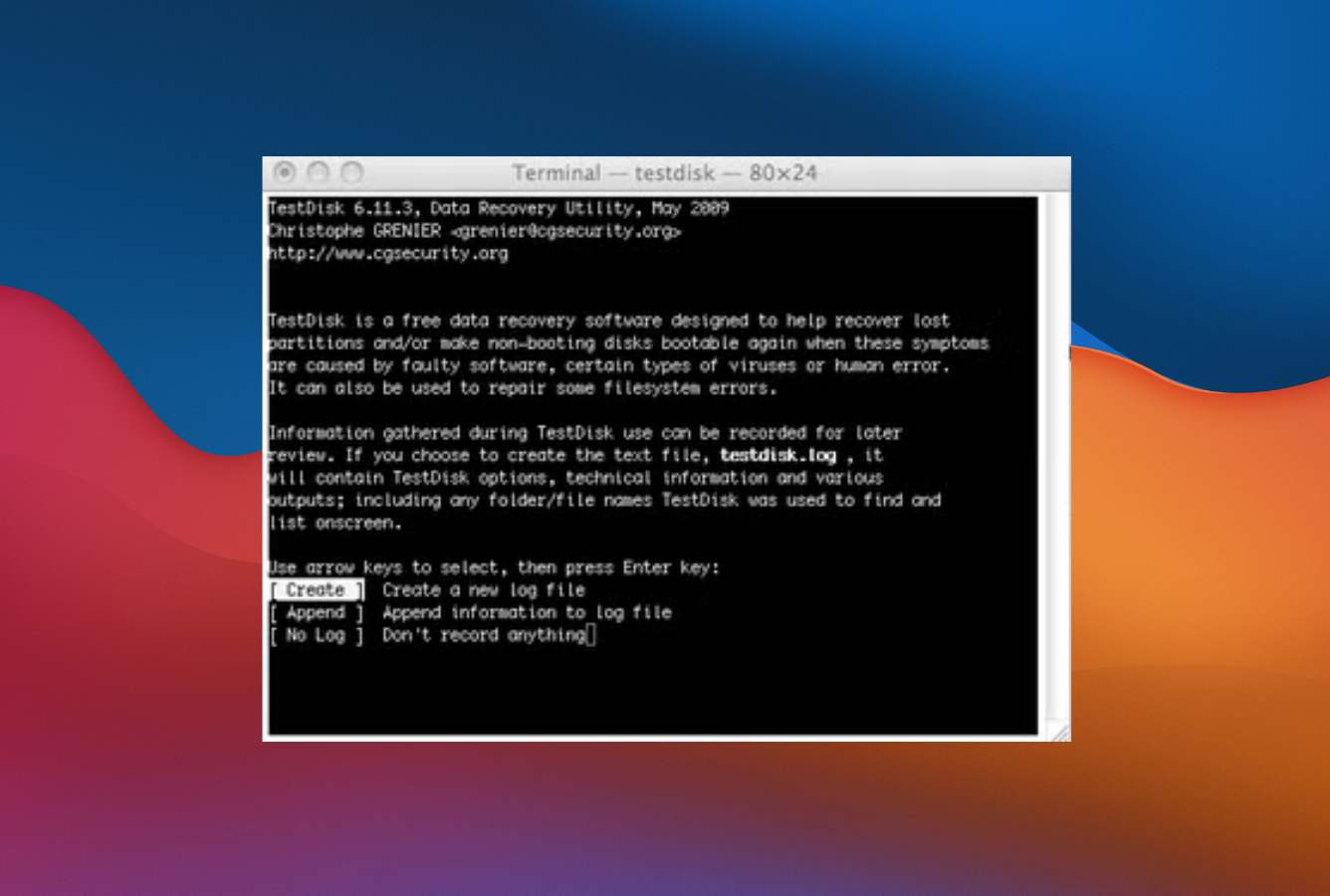
- Bundled with TestDisk in the same archive for partition-level repair workflows
- Cross-platform with identical recovery results on Mac, Windows, Linux, and BSD
✕ What We Didn’t
- Terminal-only on Mac. No graphical interface (QPhotoRec exists for Windows only)
- No filename or folder structure preservation. All files renamed sequentially as f0001234.jpg
- No file preview before recovery, no APFS support, Intel-only binary running via Rosetta 2 on Apple Silicon
PhotoRec Alternatives
|
Brief selection
A quick shortlist of our top alternative picks, based on aggregated independent research.
|
Best Alternative

EaseUS Data Recovery Wizard
Best overall · 2 GB free
|

Stellar Data Recovery
Best for photos · 1 GB free
|

Wondershare Recoverit
Best for video · 100 MB free
|
|---|---|---|---|
| Filename preservation | ✓ | ✓ | ✓ |
| APFS recovery | Very Good | Very Good | Very Good |
| File preview | ✓ | ✓ | ✓ |
| Photo / video repair | No | Premium tier | Video only |
| Free tier | 2 GB | 1 GB | 100 MB |
Research Methodology
This review aggregates three evidence types for PhotoRec for Mac (current build v7.2): vendor documentation (the official CGSecurity PhotoRec wiki, supported file signature list, filesystem coverage matrix, and the public git changelog), independent external evaluation, and verified user feedback (G2, Capterra, SourceForge, plus Reddit threads on r/datarecovery, r/datahoarder, r/photography, and r/sysadmin where free-tool and signature-recovery scenarios are discussed). Tier assignments (Excellent / Very Good / Good / Fair / Limited / Not supported) reflect the aggregate of that evidence rather than an in-house benchmark, so we do not claim independent recovery percentages. For broader Mac category context, see our ranking of the best data recovery software for Mac; for free-first comparisons, see our best free data recovery software guide. Full methodology details are on our How We Test page.
Is PhotoRec for Mac Safe?
Yes. PhotoRec is developed by Christophe Grenier (CGSecurity), a French software developer who has continuously maintained TestDisk and PhotoRec since 1998, over 25 years of active development. The application is open source under GNU GPL v2+, with publicly auditable code on the official CGSecurity git server, and the source archive is available for anyone to compile independently. PhotoRec uses read-only access to the source drive per official documentation and never writes to or modifies the storage being scanned. The Mac binary is distributed as an unsigned archive (CGSecurity is a one-developer free software project, not a commercial vendor with Apple Developer ID), so first-launch may require right-clicking and selecting Open from the Finder context menu to bypass Gatekeeper.
Two safety considerations matter for Mac users. First, antivirus software occasionally flags PhotoRec as suspicious because it requires raw disk access at the sector level to do its job, this is a heuristic false positive (the source code is auditable and the SHA-256/SHA-512 hashes are published alongside each release on cgsecurity.org). Second, on Apple Silicon and T2-equipped Macs, PhotoRec cannot scan the internal Macintosh HD due to Apple\’s Secure Boot and hardware-level encryption (a hardware restriction affecting all third-party recovery software, not specific to PhotoRec). External drives connected via USB or Thunderbolt work without restrictions. Always download from cgsecurity.org directly and verify the published hash before extracting.
How to Use PhotoRec on Mac
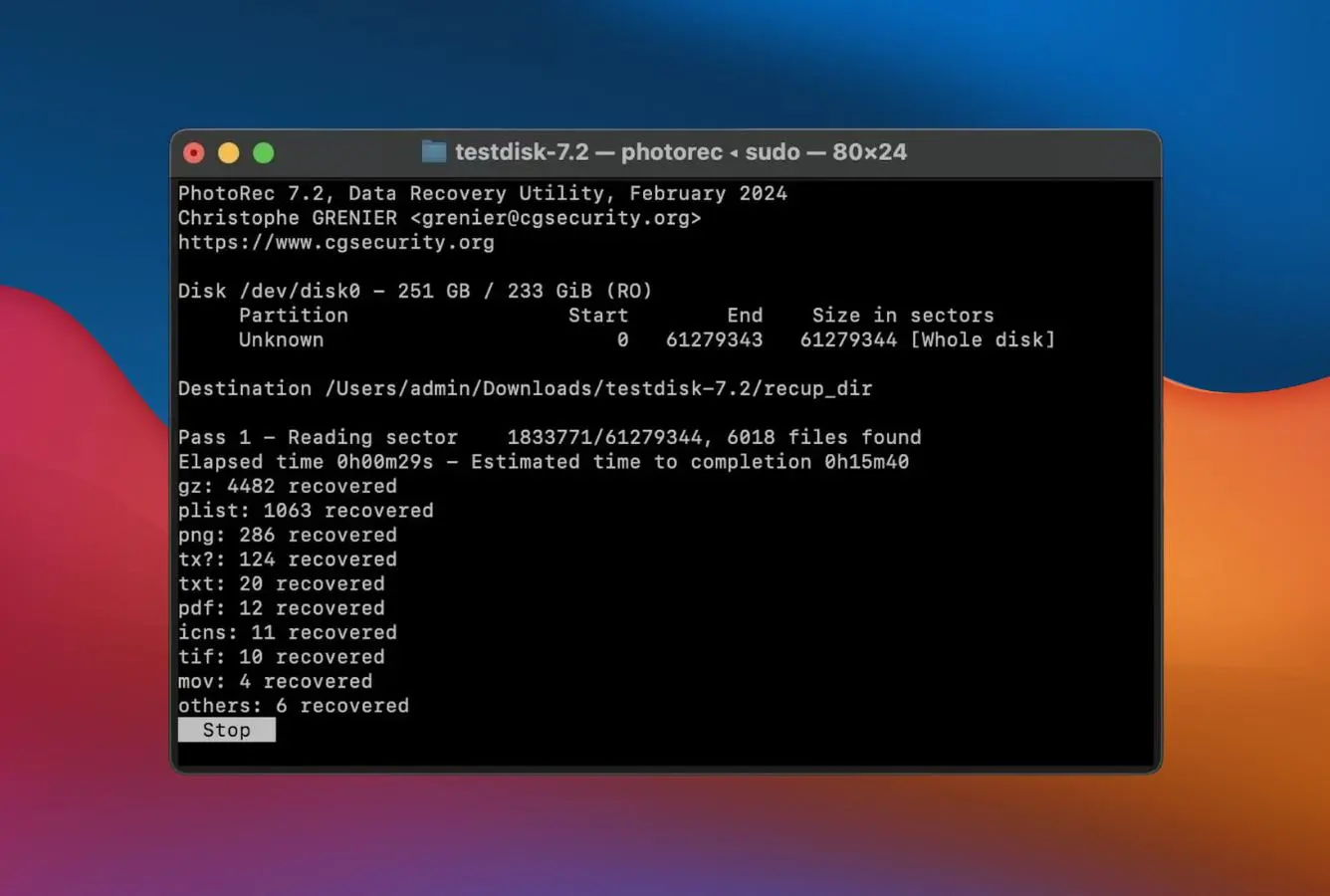
PhotoRec\’s Mac workflow runs entirely in Terminal. There is no graphical interface and the application is keyboard-driven through a series of text menus. The workflow is short but assumes comfort with the command line.
Download and extract
Download the macOS archive from cgsecurity.org/wiki/TestDisk_Download (PhotoRec ships in the same archive as TestDisk). Verify the SHA-256 hash against the published list. Extract the archive to a folder of your choice (Desktop or a dedicated tools folder works fine). No installer, no installation, fully portable. On Apple Silicon Macs, macOS will install Rosetta 2 automatically on first launch if not already installed.
Launch from Terminal with sudo
Open Terminal.app, navigate to the extracted folder using cd, and launch PhotoRec with sudo ./photorec. The sudo elevation is required for raw disk device access. PhotoRec opens an ncurses-style text menu. Select the source drive from the device list using arrow keys and Enter. The drives appear with their /dev/disk identifier (e.g., /dev/disk2 for an external USB drive).
Configure scan parameters
Select the partition to scan (or whole disk). Choose the filesystem family: ext2/ext3/ext4 for Linux drives, “Other” for FAT, NTFS, exFAT, HFS+. PhotoRec ignores the filesystem during scanning but uses this hint to optimize block-size detection. Enter “File Opt” to enable or disable specific file types, by default not all signatures are selected, and selecting only the formats you need (e.g., only JPEG and CR2 for photo recovery) speeds up scanning and reduces noise.
Choose destination and start scan
Critical: select a destination directory on a different drive than the source. PhotoRec will warn if you attempt to recover to the same drive (which would overwrite unrecovered data). Press Y to confirm and start the scan. Recovered files appear in subdirectories named recup_dir.1, recup_dir.2, and so on, with files renamed sequentially as f0001234.jpg, f0001235.png. Manual sorting after recovery is required since filenames are not preserved.
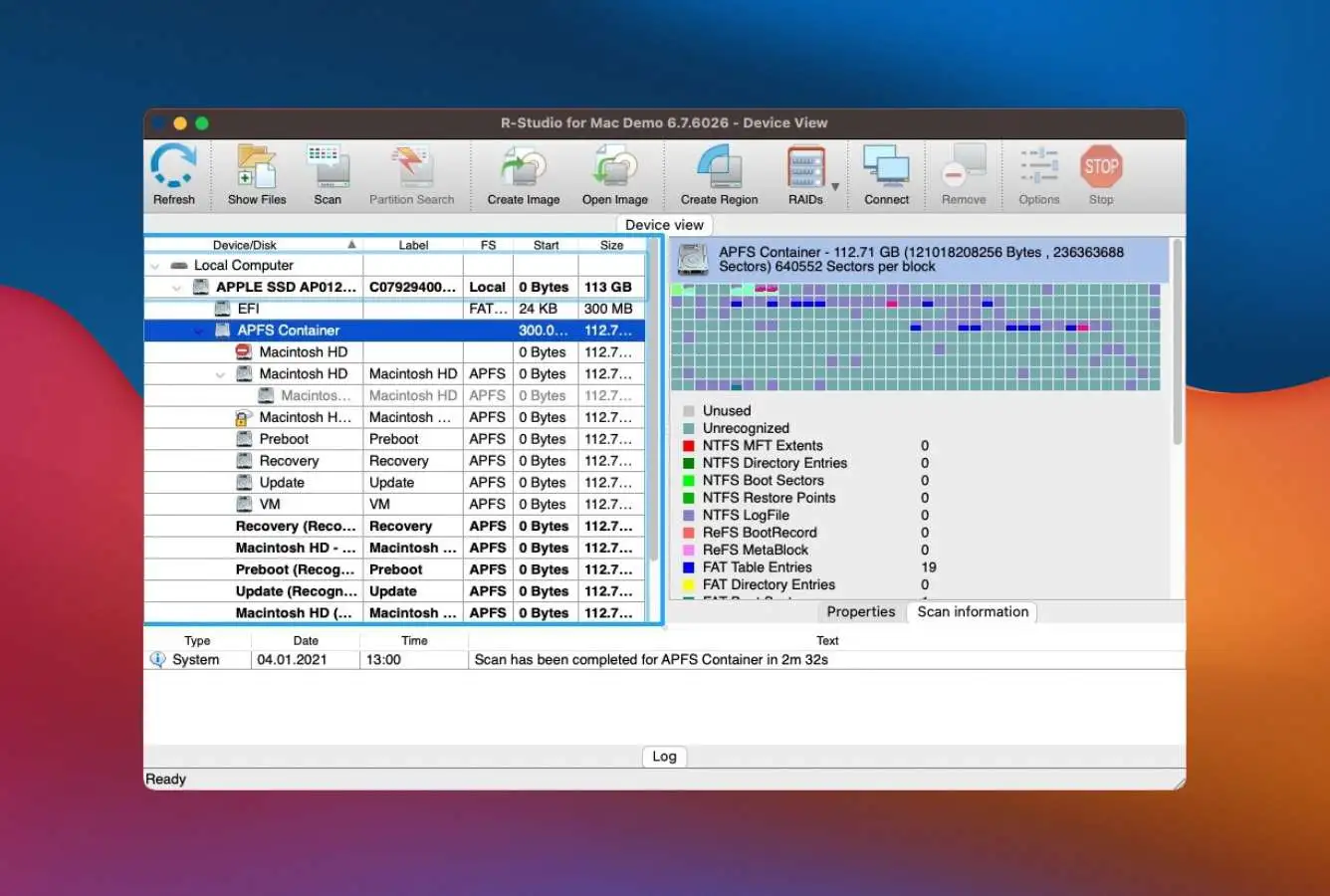
Every file recovered by PhotoRec is renamed with a generic sequential number. There is no way to preserve original filenames because PhotoRec ignores filesystem metadata entirely (that is the trade-off for being able to recover from corrupted or formatted drives). After recovery, expect to spend significant time sorting through hundreds or thousands of files to identify which ones you actually wanted. For users who need named recovery (filesystem catalog parsing), Disk Drill, Stellar, EaseUS, or R-Studio are required, all of which are paid alternatives.
Who PhotoRec for Mac Is For
PhotoRec for Mac targets a narrow but well-defined audience: users who prioritize zero cost over usability and are comfortable with technical workflows. Three audiences get clear value:
Mac users on a strict zero-budget constraint. PhotoRec is the only consumer Mac recovery tool that genuinely costs nothing in every sense (no data caps, no registration, no time limits, no upsell, and no commercial version). If paying for recovery software is not an option (students, hobbyists, occasional recovery scenarios where the data does not justify the expense, situations where the user wants to verify recoverability before deciding whether to pay), PhotoRec is unbeatable. The 480+ file signature database covers most consumer formats: JPEG, PNG, MP4, MOV, PDF, DOCX, XLSX, ZIP, RAR, plus major RAW camera formats.
Technically capable Mac users comfortable with Terminal workflows. PhotoRec\’s text-based interface is approachable for users who have used the command line for other tasks (developers, sysadmins, power users, anyone with Linux background). The ncurses menu is keyboard-driven but reasonably intuitive once you understand the workflow: select drive, select partition, configure file types, choose destination. For users who already know their way around Terminal, the lack of a graphical interface is a minor friction at most. For users who have never opened Terminal, this is a steep learning curve.
Users who need a complementary second tool to verify recoverability. PhotoRec works as a reliable second opinion before paying for commercial software. If a paid tool returns disappointing results, PhotoRec\’s aggressive signature-based recovery often surfaces files that filesystem-aware tools missed. Conversely, if PhotoRec recovers everything you need (despite the messy output), you can save the cost of a paid license. Many data recovery professionals run PhotoRec first as a sanity check before recommending paid tools to clients.
PhotoRec is the wrong tool for Mac users who need original filenames preserved (signature-based recovery cannot retain filenames; Disk Drill, Stellar, EaseUS, and R-Studio handle this), users who want a graphical interface (Disk Drill is the cleanest Mac UX in the category), users who need APFS filesystem support (PhotoRec supports HFS+ but not APFS; Disk Drill, Stellar, and others handle APFS natively), users dealing with RAID arrays (R-Studio is the value pick at $79.99 Lifetime), and users who want preview before recovery (paid Mac tools all support preview; PhotoRec does not).
PhotoRec for Mac Strengths in Real-World Use
The strengths cluster around the recovery engine quality, the no-cost positioning, and the open source transparency. Each reflects PhotoRec\’s 25+ year evolution as a focused signature-based recovery tool rather than a polished consumer application.
100% genuinely free with no caps or upsell
PhotoRec is the only consumer Mac recovery tool that costs nothing in every sense. There are no paid tiers, no data caps, no registration, no time limits, no nag screens, no upsell prompts, and no commercial version held in reserve. Stellar Free caps at 1 GB recovery, EaseUS Free caps at 2 GB, Wondershare Recoverit caps at 100 MB, and Disk Drill\’s Mac Free is preview-only (no actual saving). PhotoRec recovers unlimited data with no functional restrictions versus the paid alternatives, the only cost is the time spent learning the Terminal workflow and sorting through unnamed recovered files.
Broad file signature coverage (480+ extensions)
PhotoRec\’s file signature database covers 480+ file extensions across roughly 300 file families: common consumer formats (JPEG, PNG, GIF, BMP, TIFF, PDF, DOCX, XLSX, PPTX, ZIP, RAR, 7z, MP3, MP4, MOV, AVI, MKV), RAW camera formats (Canon CR2/CR3, Nikon NEF, Sony ARW, Fujifilm RAF, Olympus ORF, Panasonic RW2, Adobe DNG), application data files (Photoshop PSD, Adobe Illustrator AI, Sketch, Final Cut Pro, Logic Pro), and many specialized formats. Coverage is broader than several paid tools that focus on consumer formats only. New signatures are added regularly through the active git repository.
Strong on signature-based scenarios (formatted, corrupted, unrecognizable)
PhotoRec\’s engine ignores the filesystem entirely and scans raw disk data block-by-block for known file signatures. This approach works on drives that filesystem-aware tools cannot read: drives that have been formatted (filesystem catalog destroyed), corrupted partitions, drives showing as “unrecognizable” in macOS Disk Utility, and drives with severely damaged file headers. For these scenarios, PhotoRec frequently recovers files that paid tools miss, particularly when the corruption is at the filesystem catalog level rather than the file data level.
Open source transparency and active maintenance
PhotoRec\’s source code is publicly auditable on the CGSecurity git server. Anyone can review the code, compile it independently, and redistribute under GPL v2+. The active git repository shows continuous development with regular commits, signature additions, and bug fixes. SHA-256 and SHA-512 hashes are published alongside each release for download verification. For users who care about software supply chain transparency (security-conscious users, IT professionals at organizations with strict tool vetting, users who simply want to know what their recovery software is doing), PhotoRec\’s openness is unique in the Mac recovery category.
No installation, fully portable
PhotoRec ships as a single archive that extracts to a folder. There is no installer, no system modifications, no kernel extension, no privileged helper, and no permanent footprint on the system. The application runs from any directory and can be deleted by removing the folder. For users who avoid installing software whenever possible, this is a meaningful benefit. The archive can also be carried on a USB drive and run on any Mac without setup.
Companion to TestDisk for partition-level repair
PhotoRec ships in the same archive as TestDisk, which handles partition table and boot sector repair. When a drive is unmountable due to filesystem corruption rather than file deletion, TestDisk can sometimes restore the partition structure to make the drive usable again, after which standard tools can read the data. For users dealing with completely unmountable drives, the TestDisk + PhotoRec combination provides a complete free recovery toolkit. Both tools are documented together on the CGSecurity wiki with shared workflow examples.
Where PhotoRec for Mac Falls Short
The limitations are substantial and structural. PhotoRec is a focused free utility, not a polished Mac application, and the gaps reflect the project\’s scope and priorities.
Terminal-only on Mac with no GUI
PhotoRec on Mac runs entirely in Terminal through an ncurses text-mode interface. QPhotoRec (the graphical front-end) is Windows-only and does not exist on macOS. For users who have never used Terminal, the workflow is genuinely intimidating: opening Terminal.app, navigating to the extracted folder with cd commands, launching with sudo, navigating ncurses menus with arrow keys, and managing recovered files in nested directories with generic filenames. This is the dominant friction point flagged across independent reviews. For users who want a click-and-recover experience, every paid Mac alternative is dramatically more approachable.
No filename or folder structure preservation
PhotoRec\’s signature-based approach completely ignores filesystem metadata, which means original filenames cannot be preserved. Every recovered file is renamed sequentially: f0001234.jpg, f0001235.png, f0001236.docx, with no original folder structure. After recovery, expect to spend significant time manually identifying and renaming files, especially after recovering thousands of small files. This is the most-cited frustration in verified user feedback and the structural limit that drives many users to paid alternatives. Disk Drill, Stellar, EaseUS, and R-Studio all preserve filenames when the filesystem catalog is intact (which is most deletion scenarios).
No file preview before recovery
Paid Mac recovery tools allow previewing recoverable files before saving (verifying that JPEGs are intact, video files are playable, documents are not corrupted) so users can selectively recover only the files they want. PhotoRec has no preview at all. The only way to verify recovery quality is to run the entire scan, recover everything, then manually inspect the output folder to see what worked. For large drives with potentially tens of thousands of recoverable files, this is a significant workflow burden.
No APFS filesystem support
PhotoRec supports HFS+ on Mac filesystems but not APFS, which has been the default Mac filesystem since macOS High Sierra (2017). For users on modern Macs (any Mac running macOS 10.13 or later with internal SSD or APFS-formatted external drive), this is a meaningful gap. The signature-based engine still recovers individual files from APFS volumes (it ignores the filesystem regardless), but PhotoRec cannot use APFS catalog information to optimize scanning or preserve folder structure. For APFS-aware recovery, all paid Mac alternatives are required.
Intel-only Mac binary running through Rosetta 2
The official PhotoRec v7.2 stable Mac build is Intel 64-bit only. On Apple Silicon Macs (M1, M2, M3, M4), the binary runs through Rosetta 2 translation, which macOS installs automatically on first launch. Performance is adequate for recovery tasks, but the lack of a native Apple Silicon build is a meaningful indicator of the project\’s development priorities (Mac is a tertiary platform behind Linux and Windows). A native Apple Silicon build is in development for v7.3.
No bundled photo or video repair, no preview, no export tools
PhotoRec recovers files. It does not repair them, preview them, organize them, deduplicate them, or export them to cloud services. Files come back as raw bytes that may or may not be intact (PhotoRec attempts consistency checks for known formats but cannot repair partially-corrupted files). For workflows that need recovery + repair (Stellar Premium\’s photo and video repair, dedicated photo recovery tools), additional tools are required after PhotoRec finishes. For workflows that need cloud export (EaseUS DRW Mac\’s direct export to Dropbox/Google Drive/OneDrive), PhotoRec\’s outputs must be manually uploaded.
PhotoRec Mac Capability Summary
How PhotoRec for Mac performs capability by capability:
| Capability | Tier | Notes |
|---|---|---|
| Pricing value (100% free, no caps) | Excellent | Only consumer Mac recovery tool that genuinely costs nothing. No upsell, no caps, no registration |
| File signature coverage | Excellent | 480+ extensions across ~300 file families. Broader than most paid consumer tools |
| Open source transparency (GPL v2+) | Excellent | Publicly auditable code, SHA-256/512 hashes published, anyone can compile independently |
| Read-only safety | Excellent | Per official documentation, never writes to source drive. Standard for the recovery category |
| Cross-platform availability | Excellent | Identical recovery results on Mac, Windows, Linux, BSD, Solaris |
| Vendor longevity (since 1998) | Excellent | Christophe Grenier has continuously maintained PhotoRec for over 25 years |
| Companion TestDisk for partition repair | Excellent | Both tools ship in same archive. Complete free recovery toolkit for unmountable drives |
| No installation required | Excellent | Portable archive. Extracts and runs from any directory. No system modifications |
| Formatted-volume recovery | Very Good | Strong on filesystem-destroyed scenarios where signature scanning is the right approach |
| Corrupted partition recovery | Very Good | Filesystem-agnostic engine works on drives other tools cannot read |
| SD card / camera RAW recovery | Very Good | Major RAW formats supported (CR2, CR3, NEF, ARW, ORF, RAF, DNG) |
| Linux filesystems (ext2/3/4) | Very Good | Reads Linux server and NAS drives directly. Useful for cross-platform recovery |
| HFS+ recovery | Very Good | Legacy Mac filesystem supported. Pre-APFS Mac drives covered |
| FAT / NTFS / exFAT recovery | Very Good | Standard Windows filesystems read directly from Mac |
| Deleted-file recovery | Good | Signature-based approach works but trails filesystem-aware tools that preserve filenames |
| UI & ease of use | Fair | Terminal-only ncurses interface. Steep learning curve for non-CLI users |
| Apple Silicon native binary | Limited | Intel 64-bit only. Runs via Rosetta 2 on M1/M2/M3/M4. Native build in 7.3 beta |
| Filename preservation | Not supported | Recovered files renamed sequentially as f0001234.jpg. Most-cited frustration |
| Folder structure preservation | Not supported | Files dumped into recup_dir.1, recup_dir.2, etc. with no original hierarchy |
| File preview before recovery | Not supported | No way to verify recovery quality before saving. Must scan everything first |
| APFS filesystem support | Not supported | Mac filesystem since 2017. Major gap for modern Macs |
| Photo / video repair | Not supported | Stellar Premium ($99.99/yr) is the option for recovery + repair workflows |
| RAID reconstruction | Not supported | R-Studio at $79.99 Lifetime is the value pick for RAID |
| iCloud scanning / cloud export | Not supported | EaseUS DRW for Mac is the only consumer Mac tool with iCloud scanning |
| Internal Mac SSD with TRIM | Not supported | Apple Silicon Secure Boot. Hardware limitation affecting all recovery tools |
| Native Mac UI conventions | Not supported | Terminal-only. No Mac-native UI elements. Cross-platform CLI interface |
Tier scale: Excellent / Very Good / Good / Fair / Limited / Not supported. Aggregated from CGSecurity vendor documentation, independent external evaluation, and verified user feedback (G2, Capterra, SourceForge, Reddit), 2026.
PhotoRec Cost
PhotoRec\’s pricing is the simplest in the data recovery category. There is one tier and it costs nothing:
| Edition | Price | License | Coverage |
|---|---|---|---|
| PhotoRec for Mac (only edition) | $0 | GNU GPL v2+ (open source) | Unlimited recovery, all features, no caps, no registration, no time limits, no upsell. Personal and commercial use both permitted |
Distributed alongside TestDisk in a single archive on cgsecurity.org. SHA-256 and SHA-512 hashes published for download verification. Source code available for independent compilation. April 2026 build is v7.2.
PhotoRec is the only consumer Mac recovery tool that genuinely costs nothing in every sense. By comparison, the closest free-tier alternatives all have meaningful restrictions: Stellar Free caps at 1 GB recovery, EaseUS Free caps at 2 GB, Wondershare Recoverit Free caps at 100 MB, Disk Drill Mac Free is preview-only (no save), and R-Studio Demo caps at 256 KB per file. PhotoRec\’s zero-cost positioning is structural, the project is volunteer-maintained free software with no business model that would benefit from artificial restrictions. For broader Mac category context, see our best data recovery software for Mac ranking; for free-first comparisons, see our best free data recovery software roundup.
PhotoRec vs. Competitors (2026)
How PhotoRec for Mac stacks up against the most common Mac recovery alternatives:
| Tool | Cost | UI | Filenames preserved | APFS support | Free tier value |
|---|---|---|---|---|---|
| PhotoRec Mac ← | $0 (GPL v2+) | Terminal only | Not supported | Not supported | Excellent (unlimited) |
| Disk Drill Mac | $89/yr · $149 Lifetime | Excellent | Yes | Excellent | Preview only |
| Stellar Mac (Pro) | $89.99/yr · $149 Lifetime | Very Good | Yes | Very Good | 1 GB |
| EaseUS DRW Mac | $89.95/mo · $169.95 Lifetime | Very Good | Yes | Very Good | 2 GB |
| R-Studio Mac | $79.99 Lifetime | Fair | Yes | Very Good | <256 KB demo |
| UFS Explorer Standard | $64.95 Lifetime | Fair | Yes | Good | <256 KB demo |
Tier scale: Excellent / Very Good / Good / Fair / Limited / Not supported. Aggregated from vendor documentation and independent external evaluation, 2026.
PhotoRec\’s standout advantage is genuinely zero cost with unlimited recovery, the only Mac recovery tool with no caps, no registration, and no commercial version. Trade-offs are substantial: terminal-only on Mac (no GUI), no filename preservation, no APFS support, no preview, no Apple Silicon native binary. For users who can tolerate the workflow, PhotoRec is unbeatable on cost. For users who need named recovery, GUI, APFS support, or preview, paid alternatives are required.
Download PhotoRec Free
No registration. No limits. No cost. Open source.
PhotoRec Features & Tools
PhotoRec is intentionally minimal. Where paid Mac tools compete on feature breadth (bundled photo repair, drive monitoring, cloud export, RAID reconstruction), PhotoRec focuses on doing one thing well: recovering files from raw disk data using signature scanning. The simplicity is both its strength and its structural limitation.
PhotoRec\’s core engine scans disk sectors sequentially, comparing each block against its database of 480+ known file headers. When a match is found, it reads forward until the file\’s end marker or the start of another file. This approach is filesystem-agnostic, so it works identically on FAT, NTFS, exFAT, HFS+, ext4, or completely unformatted media. The trade-off is that fragmented files may recover only partially, original filenames are always lost, and folder structure cannot be preserved. Expert mode exposes additional options: paranoid verification (checks recovered files for internal consistency), partial recovery of fragmented files, and custom block size settings.
What\’s absent: bundled photo and video repair (Stellar Premium fills this gap), iCloud scanning (EaseUS DRW Mac is the only consumer Mac tool with this), RAID reconstruction (R-Studio at $79.99 Lifetime is the value pick), filename preservation (every paid Mac tool handles this), GUI on Mac (QPhotoRec is Windows-only, paid alternatives all have native Mac GUIs), and APFS filesystem support. For photographers who need photo recovery + repair, our best photo recovery software guide covers paid options with built-in repair.
Alternatives to PhotoRec for Mac
PhotoRec is unbeatable on price but limited in capability. Other tools serve specific Mac scenarios where PhotoRec falls short:
Open Finder, navigate to the folder where files were lost, click the Time Machine icon in the menu bar, and browse to a backup before the deletion event. If Time Machine was active, this takes 2 minutes and recovers files with original names and folder structure intact, something PhotoRec cannot do.
PhotoRec User Reviews
PhotoRec\’s review coverage skews heavily toward technical communities (Reddit r/datarecovery, r/datahoarder, r/sysadmin) and open-source advocacy sites rather than mainstream consumer reviews. The sentiment pattern across verified user feedback is consistent: strong praise for capability, longevity, and zero cost; criticism focused on the terminal interface and lack of filename preservation. PhotoRec also has notable presence on SourceForge with active community discussion threads dating back over a decade.
Recovered 2,000+ photos from a formatted SD card in about 15 minutes. No other free tool came close. The lack of filenames is annoying but worth the trade-off for free.
PhotoRec is what most pros recommend before suggesting a paid tool. Run it first as a sanity check. If it gets your files back you saved $90+. If it doesn\’t you know the data is harder to recover.
Reliable open source tool that has saved me multiple times. The terminal interface takes some getting used to but the recovery results are solid.
The only data recovery tool I trust to run on a NAS drive pulled from a Linux server. ext4 support works perfectly and the source code means I can verify what it\’s doing.
Recovered most of what I needed but the renamed files (f0001234.jpg style) made sorting through 3,000 photos a nightmare. Spent more time sorting than scanning.
Photographer here. Used PhotoRec to recover 4 weeks of wedding shoots from a corrupted SD card. Got everything back. The sort-by-date workflow afterward took several hours but cost nothing.
Recurring themes across verified user feedback: strong praise for the genuinely-free positioning, broad signature coverage, and reliability on signature-based scenarios; criticism centered on the lack of filename preservation (the dominant friction point) and the terminal-only interface. PhotoRec is universally respected in technical communities but rarely recommended for first-time users without command-line comfort. The tool sits in a unique niche: too complex for casual users, sometimes too basic for users with RAID or APFS needs, but unbeatable for technically capable users who want zero-cost recovery.
Frequently Asked Questions
Is PhotoRec for Mac completely free?+
Is PhotoRec safe to use on Mac?+
Does PhotoRec work on Apple Silicon Macs?+
Does PhotoRec preserve original file names?+
What is the difference between PhotoRec and TestDisk?+
Can PhotoRec recover RAW camera files on Mac?+
Is PhotoRec better than Disk Drill for Mac?+
Final Verdict
PhotoRec for Mac earns 3.5/5 as the only consumer Mac recovery tool that genuinely costs nothing. Aggregated independent evaluation places PhotoRec as the strongest free option in the Mac recovery category for signature-based recovery: 480+ file extensions across roughly 300 file families, broad filesystem support (FAT, NTFS, exFAT, ext2/3/4, HFS+), read-only scanning, and active maintenance by Christophe Grenier (CGSecurity) since 1998 under GNU GPL v2+ with publicly auditable code. The companion TestDisk (in the same archive) handles partition-level repair when filesystem catalogs are damaged. For users on a strict zero-budget constraint or who need a complementary second tool to verify recoverability before paying for commercial software, PhotoRec is unbeatable on cost.
The trade-offs are substantial and structural. The Mac build is terminal-only with no graphical interface (QPhotoRec is Windows-only), recovered files are renamed sequentially as f0001234.jpg with no original filenames or folder structure preserved (the dominant friction point in verified user feedback), no file preview before recovery, no APFS support (HFS+ is the only Mac filesystem covered), and the Mac binary is Intel 64-bit running through Rosetta 2 on Apple Silicon Macs. For users who need named recovery, GUI, APFS support, file preview, or bundled photo/video repair, paid alternatives are required. Disk Drill is the cleanest Mac UX with APFS support; Stellar Premium adds bundled repair; EaseUS DRW Mac adds iCloud and cloud export; R-Studio adds RAID and multi-platform. For broader Mac category context, see our best Mac data recovery software ranking; for free-first comparisons, see our best free data recovery software guide.
About the Authors


PhotoRec is free, open source software with no affiliate program. This review contains no affiliate links to PhotoRec. Links to alternative paid tools mentioned in the comparison and alternatives sections may contain affiliate links, from which this site earns revenue at no extra cost to you. This financial relationship has no influence on our tier assignments, methodology, or conclusions. All tools are evaluated independently against the same rubric and the same body of aggregated evidence. If you believe any claim is inaccurate, contact us at contact@datarecoveryfix.com.