

Windows File Recovery Alternatives
|
Brief selection
Here’s a quick shortlist of our top alternative picks based on testing.
|
Best Alternative

EaseUS Data Recovery Wizard
Best overall · 2 GB free
|

Stellar Data Recovery
Best for photos · 1 GB free
|

Wondershare Recoverit
Best for video · 100 MB free
|
|---|---|---|---|
| Deep Scan | ✓ | ✓ | ✓ |
| Formatted Drive Recovery | ✓ | ✓ | ✓ |
| RAW Photo Support | Broad | Broad | Limited |
| File Repair | ✓ | ✓ | Video only |
| Free Tier | 2 GB | 1 GB | 100 MB |
Research Methodology
This review aggregates three evidence types for Windows File Recovery (Microsoft Store edition): vendor documentation (Microsoft’s official Windows File Recovery support article, the Microsoft Store listing, and the winfr help output that documents supported modes, switches, and signature types), independent external evaluation, and verified user feedback (Reddit threads on r/datarecovery and r/techsupport, Microsoft Store user reviews, and forum threads). Tier assignments (Excellent / Very Good / Good / Fair / Limited / Not supported) reflect the aggregate of that evidence rather than an in-house benchmark — we do not claim independent recovery percentages. For broader Windows recovery comparisons, see our ranking of the best data recovery software for Windows. Full methodology details are on our How We Test page.
Is Windows File Recovery Safe?
Yes. Windows File Recovery is developed by Microsoft Corporation and distributed exclusively through the Microsoft Store, which means the binary is verified and signed by Microsoft. There is no third-party installer, no bundled software, and no adware. The tool performs read-only scanning on your source drive — recovered files are written to a separate destination drive that you specify in the command. No background services, no account requirement, and no telemetry beyond standard Windows diagnostics.
The most important safety practice with any recovery tool applies here equally: write recovered files to a different physical drive than the source. Microsoft’s documentation enforces this with an explicit error if you target the same partition. Do not install Windows File Recovery onto the drive you’re trying to recover from — even an installer’s writes can overwrite the deleted file blocks you need to recover. Cracked installers from third-party sites should be avoided since the tool is free; any “alternative” download is more likely to be malware than a legitimate copy.
How to Use Windows File Recovery
The entire workflow happens in Command Prompt. There is no wizard, no drag-and-drop, and no graphical scan preview. Here’s the step-by-step process:
Install from the Microsoft Store
Open the Microsoft Store listing and click Install. The download is a few megabytes. Windows 10 build 19041 (May 2020 Update) or later is required; Windows 11 is fully supported. There is no offline installer.
Open the tool with admin rights
Press the Windows key, type “Windows File Recovery,” right-click the result, and choose Run as administrator. A Command Prompt window opens. Click Yes when prompted by User Account Control.
Enter the recovery command
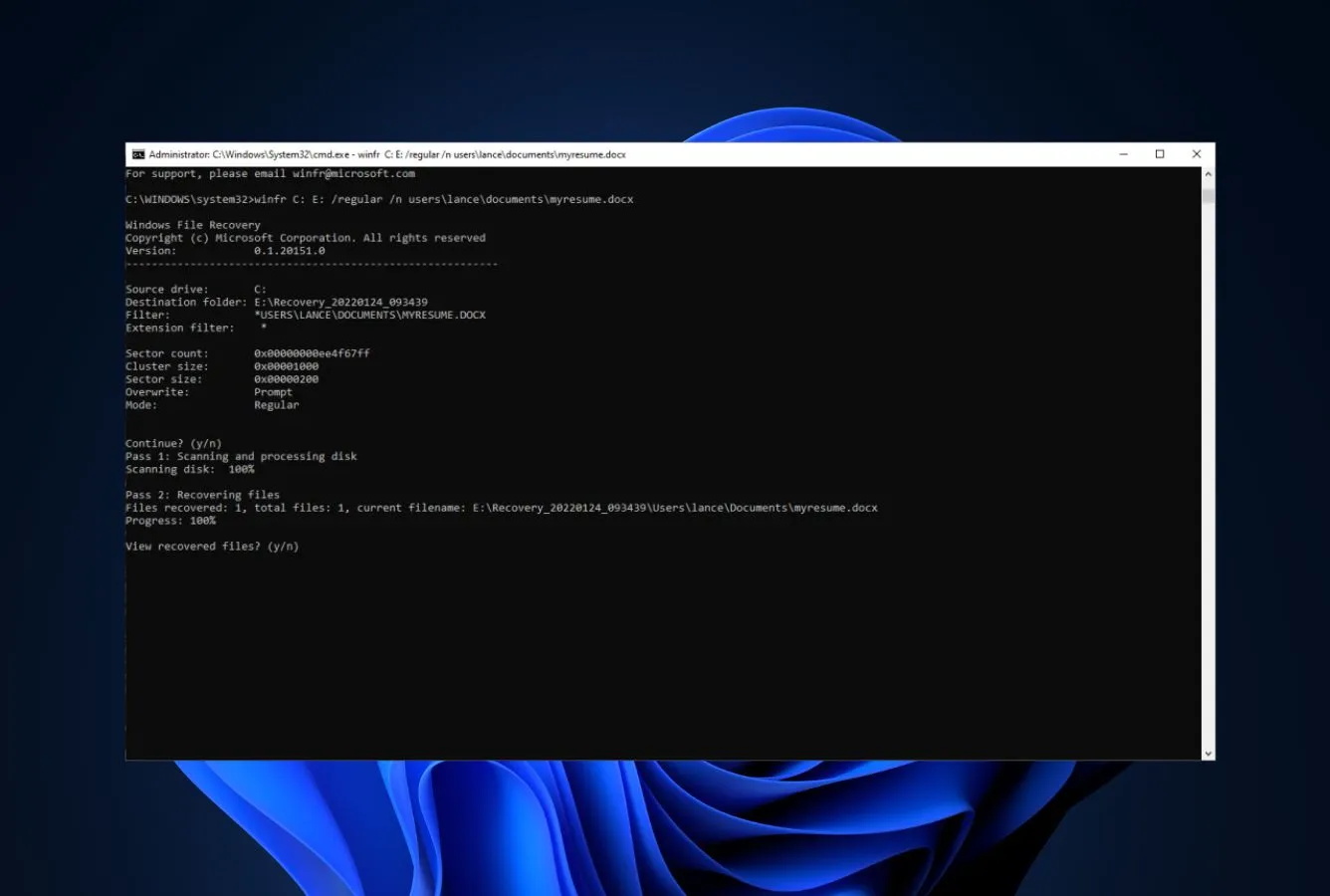
The basic syntax is winfr source-drive: destination-drive: [/mode] [/switches]. For a quick recovery of recently deleted files in your Documents folder: winfr C: E: /regular /n \Users\<username>\Documents\. Use /extensive instead of /regular for formatted drives or non-NTFS filesystems (FAT, exFAT, ReFS). Source and destination must be different physical drives.
Review recovered files
Scanned results land in a folder named Recovery_[date and time] on the destination drive. Files recovered via Regular mode retain original filenames and folder structure. Files from Extensive mode are sorted into folders by file extension (JPG, PDF, ZIP) without original names — this is a fundamental limitation of signature-based recovery.
A single typo aborts the recovery — common mistakes include “Winfr.exe is not recognized as an internal or external command” (you forgot to launch as admin or are in the wrong directory), or “There was an error parsing your command” (a malformed switch or missing backslash). Third-party GUI wrappers like WinfrGUI exist as a usability layer over the same Microsoft engine, but they do not improve recovery quality.
Who Windows File Recovery Is For
Windows File Recovery is built for a specific audience and a specific scenario, not for general-purpose data recovery. Two audiences get clear value:
Windows users facing a simple recent deletion on an NTFS drive. The Recycle Bin is empty, the file was on the C: drive or another NTFS partition, and the deletion happened recently enough that the MFT entry hasn’t been overwritten. Regular mode parses the MFT directly, recovers the file with its original name and folder structure, and finishes in minutes. For this exact scenario it’s a competent free tool — and “free” is the entire value proposition. An office worker who accidentally Shift-Deleted a Word document from Documents fits this profile perfectly.
IT professionals and command-line-comfortable users who want a Microsoft-signed first-line tool. The CLI is a barrier for consumers but a non-issue for sysadmins who already script everything. Bundling a signed Microsoft recovery utility into a tech’s troubleshooting kit costs nothing and gives a credible first attempt before reaching for paid alternatives. The lack of preview and the small signature library matter less when the tool is one of several being used.
Windows File Recovery is the wrong tool for first-time recovery users who expect a GUI, anyone needing to recover RAW camera files (the signature library skews toward legacy formats and excludes most modern RAW types), users with formatted drives where filename and folder-structure preservation matters, mixed-OS environments that need Mac filesystem support, and any scenario where the source drive is unmountable — Windows File Recovery requires Windows to mount the drive before scanning. If your situation is more complex than a recent NTFS deletion, the next sections explain where this tool’s limits start.
What Windows File Recovery Does Well
The strengths cluster around the tool’s narrow design intent: a free, lightweight, Microsoft-signed utility for the simple NTFS-undelete case.
Genuinely free with no upsell or data caps
This is the headline. There is no paid tier, no time-limited trial, no recovery quota, and no registration. Compared to “free” tools that cap recovery at 100 MB (Disk Drill), 1 GB (Stellar), or 2 GB (EaseUS), Windows File Recovery imposes no volume limit at all. The only restriction is its narrow capability set — but for users in scope, the cost calculation is genuinely zero. For a broader view of truly free options, see our roundup of the best free data recovery software.
Filename and folder-structure preservation in Regular mode
Regular mode parses the NTFS Master File Table directly rather than scanning sectors for signatures. When MFT entries for deleted files are still present (typically the case for recent deletions where Windows hasn’t yet reused those entries), Regular mode recovers files with original filenames and original directory paths intact. This matters: signature-only tools frequently dump recovered files into flat folders like JPG/, PDF/, DOCX/ with generic names, leaving you to sort thousands of files manually. Regular mode skips that work entirely.
Microsoft-signed binary distributed via Microsoft Store
For users worried about installing third-party recovery software with low-level disk access, Windows File Recovery is the most institutionally credible option available. The binary is signed by Microsoft, distributed only through the Microsoft Store, and updated through the same channel as other Store apps. Antivirus false-positives — a common problem for legitimate recovery tools that need raw disk access — don’t apply here because the publisher is Microsoft itself.
Lightweight, scriptable, and no background services
The installer is a few megabytes. There are no background services, no system tray utilities, and no telemetry beyond standard Windows diagnostics. Because it’s a CLI tool, recovery commands can be scripted, batched, or wrapped in PowerShell — useful for IT teams managing multiple endpoints or running scheduled recovery checks. No other consumer recovery tool offers comparable scriptability.
Where Windows File Recovery Falls Short
The limitations are architectural — they reflect what Microsoft chose to build, not bugs that might be fixed. Three patterns surface consistently in independent evaluation and user feedback.
Small signature library compared to dedicated tools
Extensive mode falls back to signature-based scanning when filesystem metadata is unavailable (formatted drives, FAT/exFAT/ReFS partitions). The supported signature list is short — under 50 file types according to independent evaluation, compared to PhotoRec’s 480+ and Disk Drill’s 400+. The official documentation confirms support for the broad strokes — JPEG, PNG, MP3, MPEG, PDF, ZIP, ASF, plus Office and OpenDocument formats stored as ZIP — but excludes most modern RAW camera formats (CR3, ARW, ORF, NEF, DNG, RAF), AVI, RTF, and many less-common types. Custom signatures cannot be added. For formatted-drive recovery on real-world datasets, this gap is the single largest limitation.
No graphical interface, no preview, no live results
The CLI is the entire interface. There is no scan progress visible per-file, no preview of recoverable files before committing the recovery operation, no way to filter results during a scan, and no thumbnail grid for browsing recovered photos. Independent evaluation consistently flags this as the dominant usability barrier — users coming from Recuva, Disk Drill, or EaseUS encounter a black command-prompt window with no feedback beyond percentage progress, and small syntax errors abort the recovery entirely. Third-party wrappers like WinfrGUI add a graphical layer over the Microsoft engine, but the tool Microsoft ships remains command-line-only.
No support for unmountable drives, cloud, or network shares
Windows File Recovery requires Windows to mount the source drive before it can scan. If a partition is corrupted enough that Windows shows it as RAW, unallocated, or unrecognized, the tool cannot read it. There is no raw-disk fallback. The official documentation is explicit that recovery from cloud storage and network shares is not supported — only local devices including internal drives, external drives, and USB devices. The tool also cannot create disk images, cannot scan whole disks at once (only individual partitions), and has no RAID reconstruction or BitLocker decryption. For these scenarios, tools with raw disk access — DMDE, R-Studio, GetDataBack — handle what Windows File Recovery architecturally cannot.
Windows File Recovery Capability Summary
How Windows File Recovery performs capability by capability:
| Capability | Tier | Notes |
|---|---|---|
| NTFS deleted-file recovery (Regular mode) | Good | MFT-based parse; preserves filenames and folder structure |
| Recycle Bin recovery | Very Good | Tool’s strongest scenario; recently emptied bin handled efficiently |
| Filename preservation (Regular) | Very Good | Original names + paths intact when MFT entries survive |
| NTFS scan speed (Regular) | Very Good | MFT parse finishes in minutes on typical drives |
| Cost | Excellent | Genuinely free; no caps, no upsell, no registration |
| FAT / exFAT / ReFS recovery | Fair | Extensive mode only; signature-based; no filename preservation |
| USB / SD card recovery | Fair | Standard formats handled; RAW camera formats largely missing |
| Formatted-drive recovery | Limited | Small signature library; flat output without folder structure |
| Signature library size | Limited | Under 50 supported types vs 480+ in PhotoRec, 400+ in Disk Drill |
| RAW camera format support | Limited | Modern CR3, ARW, ORF, NEF not supported; no custom signatures |
| UI & ease of use | Limited | CLI-only; one typo aborts recovery; no live progress per file |
| File preview / live results | Not supported | No way to preview recoverable files before committing recovery |
| Unmountable drive recovery | Not supported | Requires Windows to mount drive; no raw-disk fallback |
| Cloud / network share recovery | Not supported | Local devices only per official documentation |
| Disk imaging / cloning | Not supported | No byte-to-byte copy capability |
| RAID / BitLocker support | Not supported | No RAID reconstruction; no BitLocker decryption |
| Mac filesystem support (APFS, HFS+) | Not supported | Windows-only product |
| TRIM-active NVMe SSD | Not supported | Hardware limitation affecting all recovery tools |
Tier scale: Excellent / Very Good / Good / Fair / Limited / Not supported. Aggregated from Microsoft’s official documentation, independent external evaluation, and verified user feedback, 2026.
Windows File Recovery Cost
Windows File Recovery is completely free. There is no paid version, no premium tier, no subscription, and no data limit. You can recover as many files as you want, as many times as you want, at zero cost. There is no registration, no account creation, and no upsell of any kind.
This is one of the simplest pricing propositions in data recovery: $0, forever. The tool is available exclusively from the Microsoft Store — there is no standalone installer, no portable version, and no alternative download source from Microsoft.
For comparison, other free options include Recuva (unlimited free with a $24.95 Pro tier) and PhotoRec (open-source, free, with 480+ file signatures). Among paid tools, entry points start at $79.99/year for Stellar and $89/year for Disk Drill. If you’re evaluating free options specifically, our guide to the best free Windows recovery tools covers the tradeoffs in detail.
Windows File Recovery vs. Competitors (2026)
| Tool | NTFS deleted | Formatted drive | Corrupted partition | Free tier | Entry price |
|---|---|---|---|---|---|
| Disk Drill | Excellent | Excellent | Very Good | 100 MB | $89/yr |
| EaseUS DRW | Very Good | Very Good | Very Good | 2 GB | $99.95/yr |
| Stellar | Very Good | Good | Good | 1 GB | $79.99/yr |
| Recuva | Good | Fair | Not supported | Unlimited | Free / $24.95 |
| Windows File Recovery ← | Good | Limited | Not supported | Unlimited | Free |
Tier scale: Excellent / Very Good / Good / Fair / Limited / Not supported. Aggregated from vendor documentation and independent external evaluation, 2026.
Get Windows File Recovery Free
Free from the Microsoft Store. No registration. No limits.
Windows File Recovery Features & Tools
Windows File Recovery is deliberately minimal. Microsoft designed it as a lightweight utility with two scanning modes and nothing else. There is no file preview, no scan pause/resume, no file repair, no drive health monitoring, and no disk imaging. The feature set reflects a tool built for one narrow purpose: recovering recently deleted files from NTFS drives with a backup signature-based mode for other scenarios.
The two modes differ substantially in approach. Regular mode reads the NTFS Master File Table (MFT) to locate deleted file entries — fast, accurate for recent deletions, and preserves filenames. Extensive mode bypasses the filesystem and scans raw sectors for file signatures — slower, works on formatted or non-NTFS drives, but loses all metadata. The tool requires Windows 10 version 2004 or later and runs exclusively from the command line.
What’s notably absent: there is no graphical interface, no scan wizard, no file filtering during scan, no preview of recoverable files before saving, no S.M.A.R.T. monitoring, no disk cloning, no RAID support, and no cross-platform availability. Compared to tools in our best Windows recovery tools ranking, the feature gap is significant — but the price gap is equally significant at $0.
Scanning Modes
Regular mode is the faster, filesystem-aware option that works only on NTFS. It parses the MFT directly and typically completes in minutes. Extensive mode performs a sector-by-sector signature scan that works on any filesystem Windows can mount, but it takes significantly longer and recovers files without original names or folder structure.
What’s Missing
The absence of a GUI is the most obvious gap, but the limited signature library is the more impactful one. While tools like PhotoRec support 480+ file signatures and Disk Drill recognizes 400+, Windows File Recovery supports a much smaller set. This directly limits what Extensive mode can find on formatted or corrupted drives. The earlier three-mode design (Default, Segment, Signature) has been consolidated to two modes — Regular and Extensive — in current releases.
Windows File Recovery User Reviews
Windows File Recovery has limited dedicated review coverage compared to commercial recovery tools — most consumer evaluation lives on Reddit, the Microsoft Store user reviews, and IT-focused forums rather than mainstream review sites. The sentiment pattern across these sources is consistent: praise for the price (free) and the developer trust (Microsoft), criticism of the CLI interface, the small signature library, and the inability to handle anything beyond simple NTFS undelete.
Works fine for simple NTFS deletes. Don’t expect miracles on anything else.
Recovered the file in about 90 seconds. CLI is intimidating but the example commands in Microsoft’s docs are copy-paste friendly.
Free is great. The lack of a GUI is rough — kept making typos until I figured out the syntax.
Use this app to try to recover lost files that have been deleted from your local storage device.
The recurring themes across verified user feedback: it works for the narrow case it was built for (recent NTFS deletions, recently emptied Recycle Bin), and it falls apart anywhere outside that case. The CLI is consistently flagged as the dominant friction point. For users who can tolerate the syntax, it’s a credible free first attempt before reaching for paid alternatives.
When to Choose Something Else
Windows File Recovery works for one scenario well: recently deleted files on NTFS. For anything beyond that, a different tool is the better choice:
Frequently Asked Questions
Is Windows File Recovery completely free?+
Is Windows File Recovery safe to use?+
Can Windows File Recovery recover formatted drives?+
Does Windows File Recovery work on Windows 11?+
Does Windows File Recovery have a graphical interface?+
Can Windows File Recovery recover photos from an SD card?+
Is Windows File Recovery better than Recuva?+
Final Verdict
Windows File Recovery earns its 2.5/5 by doing one thing competently: recovering recently deleted files from intact NTFS drives in Regular mode, with filenames and folder structure preserved. Aggregated independent evaluation places it in the Good tier for that specific scenario and the Very Good tier for “just emptied my Recycle Bin” cases — fast MFT-based parsing, no signature-scan slowdowns, results in minutes. As a free Microsoft-signed first-line tool that costs nothing and installs cleanly from the Microsoft Store, it deserves a place in any Windows IT toolkit.
The architectural limits show quickly outside that narrow case. The signature library is short — under 50 supported file types versus PhotoRec’s 480+ — which caps what Extensive mode can recover from formatted drives, FAT/exFAT/ReFS partitions, and SD cards. The CLI has no preview, no live results, and no graceful handling of typos. The tool cannot scan unmountable drives, cloud storage, or network shares, and offers no disk imaging, RAID reconstruction, or BitLocker decryption. Choose Windows File Recovery if you’re comfortable with Command Prompt and need a free first attempt at a recent NTFS deletion. Choose something else (see alternatives below) for everything else.
About the Authors


Windows File Recovery is a free Microsoft product — there are no affiliate links in this review. This review reflects independent editorial evaluation with no commercial relationship with Microsoft. If you believe any claim is inaccurate, contact us at contact@datarecoveryfix.com.