Data recovery is the process of restoring access to files that have been deleted, formatted, corrupted, or rendered unreadable by a failing storage device. It works because most operating systems don’t actually erase data when you delete a file — they just mark the storage space as available. The original bytes stay on the drive until something else writes over them, which is why acting quickly matters.
📖 The Short Definition
Recovery is a race against overwrites, not a magic undo button
When you “delete” a file in Windows or macOS, the file’s reference in the file system table is removed, but the file’s contents typically remain intact on the platter, flash chip, or sector until that space is reused. Data recovery software scans the raw storage device, rebuilds those references from leftover metadata or file signatures, and lets you copy the recovered files to a different drive.
This works for accidental deletions, formats, lost partitions, and most logical corruption. It does not work for storage that’s physically broken (the drive doesn’t power on, or makes clicking noises), data that’s already been overwritten, or modern SSDs where TRIM has wiped the freed sectors permanently.
Three things determine whether recovery actually succeeds: how soon you stop using the drive, whether the loss is logical or physical, and whether TRIM has fired on an SSD. Get those right and most home users can recover lost files themselves with a $0–$100 software tool. Get them wrong, and even a $2,000 cleanroom may not be able to help.
DIY Recovery Software vs Professional Services
Two paths exist for recovering lost data: download software and run a scan yourself, or ship the drive to a recovery lab. They solve different problems, and choosing the wrong one wastes time and — in worst cases — destroys the data permanently. Here’s how the trade-offs actually look.
💻
DIY Software
$0 – $150 · Hours
- Works for accidental deletion, formatting, lost partitions, and most logical corruption
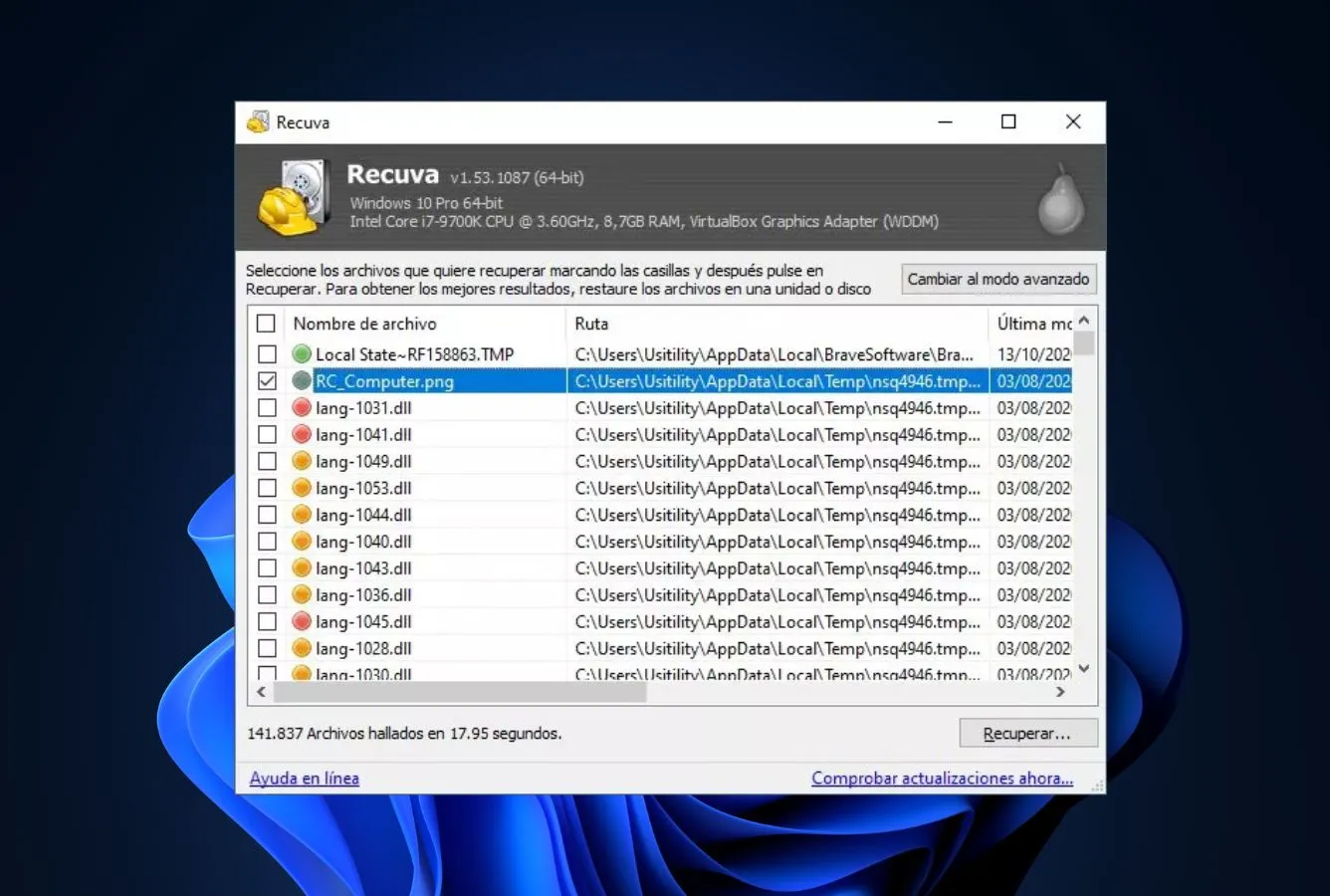
- Free tools (PhotoRec, Recuva) and free trials let you preview recoverable files before paying
- Whole process usually finishes in under an hour for SSDs, a few hours for large HDDs
- Can’t recover from drives the OS can’t see — clicking, dead, or fully encrypted devices
- Wrong move (installing on the same drive, scanning a failing HDD too long) can finish off the data
🏥
Professional Lab
$300 – $3,000+ · Days to Weeks
- Cleanroom HDD repair, NAND chip-off, donor-PCB swaps — physical fixes software can’t do
- Most reputable labs charge nothing if they fail to recover anything (“no data, no fee”)
- Free evaluation up front so you know the price ceiling before committing
- Expensive — single-drive HDD jobs commonly land in the $500–$1,500 range
- Turnaround takes days for standard jobs, weeks for emergency or RAID work
🎯
The Rule of Thumb
Try software first if the drive is recognized by your computer. Skip straight to a lab if you hear clicking, the drive isn’t detected, or the data is irreplaceable and you can’t afford a second failed attempt. Running scan after scan on a dying HDD is the fastest way to lose the data for good.
The Right Recovery Sequence (Don’t Skip Steps)
Most people lose recoverable data not because the tools fail, but because they jump to step three before checking step one. Work through these in order — each step takes minutes, and skipping ahead can permanently destroy what you’re trying to save.
1
Check the Recycle Bin or Trash
Windows and macOS don’t permanently delete files on first request — they move them to a holding folder. Open the Recycle Bin (Windows) or Trash (macOS), find the file, right-click, and choose Restore. This solves a surprising share of “I lost my file” cases in under thirty seconds.
Recycle Bin recovery tools
2
Try the Built-in Backup Tool
If File History (Windows) or Time Machine (macOS) was enabled before the loss, you can restore previous versions with no third-party software. Same goes for cloud sync — OneDrive, iCloud, Google Drive, and Dropbox all keep version history and a separate trash for at least 30 days.
3
Run Data Recovery Software
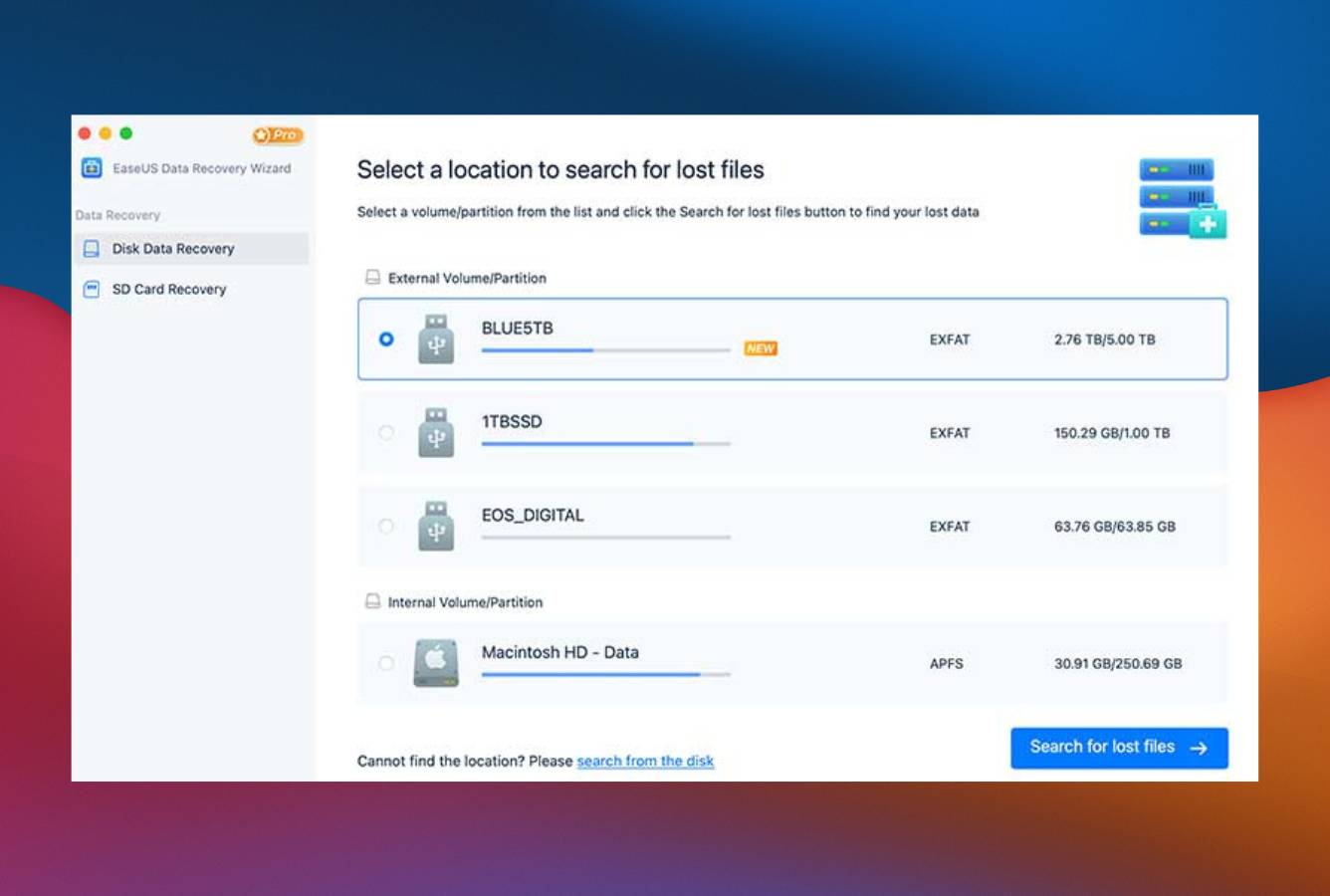
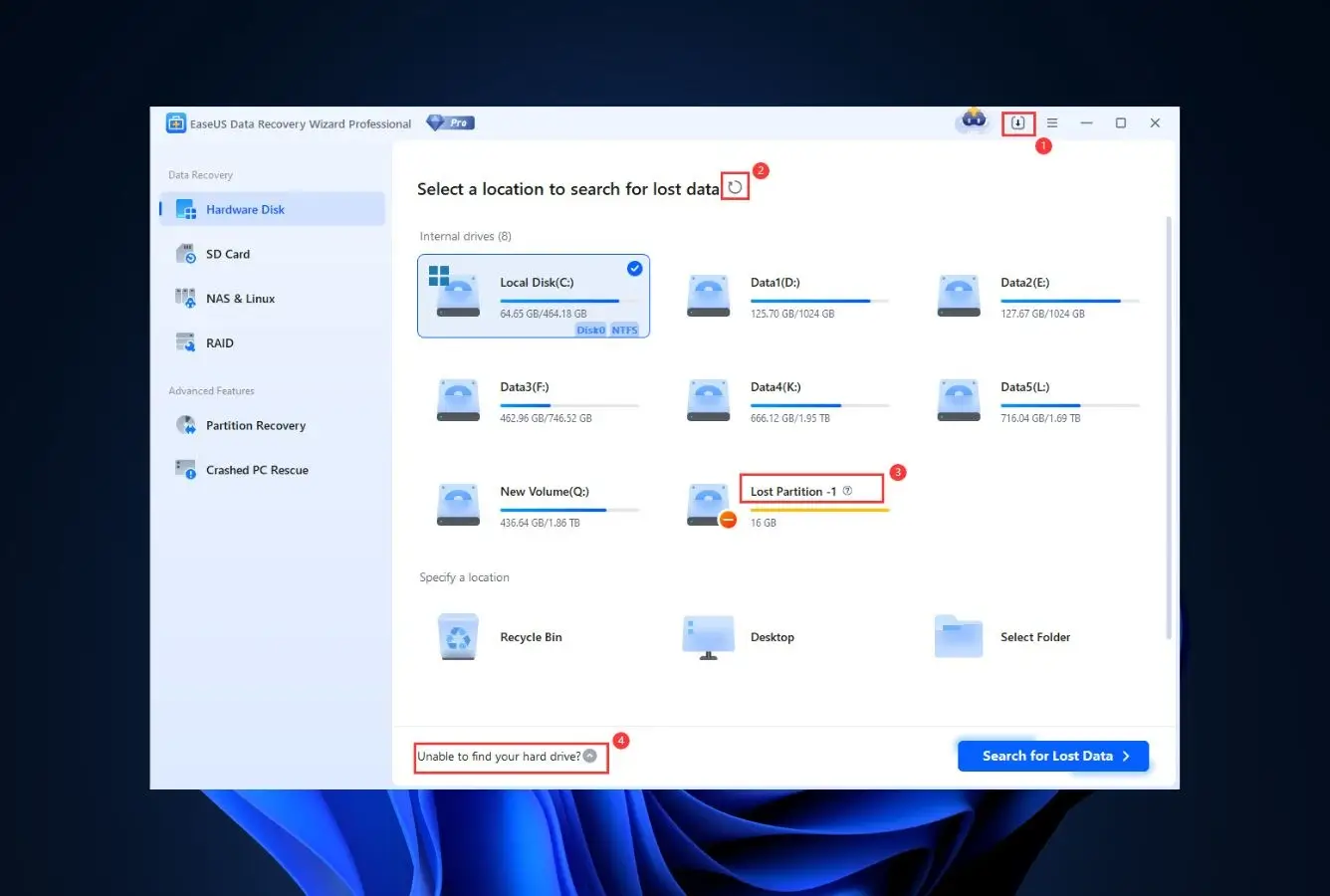
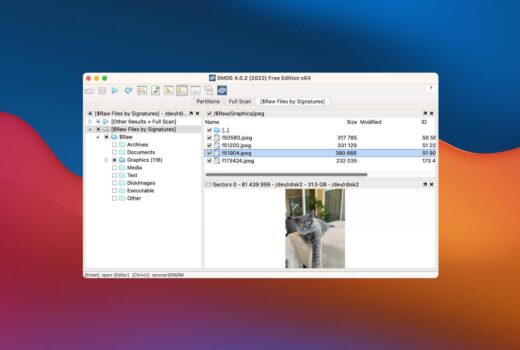
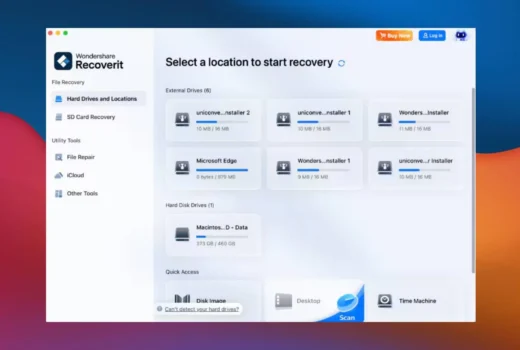
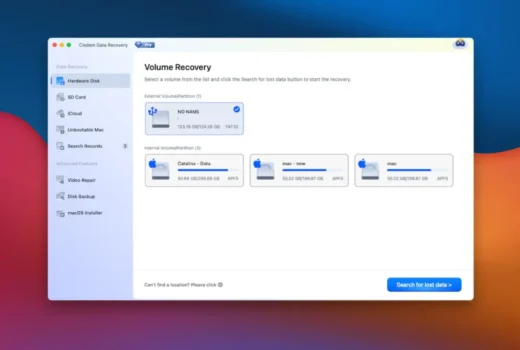
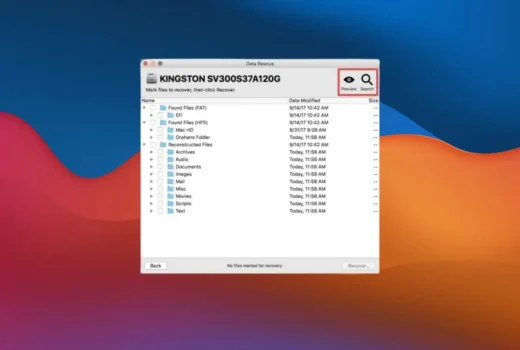
When built-ins come up empty, scan the drive with a recovery tool. Install the software on a different drive than the one you’re recovering from — installing on the same drive risks overwriting the very files you want back. Most tools let you preview recoverable files for free before asking you to pay for the actual recovery.
Best recovery software
4
Contact a Professional Lab
If software can’t see the drive, the drive makes unusual sounds, or the data is irreplaceable, stop scanning and call a lab. Reputable services offer free evaluation and “no data, no fee” pricing, so the worst case is shipping costs. Continued scanning of a failing HDD often turns a recoverable job into an unrecoverable one.
⚠
The single most important rule
The moment you realize files are missing, stop using that drive for anything else. Every new file written, every Windows update, every browser cache flush has a chance of overwriting the very sectors holding your lost data. If the drive is your system drive, shut down and recover from a different machine if possible.
Chances of Successful Recovery by Scenario
Not every data loss is equally recoverable. Some scenarios end in success the vast majority of the time; others have a realistic ceiling much lower. Knowing where your situation lands helps set expectations and decide whether to spend money on software, a professional lab, or accept the loss.
🗑️
Accidental Deletion
File sent to trash and emptied, or deleted with Shift+Delete. Highly recoverable as long as the drive hasn’t been heavily used since.
📋
Quick Format
Standard format that rebuilt the file system but didn’t overwrite sectors. Most recovery tools handle this without issues.
🧩
Lost Partition
Partition table corrupted or accidentally deleted. Files remain physically intact; partition recovery rebuilds the boundaries.
🐛
Logical Corruption
Bad sectors, file system errors, software crashes mid-write. Recoverable in part — some files may be partially damaged.
🦠
Malware & Viruses
Files hidden, renamed, or corrupted by malware can usually be retrieved. Modern ransomware encryption almost never can.
⚙️
Physical Hardware Failure
Clicking HDD, dead controller board, NAND chip damage. Software can’t help — only a cleanroom lab has a real chance.
⚡
SSD with TRIM Enabled
Once TRIM fires (often within seconds of deletion), the freed flash blocks are erased at the controller level. Recovery rarely works.
🔥
Secure Erase or Overwrite
Full format with overwrite, DBAN, secure erase, or anything that wrote zeros across the device. Data is gone for good.
Devices We Cover for Recovery
Almost any storage device you can plug into a computer can be a recovery target. The technology underneath shapes how the recovery actually works — what’s straightforward on a spinning HDD can be near-impossible on a modern SSD, and what’s recoverable from an SD card differs from what’s recoverable from an iPhone.
💻
Windows PC & Laptop
NTFS, exFAT, FAT32 system and data drives. Largest software ecosystem; most cases recoverable at home.
Easy DIY
🖥️
Mac (MacBook, iMac)
APFS and HFS+ volumes. Strong tool support, though APFS+TRIM cuts recovery odds on Apple Silicon SSDs.
Easy DIY
💾
Hard Disk Drive (HDD)
Spinning platters with magnetic storage. Logical loss recovers cleanly; physical failure needs a cleanroom.
Mixed
⚡
Solid-State Drive (SSD)
NAND flash with TRIM. Fast and reliable — but TRIM-erased data is usually gone within seconds of deletion.
Hard
📦
External Hard Drives
USB-connected HDDs and SSDs from Seagate, WD, LaCie, Samsung. Recover the same way as internal drives once connected to a working machine.
Easy DIY
📇
SD & microSD Cards
Cameras, drones, dash cams. Mostly FAT32 or exFAT; almost always recoverable unless physically broken.
Easy DIY
🔌
USB Flash Drives
High failure rate from physical wear and accidental formatting. Software handles the logical cases well.
Easy DIY
📷
Cameras & Drones
DSLR, mirrorless, GoPro, DJI. Recovery happens on the SD card — pull the card and scan it, don’t recover from the device.
Mixed
📱
iPhone & iPad
Apple’s encryption locks raw recovery. Best path is iCloud, iTunes/Finder backup, or specialized iOS recovery tools.
Hard
🤖
Android Phones
Internal storage encryption varies; SD cards are easy. Some data recoverable via ADB on rooted or older devices.
Mixed
🗄️
NAS & RAID Arrays
Synology, QNAP, custom RAID. Single-disk failure is recoverable; multi-disk loss or rebuild errors usually need a specialist tool.
Mixed
💿
CDs, DVDs & Blu-ray
Scratched or partially burned discs. Specialty optical recovery tools read what mainstream readers skip; success depends on damage depth.
Mixed
How Recovery Differs by File System
The file system on a drive determines how files are organized, journaled, and — when deleted — how recoverable they actually are. Some keep generous metadata after deletion; others wipe references aggressively. Here’s what to expect across the file systems Windows, macOS, and Linux use.
Windows file systems
Windows
NTFS
Default Windows file system since XP. Internal HDDs, SSDs, system drives. Keeps a Master File Table that recovery tools parse to rebuild deleted entries with original names and timestamps.
Windows
exFAT
Modern replacement for FAT32, used on most external drives and SD cards over 32 GB. Lighter metadata than NTFS but excellent recovery support across every major tool.
Windows
FAT32
Decades-old standard still found on USB sticks, small SD cards, and game consoles. Simple structure means recovery is straightforward — almost no software fails on FAT32.
Windows
ReFS
Resilient File System used on Windows Server and Storage Spaces. Built-in checksums and integrity streams help recovery, but only a handful of professional tools support ReFS scanning.
macOS file systems
macOS
APFS
Default since macOS High Sierra (2017). Designed for SSDs, with copy-on-write snapshots. TRIM is aggressive — once a file is deleted on Apple Silicon, recovery is rarely possible.
macOS
HFS+ (Mac OS Extended)
Pre-2017 default. Still found on older Macs, external drives, and Time Machine backups. Recovery odds are better than APFS — deleted files often persist until physically overwritten.
macOS
APFS Encrypted
FileVault and APFS encryption store files in a way that is unrecoverable without the password. Recovery requires either the password or the recovery key — there is no software workaround.
macOS
Time Machine Backups
External Time Machine drives use APFS snapshots since Big Sur. Files inside are restorable through Migration Assistant or by mounting the snapshot directly with most Mac recovery tools.
Linux file systems
Linux
ext4
Default on most modern Linux distributions. Journal-based with extent allocation. Recovery often retains original filenames if the journal hasn’t been overwritten.
Linux
ext3 / ext2
Older but still used on embedded systems and legacy servers. ext2 has no journal, so filenames are usually lost — only file contents recover via signature scanning.
Linux
Btrfs
Copy-on-write file system with snapshots and subvolumes. Built-in snapshot history is the easiest recovery path; deeper recovery is supported by a smaller set of tools.
Linux
XFS
High-performance file system common on enterprise servers and RAID arrays. Metadata journaling and delayed allocation give decent recovery odds when handled by capable tools.
Why Trust Data Recovery Fix
Recovery software reviews are full of paid placements, scraped marketing copy, and rankings that seem to shuffle whenever a vendor signs a new affiliate deal. We built Data Recovery Fix to be the opposite of that.
🧪
Independent Research, Not Vendor Marketing
Every ranking is based on vendor documentation, third-party testing, and community feedback from Reddit, Trustpilot, and support forums — cross-referenced before anything goes on the page. Affiliate relationships exist, but they do not change the order.
👥
Reviewed by a Recovery Engineer
Editorial coverage is led by analyst Marcus Whitfield with 6+ years of evaluation experience. Every published piece is technically reviewed by Rachel Dawson, a data recovery engineer with 12+ years of cleanroom HDD and flash memory recovery work.
📅
Updated for the Software That Exists Now
Recovery tools change versions, prices, and limits constantly. Our reviews and roundups are dated, and we re-test on Windows 11 24H2 and macOS 15 — not on a snapshot of the world from three years ago. Outdated guidance is what gets people scammed.