8 Best Windows 11 Data Recovery Tools – Quick Comparison
Eight tools compared on the four things that actually matter on Windows 11 in 2026: file-system coverage (does it read NTFS, ReFS, exFAT?), encryption support (does BitLocker stop the scan?), what survives a Windows 11 SSD with TRIM enabled, and how aggressively the free tier is throttled. Overall-strength labels are editorial, not benchmarked — pricing and free limits are pulled from each vendor’s current product page.
| Tool | Overall Strength | BitLocker | File Systems | Ease of Use | Free Limit | Starting Price | Best For |
| Disk Drill |
Excellent |
Yes |
NTFS, ReFS, exFAT, FAT, APFS, ext4 |
Excellent |
500 MB |
$89 / yr |
All-round Windows 11 recovery |
| EaseUS Data Recovery Wizard |
Excellent |
Yes |
NTFS, ReFS, exFAT, FAT |
Excellent |
2 GB |
$69.95 / mo |
Beginners & first install |
| Stellar Data Recovery Pro |
Very Good |
Yes |
NTFS, ReFS, exFAT, FAT |
Very Good |
1 GB |
$59.99 / yr |
BitLocker drives & photo / video repair |
| R-Studio |
Very Good |
Yes |
NTFS, ReFS, exFAT, FAT, ext, APFS, HFS+ |
Steep curve |
256 KB |
$79.99 one-time |
Forensic / RAID rebuilds |
| Recuva |
Very Good |
No |
NTFS, FAT, exFAT |
Excellent |
Unlimited |
Free |
Free routine deletion recovery |
| MiniTool Power Data Recovery |
Very Good |
Partial |
NTFS, ReFS, exFAT, FAT |
Very Good |
1 GB |
$69 / mo |
Windows-only feature parity |
| Wondershare Recoverit |
Good |
Partial |
NTFS, FAT, exFAT, APFS, HFS+ |
Excellent |
100 MB |
$59.99 / mo |
Fragmented video recovery |
| Tenorshare 4DDiG |
Good |
Partial |
NTFS, FAT, exFAT, APFS, HFS+ |
Very Good |
100 MB |
$45.95 / mo |
Mid-priced all-rounder |
Overall-strength labels reflect editorial evaluation based on feature coverage, independent research, and user-feedback patterns — not an in-house benchmark. Pricing and free-tier limits are from the vendor’s current product pages.
8 Best Windows 11 Data Recovery Tools – In-Depth Reviews
1. Disk Drill – Best Overall Windows 11 Recovery
4.79
★★★★★
Broadest file-system coverage on Windows in 2026
PlatformsWindows 11/10, macOS
Free limit500 MB + free imaging
From$89 / yr
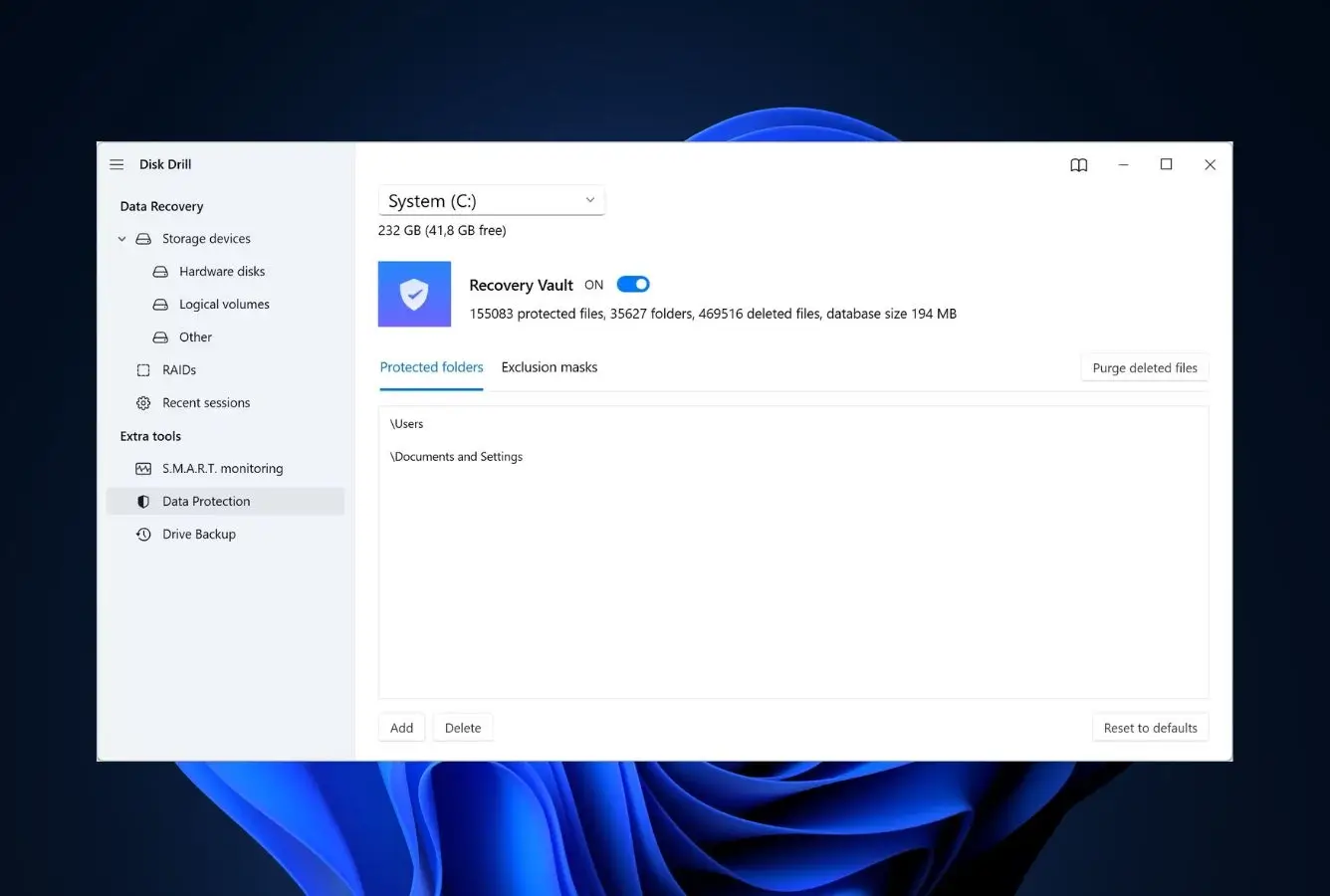
Disk Drill is the most complete Windows 11 recovery package in 2026 because it solves the three problems Windows 11 specifically introduces: it scans BitLocker-unlocked volumes natively, it explicitly reconstructs Storage Spaces (Simple, Two-way Mirror, Three-way Mirror, Parity), and it adds APFS and HFS+ scanning on Windows so external drives shared with a Mac don’t need a third-party reader. The Disk Drill 6 release added a hex viewer, 25% faster deep scans, and the Advanced Camera Recovery module for fragmented video from action cameras and dashcams. CleverFiles has been on the market since 2009, and independent testing across multiple recovery scoreboards consistently places Disk Drill at or near the top of the Windows category for both NTFS deletion and RAW-volume recovery.
✓ Pros
- Reads NTFS, ReFS, exFAT, FAT, APFS, HFS+ and ext4 in a single scan — no other consumer tool comes close to this breadth on Windows
- Explicit Windows Storage Spaces support (Simple, Mirror, Parity) plus software RAID 0/1/5/6/10/JBOD reconstruction
- Permanent free disk-imaging tool and S.M.A.R.T. monitoring stay free forever, even without buying a license
- Two-for-one license: Pro Lifetime at $149 covers both Windows and Mac on the same key
- Recovery Vault and Guaranteed Recovery preserve metadata so future deletions are recoverable in one click
- Scan results split into Deleted / Existing / Reconstructed with strong filtering and recovery-chance flags
✕ Cons
- $89 / yr annual subscription is the steepest in the category — only the lifetime tier breaks even against EaseUS
- Free quota is 500 MB on Windows, half what EaseUS offers on its free tier
- Advanced Camera Recovery and the hex viewer are Pro-only — free users see them grayed out
Recovery Power
Two scan engines and the only consumer tool that handles Windows-Mac drive sharing without extras.
Universal Scan combines a fast file-table read with a full deep signature scan, and the new Advanced Camera Recovery rebuilds fragmented video from drones, GoPros, and dashcams. Independent testing consistently places Disk Drill at or near the top on NTFS deletion and RAW-volume recovery on Windows. The reason it tops Windows 11 specifically: it reads APFS and HFS+ on Windows without third-party drivers, so an external drive that’s been formatted on a Mac is recoverable from a Windows machine in the same session.
Interface & Experience
Disk-list, scan, filter, recover — the four screens you actually need.
The Windows 11 interface is dark-mode-aware, doesn’t bury features behind nag dialogs, and groups results into Deleted / Existing / Reconstructed buckets with a recovery-chance icon next to every file. Filters by file type, size, and date narrow a 200,000-result scan to something previewable in seconds. Session save lets you pause a 6-hour deep scan and resume it on another day without rescanning. Community feedback on r/datarecovery routinely flags it as the most “no-friction” install in the category.
Price & Value
$89/yr feels rich until you notice the lifetime tier covers Mac too.
Pro is $89 / yr or $149 lifetime, and the lifetime key activates on Windows and Mac simultaneously — buying Disk Drill once now solves the next dual-OS recovery you have. The free tier recovers 500 MB and gives permanent access to disk imaging and S.M.A.R.T. monitoring, so the install has long-term value even before any upgrade. Enterprise tier exists for IT shops that need unlimited-PC activation. The annual plan is the worst-value tier in the lineup; if you’re going to buy, jump straight to lifetime.
2. EaseUS Data Recovery Wizard – Best Free Tier on Windows 11
4.66
★★★★★
2 GB free is the most generous free tier in the category
PlatformsWindows 11/10, macOS
Free limit2 GB
From$69.95 / mo
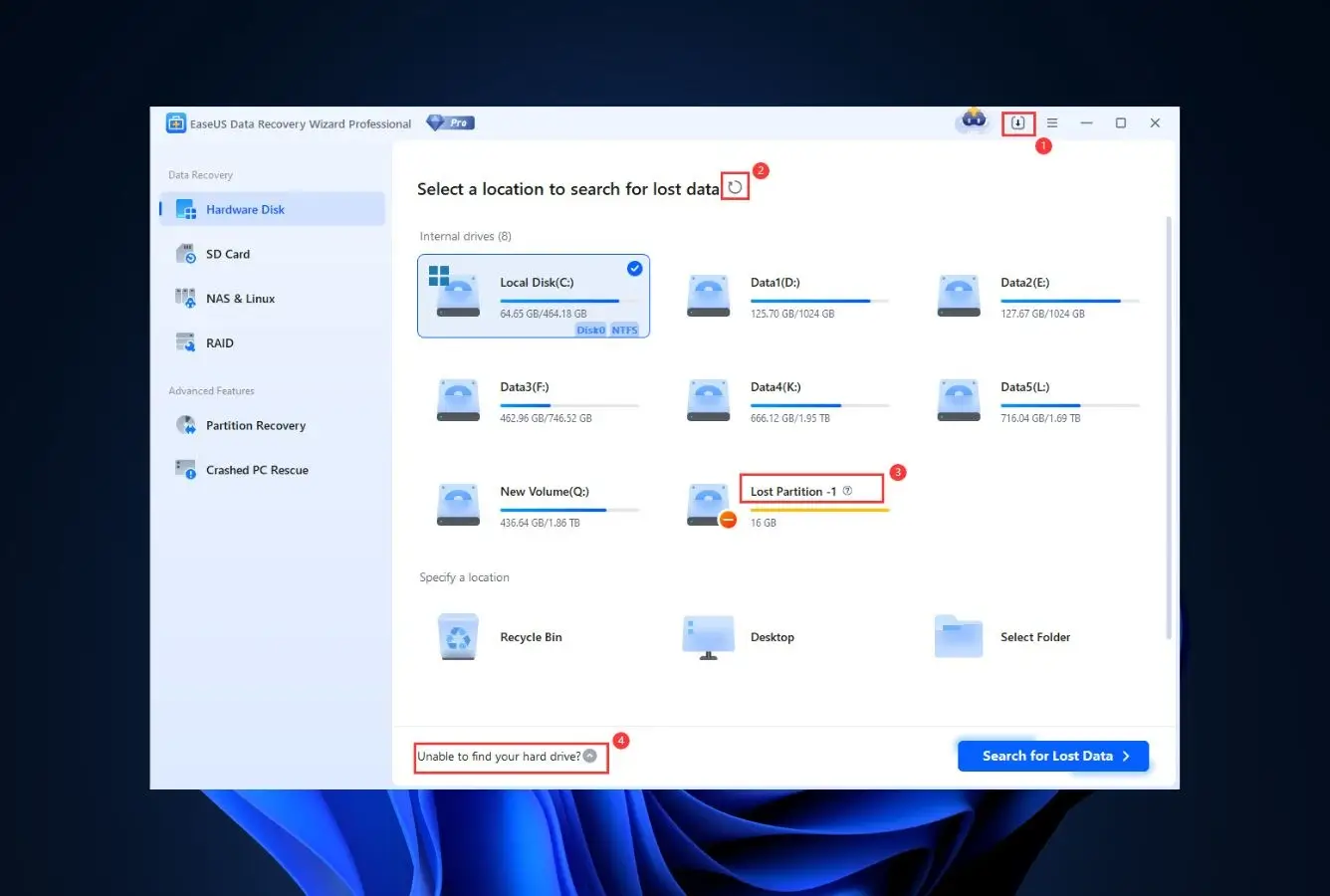
EaseUS Data Recovery Wizard is the easiest first install for someone who has never run a recovery scan before — the wizard literally walks you through location, scan type, and preview without ever asking a technical question. The 2 GB free recovery quota is double what most paid competitors give away and quadruple what Recoverit allows. EaseUS has been a fixture of the Windows recovery category since 2004 and the current version covers NTFS, FAT, exFAT, and ReFS, reads BitLocker-unlocked drives, builds WinPE bootable media for unbootable Windows 11 systems, and adds NAS and Linux Ext recovery in higher tiers. Reddit threads on r/datarecovery routinely point first-time askers here because the workflow doesn’t punish unfamiliarity.
✓ Pros
- 2 GB free recovery is the largest free tier offered by any commercial Windows 11 tool
- Three-step wizard (location → scan → preview) is unambiguously the most beginner-friendly UX in the category
- WinPE bootable media in Pro tier gets data off Windows 11 PCs that won’t boot
- Built-in JPEG, MP4, and MOV repair runs alongside the recovery scan
- Works on Windows 11 24H2 / 23H2 / 22H2 plus Windows 10 and Server editions
- NAS recovery and remote IT-support session in the Technician tier
✕ Cons
- Monthly subscription at $69.95 is the most expensive per-month tier among the top 8
- Single-PC licensing — Disk Drill’s lifetime key activates on multiple machines, EaseUS doesn’t
- Trustpilot and Capterra reviewers periodically flag billing surprises and refund delays — read the cancellation FAQ before subscribing
Recovery Power
Comparable to Disk Drill on NTFS, weaker on Storage Spaces and exotic file systems.
For ordinary deletion and formatting on NTFS, exFAT, and FAT volumes, EaseUS performs at the top of the category — independent testing across multiple scoreboards shows recovery completeness within a percentage point of Disk Drill on standard Windows 11 partitions. Where it falls short of the leader: no explicit Storage Spaces support, no APFS reading on Windows, and ReFS support is documented but less mature than Stellar’s. For 90% of Windows 11 users (single NVMe with NTFS), this gap doesn’t matter.
Interface & Experience
The most beginner-friendly recovery wizard ships from EaseUS.
The three-step wizard is genuinely intuitive — pick a location, pick scan type, preview and recover. Quick scan completes in under a minute on a modern NVMe; deep scan adds a signature pass that can find files years after deletion. File-type filters and tree-view path browsing both work, and the search bar accepts file extensions and partial names. The tradeoff: the upgrade nag appears after every scan, which gets old fast on the free tier.
Price & Value
Skip the monthly tier — the $149.95 lifetime is the only sensible purchase here.
EaseUS lists $69.95 / month, $99.95 / year, or $149.95 lifetime. The monthly tier exists for people who only need one recovery and then cancel — a defensible use case but rarely the cheapest path. Annual is poor value because the lifetime tier is only $50 more. Watch for the quarterly 40-50% off sales (Black Friday, year-end, tax-day campaigns) — the lifetime regularly drops to around $89 during these windows. The free 2 GB tier is more useful than most competitors’ paid trials.
3. Stellar Data Recovery Professional – Best for BitLocker & ReFS
4.55
★★★★★
The BitLocker workflow other tools fumble
PlatformsWindows 11/10, macOS
Free limit1 GB
From$59.99 / yr
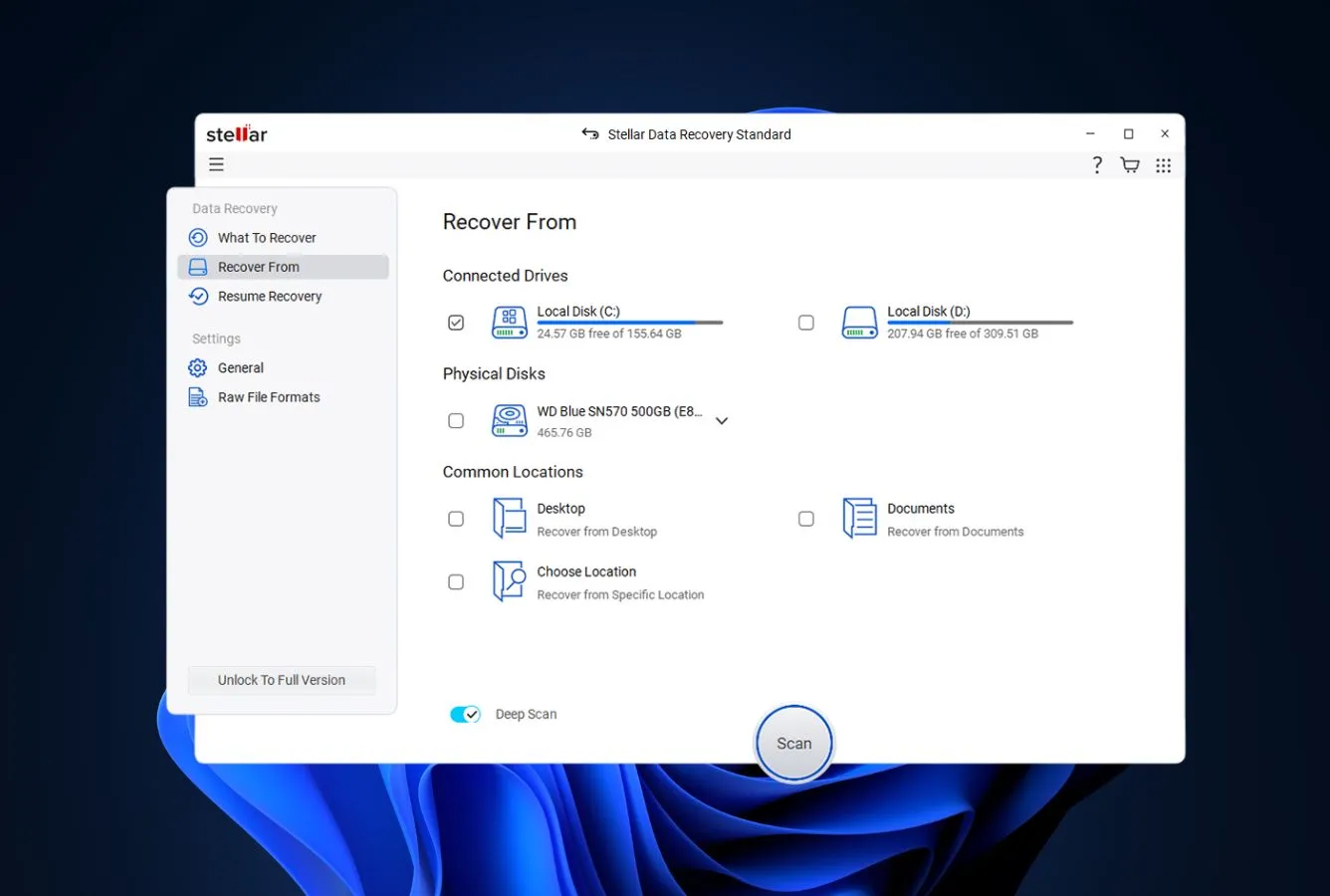
Stellar Data Recovery Professional earns its top-three slot specifically because of the Windows-only file systems Microsoft introduced in the last decade: it reads BitLocker-encrypted volumes once you supply the recovery key, and it scans ReFS partitions (Storage Spaces resiliency tier) more reliably than most consumer competitors. Stellar Information Technology has been in the recovery business since 1993 and runs a clean-room lab in addition to the software product, which gives the company a deeper understanding of file-system corruption than pure-software vendors. The Premium tier adds JPEG, RAW, and MP4/MOV repair as a separate engine that runs after recovery — useful for the photographer with both a deleted-files problem and a corrupted-card problem in the same session.
✓ Pros
- BitLocker support handles encrypted system drives more cleanly than Disk Drill or EaseUS — the recovery-key prompt comes first, no false starts
- Native ReFS scanning for Windows 11 Pro Storage Spaces resiliency volumes
- Premium tier bundles JPEG, RAW, and MP4/MOV repair engines for damaged media
- Standard tier at $59.99 / yr is the cheapest annual entry in the top 4
- WinPE bootable media for unbootable Windows 11 systems comes in Professional and above
- Save Scan / Resume Scan lets you pause a deep scan and finish it on another day
✕ Cons
- Capterra and Trustpilot consistently flag the support and refund experience as below the rest of the top 8 — keep the receipt and money-back window in mind
- Activation key tied to a single PC; reinstallation after a Windows reset can require a support ticket
- Photo / video repair quality is solid for JPEG, less reliable on heavily corrupted modern video codecs
Recovery Power
The right pick when the volume is encrypted, ReFS, or full of broken JPEGs.
Stellar’s strength is on the Windows-specific file systems that other consumer tools half-support. Independent testing on encrypted system drives shows it handles BitLocker key entry and partial scan more cleanly than Disk Drill’s BitLocker workflow. ReFS support is documented and works on Windows 11 24H2 Pro Storage Spaces resiliency volumes. The Premium tier’s photo and video repair is the only one in the top 4 that runs as a separate engine — useful when files are recoverable but corrupt, not just deleted.
Interface & Experience
Functional rather than friendly — and the BitLocker prompt is the right kind of first question.
The interface is utilitarian and clearly built for someone who already knows what BitLocker is. Quick / Deep / Photo / Video / Email scan modes are exposed up front instead of buried, and the BitLocker recovery-key dialog appears before any scan starts on an encrypted volume. The save-scan-as-DAT feature is genuinely useful for huge drives where a deep scan runs overnight. New users who haven’t done recovery before will probably find EaseUS less intimidating, but power users will appreciate that nothing important is hidden behind a wizard.
Price & Value
Standard at $59.99 is a bargain on the annual; Premium earns its premium for media-heavy users.
Stellar runs a tiered Windows lineup: Standard at roughly $59.99 / yr, Professional at $89.99 / yr, and Premium at $99.99 / yr (Premium adds the photo / video repair engines). Lifetime variants exist at higher prices and frequently appear in seasonal promotions. The 30-day money-back guarantee is honored if requested in writing within the window. For a Windows 11 user with a BitLocker-encrypted system drive and a stack of corrupted JPEGs from a damaged SD card, Premium pays for itself; for plain NTFS deletion, Standard is sufficient.
4. R-Studio – Best for Forensic-Grade RAID and BitLocker Recovery
4.48
★★★★½
The professional choice — if you can handle the interface
PlatformsWindows, macOS, Linux
Free limit256 KB / file
From$79.99 one-time
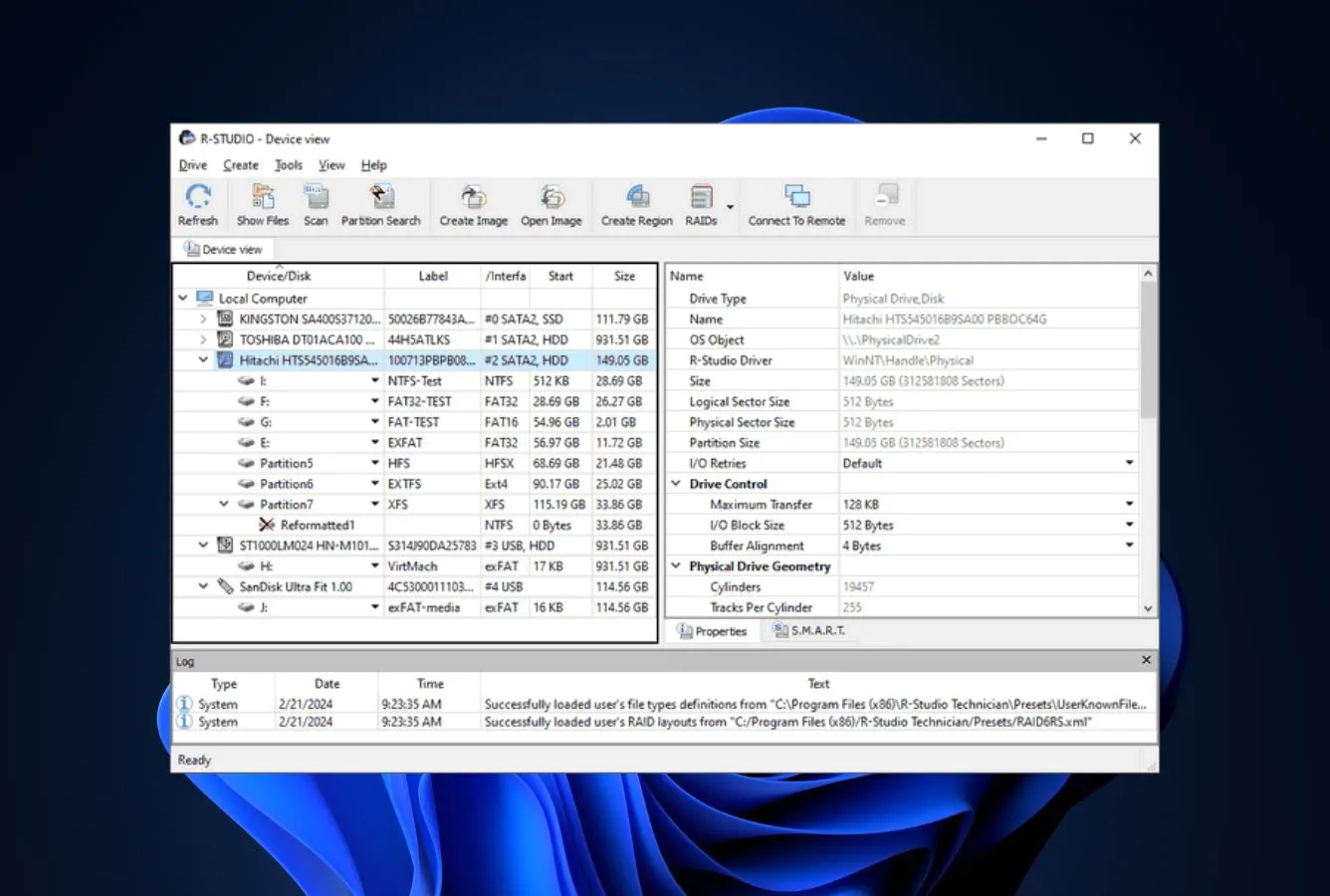
R-Studio is the tool data-recovery professionals reach for when the consumer products run out of options — RAID 5 with two missing parameters, a corrupted MFT on a Windows 11 NVMe, a dynamic disk after a system reset, a BitLocker volume with a partial recovery key. R-TT has built and maintained R-Studio since the early 2000s, and the engine has accumulated more file-system support than any competitor on this list: NTFS, ReFS, FAT/exFAT, ext2/3/4, HFS+/APFS, UFS1/2, and Btrfs all in one binary, plus virtual disk and disk-image scanning. The interface is famously utilitarian — closer to a forensic toolkit than a consumer wizard — but for anyone who has a serious problem and knows what RAID 5 parity rotation means, R-Studio is the most capable Windows 11 tool money can buy at this price.
✓ Pros
- RAID 0/1/4/5/6/10 reconstruction with manual parameter override — the only tool here that lets you dial in non-standard configurations
- BitLocker support including partial-key scenarios and detached recovery keys
- One-time license at $79.99 (Windows) — no subscription, runs forever on the activated machine
- Network recovery: scan a remote machine over LAN without imaging the drive locally
- Hex editor, S.M.A.R.T. monitoring, byte-level imaging, and forensic chain-of-custody features built in
- Linux and macOS variants share the same project files for cross-platform recovery
✕ Cons
- Steepest learning curve in the top 8 — the interface assumes you already know what an MFT is
- Free demo limits recovery to files under 256 KB, useful only for verifying the scan worked
- Documentation is technical-reference style, not tutorial style — first-time users will struggle
- BitLocker workflow requires the recovery key file or password up front; no built-in key-search heuristics
Recovery Power
The deepest engine on the list — at the cost of holding your hand.
R-Studio recovers from RAID arrays where competitors can’t even open the disks, reconstructs corrupted partition tables manually, and reads BitLocker, dynamic disks, and ReFS in a single project. Independent forensic-recovery testing places it consistently at or above Disk Drill on complex Windows scenarios — RAID rebuilds, dynamic disks, multi-disk Storage Spaces failures. For a home user with a single deleted folder, this power is overkill; for a tech with a NAS that’s lost two drives in a 4-drive RAID 5, R-Studio is the realistic option.
Interface & Experience
A forensic toolkit, not a consumer app — and that’s correct for the job.
The drive list, scan progress, and result tree are dense with information that makes sense only after a few hours of practice. There’s no “wizard mode,” no animated onboarding, no preview that hides the file system from you. For users who already understand recovery, this density is a feature — every option is one click deep instead of three menus deep. For Windows 11 home users, the same density is intimidating, which is why R-Studio sits at #4 here despite leading on raw capability.
Price & Value
$79.99 once, no auto-renewal, no annual nag — genuinely rare in 2026.
R-Studio for Windows is a one-time $79.99 license; R-Studio Network at $179.99 adds remote-recovery features. The license activates on a single machine and stays valid forever — there is no annual renewal trap. R-TT also publishes the R-Studio Technician edition for IT professionals who recover for clients, with explicit commercial-use rights. For a power user who wants to own the tool rather than rent it, R-Studio is the only mid-tier option that doesn’t lock you into a subscription.
5. Recuva – Best Free Windows 11 Recovery Tool
4.42
★★★★½
Genuinely free, genuinely useful, since 2007
PlatformsWindows 11/10/8/7
Free limitUnlimited
FromFree
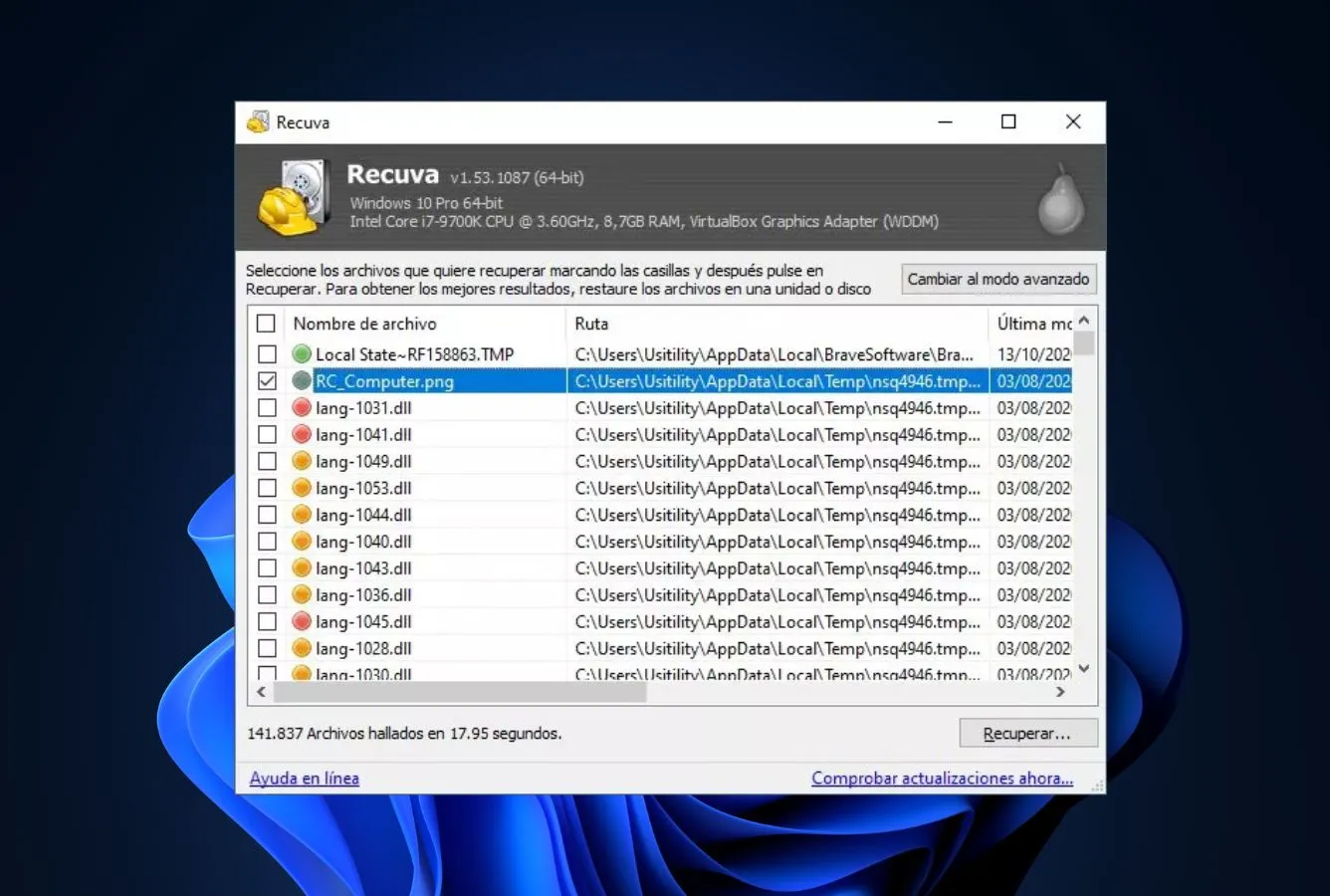
Recuva is the only commercial-quality Windows recovery tool that’s been free without a recovery quota since 2007. Originally built by Piriform (the CCleaner team) and now maintained by Gen Digital, Recuva pairs a wizard-driven Quick Scan with a Deep Scan signature mode and a small-binary footprint that runs comfortably on any Windows 11 install — including older hardware that struggles with the heavier commercial tools. There’s no time limit, no recovery cap, and no upsell beyond the optional Pro tier (virtual hard drive support and priority email). For a typical “I emptied the Recycle Bin and need a few photos back” scenario on a healthy Windows 11 NTFS partition, Recuva finishes the job before any of the paid tools have finished installing.
✓ Pros
- Free with no recovery cap, no time limit, no nag-screen — unique among the top 8
- Tiny footprint (under 10 MB installed) and minimal RAM usage during scans
- Clear color-coded recovery probability flags (green / yellow / red) for every found file
- Portable build runs from a USB stick without installation, so you don’t write to the affected drive
- Secure delete option for genuinely permanent file destruction when needed
- Reliable, well-known download source (CCleaner.com) that hasn’t changed hands suspiciously
✕ Cons
- No BitLocker support — encrypted Windows 11 system drives are a hard wall
- NTFS / FAT / exFAT only; no ReFS, no Storage Spaces, no APFS, no ext4
- Last major release was years ago; the engine hasn’t kept pace with newer file-system features
- Pro tier additions (virtual disk, priority support) are minor — most users will never need them
Recovery Power
Strong on the simple case, ineffective the moment encryption or exotic file systems show up.
For a deleted folder on a healthy NTFS partition, Recuva’s Deep Scan returns results comparable to the commercial tools’ free tiers — sometimes better, because there’s no quota to throttle the recovery. Where it stops being useful: BitLocker volumes, ReFS volumes, Storage Spaces virtualized disks, NAS shares, and any non-Microsoft file system. Community feedback on r/datarecovery and r/techsupport is consistent — Recuva is a “first try” tool that works often enough to make the install worthwhile, with the understanding that complex cases need a paid alternative.
Interface & Experience
A wizard from 2010 — and that’s exactly why it works.
The Recuva wizard asks four questions (file type, location, deep scan yes/no, recover) and gets out of the way. The result list is filterable by name, path, and size, with thumbnail preview for images. Color-coded recoverability flags are the most honest UX in the category — green means recoverable, red means overwritten and don’t bother. Aesthetically the app shows its age, but for a tool that should run once a year and finish in five minutes, that age is irrelevant.
Price & Value
Free is the price; the Pro tier is the rare upsell that genuinely doesn’t matter.
The free download has full recovery functionality. Recuva Professional ($24.95 historically) adds virtual hard drive support and priority email support — useful for IT professionals, irrelevant for a home user. There is no paid tier with materially better recovery; the Pro tier is convenience features only. For a Windows 11 user who wants a tool installed for the eventual emergency, Recuva is the most defensible “install now, hope you never need it” recommendation.
6. MiniTool Power Data Recovery – Best Windows-Only Mid-Range Pick
4.36
★★★★½
Windows-native, well-priced, well-supported
PlatformsWindows 11/10/8/7
Free limit1 GB
From$69 / mo
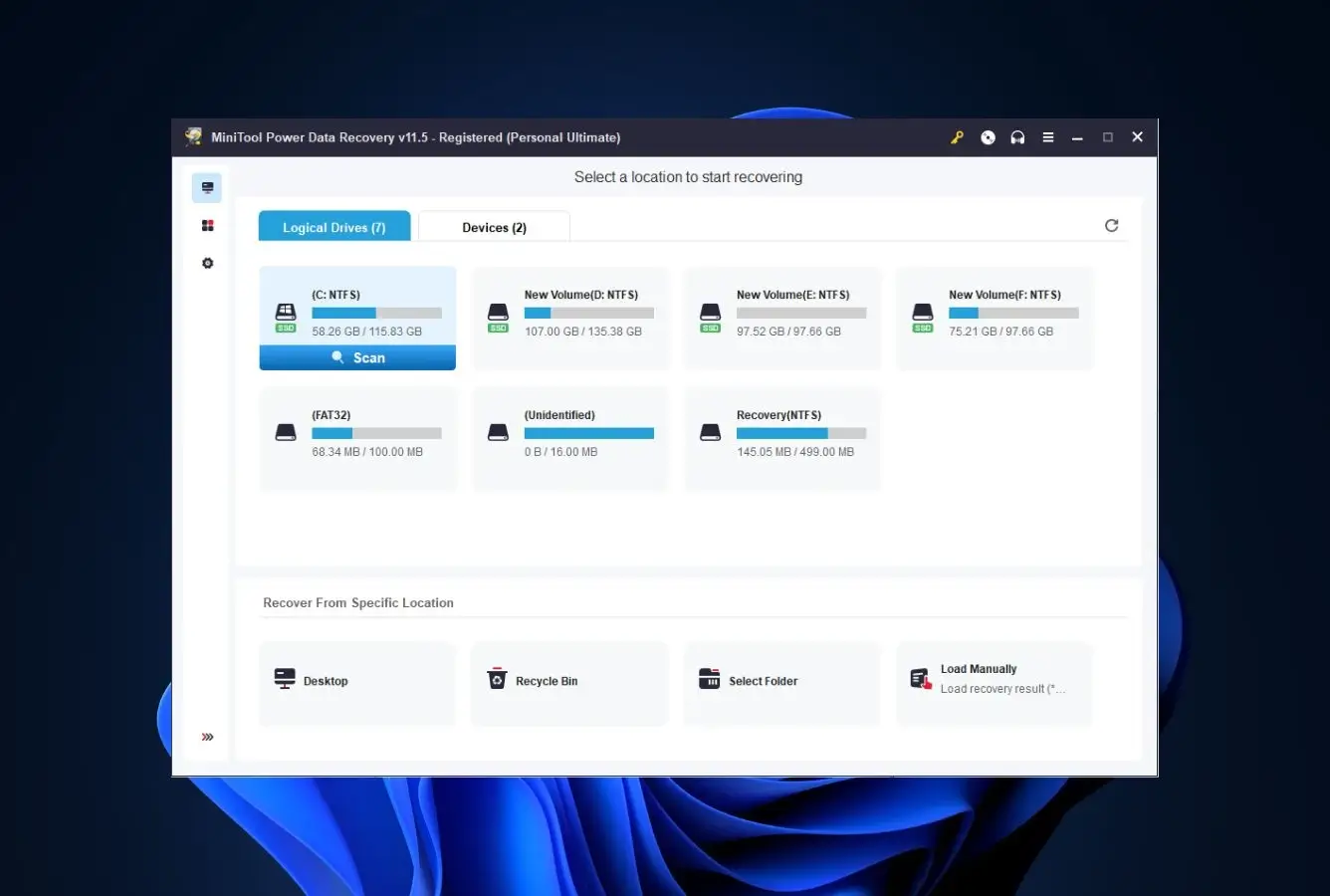
MiniTool Power Data Recovery is the most polished Windows-only recovery tool on this list — same parent company as MiniTool Partition Wizard, which means the file-system-handling code has been battle-tested across millions of installations. The 1 GB free recovery quota matches Stellar Standard, the wizard-driven UI is in the same league as EaseUS, and the WinPE bootable media in the Personal Deluxe tier and above gets data off Windows 11 systems that won’t boot. Where it sits at #6: it doesn’t read APFS or HFS+ on Windows the way Disk Drill does, BitLocker support is partial rather than turnkey, and the monthly tier is priced like a market leader without quite matching their feature set.
✓ Pros
- 1 GB free recovery quota — generous compared to Recoverit and 4DDiG
- Same-vendor file-system code as MiniTool Partition Wizard, with strong NTFS / FAT / exFAT / ReFS handling
- WinPE bootable media in Deluxe and Enterprise tiers — recovers from unbootable Windows 11
- Annual licenses are competitively priced and frequently appear in 30-50% promotions
- Clean, modern wizard UI that holds up against EaseUS
✕ Cons
- Windows-only — no macOS or Linux variants for cross-platform users
- BitLocker handling is partial; encrypted system-drive scenarios work better in Stellar or Disk Drill
- No native APFS / HFS+ on Windows — external Mac-formatted drives need a separate tool
- $69 / month subscription pricing aligns with EaseUS but without EaseUS’s free-tier advantage
Recovery Power
Solid Windows-native recovery — exactly as good as you’d expect from the Partition Wizard team.
For deletion, formatting, and lost-partition scenarios on NTFS, FAT, exFAT, and ReFS volumes, MiniTool’s recovery completeness is competitive with EaseUS and Stellar Standard on independent testing. The lost-partition recovery is genuinely strong — a side-effect of sharing engine code with Partition Wizard. Outside the Microsoft file-system world, the engine has nothing to offer; users on cross-platform external drives should pick Disk Drill or R-Studio instead.
Interface & Experience
A clean wizard that doesn’t reinvent the wheel — and the bootable media tier earns the price gap.
Power Data Recovery’s main screen lists logical drives, lost partitions, and removable devices in three clear panes; scanning launches with one click. Recovery Vault-style preview, file-type filters, and a “save scan” feature for huge drives all behave the way users expect. The WinPE bootable media wizard (in Deluxe and above) is unusually friendly compared to Stellar or EaseUS — fewer steps, fewer surprises. New users will find this comfortable; power users will find it adequate.
Price & Value
Personal Deluxe lifetime is the sweet-spot purchase if you catch a sale.
MiniTool prices Power Data Recovery in three commercial tiers — Personal Monthly ($69 / mo), Personal Annual ($89 / yr), and Personal Deluxe Lifetime ($129). Business and Enterprise tiers exist for IT shops with multi-PC needs. The Deluxe lifetime regularly drops 30-40% during seasonal sales, putting it near the EaseUS lifetime-on-sale price. The 1 GB free quota is enough to recover small batches of photos or documents before deciding whether to commit to a paid tier.
7. Wondershare Recoverit – Best Video Recovery on Windows 11
4.21
★★★★☆
The pattern-based video reconstruction edge case
PlatformsWindows 11/10, macOS, Linux
Free limit100 MB
From$59.99 / mo
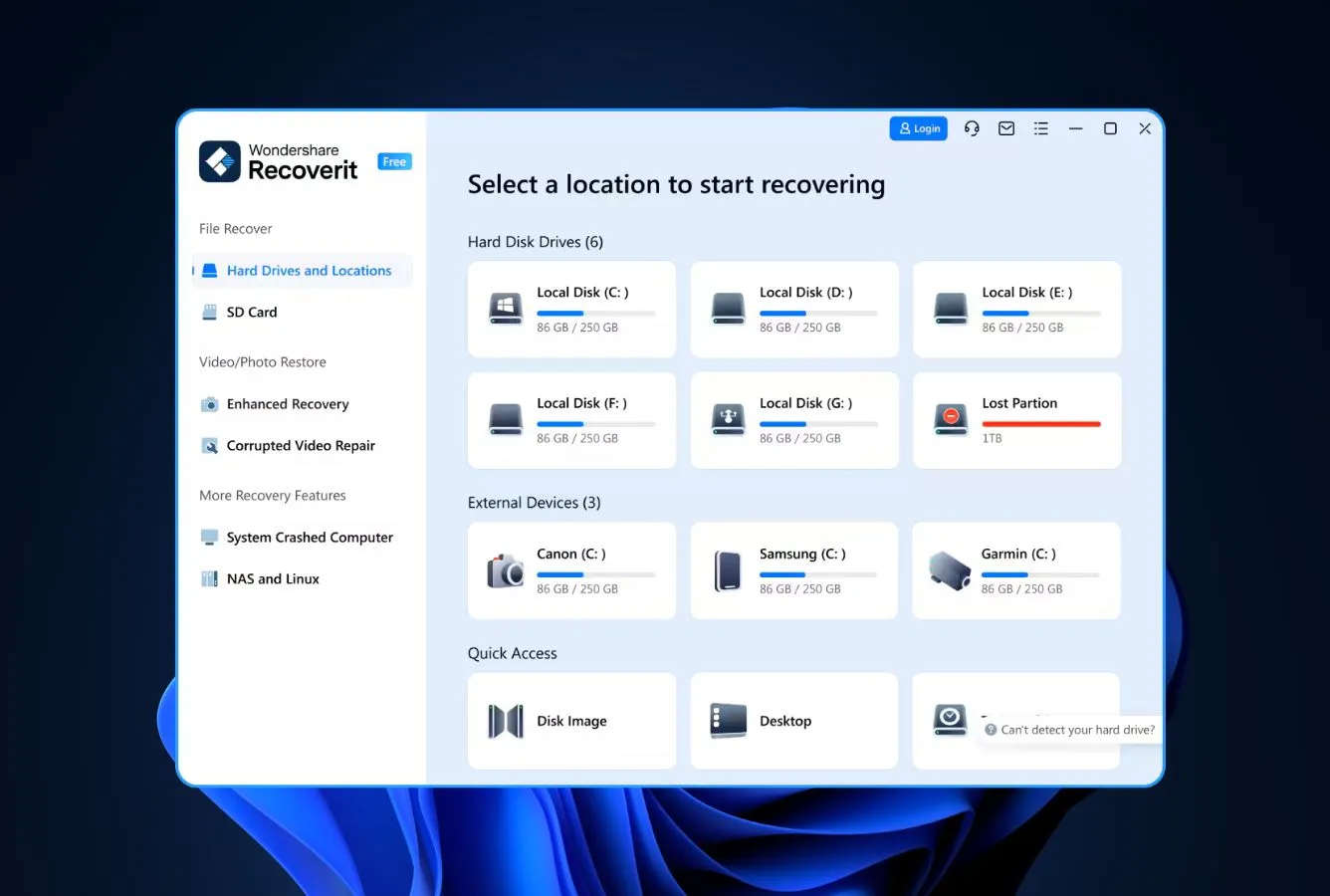
Wondershare Recoverit earns its slot here for one specific Windows 11 scenario: fragmented video reconstruction. Most recovery tools rely on signature-based scans that find a video’s header and treat the rest of the file as opaque bytes; Recoverit’s reconstruction engine attempts to rebuild missing pixels, corrupted headers, and broken frames using a pattern-based approach trained on similar video files. For a Windows 11 user with deleted MP4 / MOV / 4K footage from a damaged camera card, Recoverit’s video pass produces playable files where competitors return broken stubs. Outside that niche, Recoverit’s NTFS / exFAT / FAT recovery is solid but not category-leading, and the 100 MB free tier is the smallest among the major commercial tools.
✓ Pros
- Pattern-based fragmented video reconstruction is genuinely better than signature-only competitors on damaged 4K footage
- Dedicated Video Repair engine repairs corrupted MP4 / MOV / AVI files alongside recovery
- Cross-platform: Windows, macOS, and Linux variants share the same core engine
- Broad file-type support spanning documents, photos, video, and audio formats
- Modern, polished UI — comfortable for first-time users despite the technical engine underneath
✕ Cons
- 100 MB free tier is the most restrictive among commercial Windows tools
- Saved scans don’t persist between sessions — pause the recovery and you start over
- Aggressive in-app upsell after every scan; the upgrade nag pattern frustrates Reddit and G2 reviewers
- BitLocker handling is partial; encrypted Windows 11 volumes need an alternative
Recovery Power
Average on standard files, distinctive on damaged video.
For ordinary deletion and formatting on NTFS or exFAT, Recoverit’s recovery completeness sits in the middle of the top 8 — comparable to MiniTool but behind EaseUS, Stellar, and Disk Drill. The engine’s distinguishing claim is fragmented-video reconstruction: where competitors return a corrupted MP4 stub from a damaged SD card, Recoverit’s pattern-based pass often returns a playable file. Independent testing confirms the pattern engine helps on heavily fragmented modern codecs but adds little on documents or photos.
Interface & Experience
The polish is real; the upsell nag is the main friction.
Recoverit’s UI is one of the better-designed in the category — the location picker, scan progress, and result tree feel modern and responsive. The video repair engine is exposed as a separate workflow that takes a sample file from the same camera and learns its encoding structure. The persistent friction is the upgrade-prompt cadence: every meaningful action on the free tier triggers a paid-tier suggestion, which escalates from “okay” to “noisy” within a single session.
Price & Value
Two-PC license is the pricing differentiator — until you check Disk Drill’s lifetime.
Recoverit Essential runs $59.99 / mo, $69.99 / yr, and $119.99 perpetual; Standard and Premium tiers add file types and the video-repair engine at higher prices. Each license activates on two PCs, which is rare in the category — EaseUS, Stellar, and MiniTool default to single-PC. The 100 MB free tier is too small to be a useful trial; treat it as a “does it find anything” check rather than a real recovery option. For users specifically rescuing damaged video, the Premium perpetual is justifiable; for general recovery, the price-to-quality ratio doesn’t beat the top 4.
8. Tenorshare 4DDiG – Best Mid-Priced All-Rounder
4.12
★★★★☆
Lower entry price, fewer rough edges than its peers
PlatformsWindows 11/10, macOS
Free limit100 MB
From$45.95 / mo
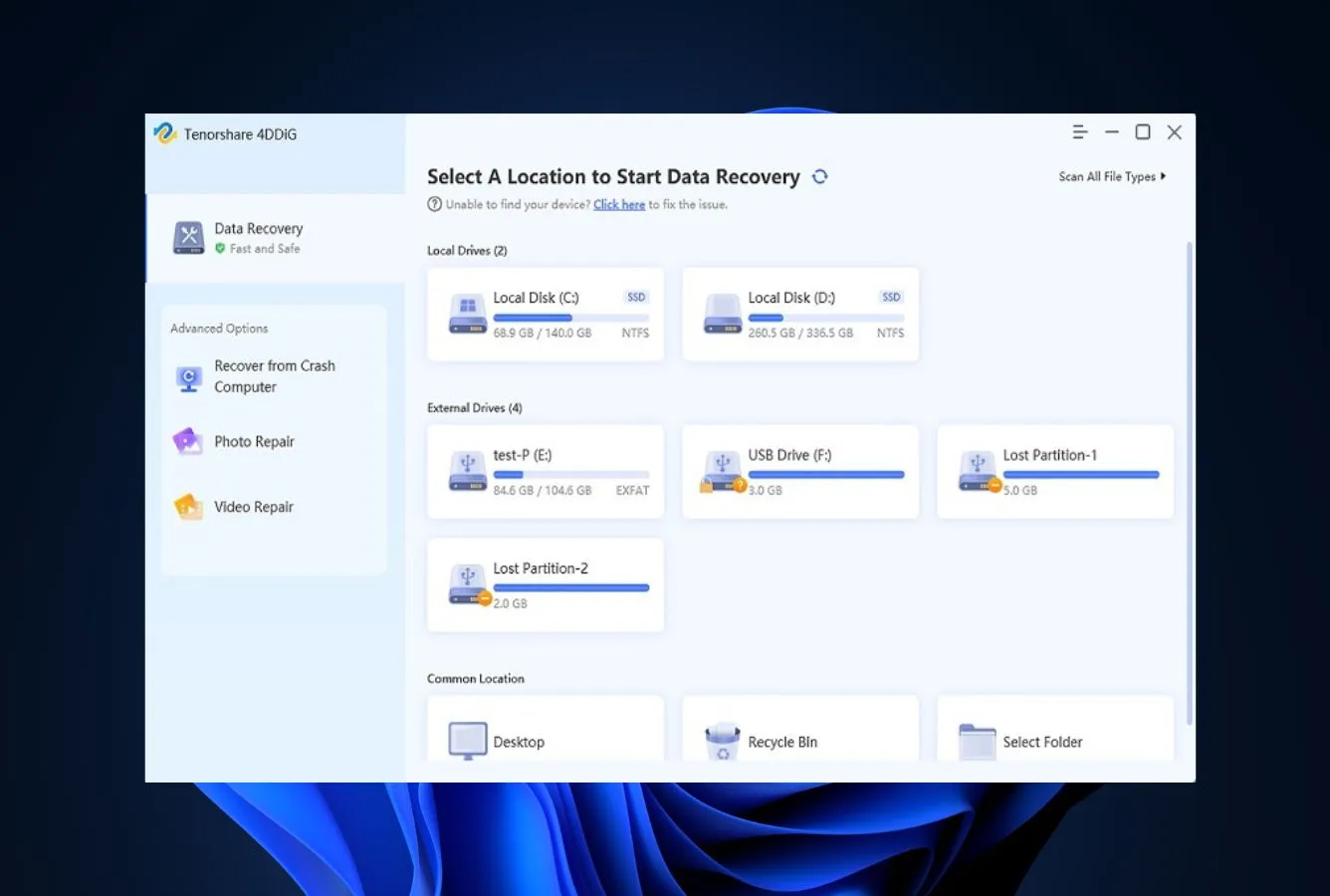
Tenorshare 4DDiG is the cheapest commercial entry on this list and the cleanest workflow among the tools that don’t make the top 6 on raw capability — it’s the value pick for a user who wants a polished UI and reasonable feature coverage without paying EaseUS or Disk Drill prices. 4DDiG handles NTFS, FAT, exFAT, APFS, and HFS+ in one binary, builds bootable media for unbootable Windows 11, and includes built-in photo and video repair similar to Stellar Premium and Recoverit Premium but at a noticeably lower price point. Where it sits at #8: BitLocker support is partial, the engine isn’t quite as deep on RAW partition recovery as the top 4, and the free 100 MB tier is too small to do real testing.
✓ Pros
- $45.95 / month is the cheapest monthly entry on the list — meaningful savings for a one-time recovery
- Photo / video repair built in at all paid tiers, not gated behind a Premium SKU
- Modern UI with clear scan progress and good preview for images and short videos
- Cross-platform binaries for Windows and macOS share the same license model
- Bootable media wizard for unbootable Windows 11 in higher tiers
✕ Cons
- BitLocker handling is partial — encrypted system drives often need an alternative
- Engine depth on RAW / corrupted partitions trails the top 4 in independent comparison testing
- 100 MB free tier and persistent upsell prompts dilute the trial experience
- Tenorshare’s broader app catalog generates mixed reviews on Trustpilot — check the refund window before subscribing
Recovery Power
Reasonable on common deletion, weaker on the hard cases the top 4 win on.
For straightforward deletion and Recycle Bin emptying on NTFS, exFAT, and FAT volumes, 4DDiG’s results are competitive with the mid-pack — somewhere between MiniTool and Recoverit on independent testing. The engine notably weakens on RAW or corrupted partitions, where Disk Drill, EaseUS, and Stellar produce more recoverable files. APFS and HFS+ scanning works on Windows but is shallower than Disk Drill’s implementation. Treat 4DDiG as a value-tier all-rounder, not a category leader.
Interface & Experience
A polished modern wizard that doesn’t get out of its own way.
The 4DDiG interface follows the modern wizard playbook — drive list, scan progress, filterable results — and the visual quality holds up against EaseUS or Recoverit. Preview works well for images and short video clips. The friction point is the same as Recoverit: aggressive paid-tier prompts after every meaningful action, which makes the free trial feel like an extended sales pitch. For users who’ll buy if they like the trial, that pattern is fine; for users who want to test multiple tools, it gets old fast.
Price & Value
Cheapest monthly tier on the list — and the lifetime is also competitive when discounted.
4DDiG lists $45.95 / month, $79.95 / year, and roughly $109.95 lifetime, with regular promotional drops to $35-40 monthly and $59 / year during sales windows. The lifetime tier is the best long-term buy at retail; the monthly tier is the right pick for a single-recovery scenario where the user knows they’ll cancel. The 100 MB free quota is a “does it find your files” check, not a real recovery option. For a user choosing on price among polished commercial tools, 4DDiG is the cheapest sensible entry.
How We Evaluate Windows 11 Data Recovery Software
Ranking Windows 11 recovery software is easy to get wrong by accident — a tool that wins every benchmark on a clean NTFS partition can fall flat on a BitLocker-encrypted system drive, and a tool that handles Storage Spaces beautifully might mishandle a basic Recycle Bin scan. Our evaluation pulls from three layered research sources and uses each to cross-check the others: vendor documentation establishes the feature baseline, independent third-party testing confirms whether those features actually work the way they’re advertised, and community feedback on Reddit, Trustpilot, G2, and the Microsoft Answers forum surfaces the real-world support, billing, and edge-case experiences that don’t show up in lab benchmarks.
📚
Official Product Research
Vendor product pages, pricing pages, changelogs, supported-file-system claims, and platform requirements for every Windows 11 edition. Held at arm’s length until cross-referenced.
🧪
Independent Testing
Aggregated independent recovery scoreboards, hands-on third-party reviews, and forensic-publication test runs to separate marketing claims from repeatable Windows 11 recovery outcomes.
💬
Community Feedback
Reddit (r/datarecovery, r/techsupport, r/Windows11), Trustpilot, G2, Capterra, and the Microsoft Answers forum — for the support-quality, billing, and edge-case signals that don’t appear in lab tests.
Platforms covered: Windows 11 24H2 (latest), Windows 11 23H2, Windows 11 22H2, Windows 11 21H2, plus comparison data points from Windows 10 22H2 and Windows Server 2022/2025 for IT-shop scenarios. Key factors weighted: recovery capability across NTFS / ReFS / exFAT / FAT / BitLocker / Storage Spaces (40%), interface usability for first-time recoverers (20%), safety and trust including refund and billing track record (15%), feature breadth like bootable media and photo/video repair (15%), platform parity with macOS variants where applicable (5%), and price-to-value ratio across tiers (5%).
01
Recovery Capability (40%)
How completely does the engine recover NTFS deletions, formatted volumes, RAW partitions, BitLocker-unlocked drives, ReFS Storage Spaces, and software RAID arrays — across both Quick and Deep scan modes.
02
Usability (20%)
First-install workflow, scan progress feedback, preview reliability, filter and search behavior, session save/resume, and how aggressively the upgrade nag interrupts a real recovery.
03
Safety & Trust (15%)
Refund track record on Trustpilot and Capterra, code-signing of installers, telemetry posture, license-activation reliability after Windows 11 reset, vendor longevity, and historical handling of bug reports.
04
Extra Features (15%)
WinPE bootable media for unbootable systems, photo / video / document repair engines, hex viewer for forensic users, S.M.A.R.T. monitoring, byte-level imaging, and Recovery Vault style preventive features.
05
Platform Parity (5%)
Whether the same license activates on macOS or Linux variants, and whether the engine reads APFS / HFS+ / ext4 from external drives shared with other operating systems.
06
Price / Value (5%)
Free-tier quota, monthly vs annual vs lifetime pricing, multi-PC licensing, sale frequency and depth, and whether the cheapest sensible purchase actually solves the user’s problem.
🔎
Want the raw testing data?
Individual test runs, scan-time logs, and per-tool notes from our ongoing testing live on our full methodology page. Start there if you want the underlying numbers behind any claim on this page.
Windows 11 Recovery Software – Honorable Mentions
Six tools we considered seriously but didn’t include in the main ranking. Each has a specific niche strength or a specific flaw that kept it out of the top 8 — all six are still legitimate downloads if their particular angle matches your situation.
Strongest Swiss-Army-knife on this list for partition surgery, hex editing, and disk imaging — but the recovery engine itself ranks behind the top 4, so the value comes from the broader toolset rather than pure file recovery.
Good Windows 11 photo recovery on a permanent free tier with a $14.99 personal license — but the engine targets photos and media specifically, not general document recovery, so it doesn’t substitute for a top-8 tool.
Forensic-grade NTFS / FAT / exFAT scanning with a one-time license under $40 — but the interface is even denser than R-Studio’s, and the BitLocker workflow is documentation-heavy rather than turnkey.
Genuinely free, open-source, and uncapped — recovers from any file system signature-style. The CLI-style interface and absence of preview push it below Recuva for general use, but it pairs well with TestDisk for partition repair.
Free for personal use with full deep-scan capability and no recovery quota — but development cadence is slow, no BitLocker support, and the engine hasn’t kept up with Windows 11 file-system features the way Recuva has.
Polished UI from iMyFone with reasonable Windows 11 NTFS recovery — but pricing tracks the leaders without matching their feature depth, BitLocker support is partial, and Trustpilot reviews are mixed on billing transparency.
How to Choose the Right Windows 11 Recovery Tool
Windows 11 narrows the choice in three specific ways the older Windows roundups never had to consider — what’s running underneath the file system matters more than it used to. The six factors below are the ones that actually change which tool wins for a specific situation.
File System and Encryption
Windows 11 puts most users on NTFS by default, but Pro Storage Spaces resiliency volumes are ReFS, external drives shared with macOS are likely APFS or HFS+, and Linux dual-boot users will hit ext4. Match the tool to the file systems you actually have — Recuva and Puran handle the NTFS / FAT / exFAT trio fine, but only Disk Drill and R-Studio cover the full Windows / macOS / Linux file-system spread in a single Windows install. The cross-platform recovery hub covers the multi-OS scenarios in more depth.
BitLocker is the bigger gate. Microsoft enables BitLocker by default on Windows 11 Pro / Enterprise / Education editions of Copilot+ PCs and most modern OEM laptops, so encryption is the default state of new system drives. Tools without BitLocker support — Recuva, DiskDigger, PhotoRec — simply can’t read these volumes, key or no key. If your system drive is encrypted, your shortlist starts with Disk Drill, EaseUS, Stellar, R-Studio, or 4DDiG.
Quick Scan vs Deep Scan: Which Mode Saves Your Files
Quick Scan rebuilds the file table from intact metadata in under a minute on a healthy NVMe. It works for simple Recycle Bin deletions on a drive you haven’t been writing to. Deep Scan reads every sector and reassembles files from signatures alone — slower (an hour per terabyte on a clean SATA SSD) but able to find files long after the file system has forgotten about them.
The right answer is almost always to run Quick Scan first, recover whatever it finds, and only escalate to Deep Scan if the Quick Scan misses files you remember being there. Tools that let you run both passes in one session and merge the results — Disk Drill, EaseUS, and Stellar — save genuine time over tools that force you to start a fresh scan for the deep pass.
Preview Reliability — The Deciding Filter
A 200,000-result scan is unusable without preview. The tools that show working thumbnails for images, render the first second of video clips, and display the actual document text inside Office files turn a hopeless scan output into a 10-minute recovery session. EaseUS, Disk Drill, Stellar, and Recoverit all preview reliably; R-Studio’s preview is functional but plainer; Recuva’s preview is image-only.
Watch for preview failures specifically — a file that previews as a thumbnail but recovers to a corrupted file is a signal that the underlying data is partially overwritten. Tools that color-code recovery probability based on preview integrity (Recuva, Disk Drill) help you avoid recovering hundreds of files that won’t open.
Platform Support and Multi-PC Licensing
Most tools sell a single-PC license that you’ll need to deactivate manually before installing on a replacement machine. Disk Drill’s lifetime tier activates on both Windows and Mac, Recoverit gives two PCs per license, and R-Studio’s one-time purchase doesn’t expire on Windows. For users who replace laptops every few years or maintain both a desktop and a laptop, multi-PC licensing changes the long-term math considerably.
If you also have macOS in the household, the cross-platform consideration matters even more — see our Mac data recovery software roundup for the macOS-side picks.
Pricing Models — Subscription, Lifetime, or One-Time
The category has three pricing models. Subscriptions (monthly, yearly) make sense only for one-and-done recoveries where you intend to cancel — EaseUS, Stellar, MiniTool, Recoverit, and 4DDiG all publish them. Lifetime licenses (Disk Drill, EaseUS, Stellar Professional+, MiniTool Deluxe) cost more upfront but pay for themselves within 18-24 months. Genuine one-time purchases without renewal — R-Studio, DMDE, PhotoRec, Recuva — are the rarest tier and the best long-term value if your needs match the tool’s feature set.
For users on a tight budget, the free Windows recovery tools roundup covers the no-cost options in detail. For specifically free Windows 11 picks, Recuva, PhotoRec, TestDisk, and Windows File Recovery are the legitimate names.
Session Management and Resume Capability
A deep scan on a 4 TB drive can run six or eight hours. Tools that let you save the scan as a project file and resume on another day (Disk Drill, Stellar, R-Studio, MiniTool) are dramatically more useful than tools that force you to keep the laptop awake until the scan finishes. Recoverit notably doesn’t persist scan results between sessions, which becomes a real frustration on large drives.
If your recovery target is a large drive or a damaged drive that scans slowly because of bad sectors, treat session save/resume as a hard requirement, not a nice-to-have.
When Recovery Software Can’t Get Your Files Back
Recovery software works on logical data loss — deletion, formatting, corrupted file systems, lost partitions. It doesn’t work on physical damage, and it doesn’t work after the underlying data has been overwritten. The triage table below covers the situations users send to us most often; if your scenario lands in a No row, software is the wrong tool no matter which one you pick.
| Your situation | Software can help? | What to do instead |
|---|
| Drive clicks, beeps, or stops being detected | No | Power off immediately and contact a clean-room recovery lab. Do not run a scan — you’ll make damage worse. |
| BitLocker drive without the recovery key | No | Check your Microsoft account at account.microsoft.com/devices/recoverykey. No software can defeat BitLocker without the key. |
| SSD with TRIM enabled, files deleted hours ago | Maybe | Stop writing to the drive immediately and scan now — TRIM may have already wiped the blocks, but partial recovery is sometimes possible. |
| Reset This PC with “Fully clean the drive” selected | No | The multi-pass overwrite is designed to defeat recovery software. Restore from backup or accept the loss. |
| Files on a healthy NTFS partition, deleted today | Yes | Run a Quick Scan with any top-3 tool. High recovery probability if you haven’t installed anything since. |
Quick triage — check which situation matches yours before reaching for a scan tool.
Physical Hard-Drive or SSD Failure
Drives that click, grind, beep, vibrate audibly, or vanish from Disk Management between reboots have physical hardware damage — failed read heads, burned controller chips, mechanical seizure of the platter motor, or NAND flash that has stopped responding. Running scan software at this point heats the drive further and accelerates the failure; most clean-room recovery labs report cases where home scanning made the recovery harder or impossible. Power off, label the drive, and contact a recovery lab.
For preventive guidance, the hard drive recovery guide covers when a tool like HDDScan or CrystalDiskInfo can confirm whether a drive is logically or physically failing.
SSD TRIM and Why Speed Matters
Windows 11 sends TRIM commands as part of normal file deletion on every SSD, telling the controller that the underlying flash blocks are free to reuse. Most controllers complete the underlying erase within minutes during the next garbage-collection pass, after which the data is genuinely gone — no recovery tool can read it back, regardless of marketing claims.
The practical implication: stop writing to the drive the moment you notice the loss, and run a recovery scan within the same hour. Hours later, you’re scanning empty blocks. Days later, you’re guaranteed to find nothing. The SSD recovery software guide goes into the detail on which tools handle SSDs least badly.
BitLocker Without the Recovery Key
BitLocker uses 128- or 256-bit AES with a key tied to either a TPM, a password, or a recovery key file. Without one of those three, the encrypted volume is mathematically inaccessible — the encryption is the same standard used by governments and banks, and there’s no backdoor. Recovery tools that claim to “decrypt BitLocker” without the key are either lying or describing a brute-force attack that would take longer than the age of the universe.
If you’re locked out, check the BitLocker recovery key on your Microsoft account at account.microsoft.com/devices/recoverykey — Windows 11 backs the key up there automatically when you sign in with a Microsoft account during setup. Print or screenshot the key and store it somewhere safe before any future drive issue.
Reset This PC with “Fully Clean the Drive”
The Fully Clean the Drive option in Windows 11’s Reset This PC performs a multi-pass overwrite of every sector on the system partition, designed specifically to defeat recovery software. After this option completes, even forensic-grade tools like R-Studio return nothing useful from the system drive. The Just Remove My Files option, by contrast, only marks the data as deleted — recovery software finds plenty of files after that variant.
If you ran the full clean by accident and didn’t have a backup, accept the loss and move on. The overwrite is genuinely thorough, and no Windows 11 recovery tool can undo it.
Overwritten Sectors and Long-Past Deletions
Even on a healthy drive without TRIM and without an explicit overwrite, deleted files become unrecoverable as Windows 11 reuses the underlying blocks for new data. Each Windows update writes hundreds of megabytes; each browser session writes cache files; OneDrive sync writes constantly in the background. A file deleted six months ago on a daily-driver Windows 11 laptop is statistically unlikely to be intact.
If recovery is critical, the most important variable is how long ago the deletion happened and how heavily the drive has been used since. Recoveries within the same hour as deletion routinely reach 80-90% completeness; recoveries weeks or months later regularly fall below 30%.
⛔
Stop writing to the affected drive immediately.
Every minute of normal Windows 11 use writes new data and reduces what’s recoverable. Power off the laptop, attach the drive externally to a different PC, and run the scan from there.
Built-in Windows 11 Recovery Options (Check These First)
Before you install third-party software, four built-in Windows 11 features can recover most simple file-loss scenarios in under a minute. They aren’t full recovery suites, but they’re free, they’re already on your machine, and they handle the most common deletion cases.
Recycle Bin and File History
The Windows 11 Recycle Bin holds deleted files until you explicitly empty it or until it hits its size cap (typically a percentage of each drive’s capacity). Open the Recycle Bin, find the file, right-click, choose Restore — done. File History, configured in Settings → System → Storage → Backup options → Backup using File History, keeps versioned copies of files in your Documents, Music, Pictures, Videos, and Desktop folders on a connected external drive. If File History was on, right-click any folder in File Explorer and choose “Restore previous versions” to roll back.
Both are zero-click solutions to the most common loss scenario. Recovery software is overkill if the file is still in the Recycle Bin or in a File History snapshot.
OneDrive Recycle Bin and Personal Vault
If your Windows 11 user folder is OneDrive-synced (the default for most fresh installs), deleted files go to the OneDrive web Recycle Bin even after you empty the local Recycle Bin. Sign in to onedrive.live.com, click Recycle bin in the left navigation, and restore — files persist there for 30 days for personal accounts, 93 days for work and school accounts. OneDrive Personal Vault adds a second layer for sensitive files with two-factor authentication on access.
For a deleted Word document or spreadsheet, the OneDrive Recycle Bin is faster and more reliable than any recovery scan. Check it before you reach for a third-party tool.
Windows File Recovery and System Restore
Microsoft’s free Windows File Recovery tool from the Microsoft Store covers NTFS, FAT, exFAT, and ReFS with both a Regular mode (for files still tracked by the file system) and an Extensive mode (signature-based, similar to Deep Scan). It’s command-line-only, with no preview and no GUI, so it’s harder to use than the commercial tools — but it’s free and reasonably effective for simple deletion scenarios on local drives.
System Restore won’t recover individual files but can roll back system configuration changes. If a Windows 11 update or driver install caused the file-loss event indirectly (corrupted profile, broken file association), restoring to a pre-event point sometimes makes the data accessible again.
When the Built-In Tools Aren’t Enough
If the Recycle Bin is empty, OneDrive doesn’t have it, File History wasn’t on, and Windows File Recovery returns nothing — that’s the moment a third-party tool earns its install. The top 3 in this list (Disk Drill, EaseUS, Stellar) all have free tiers generous enough to handle a single-occurrence emergency, and Recuva at #5 is fully free without quota for routine NTFS deletions.
For complex scenarios — Storage Spaces failures, RAID rebuilds, BitLocker without a key, drives with bad sectors — the built-in tools were never going to help anyway. Skip directly to the right paid tier.
✅
Pro tip: turn on File History this week.
Plug in any external USB drive larger than your user profile and enable File History in Settings. It runs silently in the background and keeps the next “I emptied the Recycle Bin” emergency from being a real emergency.
Disk Drill is the best data recovery software for Windows 11 in 2026. It’s the only consumer tool that handles every Windows 11 file-system scenario in a single install — NTFS, ReFS, exFAT, FAT, plus APFS and HFS+ for cross-platform external drives — and it’s the only tool with explicit Storage Spaces and software-RAID reconstruction. The lifetime license at $149 covers Windows and Mac on the same key, and the free disk-imaging tool is available forever even if you never upgrade.
Beyond the winner: EaseUS Data Recovery Wizard is the right pick for a first-time recoverer who wants the friendliest workflow and the largest free tier (2 GB). Stellar Data Recovery Professional is the right pick for a Windows 11 user with a BitLocker-encrypted system drive or a stack of corrupted JPEGs and MP4s — its built-in repair engine doesn’t have an equivalent in the top 4. R-Studio is the right pick for IT professionals dealing with RAID arrays and complex partition damage, and the one-time $79.99 license is genuinely fair for its capability ceiling. And Recuva is the right pick if you want a permanent free install that handles routine NTFS deletions without ever asking for money.
Frequently Asked Questions
What is the best data recovery software for Windows 11 in 2026?+
Disk Drill is the strongest all-round Windows 11 recovery tool in 2026. It scans NTFS, ReFS, exFAT, and FAT32 volumes, reads BitLocker-unlocked drives, recovers from Windows Storage Spaces and software RAID arrays, and ships with a free 500 MB recovery quota plus permanent free disk-imaging and S.M.A.R.T. monitoring. EaseUS is the best step-down for beginners, and Stellar Professional is the strongest pick for ReFS volumes and BitLocker-encrypted system drives.
Can data recovery software recover files from a BitLocker-encrypted drive on Windows 11?+
Yes, but only if you have the BitLocker recovery key or password. Windows 11 enables BitLocker by default on Pro, Enterprise, and Education editions of Copilot+ PCs and most modern OEM laptops, so encryption is now the default state for system drives. Tools like Disk Drill, Stellar, EaseUS, and R-Studio can scan an unlocked BitLocker volume the same way they scan any NTFS partition. Without the key, the data on the drive is mathematically inaccessible — no recovery tool can bypass BitLocker, regardless of marketing claims.
Why are deleted files harder to recover from a Windows 11 SSD than from a hard drive?+
Windows 11 enables TRIM by default on every SSD it manages. When you delete a file or empty the Recycle Bin, the OS sends a TRIM command that tells the SSD controller the underlying flash blocks are free to wipe. Most controllers do that within minutes during garbage collection, which permanently destroys the data — there is nothing left for software to scan. On a hard drive, the same deleted file just gets unlinked from the file system and the underlying blocks stay intact for hours or days. The practical rule on Windows 11 SSDs: stop writing the moment you notice the loss and run a recovery scan immediately, before TRIM finishes its work.
Does Windows 11 have a built-in data recovery tool?+
Microsoft ships Windows File Recovery, a free command-line utility from the Microsoft Store. It supports NTFS, FAT, exFAT, and ReFS, and offers a Regular mode for files still in the master file table and an Extensive mode for signature-based recovery. It is genuinely free and reasonably effective for simple deletion scenarios on local drives, but it has no preview, no GUI, no BitLocker support, and no Storage Spaces awareness. For anything beyond a recently deleted file on an unencrypted disk, a graphical tool with file preview will save hours of trial-and-error.
Will data recovery software work after I run Reset This PC on Windows 11?+
It depends on which Reset option you chose. The Keep My Files reset preserves the user partition and only reinstalls Windows, so most personal files survive intact and recovery software is rarely needed. The Remove Everything reset has two sub-options: Just Remove My Files leaves the underlying data on disk and recovery scanners can usually find a high percentage of it; Fully Clean the Drive performs a multi-pass overwrite designed to defeat recovery, and after that pass even deep scans return very little. Cloud Reset (which downloads a fresh Windows image) does not change the data-recovery picture — what matters is the local-wipe option you picked alongside it.
Can recovery tools restore files from a Windows 11 Storage Spaces pool?+
Some can, most cannot. Storage Spaces uses a custom virtual-disk layout that is not the same as hardware RAID, and most consumer recovery tools simply see the underlying physical disks as unformatted volumes. Disk Drill 6 and R-Studio both advertise explicit Storage Spaces support and can reconstruct Simple, Two-way Mirror, Three-way Mirror, and Parity layouts. UFS Explorer also handles Storage Spaces well in its Professional tier. If you delete files inside a healthy pool, almost any tool that scans the virtualized volume will work; if the pool itself is degraded or the metadata is corrupted, narrow your shortlist to the tools that explicitly list Storage Spaces support.
Is the free version of any Windows 11 data recovery tool actually usable?+
EaseUS gives you 2 GB of free recovery — the most generous quota among the commercial tools — and Disk Drill, Recoverit, and MiniTool each cap their free tier at 500 MB to 1 GB. Recuva is fully free for personal use with no quota, which makes it the most practical option for routine deletions if you do not need BitLocker or Storage Spaces support. PhotoRec and TestDisk are completely free and open source with no quota at all, but they have no preview and a CLI-style interface. For a few photos or a single document, the free tiers are usually enough. For dozens of gigabytes from a corrupted drive, you will hit a quota and need to choose a paid tier.
How long does a deep scan typically take on a Windows 11 PC?+
Plan on roughly one hour per terabyte of capacity for a deep scan on a healthy SATA SSD, two to three hours per terabyte on a 7,200 RPM hard drive, and longer on USB-attached external drives. Faulty drives with bad sectors can stretch a scan to 24 hours or more because the tool has to retry each unreadable sector several times. Quick scans on the same drives finish in minutes because they only re-read the file system metadata. The single biggest scan-time variable is drive health — a struggling drive on a slow USB enclosure will take an order of magnitude longer than the same capacity on a clean NVMe drive.
👥 Researched & Reviewed By

Marcus Whitfield
Data Recovery Software Analyst & Senior Writer
Marcus has evaluated data recovery tools for more than six years across Windows, macOS, and Linux, from free utilities to enterprise-grade platforms. He leads category research and writes the roundups on Data Recovery Fix, with a soft spot for tools that handle BitLocker, Storage Spaces, and ReFS without making the user fight them.
B.Sc. Computer Science
6+ years data recovery evaluation
Windows 11 24H2 specialist

Rachel Dawson
Technical Approver · Data Recovery Engineer
Rachel brings over twelve years of cleanroom data recovery experience. She validates research methodology and ensures published guidance on Windows 11 recovery reflects actual recovery outcomes on encrypted, ReFS, and Storage Spaces volumes — not vendor marketing.
12+ years data recovery engineering
Cleanroom HDD recovery
BitLocker forensics
✅
Editorial Independence & Affiliate Disclosure
Data Recovery Fix earns revenue through affiliate links on some product recommendations. This does not influence our rankings — all tools are evaluated independently based on documented research, independent testing from external sources, vendor documentation, and community feedback, before any affiliate relationships are considered. If anything on this page looks inaccurate, outdated, or worth revisiting, please reach out at contact@datarecoveryfix.com and we’ll review it promptly.