Recuva Review (2026): Free Recovery from Piriform
Recuva is the free data recovery tool from Piriform — the company behind CCleaner — and it occupies a genuinely rare slot in the Windows recovery category: truly unlimited recovery at zero cost. No data cap. No time limit. No registration. The Professional tier at $24.95/yr adds auto-updates and VHD support but uses the same recovery engine. The catch: Recuva hasn’t had a major architectural update since 2016, and the scope of what it can recover is noticeably narrower than paid competitors.
Our review aggregates independent testing from TechRadar, Pandora Recovery, StoredBits, PandaOffice, and 7 Data Recovery, plus user feedback from Trustpilot, Reddit, Microsoft Store, and Softonic. Recuva earns a place in anyone’s recovery toolkit as a free first attempt — but it’s not the right tool for formatted drives, corrupted partitions, or modern RAW camera formats.
tests, user reports
v1.54.120
Pro $24.95/yr
v1.54.120

Recuva is the obvious first tool to reach for when you’ve just emptied the Recycle Bin and need files back. Unlimited free recovery, no registration, a portable version that runs from USB without installing, and a wizard so simple your least-technical family member can use it. That’s the good news. The bad news: the engine hasn’t been meaningfully updated since 2016, it cannot scan corrupted partitions or unmounted drives, formatted-drive recovery is weak, and RAW camera format coverage is limited. Use it as a free first attempt; move to a stronger tool if it doesn’t find what you need.
✓ What We Liked
- Truly unlimited free recovery — no data cap, no registration, no time limit
- Portable version runs from USB without installing — avoids overwriting source drive
- Wizard-driven interface that anyone can follow in under two minutes
- Recovery state indicators (green/orange/red) give a quick viability signal per file
- Fast quick scans — typically under two minutes for most drives
- Secure overwrite feature for permanently destroying sensitive data
- Piriform/Gen Digital backing — same developer as CCleaner
✕ What We Didn’t
- No major architectural update since 2016 — interface and engine show their age
- Cannot scan RAW, unallocated, or unmounted partitions — a structural limitation
- Limited RAW camera format coverage — misses CR3, ARW, ORF, and many newer formats
Recuva Alternatives
Brief selection A quick shortlist of top alternative picks based on aggregated independent research. |
Best Alternative

EaseUS Data Recovery Wizard
Best overall · 2 GB free
|

Disk Drill
Best for NTFS · 100 MB free
|

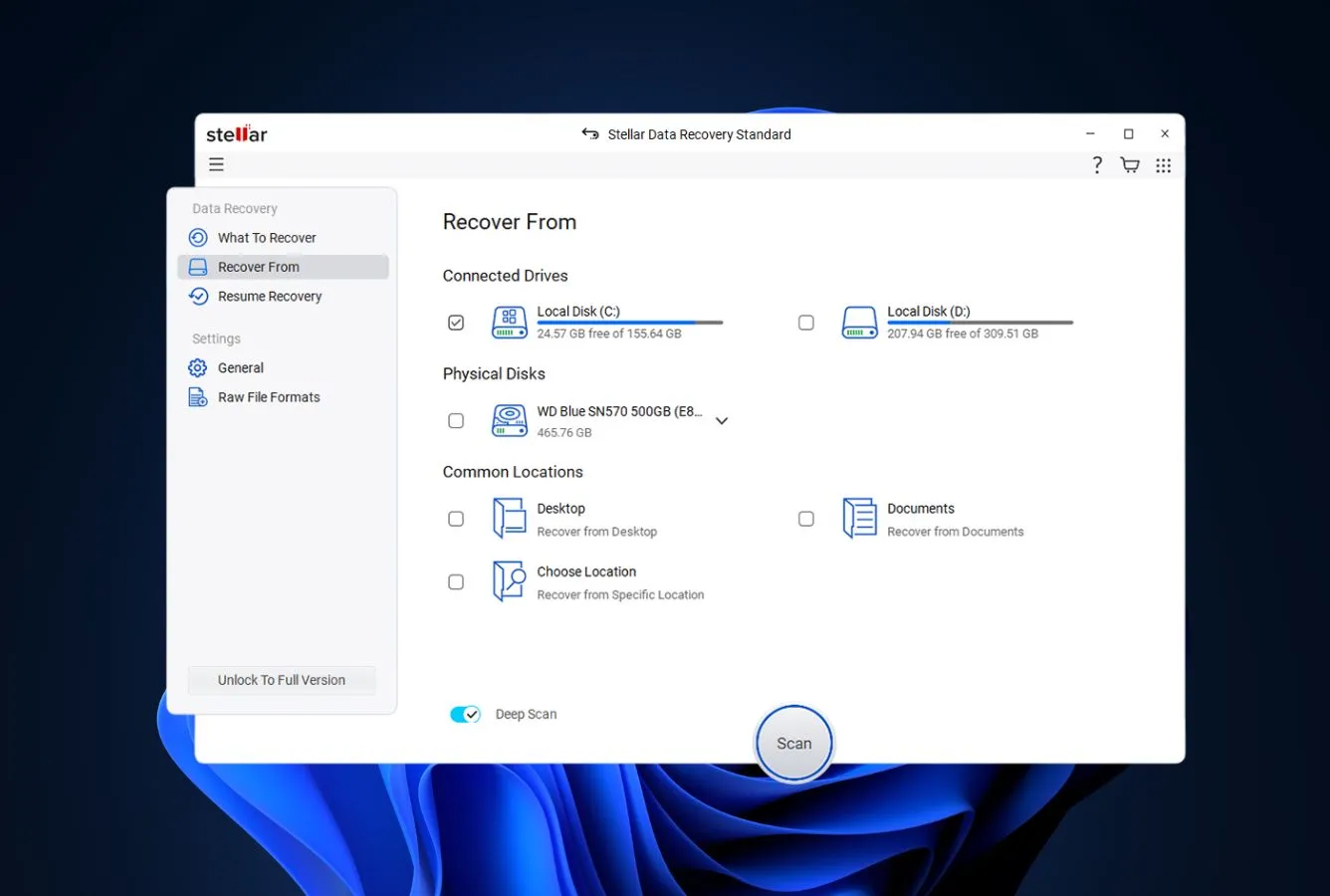
Stellar Data Recovery
Unique CD/DVD · 1 GB free
|
|---|---|---|---|
| Unlimited free recovery | No (2 GB) | No (100 MB) | No (1 GB) |
| Formatted Drive Recovery | ✓ | ✓ | ✓ |
| Corrupted Partition Support | ✓ | ✓ | ✓ |
| RAW Photo Support | Broad | Broad | Broad |
| File Repair | ✓ | No | ✓ |
Research Methodology
This review aggregates three evidence types for Recuva v1.54.120: vendor documentation (the official Piriform product page, Pro-vs-Free comparison, supported file systems), independent external testing (TechRadar, Pandora Recovery, StoredBits, PandaOffice, 7 Data Recovery), and community feedback (Trustpilot, Reddit r/datarecovery, Microsoft Store reviews, Softonic, TechSpot). Feature claims, version details, and pricing are cross-referenced across these source types before being stated as fact.
Tier assignments (Excellent / Very Good / Good / Fair / Limited / Not supported) reflect the aggregate of that evidence — not an in-house benchmark. For a broader view of the free-tier landscape Recuva competes in, see our ranking of the best free data recovery software. Full methodology details are on our How We Test page.
This review does not claim in-house benchmarks. Tier labels aggregate vendor documentation, independent external testing, and user reports. Specific version numbers and pricing come from Piriform’s documentation and published download trackers (TechSpot, Softonic, Microsoft Store).
Is Recuva Safe?
Yes. Recuva is developed by Piriform Ltd., a subsidiary of Gen Digital (formerly NortonLifeLock, and before that Symantec) — the same company behind CCleaner and a major security-software portfolio. The Recuva installer is digitally signed, passes Windows SmartScreen, and uses read-only scanning that cannot modify source drives. No account registration or personal information is required to use the free version.
The one caveat is the download source. Third-party sites have historically bundled adware or modified installers with Recuva — the official installer at ccleaner.com/recuva is clean and under 15 MB. TechSpot and Microsoft Store also distribute the unmodified installer if you prefer those sources. A portable version is available that runs from USB without installing, which is strongly recommended when recovering from the system drive itself: installing any software on the drive you’re trying to recover from risks overwriting the deleted data.
How to Use Recuva
Recuva’s workflow is the simplest in the Windows recovery category — a four-step wizard with no advanced-mode toggle needed for most scenarios. First-time users typically complete a full recovery in under five minutes.
Download and install (or use portable)
Grab the installer from ccleaner.com/recuva. Install on a different drive than the one you’re recovering from — or, better still, use the portable version from a USB stick to eliminate any risk of overwriting source data.
Choose file types and location
The wizard asks what you want to recover (pictures, music, documents, video, compressed, emails, or All Files) and where they were stored. Pick a specific drive, a common folder (Desktop, Recycle Bin, My Documents), a removable device, or scan everywhere.
Run Quick Scan, then Deep Scan if needed
Quick Scan runs first and typically finishes in under two minutes — it parses existing file-system metadata for deleted entries. If results are insufficient, check “Enable Deep Scan” and re-run. Deep Scan takes significantly longer (tens of minutes to hours on large drives) but scans sector-by-sector for file signatures.
Preview, select, and recover
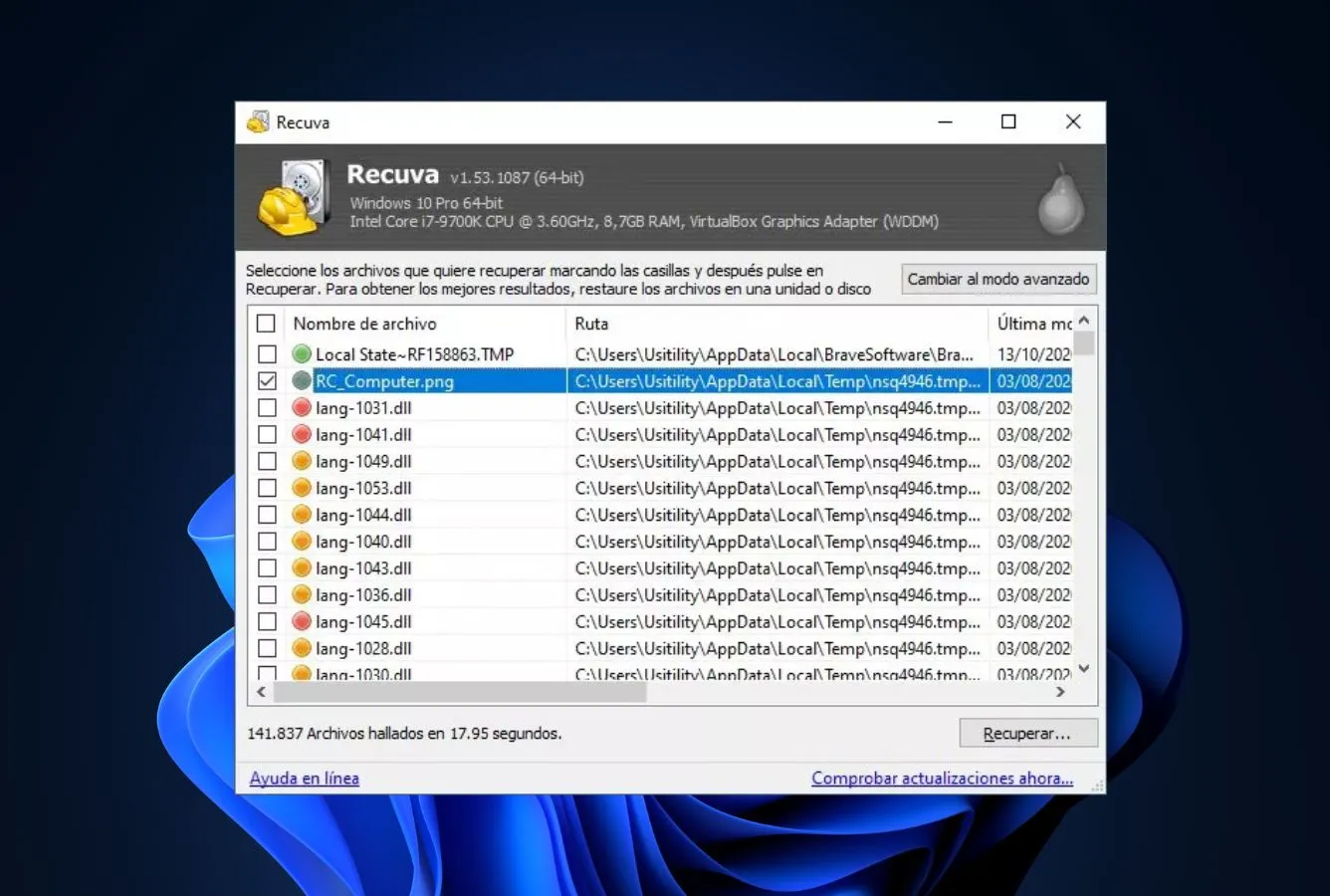
Browse the file list. Recovery state circles (green = excellent, orange = poor, red = unrecoverable) show estimated viability. Select files, click Recover, and save to a different drive than the source — Recuva warns if you try to save back to the source.
The single most important rule for any recovery attempt: minimize writes to the drive you’re recovering from. Don’t save files, don’t install software, don’t browse the web if the source is your system drive. Every write risks overwriting the deleted data you’re trying to recover. The portable version exists specifically to avoid this problem.
Who Recuva Is For
Recuva has one ideal user: anyone who just emptied the Recycle Bin and needs specific files back, right now, for free, without installing anything heavyweight. That’s the scenario the tool was built for in 2007 and still handles well. The wizard takes under two minutes; the portable version eliminates setup; the free tier has no cap; the recovery state indicators tell you immediately which files are worth trying.
Three audiences get clear value:
Non-technical home users. Grandparent just deleted the wrong folder of family photos from their PC? Recuva is the right call. The wizard is simple enough that a phone-walkthrough works. Results arrive in minutes, and unlike most category competitors, no upsell pushes toward payment. For occasional personal data loss on a healthy Windows PC, it’s the path of least resistance.
IT admins running quick first-pass checks. Recuva’s portable version lives comfortably on a USB tech-support stick. For any “I deleted something important” ticket where the drive is healthy and the deletion is recent, run Recuva first before escalating to paid tools. It’s free, fast, and takes no time to learn.
Users who’ve just overwritten a file and need it back on the clock. If you’ve realized within the last hour that you deleted something critical, Recuva’s simplicity is a feature, not a bug. The minute spent downloading and running a paid tool may be the minute it takes for Windows or an auto-backup process to overwrite the relevant sectors. For the Recycle Bin scenario specifically — where Recuva performs best — see our dedicated recycle bin file recovery software comparison.
If your scenario is anything else — formatted drive, corrupted partition, RAW camera card, external SSD that won’t mount, files deleted weeks ago — Recuva is not the right tool. The next sections explain exactly why.
Recuva’s Strengths in Real-World Use
Recuva’s strengths cluster around one clear axis: accessibility. It’s the friction-reduction tool in the category — the first thing a user without recovery experience is likely to find, install, and successfully use. Four strengths show up consistently across independent reviews:
Truly unlimited free recovery
The free version has no data cap, no time limit, and no registration. You can recover 10 MB or 10 TB at zero cost. Only a handful of Windows recovery tools offer genuinely unlimited free recovery — EaseUS caps at 2 GB, Disk Drill and Recoverit cap at 100 MB, Stellar caps at 1 GB. For Recycle Bin and recently-deleted-file scenarios where Recuva performs best, the free tier isn’t a gimped trial: it’s the full product. The Professional upgrade adds convenience features (auto-updates, VHD support, priority support) but doesn’t unlock any recovery capability you don’t already have. For the broader Windows landscape Recuva sits within, see our best data recovery software for Windows ranking.
The simplest UI in the category
Recuva’s wizard is aggressively minimal — file type, location, scan, recover. Four screens, no advanced-mode toggle, no dense tabbed interfaces. Non-technical users routinely complete successful recoveries in under five minutes without guidance. Independent reviewers at StoredBits and Softonic consistently highlight the wizard approach as the reason Recuva remains recommended for casual users despite its age. When someone asks “what’s the simplest way to get my deleted files back on Windows,” Recuva is still the best answer.
Portable version — no installation required
The portable build runs from a USB stick without writing anything to the target system. This matters more than it sounds: installing any recovery software on the drive you’re trying to recover from risks overwriting the deleted data, which is exactly the outcome you’re trying to avoid. Few competitors ship a real portable version (Disk Drill, Stellar, EaseUS require installation). Recuva’s portable build is a recovery-toolkit staple for IT professionals who carry one tech USB stick with them.
Recovery state indicators make triage fast
Each recovered file gets a green/orange/red dot indicating estimated recovery viability. Green means filename and data intact; orange means partial overwrite likely; red means the file sectors have been reused and recovery will likely produce a corrupted file. Independent reviewers note the indicators are occasionally optimistic — a green-flagged file can still open corrupted — but they’re directionally useful for prioritizing which files to attempt first. No competing tool offers quite this same at-a-glance triage.
Where Recuva Falls Short
Recuva’s weaknesses trace to a single root cause: the software hasn’t received a major architectural update since 2016. The engine, file-system support, and signature database were built for a storage landscape that has since shifted under the product. Three specific gaps stand out:
Cannot scan unmounted or corrupted partitions
Recuva can only scan partitions that Windows recognizes and mounts. If a drive shows as RAW, unallocated, or doesn’t appear in Windows Explorer, Recuva cannot touch it — the scan target dropdown simply won’t list the volume. There is no “scan physical disk” option, no lost-partition search, no hex-level signature sweep across unmounted sectors. This is an architectural limitation, not a configuration issue. For corrupted-partition scenarios (the exact case where users need recovery most), Recuva is categorically the wrong tool. Disk Drill, R-Studio, DMDE, or TestDisk fill this gap — the first is paid, the last three have free tiers.
Weak formatted-drive recovery and folder reconstruction
Deep Scan nominally handles formatted drives, but independent testing places Recuva near the bottom of the category here. The signature database is narrow (roughly 200 common types vs. 480+ in PhotoRec, 1,000+ in Recoverit), so RAW camera formats and less-common file types are missed. Folder-structure reconstruction is mostly absent — recovered files end up in flat category folders without original directory paths. For photographers recovering RAW files from a formatted SD card, for users recovering thousands of mixed files from a formatted drive, Recuva produces a thin, unsorted subset of what better tools recover.
Outdated engine on modern hardware
No architectural updates since 2016 means no meaningful work on NVMe SSD optimization, modern TRIM handling, large-drive performance, or newer file-system features. On NVMe SSDs with TRIM active — now the default on most consumer Windows PCs — Recuva produces near-zero recovery, same as every tool, because that’s a hardware limitation. But on modern multi-terabyte drives generally, Recuva’s scan times are longer than current-generation engines, and its handling of newer drive features (encryption, Storage Spaces, ReFS) is absent. The 2026 licensing-integration patch (v1.54.120) is a cosmetic fix; the engine underneath is essentially unchanged from a decade ago.
Recuva Capability Summary
How Recuva performs capability by capability, based on aggregated independent evaluation:
| Capability | Tier | Notes |
|---|---|---|
| Recycle Bin recovery | Very Good | The intended use case — fast, filenames preserved, reliable |
| Recently-deleted files (NTFS) | Good | Works for common formats; weak on camera RAW and older deletions |
| Formatted-drive recovery | Fair | Deep Scan works but lacks folder reconstruction; trails category |
| Corrupted partition recovery | Not supported | Only scans mounted partitions — architectural limitation |
| RAW / unallocated drive scanning | Not supported | No physical disk scan option |
| FAT32 / exFAT recovery | Good | FAT32 works; exFAT support is less mature |
| USB flash drive recovery | Good | Fast scans on removable media; adequate for common deletions |
| SD card / camera card recovery | Fair | Limited RAW format coverage hurts photographers |
| External HDD recovery | Good | Works for mounted externals; weak on exFAT portable SSDs |
| RAW photo format coverage (CR3, ARW, ORF) | Limited | Misses most modern camera formats |
| Virtual hard drive (VHD/VHDX) | Pro only | Professional tier required — free tier cannot see inside VHDs |
| Portable mode (no install) | Excellent | Run from USB; uncommon among competitors |
| Recovery state indicators | Very Good | Green/orange/red viability circles — unique to Recuva |
| Secure file overwrite | Very Good | Multi-pass overwrite for permanent destruction |
| Disk imaging / drive cloning | Not supported | No imaging or cloning capability |
| File repair | Not supported | No photo or video repair modules |
| TRIM-active NVMe SSD | Not supported | Hardware limitation affecting all recovery tools |
Tier scale: Excellent / Very Good / Good / Fair / Limited / Not supported. Aggregated from TechRadar, Pandora Recovery, StoredBits, PandaOffice, 7 Data Recovery, and vendor documentation, 2026.
Recuva Cost
Recuva is free for personal use with unlimited recovery — no data cap, no registration, no time limit. The free tier functions as the full product for anyone recovering personal files. Recuva Professional costs $24.95 per year and is the cheapest paid tier in the entire Windows recovery category — the next closest is R-Studio at $79.99 one-time.
What Pro adds: automatic software updates, virtual hard drive (VHD/VHDX) support, priority email support, and a commercial use license. The core recovery engine — scan modes, file system support, signature database, recovery state indicators — is identical between the two editions. Pro is worth considering if you’re using Recuva in a commercial environment (the free license is personal-use only), if you regularly need to recover from VHDs or virtual machine disk images, or if you want priority support for a mission-critical recovery job.
For pure personal recovery on healthy drives, the free tier does everything you need. If you hit a scenario Recuva can’t handle (formatted drive, corrupted partition, RAW camera card), upgrading to Pro won’t help — the capability gaps are engine-level, not tier-level. Better to move to a different tool entirely. Recuva’s portable USB mode makes it a strong pick specifically for flash-drive scenarios — see our best USB data recovery software comparison for dedicated USB-focused alternatives.
Recuva vs. Competitors (2026)
| Tool | Deleted-file Recovery | Formatted Drive | Corrupted Partition | Free Tier | Price |
|---|---|---|---|---|---|
| Disk Drill | Excellent | Excellent | Very Good | 100 MB | $89/yr · $149 lifetime |
| R-Studio | Excellent | Very Good | Excellent | <256 KB | $79.99 one-time |
| EaseUS DRW | Very Good | Very Good | Very Good | 2 GB | $99.95/yr |
| PhotoRec | Very Good | Very Good | Good | Unlimited | Free (open source) |
| Recuva ← | Good | Fair | Not supported | Unlimited | Free / $24.95 |
| Wondershare Recoverit | Good | Fair | Good | 100 MB | $69.99/yr |
Tier assignments based on aggregated independent research. April 2026.
Download Recuva Free
Truly unlimited free recovery — no data cap, no registration, portable version available.
Recuva Features & Tools
Recuva’s feature set is deliberately narrow — this is a 2007-vintage file-undelete tool that has added minor capabilities over the years but never expanded into modern recovery territory. What it ships is mature and reliable within its scope.
File System & Storage Support Matrix
Recuva covers the core Windows file systems and removable storage types. Gaps are conspicuous in modern and encrypted storage.
| Storage type | Use case | Support | Notes |
|---|---|---|---|
| NTFS | Windows internal drives | Full | Primary use case; most mature support |
| FAT12 / FAT16 / FAT32 | Legacy drives, small USB sticks | Full | Mature support |
| exFAT | Large SD cards, portable SSDs | Partial | Less mature than NTFS; reduced recovery rates |
| USB flash drives | Removable USB storage | Full | Fast scans; works well on mounted drives |
| SD cards | Camera cards, phone storage | Partial | Works; limited RAW format coverage |
| External HDDs (NTFS) | Backup drives, external storage | Full | Must be mounted and recognized by Windows |
| MP3 players / iPods | Legacy portable media | Full | Documented original use case from 2007 |
| Virtual hard drives (VHD/VHDX) | VMs, disk images | Pro only | Professional tier required |
| RAW / unallocated partitions | Corrupted partition tables | Not supported | Architectural limit — cannot scan unmounted volumes |
| BitLocker-encrypted drives | Encrypted Windows volumes | Not supported | No in-app decryption |
| RAID arrays | Multi-disk redundant storage | Not supported | Use R-Studio or ReclaiMe instead |
| Optical media (CD/DVD/Blu-ray) | Scratched or damaged discs | Not supported | Use Stellar for this scenario |
| Linux / Mac file systems | EXT, HFS+, APFS | Not supported | Windows-only tool |
Source: Piriform documentation cross-referenced with TechRadar and PandaOffice independent reviews, 2026.
Recovery Engine Capabilities
Two scan modes, one signature database, no modern bells and whistles. What Recuva has works; the gaps are everything competitors have added since 2016.
| Capability | How it works | Available |
|---|---|---|
| Quick Scan | Parses existing file-system metadata for deleted entries | All users incl. Free |
| Deep Scan | Sector-by-sector signature scan for formatted/damaged drives | All users incl. Free |
| Recovery state indicators | Green/orange/red dots showing per-file recovery viability | All users incl. Free |
| Content search (deleted documents) | Search deleted-file contents for specific text strings | All users incl. Free |
| Recovery to Windows Clipboard | Recover images without writing to disk (reduces overwrite risk) | All users incl. Free |
| Secure file overwrite | Multi-pass overwrite to permanently destroy sensitive data | All users incl. Free |
| Portable version | Run from USB without installing on the target system | All users incl. Free |
| Automatic software updates | Background check and install of new Recuva versions | Pro only |
| Virtual hard drive support | Scan inside VHD/VHDX disk image files | Pro only |
| Priority email support | Faster response times from Piriform support | Pro only |
| Commercial use license | Use in business environments | Pro only |
| Disk imaging | Byte-to-byte image of failing drives | Not supported |
| File repair (photo/video) | Repair corrupted JPEGs, MP4s, etc. | Not supported |
| Custom file signatures | Add signatures for proprietary formats | Not supported |
UI & Workflow
Recuva’s interface is the simplest in the category — deliberately so. The default launch opens a four-screen wizard: choose file types (pictures, music, documents, video, compressed, emails, other, or all files), choose location (unsure, removable media, My Documents, Recycle Bin, specific location), enable Deep Scan if wanted, and click Start. Results arrive in a file-list view with recovery state circles, filename, path, size, and last-modified date. Column sorting and a text filter at the top let you narrow results. Right-click recovers selected files.
There’s an advanced mode accessible from the wizard — it replaces the wizard with a more traditional file-manager-style interface for users who prefer direct control over scan targets and filters. Neither view has aged gracefully; both look like Windows 7-era utility software. That’s the trade-off: dated visuals, functional logic, no learning curve. For users who want a modern experience, nearly every paid competitor is better-looking. For users who want a tool that gets out of the way, Recuva’s minimalism is an advantage.
Installer, Support & Piriform Ecosystem
Click to expand: installer profile, support channels, and Piriform notes+
| Attribute | Value | Notes |
|---|---|---|
| Installer size | ~12 MB | Compact; one-step installation |
| Portable version size | ~15 MB ZIP | Runs from USB; no registry entries |
| Digital signature | Signed | Piriform Ltd. (Gen Digital) — passes SmartScreen |
| Bundled adware from official site | None | ccleaner.com/recuva installer is clean |
| Bundled adware from third-party sites | Historical risk | Download from ccleaner.com, TechSpot, or Microsoft Store only |
| Account / registration required | No | Free tier works without any account |
| Background services | None | Does not run when closed |
| Read-only scanning mode | Yes | Cannot modify source drives |
| Auto-update (Free tier) | Manual | Free users check for updates manually |
| Auto-update (Pro tier) | Yes | Background check and install |
| Last major update | ~2016 | Recent patches are cosmetic / licensing integration |
| Latest version | v1.54.120 | April 2026 — licensing integration update |
| Developer | Piriform Ltd. (Gen Digital) | Same company as CCleaner; active since 2007 |
| Support channels (Free) | Community forums | No direct support for free users |
| Support channels (Pro) | Priority email | Paid tier only |
| Microsoft Store availability | Yes | Alternative distribution channel |
Recuva User Reviews
Recuva has substantial review coverage accumulated over nearly two decades. Sentiment splits along a clear axis: users recovering recent deletions from healthy drives give high marks; users who pushed Recuva into formatted-drive, corrupted-partition, or RAW-file territory consistently report disappointment. Editorial reviewers in 2024-2026 flag the lack of updates as the core issue.
Backed by powerful features, including a deep scan tool, secure file overwriter, and formatted drive scanning. Scans are fast and thorough.
Fantastic software. Quick to install, simple to use and worked brilliantly. 5 minutes to download and open, job done — super!
Sixteen years and you have not let me fail. That is amazing.
Recuva only scored 31% in terms of overall performance. Scan times are fast but it doesn’t have much else to offer.
Because Recuva has not received a major architectural update in years, its ability to handle modern NVMe drive structures is lower than contemporary professional tools.
I used Recuva to get back a deleted bookmarks file. I did recover it — except it’s corrupted and filled with random symbols.
Recuva works — but only in the right situations. Once you step outside simple deletions, recovery drops dramatically.
Best for casual users recovering deleted files from healthy drives. It can achieve near-complete recovery and you won’t spend anything for it.
The pattern across sources is remarkably consistent: Recuva excels at simple recent deletions on healthy drives, fails outside that scope. Long-term users praise reliability; critical reviewers focus on the lack of updates and limited feature set compared to modern competitors. The product’s reputation hasn’t meaningfully changed in years because the product hasn’t either.
When to Choose Something Else
Recuva is the right tool for a narrow scenario. For anything outside that scenario, different tools fit better:
Frequently Asked Questions
Is Recuva really completely free?+
How well does Recuva recover deleted files?+
Does Recuva work on Windows 11?+
Can Recuva recover formatted drives?+
Is Recuva safe to use?+
Can Recuva recover corrupted partitions?+
What’s the difference between Recuva Free and Recuva Professional?+
Final Verdict
Recuva does one thing well: recover recently deleted files from healthy NTFS drives at zero cost. Truly unlimited free recovery, a sub-two-minute Quick Scan, and a wizard simple enough for any user make it the obvious first choice when you’ve just emptied the Recycle Bin and need files back immediately. The portable version adds genuine convenience for emergency recovery situations — run it from USB and nothing gets written to the source drive.
Beyond that narrow use case, Recuva falls short. Independent testing consistently places formatted-drive recovery well below category leaders, and the tool architecturally cannot scan corrupted or unmounted partitions. The lack of major updates since 2016 shows in limited RAW format support, a dated interface, and absence of modern features like disk imaging, partition recovery, or file repair. The recovery state indicators are a nice touch but occasionally misleading — a green-flagged file can still recover corrupted.
Use Recuva as your first attempt — it’s free, fast, and portable. If it doesn’t find what you need, move to a tool with deeper scanning capabilities (PhotoRec and DMDE are both free alternatives with stronger engines; Disk Drill is the paid upgrade path — all three are reviewed above). Don’t format or write to the source drive between attempts — every write costs you recoverable data.
About the Authors


Recuva does not operate an affiliate program — there are no affiliate links to Piriform in this review. Where we link to alternative products (EaseUS, Disk Drill, Stellar), some of those may be affiliate relationships that help support this site at no cost to you. Rankings and tier assignments are based on aggregated independent research and are never influenced by commercial relationships. If you believe any claim is inaccurate, contact us at contact@datarecoveryfix.com.