Glary Undelete Review (2026): Simple Free Undelete
Glary Undelete is one of the longest-running free data recovery tools on Windows. Developed by Glarysoft — the company behind the popular Glary Utilities suite — it offers a single-screen interface where you select a drive, scan, and recover deleted files. No registration, no data caps, no paid tier, no bundled adware.
tests, user reports
v5.0.1.25
no paid tier
v5.0.1.25

Glary Undelete does one thing well: undelete recently removed files from intact FAT or NTFS file systems. Independent testing consistently places it in the upper tier for simplicity and the “truly free” category — no caps, no registration, no upsell. The trade-off is architectural: no deep scan, no exFAT support, no signature-based recovery, and no ability to scan drives Windows can’t mount. For the narrow use case it targets, it works. For anything harder, you need a different tool.
✓ What We Liked
- 100% free — no paid version, no data caps, no registration, no time limits
- Single-screen interface — select drive, scan, recover, no wizard to click through
- Recovery-state indicators help prioritize which files to restore first
- Supports FAT12/16/32, NTFS, and NTFS+EFS file systems including compressed and encrypted files
- Works with USB sticks, SD cards, external HDDs, and internal drives that Windows can mount
- Small installer (under 5 MB), no bundled adware, minimal system footprint
- Filter files by name, date, size, and recovery state
✕ What We Didn’t
- No deep scan — cannot recover formatted or corrupted drives
- No exFAT support — cannot scan many modern SD cards and portable SSDs
- Cannot detect unmountable or unrecognized devices (independent testing flags USB issues)
- Limited modern RAW camera format support — newer CR3, ARW, ORF formats absent
- No file preview or repair for corrupted recovered files
- Official compatibility list ends at Windows 10 (works on 11, but uncertified)
Glary Undelete Alternatives
|
Brief selection
A quick shortlist of our top alternative picks, based on aggregated independent research.
|
Best Alternative

EaseUS Data Recovery Wizard
Best overall · 2 GB free
|

Stellar Data Recovery
Best for photos · 1 GB free
|

Wondershare Recoverit
Best for video · 100 MB free
|
|---|---|---|---|
| Deep Scan | ✓ | ✓ | ✓ |
| Formatted Drive Recovery | ✓ | ✓ | ✓ |
| RAW Photo Support | Broad | Broad | Limited |
| File Repair | ✓ | ✓ | Video only |
| Free Tier | 2 GB | 1 GB | 100 MB |
Research Methodology
This review aggregates three evidence sources for Glary Undelete v5.0.1.25: vendor documentation (the official product page, Glarysoft’s changelog, and the supported-filesystem list), independent external evaluation, and verified user feedback (Reddit threads on r/datarecovery and r/techsupport, Trustpilot, plus Softpedia and MajorGeeks editor listings). Feature claims and architectural limits are cross-referenced across these source types before being stated as fact.
Tier assignments in this review (Excellent / Very Good / Good / Fair / Limited / Not supported) reflect the aggregate of that evidence for each capability — not an in-house benchmark. Where independent testing diverges from Glarysoft’s marketing claims (for instance, independent reports of USB device issues that the vendor’s feature list implies are supported), we follow the independent evidence and note the discrepancy. For the broader Windows recovery-tool landscape Glary Undelete sits within, see our ranking of the best Windows data recovery software. Full methodology details are on our How We Test page.
This review does not claim in-house benchmarks. Tier labels aggregate vendor documentation, independent external testing, and community feedback. Where a specific number appears (file-signature support, supported file-system count, installer size, pricing), it is cited directly from the vendor or from an independent test.
Is Glary Undelete Safe?
Glary Undelete is safe to install and use. Glarysoft has operated since 2006 with a two-decade track record of Windows utilities, most notably the Glary Utilities suite. The Glary Undelete installer is small (under 5 MB on the official download), does not bundle third-party adware or offers during installation, and does not install background services. The tool scans drives in read-only mode — running a scan cannot overwrite or damage the files you’re trying to recover.
One caveat: Glarysoft has received mixed community feedback on Trustpilot (roughly a 3.3-star average for the broader Glarysoft product line, though most criticism concerns paid products like Glary Utilities Pro rather than the free Glary Undelete tool). Complaints typically involve customer service response times and auto-renewal friction on the Pro-tier products. The free Glary Undelete has no billing component, so those concerns don’t apply here.
How to Use Glary Undelete
The workflow is refreshingly simple — one of the easiest recovery tools on Windows. No wizard because the entire process fits on a single screen:
Download and install
Download the installer from glarysoft.com. Run the installer and launch. Setup takes under a minute; no account, no license key.
Select the target drive
Choose the drive letter where your deleted files were located. The tool lists all mounted drives and removable devices that Windows recognizes. Drives that Windows cannot mount will not appear.
Run the scan
Click the Search button. The tool parses the file system’s directory tables (MFT on NTFS, directory entries on FAT) looking for recently deleted entries whose metadata is still intact. There is no deep-scan mode — this is the only scan the tool performs.
Select and recover
Browse the results. Recovery-state indicators show each file’s condition (Very Good through Overwritten). Select the files you want, click Restore, and save them to a different drive than the source to avoid overwriting any remaining deleted data.
Glary Undelete can only scan drives that Windows recognizes and mounts. If your drive doesn’t appear in Windows Explorer, this tool cannot scan it. For unmountable drives, formatted drives, or corrupted partitions, consider Disk Drill or R-Studio instead — both have deep-scan capabilities that Glary Undelete architecturally lacks.
Who Glary Undelete Is For
Glary Undelete is for users who just deleted a file and want to get it back immediately, for free, with no account and no software to learn. The ideal scenario is a recently deleted document, photo, or archive on an intact NTFS or FAT drive — most commonly an internal Windows system drive, a USB flash drive, or an external HDD.
A concrete example: an office worker on a Windows 11 laptop who accidentally deleted a Word document from the Documents folder, emptied the Recycle Bin before realizing, and needs to recover the file in the next few minutes before the disk gets much further use. Glary Undelete is a reasonable first attempt for that situation — it’s free, installs in under a minute, and if the MFT entry is still intact, it’ll find the file. For a broader look at tools specifically for this case, see our guide to Recycle Bin file recovery software.
If your situation is more complex — a formatted drive, a corrupted partition, a camera SD card with RAW files, an exFAT-formatted portable SSD, or a drive that doesn’t show up in File Explorer at all — the next section explains where this tool’s architectural limits start.
Glary Undelete’s Strengths in Real-World Use
Glary Undelete’s strengths cluster around simplicity, accessibility, and the “truly free” positioning. Independent reviewers consistently highlight the same four attributes:
Genuinely free with no data caps
The strongest differentiator. Most tools marketed as “free” impose a volume cap (Disk Drill at 100 MB, Recuva’s Pro upgrade prompt, EaseUS at 2 GB) or restrict features behind an upgrade. Glary Undelete has no cap on recovery volume, no time-limited trial, no “Pro” upgrade, and no registration. Independent evaluation consistently calls out that, unlike most paid software, Glary Undelete and Glarysoft File Recovery have no maximum cap on the volume of data that can be retrieved. This makes it one of the few tools genuinely suitable for recovering large datasets at no cost — provided the data-loss scenario falls within its architectural capabilities. For a broader view of truly free options, see our roundup of the best free data recovery software.
Fast MFT parsing for recently deleted files
Because the tool only parses existing file-system metadata (MFT on NTFS, directory entries on FAT), scans finish quickly on intact file systems. Independent hands-on evaluation finds both SSD and HDD internal drives yield fast results during typical small-recovery workflows. For the narrow case of a freshly deleted file whose metadata entry hasn’t been overwritten, the workflow is effectively instant.
Single-screen interface with no learning curve
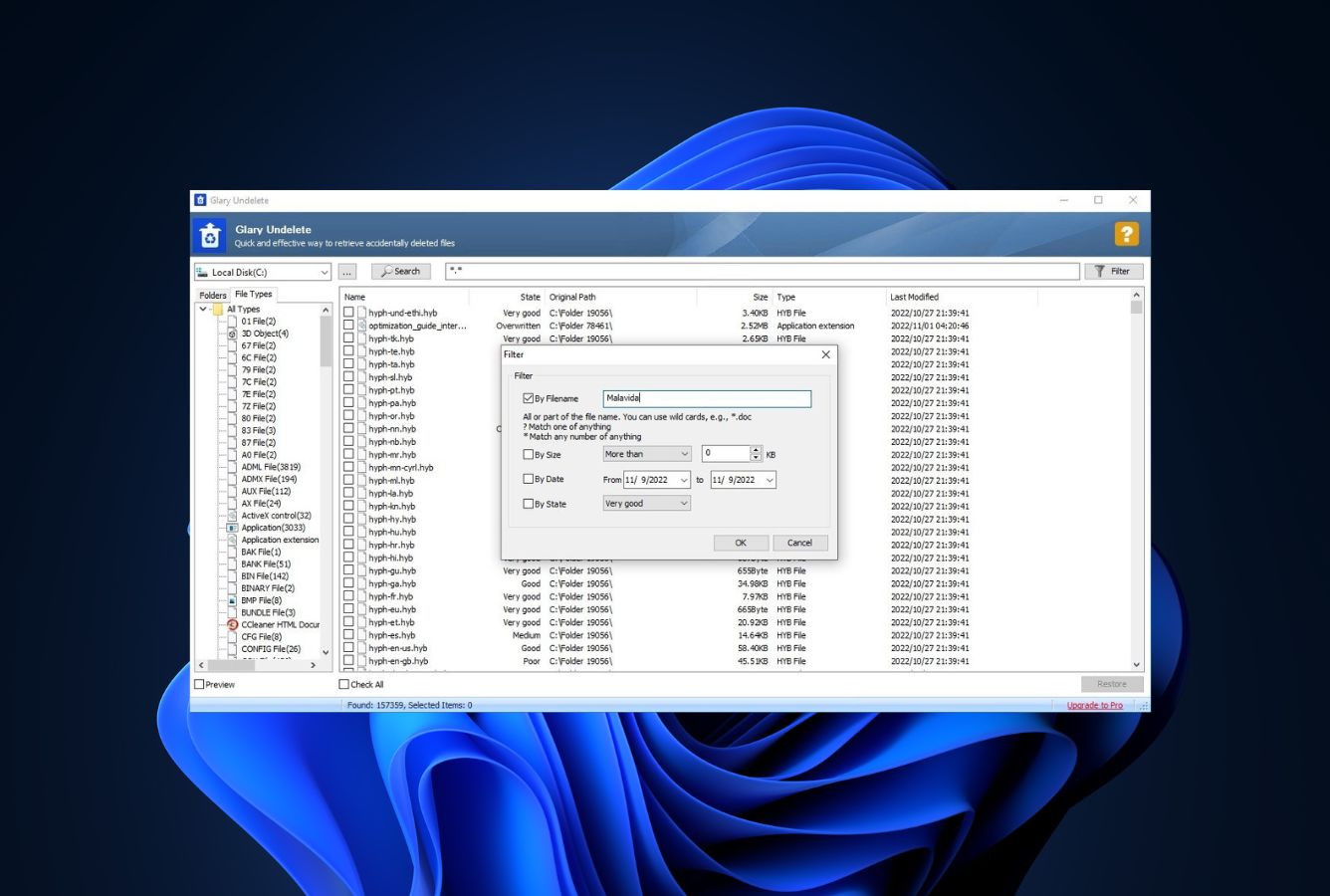
The entire UI fits on one screen: drive selector on the left, file list in the middle, filter and restore buttons on the right. There is no wizard, no multi-step flow, no preferences panel to configure before scanning. Independent reviewers consistently characterise this as one of the most straightforward layouts in the category. For users who just want to undelete a file without learning recovery software, this is a genuine strength.
Recovery-state indicators that actually help
Every found file is tagged with a recovery-state indicator (Very Good, Good, Medium, Poor, Overwritten) that reflects how intact its data clusters are on disk. This is more useful than it sounds: for large result sets, the indicator lets you skip likely-corrupted files and prioritize the ones with a high probability of clean recovery. Not every tool at any price exposes this information this clearly — it’s an architectural feature worth highlighting.
Where Glary Undelete Falls Short
The limitations are real and architectural. The tool is free because it does a deliberately narrow job; it is not a “lite” version of a more capable product. Four gaps stand out in independent testing and community feedback:
No deep scan or signature-based recovery
Glary Undelete cannot recover files whose file-system metadata has been wiped. There is no signature scanner that reconstructs files from raw disk data. The consequence: formatted drives return no results; corrupted partitions that have lost their MFT return no results; old deletions that have been overwritten at the metadata level return no results. Independent evaluation consistently flags this as the primary reason to consider paid alternatives — users who need partition recovery, file previewing, or signature-based reconstruction should look toward paid programs like R-Studio. This is the single biggest gap between Glary Undelete and the category leaders.
exFAT is not supported
Glarysoft’s official supported-filesystem list is FAT12, FAT16, FAT32, NTFS, and NTFS+EFS. exFAT is conspicuously absent. This matters because most modern SD cards larger than 32 GB ship formatted as exFAT by default, as do most portable SSDs intended for cross-platform use. Users attempting recovery on an exFAT-formatted SD card, memory card, or external SSD will find that Glary Undelete simply cannot scan the drive. This alone disqualifies it for most camera-card recovery workflows — tools in our best SD card recovery software roundup all handle exFAT natively.
Cannot scan unmountable drives or USB issues
If Windows cannot mount a drive — it shows as RAW, unallocated, or not recognized — Glary Undelete cannot scan it. Independent evaluation observes this directly: Glary Undelete is unable to handle unmountable USB devices. More capable tools like Disk Drill, R-Studio, and DMDE can read drives at a lower level and attempt recovery even when Windows refuses to mount them. Glary Undelete has no such capability.
Limited modern RAW camera format coverage
Because Glary Undelete relies on file-system metadata rather than signature scanning, RAW photo recovery is entirely a function of whether the original filename entry survives. Even when it does, the tool does not repair or preview RAW files — it just restores them to disk. For photographers who need reliable recovery of newer RAW formats (Canon CR3, Sony ARW, Olympus ORF, Adobe DNG), a signature-aware tool like PhotoRec (which ships with 480+ file signatures including every major RAW format) is a better architectural fit.
Glary Undelete Capability Summary
How Glary Undelete performs, capability by capability, based on aggregated independent evaluation:
| Capability | Tier | Notes |
|---|---|---|
| Deleted-file recovery (NTFS) | Good | Works on intact file systems with recent deletions |
| Deleted-file recovery (FAT) | Good | FAT12/16/32 fully supported |
| Recycle Bin recovery | Very Good | Intended primary use case |
| Formatted-drive recovery | Not supported | No deep scan; no signature scanner |
| Corrupted-partition recovery | Not supported | Cannot scan drives Windows cannot mount |
| exFAT support | Not supported | FAT + NTFS only — blocks most modern SD cards |
| RAW camera format support | Limited | Depends on surviving MFT entry; no signature recognition |
| USB / external HDD recovery | Fair | Works on mountable drives; independent testing flags USB issues |
| SD card recovery | Fair | FAT32 cards only; exFAT cards unsupported |
| TRIM-active NVMe SSD | Not supported | Hardware limitation across all recovery tools |
| File preview / repair | Not supported | Recover-only; no preview, no corrupted-file repair |
Tier scale: Excellent / Very Good / Good / Fair / Limited / Not supported. Aggregated from independent external evaluation and vendor documentation, 2026.
Glary Undelete Cost
Glary Undelete is completely free. There is no paid version, no premium tier, no subscription, no time limit, and no upgrade prompt. The tool is free for both personal and commercial use with no data recovery limits and no registration required. This is the simplest pricing in the entire data recovery category: $0, permanently.
Glarysoft monetizes through its separate products (Glary Utilities Pro at $39.95/year, Glarysoft File Recovery Pro at $49.95/year). Glary Undelete itself is not part of an upsell funnel — the free tool stands alone. Among other free options, Recuva offers unlimited free recovery with a $24.95/year Pro tier, while PhotoRec is open-source and unlimited.
Among paid tools, Disk Drill charges $89/year, EaseUS charges $99.95/year, and Stellar charges $79.99/year. Pricing varies across the category — the tools higher in the price stack typically bundle deep scan, signature recognition, and broader file-system support that Glary Undelete does not offer.
Glary Undelete vs. Competitors (2026)
| Tool | Deleted-file Recovery | Formatted Drive | Corrupted Drive | Free Tier | Price |
|---|---|---|---|---|---|
| Disk Drill | Excellent | Excellent | Very Good | 100 MB | $89/yr |
| R-Studio | Excellent | Very Good | Excellent | <256 KB | $79.99 one-time |
| EaseUS DRW | Very Good | Very Good | Very Good | 2 GB | $99.95/yr |
| Stellar | Very Good | Good | Good | 1 GB | $79.99/yr |
| Recuva | Good | Fair | Not supported | Unlimited | Free / $24.95 |
| Glary Undelete ← | Good | Not supported | Not supported | Unlimited | Free |
Tier assignments based on aggregated independent research. April 2026.
Download Glary Undelete Free
Recover deleted files. No registration. No limits. No cost.
Glary Undelete Features & Tools
Glary Undelete’s feature set is deliberately narrow — the tool does one job (undelete files from mountable FAT/NTFS drives) and exposes only the controls that serve that job. Here’s the full feature inventory, grouped by what actually happens during a recovery session.
File-System Support Matrix
What Glary Undelete can and cannot scan, by file system. Support is binary — either the tool parses the metadata or it doesn’t.
| File system | Platform context | Support | Notes |
|---|---|---|---|
| NTFS / NTFS+EFS | Windows internal drives, external HDDs | Full | Handles compressed, fragmented, and encrypted files |
| FAT32 | USB sticks, SD cards ≤ 32 GB, legacy HDDs | Full | Most common on sub-32 GB removable media |
| FAT16 / FAT12 | Very old / very small drives | Full | Rare in modern use but still supported |
| exFAT | SD cards > 32 GB, portable SSDs, camera cards | Not supported | Blocks most modern SD-card recovery workflows |
| ReFS | Windows Server, Storage Spaces | Not supported | Use a server-oriented tool instead |
| HFS+ / APFS | macOS | Not supported | Glary Undelete is Windows-only |
| ext2 / ext3 / ext4 | Linux | Not supported | Glary Undelete is Windows-only |
Source: Glarysoft’s official supported-filesystem list, cross-checked against community reports on the Glarysoft user forum.
Recovery Engine
Glary Undelete uses a single scan mode — directory-table parsing on FAT, MFT parsing on NTFS. There is no signature-based deep scan, no sector-by-sector mode, no reconstruction from disk images. This narrow engine design is what makes the tool free (no signature database to maintain) and what caps its capabilities.
| Capability | How it works | Available |
|---|---|---|
| Quick scan (MFT / directory-table parse) | Reads existing file-system metadata for deleted entries | Yes |
| Deep scan (signature-based) | Searches raw sectors for file-header signatures | No |
| Partition reconstruction | Rebuilds missing or corrupted partition tables | No |
| Disk imaging | Creates a byte-level image of a failing drive | No |
| File preview before recovery | Renders file content to verify recoverability | No |
| Compressed NTFS file recovery | Handles NTFS compression transparently | Yes |
| EFS-encrypted file recovery | Recovers NTFS+EFS files (decryption requires user’s key) | Yes |
| RAID reconstruction | Reassembles data across RAID member drives | No |
Recovery-State Indicator Legend
Every file Glary Undelete finds is tagged with a recovery-state label based on how intact its data clusters are on disk. These labels matter: use them to prioritize your restore queue rather than blindly recovering everything.
| State | What it means | Recommended action |
|---|---|---|
| Very Good | All data clusters intact, metadata uncorrupted | Recover with confidence |
| Good | Metadata intact, most clusters still readable | Recover; verify file opens correctly |
| Medium | Some clusters partially overwritten or fragmented | Recover but expect partial corruption |
| Poor | Many clusters overwritten or reallocated | Only attempt if file is critical — high corruption risk |
| Overwritten | Clusters have been reused by newer data | Skip — recovery will return garbage data |
UI & Workflow
The entire interface fits on one screen. When launched, Glary Undelete presents a list of every drive Windows has mounted — internal disks, USB sticks, SD cards, and external HDDs — with drive letter, label, file system, and size. Drives on unsupported file systems (exFAT, HFS+, APFS) appear in the list but cannot be selected for scanning.
After clicking Search, results populate a single file table with name, size, deletion date, and the recovery-state indicator. A filter panel at the top narrows results by name, date, size, or state — useful when a scan returns thousands of entries. Selecting files and clicking Restore opens a destination picker; the tool warns against (and actively blocks) saving to the same drive being scanned, since that would risk overwriting remaining deleted data.
There are no preferences to configure, no profile to set up, no scan-mode toggles. The entire workflow is drive → scan → select → save. Glarysoft has not materially changed the UI since v5 shipped, which means every tutorial and screenshot published online remains accurate.
Safety, Footprint & Support
Click to expand: installer profile, privacy stance, and support channels+
| Attribute | Value | Notes |
|---|---|---|
| Installer size | Under 5 MB | Direct download from glarysoft.com |
| Bundled adware / third-party offers | None | Clean installer, no deceptive checkboxes |
| Account / registration required | No | No email, no license key, no account creation |
| Background services | None | No processes run when the tool is closed |
| Telemetry / usage tracking | None documented | Glarysoft’s privacy statement does not mention Glary Undelete telemetry |
| Read-only scanning mode | Yes | Scans cannot modify source data |
| Auto-update mechanism | Manual only | Check glarysoft.com for new versions; no built-in updater |
| Support channels | Email + user forum | No live chat, no phone. Typical response: a few business days |
| Documentation depth | Sparse | Single-page product page, short FAQ, no advanced user guide |
Glary Undelete User Reviews
Glary Undelete doesn’t have a dedicated listing on G2 or Capterra — those platforms list the broader Glary Utilities suite instead, so isolating sentiment specific to the standalone undelete tool required pulling from the sites that cover it individually. Here’s what independent reviewers and users have said:
It transfers and copies files quickly.
This free recovery application, with its wizard-driven interface, makes deleted file recovery just about as simple as it gets.
The Glary Undelete application was designed to be an easy-to-use yet powerful data recovery solution for FAT and NTFS file systems.
Glary Undelete receives less independent review coverage than paid tools, and most Glarysoft-focused review sites write about Glary Utilities (the broader suite) rather than this standalone product. Across the sites that do cover it directly, the consensus is consistent: simple, free, effective for basic deletions — but architecturally limited compared to tools with deep-scan capabilities.
When to Choose Something Else
Glary Undelete handles one narrow use case well: recently deleted files on intact FAT or NTFS file systems. Outside of that, these alternatives fit better:
Frequently Asked Questions
Is Glary Undelete completely free?+
Can Glary Undelete recover formatted drives?+
Does Glary Undelete work on Windows 11?+
Is Glary Undelete the same as Glarysoft File Recovery?+
Can Glary Undelete recover photos from an SD card?+
Is Glary Undelete safe to install?+
Does Glary Undelete work on Mac?+
Final Verdict
Glary Undelete does exactly one thing: recover recently deleted files from intact FAT and NTFS file systems. For that narrow use case it’s competent, fast, and truly free — no caps, no registration, no upsell. Independent evaluation places it in the upper tier for simplicity and value among free undelete utilities. Outside that use case, the architectural limits show quickly: no deep scan, no exFAT support, no signature-based recovery, no ability to scan drives Windows cannot mount.
The trade-off is price and simplicity. The tool is 100% free — not freemium, not time-limited, not data-capped. The interface is a single screen: pick a drive, scan, recover. If you’ve just emptied your Recycle Bin and need to get a Word document back immediately at zero cost, Glary Undelete is a reasonable first attempt and will often succeed.
Choose Glary Undelete if: you just deleted a file on an intact NTFS or FAT drive, you want zero cost and zero friction, and the drive shows up normally in File Explorer. Choose something else if: your drive is formatted, corrupted, exFAT, unmountable, or holds RAW camera files. If you came here specifically for USB recovery, see our guide to the best USB data recovery software for tools that handle unmountable flash drives the way Glary Undelete cannot.
About the Authors


Glary Undelete does not operate an affiliate program — there are no affiliate links in this review. This review reflects our independent research with no commercial relationship with Glarysoft. If you believe any claim is inaccurate, contact us at contact@datarecoveryfix.com.