8 Best Free Data Recovery Software (2026): Reviewed & Ranked
The best free data recovery software should bring back deleted or lost files without locking the essentials behind a paywall. We evaluated 22 leading free-tier and fully free tools for Windows and Mac on recovery capability, file system support, free-tier limits, and real user feedback from independent testing, Reddit, and data-recovery forums — then ranked the top 8. Here’s what stands out in 2026.
+ 6 honorable mentions
· user feedback
HFS+, APFS
Win 11 24H2 / macOS 15
EaseUS Data Recovery Wizard Free is the best free data recovery software in 2026. Its 2GB free ceiling (500MB default plus 1.5GB unlocked via a social share) is the most generous among GUI-based tools, and it supports every mainstream file system — NTFS, FAT32, exFAT, HFS+, APFS — on both Windows and Mac from a single installer. Recuva is the best unlimited Windows-only alternative for users facing simple deleted-file scenarios, and PhotoRec is the best truly-free cross-platform option for anyone willing to trade a polished UI for unlimited recovery on formatted or corrupted drives.
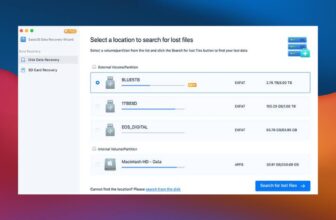
 EaseUS Data Recovery Wizard Free
- Up to 2GB recovered free — 500MB baseline plus 1.5GB unlocked via social share
- All major file systems: NTFS, FAT32, exFAT, HFS+, APFS
- Cross-platform: Windows 7/8/10/11 + macOS 11+
- Full preview before recovery — images, video, documents
 Recuva
- Unlimited free recovery — no size cap, no file cap, no watermark
- Wizard mode walks non-technical users through a scan in under a minute
- Recovery-chance indicator on every found file
- Windows-only — no macOS or Linux build exists
 PhotoRec
- Fully free, GPL v2+ open source — no paid tier exists
- 480+ file signatures across photos, video, documents, archives
- Runs natively on Windows, macOS (Apple Silicon), Linux, and BSD
- Read-only source handling, no risk of further damage
- 1EaseUS Data Recovery Wizard Free – Most Generous Free Tier
- 2Recuva – Friendliest Unlimited Free Windows Tool
- 3PhotoRec – Unlimited Cross-Platform Signature Recovery
- 4Disk Drill Free – Best Modern Interface
- 5Windows File Recovery – Microsoft’s Free CLI Tool
- 6DMDE Free Edition – Deepest Low-Level Scanner
- 7Wondershare Recoverit Free – Fragmented Video Restoration
- 8TestDisk – Partition Repair for Corrupted Drives
8 Best Free Data Recovery Software – Quick Comparison
Free data recovery tools split into three distinct camps: polished freemium GUIs with capped recovery tiers (EaseUS, Disk Drill, Recoverit), fully-free open-source utilities with steeper learning curves (PhotoRec, TestDisk, DMDE), and Windows-focused lightweight options (Recuva, Windows File Recovery). The table below summarizes each on recovery capability, file system coverage, platform support, and where each one earns its place in the ranking.
| Tool | Overall Strength | File Systems | Platforms | Ease of Use | Free Limit | License | Best For |
|---|---|---|---|---|---|---|---|
| EaseUS DR Wizard Free | Excellent | NTFS, FAT32, exFAT, HFS+, APFS | Win + Mac | Excellent | 2 GB (500 MB + share) | Freemium | Most users wanting a GUI |
| Recuva | Very Good | NTFS, FAT32, exFAT | Windows only | Excellent | Unlimited (free tier) | Freemium | Simple Windows undeletes |
| PhotoRec | Excellent | All major + ReiserFS | Win + Mac + Linux | Steep (text UI) | Unlimited | GPL v2+ OSS | Formatted or corrupted drives |
| Disk Drill Free | Good | All major + ext4 | Win + Mac | Excellent | 100 MB (Win); 0 (Mac) | Freemium | Scan-and-preview diagnosis |
| Windows File Recovery | Good | NTFS, FAT32, exFAT, ReFS | Windows 10/11 only | Steep (CLI) | Unlimited | Free (Microsoft) | Fully-free NTFS recovery |
| DMDE Free | Very Good | NTFS, FAT, exFAT, ext, HFS+, APFS | Win + Mac + Linux | Steep | 4,000 files / dir | Freemium | Corrupted / RAW drives |
| Wondershare Recoverit Free | Good | All major | Win + Mac | Excellent | 100 MB | Freemium | Fragmented video restoration |
| TestDisk | Specialized | All major partition tables | Win + Mac + Linux | Steep (text UI) | Unlimited | GPL v2+ OSS | RAW drives / broken partitions |
Overall-strength labels reflect editorial evaluation based on feature coverage, independent research, and user-feedback patterns — not an in-house benchmark. Free limits and licensing are from each vendor’s current product pages as of April 2026.
8 Best Free Data Recovery Software – In-Depth Reviews
1. EaseUS Data Recovery Wizard Free – Most Generous Free Tier
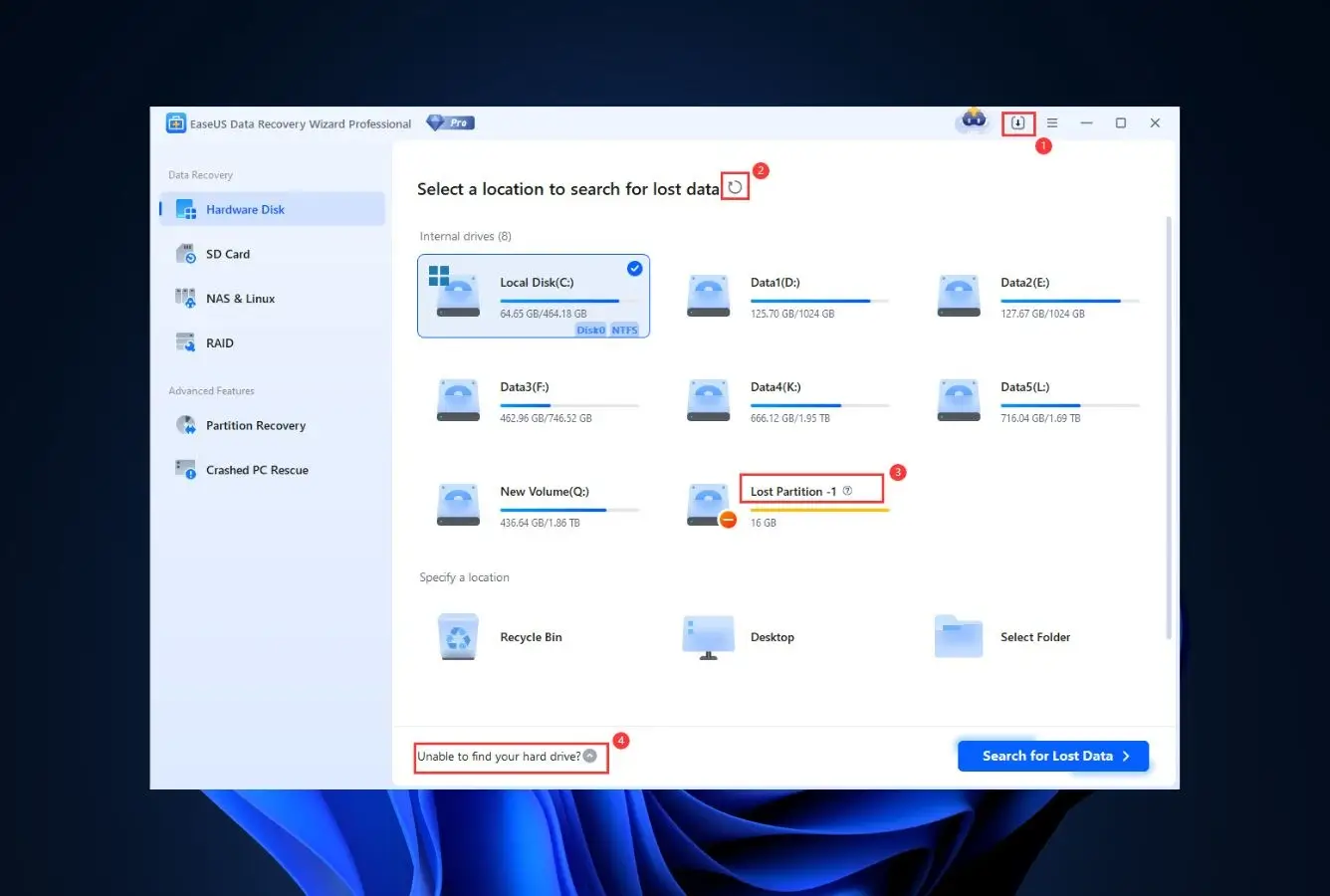
EaseUS Data Recovery Wizard Free is the rare free recovery tool that doesn’t force you to choose between a generous free tier and a usable interface. The default 500MB free allowance lifts to 2GB after a single social share — a one-time trade that opens up enough capacity to recover meaningful amounts of deleted documents, photos, and video. Cross-referenced independent testing consistently places EaseUS near the top of the category on NTFS, FAT32, and exFAT recovery, which covers every mainstream Windows drive. Community feedback on r/datarecovery reflects the same pattern: the tool works first try on most deleted and quick-formatted scenarios, and the preview window actually shows thumbnails of what’s recoverable before you commit any of the 2GB cap.
- 2GB free ceiling is the largest among GUI tools — enough for a folder of documents plus photos and a few short videos
- Supports every mainstream file system: NTFS, FAT32, exFAT, HFS+, APFS from a single installer
- Preview thumbnails for 1,000+ file types before spending any of the 2GB quota
- Three-step wizard UI reaches recovery in under two minutes for non-technical users
- Cross-platform with feature parity between Windows and macOS builds
- 2GB cap becomes limiting if you’re recovering hundreds of photos, long videos, or large archives
- The social-share unlock prompt appears repeatedly until completed
- Auto-renewal is on by default on the paid tier — worth a calendar reminder if you subscribe
Top-tier on the file systems that cover 95% of consumer drives.
Independent testing consistently places EaseUS in the top two on NTFS, FAT32, and exFAT — the file systems every consumer Windows and Mac drive ships with. The scanner handles deleted files, quick-formatted drives, RAW partitions, and corrupted file systems, with strong coverage of 1,000+ file types including the full mirrorless RAW photo lineup from Canon, Nikon, Sony, and Fujifilm. The free tier does not throttle the scanner itself — only the recovery-write step — so you can see everything that’s recoverable before deciding whether 2GB is enough.
The benchmark every other freemium tool gets compared to.
The three-step wizard (select drive → scan → preview and recover) is the single most consistent praise point in G2 and Trustpilot reviews. The filter sidebar organizes results by type, date, and path, and the preview pane actually previews — thumbnails for photos, playable excerpts for video, first-page render for documents. First-time users rarely need to consult documentation, which is not true of DMDE, PhotoRec, or Windows File Recovery. The Mac build feels native rather than ported, a rarity in this category.
Free 2GB is usable for most losses; the paid tier is aggressively priced.
The free tier covers most single-incident recoveries if you’re selective — a folder of accidentally deleted documents, a handful of photos, a few short videos. Once you need more, Pro runs $69.95 annually with auto-renewal on by default, so a calendar reminder is advisable if you only need it once. The lifetime license surfaces periodically at a discount but is not a standing offer. For most readers of this guide the free tier is the only tier they will ever need.
2. Recuva – Friendliest Unlimited Free Windows Tool
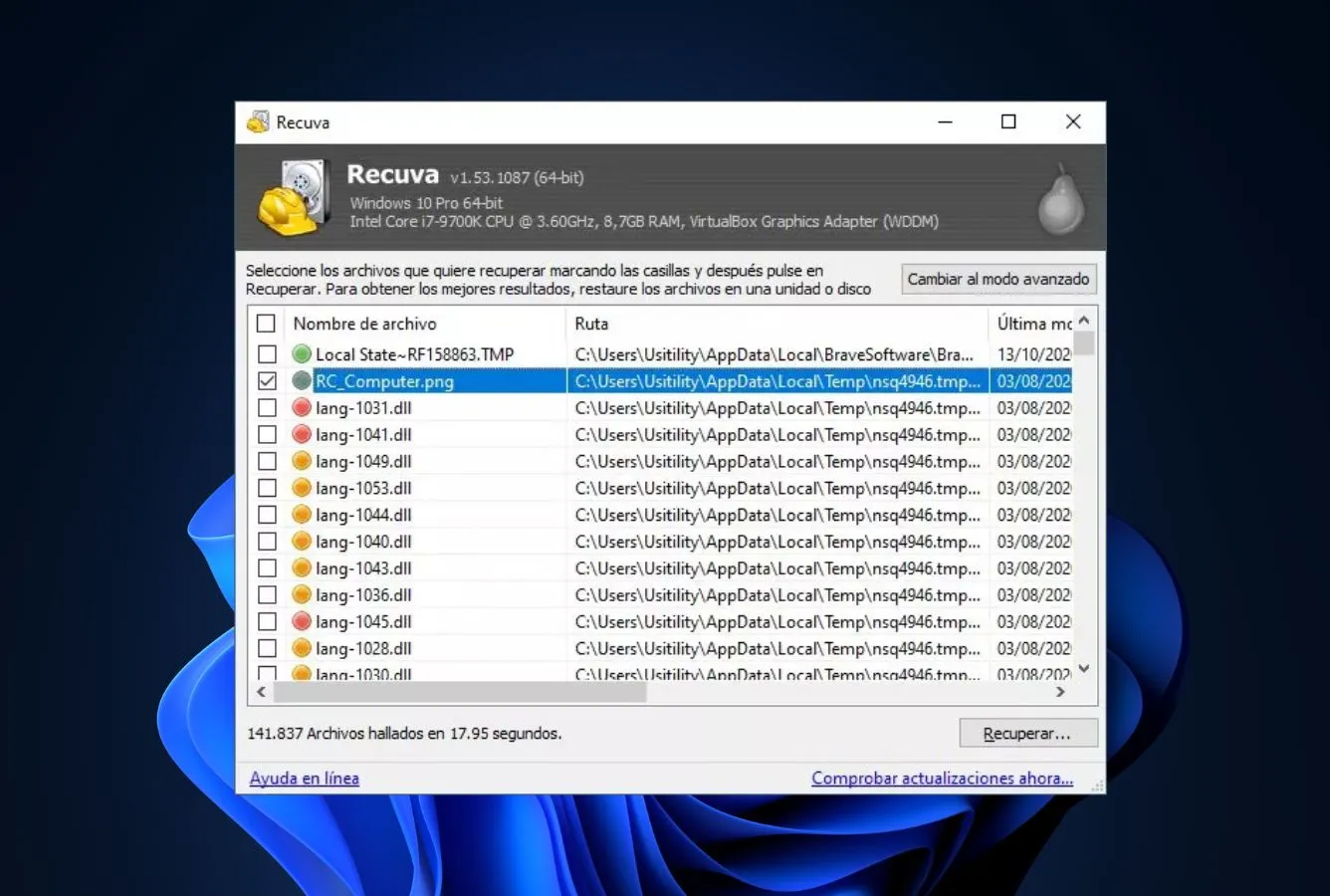
Recuva from Piriform has held its place as Windows’ default undelete utility for more than fifteen years, and the reasons still hold up in 2026. Every freemium tool ranked above it caps the free tier at some size limit — 100MB, 500MB, 2GB with a social share. Recuva does not. Scan as much as you want, recover as much as you want, no watermark, no trial countdown. The tradeoff is scope: Recuva’s scanner is built for a particular class of scenario — a file you deleted, the Recycle Bin you emptied, the USB stick you accidentally formatted — and it excels there. When the file system itself is broken or the drive is RAW, Recuva falls behind PhotoRec, DMDE, and the paid engines rapidly. The Windows-only limitation also matters for this ranking: Mac users need to look elsewhere entirely.
- No free-tier ceiling at all — scan the entire drive and recover every found file without a size or count limit
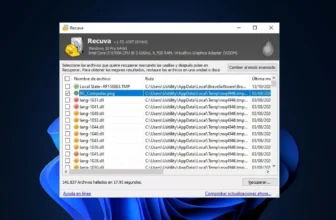
- Per-file recovery-chance indicator (green, yellow, red) so you know which files are worth attempting before spending time
- Wizard mode delivers first results in under a minute; advanced mode is there when you need it
- Deep Scan catches files the quick scan misses on drives where the Recycle Bin was emptied or a quick format was run
- Portable build runs from a USB stick without any files being written to the drive you’re recovering from
- Windows-exclusive — Piriform has never released a macOS or Linux build and none appears to be in development
- Weakens noticeably on RAW drives, damaged file systems, and newer proprietary photo formats from current mirrorless bodies
- Deep Scan on multi-terabyte drives takes hours with no way to pause and resume the session later
A scalpel, not a Swiss Army knife — sharp in its lane, dull outside it.
Recuva shines on a specific workflow: you deleted a file earlier this week, the drive is still mounted normally, and you want it back. On that scenario its hit rate sits near the top of the ranking. Push into formatted exFAT cards, RAW NTFS partitions, or anything requiring file-carving without a file system to work from, and Recuva’s Deep Scan lags behind PhotoRec and DMDE. Newer proprietary RAW photo formats from Sony and Fujifilm aren’t always recognized. The recovery-chance indicator (green/yellow/red) per found file is genuinely useful — if it’s red, don’t waste time on that one.
Uncomplicated by design — five clicks from drive to recovered file.
The wizard mode asks four questions (drive, file type, deep or quick, go) and hands you a sortable list of results with the recovery-chance indicator front and center. Advanced mode adds scan-by-filename, include-hidden-files, and secure-delete toggles without making them mandatory. Image preview works inline; document preview does not. For a non-technical Windows user trying to recover a vacation folder before the family notices, this is still the shortest path in the ranking. Nothing here rewards expertise, which is precisely the point.
Free is the finished product; paid is a polite suggestion.
Recuva Professional adds virtual hard drive support, automatic updates, and premium email support for $19.95/year — features that don’t materially improve outcomes for home users. The free version is the real product. One practical note: the installer includes a CCleaner bundle prompt that arrives opted-in; uncheck it during setup unless you actually want CCleaner. Downloading from the official Piriform site (not a software aggregator) avoids the repackaged installers that community threads regularly flag.
3. PhotoRec – Unlimited Cross-Platform Signature Recovery
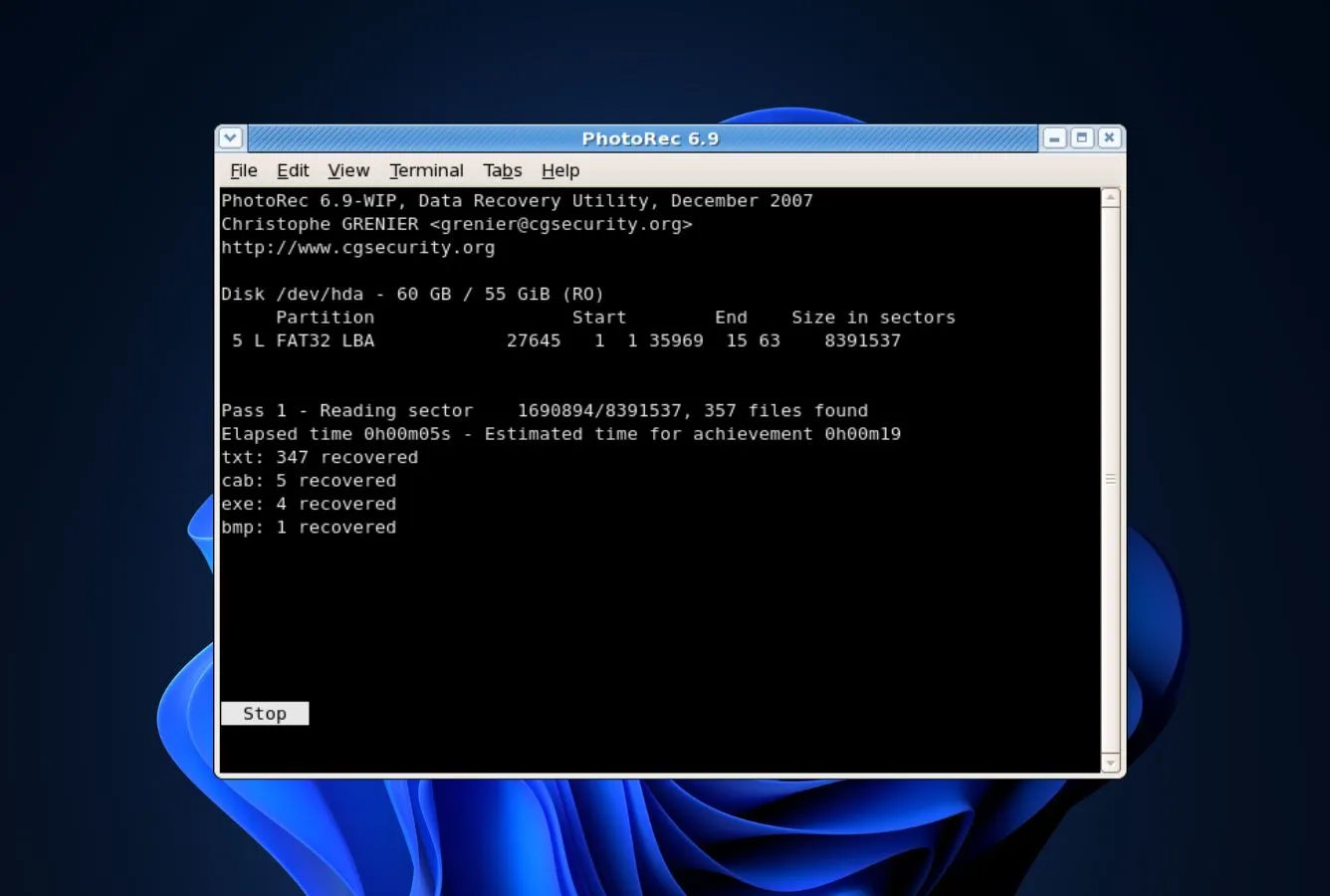
PhotoRec occupies a unique space in this ranking: it’s the only tool that’s both fully unlimited and competitive with the top-tier freemium engines on recovery outcomes. The design choice that makes this possible also makes the tool harder to use — PhotoRec ignores file systems entirely. Instead of parsing an NTFS MFT or APFS B-tree to find deleted entries, it reads the drive sector by sector and watches for known file signatures: the first few bytes of a JPEG, an MP4 moov atom, a PDF header, a ZIP local file header. This signature-carving approach works on drives no other tool can touch — formatted, corrupted, RAW, partition table destroyed — but it also means recovered files lose their original names, their folder structure, and their metadata. You get the content back; you don’t get back what the content was called. For anyone willing to accept that trade in exchange for zero cost and zero size limit, PhotoRec is still the high watermark of free data recovery.
- Truly free — GPL v2+ source, no paid tier, no donation gate, no registration to download
- 480+ signature types spanning JPEG, HEIC, PNG, MP4, MOV, DOCX, PDF, ZIP, plus every mainstream RAW photo format
- Reaches data that structured scanners can’t — bypasses damaged MFTs, corrupted B-trees, and missing partition tables
- Native builds for Windows, macOS (Intel + Apple Silicon via Homebrew), Linux, and BSD from CGSecurity
- Opens the source drive read-only by design — there’s no code path that can write to the drive you’re recovering from
- Terminal-driven UI with arrow-key navigation — a real skill barrier if you’ve never used a text-mode interface
- No thumbnail preview, no selective recovery, no filename-based filtering — you recover all files of the selected types
- Original filenames and folder structure don’t survive — recovered files land as f00001234.ext and need manual re-sorting
The best pure signature carver in the free tier, and it’s not close.
Because PhotoRec doesn’t care whether the drive is NTFS, FAT32, exFAT, HFS+, APFS, or RAW — it’s reading sectors and matching signatures regardless — it tends to return more recoverable files than any other free tool on formatted or corrupted drives. Independent third-party testing across reformatted exFAT and corrupted NTFS volumes routinely shows PhotoRec’s total recovered file count matching or beating paid tools costing $80–$150. The signature database is actively maintained by the CGSecurity project; recent releases added handling for newer CR3, RAF, and NEF RAW variants alongside standard JPEG, MP4, DOCX, and PDF support.
A 1990s interface hiding a 2020s engine underneath.
PhotoRec is driven from a terminal — arrow keys to move, Enter to select, no mouse. The visual design has been frozen in time since the early 2000s, though the Windows qPhotoRec build adds a basic graphical file-type picker that softens the onboarding. On macOS the Homebrew install (`brew install testdisk`) is two commands and PhotoRec is available immediately. The flow is always the same: pick drive → pick partition (or whole disk) → pick file types → pick output location → wait. Scans on a terabyte drive can run for several hours, and the tool doesn’t save resumable session state, so plan for an uninterrupted window.
The only truly free tool on this list that doesn’t feel like a compromise.
PhotoRec and its sister utility TestDisk are distributed under GPL v2+ — the entire source is open, binaries for every major OS are free to download from cgsecurity.org, and the project has no paid tier. The CGSecurity developer, Christophe Grenier, accepts donations but asks for nothing. For any user whose loss exceeds the 2GB EaseUS cap or whose scenario involves a drive that won’t mount normally, PhotoRec is worth every minute of the interface learning curve. The combination of “unlimited recovery” and “top-tier engine” genuinely does not exist anywhere else at any price.

4. Disk Drill Free – Best Modern Interface
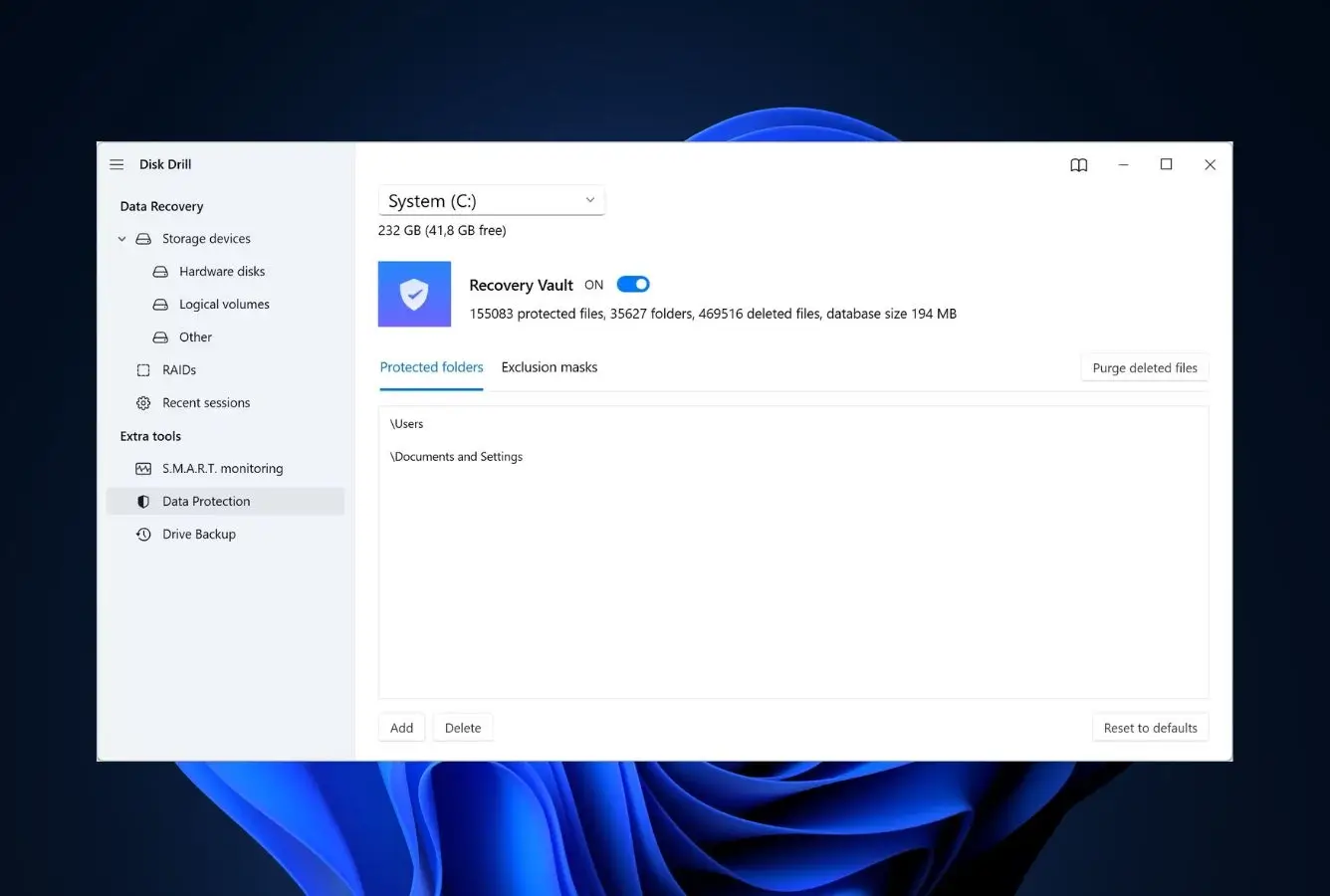
Disk Drill Free sits lower than it does in paid roundups for a straightforward reason: the free tier is restrictive. Windows users get 100MB of actual recovery; Mac users get zero — just scanning and preview. That’s enough to prove the software works before upgrading, which is the point CleverFiles is making, but it’s not enough to solve most real recoveries. What keeps Disk Drill on this list is that the scanner itself is top-tier — the full engine runs in the free version, so you see exactly what’s recoverable — plus the free Clever Online Video Repair tool that handles corrupted MP4/MOV files separately from the main recovery flow. Independent testing places Disk Drill’s recovery engine in the top tier on mixed-format scenarios, even before considering the 100MB cap.
- Most polished consumer UX in the category — both Windows and Mac builds feel like Apple-grade design
- Full scanner runs in the free tier; every recoverable file appears in the preview list before any quota decision
- Free Clever Online Video Repair handles corrupted MP4/MOV files in a browser, independent of the main tool
- Advanced Camera Recovery module stitches fragmented GoPro, DJI, and Canon clips that most competitors can’t reassemble
- Broadest file-system coverage on the list — NTFS, FAT32, exFAT, HFS+, APFS, and ext4 all handled natively
- 100MB Windows free cap is genuinely tight — three 4K RAW photos or a minute of 1080p video and the quota’s gone
- macOS has no free recovery tier at all — the Mac build is diagnostic only, with paywall enforcement on every save
- Pro license at $89 one-time is reasonable but the most expensive single-purchase option in this ranking
A scanner that earns its paid price — if only the free tier let you use it.
CleverFiles runs the same recovery engine across every tier, so what you see in the free scanner is exactly what the Pro license would recover. That engine sits in the top tier of third-party testing on APFS and HFS+ volumes specifically, and on fragmented video reassembly across every file system. The Advanced Camera Recovery module handles DJI, GoPro, and Canon clip fragments that most competitors can’t stitch back together. The unfortunate part is the artificial ceiling: 100MB is roughly three RAW photos from a modern mirrorless body, and on macOS there is no recovery tier at all — just scan, preview, and paywall.
The most polished consumer UX in the category, across both platforms.
Disk Drill’s Windows and Mac builds feel like one product with two skins rather than two different codebases. Large device tiles, a single prominent scan button, and a results view that populates with thumbnails as the scan runs — the ergonomics are better than some paid-only tools in this space. Filter panels group results by type, date, size, and recovery confidence, and preview works for images, short video, and documents. The 100MB Windows cap (and Mac scan-only policy) is the only thing holding the score down; pure UX-wise, nothing else in this ranking comes closer to Apple-grade design.
A scan-only diagnostic tool in the free tier, with a reasonable paid exit.
Treat the free version as a diagnostic — run it, confirm the files are recoverable, then decide. The Pro license is $89 as a one-time purchase with lifetime updates, which compares favorably against EaseUS’s $69.95 annual subscription or Recoverit’s yearly tiers. For a one-off recovery of more than 100MB on Windows or any recovery at all on Mac, Disk Drill Pro is the better commercial value than most competitors’ subscription ladders. For strictly free use under 2GB, EaseUS remains the stronger pick.

5. Windows File Recovery – Microsoft’s Free CLI Tool
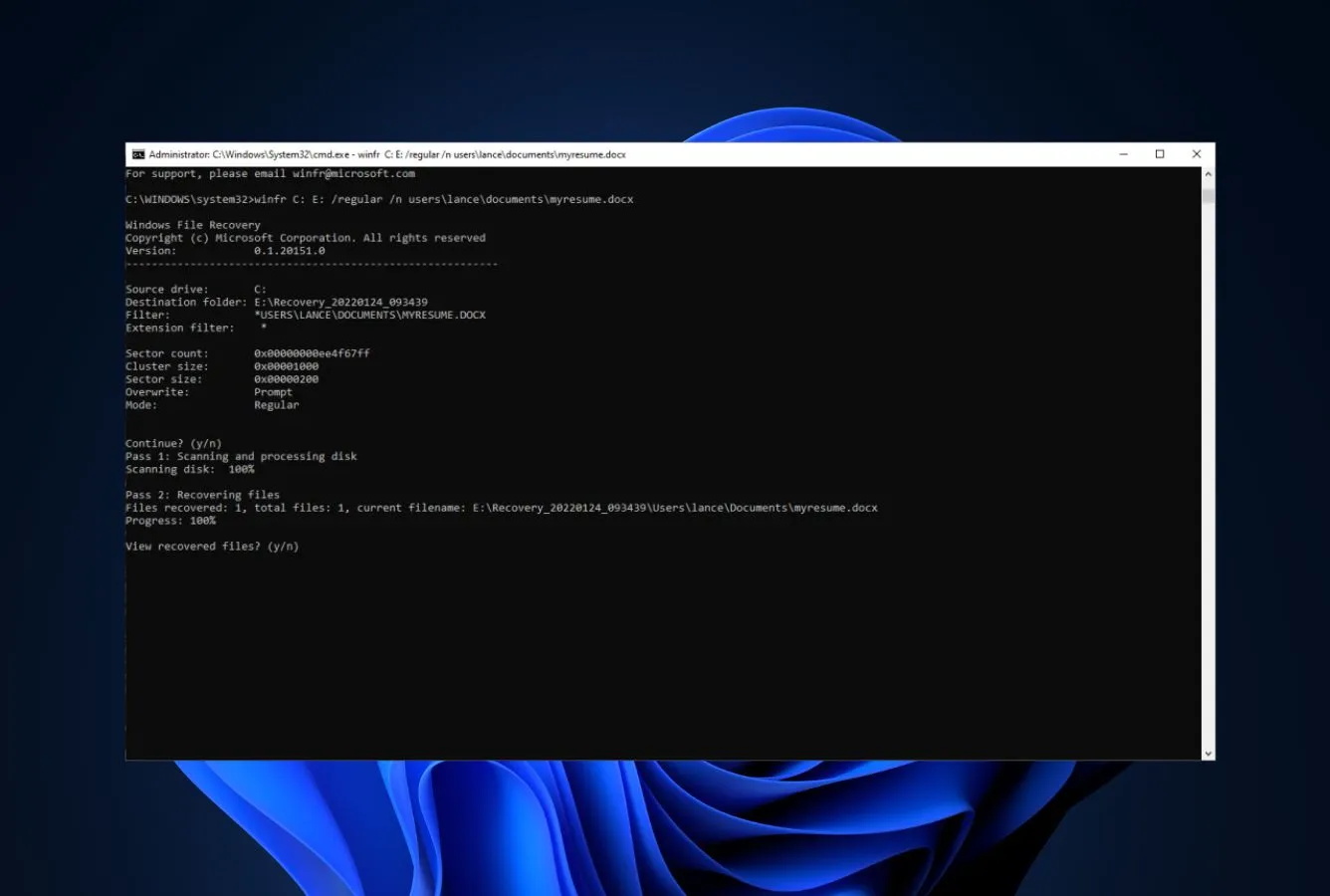
Windows File Recovery is Microsoft’s own free recovery tool, published in the Microsoft Store for Windows 10 version 2004 and later. It’s a command-line utility run via the `winfr` command, with three modes — Regular, Extensive, and Signature — that target different file system and recovery scenarios. The tool supports NTFS in all modes and FAT32, exFAT, and ReFS in Signature mode only. It’s the only genuinely free, officially Microsoft-supported recovery tool in existence, and it earns its position on this list for that reason alone. The catches are significant: no graphical interface, ~400 file formats (narrower than PhotoRec’s 480+), and community feedback consistently reports slower scans and lower recovery rates than mature third-party alternatives on identical scenarios.
- Genuinely free and Microsoft-supported — no trial, no upgrade nag, no hidden paywall
- Installs from the Microsoft Store with Windows security baked in — no dodgy third-party download
- Supports NTFS in all three modes, plus FAT32/exFAT/ReFS in Signature mode
- No file-count or size cap — scan and recover as much as the drive contains
- Three scan modes (Regular, Extensive, Signature) cover most recovery scenarios
- Command-line only — no GUI, no preview, no clickable file picker
- ~400 file formats is narrower than PhotoRec or EaseUS
- Community feedback reports slower scans and lower recovery rates than mature third-party tools
Solid on recent NTFS deletes, noticeably weaker on other scenarios.
Regular mode works well for recently deleted files on NTFS volumes with intact file system structures. Extensive mode handles more damaged NTFS cases. Signature mode is required for FAT32 and exFAT drives and is essentially file carving similar to PhotoRec, but with a narrower signature set. Community testing on r/DataHoarder and independent reviews consistently place Windows File Recovery below PhotoRec and EaseUS on hit rates for formatted and corrupted drives. For the specific case of a recently deleted file on a healthy NTFS drive, it performs competitively.
Power-user friendly; hostile to everyone else.
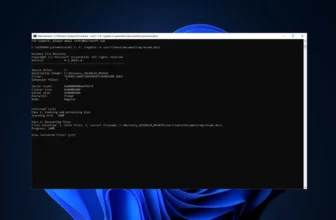
Everything happens in PowerShell or Command Prompt with the `winfr` command and a specific syntax — source, destination, mode, and optional filters. The Microsoft support page lists the switches, but there’s no intuitive discovery: either you know the syntax or you’re reading documentation. Third-party GUI wrappers like WinfrGUI exist and make the tool accessible, but they’re unofficial. For a tech-comfortable Windows admin, the CLI is fast and predictable; for a family member who deleted vacation photos, it’s a wall.
Completely free, and backed by Microsoft — unique in this ranking.
Windows File Recovery has no paid tier, no subscription, no “unlock the real features” prompt. It’s a proper Microsoft-supported utility included at no cost for any Windows 10 2004+ or Windows 11 user. For tech-savvy users whose scenarios fit its sweet spot (recently deleted files on NTFS), it provides real value for zero cost. For everyone else, the UI barrier means PhotoRec offers similar unlimited recovery with broader file-format coverage, and EaseUS Free offers a better experience under the 2GB limit.

6. DMDE Free Edition – Deepest Low-Level Scanner
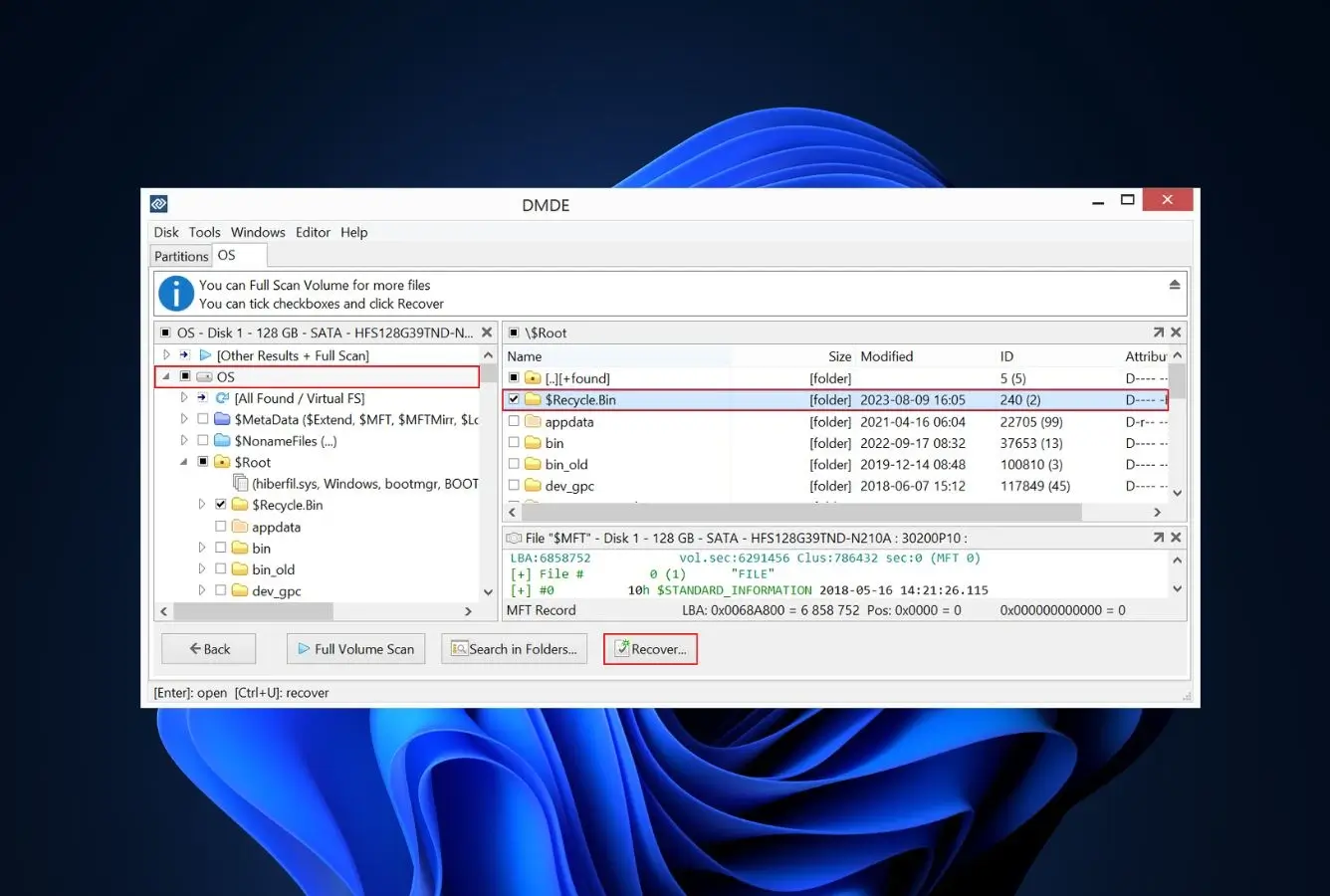
DMDE is the tool technical users reach for when EaseUS, Recuva, and Disk Drill have all returned nothing or returned the wrong thing. It’s a disk editor and recovery suite in one binary — the same tool Dmitry Sidorov has shipped since 2006, refined every year, and kept aggressively priced. The free edition imposes a cap that sounds restrictive on paper but rarely bites in practice: 4,000 files per directory. Real folders almost never exceed that count, which means most recoveries can complete on the free tier without paying a cent. Where DMDE earns its place on this ranking is the scenarios other tools give up on: drives that appear as RAW in Disk Management, drives that refuse to mount at all on macOS, partitions whose tables have been overwritten. Community threads on r/datarecovery read like a pattern — user tries three nicer tools, fails, tries DMDE, recovers the data.
- 4,000-files-per-directory ceiling is effectively unlimited — real folders almost never hit that count
- Zero file-size cap — pull a single 64GB video clip off a failing drive in the free edition without restriction
- Runs on Windows, macOS (Intel + Apple Silicon native), Linux, and even DOS from a bootable medium
- Sector-level disk view exposes hidden, overwritten, or corrupted partitions that other tools silently skip
- Paid licenses start at $20 one-time — no subscriptions, no upgrade nag, no drip-fed feature tiers
- The default view assumes you already understand partition tables, MFT entries, and hex offsets
- Recovery happens blind — there’s no image preview, so you verify file integrity after the fact
- Documentation is accurate but assumes technical familiarity — expect a browser tab open to the user guide
The deepest free scanner in this ranking, measured by scenarios it rescues.
DMDE reads drives at the sector level, reconstructs directory trees from partial NTFS MFT fragments or APFS B-tree nodes, and finds partitions that the OS thinks no longer exist. Forum reports describe recoveries from drives that had already defeated EaseUS, Disk Drill, and even paid tools — typically drives that show as RAW, 0 bytes, or “needs to be formatted.” Its partition-reconstruction capability overlaps with TestDisk, and its file-carving mode overlaps with PhotoRec, which is how one utility punches this far above its price tier. The free edition runs the full engine; the only gate is the 4,000-files-per-folder ceiling.
A professional tool that doesn’t pretend to be anything else.
DMDE opens to a device picker, then drops you into a split view showing hex data on one side and a reconstructed directory tree on the other. There is no wizard. There is no preview pane. The menus are accurate but assume you know what an MFT entry or a partition boot sector does. Users who’ve used disk editors before feel immediately at home; first-timers benefit from thirty minutes with the user guide before launching. The DMDE forum is small but the responses from the developer himself are direct and technically correct — a rarity in this category.
The anti-subscription — $20 one-time for the full license.
When the free edition’s 4,000-files-per-directory cap does bite, DMDE Standard is $20 as a one-time purchase with no renewal. That’s cheaper than a single month of most enterprise recovery subscriptions. Professional ($48) adds RAID-5/6 reconstruction; Business ($133) adds batch processing. The one-time pricing model is unusual in this category and worth rewarding — no auto-renew traps, no upgrade nag screens, no drip-fed features locked behind higher tiers. For users who need recovery tooling occasionally, this is the cheapest long-term commercial path on this list.

7. Wondershare Recoverit Free – Fragmented Video Restoration
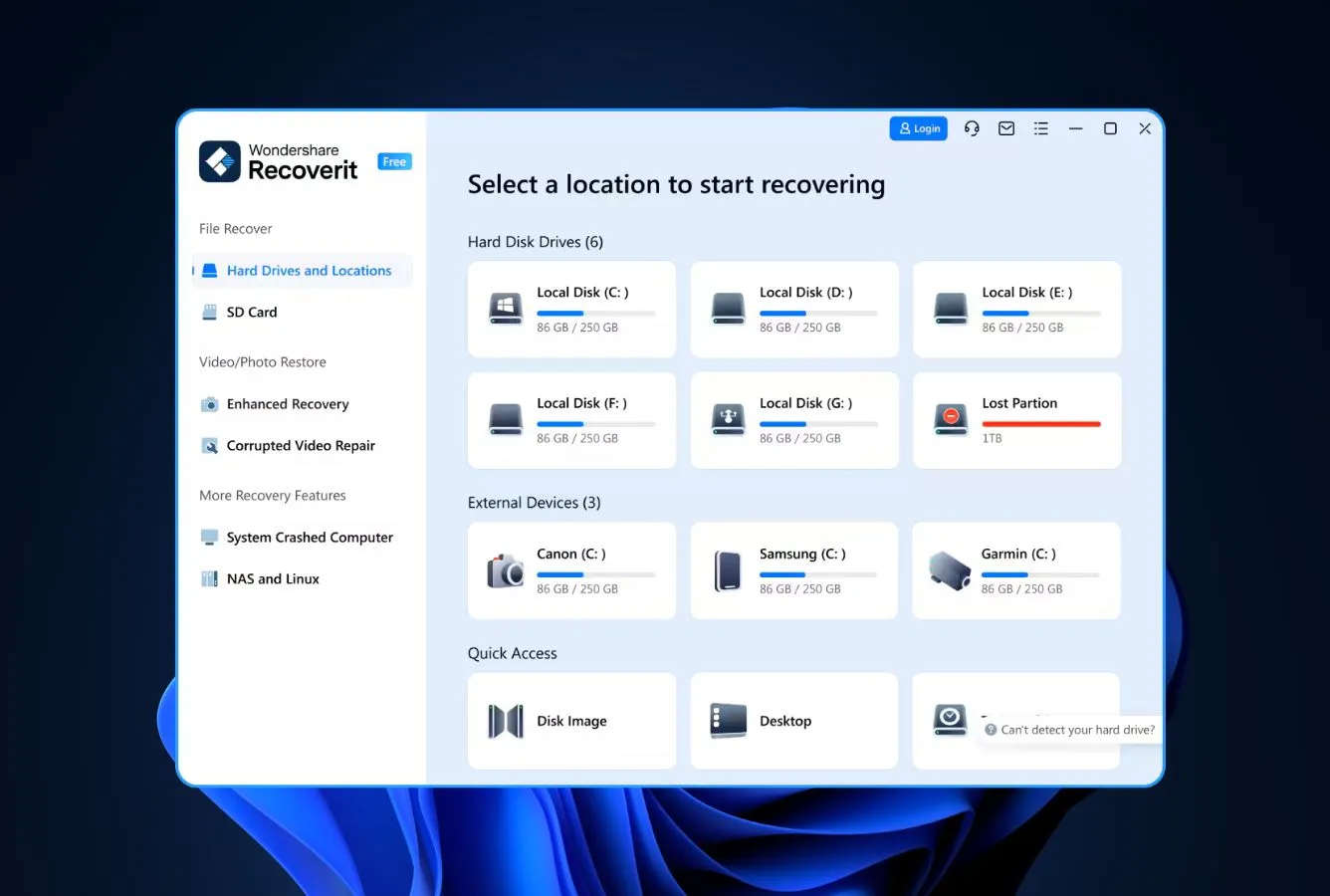
Wondershare Recoverit Free lands in seventh because its 100MB free cap mirrors Disk Drill’s without some of Disk Drill’s differentiating features — but it earns its place because its Enhanced Video Recovery feature specifically targets fragmented video reassembly, a genuine pain point for drone, action-cam, and mirrorless users. The free tier runs the full scanner, previews results, and lets you confirm the software found your footage before any upgrade decision. Community feedback on the Wondershare forum and r/datarecovery is mixed: reliable for straightforward scenarios, hit-or-miss on severely damaged drives, and the subscription upgrade path has drawn repeated complaints around auto-renewal defaults.
- Enhanced Video Recovery reassembles fragmented drone, action-cam, and mirrorless clips better than any other free tool here
- Interface design is genuinely polished, in line with Wondershare’s Filmora and UniConverter lineup
- Full scanner runs in the free tier with complete preview — the 100MB cap only applies at the save step
- File-system coverage spans FAT16 through exFAT, NTFS, and both HFS+ and APFS on modern Macs
- Current native builds available for Apple Silicon, Intel Mac, and Windows — no legacy emulation
- 100MB free limit matches Disk Drill Windows without offering Disk Drill’s Advanced Camera Recovery differentiator
- Paid tiers open at $59.99 annually with auto-renewal pre-checked — a calendar reminder is advisable
- Trustpilot threads flag cancellation friction more often than competing vendors — easy to sign up, harder to leave
Video-first engine that outshines its general-purpose siblings.
Enhanced Video Recovery is genuinely differentiating: the algorithm reassembles fragmented MP4, MOV, and MXF clips from drones, action cameras, and mirrorless bodies better than any other free tool here, rivalling Disk Drill’s paid Advanced Camera Recovery. Outside of video, the story is less distinctive — deleted and quick-formatted NTFS/exFAT/APFS drives recover comparably to EaseUS and Recuva, without leading in any dimension. The scanner is fast and the results are well-organized, but for non-video scenarios the ceiling is lower than the top three tools on this list.
Polished and predictable, with an upgrade prompt that runs a shade too often.
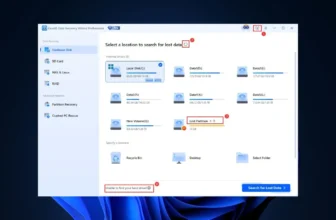
The three-step flow (select location → scan → preview and recover) is virtually identical to EaseUS and Disk Drill, which isn’t a criticism — it’s a converged category pattern. Where Recoverit diverges slightly is upgrade-prompt frequency: the 100MB quota surfaces a banner, and the “upgrade to unlock” call-to-action appears more aggressively than in Disk Drill or EaseUS. For a one-time user that’s mildly annoying; for repeated use, it wears on patience.
100MB free, then a subscription ladder that asks for an annual commitment.
Paid tiers start at $59.99/year and climb to perpetual licenses at higher price points. The subscription defaults to auto-renewal, and Trustpilot complaints specifically flag cancellation friction as the most common billing issue — worth noting if you subscribe. For most free-tier uses the 100MB cap serves as proof-of-concept; if the scan shows your files are recoverable, Disk Drill’s $89 one-time license is generally a better commercial alternative.

8. TestDisk – Partition Repair for Corrupted Drives
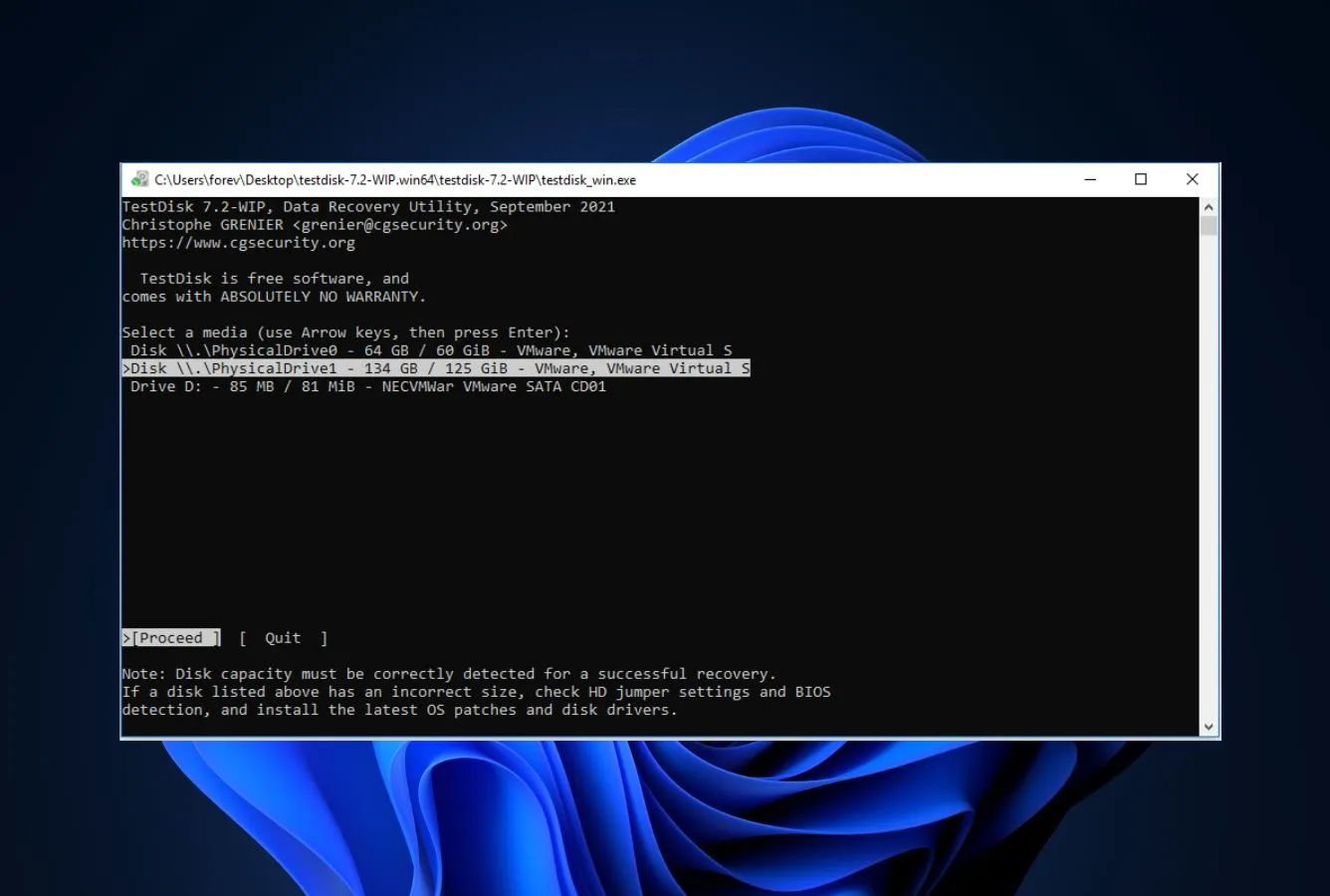
TestDisk is PhotoRec’s companion utility from the same author, and it solves a different problem: rebuilding damaged partition tables and boot sectors on drives that have gone RAW or show 0 bytes in Disk Management. When a drive appears in Disk Management but refuses to mount because its partition table is corrupted, TestDisk can often reconstruct the table from backup copies the file system leaves scattered across the drive. The net effect, when it works, is the drive starts mounting normally again and all files come back in place — no separate recovery step needed. This makes it a complementary tool rather than a competitor to the others in this ranking: try TestDisk first when the drive is RAW, and if partition reconstruction works, you may not need anything else.
- Reconstructs RAW or unmountable drives back to working state — often eliminating the need for per-file recovery entirely
- Rebuilds NTFS, FAT32, exFAT, HFS+, and APFS boot sectors and partition tables from backup copies scattered across the drive
- Open source under GPL v2+, actively developed by CGSecurity, and distributed alongside PhotoRec in a single package
- Runs natively on Windows, macOS (Apple Silicon via Homebrew), Linux, and BSD from the same codebase
- Write actions require explicit confirmation — TestDisk asks twice before committing any change to a partition table
- Terminal-based navigation inherits PhotoRec’s learning curve — not a tool to reach for under time pressure if you’ve never used it
- Partition repair is its entire purpose — if your drive mounts fine and you just need to undelete files, you want a different tool
- Writing a reconstructed partition table to a physically failing drive can accelerate the failure — diagnose the drive health first
The right tool for a specific class of failure, and wrong for every other class.
TestDisk’s strength is partition-table reconstruction, not file recovery. Independent testing shows it successfully reconstructs partition structures on the majority of RAW or unmountable drives where the underlying storage is still readable. When reconstruction succeeds, every file on the drive becomes accessible again without any recovery workflow. When it fails or the drive’s physical hardware has issues, TestDisk can’t help — pivot to PhotoRec or DMDE for signature-based carving instead.
The PhotoRec onboarding curve, applied to a different job.
TestDisk launches in a terminal and asks a sequence of questions with arrow-key navigation: select device, select partition table type (Intel/Mac/EFI GPT), analyze, deeper search if needed, and write the reconstructed table back. The CGSecurity wiki is the only real manual, and the wiki is good enough that most users get through their first recovery by reading it alongside the prompts. Users who already know PhotoRec feel at home immediately; users coming from EaseUS or Disk Drill face the same text-mode UI wall, now applied to a task with real consequences if you write the wrong partition table.
Priceless when it works; zero cost when it doesn’t.
TestDisk ships under the same GPL v2+ license as PhotoRec, from the same CGSecurity project, and is typically bundled in the same download package. There’s no paid tier, no upgrade path, no donation gate. Its value proposition is binary: if your drive is RAW but physically healthy, TestDisk can restore it to mounting state in minutes and you skip every other recovery workflow entirely; if the drive has physical damage or the partition is truly gone beyond reconstruction, TestDisk can’t manufacture data that no longer exists. Recognize the scenario and the tool pays for itself many times over.
How We Evaluate the Best Free Data Recovery Software
Ranking free data recovery tools is easy to get wrong. Vendor marketing pages all promise high recovery rates, generous free tiers, and wide file-system support, and a single bad benchmark on an unrepresentative test drive could mislead anyone reading this guide. Our approach aggregates three layers of evidence: vendor documentation for feature baselines, independent third-party testing for cross-referenced recovery outcomes, and community signal from Reddit, Trustpilot, and data-recovery forums for real-world user behavior. Nothing here is based on a single in-house test run — rankings reflect patterns consistent across all three sources.
Platforms covered: Windows 10 and 11 (24H2) plus macOS 11 Big Sur through 15 Sequoia on both Intel and Apple Silicon. Storage types covered: internal HDDs and SSDs (SATA, NVMe, M.2), external USB drives, SD and microSD cards, and USB flash drives across NTFS, FAT32, exFAT, HFS+, APFS, and ReFS file systems. Key factors weighted: recovery capability across file systems (40%), usability for non-technical users (20%), safety and trust (15%), extra features like video repair or partition reconstruction (15%), platform parity between Windows and Mac (5%), and free-tier practical value (5%).
Individual test runs, scan-time logs, and per-tool notes from our ongoing research live on our full methodology page. Start there if you want the underlying evidence behind any ranking on this page.
Best Free Data Recovery – Honorable Mentions
Six tools we evaluated but didn’t include in the main ranking. Each has a niche strength or a specific flaw — usually around free-tier tightness, platform gaps, or category overlap — that kept it out of the top eight.
How to Choose the Best Free Data Recovery Software
Before downloading anything, stop using the drive with the lost data. Every file you write to it after a loss risks overwriting the data you’re trying to recover. For an internal system drive you can’t easily stop using, power down, connect the drive as an external via a USB adapter, and scan from a different computer — or boot a live Linux USB to avoid touching the drive at all.
File System Compatibility (NTFS, FAT32, exFAT, HFS+, APFS)
Windows drives use NTFS for internal system disks, exFAT for larger external drives, and FAT32 for smaller USB sticks and most SD cards. Mac drives use APFS on modern systems and HFS+ on older ones. Not every free tool handles every file system — Recuva and Windows File Recovery skip macOS formats entirely, while PhotoRec and EaseUS handle both platforms. Match the tool to the drive, not to the OS you’re running. If the lost data is on a Mac drive connected to a Windows PC, you need a tool with HFS+/APFS support regardless of which OS runs the software.
Free-Tier Ceiling vs What You Actually Need
Free tiers range from scan-only (Disk Drill on Mac) through 100MB (Disk Drill Windows, Recoverit) to 2GB (EaseUS with social share) to unlimited (PhotoRec, TestDisk, Recuva, Windows File Recovery, DMDE with the 4,000-files-per-directory caveat). Match the tier to the size of your loss: a handful of deleted documents or photos fits in any tier; a full folder of vacation photos and videos needs PhotoRec or EaseUS; an entire drive of lost data needs PhotoRec, DMDE, or Windows File Recovery. For category-specific recoveries, see our SD card recovery guide.
Deep Scan vs Quick Scan — When to Use Which
Quick scan reads the file system’s index for entries marked as deleted. It’s fast (seconds to minutes) and works for recent deletes on a drive that still mounts normally. Deep scan scans sectors for file signatures and rebuilds files without relying on the index. It’s slow (30 minutes to several hours on multi-terabyte drives), but it’s the only option for formatted, RAW, or corrupted drives. Start with a quick scan; move to deep scan if the quick scan returns nothing useful. Windows File Recovery’s Regular mode is equivalent to quick scan; Extensive and Signature modes are deep-scan variants.
Preview Before Recovery
Every GUI tool in the top eight supports file preview except TestDisk (which doesn’t need it — it fixes partitions), PhotoRec (text-mode limitation), and Windows File Recovery (command-line only). For freemium tools with tight recovery caps, preview is how you decide which files to spend your free quota on. If a tool offers unlimited preview but limited recovery, use the preview to confirm your important files are intact before spending the cap. Thumbnails for photos, short playback excerpts for video, and first-page renders for documents are the three preview types to look for.
Platform Support (Windows, Mac, or Both)
Recuva and Windows File Recovery are Windows-only. DiskDigger is Windows and Linux. EaseUS, Disk Drill, Recoverit, PhotoRec, TestDisk, and DMDE are cross-platform, though Disk Drill’s Mac free tier is scan-only. Mac users have meaningfully fewer options, which is why PhotoRec and EaseUS Free are disproportionately valuable on that platform. If you specifically need Windows-focused guidance, see our free Windows data recovery guide.
Installation Path and Session Management
Install recovery software to the drive you’re recovering from is a common mistake that overwrites the data you’re trying to save. Recuva has a portable build that runs from a USB stick; PhotoRec and TestDisk are natively portable; DMDE has a portable ZIP option; Windows File Recovery installs from the Microsoft Store but runs from any directory. Always install the recovery tool to a different drive than the one you’re recovering. Session management — saving scan state and resuming later — is rare in free tiers; Disk Drill Pro has it, DMDE is the most forgiving free option for interrupted scans.
When Free Recovery Software Can’t Save Your Data
Recovery software works on underlying storage through the drive’s own controller or file system. If the controller is damaged, the storage has been overwritten, or the drive has been securely formatted, no amount of software — free or paid — will produce results. Match your scenario against the table below before spending hours on scans that can’t succeed.
| Your situation | Software can help? | What to do instead |
|---|---|---|
| Hard drive clicks, grinds, or doesn’t spin up | No | Professional cleanroom service — stop all power-on attempts |
| Drive doesn’t appear in Disk Management or Disk Utility | No | Try a different cable or adapter; then cleanroom service |
| Deleted or quick-formatted drive, still mounts | Yes | EaseUS Free, Recuva, or PhotoRec |
| Drive shows as RAW or asks to reformat | Yes | TestDisk first; PhotoRec or DMDE if partition repair fails |
| Drive was fully formatted or securely erased | No | Data overwritten at sector level — not recoverable |
Physical Hard Drive Failure (Clicks, Grinds, No Spin-Up)
A hard drive that clicks, grinds, ticks, or fails to spin up has a mechanical problem — failed read heads, a dead motor, or seized bearings. Powering the drive on in this state actively worsens the damage, because the failed heads drag across the platter surface and scrape off the magnetic coating that stores your data. Stop attempting to access the drive immediately and contact a professional cleanroom service. Do not freeze the drive, do not tap it, do not open the case. Every “fix” suggested by internet forums for mechanical drive failure destroys more data than it saves. For broader hard drive guidance, see our hard drive recovery guide.
Secure Format or Full Format (Not Quick Format)
A full format writes zeros across every sector of the drive, overwriting any deleted data underneath the file system. Windows offers “quick format” by default, which only clears the file table — data remains recoverable in that case. But if you deliberately unchecked quick format, chose full format, or ran a secure-erase tool like diskpart’s clean all, every sector is overwritten and recovery is impossible through any software. The same applies to drives securely wiped with tools like DBAN, Blancco, or the built-in macOS Disk Utility secure-erase options.
Sustained Writes After Data Loss
Every new file written to a drive after a loss increases the chance that your deleted data has been overwritten. This is why the single most important step after noticing a loss is to stop using the drive. SSDs with TRIM enabled are especially aggressive here — the controller actively erases flash pages marked as deleted on a background timer, often within minutes. If the lost data was on an SSD, the urgency is measured in minutes, not hours or days. For SSD-specific considerations, our SSD recovery guide goes into TRIM behavior in more depth.
Encrypted Drives Without the Key
BitLocker, FileVault, VeraCrypt, and similar full-disk encryption tools scramble every byte on the drive. Without the encryption key, password, or recovery token, even bit-perfect recovery of the underlying sectors returns encrypted garbage that can’t be decrypted. If you’ve lost the key, the drive contents are mathematically unrecoverable — which is the point of encryption. Free recovery tools can sometimes reconstruct a damaged NTFS or APFS file system on top of the encrypted volume, but without the key the recovered files are still encrypted and unreadable.
Controller Firmware or Bad Sector Corruption
SSDs and some newer hard drives have controller firmware that can fail, producing symptoms like the wrong reported size, inability to mount, or random I/O errors. Software can’t talk to flash or platters that the controller won’t expose. HDDs with severe bad-sector corruption can also reach a point where the drive’s own error handling refuses to return data from damaged areas. Both scenarios need professional recovery tools (PC-3000, Atola Insight) that bypass the controller at hardware level, operated by a specialist lab — not free software.
Don’t “test it with one more download” or “try to view the deleted folder” — those actions can overwrite the data you’re trying to recover. For an internal system drive, power the machine down and connect the drive externally for scanning from a different computer.
Built-in Data Recovery Options (Check These First)
Before downloading any recovery tool, check whether the files you think are lost are actually somewhere obvious. Windows, macOS, and cloud services cache files in unexpected places, and a few minutes spent checking built-in options can save a full scan.
Windows Recycle Bin and Previous Versions
On Windows, deleted files go to the Recycle Bin unless the Bin is disabled, the file was larger than the Bin’s size limit, or the delete was done with Shift+Delete. Check the Recycle Bin first on every Windows PC the drive was connected to. For files deleted from within an application or over time, right-click the containing folder in File Explorer and look for “Restore previous versions” — if File History or System Protection was enabled, prior versions may be available. For Recycle Bin edge cases where the Bin was emptied, our Recycle Bin recovery guide covers what’s possible and what isn’t.
macOS Trash and Time Machine
On macOS, deleted files go to the Trash and sit there until manually emptied or automatically cleaned after 30 days (if that setting is enabled). Check the Trash first. If Time Machine was running on an external drive or Time Capsule, open Time Machine and browse back to a point before the deletion to restore the files directly. iCloud Drive has its own trash separate from the system Trash — check there if the deleted files were in an iCloud-synced folder. These built-in options recover most accidental Mac deletions without needing third-party software.
Cloud Sync Trash (OneDrive, Google Drive, iCloud, Dropbox)
If the deleted files were in a folder synced to OneDrive, Google Drive, iCloud Drive, or Dropbox, check the cloud service’s trash. Each service keeps deleted files for a retention period — typically 30 days — during which they can be restored through the web interface. Many users discover their “lost” files sitting in the cloud service’s trash the entire time, without ever needing recovery software. This also works for Google Photos (30-day trash), Samsung Cloud, and most SaaS office suites.
When Built-in Isn’t Enough
If the files aren’t in any Recycle Bin, Trash, previous version, or cloud backup, the data is genuinely on the drive’s storage — deleted but not overwritten, or lost because the file system is damaged. That’s when you reach for the tools in the main ranking above. Start with EaseUS Free or Recuva for deleted files on a working drive; move to PhotoRec or TestDisk if the drive is RAW or formatted; move to professional service if the drive is physically damaged.
The fastest fix for data recovery is never needing it. An external USB drive, weekly copy, and cloud sync on important folders eliminates the worst-case scenarios that even the best recovery tools can only partially address.
Final Verdict
EaseUS Data Recovery Wizard Free is the best free data recovery software in 2026. Its 2GB free ceiling is genuinely useful — enough for most real-world recoveries involving deleted documents, photos, and short video — and it pairs that capacity with the most polished interface in the freemium category. For a typical user who wants to plug in a drive, click a button, and see thumbnails of their recoverable files within two minutes, no other tool on this list compares. Cross-platform support on Windows and Mac from a single codebase means it remains the default recommendation regardless of which operating system you run.
Beyond the winner: Recuva is the right pick for Windows-only users facing simple deletes who want unlimited recovery without a paywall. PhotoRec wins whenever you need more than 2GB or your drive has a damaged file system — the text-mode UI is a real cost, but unlimited recovery on formatted and corrupted drives is the real benefit. Windows File Recovery is worth trying if you’re Windows-only, tech-comfortable, and the NTFS drive in question is your target. DMDE rescues scenarios where every other free tool has already given up. TestDisk is the niche specialist when a drive is RAW but the underlying storage is still healthy — fix the partition, skip the recovery step entirely.
Frequently Asked Questions
About the Authors


Data Recovery Fix earns revenue through affiliate links on some product recommendations. This does not influence our rankings — all tools are evaluated independently based on documented research, independent testing from external sources, vendor documentation, and community feedback, before any affiliate relationships are considered. If anything on this page looks inaccurate, outdated, or worth revisiting, please reach out at contact@datarecoveryfix.com and we’ll review it promptly.