8 Best Free Photo Recovery Software (2026)
The best free photo recovery software should bring back deleted JPGs, PNGs, and raw camera files from SD cards, phones, and computer drives — without a payment wall between you and your shoot. We evaluated 16 free photo recovery tools for Windows, Mac, and Android on free-tier usefulness, raw-format coverage, photo-specific preview quality, and real user feedback from independent testing, r/datarecovery, and r/AskPhotography — then ranked the top 8. Here’s which software stands out in 2026.
+ 6 honorable mentions
· user feedback
JPG, PNG, raw formats
Win 11 24H2 / macOS 15
EaseUS Data Recovery Wizard Free is the best free photo recovery software in 2026. Its free tier (500 MB default, expanding to 2 GB after a social share) combines the widest raw-format coverage on this list and full photo preview before recovery — no other capped free tier matches that feature set. PhotoRec is the strongest uncapped alternative because its signature engine is purpose-built for photo file types, even though the text-menu interface is not beginner-friendly. Recuva rounds out the top three with unlimited free recovery on Windows and a traffic-light preview that makes triaging recoverable photos fast.
 EaseUS Data Recovery Wizard Free
- 500 MB free (expandable to 2 GB via social share)
- 1000+ file signatures — every major raw format
- Full photo preview before spending recovery quota
- Free tier: 0 — Pro from $69.95/yr
 PhotoRec
- Completely free and open source (GPL)
- 480+ file signatures including every major raw format
- Windows, Mac, Linux, FreeBSD — runs from USB
- No size cap, no nag, no upgrade path
 Recuva
- No size cap on free tier — ever
- Traffic-light preview speeds photo triage
- Windows only; portable .exe, no installer
- Free — Pro adds VM recovery at $24.95/yr
- 1EaseUS Data Recovery Wizard Free — Best Overall for Raw-Format Coverage
- 2PhotoRec — Best Free Open-Source Photo Recovery
- 3Recuva — Best Uncapped Windows Photo Undelete
- 4Tenorshare 4DDiG Free — Best Photo-Focused Free Tier
- 5DiskDigger — Best Free Portable Photo Recovery
- 6MiniTool Power Data Recovery Free — Best Free UI with Photo Preview
- 7Puran File Recovery — Best Truly Free Windows Photo Utility
- 8Windows File Recovery — Best Free Microsoft-Signed Tool
8 Best Free Photo Recovery Software — Quick Comparison
Here’s the top-line view: what each tool’s free edition actually gives you for photo recovery, the raw formats it handles, and the upgrade price if the free tier runs out. Overall-strength labels are editorial, based on aggregated research — not an in-house benchmark.
| Tool | Photo Recovery Strength | Raw Formats | Platforms | Photo Preview | Free Limit | Starting Price | Best For |
|---|---|---|---|---|---|---|---|
| EaseUS Free | Excellent | All major (1000+) | Win + Mac | Excellent | 500 MB (2 GB w/ share) | $69.95/yr | Widest raw coverage |
| PhotoRec | Excellent | 480+ signatures | Win + Mac + Linux + BSD | None (CLI) | Unlimited | Free forever | Signature recovery ceiling |
| Recuva | Very Good | JPG, PNG, common raw | Windows only | Good (traffic-light) | Unlimited | $24.95/yr | Uncapped Windows undelete |
| Tenorshare 4DDiG Free | Very Good | All major (1000+) | Win + Mac | Excellent | 2 GB (w/ share) | $55.95/yr | Photo-focused UX |
| DiskDigger | Very Good | JPG, PNG, TIFF, common raw | Win + Linux + Android | Thumbnail grid | Free w/ save nag per file | $14.99 one-time | Portable + Android |
| MiniTool Free | Good | Common raw (CR2/NEF/ARW) | Win + Mac | Good | 1 GB | $99/yr | Friendly photo UI |
| Puran File Recovery | Good | 50+ common types | Windows only | Basic | Unlimited (personal) | Free forever | Zero-cost Windows |
| Windows File Recovery | Specialized | JPG/PNG/GIF only (no raw) | Win 10/11 only | None (CLI) | Unlimited | Free forever | Microsoft-signed, CLI |
Overall-strength labels reflect editorial evaluation based on feature coverage, independent research, and user-feedback patterns — not an in-house benchmark. Pricing and free-tier limits are from the vendor’s current product pages.
8 Best Free Photo Recovery Software — In-Depth Reviews
1. EaseUS Data Recovery Wizard Free — Best Overall for Raw-Format Coverage
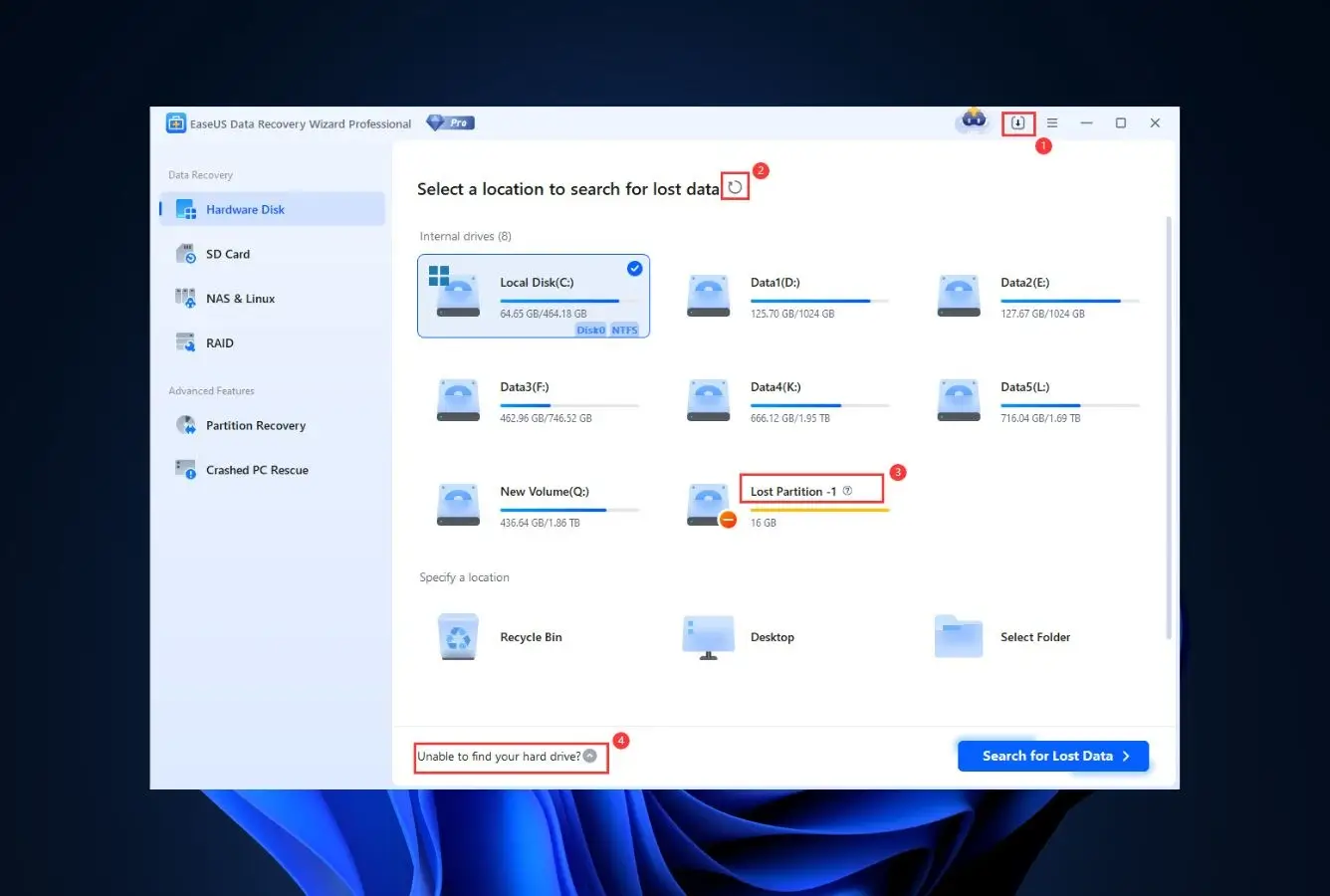
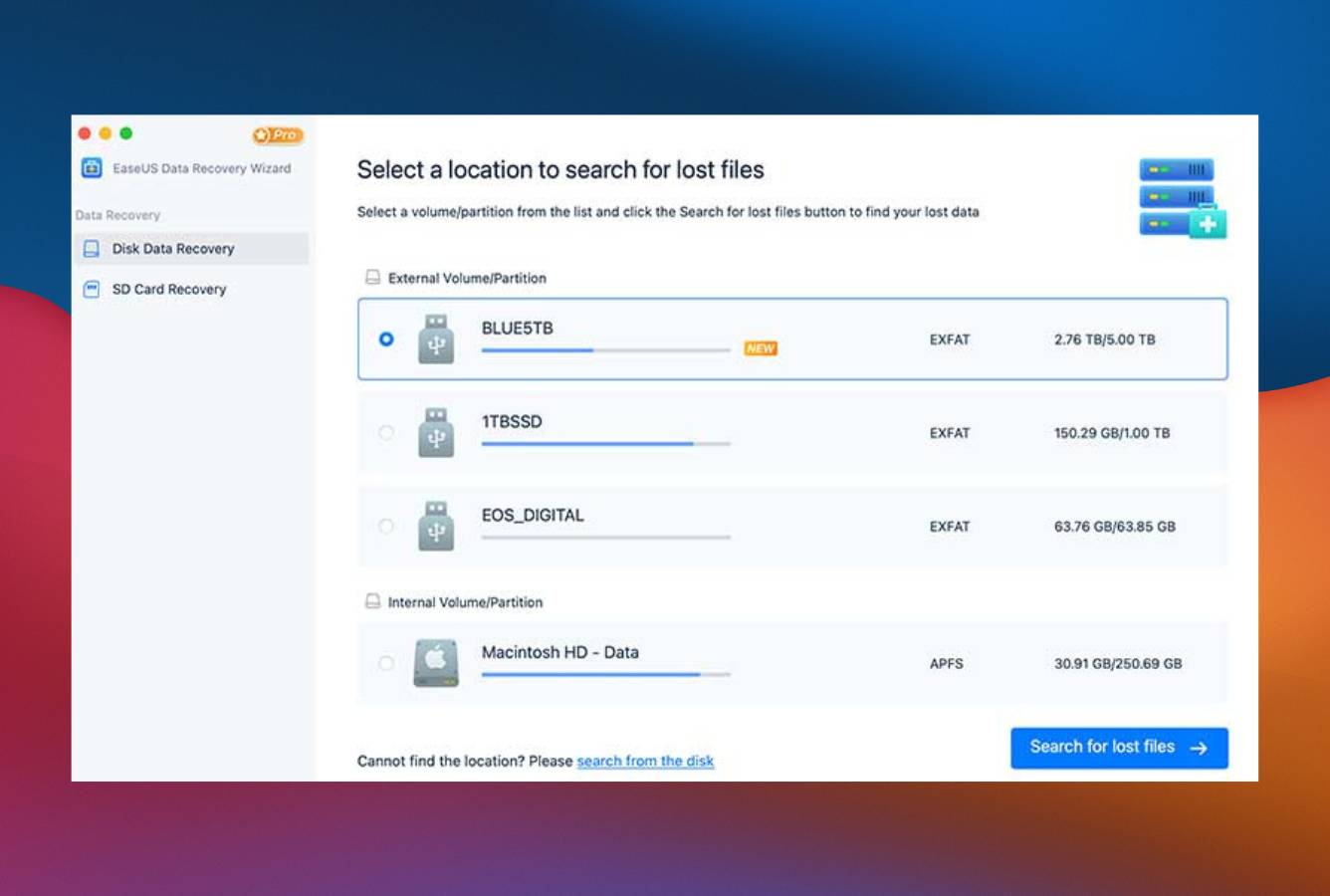
The free edition every other capped tier gets measured against for photo recovery. EaseUS Data Recovery Wizard Free is the one capped free tier on this list where the feature set actually matches what photographers need: broad raw format support across Canon, Nikon, Sony, Fujifilm, Olympus, Panasonic, and Pentax; full thumbnail and full-resolution preview before recovery; and a free ceiling that starts at 500 MB and expands to 2 GB after a social-share prompt, per EaseUS’s knowledge base. Independent third-party reviews consistently place it among the top free photo recovery tools for its breadth of format coverage, and community feedback on r/datarecovery describes it as the default first-try recommendation for SD card photo loss.
- Over 1,000 file signatures including every major raw format (CR2/CR3, NEF, ARW, DNG, ORF, RAF, RW2)
- Full-resolution photo preview before recovery — no “upgrade to verify” wall
- Quick and deep scan run off the same engine as the paid edition
- Cross-platform (Windows + Mac) with consistent UI and format support
- 2 GB post-share quota is generous for a freemium tier that still includes previews
- Clean install, no bundled adware or drive-by toolbars
- 2 GB cap fills fast on a formatted DSLR card with large raw files
- The “share to unlock 2 GB” flow is an awkward social-media dance
- Upgrade prompts appear at scan completion — easy to dismiss but persistent
Top-tier raw-format coverage and photo-specific preview quality.
Independent testing consistently places EaseUS near the top for photo recovery scenarios: recently-deleted JPGs on NTFS or exFAT, formatted SD cards from DSLRs and mirrorless bodies, corrupted camera memory where the card has become RAW or unreadable. The scan engine runs a filesystem-walk first (which preserves original filenames and EXIF metadata where available) and falls back to signature scanning on formatted or damaged media. Community reports on r/AskPhotography describe consistent success on Canon CR2/CR3 and Sony ARW files specifically, which are two of the most common raw loss cases.
Photo filter and thumbnail view make triaging recoverable images fast.
Launch the app, pick the source drive or card, click Scan. Results populate in real time and can be filtered by “Graphic” to cut straight to photos. The thumbnail grid loads preview images without spending any of the 2 GB quota, and double-click expands to a full-resolution preview pane. For photographers specifically, this is more actionable than a flat file list because you can visually confirm a photo is whole before committing to it. The only UX friction is dismissing the upgrade prompts that appear at scan completion.
2 GB covers most small-batch photo losses; upgrade gets expensive quickly.
As a free tool, the value is excellent for photographers with a small-batch loss: 2 GB (after the social share) recovers a typical accidental-delete of a single shoot’s worth of JPGs or a batch of smartphone photos. The paid ladder is where EaseUS gets expensive — $69.95/yr for the entry tier, renewing at full price. For a formatted DSLR card with 64 GB of raws, the free tier won’t cover the whole recovery, and the annual subscription model is less appealing than a lifetime license. For genuinely free photo recovery with broad format support, this is still the clearest winner among capped free tiers.
2. PhotoRec — Best Free Open-Source Photo Recovery
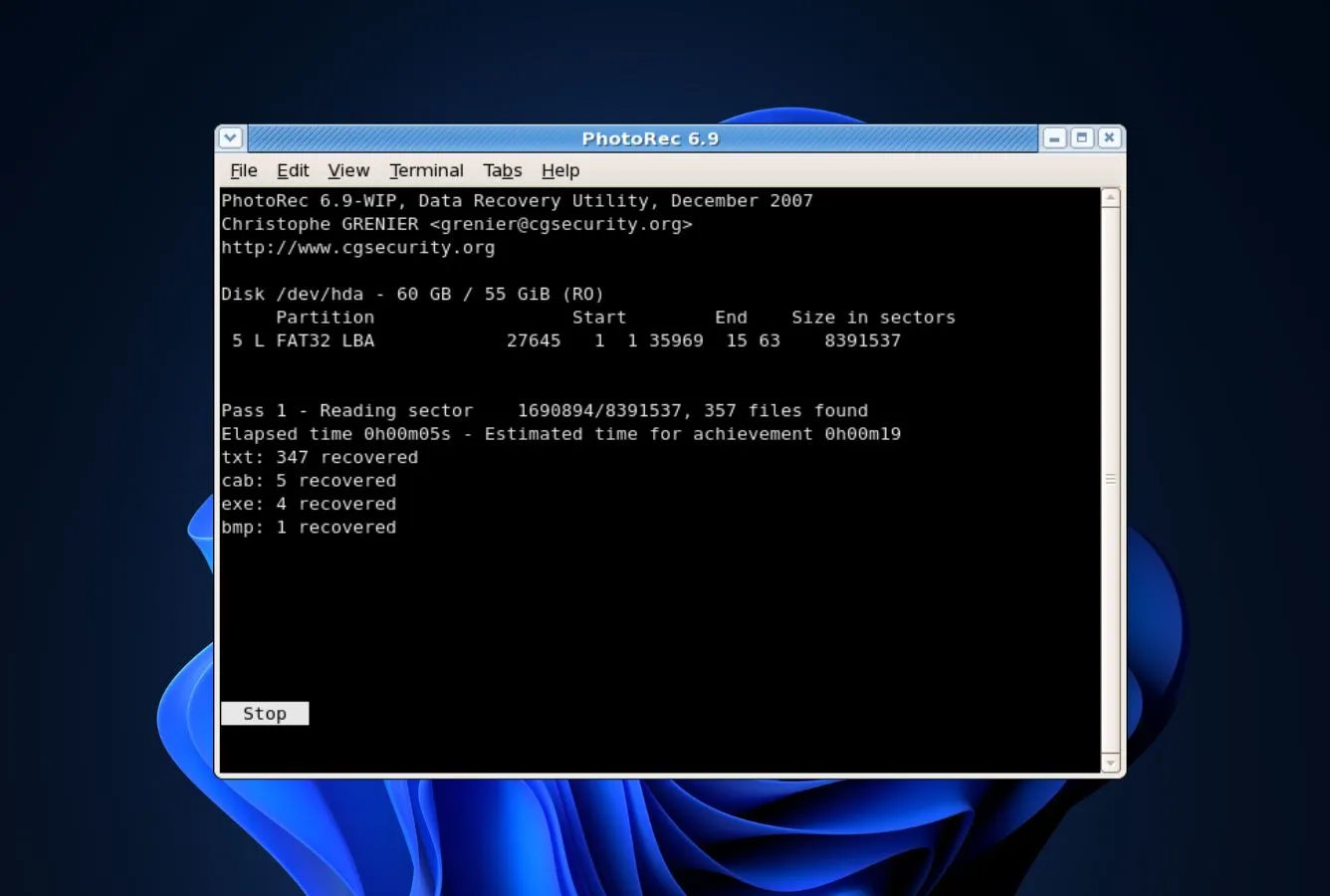
PhotoRec is the open-source signature recovery tool bundled with TestDisk by CGSecurity and maintained since 2002. Its name is a misnomer — it recovers over 480 file types, not just photos — but for photo recovery specifically it is unmatched on free terms: every major raw format (Canon CR2/CR3, Nikon NEF/NRW, Sony ARW/SR2/SRF, Adobe DNG, Olympus ORF, Fujifilm RAF, Panasonic RW2, Pentax PEF, Leica DNG/RAW), every common consumer format (JPG, PNG, HEIC, TIFF, GIF, BMP), plus video containers (MP4, MOV, AVI, MKV). It runs on Windows, macOS, Linux, and FreeBSD from a single executable with no installation. Forensic labs keep it on a USB stick precisely because its filesystem-agnostic carving works on media where commercial tools fail.
- Over 480 file signatures, including every consumer-relevant raw format
- Truly free, truly open-source (GPL v2+), no nag, no upsell, no registration
- Portable single-executable — runs from a USB stick on any OS
- Filesystem-agnostic signature carving works on RAW, formatted, or corrupted media
- Works when everything else fails; forensic-grade reliability
- Text-menu interface is intimidating for non-technical users
- No thumbnail preview before recovery — you recover everything, then sort
- Signature carving cannot recover original filenames or folder structure
- Cannot recover fragmented files reliably (a standard signature-scan limitation)
Peak signature carving for photos — the ceiling of free recovery.
PhotoRec’s signature database is the largest of any free tool and the most actively maintained: 480+ file types at last count, with regular additions for new camera raw variants (Sony A1 ARW, Canon R5 CR3, Fujifilm GFX RAF). On a formatted SD card or a corrupted memory card where the filesystem is unreadable, PhotoRec can often reconstruct every intact photo on the card by scanning sector by sector. Community feedback on r/datarecovery frequently frames it as “the tool that runs when EaseUS gives up.” The one honest weakness is fragmentation — any photo split across non-contiguous clusters will only recover the first fragment.
Looks like 1998 — works like a Swiss Army knife.
The interface is a text-menu wizard: select a disk, select a partition type, select a filesystem, select a destination, select file types, run. For a non-technical photographer, this is a higher learning curve than any other tool on this list. But the logic is consistent and well-documented at cgsecurity.org, and the recovery output is organized into numbered subfolders by file type. Community tutorials and YouTube walkthroughs abound. Once you have done it once, it is routine; the scary screens are mostly one-time setup.
Free forever, no strings — the honest benchmark on this list.
PhotoRec is GPL-licensed open source and has no paid tier. No nag, no upgrade path, no license keys, no telemetry. For a photographer who needs to recover a formatted CF or SD card and does not want to pay, this is the tool the rest of the list gets compared to. Its “price” is the learning curve and the absence of filenames in output — which for a valuable shoot is usually a good trade.
3. Recuva — Best Uncapped Windows Photo Undelete
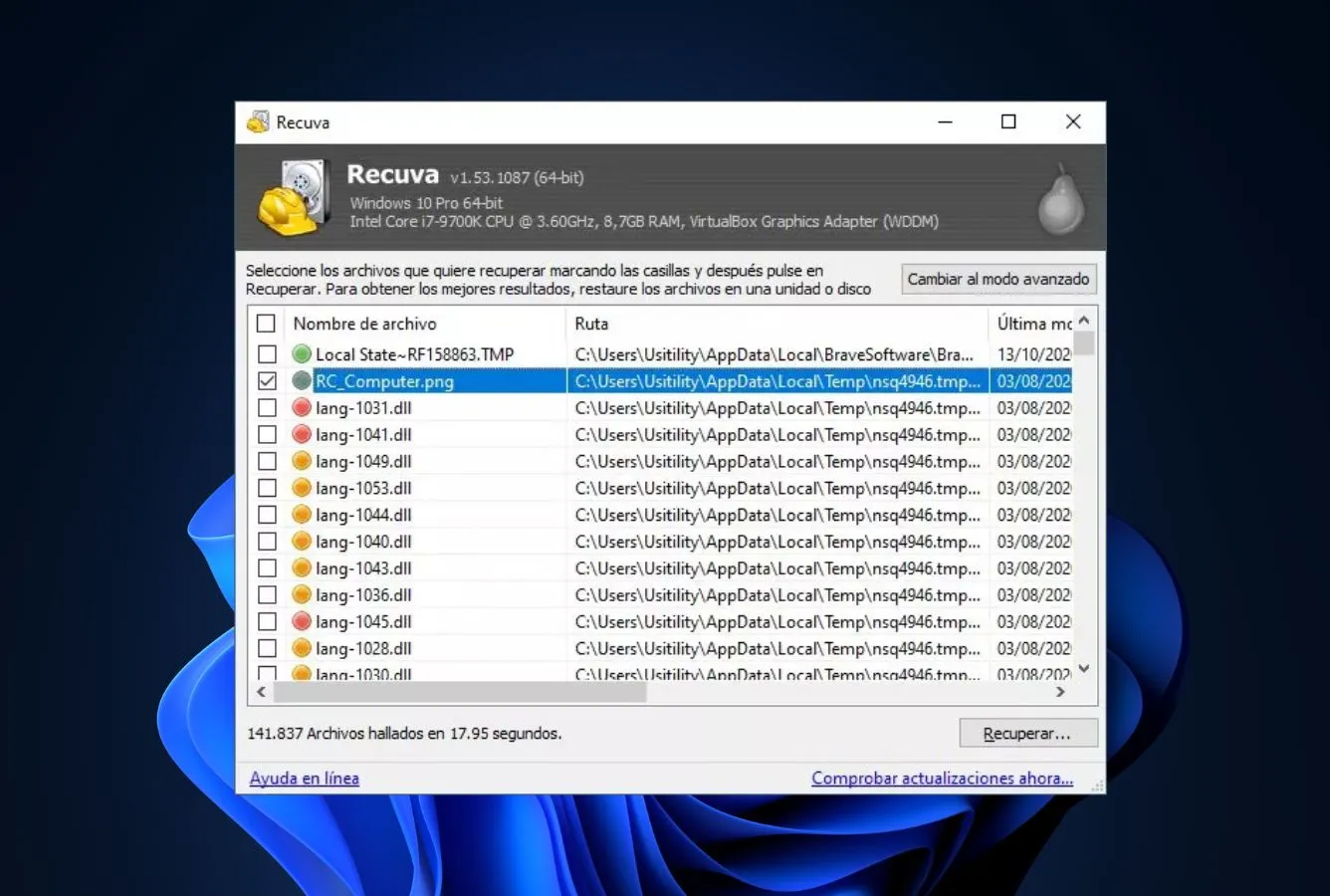
Recuva has been the default free Windows recovery utility since 2008, maintained by Piriform (part of Avast). Its headline feature for photographers is simple: the free edition has no size cap and never has. Recover 2 GB, recover 200 GB, recover a full drive of photos — it makes no difference to the license. For JPG and PNG on healthy NTFS drives, it is the fastest first-try on Windows. Deep Scan adds signature-based carving for common camera raw formats, though its raw coverage is narrower than PhotoRec’s or EaseUS’s. The traffic-light badge on each file (green = intact, yellow = partial, red = overwritten) is genuinely useful for triage before spending time on recovery.
- No size cap on free tier — unlimited photo recovery, ever
- Traffic-light file-condition indicator (green/yellow/red) speeds photo triage
- Portable .exe runs from a USB stick without installing
- Deep Scan handles JPG, PNG, and common raw (CR2, NEF, ARW)
- Tiny download (under 10 MB), minimal RAM footprint
- Windows only — no Mac or Linux build
- Raw format coverage is narrower than PhotoRec or EaseUS (no CR3, limited RW2/PEF)
- Interface has not been meaningfully redesigned since the Windows 7 era
- Deep Scan is slow on large SD cards and external drives
Reliable on healthy drives; narrower raw coverage than top-tier.
On a healthy NTFS or FAT32 drive where photos have been deleted and the Recycle Bin emptied, Recuva is fast and consistently reliable for JPG, PNG, and common camera raw. Deep Scan signature coverage includes about 50 file types — a fraction of PhotoRec’s 480+ — but the commonly lost formats are covered. On a formatted SD card or a card where the filesystem is damaged, Recuva’s recovery rate drops noticeably compared to signature-specialist tools. For anyone who just emptied the Pictures folder by accident, Recuva is usually the fastest path to recovery.
Old but immediately learnable — and the traffic-light view is better than most modern UI.
The launch wizard walks you through source selection and file type in three clicks. Results arrive as a flat list with a clickable thumbnail preview panel on the right, and every file shows a condition column that reads as green, yellow, or red. For photo recovery specifically, that condition indicator is the best triage affordance on this list: you can see at a glance which photos will come back intact and which are partially overwritten without having to recover them first. The absolute-view mode is a little harder to navigate, but first-run wizard users never need it.
Free forever is the right price for what this tool is.
The value math for Recuva is unique: everything most photographers need is in the free edition, forever. The $24.95/year Pro tier adds virtual hard drive support, automatic updates, and priority support — useful for IT pros, mostly pointless for a photographer recovering a shoot. Because the free version has no export ceiling, paid Recuva only sells support, not capability. That makes Recuva the no-brainer pick for Windows photographers who want a free photo recovery tool they might actually keep installed between emergencies.

4. Tenorshare 4DDiG Free — Best Photo-Focused Free Tier
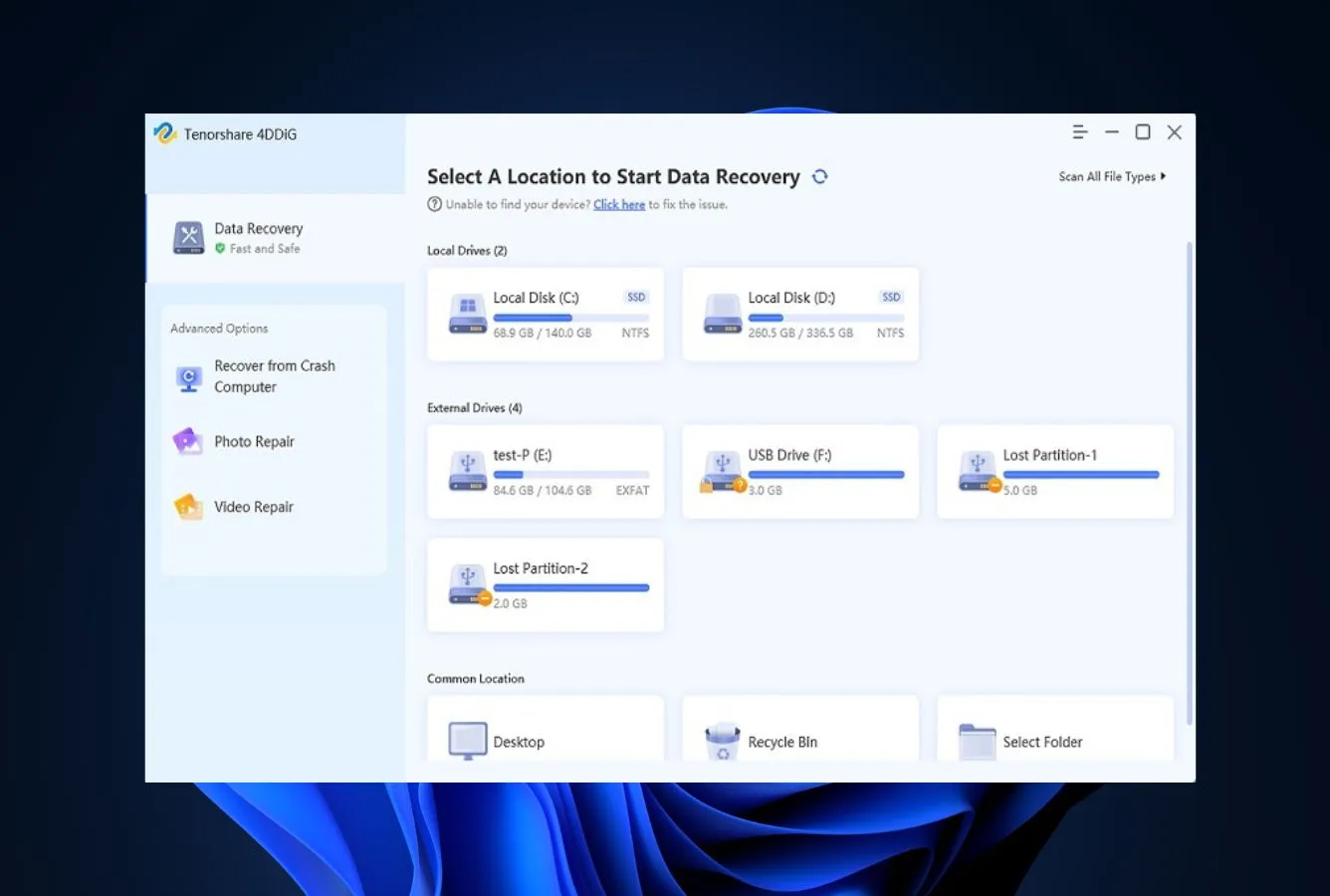
Tenorshare 4DDiG is the data recovery tool most visibly marketed for photo and video recovery, and the free tier (500 MB default, 2 GB after a social share, per the vendor’s page) makes it a real contender rather than a demo. Signature coverage is broad — over 1,000 file types including every major raw format across Canon, Nikon, Sony, Fujifilm, Panasonic, Olympus, Pentax, and Leica — and the UI leads with a photo-grid preview rather than a file list. The scan engine handles formatted SD cards and corrupted camera drives competently. Community feedback on r/AskPhotography positions it as the modern-UI alternative when EaseUS’s upgrade pressure feels too aggressive.
- Over 1,000 file signatures, comparable to EaseUS’s coverage
- Photo-grid preview is purpose-built for photo triage — no flat list to sort
- 2 GB free after social share, with full preview of every file found
- Cross-platform on Windows and Mac with consistent format support
- Clean modern UI that is noticeably less aggressive about upsells than EaseUS
- 2 GB cap is identical to EaseUS’s, which limits both to small-batch photo recovery
- Pro tier ($55.95/yr) is subscription only; no lifetime option
- Social-share prompt to unlock 2 GB feels dated
- Deep scan speed on large external drives is slower than Recuva or PhotoRec
Matches EaseUS on raw coverage; slightly behind on filesystem edge cases.
For the mainstream photo recovery case — deleted JPGs on a camera SD card, a formatted microSD, a corrupted mirrorless body’s storage — 4DDiG Free’s signature engine performs comparably to EaseUS Free. Independent third-party reviews and test sites often place the two within a point or two of each other on photo recovery benchmarks. On ReFS or exotic filesystem edge cases, EaseUS tends to pull ahead; on everyday SD card recovery for photography, the two trade blows.
Photo-first UI is genuinely different — not just a prettier file list.
The default scan result view is a grid of photo thumbnails grouped by file type, with sort-by-size, sort-by-date, and a path filter. This is a meaningful improvement over tree-view defaults for users who know they are recovering photos specifically. The free version gives you full preview of every photo found, including original EXIF metadata where available, before deciding whether to apply the 2 GB quota. Community feedback on r/datarecovery consistently describes 4DDiG as the “photographer-friendly” option when EaseUS’s UI feels too busy.
2 GB is useful for a shoot; paid tiers cost more than competitors.
As a free tool, 2 GB of genuine preview-and-recover value with broad raw coverage is competitive. The paid ladder is where 4DDiG gets less attractive: $55.95/yr for the annual tier, no lifetime option. For a photographer who needs more than 2 GB, the same budget buys a Disk Drill Pro lifetime license, which is generally the better long-term value. 4DDiG Free is a strong first-try tool; its upgrade economics push most users to try something else before committing to a subscription.

5. DiskDigger — Best Free Portable Photo Recovery
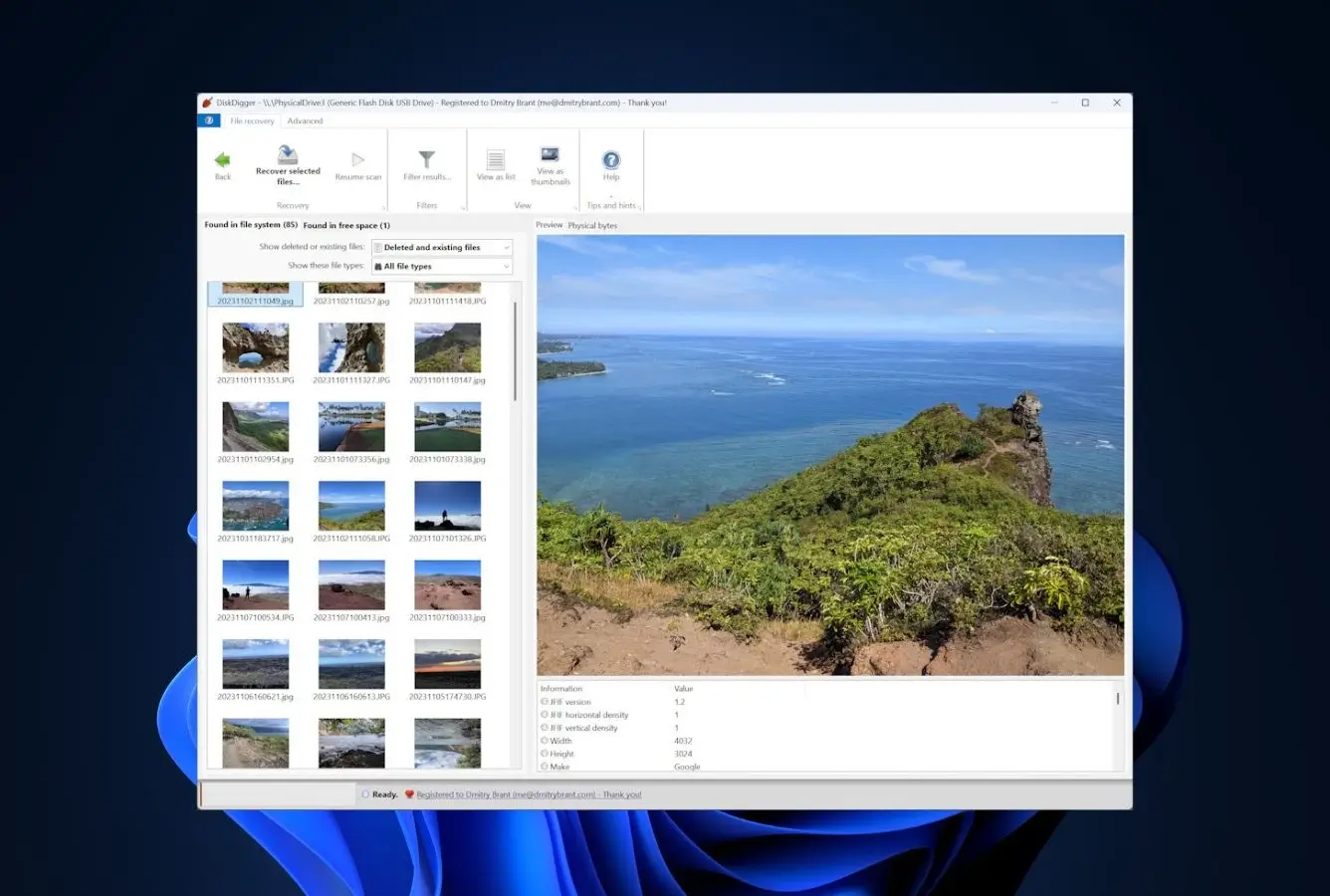
DiskDigger takes an unusual free-tier approach: on Windows, the entire app is functionally free — scan, preview, and recover any file — but without a $14.99 personal license, the program displays a purchase prompt for every file you save, per the developer’s FAQ. Both scan engines (filesystem-walk and signature-carve) are available in the free version. Linux is fully free with no prompts, and the Android version is one of the top-rated photo recovery apps on the Play Store. For photography specifically, DiskDigger’s thumbnail-grid results view and strong coverage of JPG, PNG, TIFF, and common camera raw make it a genuine contender when you do not mind clicking past a prompt per file.
- Fully functional free mode on Windows: scan, preview, recover with no size cap
- Portable .exe under 1 MB runs from USB — never installs to the recovery target
- Android app is genuinely free, top-rated for phone photo recovery on Play Store
- Thumbnail grid preview is strong for photo triage
- Cheapest paid upgrade on this list at $14.99 one-time personal
- Save prompt pops up for every recovered file on Windows without a $14.99 license
- No Mac build — only Windows, Linux, and Android
- Raw format coverage is narrower than PhotoRec or EaseUS (no CR3, limited RW2)
- Interface is minimal to the point of austere compared to EaseUS or 4DDiG
Strong on consumer photo formats; Android app punches above its weight.
DiskDigger’s signature carve engine handles the consumer photo cases reliably: JPG, PNG, TIFF, GIF, BMP, plus Canon CR2, Nikon NEF, Sony ARW, and Adobe DNG. On a formatted SD card, it consistently recovers intact JPGs and common raw files. Recent versions unify filesystem-walk and signature-carve into a single scan, per the developer’s release notes. On Android, DiskDigger’s ability to scan internal storage and recover deleted gallery photos is well-reviewed — Play Store feedback frames it as the go-to option when Google Photos trash has already expired.
Spartan on Windows, genuinely polished on Android.
The Windows app opens to a three-step wizard: pick a drive, pick a scan type, run. Results appear as a flat thumbnail grid for image files, which is workable if not elegant. The single-exe portability is the real draw — drop it on a USB stick, plug into any Windows machine, run without installing. That “never touches the host” property is exactly what you want when the host is the SD card you are recovering from. On Android, the UI is a modern Material 3 design with a clear permission flow and a genuinely usable preview-and-save loop.
$14.99 one-time buys away the prompt — functionality is free either way.
DiskDigger’s personal-use license at $14.99 one-time is the lowest commercial price point on this listicle and unusually honest: no auto-renewal, no feature-gated tiers, no “but for $5 more.” The license buys one thing: removing the purchase prompt that appears when you save each recovered file. The actual recovery engine is identical licensed or not. For a photographer recovering a large batch of photos, $14.99 to skip the prompt is often worth it; for a one-off recovery of a few dozen files, the free mode works fine.
6. MiniTool Power Data Recovery Free — Best Free UI with Photo Preview
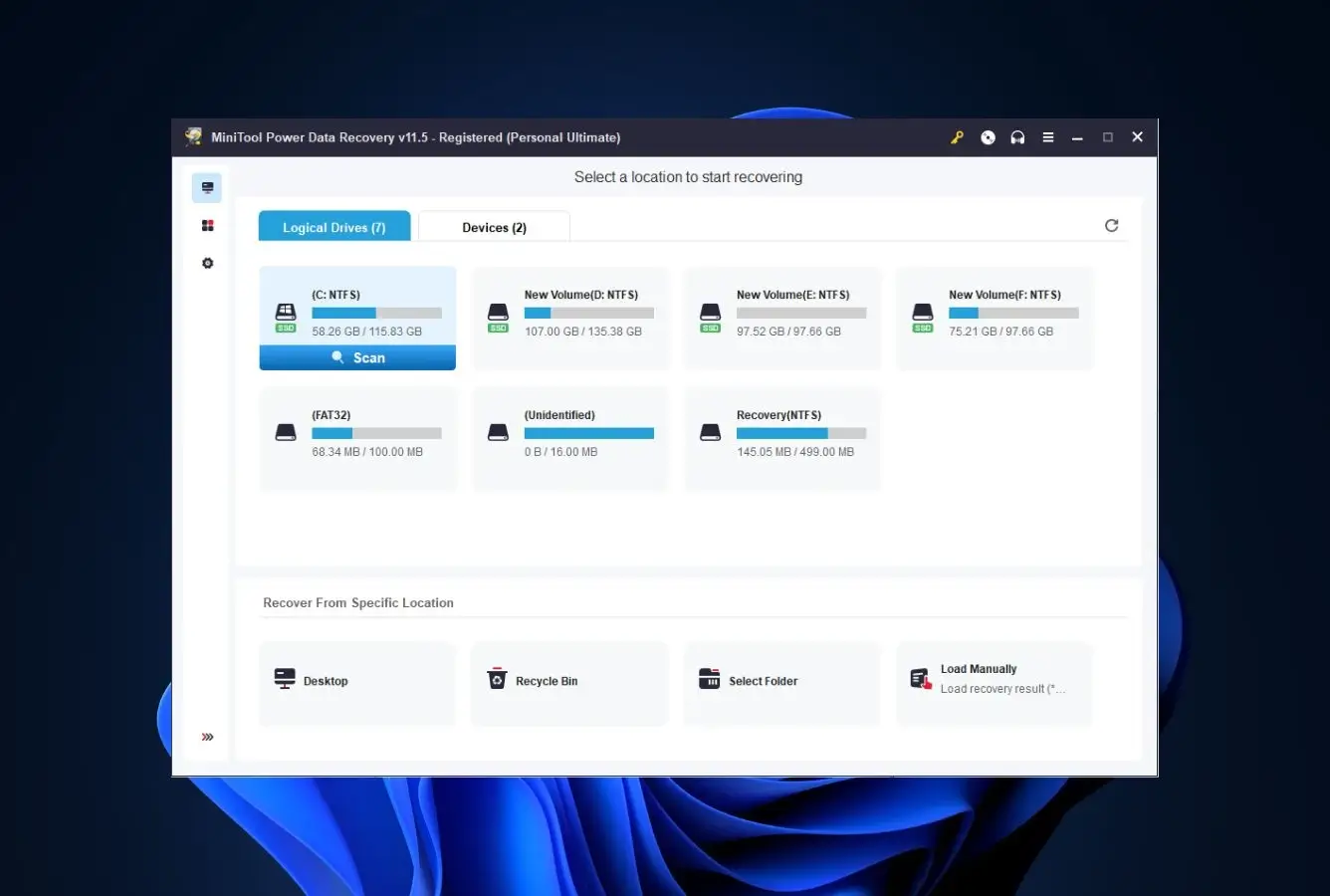
MiniTool Power Data Recovery Free is the polished freemium option for photographers who want an EaseUS-class UI without the upsell pressure. The free tier caps at 1 GB of recoverable data — tighter than EaseUS’s 2 GB post-share, more generous than Disk Drill’s 100 MB — and includes full photo preview before recovery. Signature coverage includes the commonly-lost raw formats (Canon CR2, Nikon NEF, Sony ARW) plus every consumer format. Five scan modules (Undelete, Damaged Partition, Lost Partition, Digital Media, CD/DVD) handle the full range of photo loss scenarios, with “Digital Media” specifically tuned for SD cards and camera memory.
- 1 GB free recovery is enough for a small shoot or a batch of smartphone photos
- Cleanest UI in the capped-tier segment — less cluttered than EaseUS or 4DDiG
- Dedicated “Digital Media” recovery module tuned for SD cards and camera memory
- Full preview of recoverable photos without spending quota
- Cross-platform on Windows and Mac
- 1 GB cap fills fast on DSLR raw files
- Pro tier ($99/yr) is the most expensive annual subscription on this list
- Signature coverage is narrower than PhotoRec or EaseUS
- Bootable-media feature and scan save are paywalled even at 1 GB use
Solid for consumer photo formats; limited on professional raw variants.
MiniTool Free performs well on the common photo recovery cases: deleted JPGs from Windows Pictures folders, formatted SD cards from point-and-shoot cameras, corrupted smartphone photo storage. Signature coverage includes JPG, PNG, GIF, BMP, TIFF, plus Canon CR2, Nikon NEF, Sony ARW, Adobe DNG, and Photoshop PSD. Professional photographers shooting Canon CR3, Fujifilm RAF, or Panasonic RW2 will find coverage less complete than EaseUS or PhotoRec. For the everyday-consumer case, it is a competent second opinion.
The capped-tier UI with the least friction — clean and modular.
MiniTool’s launch screen presents five clear module buttons (Undelete, Damaged Partition, Lost Partition, Digital Media, CD/DVD) rather than a single scan flow. For photographers, “Digital Media” is the right entry point — it is tuned for SD cards, USB flash, and camera memory rather than internal hard drives. Results appear with thumbnail preview for image files, filtered by type, with a clear 1 GB quota counter at the bottom. Community feedback on r/datarecovery describes it as “the one that feels like proper software” in a category full of dated interfaces.
1 GB is useful for small recoveries; paid ladder is the most expensive on this list.
The free tier’s 1 GB quota covers a batch of smartphone photos or a few dozen JPGs at full resolution, but fills quickly on a DSLR card full of raws. The paid tier is the weak spot: $99/yr for the Personal subscription, renewing at full price, with no lifetime option. At that price point, Disk Drill Pro’s $149 lifetime license is objectively better value. MiniTool Free is a strong second-opinion tool and a pleasant UI experience; its upgrade economics push most users to try a different paid tool.

7. Puran File Recovery — Best Truly Free Windows Photo Utility
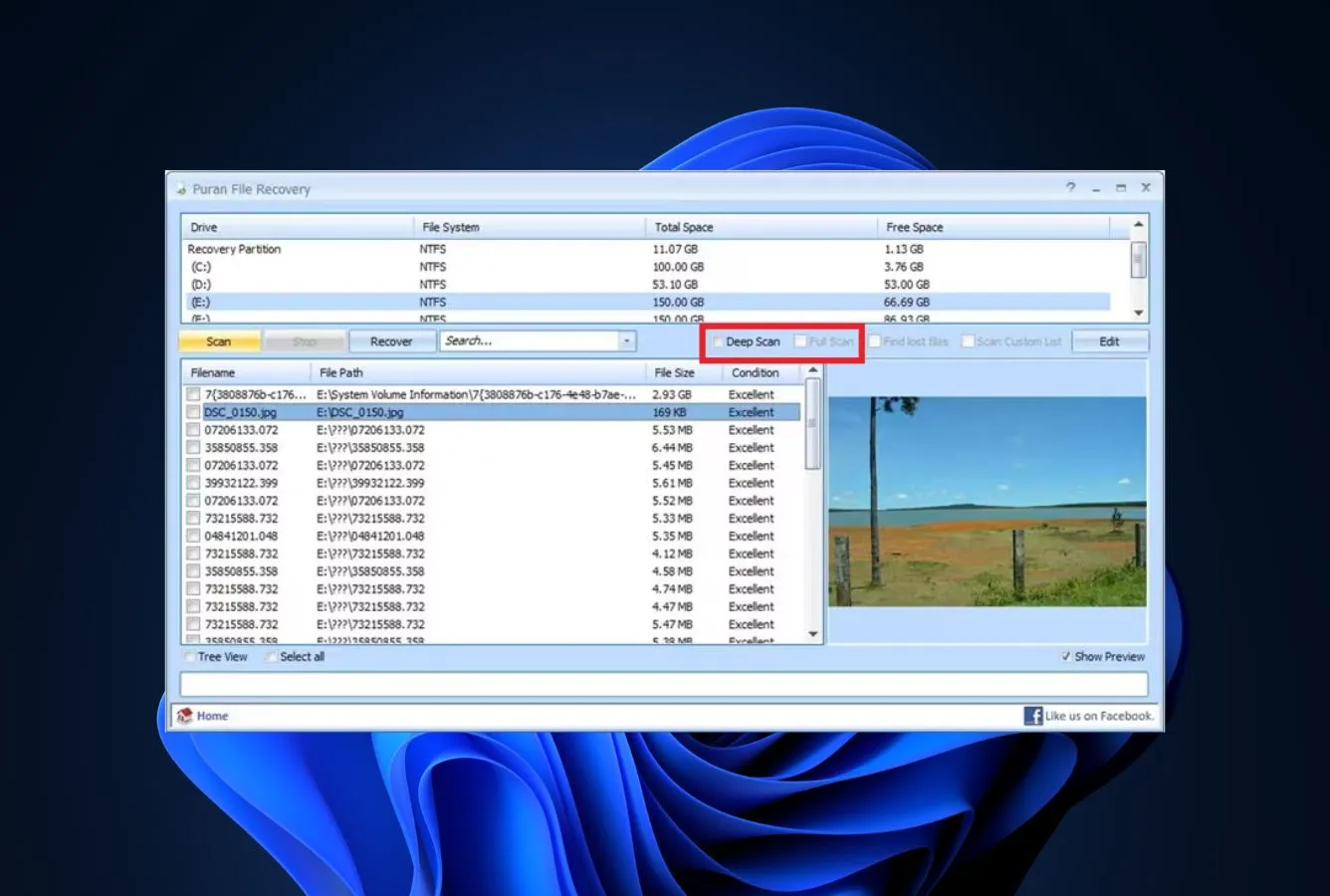
Puran File Recovery is a quiet freeware utility from a small Indian software studio that has been releasing the same good, honest recovery tool since around 2012. It handles NTFS and FAT12/16/32 on Windows (its signature-scan engine can also pull data from RAW or non-listed filesystems), offers quick and deep scan modes, and is free for personal use with no file-count cap, export cap, or social-share requirement. Photo-format coverage is signature-based for about 50 common types including JPG, PNG, GIF, BMP, TIFF, and Canon CR2, Nikon NEF, Sony ARW. The UI is pure Windows 7 grey — no animations — which some users find refreshing and others find stuck in time.
- 100% free for personal use with no size or file-count cap
- Quick + deep scan modes, both with filename preservation where the filesystem allows
- Tiny download (2 MB), runs on Windows 7 through 11
- Second-opinion tool: finds photos other scanners miss
- Zero adware, no bundled installer, no telemetry
- Windows only — no Mac, no Linux, no Android build
- UI looks like it stopped aging in 2012
- Raw format coverage is narrower than PhotoRec (about 50 signatures vs 480+)
- No photo-specific preview grid — results are a flat tree view
Reliable consumer-photo recovery; narrower coverage than PhotoRec.
On a healthy FAT32 SD card or an NTFS drive where photos have been deleted, Puran’s quick scan reliably recovers JPGs with filenames intact. On a formatted or corrupted card, the full-scan signature engine handles about 50 file types — enough for common consumer formats but narrower than PhotoRec’s 480+ or EaseUS’s 1000+. For raw files from modern mirrorless cameras (Canon CR3, Fujifilm RAF, Sony A1 ARW), coverage can be incomplete. Community feedback on r/datarecovery describes Puran as a reliable second-opinion tool when a primary free scan comes back incomplete.
Windows-Explorer-style tree view — functional but dated.
Launch the app, pick a drive or partition, pick quick or deep scan, wait. Results appear in a Windows Explorer-style tree with columns for file size, original path, and a condition indicator ranging from “Excellent” to “Poor.” For photo recovery specifically, this is less ideal than a thumbnail grid — you have to click each image to preview — but the condition column is usable for triage. The entire app is under 3 MB; there is no installer beyond extracting the ZIP.
Free forever for personal use — the honest zero-cost option.
Puran is free for personal use with no upgrade path and no commercial license hidden behind the free mode. The author’s “thank you” license is a voluntary donation rather than a functional upgrade. For Windows photographers who want a genuinely no-strings free tool and do not need the broadest raw coverage, this is the right answer. For commercial use, a small license is required per the vendor’s terms.

8. Windows File Recovery — Best Free Microsoft-Signed Tool
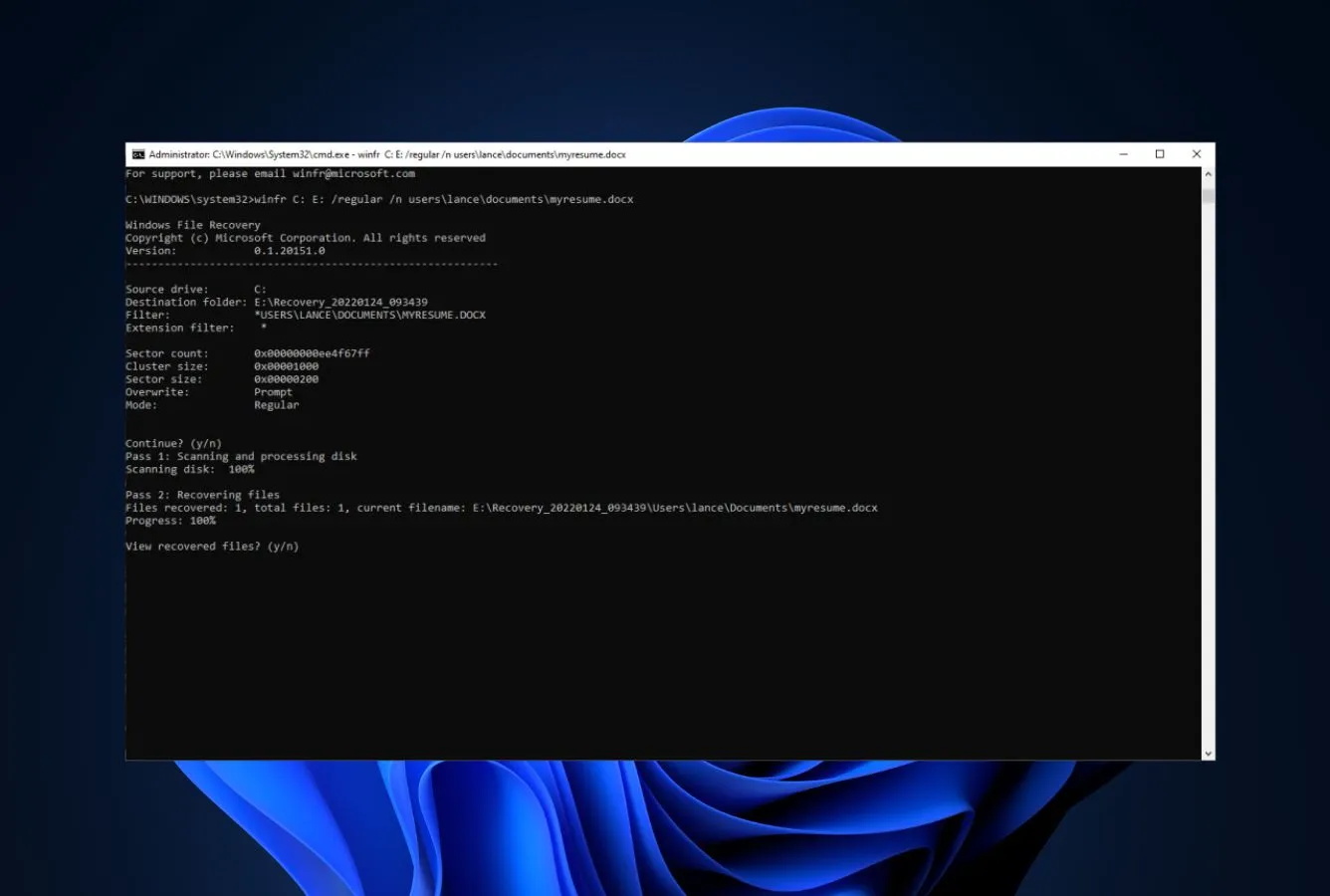
Windows File Recovery is Microsoft’s first-party, free recovery utility, distributed through the Microsoft Store. For photo recovery specifically, the Signature mode supports JPG, PNG, GIF, ZIP, and PDF — not raw camera formats — and the Extensive mode handles formatted or corrupted NTFS, FAT, exFAT, and ReFS volumes. There is no GUI, no preview, and no selective recovery: you type a command line with filters, and recovered files appear in a destination folder. For non-technical photographers this is frustrating, but for an IT-literate user recovering a batch of JPGs from a formatted USB stick, it is free, signed by Microsoft, and permanent.
- 100% free, Microsoft-signed, permanent — no trial, no upsell, no expiration
- Extensive mode handles formatted NTFS, FAT, exFAT, and ReFS volumes
- Official Microsoft Store distribution, zero supply-chain risk
- No size cap on recovery
- Tiny download, minimal footprint, no background services
- Command-line only — no GUI, no preview, no selective recovery
- Signature mode does not support raw camera formats (CR2, NEF, ARW)
- Windows 10 2004+ and Windows 11 only — older Windows versions cannot run it
- Steep learning curve for non-technical users
Excellent on NTFS JPGs; no raw-format support at all.
Windows File Recovery is surprisingly capable within its limits. Regular mode works on recently-deleted JPGs from healthy NTFS and is fast. Extensive mode — the signature-based deep scan — works on formatted or corrupted NTFS, FAT, exFAT, and ReFS drives and reliably recovers JPG, PNG, and GIF. The critical limitation for photographers: the built-in signature set does not include any raw camera formats. For a photographer with lost CR2, NEF, or ARW files, Windows File Recovery will recover the associated JPG thumbnails but not the raw files themselves. Community feedback on r/techsupport frames it as “the tool that works when you have lost a batch of JPGs and do not want to install anything else.”
Command-line only — and everything that implies.
You launch Windows File Recovery from an administrator command prompt, type a winfr command with source drive, destination drive, mode, and file filters, press Enter, and wait. Output is written to a folder on the destination drive. There is no preview, no selective recovery, no “only bring back these photos” mode. For photographers, this means you typically recover everything and sort later, which is workable but not pleasant. Microsoft’s documentation is thorough; community tutorials cover the common winfr commands well.
Free, first-party, permanent — hard to beat on principle.
Windows File Recovery is free, first-party, maintained, and permanent. There is no Pro tier, no upsell path, and no data collection beyond standard Microsoft Store telemetry. That alone makes it worth knowing about even if you normally use a GUI tool: it is a fallback that never expires, never nags, and is signed by Microsoft. The value ceiling is the UX — for a photographer recovering a handful of JPGs, a 1 GB MiniTool Free recovery is usually more actionable than an unlimited winfr run whose output needs sorting.
How We Evaluate Free Photo Recovery Software
Ranking free photo recovery tools is harder than ranking paid ones because every free tier is differently shaped: some cap by size, some by file count, some by mode, some only preview and never export. Rather than run an in-house benchmark on a single SD card and pretend it generalizes, this ranking draws on three research layers simultaneously: vendor-documented features and free-tier limits, independent testing from external recovery-focused publications, and real user feedback from r/datarecovery, r/AskPhotography, Trustpilot, and GitHub issues. Rankings reflect the aggregate of these sources, cross-referenced across at least three of them per factual claim.
Platforms covered: Windows 10 and 11, macOS 11 Big Sur through 15 Sequoia, plus Linux and Android where the tool is cross-platform. Storage evaluated includes SD cards (FAT32/exFAT), microSD cards, USB flash drives, internal SSDs in mirrorless bodies, and computer drives. Key factors weighted: Photo Recovery Quality (35%), Free-Tier Usefulness (25%), Photo-Specific UX (15%), Safety & Trust (10%), Platform Parity (10%), Format Breadth (5%) — free-tier honesty folded into both Safety and Free-Tier Usefulness.
Individual test runs, scan-time logs, and per-tool notes from ongoing testing live on our full methodology page. Start there if you want the underlying numbers behind any claim on this page.
Free Photo Recovery Tools — Honorable Mentions
Six tools that came close but did not make the main ranking — either because their free tiers are too tight to be useful for photos, or because they occupy niches narrow enough to not serve general photography users.
How to Choose the Right Free Photo Recovery Tool
The right free photo recovery tool depends on four variables: how many photos you lost, what formats they were saved as, what storage the photos were on, and whether you are on Windows, Mac, or mobile. The six factors below map those variables to the tools above.
Match the Free Tier to the Size of Your Loss
If you lost a handful of JPGs or a small batch of smartphone photos (under 1 GB), almost any tool on this list will cover the recovery without hitting a cap. If you lost a full shoot of raw files from a mirrorless body, the uncapped tools — PhotoRec, Recuva, Puran File Recovery, Windows File Recovery, and DiskDigger’s Windows free mode — are the only options that will recover the whole batch without a paid upgrade. For anything in between, 4DDiG Free or EaseUS Free’s 2 GB post-share tier is enough for small-shoot recoveries.
Match the Signature Engine to Your Camera Format
Raw format coverage varies meaningfully across free tools. PhotoRec leads with 480+ signatures including every major raw variant. EaseUS and 4DDiG both claim 1,000+ signatures and cover every consumer raw (CR2/CR3, NEF, ARW, DNG, ORF, RAF, RW2). Recuva and Puran cover the common consumer formats but have narrower raw support. If you shoot Canon CR3, Fujifilm RAF, or Panasonic RW2 from recent bodies, PhotoRec or EaseUS is the safer bet. If your photos are JPGs from a phone or mirrorless camera, any tool on the list will do.
Match the Tool to Your Storage Medium
SD cards and camera memory are typically FAT32 or exFAT, which every tool on this list handles. USB flash drives for photo transfer are the same. Internal camera storage, SSDs in mirrorless bodies, and modern iPhone/Android storage use proprietary filesystems or NTFS (Windows-formatted external drives). For SD cards specifically, our SD card recovery guide covers the signature-based tools with the strongest coverage for FAT/exFAT photo recovery.
Match the Platform to Where You Actually Work
Windows users have the most options on this list — all eight tools run there. Mac users are narrower: EaseUS, Tenorshare 4DDiG, PhotoRec, and MiniTool. Linux users have PhotoRec and DiskDigger. For Android phone photo recovery, DiskDigger’s Android app is the standout choice and is truly free with no in-app purchases. For iPhone photos, check iCloud trash and Recently Deleted first — none of the tools on this list recover directly from iOS storage. For cross-platform context, our Mac data recovery roundup covers the macOS side in more depth.
Match the UI to Your Technical Comfort
Photo recovery is a visual task, and the thumbnail-grid tools (EaseUS, Tenorshare 4DDiG, MiniTool, DiskDigger) are substantially easier for non-technical photographers than the tree-view or command-line options (Puran, PhotoRec, Windows File Recovery). If you are recovering a shoot and need to visually confirm which photos came back intact, pick a tool with a thumbnail-grid preview. If you are comfortable recovering everything and sorting later, PhotoRec’s output is reliable but unlabeled.
Match Your Budget to Your Expected Recovery Scope
Truly free tools with no upsell path: PhotoRec, Windows File Recovery, Puran File Recovery. Freemium tools with useful free tiers: Recuva (uncapped), EaseUS (2 GB post-share), 4DDiG (2 GB post-share), MiniTool (1 GB). Nagware with functional free recovery: DiskDigger on Windows. If you are worried about being upsold mid-recovery, the first group is the safe choice. If you want the best photo UX and are willing to upgrade if the scan finds your data, the second group delivers more capability per free byte. Our cross-platform free data recovery guide has an even broader comparison of free-tier shapes across the whole category, not just photo use cases.
When Free Photo Recovery Software Isn’t Enough
Free photo recovery software handles most everyday cases well — accidental deletes, quick-formatted SD cards, emptied Recycle Bins. It struggles with five specific scenarios. Recognizing them early saves hours of futile scanning and, in one case, storage that cannot be recovered at all.
| Your situation | Software can help? | What to do instead |
|---|---|---|
| Physically damaged SD card (bent pins, broken housing, water) | No | Professional lab with NAND-chip read capability. Do not attempt power-on. |
| SSDs, phones, mirrorless body storage with TRIM enabled | No | Try immediately if seconds old; otherwise accept loss. TRIM erases at firmware level. |
| Quick format or deleted photos on healthy SD card | Yes | Any tool from this list. Start with EaseUS Free or PhotoRec. |
| Full format with data overwrite | No | Data is overwritten at sector level. Not recoverable by software or lab. |
| Encrypted storage without the key | No | Locate the key or passphrase first. Without it, photo data is ciphertext. |
Physical Damage to the SD Card or Camera Storage
SD cards with bent pins, broken plastic housings, or water damage cannot be recovered by software. The card needs physical repair before software can read the controller. The same applies to memory cards that have been stepped on, burned, or submerged — any physical damage to the flash chip itself is unrecoverable by consumer tools. If the SD card is not detected by your computer at all (no drive letter, no mount, no sound on insertion), software recovery cannot help. Budget for a professional recovery service that can desolder and directly read the NAND flash chips.
SSDs, Mirrorless Body Storage, and TRIM-Enabled Devices
Most modern mirrorless cameras use internal SSDs, and most modern smartphones use NAND storage with TRIM-equivalent functionality enabled by default. Once TRIM has run (which happens within seconds of file deletion on most devices), the deleted photo data is erased at the firmware level and no recovery tool — free or paid — can recover it. If you deleted photos from a phone or an SSD and noticed it within a minute, try immediately; if it has been more than a few minutes, assume the data is gone. For SSD-specific guidance beyond photo recovery, see our SSD recovery software guide.
Full Format with Data Overwrite
A quick format clears the filesystem index and leaves the image data intact — signature recovery tools recover the photos. A full format writes a zero pass across the entire storage, overwriting all image data. Some cameras and card formatters offer both options; if you accidentally ran a full format, the photos are not recoverable by software. Same for any scenario where you have taken significant new photos on the same card after the loss — every new file written to the card has a chance of overwriting a recoverable photo in the same sectors.
Encrypted Storage
BitLocker-encrypted drives, FileVault-encrypted Mac volumes, and full-disk-encrypted Android phones require the encryption key to recover any data, including photos. Without the key, the raw sectors appear as random noise and no signature scanner can match photo patterns in the data. If you have the key or password, tools like EaseUS and 4DDiG can operate on the decrypted volume after mounting.
Photos That Have Been Actively Overwritten
Even on healthy FAT32 or NTFS storage, recoverability depends on whether the photo’s sectors have been overwritten since deletion. A deleted JPG whose sectors have been reused by another file is gone. This is the single most common reason recovery “fails” — the data was overwritten before you started scanning. Every tool on this list marks overwritten files in its results: Recuva uses the traffic-light badge, EaseUS marks them with a red X, PhotoRec simply skips them. The lesson is universal: stop using the affected storage immediately after you notice the loss, and do not install the recovery software onto the same drive.
Photo recovery has one hard rule: do not write to the affected storage. No more photos on the same SD card, no files to the affected drive, no installing the recovery software onto the drive you are recovering from. If the photos are critical, consider imaging the card first with a free tool like HDD Raw Copy Tool or ddrescue, then run recovery against the image rather than the live storage.
Built-in Photo Recovery Options (Check These First)
Before installing any third-party software, check the built-in photo recovery options on your device. Four of them handle the most common cases without needing anything else.
Recently Deleted Album (iOS and macOS Photos)
The Photos app on iPhone, iPad, and Mac keeps deleted photos in a “Recently Deleted” album for 30 days before permanent erasure. Open Photos, scroll down to Recently Deleted (or Albums → Utilities → Recently Deleted on iOS), and recover photos individually or in batch. No third-party tool can beat this for iOS-sourced photos within the 30-day window.
Google Photos Trash (Android and Desktop)
Google Photos keeps deleted photos in trash for 60 days before permanent removal, which is twice as long as iOS. Open Google Photos, tap Library → Trash (or Bin in some regions), select photos, and restore. This covers photos deleted from the Google Photos app on Android and via web on desktop. If Google Photos was auto-backing up your camera roll, even photos deleted from the camera may still be recoverable here.
Recycle Bin and Trash on Windows and Mac
Photos deleted from a computer’s internal drive go to the Recycle Bin on Windows or Trash on Mac before permanent erasure. The Recycle Bin holds files until you manually empty it or it hits its size limit; Trash on Mac holds files until you empty it. Right-click a photo and Restore / Put Back returns it to its original location. This does not work for photos deleted from SD cards, USB drives, or network storage — those bypass the Recycle Bin entirely.
Camera “Undo Delete” Functions
Some modern mirrorless cameras and DSLRs from Canon, Sony, Fujifilm, and Nikon have undo-delete or protect-from-delete functions that preserve recently-deleted files on the card’s internal flash beyond a standard delete. Check your camera’s playback menu and manual — this varies widely by model year. For smartphones, most Android gallery apps and the iOS Photos app trigger the Recently Deleted behavior described above.
If your lost photos were on iCloud Photos, Google Photos, or a recent Windows or Mac Recycle Bin, the built-in options above will recover them faster and more reliably than any third-party tool. Install recovery software only after you have confirmed the photos are not in one of these trash locations.
Final Verdict
EaseUS Data Recovery Wizard Free is the best free photo recovery software in 2026. Its 2 GB post-share free tier, 1,000+ file signatures including every major raw format, full photo preview before recovery, and cross-platform support on Windows and Mac add up to the most capable capped free tier in the category. For most photographers recovering a small shoot from an SD card or a batch of deleted smartphone photos, it is the right first-try tool.
Beyond the winner: PhotoRec is the right answer for photographers who need uncapped free signature recovery and can tolerate its text-menu interface — no other free tool matches its 480+ signatures or its filesystem-agnostic carving. Recuva is the friendliest uncapped option for Windows users recovering JPGs and common raw formats from healthy drives. Tenorshare 4DDiG Free is worth trying when EaseUS’s UI feels too aggressive; the two share a 2 GB post-share ceiling and overlap on raw coverage. And DiskDigger on Android is the category-leader for phone photo recovery, truly free with no caps.
Frequently Asked Questions
About the Authors


Data Recovery Fix earns revenue through affiliate links on some product recommendations. This does not influence our rankings — all tools are evaluated independently based on documented research, independent testing from external sources, vendor documentation, and community feedback, before any affiliate relationships are considered. If anything on this page looks inaccurate, outdated, or worth revisiting, please reach out at contact@datarecoveryfix.com and we’ll review it promptly.