8 Best USB Data Recovery Software for Windows & Mac (2026): Reviewed & Ranked
The best USB data recovery software handles the specific failure modes that plague flash drives — sudden removal corruption, RAW format prompts, lost partitions after a failed write, and the file system errors that turn a working USB stick into “Please insert a disk.” We cross-referenced 22 recovery tools across FAT32, exFAT, NTFS, and APFS scenarios on Windows and Mac, drawing from vendor documentation, independent testing, and community feedback on r/datarecovery, r/techsupport, and Tom’s Hardware forums. Here are the 8 that actually recover files from flash drives in 2026.
+ 6 honorable mentions
· community feedback
32MB to 2TB drives
Win 11 24H2 · macOS 15
Stellar Data Recovery takes the top spot for USB flash drive recovery in 2026. Its handling of corrupted and RAW-format USB drives — the single most common flash drive failure mode — is the category benchmark, and the dual Windows/Mac builds cover both major platforms with full FAT32/exFAT/APFS parity. EaseUS Data Recovery Wizard earns second with the category’s most generous 2GB free tier, making it the default pick when the recovery volume fits under that cap. Disk Drill rounds out the top three with the best-in-class interface for non-technical users facing a USB emergency for the first time — Recovery Vault also offers preventive protection for USB drives that haven’t failed yet.
 Stellar Data Recovery
- Category-leading RAW format USB recovery rebuilds file systems other tools give up on
- Mature Windows and Mac builds with full FAT32/exFAT/NTFS/APFS coverage for any flash drive
- Recoverability indicators (green/yellow/red) show USB file condition before paying
- Optional cleanroom lab service when physical USB damage blocks software recovery
 EaseUS Data Recovery Wizard
- 2GB free tier covers most single-USB-stick incidents without any purchase required
- Parallel Windows and Mac builds with near-identical USB flash drive feature parity
- Automatic scan flow reaches recovery preview within seconds on typical 32-128GB drives
- Handles every common USB failure — deletion, format, corruption, and lost partitions
 Disk Drill
- Category-best interface design for first-time USB recovery in a panic moment
- Recovery Vault snapshots USB file metadata before deletion for instant future recovery
- One-time $89 license activates on both Windows and Mac — no annual subscription
- Byte-to-byte USB imaging preserves failing flash drives from additional scan damage
- 1Stellar Data Recovery – Best Overall USB Recovery
- 2EaseUS Data Recovery Wizard – Best Free USB Tier
- 3Disk Drill – Best USB Recovery Interface
- 4Wondershare Recoverit – Best for USB Photo & Video Recovery
- 5R-Studio – Best for Severely Corrupted USB Drives
- 6PhotoRec – Best Free Open-Source USB Recovery
- 7DMDE – Best Budget Multi-Platform USB Tool
- 8Recuva – Best Lightweight Free Windows USB Recovery
8 Best USB Recovery Tools – Quick Comparison
USB flash drive recovery depends on different variables than internal SSD or hard drive recovery. USB sticks use NAND flash without aggressive TRIM, so deletions remain recoverable far longer than on internal SSDs — often weeks or months. But USB drives fail in distinctive ways: controller corruption after sudden removal, RAW format errors after power interruption during writes, and “Please insert a disk” messages when the file system header gets scrambled. The ranking below weights those specific failure modes heavily.
Tools ordered below by overall suitability for the most common USB recovery scenarios on both Windows and Mac: a flash drive between 8GB and 256GB formatted as FAT32 or exFAT, with either deleted files, a format accident, or a sudden-removal corruption event. Rankings shift for specialty cases — Recoverit moves up for USB sticks carrying camera photos and video footage, R-Studio becomes essential for severely corrupted drives, PhotoRec is the go-to when budget is zero, and DMDE wins when the USB drive needs to be read on Windows, Mac, and Linux from the same license.
| Tool | USB Performance | Platforms | File Systems | Corrupted USB | Free Limit | Starting Price | Best For |
|---|---|---|---|---|---|---|---|
| Stellar Data Recovery | Excellent | Windows, Mac | FAT32, exFAT, NTFS, APFS | RAW rebuild supported | 1GB | $79.99/yr | Corrupted & RAW USB drives |
| EaseUS Data Recovery | Very Good | Windows, Mac | FAT32, exFAT, NTFS, APFS | Yes | 2GB | $69.95/yr | Free-tier USB recovery |
| Disk Drill | Very Good | Windows, Mac | FAT32, exFAT, NTFS, APFS | Yes | 500MB (Win) | $89 one-time | First-time USB recovery |
| Wondershare Recoverit | Very Good | Windows, Mac | FAT32, exFAT, NTFS, APFS | Partial | 100MB | $79.95/yr | USB photos & videos |
| R-Studio | Excellent | Win, Mac, Linux | All major, forensic | Hex-level rebuild | Demo preview | $79.99 one-time | Severely damaged USB |
| PhotoRec | Good | Win, Mac, Linux | Signature-based, all | Signature only | Fully free | $0 | Free signature recovery |
| DMDE | Good | Win, Mac, Linux, DOS | NTFS, APFS, Btrfs, all | Limited auto-repair | 4,000 files/dir | $20/yr Express | Budget multi-OS USB |
| Recuva | Good | Windows only | FAT, exFAT, NTFS | Deep scan only | Unlimited free | Free / $24.95/yr | Lightweight Win USB |
USB performance ratings reflect behavior specifically on flash drive scenarios — deletion, format, sudden-removal corruption, and RAW mounting — rather than generic file recovery. All pricing and free-tier limits captured from vendor pages the day this article was published.
8 Best USB Recovery Tools – In-Depth Reviews
1. Stellar Data Recovery – Best Overall USB Recovery
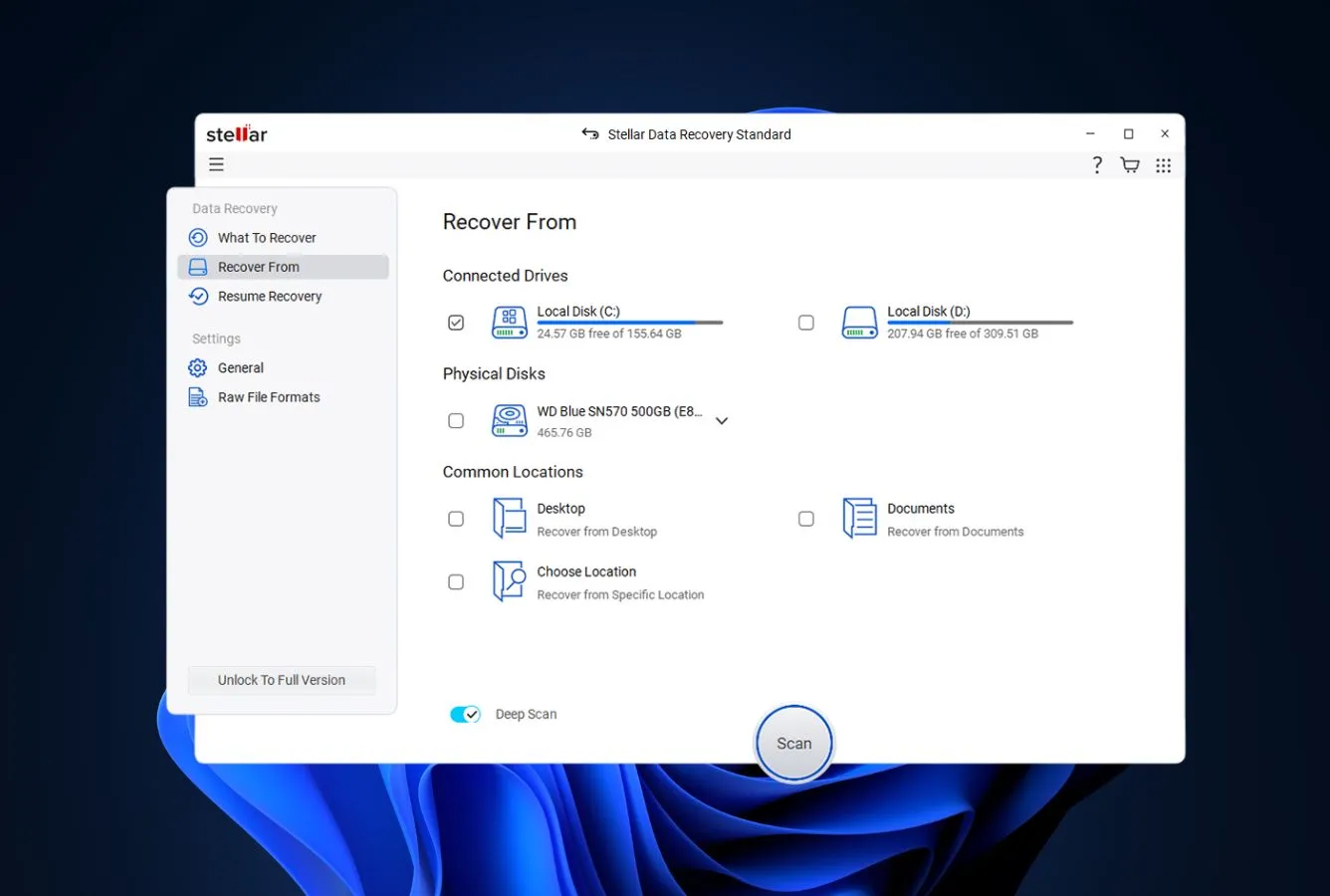
Stellar Data Recovery earns the top position for USB flash drive recovery because it solves the problem most USB users actually hit: not clean deletion, but the file-system corruption that turns a working USB stick into RAW format or an “unrecognized device.” Stellar rebuilds these damaged FAT32, exFAT, and NTFS structures where competitors either refuse to scan or return empty results, and that capability moves it ahead of EaseUS and Disk Drill for flash-specific scenarios.
The cross-platform story matches: parallel Windows and Mac builds with full parity, APFS support for Mac-formatted external drives, and the signature recoverability indicators (green/yellow/red dots) that show file condition before you pay. The baseline $79.99/year tier handles standard USB deletion and format scenarios; the Professional tier at $99.99/year adds partition repair, BitLocker decryption, and image recovery — worth the step up for anyone working with corporate USB drives or encrypted flash media.
- Category benchmark for RAW format USB recovery and corrupted file system rebuilds
- Parallel Windows and Mac builds with full FAT32/exFAT/NTFS/APFS/HFS+ coverage
- Pre-purchase recoverability indicators show USB file condition before any commitment
- Established 2001 vendor with optional cleanroom lab service for physically damaged drives
- Preview thumbnails render during scanning — verify the right files before unlocking recovery
- Encrypted USB drive support (BitLocker To Go) requires Professional tier at $99.99/year
- Interface density is higher than EaseUS or Disk Drill — more tabs and scan modes to navigate
- 1GB free tier is tighter than EaseUS’s 2GB for incidents with multiple large files
Specifically tuned for the failure modes USB sticks actually experience in the wild.
Most USB recovery isn’t clean deletion — it’s the aftermath of sudden removal, power interruption during a write, or file system corruption that turns the drive RAW. Stellar’s scan engine handles these scenarios better than the consumer-focused alternatives because it explicitly rebuilds damaged FAT32 boot sectors, restores lost exFAT bitmap entries, and reconstructs NTFS MFT fragments on flash media. Community feedback across r/datarecovery and r/techsupport consistently places Stellar at the top of the corrupted-USB bracket.
More panels than competitors, earned by the honesty of its pre-purchase indicators.
Stellar’s scan-results view shows each file with a colored dot showing recoverability — green for fully intact, yellow for partial recovery likely, red when the file header exists but data blocks are overwritten. For USB recovery specifically, where corrupted drives often contain a mix of recoverable and unrecoverable files, this indicator saves hours of effort and avoids paying for recoveries that won’t succeed. The trade-off is more panels and configuration options than lighter tools, which takes a moment to learn.
Baseline $79.99/year for most USB scenarios; Professional at $99.99 justified by encrypted flash.
Stellar tiers: Standard $79.99/year (handles standard USB deletion, format, corruption), Professional $99.99/year (adds BitLocker To Go decryption, partition repair, lost-partition scan), Premium $139/year (adds photo and video repair for corrupted JPGs and MP4s recovered from USB). Mac tiers follow similar pricing. For a typical USB stick recovery, Standard is sufficient. For encrypted USB drives carrying work files or partition-damaged drives, Professional is the right step. A 30-day money-back guarantee covers all tiers.
2. EaseUS Data Recovery Wizard – Best Free USB Tier
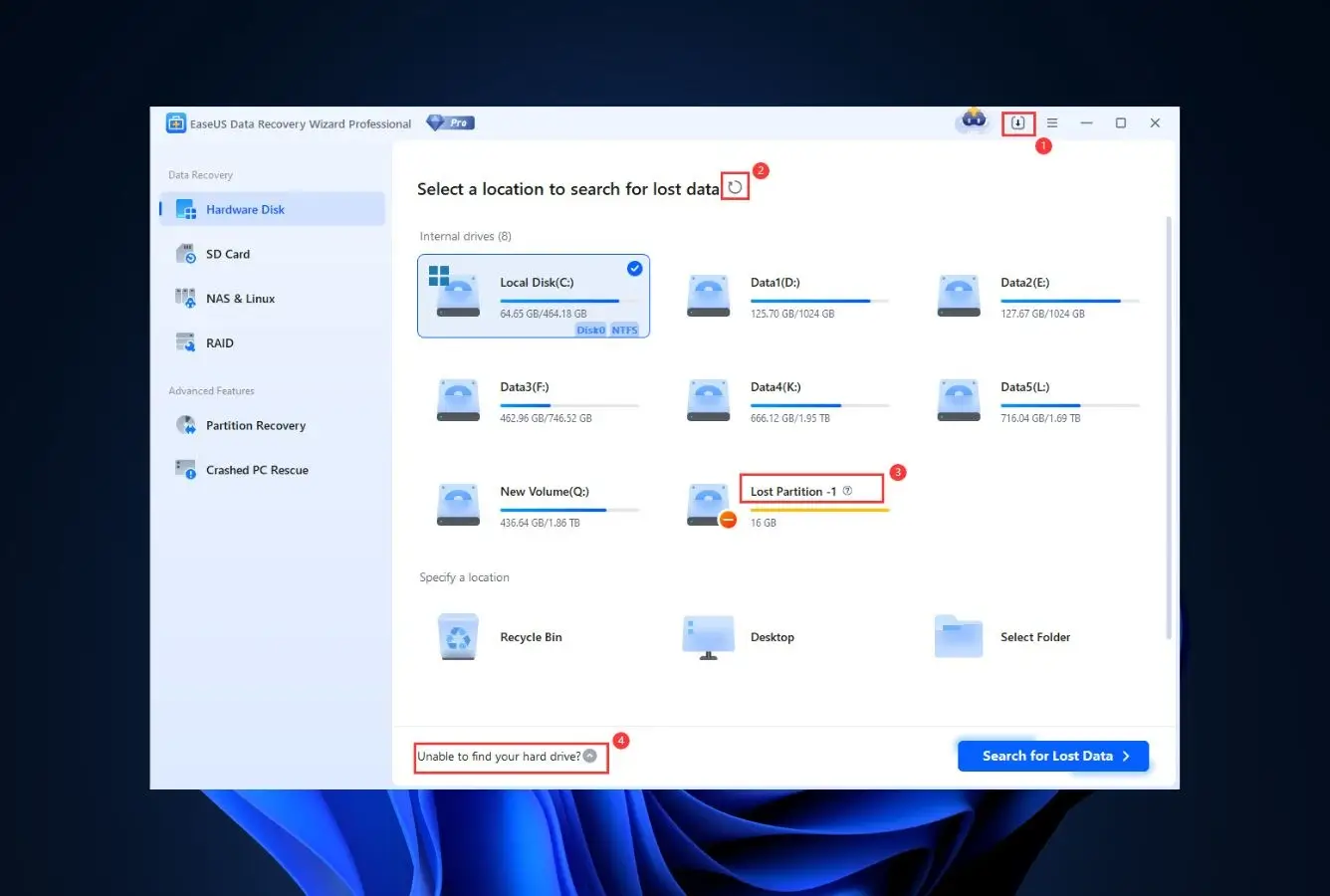
EaseUS Data Recovery Wizard takes second place for USB flash drive recovery on the strength of the category’s most generous free tier — 2GB of recovery at no cost. For a typical home USB incident where someone deleted family photos, work documents, or travel itineraries from a 32GB or 64GB stick, the total recoverable volume usually fits well under 2GB, which means EaseUS frequently handles the entire recovery without ever triggering a paid upgrade.
Beyond the free tier, EaseUS’s scan engine handles standard USB scenarios (deletion, format, sudden-removal corruption) with outcomes comparable to Stellar on non-RAW drives — the gap only opens up on severely corrupted USB flash media where Stellar’s rebuild logic pulls ahead. Parallel Windows and Mac builds with full feature parity, APFS support for Mac-formatted external drives, and automatic scan flow that reaches recovery preview within seconds make EaseUS the default pick when free-tier recovery is realistic.
- 2GB free tier is the category’s most generous — covers most home USB recovery incidents fully
- Feature-parallel Windows and Mac builds with identical USB flash drive feature coverage
- Wizard-driven scan flow reaches recovery preview within seconds on 32GB-128GB flash drives
- Handles every mainstream USB scenario — deletion, quick format, RAW mounting, partition loss
- Active vendor cadence with predictable updates and responsive support through paid tiers
- Annual subscription auto-renews by default — check account settings to turn this off post-purchase
- Severely corrupted USB drives with damaged FAT tables recover better with Stellar or R-Studio
- Installer on Windows prompts to bundle EaseUS Todo Backup — uncheck the option during setup
Competitive on standard USB scenarios; Stellar pulls ahead only on severely damaged flash media.
On the typical USB recovery task — deleted files, accidental quick format, sudden-removal corruption — EaseUS delivers outcomes comparable to Stellar, sometimes identical. Both tools identify the same deleted files, preview them correctly, and recover them successfully. The gap opens up only on severely damaged USB drives where file-system rebuild is required — Stellar’s RAW recovery engine handles these cases more reliably. For healthy flash drives that just need deleted-file retrieval, EaseUS is the faster path, especially when 2GB of free recovery is enough.
A predictable four-step flow that non-technical users follow without reading documentation.
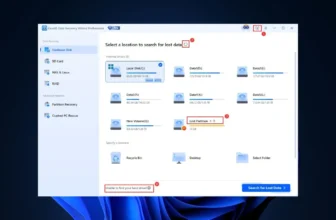
Plug in the USB stick, launch EaseUS, and the affected drive already appears highlighted in the drive picker — a quiet but genuinely helpful touch for a panicked user who isn’t sure which drive they deleted from. Click it, scanning begins, and a filterable results tree populates as files come back. Double-click any result and a proper preview renders — a PDF opens readable, a JPG shows a full thumbnail, a DOCX displays formatted text. That preview step is the critical part: you can confirm the right files are recoverable before committing to any paid upgrade. The macOS build follows the same four-step pattern with platform-native controls.
Free tier handles most USB incidents; $69.95/year Pro is the category benchmark for paid.
Free tier: 2GB of unlimited recovery — genuinely covers most home USB flash drive incidents. Pro at $69.95/year unlocks unlimited recovery, raw partition scanning for RAW drives, and bootable USB creation (useful for when Windows won’t boot from the system SSD). Lifetime Pro at $149.95 is the long-horizon pick for power users who want ongoing capability. Monthly at $69.95/month exists but rarely makes sense versus the annual tier. All paid tiers carry a 30-day money-back guarantee.
3. Disk Drill – Best USB Recovery Interface
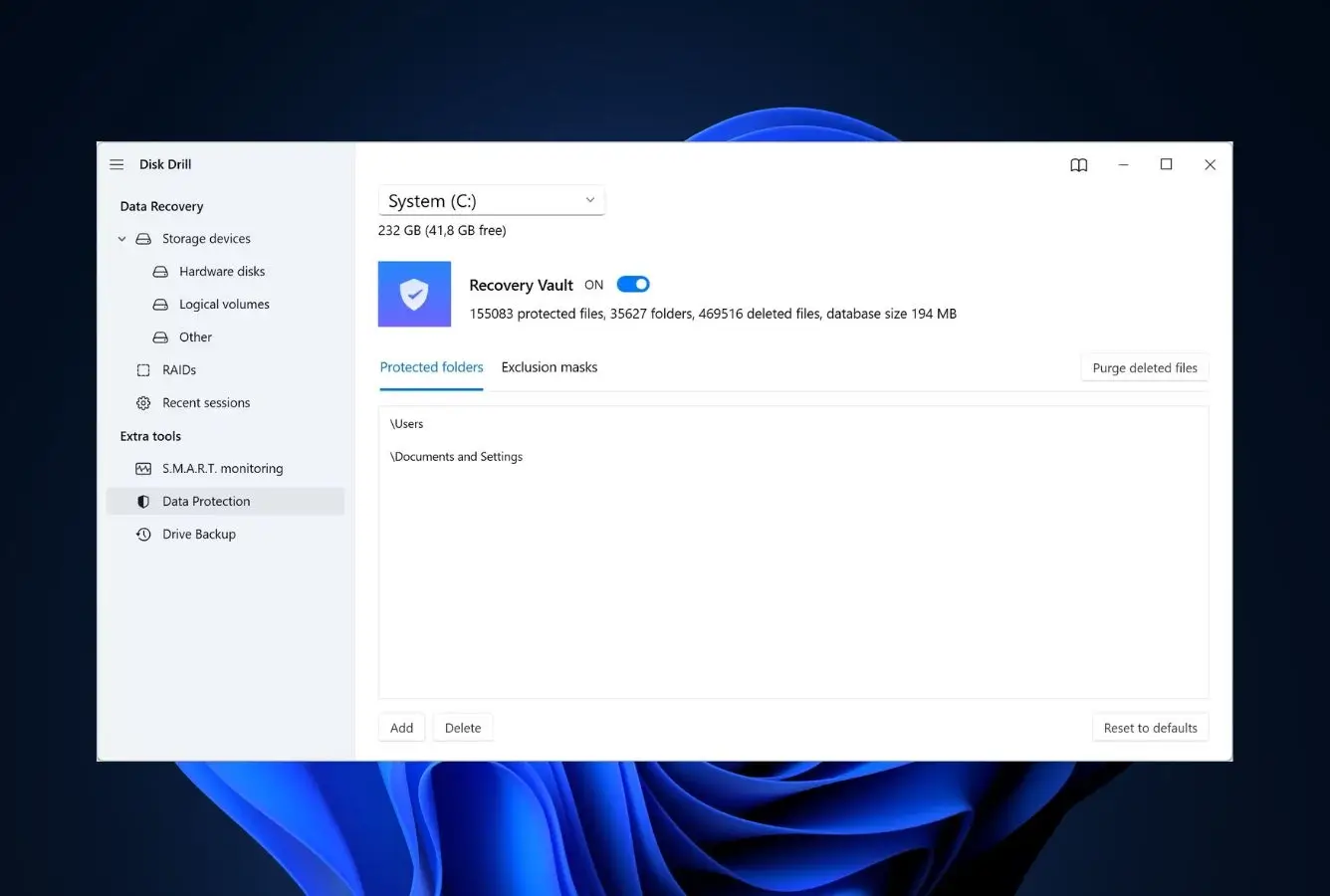
Disk Drill lands at third because CleverFiles has built the category’s most approachable USB recovery experience — the one you’d want to reach for when a family member panic-texts about lost flash drive photos. True feature parity between Windows and Mac builds, a single $89 license that activates on both, and Recovery Vault’s preventive metadata snapshots that turn “my USB stick died” from a scanning gamble into instant restore.
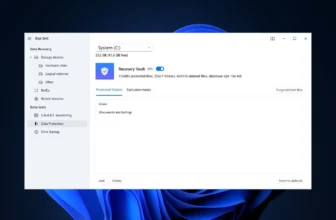
For USB flash drives specifically, Recovery Vault is the standout edge. It runs in the background and snapshots file metadata before deletion occurs, meaning that when a USB drive incident happens on a Vault-protected drive, recovery becomes a lookup rather than a scan. The downside: Recovery Vault only helps for future incidents on USB drives already connected to the host machine — it doesn’t retroactively help with the drive you’re holding right now after deletion. For the specific USB stick you’re panicking about, Disk Drill still runs a competent scan that matches EaseUS on typical flash drive scenarios.
- Category-best interface design for first-time USB recovery in a panic situation
- Single $89 license activates on both Windows and Mac with lifetime upgrades included
- Recovery Vault snapshots USB metadata preventively — future deletions recover without scanning
- Byte-to-byte USB imaging preserves failing flash drives so scans run against the image instead
- Native APFS support including encrypted volumes when the FileVault password is available
- Windows free tier is only 500MB — the tightest among the top-ranked tools in this list
- Recovery Vault protects future USB incidents only — doesn’t help the drive you’re currently trying to recover
- RAW USB drive rebuild lags Stellar when the file system structure is severely damaged
Competitive on healthy USB drives; Recovery Vault transforms future incidents on protected drives.
Disk Drill’s USB scan engine matches EaseUS on typical flash drive scenarios — deletion, quick format, sudden-removal corruption on intact file systems. The real edge is Recovery Vault, the proactive metadata snapshot system that runs in the background on any connected drive the user opts into. For USB sticks regularly used on a primary machine (workhorse flash drives, daily-carry sticks), Vault means the next deletion on that drive recovers instantly via lookup rather than gambling on a post-deletion scan. The caveat: Vault doesn’t help the specific USB you just lost data from — it protects drives ahead of incidents.
A recovery app that looks like it was made by people who use Mac and Windows apps daily.
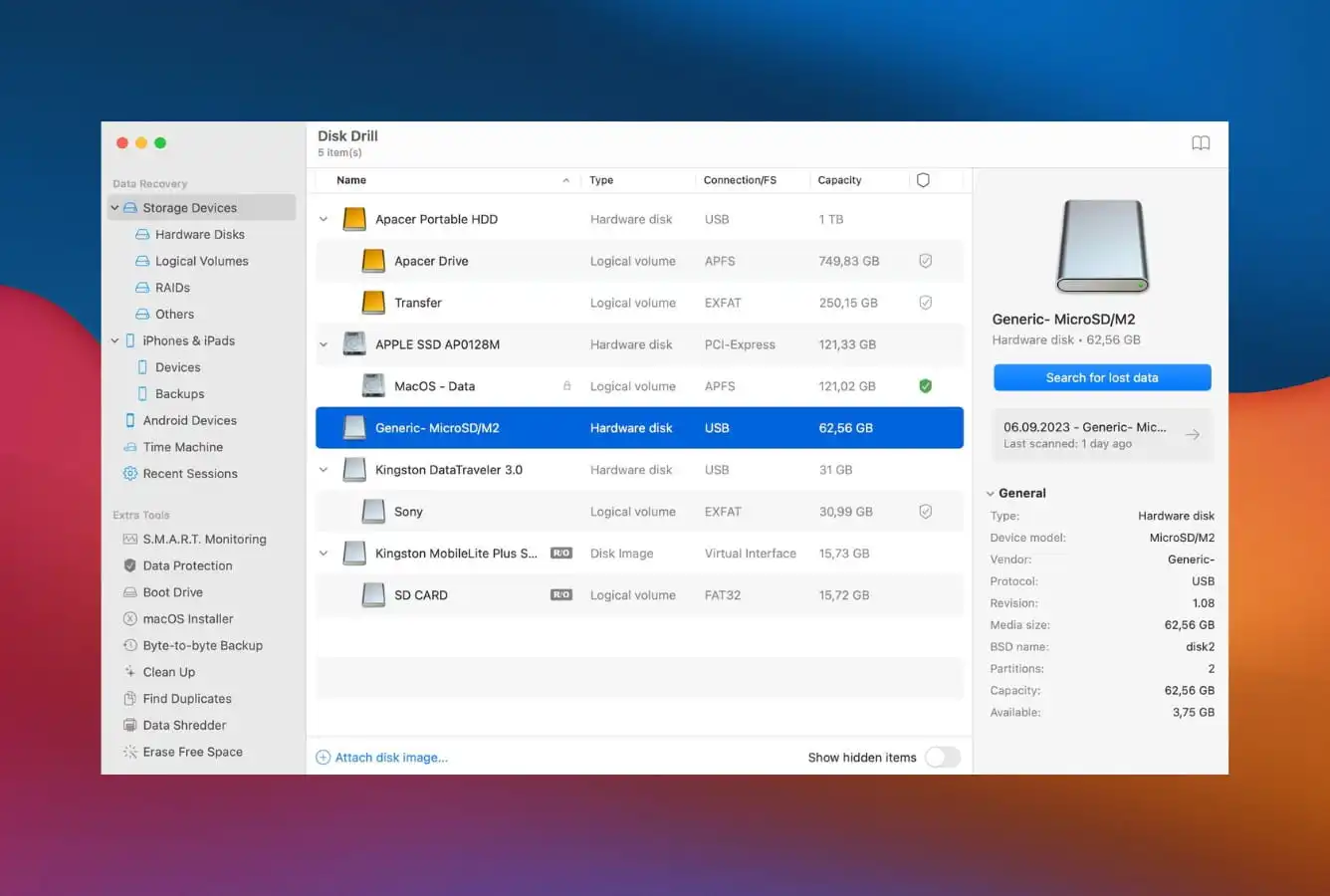
Attach a USB stick, open Disk Drill, and the drive appears in a card layout with its label, file system, capacity, and a big blue “Search for lost data” button. No wizard dialog, no tabs to decipher, no legacy Windows XP typography hanging around — just a visually quiet screen that lets a first-time user take the next action without pausing. The Mac build uses proper SF Pro type and sidebar conventions; the Windows build follows Fluent design cues. For a household member helping a family member recover a USB drive, Disk Drill is the app you can hand over without a tutorial.
A one-time purchase that covers both operating systems — rare and valuable in this category.
CleverFiles sells Disk Drill Pro as a single $89 perpetual license that unlocks the full feature set on Windows and Mac simultaneously, including all future point releases. There’s an annual Pro tier at $89/year for buyers who want to stay on the latest major version, and an Enterprise tier at $499 for bulk deployments with commercial rights. Against the subscription-based mainstream of the category, $89 once for dual-platform coverage is the friendliest long-term math of any tool on this list — especially for a household with a Windows PC, a Mac, and USB sticks that move between them for years.

4. Wondershare Recoverit – Best for USB Photo & Video Recovery
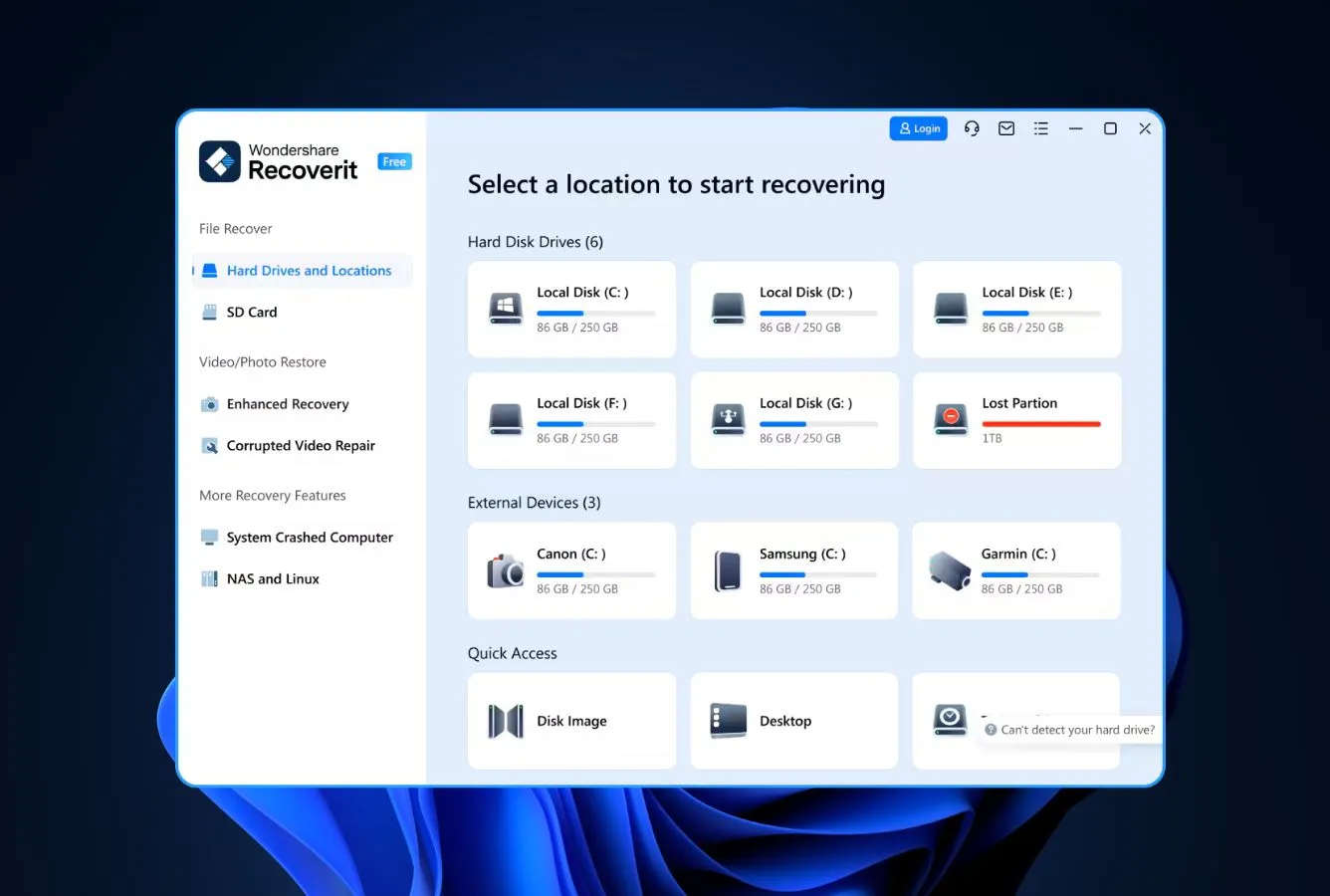
Wondershare Recoverit earns the fourth slot on its specific strength: the deepest signature database for photo and video formats commonly hosted on USB flash drives. When someone loses camera JPEGs, RAW files (CR3, ARW, NEF, DNG), 4K video footage, or Adobe project files from a USB stick used as portable media storage, Recoverit recovers intact files where generalist tools often return broken headers or corrupted thumbnails.
The cross-platform story is solid — parallel Windows and Mac builds share the same Wondershare design language as Filmora and PDFelement, APFS support is complete, and FileVault handling works on encrypted Mac USB volumes when the password is available. The weakness is the free tier: at 100MB it barely covers a preview scan, forcing a paid upgrade for any real USB photo/video recovery volume. For creative workflows where USB sticks routinely carry camera cards, shoots, or project exports, the specialty file-type depth justifies the $79.95/year premium over generalist tools that handle mainstream formats but fumble specialty ones.
- Deepest signature database for USB-hosted camera RAW formats (CR3, ARW, NEF, DNG, RAF, ORF)
- Video-specific fragmented-file reassembly improves 4K footage recovery from USB flash drives
- Parallel Windows and Mac builds share consistent Wondershare design language across platforms
- APFS support covers FileVault-encrypted USB volumes when the password is available
- Advanced tier includes video repair — rebuilds corrupted MP4 headers from interrupted writes
- 100MB free tier is the tightest in this ranking — forces paid upgrade for any real USB recovery
- Deep-scan completion on large USB drives (128GB+) trails EaseUS and Disk Drill benchmarks
- In-app upsell prompts for other Wondershare apps appear more often than competitors
Specialty media-format depth is the edge; generalist USB scans are competent but not leading.
Recoverit’s file-signature database covers USB-hosted formats that competitors either skip or recover with broken metadata: camera RAW files from Canon, Sony, Nikon, Fujifilm, and Olympus bodies; 4K and 8K video in MP4, MOV, and MXF; specialty photo sidecars (XMP, THM); and Adobe project linkages. On these specialty files from USB flash drives, Recoverit pulls back intact work where generalists return corrupted headers. On mainstream USB recovery (documents, standard JPEGs, PDFs, MP3s), performance is competent but community benchmarks don’t place Recoverit in the top three.
Recognizable Wondershare styling that creative users will find immediately familiar.
Anyone who uses Filmora for video editing or PDFelement for document work will recognize the design language in Recoverit — same Wondershare blue, same rounded cards, same step-by-step progress bar at the top of every screen. That continuity is genuinely useful when a video editor is panicking over a dropped USB stick mid-edit. Scan output on a flash drive lands across Photos, Videos, Audio, Documents, Emails, Archives, and Others tabs with live thumbnails for camera JPGs and frame grabs for MP4 footage. The recurring downside: a visible “Try Filmora” banner persists through the scan, which several community reviewers on Trustpilot have called out as overly aggressive during recovery.
$79.95/year is aligned with creative workflows; overkill for mainstream USB document recovery.
Recoverit pricing: Essential $79.95/year (single PC), Standard $99.95/year (adds video repair for corrupted MP4 headers), Advanced $139.95/year (adds NAS and Linux recovery scenarios). For mainstream USB document and photo recovery, EaseUS or Stellar deliver comparable outcomes at lower cost. For photographers, videographers, or creative professionals whose USB flash drives carry camera RAW files and 4K footage regularly, Recoverit Standard’s specialty file-type depth justifies the premium. A 30-day money-back guarantee applies across all tiers.
5. R-Studio – Best for Severely Corrupted USB Drives
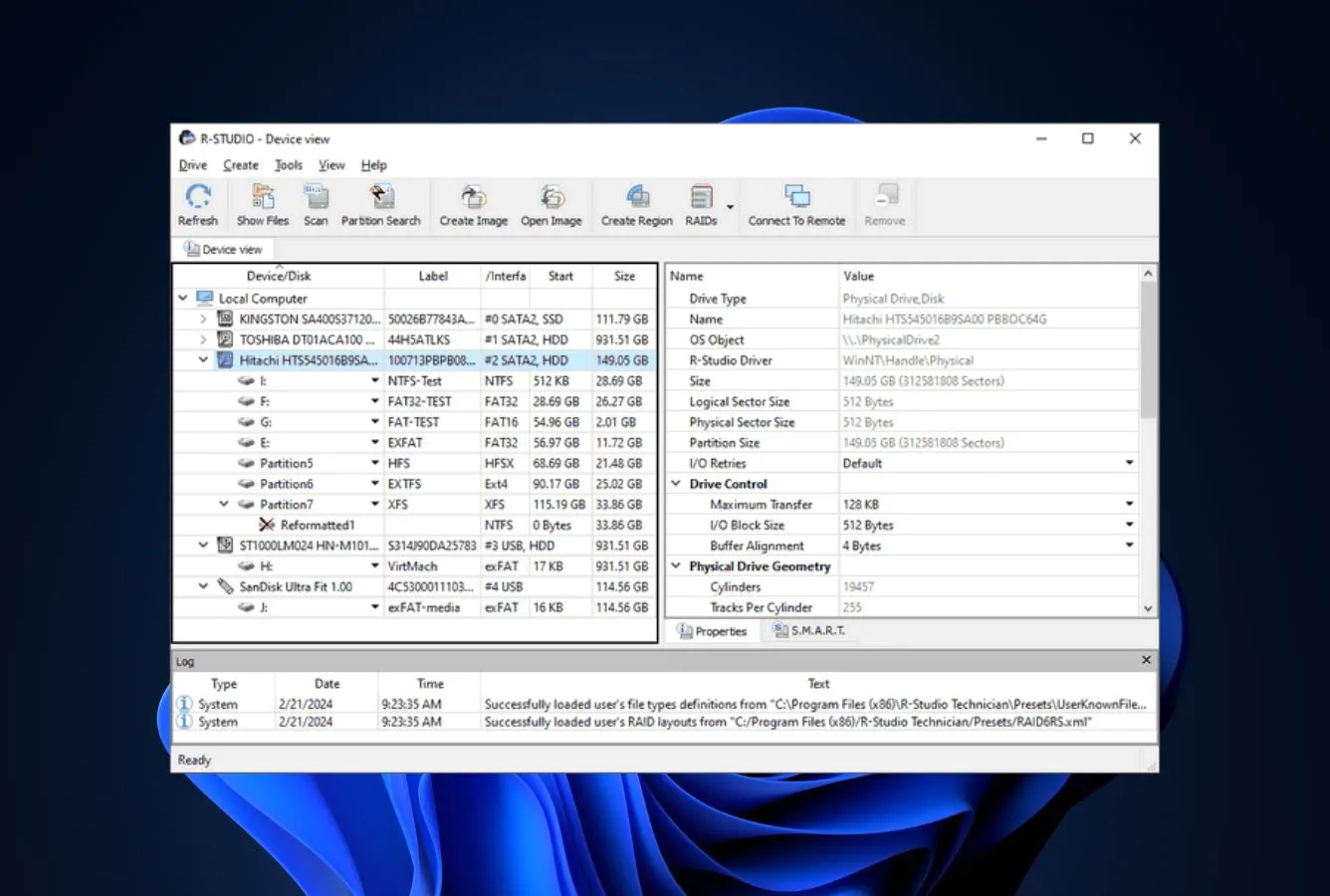
R-Studio from R-Tools Technology is the tool professional data recovery technicians reach for when wizard-driven consumer software gives up on a USB drive. It handles USB sticks that won’t mount at all, flash drives with severely corrupted FAT tables, sudden-removal victims where the partition table got scrambled mid-write, and every other advanced scenario where hex-level control matters more than wizard simplicity.
For USB recovery specifically, R-Studio’s differentiator is the hex editor and file-system reconstruction tools that let an experienced operator manually repair a damaged boot sector, rebuild a broken partition table, or walk the MFT record-by-record on a corrupted NTFS-formatted USB drive. That capability ceiling is higher than anything else in this ranking. The trade-off is a steep learning curve — R-Studio assumes the operator knows what they’re doing. For technical users, IT support specialists, or freelance recovery technicians who deal with damaged USB drives regularly, the $79.99 one-time perpetual license is the best value in the category.
- Hex editor lets a technician manually repair damaged FAT32 boot sectors on unmountable USB sticks
- RAID 0/5/6 reassembly extends beyond USB — reconstructs stripe sets when flash drives were used as a set
- Perpetual license with no subscription renewal pressure; free point updates keep working indefinitely
- LAN agent scans USB drives attached to remote machines — useful for IT supporting scattered endpoints
- Handles every USB failure tier from simple deletion through shattered partition tables and orphan MFT records
- Steepest learning curve in this ranking — assumes familiarity with file-system internals
- Demo mode only previews recoverable files — no free recovery volume, full commit required
- Interface density is unforgiving for first-time USB recovery in a panic moment
The category ceiling — what technicians reach for when consumer tools return nothing on a USB drive.
R-Studio’s scan engine operates at the level where USB recovery becomes possible after consumer tools fail: hex-edit a corrupted FAT32 boot sector to restore mountability, rebuild shattered exFAT allocation bitmaps manually, reconstruct NTFS MFT entries from orphaned records on a damaged USB stick. For severely corrupted flash drives — sudden-removal victims, USB sticks that won’t mount, drives with scrambled partition tables — R-Studio regularly recovers files that Stellar, EaseUS, and Disk Drill declare unrecoverable.
Pro-tier workflow UI — the kind a recovery tech wants on their second monitor during a job.
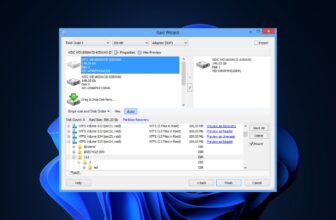
R-Studio greets you with attached USB drives enumerated in a device pane, and alongside it a sector-viewing hex inspector, partition constructor, RAID reassembler, and file-preview panel are all on screen at once. That’s the whole philosophy — put the operator in front of every tool they might need, trust them to pick the right one for the flash drive in front of them. Home users facing their first USB recovery emergency will find the lack of guided prompts disorienting; freelance recovery technicians working through a queue of damaged drives find it refreshing. The macOS and Linux builds carry the same density as Windows.
Perpetual licenses that keep paying off year after year, if the learning curve fits the workflow.
The R-Studio ladder starts at R-Studio FAT ($49.99, Windows, FAT and exFAT only — sized for casual USB stick recovery), steps up to the full R-Studio for Windows at $79.99, then to R-Studio Network at $179.99 which runs equally on Windows, macOS, and Linux. For running data recovery as a service, the Technician edition at $899 adds commercial use rights and advanced features. Everything is one-time pricing with free minor updates. That pricing model rewards technicians who’ll use the tool for years; for a homeowner with a single damaged USB stick, the fit is wrong regardless of the sticker price — EaseUS or Stellar will land them recovered files faster.

6. PhotoRec – Best Free Open-Source USB Recovery
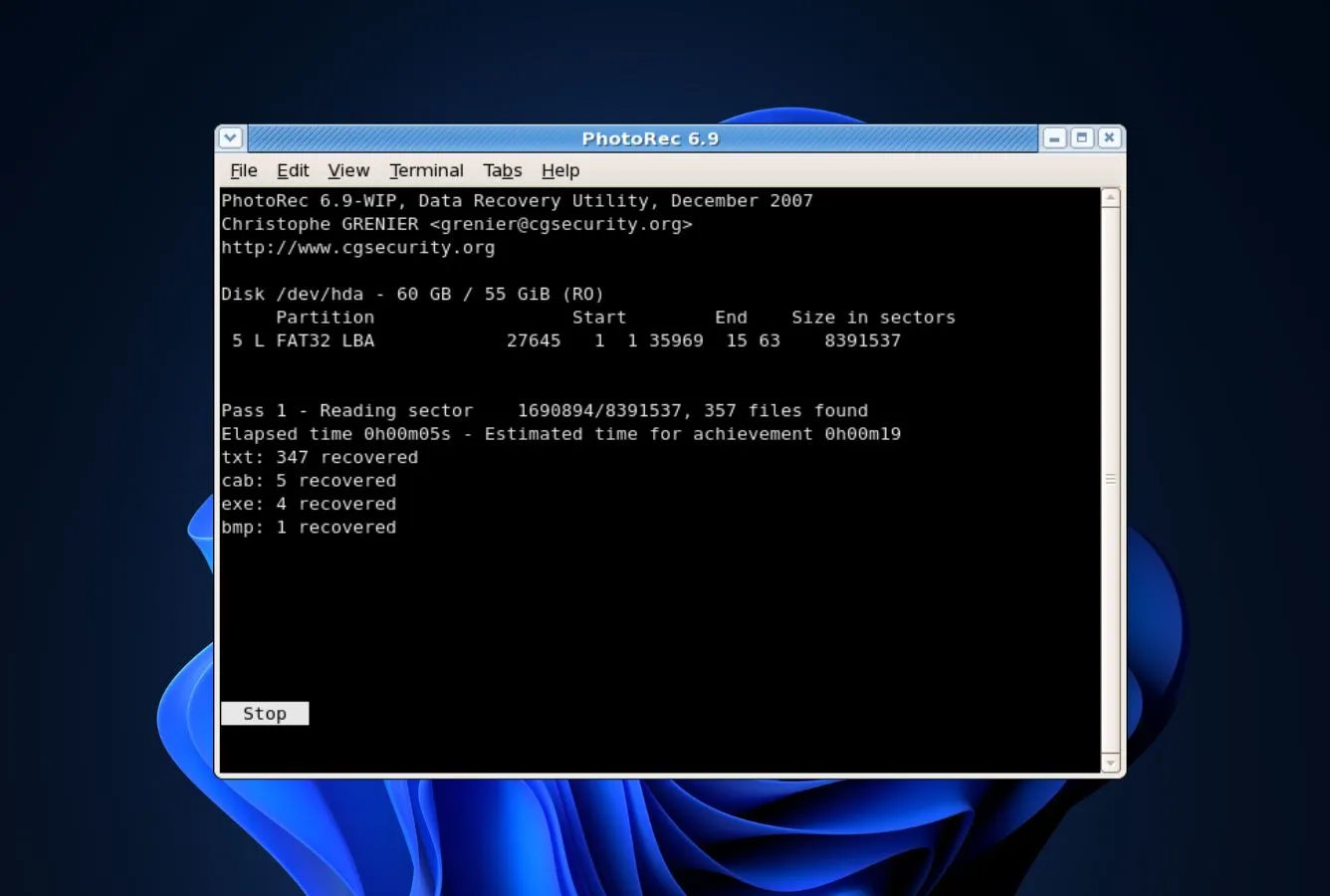
PhotoRec from CGSecurity (bundled alongside the TestDisk partition recovery tool) is the zero-cost option for USB flash drive recovery that genuinely delivers results. Released under the GNU GPL and maintained since 2002 by Christophe Grenier, PhotoRec uses content-based signature recovery — scanning the USB drive sector by sector and reconstructing files from header and footer byte patterns rather than file-system metadata. That approach works equally on FAT32, exFAT, NTFS, and damaged or unrecognized file systems alike.
For USB flash drives specifically, PhotoRec is genuinely strong on healthy drives with deleted files: it recovers JPEGs, PDFs, DOCX, MP4s, ZIP archives, and hundreds of other common formats with no volume cap and no license cost. The limitations are real though: PhotoRec can’t recover original filenames or folder structures (everything lands in output folders with generic names like f0012345.jpg), fragmented files on USB drives sometimes come back incomplete, and the command-line-adjacent interface deters casual users. For budget-constrained USB recovery where the user is technically comfortable, PhotoRec is the honest answer.
- Genuinely free and open-source (GPL) — no trial limits, no nag prompts, no upsells of any kind
- Signature-based scanning works on RAW, corrupted, or unrecognized USB file systems
- Portable — no installer needed, runs from USB folder directly without touching the affected drive
- Cross-platform with identical behavior on Windows, macOS, Linux, and BSD from the same codebase
- Actively maintained open-source project with a large community and public issue tracker
- Recovered files lose original filenames and folder structure — everything gets generic names
- Text-mode interface resembling a terminal deters casual users despite being cross-platform
- Fragmented USB files occasionally recover incomplete when signature boundaries break mid-file
Strong on healthy USB drives; filename and folder structure loss is the trade-off for zero cost.
PhotoRec’s signature-based scan recovers most common file types from USB flash drives reliably — JPEGs, PNGs, PDFs, DOCX, MP4s, MP3s, ZIP archives, and 480+ other signatures built into the tool. On a healthy USB drive with recently deleted files, PhotoRec recovers roughly as many files as paid competitors. The key compromise: because signature recovery ignores file-system metadata, recovered files lose their original names and folder paths — everything lands in numbered output folders. For photos and documents where filename doesn’t matter much, this is fine; for complex project folders where path structure is meaningful, it’s a real loss.
Text-mode interface is honest about what it is — a capable tool wrapped in a 1990s shell.
PhotoRec runs in a text-mode window that resembles a DOS or terminal interface — keyboard navigation, menu-driven prompts, no mouse interaction required. On Windows, the text window feels antique compared to Disk Drill or EaseUS; on Linux, it feels perfectly at home. The GUI-adjacent qtestdisk front-end is available for users who need visual interaction, but most USB recovery workflows just use the standard text UI. For users comfortable with command-line-style interaction, PhotoRec is efficient; for users expecting a drag-and-drop recovery wizard, it’s immediately frustrating.
The genuinely-free option with no paid tier, no trial limits, and no upsells.
PhotoRec is distributed under the GNU General Public License, which means it’s permanently free, source code is available, and there’s no upgrade path or commercial tier that holds capabilities back. The entire tool works identically whether you use it once or daily. CGSecurity accepts donations to fund development but doesn’t gate any features behind them. For USB recovery where budget is genuinely zero, PhotoRec is the honest answer — and for readers who want to support open-source tools, donating to CGSecurity is more ethically consistent than paying a commercial competitor.

7. DMDE – Best Budget Multi-Platform USB Tool
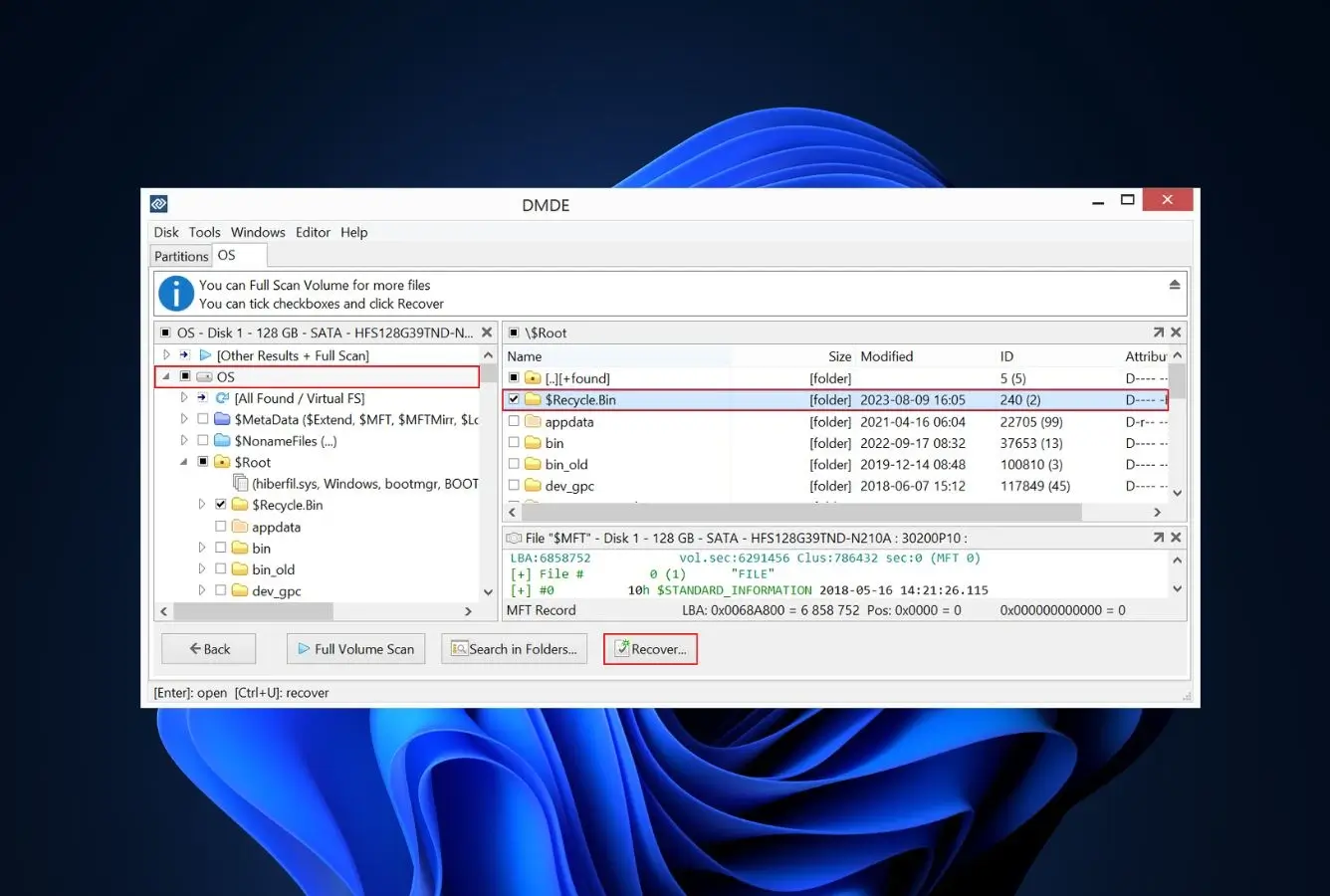
DMDE is the single-developer project (Dmitry Sidorov has shipped it continuously since 2006) that most professional recovery techs have installed somewhere as a second opinion. For USB flash drive work it’s unusually well-suited: one compact executable — under 10MB — runs unchanged on Windows, macOS, Linux, or even bootable DOS media, which matters when a dying USB stick needs to be read on whatever machine you can get the cable plugged into.
The free tier is the headline: you can recover 4,000 files from any one directory, and you can run that as many times as you want, on as many USB drives as you want. Most home USB emergencies finish inside that ceiling without anyone ever paying. When an operator does want to pay, Express at $20/year covers the Windows annual user; Standard at $48 buys a perpetual multi-OS license; Professional at $95 adds commercial use and scripting. The price is the easy part — the hard part is the unapologetically spartan interface and the download sometimes triggering Windows Defender heuristics on first run.
- 4,000 files per directory in the free tier lets most home USB recoveries finish without any purchase
- One executable covers Windows, macOS, Linux, and bootable DOS — valuable when a USB won’t read on one host
- Express annual at $20 undercuts every other paid tier in this ranking by a wide margin
- Reads exFAT, FAT32, NTFS, APFS, Btrfs, and ReFS from a single build — rare across any recovery tool
- Installer-free ZIP distribution means recovery runs from a folder without writing anything to the failing USB
- ZIP-file distribution on Windows sometimes triggers Defender false positives during download
- Interface is spartan — no wizard, no onboarding, assumes prior experience with file-system internals
- USB recovery on freshly damaged drives trails Stellar and R-Studio when file-system rebuild is needed
Strong fundamentals on healthy USB drives; file-system rebuild lags Stellar on damaged flash media.
DMDE’s scan engine directly reads the USB drive’s file-system structures (FAT entries, exFAT allocation bitmap, NTFS MFT) and reconstructs deleted file metadata with professional-grade accuracy on intact drives. For healthy USB sticks with recently deleted files, DMDE delivers outcomes comparable to mid-tier commercial tools. For severely corrupted USB drives requiring active file-system rebuild, DMDE’s engine lags Stellar and R-Studio — Sidorov’s cadence is steady but modest, and damaged-filesystem recovery hasn’t received the tuning that purpose-built commercial engines carry.
A product that respects your expertise by not holding your hand, for better and worse.
DMDE opens to a tabular device list — every storage device Windows or macOS can see, USB drives included, listed with raw sector counts and partition geometry. There is no guided flow. You double-click the USB drive, pick the file system DMDE detected, and walk the directory tree yourself to find what you want to recover. For someone who thinks in terms of clusters and MFT records, this is efficient; for someone who just wants their vacation photos back, it’s a bounce. The Mac and Linux builds preserve this exact behavior — Sidorov ships one experience, take it or leave it.
The cheapest legitimate path into professional-grade USB recovery on the market.
Run the math against any subscription competitor across a three-year horizon and DMDE Standard wins by a margin that’s hard to argue with — $48 once, versus $200+ in recurring fees elsewhere. Even the Express annual at $20/year for Windows-only users undercuts the discounted-first-year price of the mainstream tools. The catch is the same one shared throughout DMDE’s feature set: the value only materializes if the operator can work comfortably without a wizard, and a meaningful share of home users opening the app for the first time won’t stick around long enough to discover how deep it goes.

8. Recuva – Best Lightweight Free Windows USB Recovery
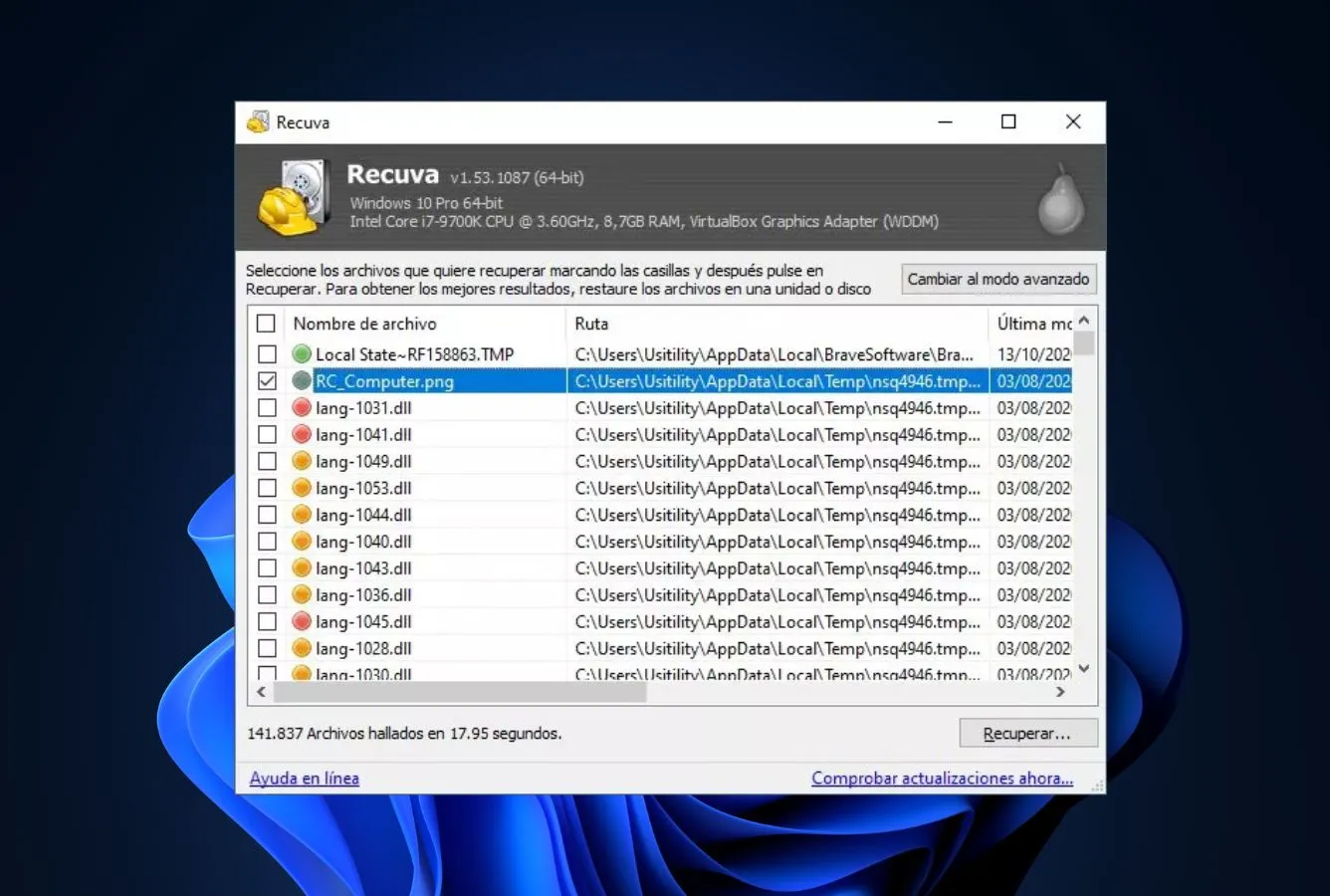
Recuva from Piriform (now part of Gen Digital, also the maker of CCleaner) rounds out this USB ranking as the lightweight Windows-only classic. First released in 2007 and still widely used, Recuva runs at around 11MB installed with a straightforward wizard that asks what you’re recovering (photos, music, documents, videos, emails, compressed files, or everything) and where the USB drive is located — then scans and presents results.
For Windows users specifically, Recuva offers unlimited free recovery volume with no gating — a genuine differentiator. The latest version (1.53.2096, released June 2023) remains stable on Windows 11 24H2 but hasn’t received major architectural updates in years, which shows in its weaker handling of modern USB scenarios: poor recovery from large USB drives (128GB+), limited handling of modern camera RAW formats, and no support for macOS or Linux USB drives at all. For quick recoveries of recently deleted standard file types from a FAT32 or exFAT USB stick on Windows, Recuva delivers — for anything more demanding, a tool higher in this ranking is the better answer.
- Unlimited free USB recovery volume on Windows — rare among mainstream commercial recovery tools
- Tiny 11MB footprint and fast installation make it genuinely lightweight compared to competitors
- Portable version runs from a USB drive itself without installation — avoids writing to affected drives
- Straightforward wizard asks the right questions for someone doing USB recovery for the first time
- Well-known Piriform brand with long history creates predictable safety expectations
- Windows only — no macOS, Linux, or ARM Windows support limits cross-platform USB workflows
- No major architectural updates since June 2023; engine lags modern USB recovery scenarios
- Weaker recovery on large USB drives (128GB+) and poor handling of newer camera RAW formats
Competent on standard small-USB scenarios; noticeably weaker on modern flash media edge cases.
Recuva handles the bread-and-butter USB scenario effectively: recently deleted documents, photos, and common file types from a healthy 8GB-64GB FAT32 or exFAT drive on Windows 10 or 11. Quick Scan typically completes in under a minute, and Deep Scan sector-by-sector mode finds files Quick Scan missed. Outside that sweet spot, Recuva shows its age — recovery from 256GB+ USB drives slows dramatically, modern camera RAW formats (CR3, ARW) often don’t signature-match correctly, and RAW format recovery on corrupted drives rarely succeeds where Stellar or R-Studio would.
The classic wizard-driven flow that still works on Windows, even if the visual design shows its age.
Recuva opens to a wizard that asks three questions — what file type, where to search, and deep-scan toggle — before running the scan. That flow remains genuinely approachable for first-time USB recovery users on Windows. The visual design, though, shows its 2007 origins: Windows XP-era icons, small fonts, dense Windows 7 dialog conventions. On Windows 11’s modern Fluent-styled desktop, Recuva looks like an application from a decade earlier. Function-wise, that visual lag rarely matters; for user experience benchmarks, it absolutely does.
Free tier is the main story; $24.95/yr Pro adds features most USB recoveries don’t need.
Recuva Free: unlimited recovery volume on Windows, all file types, Quick Scan and Deep Scan both included, portable version available. Recuva Professional at $24.95/year: adds virtual hard drive support, automatic updates, and priority customer service. For typical USB flash drive recovery, Free is sufficient. The Professional tier’s virtual hard drive feature has niche appeal for IT admins working with Hyper-V and VMware virtual USB passthrough scenarios — for everyone else, it’s unnecessary. Given Recuva’s Windows-only constraint and slower engine, users with cross-platform needs or damaged USB drives are better served by tools higher in this ranking.
How We Evaluate USB Recovery Tools
USB flash drive recovery has distinctive evaluation criteria that don’t apply to internal SSD or HDD recovery. The failure modes are different — sudden removal corruption and RAW format prompts dominate, while TRIM timing doesn’t factor in. Our evaluation draws on vendor documentation for feature coverage, independent testing that specifically runs USB flash drive scenarios (not generic drive tests), and community feedback from r/datarecovery, r/techsupport, Tom’s Hardware forums, and USB-specific YouTube channels publishing recovery walkthroughs.
Platforms covered: Windows 11 24H2, Windows 10 22H2, macOS 15, macOS 14. USB drive types covered: USB 2.0, USB 3.0, USB 3.2 Gen 1/2 flash drives, USB-C flash drives, USB-connected external SSDs and hard drives. File systems: FAT32, exFAT, NTFS on Windows-formatted drives; APFS and HFS+ on Mac-formatted drives; cross-platform exFAT. USB capacity range: 4GB to 2TB covering factory-formatted home drives through prosumer flash storage. Scenario weighting: Corrupted USB and RAW format handling (25%), free-tier generosity (20%), cross-platform parity (15%), non-technical usability (15%), advanced features like imaging and encryption support (15%), pricing transparency (10%).
Per-tool USB compatibility matrices, independent-testing references, and community-feedback threads that raised or lowered placements are documented on our methodology page. Read it first if you want to challenge a specific ranking or verify the scoring math.
Honorable Mentions – Runners Up
Another half-dozen USB recovery tools made the shortlist but didn’t earn a top-eight slot. Each one has a real strength — a free tier that punches above its weight, a niche file system in its wheelhouse, a design tradition its users prefer — and each one has a specific reason we didn’t promote it for the general Windows or Mac USB flash drive audience this page is written for.
How to Choose by USB Scenario
The right USB recovery tool depends on your specific USB failure scenario. Match your situation below to the shortlist of tools built for it — and critically, stop using the affected USB drive the moment you realize files are missing. Unlike internal SSDs, USB drives don’t aggressively TRIM deleted data, so time matters less than avoiding new writes that overwrite recoverable content.
Recently Deleted Files on a Healthy USB Drive
For a straightforward USB recovery — accidentally deleted folder, emptied files from a working flash drive — EaseUS Data Recovery Wizard’s 2GB free tier is the fastest and most cost-effective starting point on both Windows and Mac. Stellar’s 1GB and Disk Drill’s 500MB free tiers are alternatives if EaseUS doesn’t find your files or exceeds the 2GB limit. For Windows-only scenarios where the recovery volume is large, Recuva’s unlimited free tier is worth trying even though its engine is dated.
USB Drive Shows RAW Format or “Please Format”
For USB drives that suddenly show as RAW in Windows Disk Management, prompt “You need to format the disk before you can use it,” or show as unformatted in macOS Disk Utility, Stellar Data Recovery is the primary choice — its RAW rebuild engine handles these corrupted file systems better than any other tool in this ranking. Critical: never click “Format” when Windows prompts you, because that overwrites the partition table and cuts recovery chances dramatically. Close the dialog, connect the drive in read-only mode if possible, and run Stellar immediately.
Accidentally Formatted USB Drive
If you formatted a USB drive accidentally, recovery depends on which format type was used. Quick Format (the default in Windows, usually completes in under a minute) only rewrites the file allocation table without erasing file data — Stellar, EaseUS, Disk Drill, and R-Studio all handle quick-formatted USB recovery well. Full Format (also called long format or Secure Erase, takes much longer) zeroes every sector and makes recovery impossible. Check how long the format took: under 60 seconds means recovery is likely; over 10 minutes means accept the loss.
USB Drive Won’t Mount or Isn’t Recognized
For USB drives that connect but don’t appear in File Explorer or Finder, first check Windows Disk Management or macOS Disk Utility — if the drive appears there as RAW, unallocated, or unformatted, recovery software can still read it. Stellar handles mounted-but-unreadable USB drives best; R-Studio’s hex editor lets technical operators repair partition tables manually. If the drive doesn’t appear in any system utility, the issue is hardware (controller failure or physical damage), and software recovery isn’t possible — professional chip-off recovery is the remaining option.
USB Drive with Camera Photos and Video Files
For USB flash drives used as portable media storage for photography or videography workflows, Wondershare Recoverit’s deeper signature database for camera RAW formats (CR3, ARW, NEF, DNG, RAF, ORF) and 4K video containers makes it the best match for recovering intact project files. Stellar and EaseUS handle mainstream JPEGs and MP4s fine but fumble specialty camera formats more often. For SD cards carrying the same content via a card reader, see our SD card recovery guide for card-specific workflows.
Cross-Platform USB Drives Used on Both Windows and Mac
For USB sticks formatted as exFAT and used across both Windows and Mac machines (the standard cross-platform setup for external storage), Disk Drill’s single $89 license activating on both operating systems is the best long-term value. EaseUS and Stellar require separate licenses for each platform, doubling long-term cost. For technical users, R-Studio’s cross-platform binary at $79.99 one-time delivers professional-grade recovery across Windows, Mac, and Linux from the same license — better still if Linux USB recovery is part of the workflow. If the USB device is actually an external SSD in a flash-drive enclosure (common for modern high-capacity sticks), our SSD data recovery guide covers TRIM and controller-level considerations that apply to USB-attached SSDs.
Zero-Budget USB Recovery
For USB recovery with genuinely zero budget, PhotoRec is the honest answer. It recovers most common file types with no volume cap and no license cost, though recovered files lose original filenames and folder structure. On Windows specifically, Recuva’s unlimited free tier provides a friendlier wizard-driven alternative that preserves filenames when the file system is intact. DMDE’s free tier (4,000 files per directory) sits between the two — more capable than Recuva, friendlier than PhotoRec, but with the directory-level cap on recovery volume.
When USB Recovery Hits a Wall
There’s a point where no amount of clever software can bring a USB drive back, and recognizing that point early saves the cost of pointless scans and the frustration of misplaced hope. The common thread below is whether the flash storage itself can still be read at any level — if the answer is no, the decision moves from “which tool should I try” to “is this data worth sending to a professional service.”
| Your USB situation | Software can help? | What to do instead |
|---|---|---|
| Recently deleted files on healthy USB, drive idle since | Yes | EaseUS or Stellar free tier immediately; install to a different drive |
| USB drive shows RAW or “Please format” in Windows | Yes | Stellar first (never click Format); R-Studio if Stellar returns partial results |
| Accidentally did a Full Format (over 10 minutes) | No | Sector-zeroing overwrites data; accept the loss or try chip-off service |
| USB drive completely undetected by computer | No | Hardware failure; professional chip-off recovery ($300-$1,500) |
| USB drive physically snapped or crushed | No | Physical damage; cleanroom recovery service if data is critical |
| USB drive detected but reports frequent read errors | Maybe | Image first with Disk Drill or R-Studio, recover from the image |
Physical USB Drive Damage
When a USB drive suffers physical damage — snapped in a laptop port, crushed, water-damaged, or exposed to electrical surge — software recovery isn’t possible because the drive can’t be read at the block level. Professional chip-off recovery services physically remove the NAND flash chips from the USB drive’s circuit board and read them directly using specialized hardware, then reconstruct the file system from the raw NAND contents. Costs typically range from $300 to $1,500 depending on the drive controller and damage severity. For critical business or sentimental data, it’s often worth the cost; for replaceable files, probably not.
Controller Chip Failure
USB flash drives contain a controller chip that translates between the USB protocol and the NAND flash memory. When that controller fails — from power surges, manufacturing defects, or wear — the drive often becomes entirely undetectable by the host system. No LED activity, no appearance in Disk Management or Disk Utility, no response to connection at all. Software can’t help with controller failures because software requires the drive to be readable at some level. Chip-off recovery services handle controller failures by bypassing the failed controller entirely, reading NAND chips directly and reconstructing data externally.
Full Format That Zeroed All Sectors
A Full Format operation (as opposed to Quick Format) writes zeros to every sector on the USB drive, which physically overwrites all file data at the NAND level. Once this completes, no software can recover the data because it no longer exists on the flash memory. Full Format is easy to distinguish from Quick Format by duration — Full Format on a 64GB USB drive takes 10-30 minutes depending on controller speed, while Quick Format finishes in under 30 seconds. If the format dialog was still running after a few minutes and you let it complete, the data is likely gone. For larger drives, even a partial Full Format (interrupted mid-way) can zero out enough sectors to make recovery impossible.
Overwritten Files on Small USB Drives
On small USB drives (4GB-16GB), continued normal use after deletion can overwrite recoverable files faster than on larger drives — less free space means the controller reuses cells quickly. If you deleted photos from a small USB stick and then shot more photos to the same drive, the overwritten photos aren’t recoverable by any software. Similarly, saving new documents to a USB drive where old documents were deleted overwrites the deleted ones. The rule: stop using the affected USB drive immediately when you notice files are missing. Each new write risks overwriting recoverable data.
Severely Corrupted File Systems Beyond Rebuild
Some USB file-system corruption is beyond software rebuild — when multiple layers of the file system are damaged simultaneously (boot sector, backup boot sector, FAT/MFT, root directory entries all corrupted), no tool can reconstruct enough structure to recover files with names or folder paths intact. R-Studio and UFS Explorer can sometimes extract raw file data via signature scanning in these scenarios — the files come back without names or structure, similar to PhotoRec’s output. If you need filenames and folders preserved, severely corrupted USB drives may require sending to a professional service where technicians with forensic tools can attempt manual reconstruction. For drives that won’t respond to any scan, see our hard drive recovery guide‘s hardware-failure decision tree, which applies equally to USB flash drives.
Every new write to the affected USB drive risks overwriting recoverable data. Don’t download recovery software to the affected drive. Don’t let Windows Update schedule writes. Don’t copy new files to it. Connect it to a different computer for scanning, or power it off if scanning isn’t possible yet. The faster you stop writes, the more files you recover.
USB Flash Drive Failure Modes Explained
USB flash drives fail in specific ways that differ from internal SSDs and spinning hard drives. Understanding these failure modes helps you pick the right recovery tool and set realistic expectations for what software can and can’t do.
Why USB Drives Don’t Use Aggressive TRIM
USB flash drives use the same NAND flash memory as internal SSDs, but USB storage bridges typically don’t pass TRIM commands from the host operating system to the drive’s controller. This sounds like a drawback for drive longevity, but it’s a significant advantage for recovery: deleted files on USB drives often remain recoverable for weeks or months, whereas modern NVMe SSDs TRIM deleted cells within minutes to hours. If your deletion happened yesterday on a USB stick that’s been idle since, recovery odds are still excellent. For SSD-specific recovery timing, see our SSD data recovery guide.
Sudden Removal Corruption
Yanking a USB drive out of a computer while a write operation is in progress — or while Windows hasn’t fully flushed cached writes — is the single most common cause of USB corruption. The file-system metadata ends up in an inconsistent state: some updated entries, others not, leaving the drive unreadable or producing “Please insert a disk” errors on next connection. Modern Windows reduces this risk with write-through caching by default on removable drives, but it still happens. The fix is file-system rebuild — exactly what Stellar, EaseUS, and R-Studio handle.
RAW Format and File System Loss
When the USB drive’s file-system headers (FAT boot sector, exFAT superblock, NTFS boot record) are corrupted but the file data remains on NAND, operating systems can’t identify the file system and report the drive as “RAW format.” This is the most alarming USB failure mode because Windows prompts “You need to format the disk before you can use it,” tempting users to click Format and destroy recovery chances. The correct response: close the dialog, don’t format, and run Stellar or R-Studio to rebuild the file-system header and recover files.
Wear-Related Controller Failures
USB flash drives wear out — NAND cells have limited write cycles (typically 1,000-10,000 P/E cycles depending on grade), and controllers eventually accumulate bad-block management overhead that causes slowdowns, read errors, or complete failure. A USB drive that was fast a year ago and is now slow with occasional read errors is approaching end-of-life. The recovery strategy at this stage is imaging: use Disk Drill’s byte-to-byte imaging or R-Studio’s disk image feature to capture the drive’s current state to a healthy drive, then run recovery scans against the image rather than repeatedly stressing the failing USB.
Counterfeit USB Drives and Capacity Fraud
Counterfeit USB drives — particularly high-capacity drives bought from unofficial marketplaces — are a distinct recovery problem. These drives report fake capacity (e.g., 1TB on the label) but only contain much smaller real NAND (often 32GB or 64GB). Writing beyond the real capacity silently overwrites earlier data in a loop, destroying files. Recovery from counterfeit USBs is usually unsuccessful because the data destruction is intentional and ongoing. Tools like H2testw on Windows can verify a USB drive’s real capacity before you trust it with important files — a 10-minute check that prevents weeks of data loss.
USB flash drives are consumer-grade storage with expected failure rates. If the files on your USB drive are important, they should also exist somewhere else — cloud storage, a second USB drive, an external SSD, anywhere. For work files, OneDrive or Google Drive automatic backup makes USB loss a non-event. For creative projects, Dropbox or iCloud Drive sync prevents USB failures from being catastrophes. Thirty minutes configuring backup today saves a stressful recovery attempt later.
Final Verdict
Stellar Data Recovery is the best USB data recovery software for Windows and Mac in 2026. Its handling of corrupted and RAW-format USB drives — the single most common flash-drive failure mode — is the category benchmark, and the dual Windows/Mac builds with full file-system parity across FAT32, exFAT, NTFS, APFS, and HFS+ cover the realistic set of USB scenarios users actually face. For the typical USB recovery incident in 2026 — sudden removal corruption, RAW format prompts, or file-system damage from power interruption — Stellar is the fastest path to recovered files.
Beyond the winner: EaseUS Data Recovery Wizard earns second with the category’s 2GB free tier that handles most home USB incidents without any purchase. Disk Drill lands third with the most approachable USB recovery UX and Recovery Vault’s preventive protection. Wondershare Recoverit specializes in USB-hosted camera photos and video footage for creative workflows. R-Studio is the forensic-grade pick for severely corrupted USB drives where consumer tools give up. PhotoRec is the honest zero-cost open-source choice. DMDE delivers pro-grade depth at hobbyist pricing across four operating systems. Recuva closes the list as the lightweight free Windows-only classic for quick recoveries.
Frequently Asked Questions
About the Authors


Data Recovery Fix earns revenue through affiliate links on some product recommendations. This does not influence our rankings — all tools are evaluated independently based on vendor documentation, independent third-party testing, and community feedback before any affiliate relationships are considered. If anything on this page looks inaccurate, outdated, or worth revisiting, please reach out at contact@datarecoveryfix.com and we’ll review it promptly.