8 Best TestDisk Alternatives – Quick Comparison
Eight ranked alternatives plus one greyed baseline row showing where TestDisk itself sits on each criterion. The “vs TestDisk” column reflects editorial evaluation of how decisively each alternative addresses TestDisk’s specific limitations – the command-line interface, weak file recovery, and the absence of disk-management tools. Not an in-house benchmark.
| Tool | vs TestDisk | Interface | Platforms | Free Limit | Starting Price | Best For |
| Disk Drill |
Excellent |
GUI (cleanest) |
Win + Mac (3 devices) |
500 MB |
$89 / yr · $149 lifetime |
Polished cross-platform GUI |
| DMDE |
Excellent |
GUI (technical) |
Win + Mac + Linux + DOS |
4,000 files / dir |
$20 / yr · $48 lifetime |
Power-user depth + cross-platform |
| DiskGenius |
Excellent |
GUI (polished) |
Windows only |
Files < 64 KB |
$69.90 Standard |
Windows partition + disk management |
| R-Studio |
Excellent |
GUI (dense) |
Win + Mac + Linux |
Files < 256 KB |
$79.99 lifetime |
RAID, technicians, forensic work |
| MiniTool Power Data Recovery |
Good |
GUI (wizard) |
Win + Mac |
1 GB |
$69 / yr · $89 lifetime |
Free wizard-style recovery |
| EaseUS Data Recovery Wizard |
Good |
GUI (wizard) |
Win + Mac |
2 GB |
$99.95 / yr · $149.95 lifetime |
Broad file system + file recovery |
| PhotoRec |
Very Good |
CLI (text-mode) |
Win + Mac + Linux + BSD |
Unlimited (free) |
Free (GPL v2+) |
Free file recovery, ships with TestDisk |
| Stellar Data Recovery |
Good |
GUI (modern) |
Win + Mac |
1 GB |
$59.99 / yr Standard |
Modern UI with partition recovery |
| TestDisk (baseline) |
|
CLI (text-mode) |
Win + Mac + Linux + BSD |
Unlimited (free) |
Free (GPL v2+) |
Free partition table reconstruction |
The greyed bottom row shows TestDisk itself as the baseline being compared against. Not a recommendation. Pricing is from the vendors’ current product pages and reflects single-license tiers without bundle discounts.
8 Best TestDisk Alternatives – In-Depth Reviews
1. Disk Drill – Best Overall TestDisk Alternative
4.78
★★★★★
The cleanest GUI on the list, with one-click partition recovery and cross-platform license coverage.
PlatformsWindows + macOS
Free trial500 MB (Win)
Devices3 per license
From$89 / yr
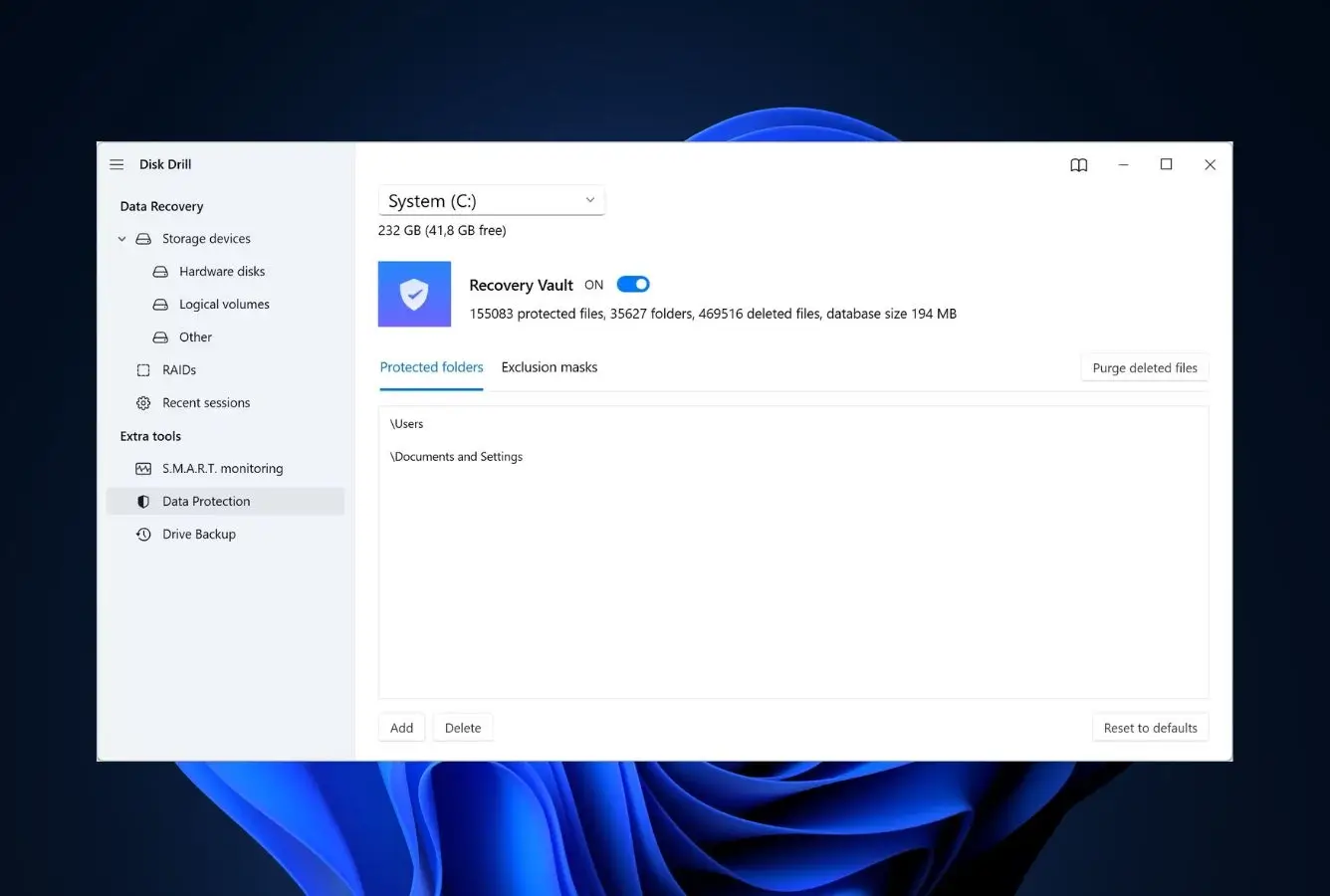
Disk Drill is the best overall TestDisk alternative for users who want partition recovery, file recovery, and disk-management features in a polished interface. CleverFiles built Disk Drill macOS-first and ported the engine to Windows, which is the inverse of how most data recovery tools were architected, and the result is the cleanest GUI ranked here. For the partition recovery job TestDisk specializes in, Disk Drill’s “Find Lost Partition” mode runs the same structural scan TestDisk runs but presents detected partitions in a graphical list with a one-click recover button rather than the text-mode menu navigation TestDisk uses. The lifetime PRO license covers Windows and macOS across three devices, which is the strongest licensing value of any tool on this list. Disk Drill also bundles capabilities TestDisk does not include: byte-level disk imaging, S.M.A.R.T. monitoring, Recovery Vault for proactive metadata backups, and Advanced Camera Recovery for fragmented multimedia files.
✓ Pros
- The cleanest GUI of any tool on this list, especially on macOS
- One license covers Windows + macOS across 3 devices
- Native APFS, HFS+, and Fusion Drive support on Mac
- Byte-level disk imaging and S.M.A.R.T. monitoring built in
- “Find Lost Partition” mode is one-click vs TestDisk menu navigation
- Mac build scans connected iPhones and Android devices
✕ Cons
- 500 MB Windows free trial vs TestDisk’s unlimited free use
- No Linux or BSD build (TestDisk runs on both)
- No native RAID reconstruction or hex disk editor
Recovery Power
Matches TestDisk on common partition scenarios, less depth on extreme cases.
For everyday partition recovery scenarios (deleted partition on a healthy drive, corrupted MBR after a failed Windows reinstall, formatted volume that needs to be reverted), Disk Drill produces equivalent results to TestDisk. The “Find Lost Partition” scan walks the disk looking for partition signatures and presents detected partitions in a list. Where TestDisk pulls ahead is on edge cases: drives with severely damaged partition tables that need manual structural intervention, ext2/3/4 SuperBlock recovery on Linux, and the ability to write a backup boot sector back to a damaged FAT32 volume. Disk Drill abstracts those operations away, which is exactly the trade users on the polished-GUI side are willing to make.
Interface & Experience
The most beginner-friendly entry on the list.
The home screen is a drive list. Click a drive, click “Search for lost data,” and the engine runs Quick, Deep, and Signature passes in one Universal Scan. Lost partitions appear in a separate tab with a recover button next to each. There are no menus, no terminal prompts, no obscure options to configure. For users coming from TestDisk who only need to recover one or two partitions, the entire learning curve is roughly five minutes. The trade-off is configurability: power features like specific file system targeting or sector-range scanning are buried under preferences rather than surfaced in the main flow.
Price & Value
Costs more than TestDisk (which is free) but covers two platforms and three devices.
Disk Drill PRO is $89/yr or $149 lifetime. TestDisk is free. The honest answer is that Disk Drill is not the right pick if budget is the primary concern – DMDE Free or PhotoRec covers most TestDisk-replacement use cases at zero cost. Where Disk Drill earns its premium is on Mac coverage (where TestDisk’s command-line is most painful), on the additional features (imaging, S.M.A.R.T., Camera Recovery) that TestDisk doesn’t offer at any price, and on the licensing model: one $149 lifetime key covers Windows and Mac across three devices, which is a meaningful consolidation for households with mixed platforms.
2. DMDE – Best for Cross-Platform Power Users
4.72
★★★★★
The deepest cross-platform power-user option, with RAID reconstruction and a hex disk editor.
PlatformsWin + Mac + Linux + DOS
Free recovery4,000 files / dir
LicenseSub or lifetime
From$48 lifetime
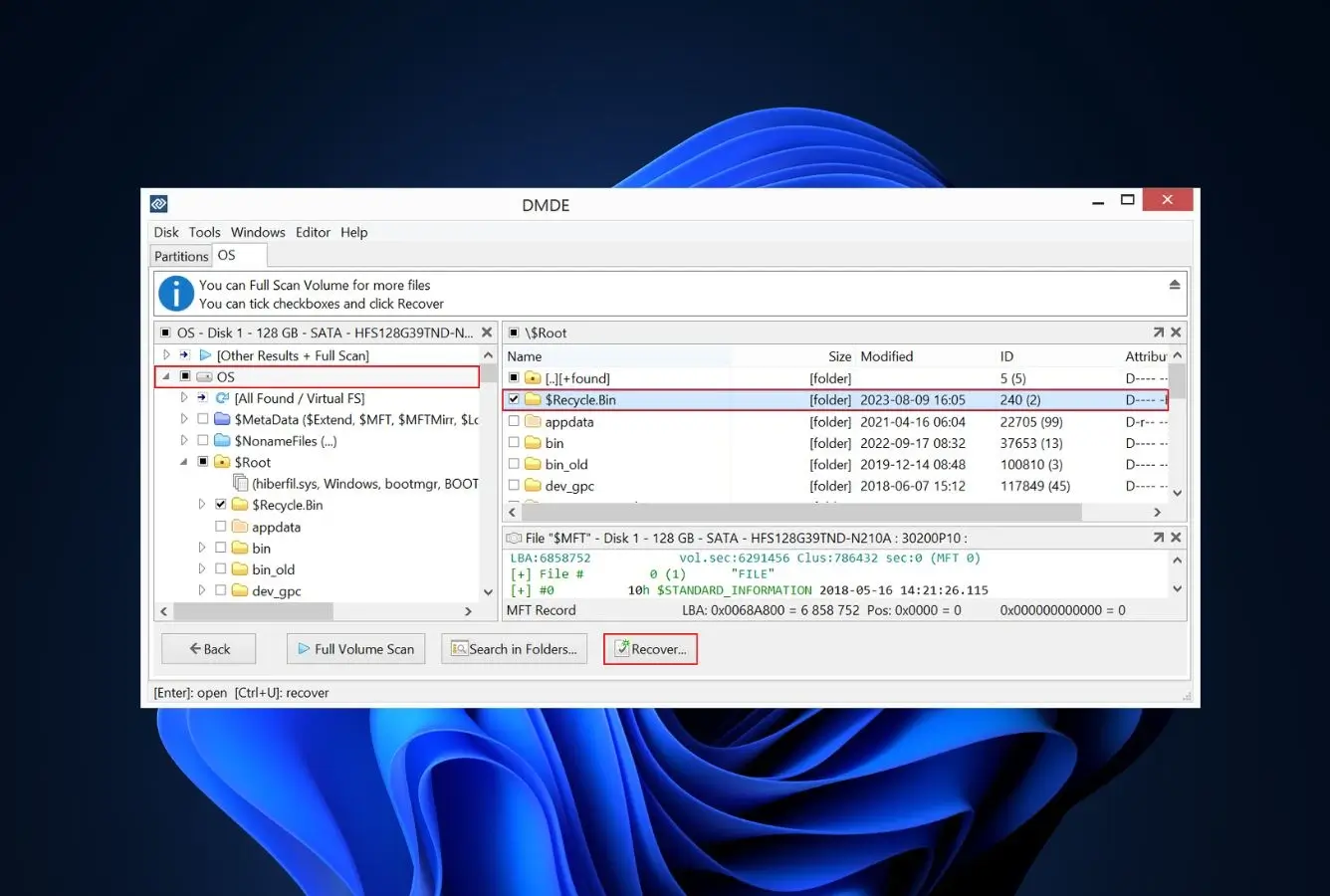
DMDE is the right pick for power users who want the deepest cross-platform alternative to TestDisk and don’t mind a denser, more technical interface in exchange for capability. It runs as a single product line on Windows, macOS, Linux, and DOS, matching TestDisk’s cross-platform reach more directly than any other tool ranked here. The partition reconstruction engine handles every scenario TestDisk handles – corrupted MBR, deleted GPT entries, damaged boot sectors, missing partition tables – across NTFS, FAT, exFAT, ext2/3/4, HFS+, and APFS file systems. DMDE also includes capabilities TestDisk does not: RAID 0, 1, 4, 5, and 6 reconstruction, full disk imaging with byte-level cloning, a hex disk editor, and signature-based file recovery that does not require a separate companion tool. Where Disk Drill ranks higher overall, DMDE wins on raw depth and platform reach. The free tier recovers up to 4,000 files per directory with unlimited repetitions, which makes it usable for most real-world recoveries without hitting a paywall.
✓ Pros
- Real GUI on every platform TestDisk supports, plus DOS
- Full partition recovery for NTFS, FAT, exFAT, ext2/3/4, HFS+, APFS
- RAID 0/1/4/5/6 reconstruction built in (TestDisk has none)
- Hex disk editor and byte-level imaging in one product
- Free tier: 4,000 files per directory, unlimited repetitions
- $48 lifetime Standard, half the price of EaseUS or Stellar
✕ Cons
- Interface is technical, assumes data-recovery vocabulary
- Help documentation is sparse, especially for the Linux build
- The free tier per-directory cap requires multiple recovery sessions for large jobs
Recovery Power
Matches TestDisk on partitions, exceeds it on everything else.
For the specific job TestDisk was built for, rebuilding a partition table from a damaged MBR or GPT, DMDE produces equivalent results. Both tools detect partition boundaries through the same forensic methods (signature scanning, file-system header detection, ext2/3/4 SuperBlock backups), and DMDE’s “Insert” operation writes the recovered partition table back to disk in the same way TestDisk’s “Write” does. Where DMDE pulls ahead is the surrounding workflow: it performs file-level recovery from the recovered partition without handing off to a separate tool, it can reconstruct RAID arrays from member disks, it images failing drives byte-by-byte for safe scanning, and it includes a disk editor for manual structural repairs that TestDisk has no equivalent for.
Interface & Experience
Technical GUI, but a GUI nonetheless.
DMDE’s interface is not the cleanest on this list. The main window shows a list of physical devices, partition entries, and recovered partitions with technical details (sectors, file system signatures, cluster sizes) prominently displayed. Beginners will find it intimidating in the same way TestDisk is intimidating, just with a mouse instead of arrow keys. What changes is the workflow: file recovery happens in a familiar tree view with checkboxes and a preview pane, partition recovery is one button click after the scan completes, and recovered files can be exported with a save dialog. The transition cost from TestDisk to DMDE is far smaller than the cost from TestDisk to a wizard-style tool like Disk Drill or EaseUS, because the underlying mental model (devices, partitions, file systems) is the same.
Price & Value
The free tier is the closest free swap for TestDisk that includes a GUI.
DMDE Free includes the partition recovery and RAID constructor with no time limit and no recovery cap on partition operations. The 4,000 files per directory cap on file recovery is the only paid-tier gate, and unlimited repetition means you can recover a large directory by working through it in batches. For paid use, the Standard license at $48 lifetime covers Windows or macOS or Linux on a single OS; the Multi-OS license at $133 lifetime is the closest direct equivalent to TestDisk’s “runs everywhere for free” model and is still a fraction of what most commercial alternatives charge. Professional at $95 adds RAID 5/6 reconstruction and is the right tier for serious recovery work.
3. DiskGenius – Best for Windows Disk Management
4.55
★★★★★
Partition recovery, file recovery, and full disk management in one polished Windows tool.
PlatformWindows only
Free tierFiles < 64 KB
LicenseLifetime
From$69.90 Standard
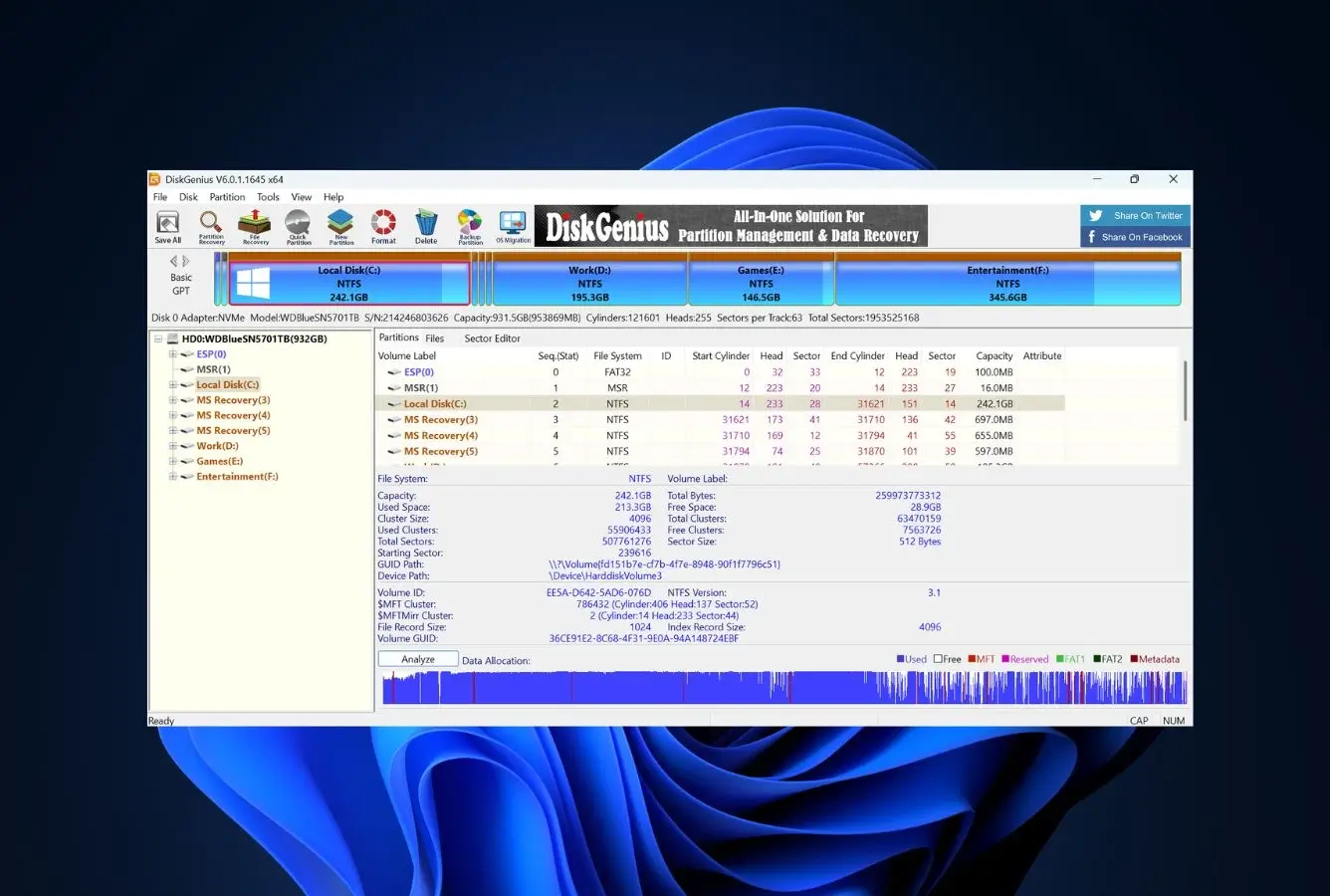
DiskGenius is the natural step up from TestDisk for users who only need Windows coverage. It is functionally a superset: partition recovery (TestDisk’s primary strength), signature-based file recovery (which TestDisk hands off to PhotoRec), and a complete disk-management toolkit that TestDisk has no equivalent for – resize, move, split, merge, format, clone, bad-sector repair, virtual disk creation, and bootable WinPE drive creation from inside the tool. The partition recovery engine handles NTFS, FAT, FAT32, exFAT, ext2/3/4, and Linux LVM, with a Smart Partition Recovery mode that automatically tests detected partitions before writing back. The free tier is generous on the partition side (full reconstruction is free) but restrictive on file recovery (only files under 64 KB recover without a paid tier). For Windows users specifically, this is the most complete single-tool replacement on the list.
✓ Pros
- Partition recovery + file recovery + disk management in one tool
- Polished GUI, the cleanest Windows experience for partition work
- Bootable WinPE drive creation built in (TestDisk has no rescue media)
- Smart Partition Recovery mode tests partitions before write-back
- Bad-sector detection and repair, which TestDisk does not offer
- Lifetime licenses across all paid tiers, no annual subscription
✕ Cons
- Windows-only; no Mac, Linux, or BSD builds (TestDisk runs on all four)
- Free tier file-recovery cap of 64 KB is far more restrictive than DMDE
- Interface density can overwhelm beginners
Recovery Power
Equivalent to TestDisk on partitions, with file recovery and disk repair built in.
For partition table reconstruction on healthy media, DiskGenius and TestDisk produce equivalent results. Both detect partition boundaries through structural scanning and both can write the rebuilt table back to disk in a single operation. DiskGenius adds three capabilities TestDisk does not have: Smart Partition Recovery (which tests detected partitions for file-system integrity before committing), file recovery from inside the recovered partition without handing off to PhotoRec, and bad-sector repair for drives where the partition damage is symptomatic of physical hardware failure. The trade-off is platform: DiskGenius covers Windows only.
Interface & Experience
The cleanest GUI for partition recovery on Windows.
The main window shows a graphical disk layout (drives, partitions, free space) at the top and a file/folder tree view below. Partition recovery is initiated from a right-click context menu or the toolbar; the workflow is point-and-click rather than the menu-driven keyboard navigation TestDisk requires. File recovery results appear in the same tree view with checkboxes, preview, and recovery-chance indicators. Power features are in tabs and right-click menus, which keeps the main interface uncluttered for users who only need partition work. The learning curve from TestDisk is roughly an hour: the underlying mental model is the same, the surface controls are different.
Price & Value
Costs more than TestDisk (which is free) but bundles tools you would otherwise buy separately.
The honest comparison is not “TestDisk is free, DiskGenius is $69.90.” It is “DiskGenius replaces TestDisk + PhotoRec + a partition manager + a bad-sector tool + a disk cloner.” For Windows users who would otherwise run all of those tools separately, the Standard license at $69.90 lifetime is a meaningful consolidation. The Professional tier at $99.90 adds RAID support and advanced features for serious recovery work. The free tier is enough for partition recovery alone but not enough for file recovery beyond trivial sizes; if file recovery matters, the paid tier is mandatory.
4. R-Studio – Best for Technicians & RAID Recovery
4.62
★★★★★
When TestDisk’s command-line is too thin and the data actually matters.
PlatformsWin + Mac + Linux
FreeFiles < 256 KB
LicenseLifetime
From$79.99 lifetime
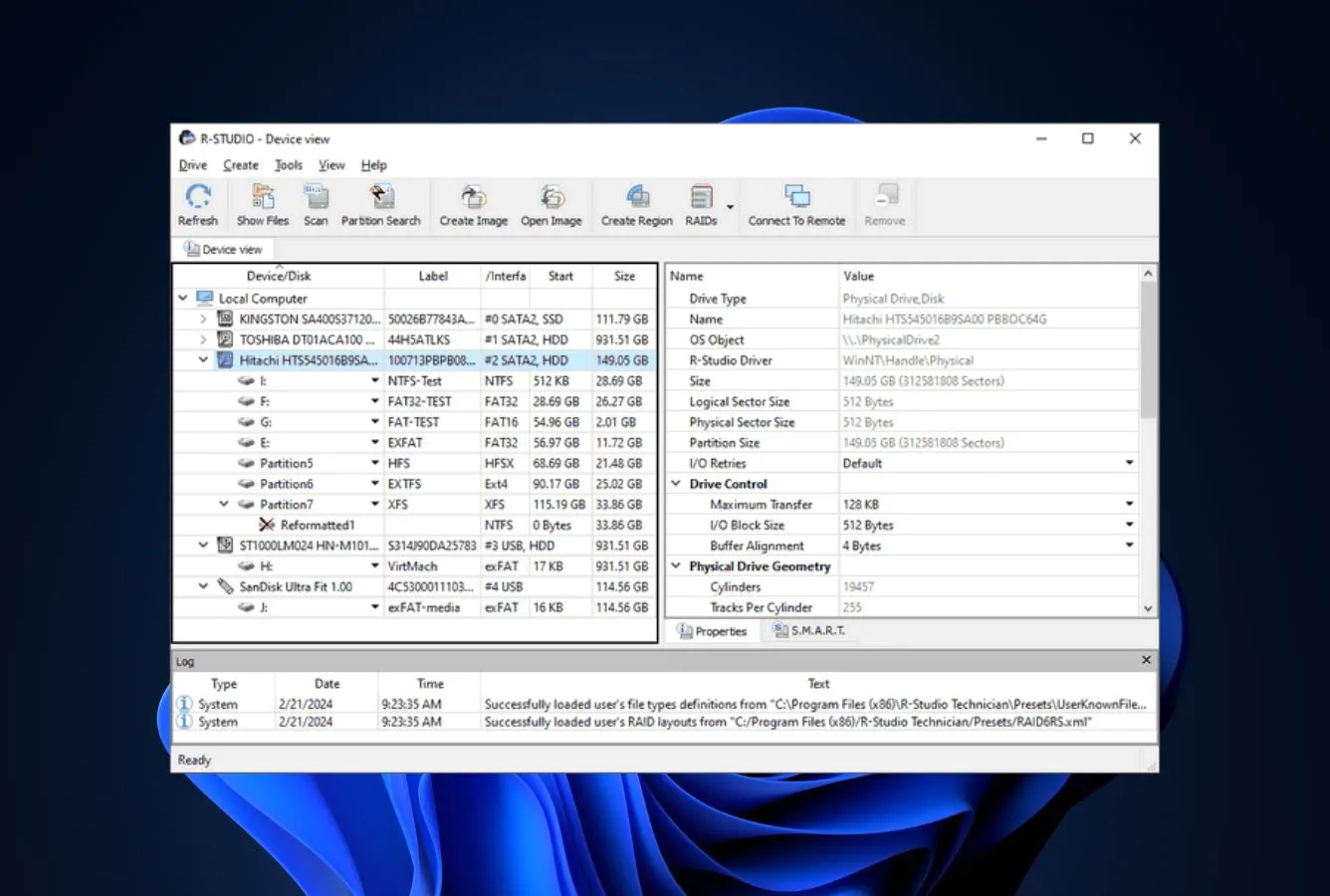
R-Studio is what professionals switch to when TestDisk’s partition recovery is too thin for the job and the lost data is too important to give up on. R-Tools Technology built the engine for forensic and professional data recovery, and it shows in three areas where TestDisk is conspicuously thin: RAID reconstruction (R-Studio handles 0, 1, 4, 5, 6, plus nested layouts and custom arrays. TestDisk has no RAID support), severely corrupted file systems (R-Studio parses NTFS, APFS, ext4, ReFS, and HFS+ with deeper recovery than TestDisk’s structural-only engine), and remote/network recovery (R-Studio can scan a network drive across SMB or its own agent, while TestDisk is local-only). The interface is dense and unapologetically technical, which is the cost of admission. The same engine ships across Windows, macOS, and Linux from one codebase, so a technician can move a license between platforms instead of rebuying.
✓ Pros
- Native RAID 0, 1, 4, 5, 6 plus nested layouts (5E, 5EE, 6E, 50, 60)
- Same engine runs on Windows, macOS, and Linux from one codebase
- Built-in hex editor and disk imaging tools, TestDisk ships neither
- Network and agent-based recovery across LAN connections
- Handles severely corrupted NTFS, APFS, ext4, and ReFS volumes
✕ Cons
- Interface is dense and technical, more complex than TestDisk in places
- Free tier only recovers files smaller than 256 KB, basically preview-only
- Steeper learning curve than any other tool on this list
Recovery Power
The most capable scan engine on this list, by a meaningful margin.
R-Studio’s parser support reaches further into damaged volumes than anything else here, and the RAID reconstruction is genuinely first-class. Automatic parameter recognition for RAID 5/6, manual layout builder for non-standard arrays, and support for software RAID (Apple CoreStorage, Linux mdadm, Windows Storage Spaces). The hex editor and disk imaging tools mean technicians can image a failing drive and run scans against the image rather than the failing hardware, which TestDisk has no equivalent for. For partition recovery on a single healthy drive, TestDisk and R-Studio produce equivalent results; for RAID arrays, network drives, or forensic-grade recovery work, R-Studio is the only tool ranked here that handles the full job.
Interface & Experience
Built for technicians. TestDisk users adjust quickly because the mental model is similar.
The home screen is a file tree with the drive list on the left, the file system view in the middle, and metadata panes on the right – dense and forensic, the opposite of a wizard. There is a hex editor available alongside the file browser, network-recovery dialogs that assume you already know what you want, and RAID-builder windows with parity-block ordering controls. For TestDisk users, the transition is actually smoother than to a wizard tool: the underlying vocabulary (file systems, partition tables, sector ranges) is shared, and R-Studio surfaces the same concepts TestDisk surfaces, just with mouse-driven controls instead of menu navigation.
Price & Value
$79.99 lifetime is the most underpriced professional-tier license on this list.
R-Studio at $79.99 lifetime is the cheapest entry point for serious recovery work that includes RAID, network scanning, and a forensic-grade engine. The honest comparison is not “TestDisk is free, R-Studio is $79.99.” It is “TestDisk handles partition tables on single drives, R-Studio handles partition tables, RAID arrays, network volumes, encrypted disks, and corrupted file systems across three operating systems from one license.” For one-off home recoveries TestDisk is the right tool; for repeat technician work or anything involving RAID, R-Studio earns its price within the first job.
5. MiniTool Power Data Recovery – Best Free Wizard-Style Recovery
4.42
★★★★½
A wizard interface for partition recovery, plus 1 GB of free file recovery on top.
PlatformsWindows + macOS
Free recovery1 GB
LicenseSub or lifetime
From$69 / yr
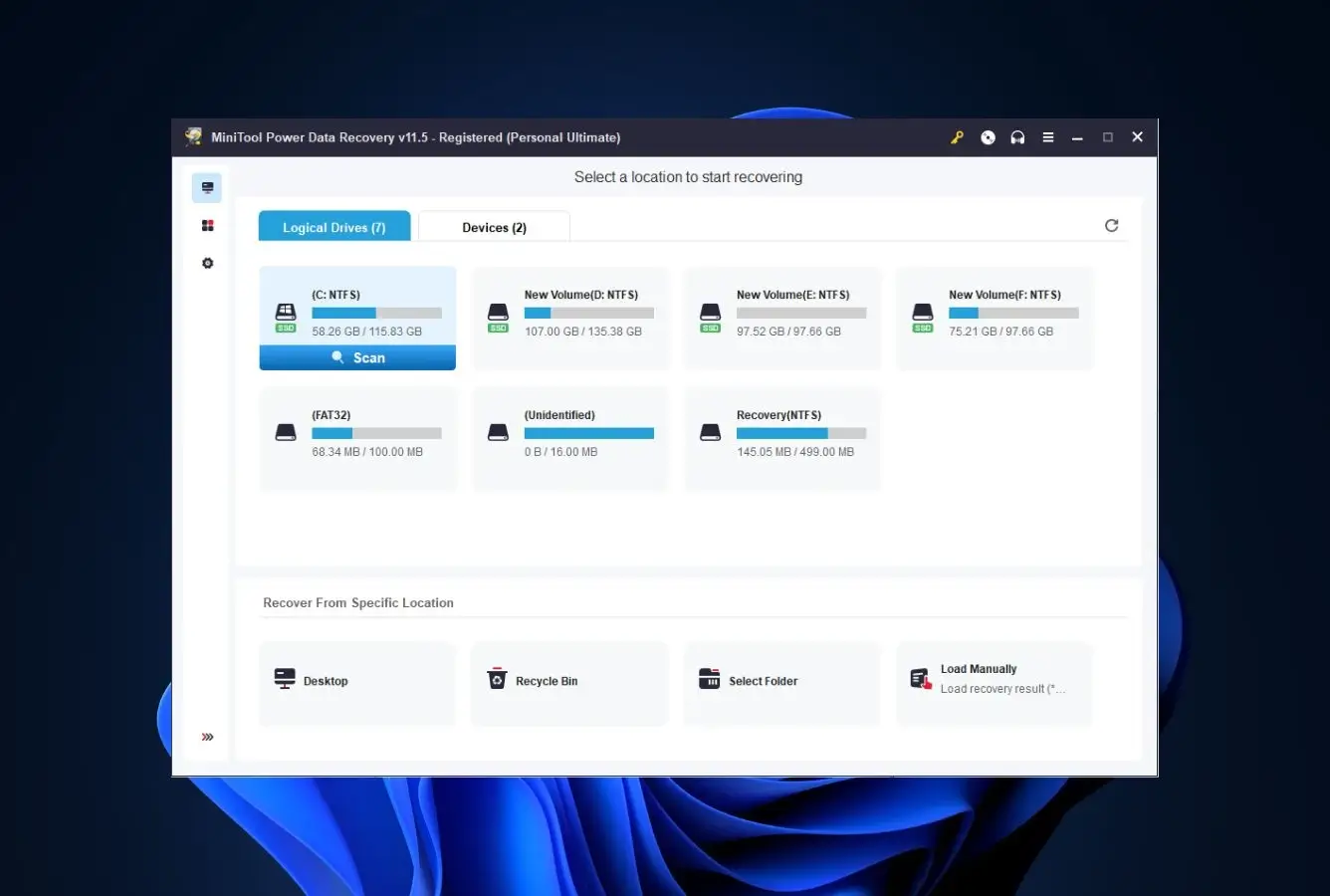
MiniTool Power Data Recovery is the right pick for TestDisk users who want a wizard-style interface for partition recovery without the depth of DMDE or DiskGenius. The product is split into modules – Damaged Partition Recovery, Lost Partition Recovery, Undelete Recovery, Digital Media Recovery, CD/DVD Recovery – which mirrors how non-technical users actually think about their problems (“I lost a partition” vs “I deleted a file”). The Lost Partition Recovery module is the direct TestDisk substitute: scan a disk, see detected partitions in a list, recover them with a click. The free tier covers 1 GB of file recovery from inside the recovered partitions, which is generous compared to most paid tools and makes MiniTool a credible “TestDisk + free file recovery” combination for one-off home use.
✓ Pros
- Modular wizard interface, the friendliest GUI on this list for non-technical users
- Lost Partition Recovery module is a direct TestDisk substitute with a GUI
- 1 GB free file recovery built in, no separate companion tool needed
- Bootable WinPE rescue media included in paid tiers
- Native Mac build, where TestDisk’s command-line is most painful
✕ Cons
- Partition reconstruction depth is shallower than TestDisk on damaged tables
- No RAID reconstruction at the Personal tier
- Subscription-pushed pricing, lifetime tier is less prominent in checkout
Recovery Power
Solid on common partition scenarios, weaker on the deeply-corrupted edge cases.
For everyday partition recovery (deleted partition on healthy media, formatted volume, RAW drive that needs to be opened), MiniTool’s engine produces results comparable to DMDE and Disk Drill. Where it falls behind TestDisk specifically is on heavily-corrupted partition tables that require structural intervention – the kind of recovery TestDisk’s “Deeper Search” mode handles by walking the disk sector-by-sector. MiniTool’s scan is faster but less exhaustive. For users whose partition damage is moderate, the trade is worth it; for severe MBR/GPT corruption where TestDisk would succeed and MiniTool gives up, the answer is to use TestDisk for the partition recovery and MiniTool for the file recovery from the recovered partition.
Interface & Experience
The friendliest GUI on this list for first-time partition recovery users.
The home screen presents recovery modules as large cards with plain-English labels (“Lost Partition Recovery”, “Damaged Partition Recovery”). Click a card, pick a drive, the scan starts. Detected partitions appear in a tree view with their original file system labels visible, which is more readable than DMDE’s technical metadata or TestDisk’s text-mode output. The recovery itself is one click. For TestDisk users whose primary objection is the command-line interface, MiniTool offers the lowest-friction transition path of any tool ranked here.
Price & Value
The 1 GB free tier is the differentiator versus tools that gate everything behind a paid wall.
MiniTool Free includes Lost Partition Recovery and 1 GB of file recovery, which covers most one-off home recoveries entirely. The Personal tier at $69/yr or $89 lifetime adds unlimited recovery and bootable rescue media; the Personal Deluxe at $99/yr adds RAID and other advanced features. For Windows users replacing TestDisk for occasional home use, MiniTool Free is the cheapest credible option after DMDE Free (which has a higher cap but more technical UI). For ongoing use, the $89 lifetime is competitive with DMDE Standard ($48) when you factor in the wizard interface and the bundled file recovery.
6. EaseUS Data Recovery Wizard – Best Wizard-Style Workflow
4.32
★★★★½
The most beginner-friendly wizard on the list, with the broadest file system support.
PlatformsWindows + macOS
Free recovery2 GB
LicenseSub or lifetime
From$99.95 / yr
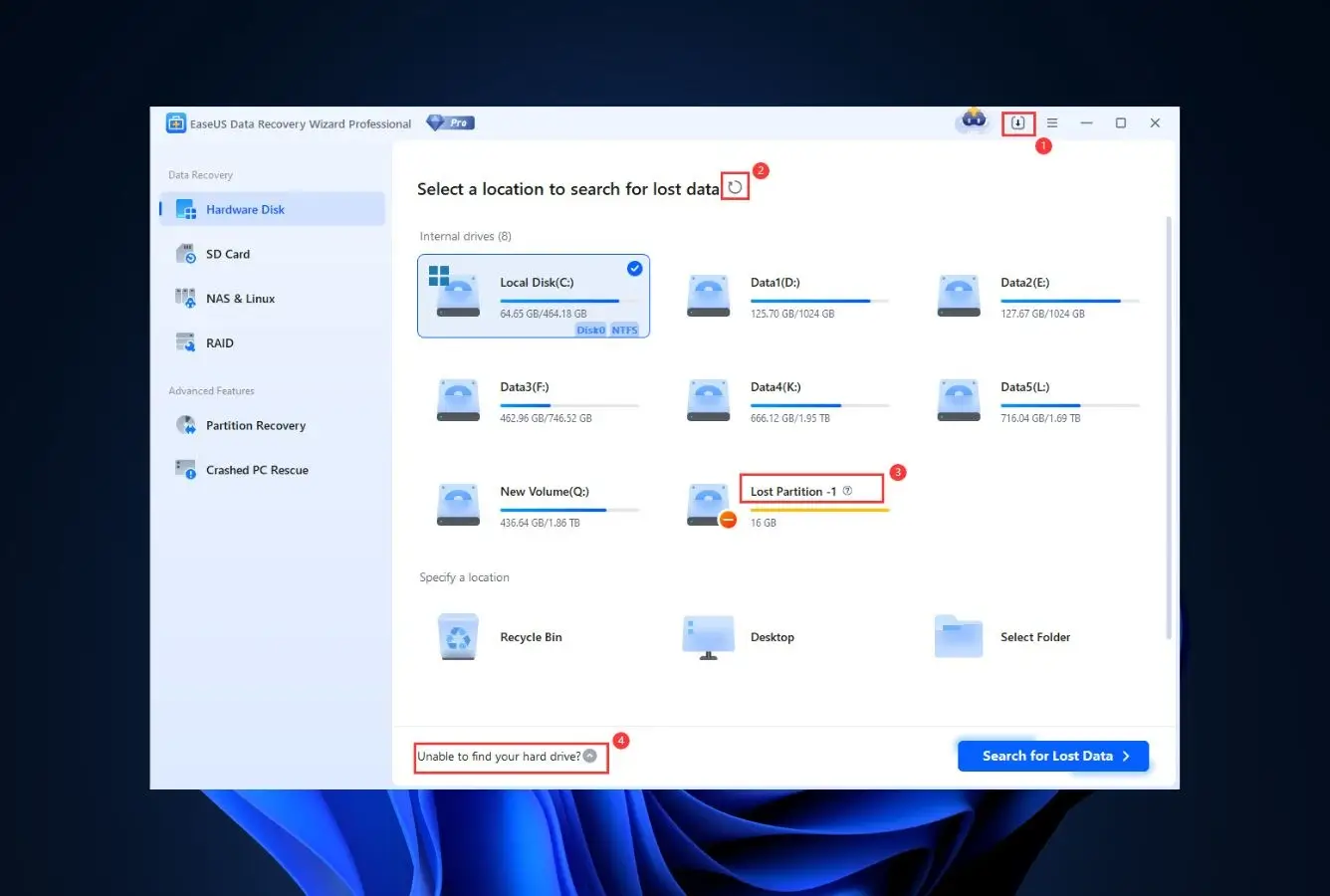
EaseUS Data Recovery Wizard is the right pick for users whose objection to TestDisk is purely the interface and who want the smoothest possible transition to a wizard-style workflow. The interface is the closest thing to a “TestDisk for normal humans” on this list: pick a drive, pick a scan mode, browse results in a tree view with file preview. Every step that TestDisk presents as a text-mode menu is a graphical button or wizard step in EaseUS. The recovery engine handles partition recovery on NTFS, FAT, exFAT, APFS, HFS+, and ReFS, plus file recovery from inside the recovered partitions in the same workflow. Where EaseUS lands in the rankings (sixth, not higher) reflects that it is more of a file-recovery tool with partition recovery as a feature, rather than a partition-recovery tool first – DMDE, DiskGenius, and Disk Drill all rank higher because their partition-recovery depth more directly substitutes for TestDisk.
✓ Pros
- The friendliest wizard UX of any tool on this list
- Native Windows + macOS builds with broad file system support
- Partition recovery and file recovery in one workflow
- 2 GB free recovery, the highest free cap of any commercial tool here
- Bootable rescue media available in higher tiers
✕ Cons
- Partition recovery depth is shallower than DMDE or TestDisk on damaged tables
- Most expensive entry-tier annual on this list at $99.95/yr
- Single-PC license at base tier, no multi-device option
- Aggressive in-app upsells during free-tier scans
Recovery Power
Strong on file recovery, average on partition reconstruction depth.
EaseUS reads APFS, HFS+, exFAT, NTFS, FAT, and ReFS, which is the broadest file system support of any wizard-style tool on this list. The Lost Partition Recovery mode handles deleted and lost partitions on healthy media well, but on heavily-damaged partition tables (the kind TestDisk’s “Deeper Search” handles by walking the disk sector-by-sector), EaseUS’s engine is shallower and more likely to give up early. For most home users whose partition damage is moderate, the EaseUS engine is sufficient; for the cases where TestDisk specifically excels (severely corrupted MBR, missing GPT entries, ext-family SuperBlock recovery), EaseUS is not the right replacement.
Interface & Experience
The single biggest UX upgrade from TestDisk on this list.
The wizard flow is unmistakable: drive picker on the home screen, scan-mode selector, file-tree results with quick filter and preview pane. There is no command-line, no menu navigation, no obscure terminology. Scan results show recovery-chance estimates (good/poor/unrecoverable) next to each file. For TestDisk users whose primary objection is the interface itself, EaseUS offers the lowest cognitive load of any tool ranked here. The trade-off is that the wizard hides the underlying mechanics that TestDisk exposes, which means less control when something goes wrong.
Price & Value
The most expensive entry-tier annual on this list, at $99.95/yr.
EaseUS Data Recovery Wizard Pro is $99.95/yr or $149.95 lifetime, the most expensive Standard-tier pricing of any product ranked here. The lifetime tier is genuinely lifetime including major version upgrades, which makes it the better unit economics over three or more years; for one-shot use, the 2 GB free tier is generous enough to cover most home recoveries. The honest comparison versus TestDisk (which is free) is that EaseUS is buying the wizard interface and the broader file system support, not better partition recovery.
7. PhotoRec – Best Free File-Recovery Companion
4.38
★★★★½
Bundled with TestDisk for free, signature-based file recovery, 480+ file types.
PlatformsWin + Mac + Linux + BSD
Free recoveryUnlimited
LicenseGPL v2+
FromFree
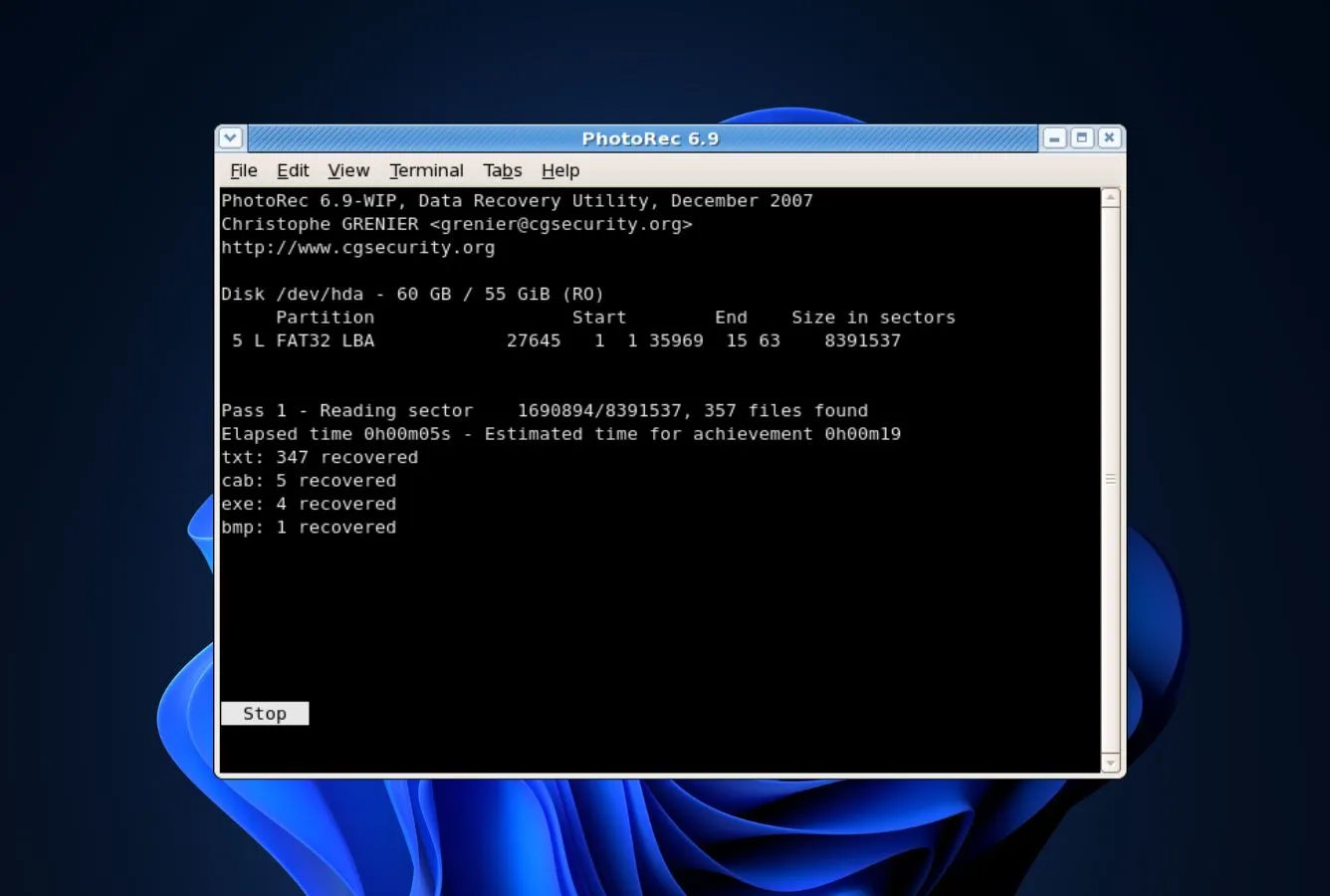
PhotoRec ships in the same download as TestDisk and is built by the same developer (Christophe Grenier, CGSecurity). For TestDisk users, PhotoRec is not really an “alternative” – it is the file-recovery companion TestDisk hands off to when the partition table is intact but individual files have been deleted, or when a partition is too damaged to mount and signature-based recovery is the only path forward. Where TestDisk reconstructs the structural shell (partition table, boot sectors, file system metadata), PhotoRec ignores all of that and walks the disk block-by-block looking for known file signatures. The signature library covers more than 480 file extensions across 300 file families, which is one of the broadest free libraries available. Recovered files lose their original names and folder structure (PhotoRec produces flat output organized by file type), which is the main friction point. For users who already have TestDisk and need to recover specific files from a damaged partition, PhotoRec is the obvious next step.
✓ Pros
- Free, GPL v2+, no caps, no upgrade prompts, no Pro tier
- Bundled in the same download as TestDisk for free
- 480+ file types across 300 file families, broadest free signature library
- Reads RAW drives by ignoring file system entirely
- Native Windows, macOS, Linux, and BSD builds from one codebase
✕ Cons
- Same command-line interface as TestDisk (does not solve TestDisk’s primary friction)
- Recovered files lose their original names and folder structure
- QPhotoRec GUI is barebones compared to commercial alternatives
Recovery Power
Outperforms most paid tools on signature-based recovery from damaged volumes.
The signature-based engine ignores file-system metadata entirely, which is exactly the workflow needed when a drive shows as RAW or the partition table is corrupted – the same scenarios TestDisk hands off to PhotoRec. The 480+ supported file types is the broadest free signature library in this category, and the engine handles the modern fragmented MP4, MOV, and RAW (CR3, NEF, ARW) formats that wizard-style tools sometimes return broken. On healthy drives with intact file systems, file recovery is faster through the wizard tools because they read the file table directly; the moment the file system is damaged, PhotoRec recovers files those tools won’t see.
Interface & Experience
Same command-line interface as TestDisk, which is the obstacle.
Classic PhotoRec is a text-mode utility that walks the user through scan options as terminal prompts. QPhotoRec adds a graphical front-end on Windows and Linux, but it is a developer-tool aesthetic – buttons, checkboxes, file-type filter, not a wizard flow. For users whose primary objection to TestDisk is the command-line, PhotoRec does not solve that problem; it is the same friction with the same toolkit. PhotoRec belongs in the toolbox specifically as a file-recovery companion to TestDisk, or as a free option for users who don’t mind the interface.
Price & Value
Free, and ships with TestDisk by default.
PhotoRec is GPL v2+ open-source and ships in the same download archive as TestDisk. There is no upgrade tier, no donation requirement, no usage limit. For TestDisk users, the practical answer is that PhotoRec is already installed – the question is whether to learn the additional tool. If signature-based file recovery from damaged partitions is part of the workflow, the answer is yes. If the goal is to switch away from the command-line entirely, PhotoRec is not the answer; DMDE, DiskGenius, or Disk Drill are.
8. Stellar Data Recovery – Best Modern UI with Partition Recovery
4.28
★★★★½
A 2026 wizard interface with deleted-partition recovery and broad file system support.
PlatformsWindows + macOS
Free recovery1 GB
LicenseAnnual sub
From$59.99 / yr
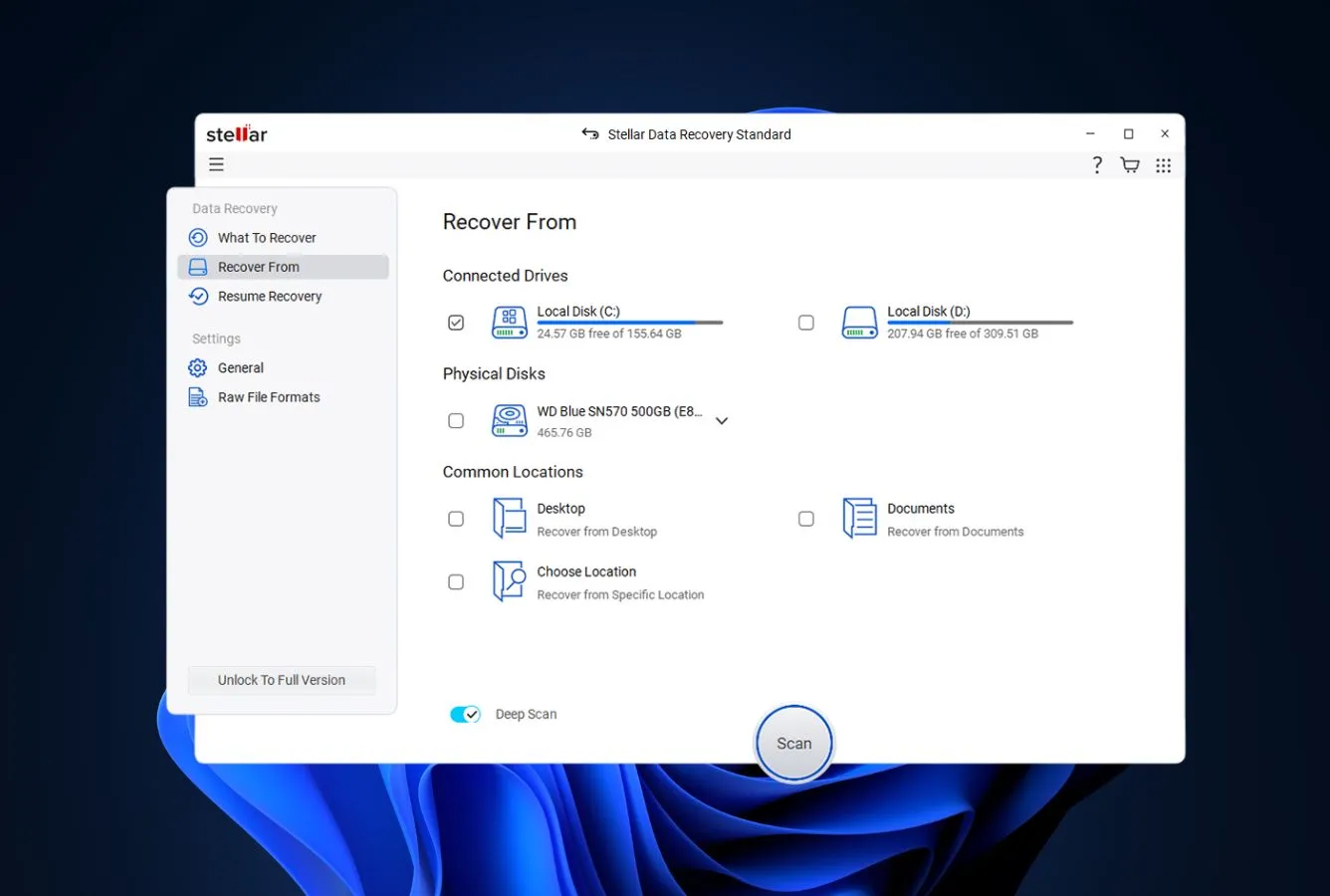
Stellar Data Recovery rounds out the list as the most modern wizard-style alternative for users whose objection to TestDisk is purely interface friction and who don’t need DMDE or DiskGenius depth. Stellar’s “Recover Lost Partition” mode performs the structural scan TestDisk performs, but presents detected partitions in a graphical list with a recover button, similar to Disk Drill’s flow. The recovery engine supports NTFS, FAT, FAT32, exFAT, ext2/3/4, HFS+, and APFS, which covers the same file systems TestDisk handles. The Standard tier at $59.99/yr is the cheapest entry-tier annual on this list that ships a real Mac build, undercutting both EaseUS and Disk Drill on entry pricing. The 1 GB free tier is generous for one-off home recoveries, and the active 2026 development cycle means it ships updates more often than TestDisk’s once-every-two-years cadence.
✓ Pros
- The most modern wizard UX of any tool on this list
- Cheapest entry-tier annual ($59.99/yr) that ships a real Mac build
- Native APFS, HFS+, and ext file system support
- Active 2026 development cycle, ships updates more frequently than TestDisk
- 1 GB free recovery before any paid upgrade is required
✕ Cons
- Partition recovery depth is shallower than TestDisk on damaged tables
- Subscription-first pricing, no lifetime tier at the Standard level
- Mac and Windows are sold as separate licenses, not one combined key
- Higher tiers (Pro, Premium) needed for RAID and video repair
Recovery Power
Solid for routine partition recovery, less depth than TestDisk on extreme cases.
Stellar reads APFS, HFS+, ext4, NTFS, FAT, and exFAT – every file system TestDisk supports. The Recover Lost Partition mode handles deleted and lost partitions on healthy media well, but on heavily-damaged partition tables that need TestDisk’s sector-by-sector “Deeper Search” mode, Stellar’s engine is shallower. For users whose partition damage is moderate, the engine is sufficient; for severe MBR/GPT corruption, TestDisk or DMDE are the right tools. The Pro and Premium tiers add RAID reconstruction and video file repair, neither of which exist in TestDisk at any tier.
Interface & Experience
The most modern wizard on the list, with 2026 design language.
The home screen asks “what did you lose” with file-type cards (documents, photos, videos, audio, emails). Exactly the wizard logic Recuva pioneered, rebuilt with modern visuals and a smoother flow. The drive picker is the second step rather than the first, which sometimes feels backwards to TestDisk users used to selecting a disk first, but lands well for first-time users. Scan results show recovery-quality estimates next to each file, with live preview during the scan rather than after. The transition from TestDisk to Stellar is the largest UX upgrade on this list – and the largest configurability downgrade.
Price & Value
Cheapest entry-tier annual on this list that ships a real Mac build.
$59.99/yr Standard undercuts EaseUS ($99.95/yr) and Disk Drill ($89/yr) at the entry tier, and the 30-day money-back window protects against buyer’s remorse. The catch is the subscription model: Stellar pushes annual renewals harder than lifetime, and the lifetime equivalent isn’t offered at Standard tier (you would need to step up to Pro at $89.99/yr). For one-shot use replacing TestDisk, set a calendar reminder for the renewal. For ongoing use, DMDE Standard at $48 lifetime or DiskGenius at $69.90 lifetime are better unit economics over three years.
How We Evaluate TestDisk Alternatives
An “alternative” ranking is easy to do badly. Most competitor articles just rank tools the author already sells in a different order. We approached this differently: we identified the three most-cited reasons users switch from TestDisk – the command-line interface, the weak file recovery (TestDisk hands that off to PhotoRec), and the absence of disk-management tools like resize, clone, and bad-sector repair – then evaluated each alternative on how well it solves those specific gaps alongside core partition-recovery capability. Research is layered across vendor documentation for baseline feature claims, independent external testing for cross-validation of recovery performance, and community feedback on Reddit (r/datarecovery, r/techsupport) and Trustpilot for real-world support and billing patterns. Rankings reflect that aggregate, not an in-house benchmark.
📚
Vendor Documentation
Each candidate’s official product pages, pricing tiers, supported file systems, license terms, and changelogs, the baseline held at arm’s length until cross-referenced against external testing.
🧪
Independent Testing
Cross-referenced findings from external testing labs and editorial reviews on recovery rates, scan times, and engine behavior, used to separate marketing claims from repeatable outcomes.
💬
Community Feedback
Reddit threads on r/datarecovery and r/techsupport, Trustpilot complaint patterns, G2 ratings, and SourceForge community posts, for real-world support, billing, and recovery-outcome signals.
Platforms covered: Windows 10/11 (24H2), macOS 14 Sonoma + macOS 15 Sequoia, and major Linux distributions for tools that support them. Key factors weighted: partition recovery depth (35%), GUI quality vs TestDisk’s command-line (20%), file recovery capability (20%), disk management tools (10%), free-tier substance (10%), and platform reach (5%).
01
Partition Recovery Depth (35%)
Engine quality on the specific job TestDisk excels at: rebuilding MBR/GPT, recovering deleted partitions, repairing boot sectors across NTFS, FAT, exFAT, ext2/3/4, HFS+, and APFS file systems.
02
GUI Quality vs CLI (20%)
The single biggest reason users leave TestDisk. Tools with a polished graphical interface and one-click partition recovery score highest; command-line tools score lowest by definition.
03
File Recovery Capability (20%)
Signature-based and metadata-based file recovery in the same workflow as partition recovery. TestDisk hands off to PhotoRec for this; alternatives that integrate file recovery score higher.
04
Disk Management Tools (10%)
Resize, clone, format, bad-sector repair, RAID reconstruction, byte-level imaging, hex disk editor. TestDisk has none of these; alternatives that bundle them earn credit.
05
Free Tier Substance (10%)
What the free version actually delivers. TestDisk’s unlimited free tier is the bar; alternatives that include partition recovery or meaningful file recovery for free earn credit here.
06
Platform Reach (5%)
TestDisk runs on Windows, macOS, Linux, and BSD. Alternatives that match this cross-platform reach earn full credit; Windows-only tools are penalized accordingly.
🔎
Want the raw testing data?
Individual test runs, scan-time logs, and per-tool notes from our ongoing testing live on our full methodology page. Start there if you want the underlying numbers behind any claim on this page.
Niche Alternatives & Honorable Mentions
Six tools we considered as TestDisk replacements but didn\’t include in the main ranking. Each fits a narrow scenario where it would specifically beat the eight ranked options.
TestDisk
The original. Still the canonical free tool for rebuilding partition tables on a single drive when the file system is intact. Command-line interface remains its primary friction point, but for the specific job of MBR/GPT reconstruction with no surrounding workflow, nothing beats it on price.
Free Windows-only file recovery with a polished wizard. Has no partition recovery (the gap that brought users to TestDisk), but for simple file deletion scenarios on a healthy Windows drive, it is the easiest GUI alternative for users who only need the file-recovery side.
Mac-first alternative with partition recovery for APFS and encrypted volumes. A credible Mac-side option when Disk Drill\’s licensing doesn\’t fit. Handles BitLocker and FileVault scenarios that TestDisk\’s text-mode interface struggles to expose.
iMyFone\’s wizard-style tool with a 200 MB free tier and broad file system support. Partition recovery is shallower than DMDE but the interface is friendlier. A reasonable swap for users who want a step up from TestDisk\’s CLI without going technical.
Modern wizard interface with AI-augmented video recovery. Partition recovery is a feature rather than the focus, which is why it ranks lower as a TestDisk replacement, but the multimedia recovery capabilities are genuinely differentiated.
Professional-grade tool from SysDev Laboratories with deep file system support and RAID reconstruction. Closer to R-Studio than to a wizard tool. The right pick for technicians whose work spans virtual disks and unusual file systems beyond what TestDisk handles.
How to Pick the Right TestDisk Replacement
Four factors separate the right TestDisk replacement from the wrong one. Walk through them in order; the first one that fails is usually the deciding criterion.
Partition recovery vs file recovery: which problem do you actually have?
TestDisk is a partition recovery tool, not a file recovery tool. If your problem is “the partition table is gone, the drive shows as unallocated, but the data is still on the disk,” TestDisk’s strength is exactly that scenario – and your alternatives are DMDE, DiskGenius, Disk Drill, or R-Studio, all of which rebuild partition tables through a graphical interface. If your problem is “I deleted important files and need them back,” TestDisk is not the right starting tool at all – EaseUS Data Recovery Wizard, MiniTool Power Data Recovery, or Stellar are designed for that. For an overview of file-recovery-first options, see our free data recovery roundup.
GUI vs command-line: how much friction can you tolerate?
TestDisk’s biggest weakness is its text-mode interface. If that is the deciding factor, the friendliest GUI alternatives are Disk Drill (the cleanest single-click partition recovery), MiniTool Power Data Recovery (the friendliest wizard), and EaseUS Data Recovery Wizard (broadest file-system support). For users who want a GUI but don’t mind a denser, more technical interface in exchange for deeper capability, DMDE and DiskGenius are the strongest picks. PhotoRec uses the same command-line interface as TestDisk and does not solve the friction.
Cross-platform reach: do you need Mac, Linux, or BSD support?
TestDisk runs on every major desktop OS, which is one of its biggest strengths. The alternatives that match this reach are DMDE (Windows, macOS, Linux, DOS), PhotoRec (Windows, macOS, Linux, BSD), and R-Studio (Windows, macOS, Linux). DiskGenius is Windows-only. Disk Drill, EaseUS, MiniTool, and Stellar cover Windows + macOS but not Linux. For Mac-specific guidance and ranked Mac-first tools, see our Mac data recovery roundup.
Disk management bundling: do you need partition tools beyond recovery?
TestDisk does partition recovery only. It does not resize, clone, format, repair bad sectors, or create bootable rescue media. If you need any of those alongside recovery, the integrated tools are DiskGenius (the most complete Windows partition + disk management combo) and R-Studio (RAID reconstruction, network recovery, hex disk editor). For RAID-specific work where partition recovery is a subset of the larger job, see our RAID recovery software guide. For users who only need TestDisk’s narrow partition-rebuild capability and nothing else, TestDisk itself or DMDE Free remain the right answers – the buyer’s guide answer in that case is to skip the upgrade entirely. For dedicated photo recovery on partitions where TestDisk’s structural rebuild is not enough, see our photo recovery software guide.
Disk Drill is the best TestDisk alternative in 2026. It runs the same partition reconstruction scan TestDisk runs but presents detected partitions in a graphical list with one-click recovery, ships across Windows and macOS on a single $149 lifetime license that activates on three devices, and bundles capabilities TestDisk has no equivalent for: byte-level disk imaging, S.M.A.R.T. monitoring, Recovery Vault, and Advanced Camera Recovery for fragmented multimedia files. For most users replacing TestDisk, this is the cleanest path to a real graphical workflow without losing recovery depth.
Beyond the winner: DMDE is the right pick for power users and technicians who want the deepest cross-platform alternative, matching TestDisk’s Windows / macOS / Linux / DOS reach more directly than Disk Drill and adding RAID reconstruction and a hex disk editor for $48 lifetime. DiskGenius is the strongest Windows-only choice, combining partition recovery with full disk-management tools (resize, clone, bad-sector repair). R-Studio at $79.99 lifetime is the strongest pick for technicians and anyone working with RAID arrays or forensic-grade recovery. PhotoRec remains the right companion when the goal is signature-based file recovery from a damaged partition; it ships with TestDisk by default and is free across every platform. If your scenario is the narrow case TestDisk was built for – rebuilding a partition table on a single drive where the data is intact – TestDisk itself is still hard to beat at zero. For everything else, a tool from this list will save you significant time without losing recovery capability.
Frequently Asked Questions
What is the best TestDisk alternative with a GUI?
+
Disk Drill is the strongest GUI alternative for most users, with one-click partition recovery, byte-level imaging, and a single $149 lifetime license that activates on Windows and macOS across three devices. DMDE is the better pick for power users who want the deepest cross-platform option and don’t mind a denser interface in exchange for RAID reconstruction and a hex disk editor; it runs on Windows, macOS, Linux, and DOS like TestDisk does. DiskGenius is the strongest Windows-only choice, combining partition recovery with full disk-management tools (resize, clone, bad-sector repair) in a polished interface. All three solve TestDisk’s primary weakness, which is the command-line interface.
Is there a free alternative to TestDisk that recovers individual files better?
+
PhotoRec ships in the same download as TestDisk and is purpose-built for file recovery rather than partition recovery, with a 480+ file-type signature library. For users who want a GUI instead of PhotoRec’s command-line interface, DMDE Free recovers up to 4,000 files per directory with unlimited repetitions and adds RAID and partition recovery. MiniTool Power Data Recovery Free covers 1 GB of recovery with a polished wizard-style UI. Recuva is a fourth option for simple Windows-side deletions on healthy drives, though it cannot rebuild lost partitions the way TestDisk can.
Can DMDE replace TestDisk for partition recovery?
+
Yes, with caveats. DMDE’s partition reconstruction supports the same scenarios TestDisk handles – corrupted MBR/GPT, deleted partitions, damaged boot sectors – across NTFS, FAT, exFAT, ext2/3/4, HFS+, and APFS. The free tier includes the partition manager and RAID constructor, which makes it the closest free swap. The trade-off is that DMDE’s interface is technical and assumes prior data-recovery vocabulary; it is friendlier than TestDisk’s command-line but less hand-holding than DiskGenius or Disk Drill.
What is the best Mac alternative to TestDisk?
+
TestDisk runs on macOS, but its command-line interface is even more friction on Mac than on Windows or Linux. The strongest Mac-side alternatives are Disk Drill (macOS-native, full APFS and HFS+ support, polished GUI), DMDE (cross-platform GUI build with partition recovery and disk imaging), and R-Studio (technician-tier with full Mac GUI and RAID support). PhotoRec runs on Mac as a free option but uses the same command-line interface as the Linux build. For Mac-specific guidance, see our Mac data recovery roundup.
Is DiskGenius better than TestDisk?
+
For Windows users specifically, DiskGenius is a superset of TestDisk – it includes partition recovery (TestDisk’s primary strength), file recovery (which TestDisk hands off to PhotoRec), and a full disk-management toolkit (resize, clone, format, bad-sector repair) that TestDisk has no equivalent for. The trade-off is platform: DiskGenius is Windows-only where TestDisk runs on every major OS. The free tier of DiskGenius is also more restricted than TestDisk’s unlimited free use, with file recovery limited to files under 64 KB until you upgrade to a paid tier.
What do Reddit users recommend instead of TestDisk?
+
On r/datarecovery and r/techsupport, the most common TestDisk alternatives recommended are DMDE for serious technical work, DiskGenius for combined partition recovery and disk management on Windows, R-Studio for RAID and forensic-grade recovery, and PhotoRec when the goal is signature-based file recovery rather than rebuilding partitions. TestDisk itself is still recommended for the specific case of “the partition table is gone and I just need to rebuild it” – it remains the best free tool for that single job. Most users pair it with PhotoRec for the file-recovery side.
Why is TestDisk so hard to use?
+
TestDisk uses a text-mode terminal interface from a 2001 design lineage, with no mouse support, no file preview, and arrow-key navigation through nested menus. It also assumes the user knows what a partition table is, what an MBR/GPT signature looks like, and which file system was on the lost partition. The recovery process itself is straightforward once you understand the terminology, but new users frequently bounce off the interface before they get there. The CGSecurity website has a step-by-step guide that helps. If the friction is the deciding factor, DiskGenius, DMDE, or Disk Drill all do the same partition recovery through a graphical interface.
Is TestDisk still worth using in 2026?
+
Yes, for one specific case: rebuilding a corrupted or deleted partition table on a drive where the data itself is intact. TestDisk remains the best free tool for that job, and the v7.2 release from February 2024 confirmed it is still actively maintained. Reasons to switch in 2026 are the command-line interface (a significant friction for non-technical users), weak file recovery compared to dedicated tools (PhotoRec is its file-recovery companion for that reason), and the absence of disk-management features (resize, clone, format) that combined tools like DiskGenius bundle with their partition recovery.
👥 Researched & Reviewed By

Marcus Whitfield
Data Recovery Software Analyst & Senior Writer
Marcus has evaluated data recovery tools for more than six years across Windows, macOS, and Linux, from free utilities to enterprise-grade platforms. He leads category research and writes the roundups on Data Recovery Fix, with a soft spot for tools that prioritize transparent licensing and cross-platform parity over flashy marketing.
B.Sc. Computer Science
6+ years data recovery evaluation
Cross-platform licensing analysis

Rachel Dawson
Technical Approver · Data Recovery Engineer
Rachel brings over twelve years of cleanroom data recovery experience. She validates research methodology and ensures published guidance on TestDisk alternatives reflects actual recovery outcomes. File-system parser depth on RAW and formatted drives, RAID reconstruction behavior, sector-level imaging accuracy. Not vendor marketing.
12+ years data recovery engineering
Cleanroom HDD recovery
Flash memory forensics
✅
Editorial Independence & Affiliate Disclosure
Data Recovery Fix earns revenue through affiliate links on some product recommendations. This does not influence our rankings. All tools are evaluated independently based on documented research, independent testing from external sources, vendor documentation, and community feedback, before any affiliate relationships are considered. If anything on this page looks inaccurate, outdated, or worth revisiting, please reach out at contact@datarecoveryfix.com and we’ll review it promptly.