GetDataBack Pro Review (2026): HDD Recovery Veteran
GetDataBack Pro is a data recovery tool from Runtime Software, a small US-based company that has been in the recovery business since 2001. The tool takes a fundamentally different approach from most competitors: it relies entirely on filesystem reconstruction rather than signature-based scanning. This means it excels when filesystem metadata is intact but struggles when that metadata is gone. Our review aggregates vendor documentation, independent external evaluation, and community feedback for v5.71 to evaluate where the tool's strengths and limits actually lie.
tests, user reports
Windows
v5.71

A specialist tool with a narrow but deep focus: filesystem reconstruction on intact NTFS, FAT, exFAT, EXT, HFS+, and APFS partitions. Independent evaluation places it in the upper tier for accurate filename and folder-structure recovery on undamaged filesystems, and the $79 lifetime license is one of the best deals in the category for that use case. The trade-offs are significant: no signature-based deep scan, a dated interface that has barely changed since the early 2010s, and limited preview capability. For users with a specific filesystem-recovery scenario, it's an exceptional value. For broader needs, look elsewhere.
✓ What We Liked
- Strong NTFS filesystem reconstruction — recovers filenames and directory structure accurately
- Fast Level 1 and 2 scans for simple recovery scenarios
- $79 lifetime license with free updates — no subscription required
- Supports 8 file systems including HFS+ and APFS for cross-platform recovery
- Bootable version available via Runtime Live CD or WinPE
- Read-only scanning — will never write to the source drive
- Compressed byte-to-byte disk imaging built in
✕ What We Didn’t
- No signature-based scanning — cannot recover files when filesystem metadata is gone
- Severely outdated user interface — visual style barely changed since the early 2010s
- Preview limited to a few file types — no image, video, or document preview
GetDataBack Pro Alternatives
Brief selection A quick shortlist of our top alternative picks, based on aggregated independent research. | Best Alternative  EaseUS Data Recovery Wizard Best overall · 2 GB free |  Stellar Data Recovery Best for photos · 1 GB free |  Wondershare Recoverit Best for video · 100 MB free |
|---|---|---|---|
| Deep Scan | ✓ | ✓ | ✓ |
| Formatted Drive Recovery | ✓ | ✓ | ✓ |
| RAW Photo Support | Broad | Broad | Limited |
| File Repair | ✓ | ✓ | Video only |
| Free Tier | 2 GB | 1 GB | 100 MB |
Research Methodology
This review aggregates three evidence sources for v5.71: vendor documentation (the official Runtime Software product page, version history, supported file systems list), independent external evaluation (cross-referenced across multiple data-recovery review publications), and community feedback (Reddit r/datarecovery and r/techsupport, Trustpilot, G2, longstanding professional forum discussions). Tier assignments — Excellent, Very Good, Good, Fair, Limited, Not supported — reflect the aggregate of that evidence per capability. Where independent testing diverges sharply from vendor claims, we follow the independent evidence. Full methodology details are on our How We Test page.
Is GetDataBack Safe?
GetDataBack Pro is genuinely safe to use. Runtime Software has been operating since 2001 with a longstanding reputation in the data recovery community. The tool scans in read-only mode, the installer is small and clean, and there are no telemetry or aggressive billing concerns — it's a one-time license. The trade-off is the dated interface and narrow capability profile, not safety.
How to Use GetDataBack
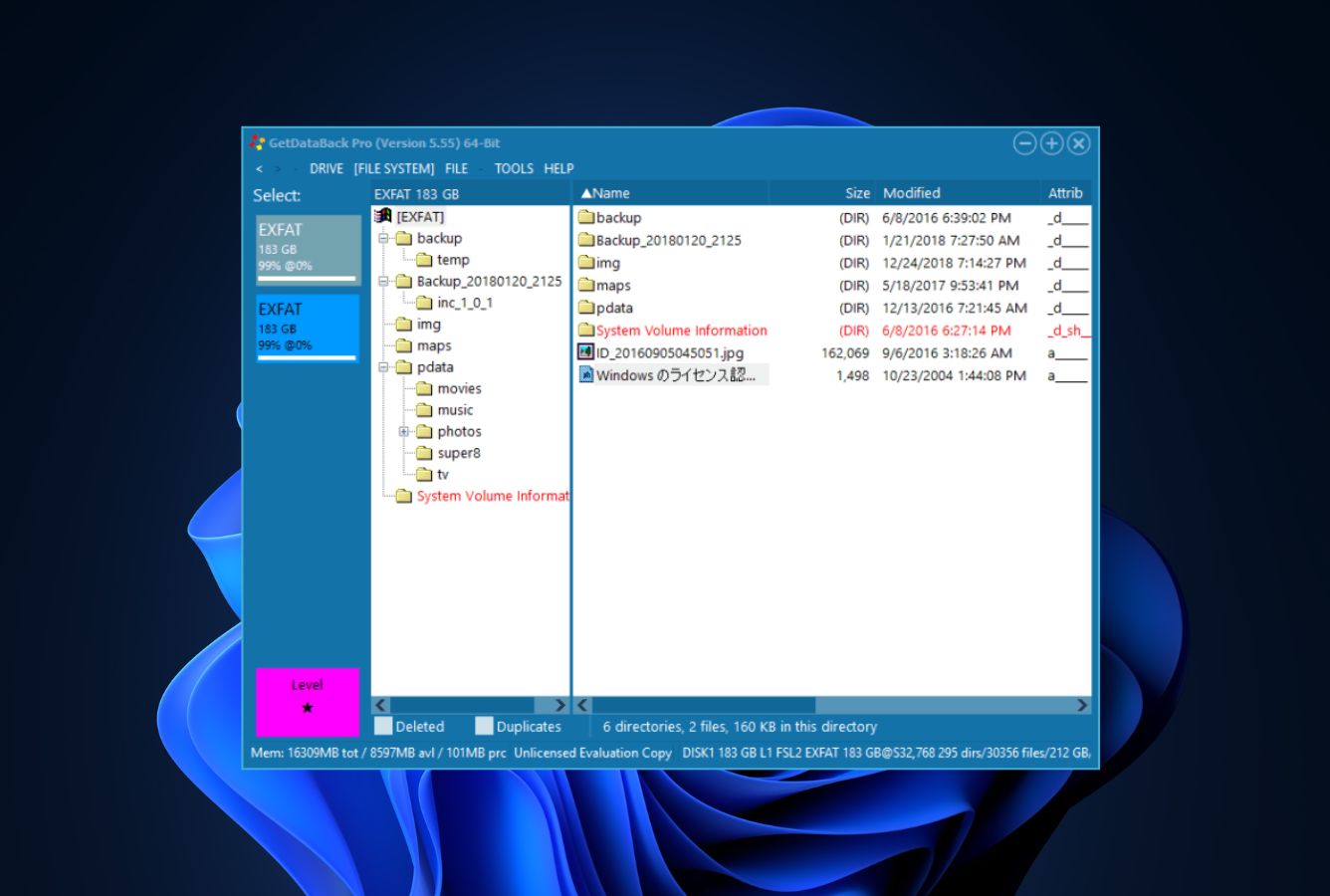
GetDataBack Pro uses a wizard-style flow: pick a recovery scenario, select a drive, scan, then browse and recover. The interface is dated but logically organized once you learn its conventions.
Download and install
Download the installer from runtime.org. The installer is around 8 MB. Install on a different drive from the one with lost data.
Pick a recovery scenario
On launch, pick from four scenarios: I want to recover deleted files; My drive is no longer accessible; My drive was just deleted/formatted; or I want to recover from a system crash. The chosen scenario tunes the scan strategy.
Run the scan
GetDataBack performs filesystem reconstruction at one of three levels (Quick, Standard, Thorough). Level 1 reads the existing filesystem; Level 2 reconstructs damaged metadata; Level 3 walks every block looking for filesystem fragments. There is no signature-based scan.
Browse and recover
Results appear in an Explorer-style tree with filenames and folder structure preserved. Double-click to copy out individual files or use Copy All to recover the entire reconstruction. Always save to a different drive.
Because GetDataBack relies entirely on filesystem reconstruction, it produces little to no result when the filesystem is genuinely gone (a clean format, a hard reformat to a different file system, or a heavily overwritten drive). For those cases, see PhotoRec or a tool with signature scanning like our Windows recovery picks.
Who GetDataBack Is For
GetDataBack Pro fits the user who has a specific filesystem-recovery scenario: a partition that became unreadable, a deleted partition that needs reconstruction, an external drive that suddenly shows as RAW, or a system crash where the filesystem is largely intact but Windows can't mount it. Independent evaluation consistently places GetDataBack in the upper tier for these scenarios because the architecture is built specifically for them.
A practical example: a sysadmin whose RAID volume dropped a member and reassembled with a corrupted partition table. GetDataBack's filesystem reconstruction can rebuild the directory tree from metadata fragments and recover files with their original names and paths intact — something signature-based scanners can't do.
If your situation is a clean format, a heavily-overwritten drive, deeply-fragmented video files, or you need built-in repair for corrupted JPEGs — the next section explains why GetDataBack won't help.
GetDataBack's Strengths in Real-World Use
GetDataBack's narrow focus is its main advantage. The areas below are where it consistently outperforms broader tools.
Accurate filesystem reconstruction with names and paths intact
When NTFS, FAT, exFAT, or APFS metadata is intact (or recoverable), GetDataBack reconstructs the directory tree with filenames, timestamps, and folder structure preserved. Signature-based tools recover the bytes but lose the names — you get “file0001.jpg” instead of “vacation_2024.jpg”. For users who need to identify recovered files quickly, this matters enormously. Community feedback in r/datarecovery consistently cites this as the key reason to choose GetDataBack.
Eight file systems including HFS+ and APFS on Windows
GetDataBack supports NTFS, FAT12/16/32, exFAT, EXT2/3/4, HFS+, and APFS — all from a Windows installation. This is unusually broad for a Windows-only tool. For users who need to recover from a Mac drive on a Windows machine, GetDataBack avoids the cross-platform shuffle that most tools require.
Lifetime license at $79 with free updates
In a category dominated by $80–$100 annual subscriptions, GetDataBack's one-time $79 lifetime license is exceptional value — if its capability profile fits your scenario. Vendor documentation confirms free updates within major versions. For a user who has a single recovery job and may have another in five years, the math is hard to beat.
Bootable rescue media
Runtime publishes a Live CD/USB image that includes GetDataBack alongside other Runtime tools (Captain Nemo, DiskExplorer). For recovering from a non-booting Windows system without removing the drive, this is a useful capability that many consumer tools don't offer.
Where GetDataBack Falls Short
GetDataBack is sharp at one thing and limited everywhere else. The honest evaluation is below.
No signature-based scanning at all
This is the defining limitation. Signature scanning — finding files by their byte patterns rather than by filesystem metadata — is what makes a tool useful on a freshly-formatted drive, a heavily-overwritten partition, or a drive where the filesystem has been overwritten with a different one. GetDataBack does not have this capability. If your scenario doesn't leave intact filesystem metadata, GetDataBack will return little or nothing. For those cases, PhotoRec or a tool with both engines like Disk Drill is the right choice.
Severely outdated interface
The visual design has barely changed since the early 2010s. Random color changes, inconsistent button styles, and a wizard flow that feels like a Windows XP utility. The functionality is solid; the polish is not. Independent evaluation flags this as the most common usability complaint, and verified user feedback echoes it.
Limited preview, limited file repair
GetDataBack previews only a few text-based file types. No thumbnail preview for images, no playback for audio or video, no built-in repair for corrupted JPEGs or MP4 videos. For photographers and videographers, this means recovering files blind and hoping they open correctly. EaseUS, Stellar, and Wondershare all offer broader preview and repair.
GetDataBack Capability Summary
How GetDataBack performs, capability by capability, based on aggregated independent evaluation:
| Capability | Tier | Notes |
|---|---|---|
| Deleted-file recovery (NTFS, intact) | Excellent | Filesystem-aware reconstruction; names preserved |
| Deleted-file recovery (FAT/exFAT) | Very Good | Same engine across FAT family |
| Formatted-drive recovery (same FS) | Fair | Some success if metadata fragments remain |
| Formatted-drive recovery (different FS) | Limited | Almost no success without signature scan |
| Corrupted-partition recovery | Very Good | Core strength; rebuilds from metadata fragments |
| Cross-platform recovery (HFS+, APFS, EXT) | Very Good | Unusual for a Windows-only tool |
| Signature-based deep scan | Not supported | Architectural limitation |
| RAW camera format support | Limited | Only via filesystem; no signature recognition |
| JPEG / MP4 repair | Not supported | No built-in repair |
| SD card recovery | Fair | Only if FAT/exFAT metadata intact |
| USB / external HDD recovery | Very Good | Same engine as internal drives |
| SSD recovery (TRIM disabled) | Good | Filesystem reconstruction works |
| TRIM-active NVMe SSD | Not supported | Hardware limitation across all tools |
| Disk imaging (built-in) | Very Good | Compressed byte-to-byte clones |
| Bootable rescue media | Very Good | Runtime Live CD/USB |
| File preview | Limited | Text and a few formats; no thumbnails |
| Free tier capacity | Limited | Preview-only; no recovery without license |
| License model | Excellent | $79 lifetime, no subscription |
Tier scale: Excellent / Very Good / Good / Fair / Limited / Not supported. Aggregated from independent testing and community feedback, 2026.
GetDataBack Cost
GetDataBack Pro is a single-tier purchase: $79 for a lifetime license with free updates. No annual subscription, no monthly tier, no enterprise edition. For service providers, Runtime Software offers volume licensing on request.
There is a free demo, but it's preview-only — you can scan and see what would be recovered, but you cannot actually copy files until you license. This is a fair model: confirm the tool finds your data, then pay once.
For a one-time recovery job that fits GetDataBack's capability profile (filesystem reconstruction on intact metadata), $79 is excellent value. For broader scenarios, the same money or less buys an EaseUS annual subscription or a free tool like Recuva or Puran. See our best Windows data recovery software guide for category-wide pricing context.
Try GetDataBack Pro Free Demo
Scan and preview before you pay. $79 lifetime license unlocks recovery.
GetDataBack vs. Competitors
How GetDataBack Pro compares against the four mandatory baseline competitors plus a closer architectural match. Tiers are aggregated from independent testing and community feedback.
| Tool | Deleted-file Recovery | Formatted Drive | Corrupted Drive | Free Tier | Price |
|---|---|---|---|---|---|
| Disk Drill | Excellent | Excellent | Very Good | 500 MB | $89/yr |
| EaseUS DRW | Excellent | Very Good | Very Good | 2 GB | $99.95/yr |
| GetDataBack Pro ← | Very Good | Limited | Very Good | Preview only | $79 lifetime |
| Stellar Data Recovery | Very Good | Good | Good | 1 GB | $79.99/yr |
| Recuva | Good | Fair | Not supported | Unlimited | Free / $24.95 |
Tier labels reflect aggregated independent evaluation, 2026.
GetDataBack Features & Tools
GetDataBack's feature set is narrow but each feature is mature. The features below define its tier placement.
GetDataBack User Reviews
GetDataBack has a long-running reputation in the data recovery community but a smaller volume of mainstream user reviews than EaseUS or Stellar. Community sentiment skews positive among users whose scenario fits the tool.
When the filesystem is intact, GetDataBack pulls names and folders cleanly. It's my first try before reaching for signature-based tools.
Saved a 4 TB external that suddenly went RAW. Reconstructed the entire NTFS tree with original filenames. $79 lifetime is unbeatable for what it does.
Works extremely well on intact NTFS. The interface looks like it's from 2010 but the engine is solid. Wish it had signature scanning for formatted drives.
Powerful filesystem-aware recovery. No frills, no upsells, just a focused tool that does one thing very well.
Used for years in IT. Pairs well with disk imaging when you can't risk further damage to the source drive.
Did not work on my formatted SD card — needed to switch to PhotoRec. Make sure your scenario fits before buying.
Community sentiment is consistently positive when the scenario fits GetDataBack's architecture (intact or recoverable filesystem metadata) and consistently negative when it doesn't (formatted drives, signature-only scenarios). The lifetime license is a recurring positive note. The dated interface is a recurring negative.
When to Choose Something Else
GetDataBack's narrow focus means it's not the right tool for most general scenarios. Look at one of these instead:
Frequently Asked Questions
Is GetDataBack Pro free?+
Is GetDataBack safe to use?+
Can GetDataBack recover formatted drives?+
Does GetDataBack work on SSDs?+
What file systems does GetDataBack support?+
Does GetDataBack have a bootable version?+
Is GetDataBack better than Disk Drill or EaseUS?+
Final Verdict
GetDataBack Pro earns its tier on the strength of one capability: accurate filesystem reconstruction with names and paths preserved on NTFS, FAT, exFAT, EXT, HFS+, and APFS. Independent evaluation places it in the upper tier for that scenario. The $79 lifetime license is exceptional value when the scenario fits, and the cross-platform file-system support is unusually broad for a Windows-only tool.
Choose GetDataBack if you have a corrupted partition, an inaccessible drive, or deleted files where the original filesystem is largely intact and you want filenames preserved. Choose something else if you need signature-based scanning, file repair, RAW photo support, or a polished interface — EaseUS or Disk Drill handle those scenarios better. For a category-wide view, see our best hard drive recovery software guide.
About the Authors


Our reviews are based on aggregated independent research — vendor documentation, third-party testing, and verified user feedback. We may earn a commission when you purchase through links on this page, at no extra cost to you. Affiliate relationships do not influence ratings or rankings; tier assignments reflect the evidence on hand. Have a correction or a tip? Email contact@datarecoveryfix.com.