8 Best Photo Recovery Software (2026): Reviewed & Ranked
The best photo recovery software should rebuild JPEGs, RAW files, and videos from a formatted memory card without further damaging the media or corrupting the files it retrieves. We evaluated 20 leading photo recovery tools for Windows and Mac on RAW format coverage, camera and drone support, pricing models, and real-world user feedback from independent testing, Reddit, and support forums — then ranked the top 8. Here’s which software stands out in 2026.
+ 6 honorable mentions
· user feedback
formats covered
Win 11 24H2 / macOS 15
Stellar Photo Recovery is the best photo recovery software in 2026. It is one of the few tools on the market purpose-built for photographers: explicit support for every major manufacturer RAW format, photo and video repair bundled into the Premium edition, and handling for BitLocker-encrypted drives. EaseUS Data Recovery Wizard is the strongest all-round alternative — broader device coverage and a more polished scan flow. Wondershare Recoverit rounds out the top three with the best dedicated video recovery for drones, action cams, and DSLRs.
 Stellar Photo Recovery
- Purpose-built for photo, video, and audio recovery
- Supports every major manufacturer RAW format
- Premium edition adds photo and video repair
- From $49.99 / yr — Premium $69.99
 EaseUS Data Recovery Wizard
- Polished three-step scan flow
- Broad RAW, JPEG, HEIC, TIFF coverage
- 2 GB free tier via social share
- From $99.95 / yr, $149.95 lifetime
 Wondershare Recoverit
- Advanced Video Recovery for fragmented footage
- Strong DJI, GoPro, Canon, Sony support
- Built-in photo and video repair on Premium
- $69.99 / yr or $119 lifetime
- 1Stellar Photo Recovery – Best Photo Recovery Software Overall
- 2EaseUS Data Recovery Wizard – Best All-Round Photo Recovery
- 3Wondershare Recoverit – Best for Video-Heavy Shooters
- 4Disk Drill – Best Advanced Camera Recovery Engine
- 5PhotoRec – Best Free Open-Source Photo Recovery
- 6Tenorshare 4DDiG – Best Beginner-Friendly Photo Recovery
- 7DiskDigger – Best Low-Cost Photo-First Utility
- 8R-Studio – Best Pro-Tier Photo Recovery for RAID & NAS
8 Best Photo Recovery Software – Quick Comparison
Before the full reviews, here’s how the 8 tools stack up across what actually matters for photo recovery — RAW format coverage, platform parity, free-tier generosity, and pricing. Overall-strength labels are editorial, not benchmark-based; the breakdown below each product card explains the reasoning.
| Tool | Overall Strength | RAW Support | Platforms | Ease of Use | Free Limit | Starting Price | Best For |
|---|---|---|---|---|---|---|---|
| Stellar Photo Recovery | Excellent | All major brands | Win + Mac | Excellent | Preview + 10 files | $49.99 / yr | Photographers, RAW workflows |
| EaseUS Data Recovery Wizard | Excellent | Broad | Win + Mac | Excellent | Up to 2 GB | $99.95 / yr | Smoothest end-to-end flow |
| Wondershare Recoverit | Very Good | Broad + video | Win + Mac | Very Good | 100 MB | $69.99 / yr | Drone and DSLR video |
| Disk Drill | Very Good | Very broad | Win + Mac | Very Good | 500 MB (Win only) | $89 one-time | ACR mode for cameras |
| PhotoRec | Very Good | 480+ signatures | Win + Mac + Linux | Basic (TUI) | Unlimited (free) | Free (open source) | Power users, command line |
| Tenorshare 4DDiG | Good | Broad | Win + Mac | Excellent | Up to 2 GB | $89.95 / mo | Non-technical users |
| DiskDigger | Good | JPEG-focused | Win + Linux | Good | Preview free; save prompts | $14.99 one-time | Budget JPEG rescue |
| R-Studio | Specialized | Pro codecs | Win + Mac + Linux | Steep curve | Preview only | $49.99 Home / $79.99 Std | Studios, RAID, NAS |
Overall-strength labels reflect editorial evaluation based on feature coverage, independent research, and user-feedback patterns — not an in-house benchmark. Pricing and free-tier limits are from the vendor’s current product pages.
8 Best Photo Recovery Software – In-Depth Reviews
1. Stellar Photo Recovery – Best Photo Recovery Software Overall
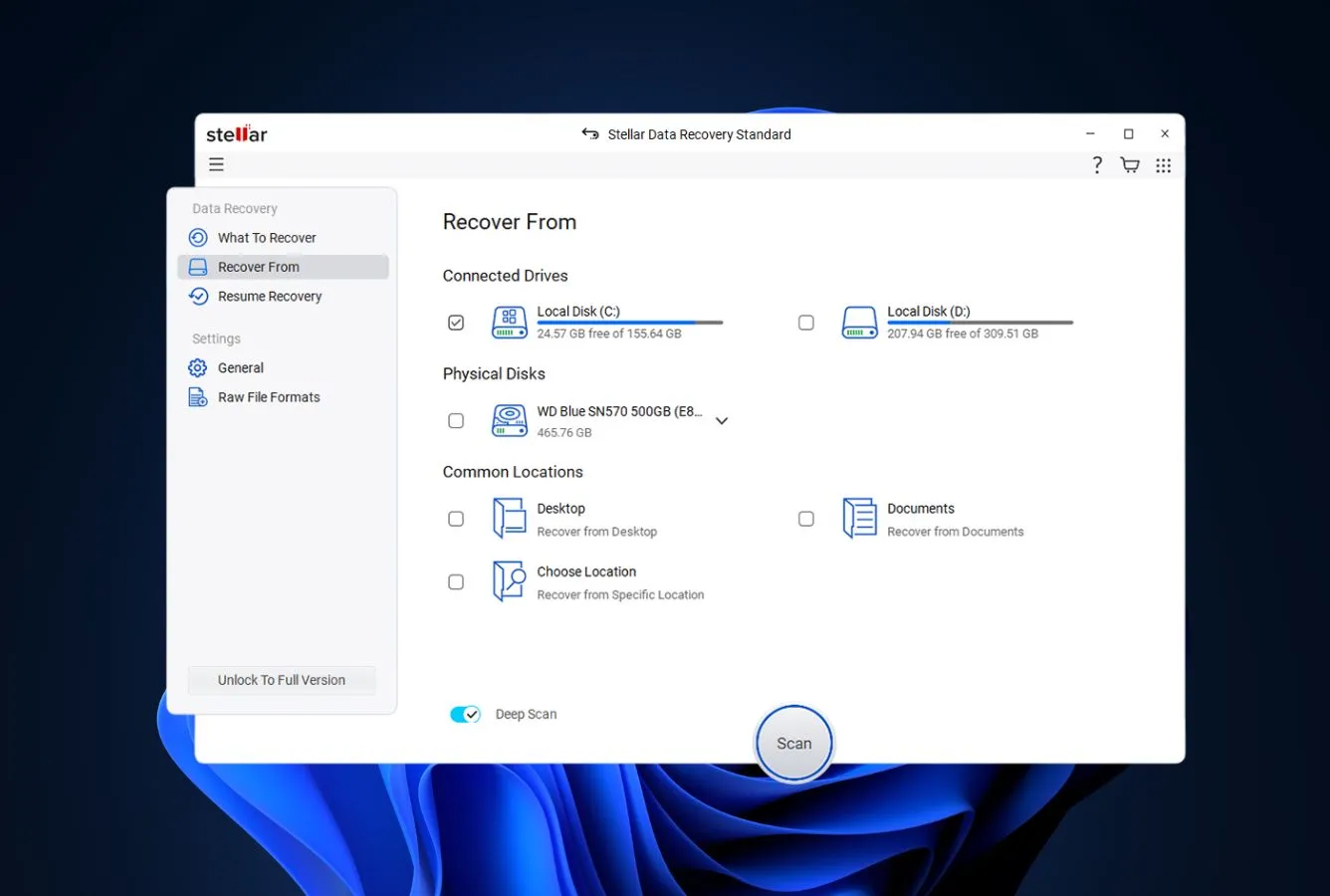
Stellar Photo Recovery is the best photo recovery software in 2026 because it is one of a very small number of tools actually designed around the problem, not a general-purpose recovery app with photo support bolted on. The software restricts its scope to photos, videos, and audio — and uses that focus to ship with explicit signatures for every major manufacturer RAW format, a Deep Scan mode tuned for fragmented media, and a Premium edition that repairs corrupted JPEGs and videos in the same interface. Independent reviews highlight its depth of RAW coverage, and community feedback from wedding and sports photographers on Reddit frequently surfaces it as the tool that recovered shoots other utilities missed.
- Purpose-built for photographers — not a general recovery tool with a photo mode
- Documents explicit support for Canon, Nikon, Sony, Panasonic, Kodak, and dozens of other RAW formats
- Premium edition bundles photo and video repair in the same interface
- Handles BitLocker-encrypted drives when the password is supplied
- Deep Scan mode does sector-by-sector reconstruction from fragmented cards
- Sector-level disk imaging lets you work on a copy of a failing drive instead of the original
- Subscription-first pricing instead of a true perpetual license
- Video repair only included in the Premium tier, pushing power users to $69.99
- Scan speeds are noticeably slower than Disk Drill or EaseUS on the same drive
The only tool on the list where “photo recovery” isn’t a marketing label, it’s the whole product.
Stellar’s Photo Recovery product splits signature scanning into dedicated image, video, and audio engines — each one maintained for the formats photographers and videographers actually shoot. Third-party reviews highlight its handling of RAW reconstruction, and the vendor explicitly lists support for Canon CRW, Nikon NEF/NRW, Sony ARW/SRF/SR2, Panasonic RAW/RW2, and Kodak KDC/DCS/DRF. Users on the r/photography subreddit frequently describe it as the tool that succeeded after Recuva and free utilities returned empty results.
A three-step flow that looks almost insultingly simple — until you realize that’s the point.
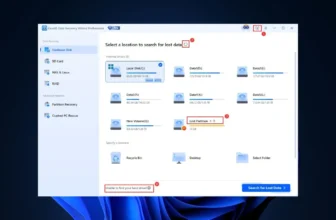
Select a location, scan, and recover. Stellar has stuck to the same three-panel layout for years because photographers generally want to stop thinking about recovery as quickly as possible. Preview is handled through a native image viewer that renders RAW thumbnails inline, and the file-tree view splits results by format so you can jump straight to CR3 or ARW files without hunting. The Premium edition adds repair tabs that slot alongside the scan flow rather than hiding behind a separate utility.
Three tiers, and for once the middle one is actually where the value sits.
Standard runs $49.99 per year and handles straightforward photo recovery from drives and cards. Professional at $59.99 adds photo repair and disk imaging — the edition most working photographers will want. Premium at $69.99 rolls in video repair on top. All three are subscription-based, which rubs lifetime-license fans the wrong way, and a 1 GB / 10-file free trial is useful for verification but cannot save anything meaningful. Watch for seasonal discounts that routinely cut 30–40% off Premium.
2. EaseUS Data Recovery Wizard – Best All-Round Photo Recovery
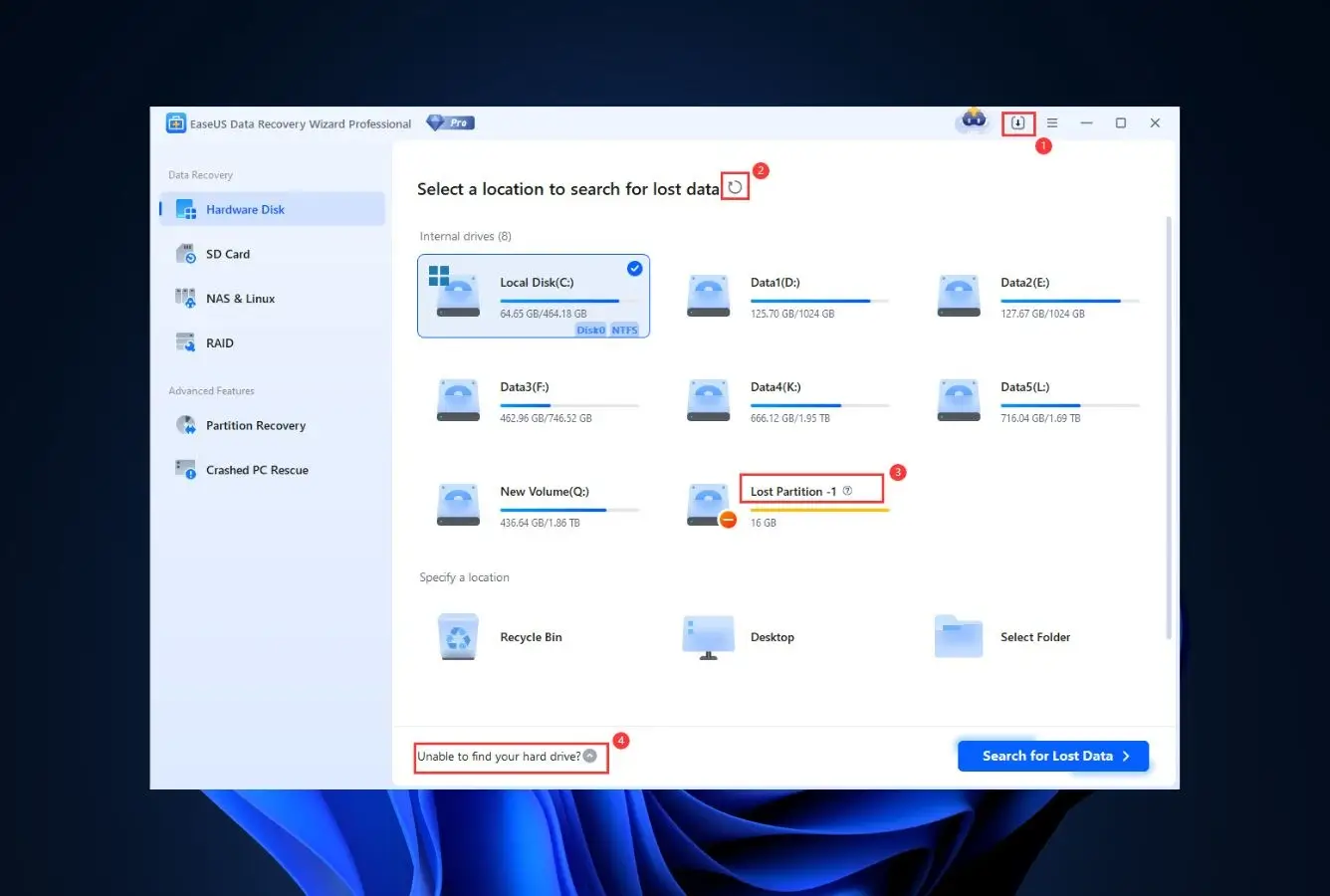
EaseUS Data Recovery Wizard is the strongest all-round pick for photo recovery because it handles the full spectrum — RAW files from major cameras, JPEG and HEIC from phones, TIFF and PSD from the editing pipeline — behind one of the cleanest scan flows in the category. Independent testing consistently ranks it near the top for signature recovery across file types, and community feedback on Reddit frequently praises how predictable the scan results feel. If Stellar is the specialist’s scalpel, EaseUS is the reliable all-purpose tool you keep within reach.
- One of the best free tiers in the category — up to 2 GB via a social-share unlock
- Filters let you narrow results to photo-only before previewing, saving hours on large cards
- Thumbnail preview works on JPEG, HEIC, and common RAW formats before you pay
- Pause and resume scans across sessions instead of starting over
- Native Apple Silicon build on Mac — no Rosetta 2 hit
- Auto-renewing subscription pricing on the Pro tier, easy to miss
- Some niche manufacturer RAW formats (Phase One, Sigma) land as “recognized but not previewable”
- Cross-promotional nagging toward other EaseUS products during install
A deep well of file-type signatures, plus the best preview experience in the category.
EaseUS runs a unified scan that combines file-system walking with signature-based carving, so photos that survived a quick format show up fast and those on heavily fragmented cards come through in the Deep Scan pass. Independent testing places it near the top on mixed-format recovery, and Reddit threads on r/datarecovery frequently cite it when photographers have already burned through Recuva and want a more reliable next step.
Clear enough that non-technical users figure it out without support — rare in this category.
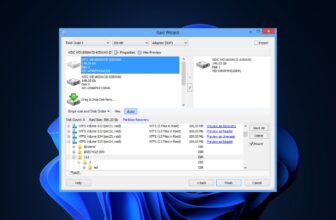
The scan flow is genuinely three clicks: pick the card or drive, start the scan, and filter by Pictures. Thumbnails render inline during the scan itself rather than at the end, so you can start evaluating which photos came back while the deep pass keeps running. File-tree and timeline views both work, and the “Export scan results” feature lets you save state to finish recovery on another machine — a real workflow saver when scanning a 512 GB card overnight.
Pricier than the bargain tier but the free allowance does real work before you commit.
Pro is $99.95 per year, $149.95 for lifetime, or $69.95 for a single-month license — useful when you only need recovery for one shoot. The 2 GB free tier (unlocked via a social share) is enough to recover most single-card incidents without paying, and that alone makes EaseUS worth trying first. Keep an eye on auto-renewal: multiple G2 and Trustpilot reviewers have flagged surprise charges, and the cancellation flow is buried deeper than it should be.
3. Wondershare Recoverit – Best for Video-Heavy Shooters
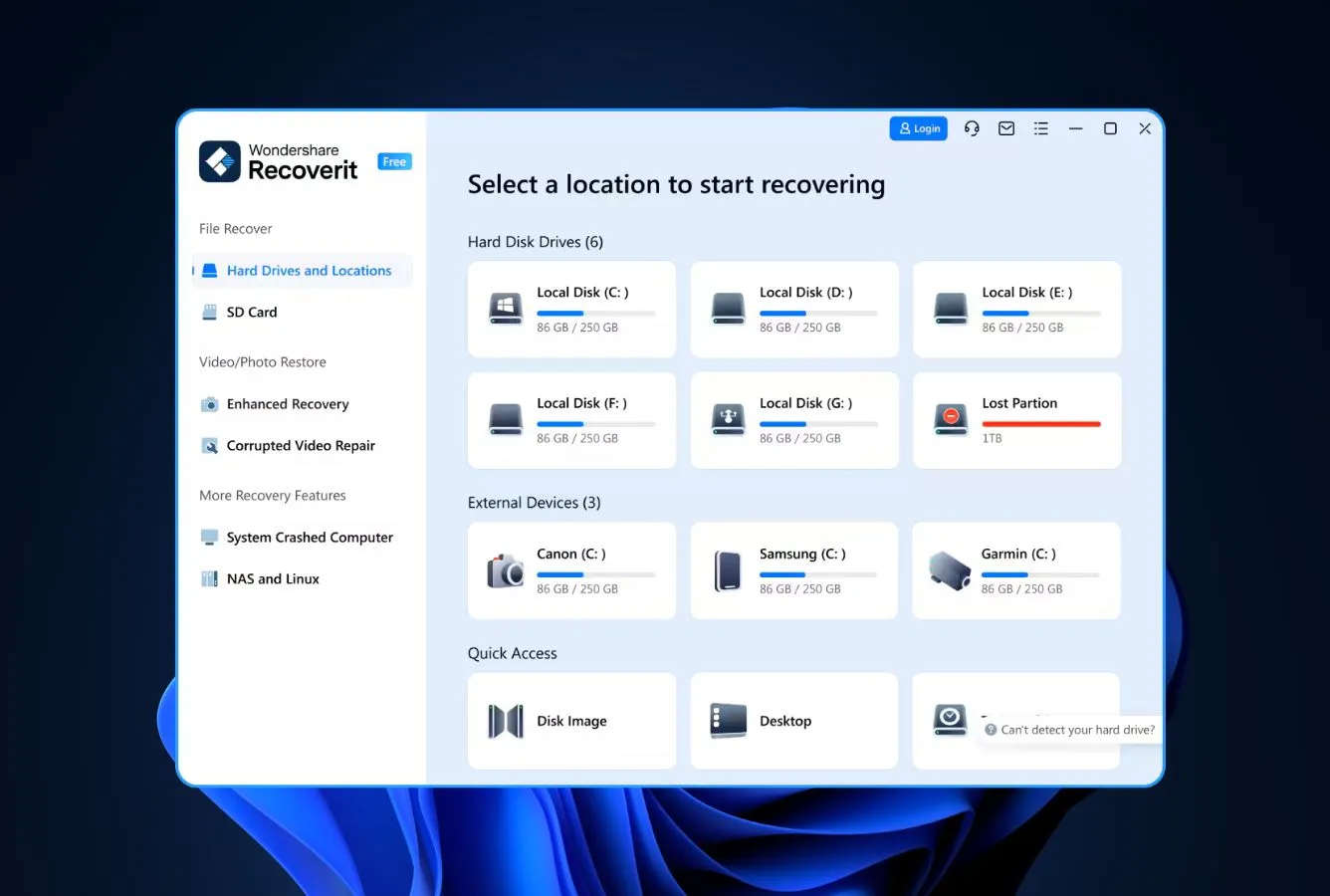
Wondershare Recoverit earns the third spot because it’s the best-suited tool on the list for photographers who also shoot a lot of video. The vendor documents explicit workflows for DJI, GoPro, Canon, Sony, and Insta360 footage, and its Advanced Video Recovery mode is specifically engineered to stitch together fragmented clips rather than recovering them as unplayable shards. Independent reviews confirm its video handling genuinely outperforms the generic competition, though on pure still-image recovery it lands behind Stellar and EaseUS.
- Advanced Video Recovery explicitly stitches fragmented footage instead of recovering unplayable shards
- Documented workflows for DJI drones, GoPro, Canon, Sony, and Insta360
- Built-in photo and video repair on higher tiers
- Lifetime license option available at $119 — rare in this category
- NAS and Linux recovery supported on higher tiers
- Free tier capped at just 100 MB — barely useful for RAW verification
- Independent testing found weaker performance on HEIC and JP2 files
- Bootable recovery and crashed-system recovery locked behind the $79.99 Standard tier
Best video engine on the list, plus a competent stills engine — in that order.
Recoverit’s Advanced Video Recovery mode reassembles fragments of the same clip back into playable files, which matters enormously for high-bitrate 4K and 8K footage that gets scattered across the card. Independent testing rated its performance on standard formats (JPG, MP4, DOCX, CR2, ARW) as strong, with weaker results on HEIC and JP2. For working videographers, the tradeoff is usually worth it; for pure still-image shooters, Stellar or EaseUS will come out ahead.
A grey-and-white studio aesthetic that looks like it wants to be taken seriously — and mostly succeeds.
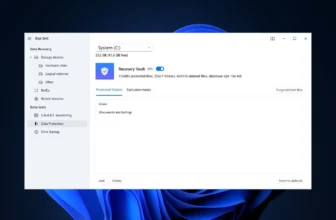
The interface trades the three-click simplicity of EaseUS for a more detailed view with file-type tabs, scan-scope pickers, and an “Enhanced Recovery” toggle for video. First-time users sometimes feel overwhelmed by the options, but the extra controls pay off when you’re trying to scope a scan to just the video partition of a dual-partition card. Preview works for common formats, and scans can be paused or exported to resume on another machine.
Expensive up front, less so if you take the lifetime deal and actually use it.
Essential starts at $69.99 per year, Standard adds bootable recovery at $79.99 per year, and the Premium tier bundles video repair. The lifetime option at $119 is the one worth considering if you anticipate multiple incidents — genuinely rare pricing in an otherwise subscription-dominated category. The tiered pricing sits toward the top of the market, which is fair enough; Recoverit is priced like a specialist and mostly delivers like one.

4. Disk Drill – Best Advanced Camera Recovery Engine
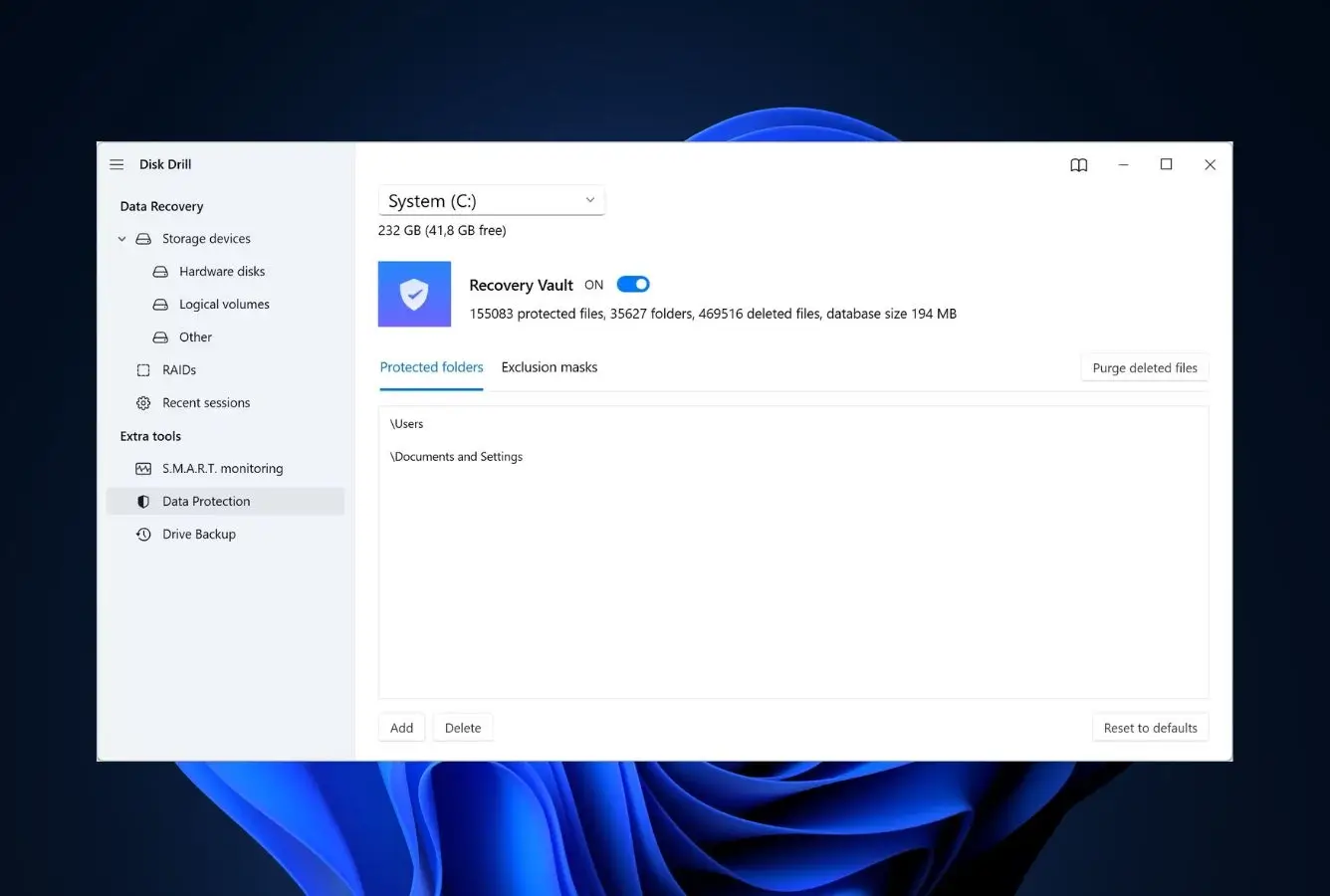
Disk Drill is a long-time favorite among photographers, and its Advanced Camera Recovery (ACR) mode — introduced in Disk Drill 6 — is engineered specifically to rebuild heavily fragmented video from action cams, drones, 360° cameras, dashcams, and body cams. Independent testing highlights its strong signature-based recovery of CR2, CR3, NEF, NRW, ARW, RAF, ORF, RW2, DNG and dozens of other RAW formats, and its one-time $89 pricing is a breath of fresh air next to the subscription-heavy competition.
- Advanced Camera Recovery (ACR) mode is purpose-built for fragmented action cam and drone footage
- One-time $89 license — no auto-renewal trap
- Exceptional signature-scanning coverage for RAW formats across every major manufacturer
- Preview-during-scan lets you start recovering files before the full pass finishes
- Free disk tools (duplicate finder, SMART monitoring, Recovery Vault) bundled with the installer
- The 500 MB free tier is Windows-only; Mac users cannot recover anything for free unless Recovery Vault was pre-enabled
- No photo or video repair — recovery only
- Windows version is feature-lighter than the Mac version (no Duplicate Finder, no Phone Recovery)
- Trustpilot reviews flag strict no-refund policy if recovery fails
Two scan engines under one hood, each earning its keep — and an ACR mode nobody else ships.
Disk Drill runs a traditional file-system scan alongside its signature engine and lets you combine or swap them depending on the media. Independent testing praises its handling of RAW formats specifically, calling out strong results when metadata is unavailable and recovery has to rely on signatures alone. ACR — Advanced Camera Recovery — is Disk Drill’s headline feature for 2026 and reconstructs clips that other tools recover as shredded fragments.
Six pre-filtered categories that front-load Pictures and Video — the right default for photographers.
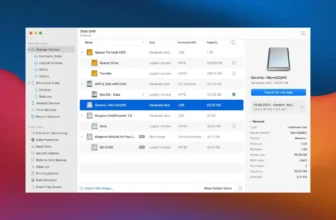
During scanning, Disk Drill groups results under Pictures, Video, Audio, Documents, Archives, and Other, so photographers can jump to exactly what they need without scrolling through thousands of OS files. The ACR workflow switches to a three-way Photo / Video / Audio layout tailored for camera media specifically. Reviewers consistently note the scan speed is faster than expected for the breadth of signature coverage on offer.
Pay once, own it forever — genuinely rare in 2026.
Disk Drill Pro is $89 per platform as a one-time perpetual license, which tilts the math strongly in its favor compared to Stellar and EaseUS for anyone expecting more than one recovery event over a few years. The 500 MB Windows free tier is enough to verify recoverability on most single-card incidents. Mac users get a rawer deal: there’s no free recovery unless Recovery Vault was enabled before the data loss, so plan on paying up front.

5. PhotoRec – Best Free Open-Source Photo Recovery
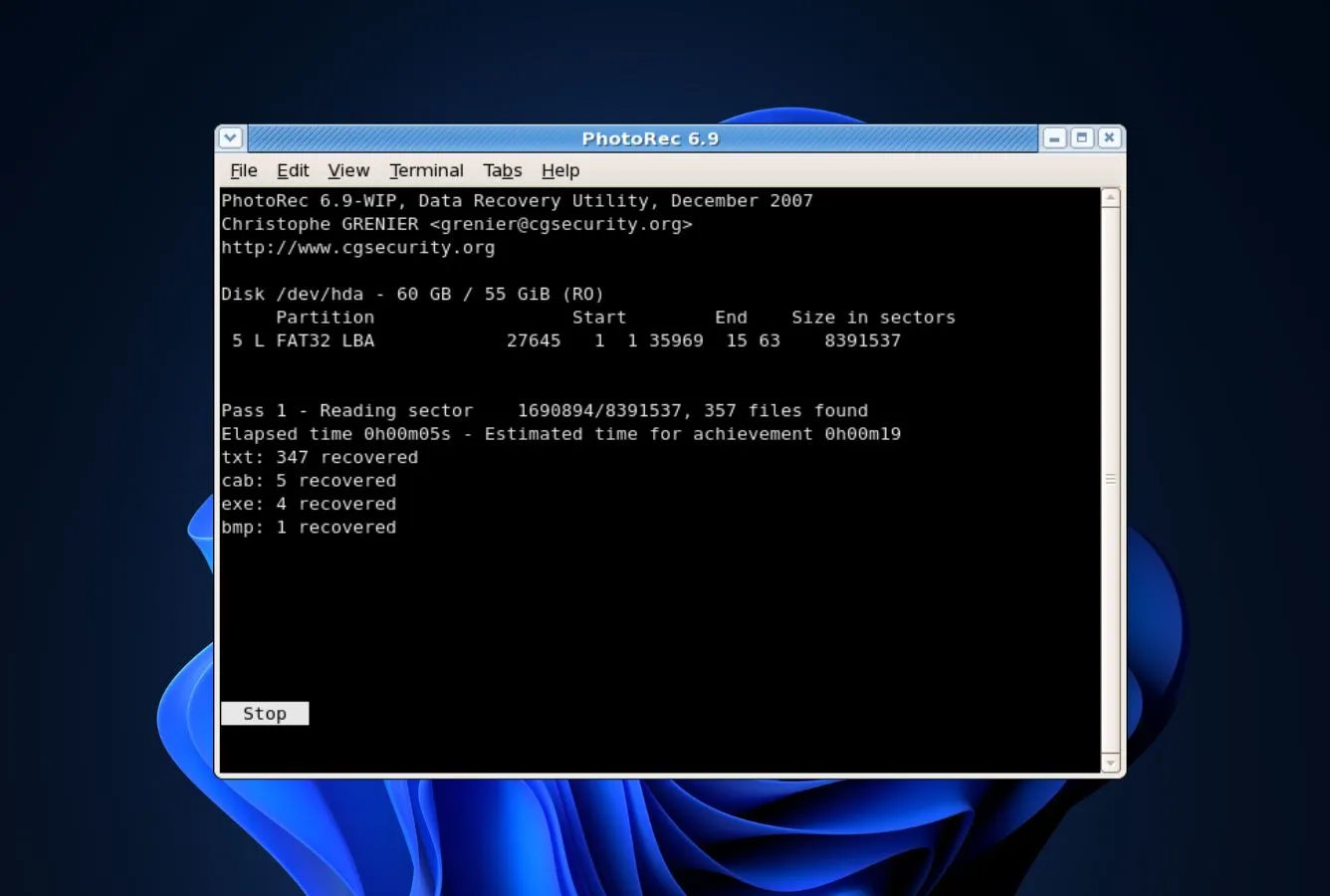
PhotoRec by Christophe Grenier and CGSecurity is the oldest continuously maintained photo recovery tool in the category and still the most transparent option if you want to know exactly what’s running on your drive. It ships as a text-mode utility alongside TestDisk, supports hundreds of file signatures (over 480 at last count), and runs on every major OS including Linux and BSD. Community feedback on r/datarecovery regularly recommends it as the first thing to try before paying for commercial software — because it’s free, open source under the GPL, and genuinely works on RAW formats from every major manufacturer.
- Completely free and open source under the GPL
- Signature database covers 480+ file types, including every major RAW format
- Runs on Windows, macOS, Linux, BSD, and even Solaris and DOS
- Actively maintained — recent releases add new signatures and bug fixes
- Lightweight: the entire package is a few megabytes, runs off a USB stick
- The canonical starting point recommended on r/datarecovery
- Text-mode interface is intimidating if you’re not comfortable with keyboard-driven tools
- Recovered files lose their original names and folder structure — you get generic names like f0001234.jpg
- No preview during or after recovery — you have to open the files separately to sort
Pound for pound the best signature scanner you can run without paying a cent.
PhotoRec ignores the file system entirely and scans the raw bytes of the media for known file signatures, which is exactly what you want after a format or a bad delete. The signature database is maintained openly on the CGSecurity wiki and covers JPEG, TIFF, PNG, HEIC, and RAW variants from every camera brand that has published its file format. Independent sources on Reddit consistently recommend running PhotoRec before paying for commercial tools — if it finds the files, you may not need anything else.
A keyboard-driven text UI that has not meaningfully changed since roughly 2007.
PhotoRec runs in a terminal window with arrow-key menus, which is either liberating or infuriating depending on your background. The prompts are clear enough that a careful first-time user can work through them in ten minutes, but there’s no preview, no thumbnails, and no mouse support. QPhotoRec offers a graphical front-end on Windows and Linux that wraps the same engine with file-type filters — worth grabbing if the terminal version feels like a bridge too far.
Free, unlimited, and backed by an active open-source community.
PhotoRec is released under the GPL and costs nothing — no nagware, no bundled toolbars, no “upgrade to Pro” prompts. CGSecurity ships binaries for all major OSes, and the source tree is on GitHub for anyone who wants to audit what’s running on their drive. The economics of every other tool on this list start from a worse place than free, so if PhotoRec recovers your photos, you’re done. If it doesn’t, you’ve lost nothing by trying it first.

6. Tenorshare 4DDiG – Best Beginner-Friendly Photo Recovery
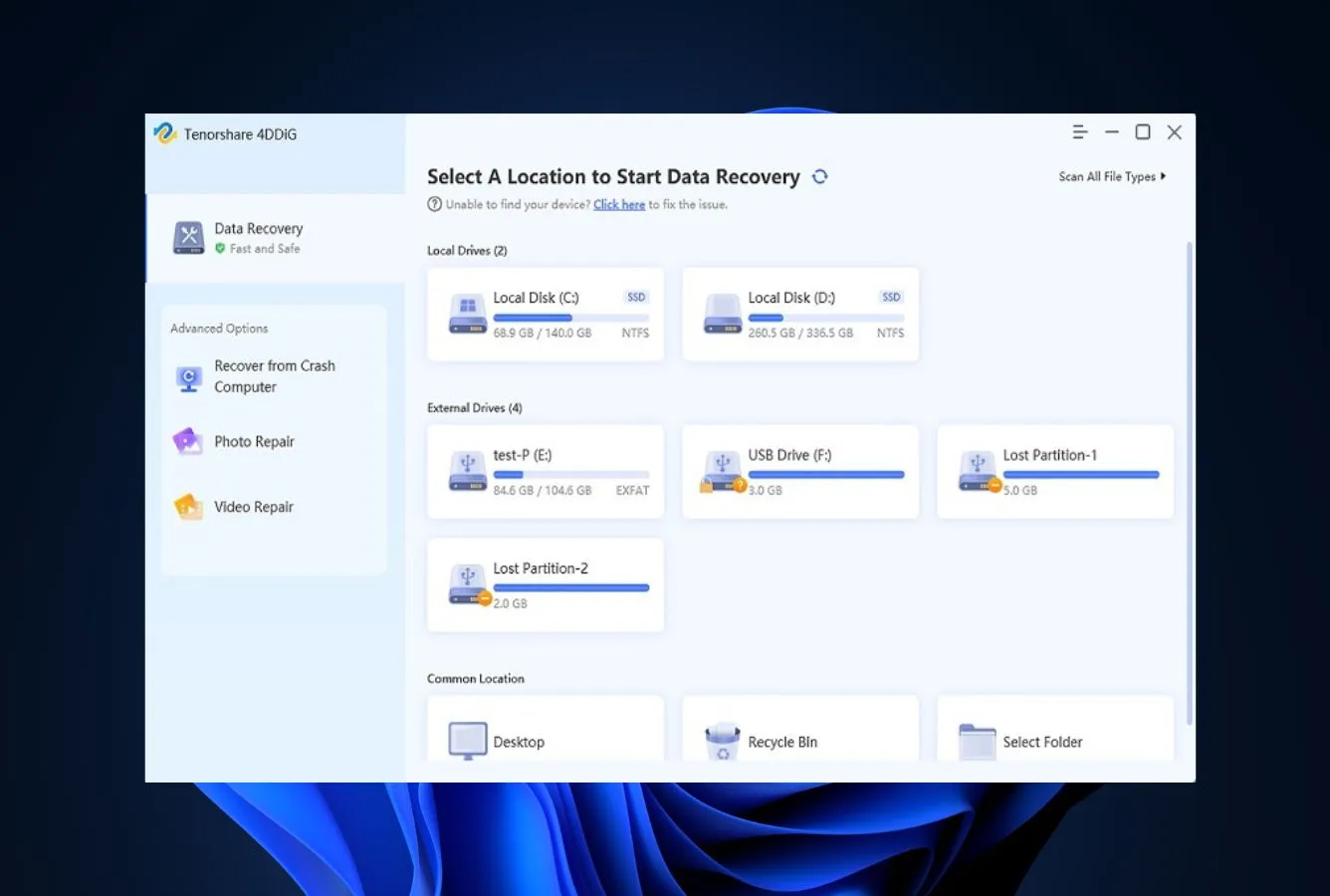
Tenorshare 4DDiG is the tool to recommend to a friend who has never thought about data recovery before. The interface strips recovery down to three decisions — which device, which file types, and where to save — and the photo-recovery preset filters the scan to JPEG, PNG, HEIC, and RAW files automatically. 4DDiG also bundles its own Photo Repair utility at higher tiers, which rounds out the experience for corrupted images after recovery. It’s not the most powerful engine on the list, but it is the one least likely to intimidate a first-time user.
- Interface is deliberately stripped down for non-technical users
- Photo-focused scan preset filters results to images automatically
- Bundles its own Photo Repair utility at higher tiers
- Dedicated SD card and camera recovery workflows
- Clear three-step visual timeline shown during scans
- Monthly subscription pricing at $89.95 list is more expensive than competitors’ annual plans over time
- Auto-renewal is on by default; Trustpilot reviews flag refund/cancellation friction
- Less depth on niche RAW formats than Stellar or Disk Drill
Solid on mainstream formats; you can feel the ceiling when things get exotic.
On JPEG, HEIC, and the common RAW variants (CR2, NEF, ARW, DNG), independent testing places 4DDiG in the respectable middle of the pack — not best, not worst. Community feedback on Reddit is mixed: enthusiastic reviews from first-time users mingle with disappointment from photographers shooting less common formats like Fujifilm RAF or Pentax PEF. For a typical memory-card rescue, it works; for a corner-case workflow, Stellar or PhotoRec are better bets.
The most hand-holding on the list — and that genuinely matters for panicked users.
4DDiG’s strongest design choice is acknowledging that most people using photo recovery software are doing so for the first time, in a hurry, and afraid of making things worse. The interface uses large buttons, minimal jargon, and an explicit visual progress bar during scans. Reviewers consistently praise the onboarding as approachable for non-technical users. Veteran data recovery users may find it simplistic — that’s the tradeoff.
Aggressive marketing, middle-of-the-pack value — check the terms before you click Buy.
4DDiG’s list pricing is $89.95 for one month, $99.95 for one year, and $119.95 for a lifetime license — discounted prices are typically closer to $45.95 / $59.95 / $79.95 during promotions. The monthly option makes sense for a single recovery event, but auto-renewal is on by default and Trustpilot reviewers report renewal charges that are harder to cancel than they should be. If you only need recovery once, buy the monthly, recover, and cancel immediately.

7. DiskDigger – Best Low-Cost Photo-First Utility
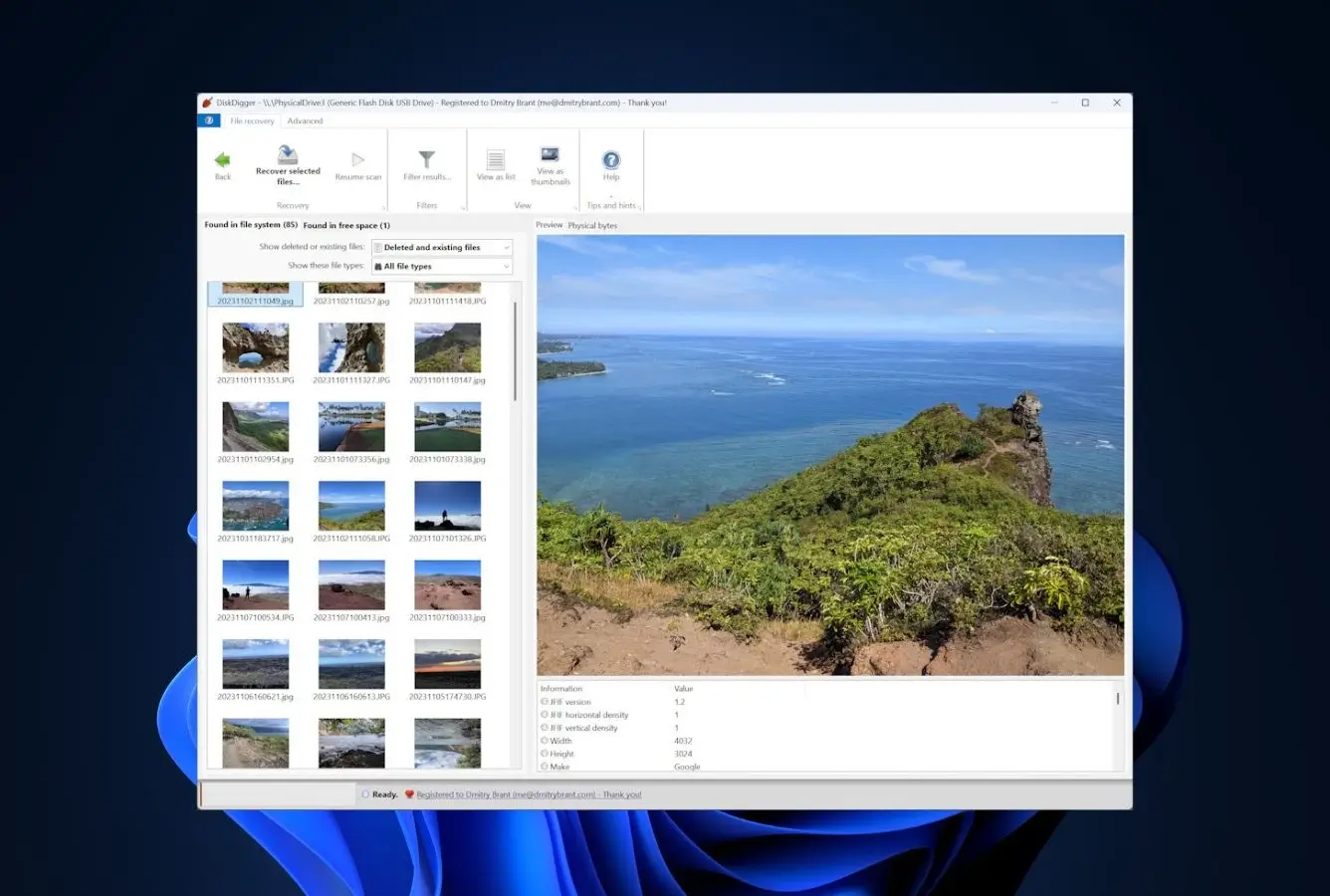
DiskDigger is a veteran single-developer utility built by Defiant Technologies. On Linux it is completely free; on Windows it is free to scan and preview files, but the save step prompts you to buy a $14.99 Personal license — the prompt is skippable per file rather than a hard block, but it gets tiresome fast. For photographers on a budget whose real need is getting photos back from a formatted SD card, DiskDigger is hard to beat on outright cost. It doesn’t handle the full RAW spectrum well, and there’s no native Mac version, but it earns its place as a specialist for simple, high-volume JPEG recoveries.
- Completely free on Linux with no licensing prompts
- Paid license is a one-time $14.99 — the cheapest commercial tier on this list
- Lightweight: single-file portable executable under 3 MB
- Actively maintained by a single developer who still responds to forum posts
- Dual Dig-Deep and Dig-Deeper scan modes — pick based on how bad the situation is
- No native Mac version — Windows and Linux only on the desktop
- RAW format support is limited compared to Stellar or Disk Drill
- Interface feels like a utility from 2010; no thumbnail preview grid
Narrow but effective — if JPEGs are what you need, this is the cheapest thing that works.
DiskDigger runs two scan modes: Dig Deep walks the file system (fast, recovers named files), while Dig Deeper does byte-level signature scanning (slower, recovers from formatted or corrupted media). The Dig Deeper mode specifically focuses on JPEG reconstruction and does it well — community feedback on forums and Reddit consistently mentions JPEGs rescued from formatted cards. RAW format handling is serviceable for common variants but doesn’t compete with the dedicated photo-recovery specialists higher on this list.
A no-nonsense Windows utility that wears its age like a badge.
DiskDigger’s interface prioritizes function over form — three main buttons, a device list, a scan progress bar, and a results panel. There’s no thumbnail preview grid during scans (files appear as a flat list), no dark mode, and no animations. For users comfortable with classic Windows software it’s refreshingly direct; for anyone expecting a modern walkthrough experience, it may feel stark. QPhotoRec-style keyboard shortcuts help power users move quickly through large result sets.
$14.99 one-time, free on Linux — the cheapest commercial tier in the category.
On Linux, DiskDigger is genuinely free with no licensing restrictions. On Windows, the free tier lets you scan and preview everything without limit, but every save triggers a purchase prompt — skippable on each file, not blocking, but designed to push you toward the $14.99 Personal license. The paid license is a one-time charge (no subscription) that removes the prompt and covers all file types. That makes it the cheapest commercial photo-recovery license you can buy by a wide margin. For the narrow use case of recovering JPEGs from a formatted card, it’s often the smartest spend on this list.

8. R-Studio – Best Pro-Tier Photo Recovery for RAID & NAS
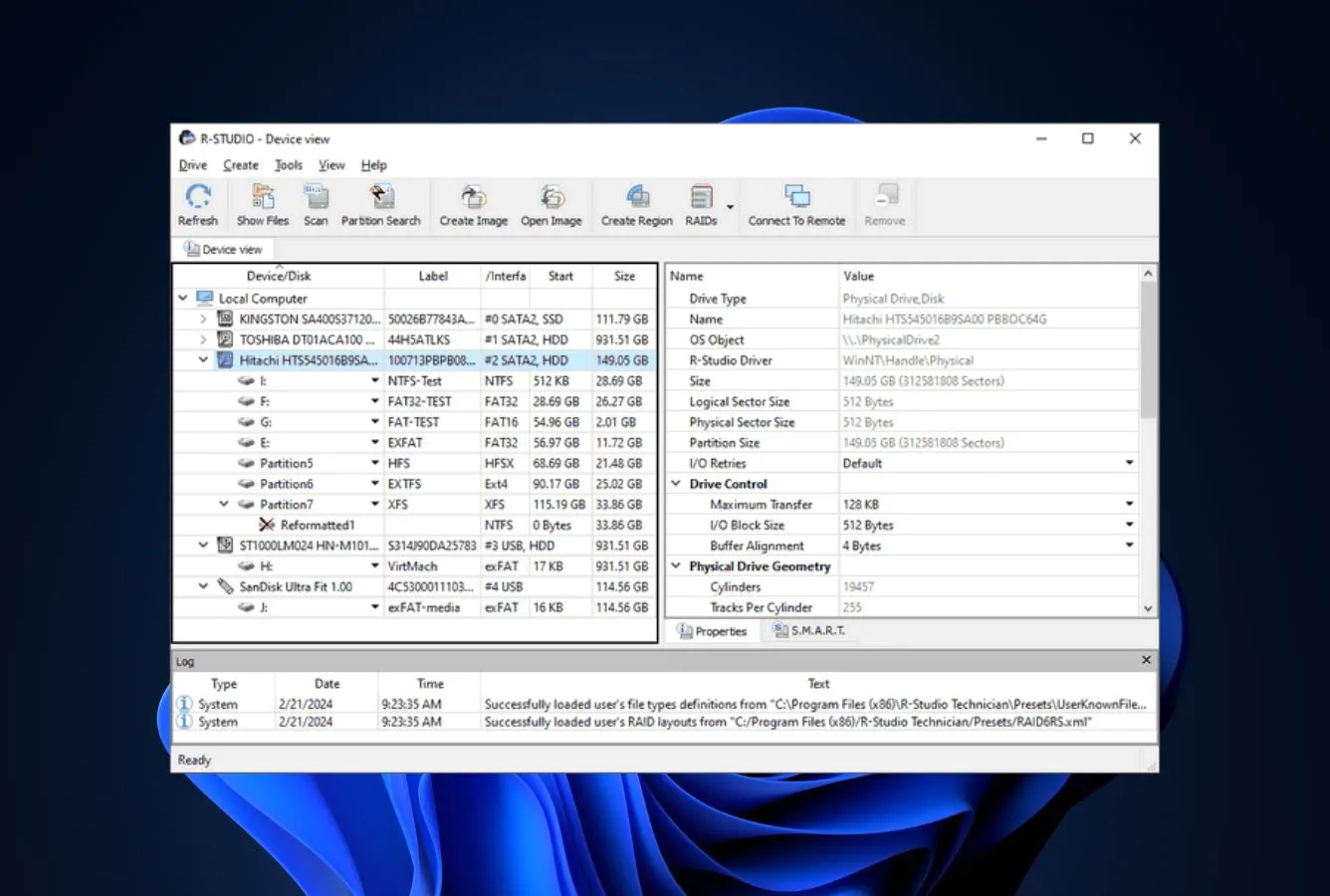
R-Studio by R-TT is the tool that professional recovery labs and studio IT teams reach for when the card in question is actually a RAID volume, a corrupted NAS share, or a photo archive spanning multiple drives. It supports custom file signatures (you can teach it new RAW formats), full RAID reconstruction, network recovery over TCP/IP, and a built-in hex editor. The learning curve is steep and it will not hold your hand. But for pro studios dealing with multi-drive photo archives or damaged RAID arrays, nothing on this list comes close.
- Native RAID 0/1/5/6 reconstruction — genuinely rare in consumer-priced recovery tools
- Network recovery over TCP/IP for scanning NAS and remote machines
- Custom file-signature editor lets you add obscure RAW formats
- Cross-platform builds for Windows, macOS, and Linux with near-identical feature sets
- Technician tier adds advanced imaging and scripting for recurring workflows
- Active development with a genuine Reddit and forum community of pro users
- Interface is unapologetically pro — first-time users routinely feel lost
- No simplified “photo recovery” preset — you build the scan yourself
- Home license is Windows-only and missing RAID features most studios need
- Pricing climbs fast: Technician tier is hundreds of dollars
The strongest pure engine on the list — you just have to know how to aim it.
R-Studio’s scan depth is genuinely in a different weight class from the consumer tools above it. It can reconstruct damaged RAID arrays from raw disks, recover from ext2/3/4, HFS+, APFS, UFS, and XFS natively, and carve by custom file signature when the built-in list doesn’t cover a format. The tradeoff is that R-Studio assumes you know what a partition table is, what a RAID parity stripe is, and why you might want a byte-level image before scanning. For studio photo archives living on multi-drive RAIDs or NAS shares, that’s exactly the tool you want.
Looks and feels like professional software from 2005 — because in many ways it still is.
R-Studio exposes its full power through a traditional multi-pane Windows-style UI with toolbars, file trees, and a dedicated hex editor. There’s no walkthrough wizard and no “recover my photos” big-green-button. Community feedback on r/datarecovery and professional forums consistently positions it as the tool you grow into — clunky at first, indispensable once you know the terrain. Non-technical users will bounce off it; technical users will come to appreciate how much it trusts them.
Pay for the tier that matches your problem, not for a gentler UI.
R-Studio Home is $49.99 and handles Windows file systems, including simple photo recovery from external drives and cards. Standard at $79.99 adds Linux and Mac file systems plus basic RAID. Network, NTFS, and Technician tiers climb to several hundred dollars and unlock the heavier features. For a freelance photographer with a NAS backup, Standard is usually right; for a studio running redundant RAID arrays, Technician earns its price the first time it saves a shoot.
How We Evaluate Photo Recovery Software
Ranking photo recovery software is easy to get wrong. Vendor marketing is usually generous, and running a single scan on a single memory card isn’t enough to separate tools that behave similarly in the happy path but diverge when RAW fragments are scattered across a formatted card or when BitLocker is in the picture. We evaluated all 20 tools through a layered research approach: vendor documentation for feature baselines, independent third-party testing for cross-reference, and community feedback from r/datarecovery, r/photography, Trustpilot, and G2 for real-world stories. Rankings reflect the aggregate of this research — not a single in-house benchmark.
Platforms covered: Windows 10 and 11 (including 24H2), macOS 11 Big Sur through macOS 15 Sequoia, memory cards (SD, microSD, CFexpress, XQD), camera internal storage, external USB drives, and SSDs with TRIM disabled. Camera makes explicitly tracked: Canon, Nikon, Sony, Fujifilm, Panasonic, Olympus, GoPro, DJI, and Insta360.
Key factors weighted: recovery capability on RAW and mainstream photo formats (45%), usability for first-time users (20%), safety and vendor trust (15%), extra features like photo and video repair (10%), platform parity between Windows and Mac builds (5%), and price-to-value (5%). Weightings adjusted from the default data-recovery split to reflect the category — photo recovery lives or dies on RAW signature coverage.
Individual test runs, scan-time logs, and per-tool notes from our ongoing testing live on our full methodology page. Start there if you want the underlying numbers behind any claim on this page.
Photo Recovery Software – Honorable Mentions
Six tools we considered but didn’t include in the main ranking. Each has a niche strength or a specific flaw that kept it out of the top 8.
How to Choose the Best Photo Recovery Software
Photo recovery isn’t really one problem — it’s five related ones that happen to share a category page. The checklist below walks the factors that actually change which tool you should pick, from RAW format coverage to whether you need photo repair on top of recovery.
RAW Format Coverage
The single biggest differentiator between photo recovery tools is which RAW formats they explicitly support. Canon CR2 and CR3, Nikon NEF and NRW, Sony ARW, Fujifilm RAF, Olympus ORF, Panasonic RW2, Adobe DNG, and the Pentax PEF are the formats you’ll want confirmed on the vendor’s spec page. Sigma X3F, Phase One IIQ, and Hasselblad 3FR are where the wheat separates from the chaff — if you shoot medium format or a niche brand, verify directly with vendor docs before paying.
Stellar Photo Recovery and Disk Drill both explicitly publish full RAW format lists. PhotoRec’s signature database on the CGSecurity wiki is open for anyone to audit. If you need something even more specialized — SD card rescue from a GoPro dash cam — our SD card recovery guide goes deeper on media-specific scenarios.
Deep Scan vs. Quick Scan
Quick Scan walks the file system and finds files that were deleted but whose metadata is intact. Deep Scan (sometimes called signature scanning or file carving) ignores the file system entirely and scans the raw bytes for known file headers. For photos that were deleted recently from an otherwise healthy card, Quick Scan is fast and accurate. For formatted cards, corrupted media, or cards that have been reused, Deep Scan is the one that actually works.
Every tool on this list supports both modes. The meaningful question is how well their signature scanner handles RAW fragments — and that’s where Stellar, Disk Drill, and PhotoRec consistently pull ahead of the general-purpose competition in independent testing.
Preview Quality Before You Pay
Preview is the single most important feature to evaluate before committing to a license. A tool that can show you recognizable thumbnails of your recovered photos before payment has nothing to hide; a tool that demands money upfront to reveal what it found is asking you to trust on faith. EaseUS’s 2 GB free recovery, Stellar’s free preview plus 10-file trial, and PhotoRec’s unlimited free recovery all let you verify outcomes before spending anything.
If a tool previews your photos but the thumbnails are corrupted blocks of color, the recovery likely won’t produce usable files either. That’s a signal to stop and try a different tool — not to pay in the hope that the full version works better.
Platform Support (Windows vs. Mac)
Every tool on the main list works on both Windows and macOS except DiskDigger (Windows and Linux only). The meaningful distinctions are feature parity and native Apple Silicon support. Disk Drill’s Windows version is missing the Duplicate Finder and Phone Recovery features that ship with the Mac build. EaseUS offers a native Apple Silicon build that avoids the Rosetta 2 performance hit. R-Studio Home is Windows-only; RAID-capable Mac workflows require the Standard tier.
Check the vendor’s spec page for “native Apple Silicon” versus “Universal 2” versus “Intel-only” before paying. Intel-only binaries run through Rosetta 2 on modern Macs, and on large memory-card scans the performance difference can be meaningful — a Deep Scan that finishes overnight natively might still be running the next morning in emulation.
Pricing Models and Auto-Renewal
Photo recovery is frequently a one-off event — a card goes bad once a year, maybe once a decade. That makes annual subscriptions a poor fit for most users. The cleanest commercial options are Disk Drill’s $89 perpetual license, DiskDigger’s $14.99 one-time license, and Recoverit’s $119 lifetime tier. Stellar, EaseUS, 4DDiG, and R-Studio all sell annual or monthly subscriptions that auto-renew unless you cancel.
Auto-renewal is where Trustpilot complaints cluster for almost every subscription tool. If you buy a one-month license specifically for a single recovery incident, cancel it immediately after the charge clears — some vendors quietly re-bill at the full annual rate if you leave it alone. For a free-first approach, our free data recovery guide covers what genuinely free tools can do before you consider paying.
Session Management and Scan Resumption
Modern memory cards are large. A 512 GB CFexpress card can take several hours to deep-scan, and a 2 TB external drive can take a full day. Tools that let you save scan state and resume later (EaseUS, Recoverit, R-Studio, Disk Drill) are materially more usable than tools that force you to start from scratch if you need to close the lid of your laptop.
This matters more in the field than at home. If you’re recovering photos during a trip on a lightweight laptop, session management can be the difference between getting usable files back before a deadline and running out of battery halfway through. Ask the question before the incident, not during it.
When Photo Recovery Software Can’t Get Your Images Back
Recovery software is effective in a specific band of scenarios and effectively useless in others. Knowing the difference saves you hours of pointless scanning and, more importantly, keeps you from making a recoverable situation unrecoverable.
| Your situation | Software can help? | What to do instead |
|---|---|---|
| Card overwritten with new shots | No | Stop using the card now; accept the loss of overwritten frames |
| Physical card damage (cracked, bent, burned) | No | Send to a professional cleanroom recovery service |
| Full format (not quick format) | No | Full format overwrites data; no software recovery is possible |
| SSD with TRIM enabled, files deleted | No | Restore from cloud backup or Time Machine / File History |
| Card encrypted without the password | No | Recover the password; encrypted recovery is cryptographically blocked |
Cards That Have Been Reused After the Incident
Once you have continued shooting to a card after deleting photos or formatting it, every new frame can overwrite the physical blocks that held deleted image data. A single 50 MB RAW file written over the right sectors can destroy the one thumbnail your recovery software needed to reconstruct the original. This is why rule one of photo recovery is stop using the card immediately.
If you have already kept shooting after noticing the loss, recovery software can still work on whatever wasn’t overwritten — it just can’t work miracles. Run the scan as-is; some frames will come back, others are permanently gone. Don’t format the card “just in case” and don’t run repair utilities that write to it.
TRIM-Enabled Internal SSDs
Internal SSDs in modern computers use a feature called TRIM, which tells the flash controller to physically zero out cells backing deleted files shortly after deletion. Once TRIM has run, no software tool can bring those photos back — the data is physically gone from the chip, not just marked as deleted. This is why NIST Special Publication 800-88 treats TRIM similarly to a secure erase for flash media.
SD cards, CF cards, CFexpress, XQD, and external USB drives generally do not TRIM, which is why memory cards remain viable recovery targets. If photos were on an internal NVMe, your realistic options are a cloud backup, a Time Machine or File History restore, or — in narrow cases — a professional service.
Physical Damage to the Card or Drive
Cracked, bent, water-damaged, or burned media is out of scope for any software tool on this list. Don’t run scans repeatedly on a card that won’t mount — each retry risks further damage to a controller that is already struggling. If a card is making clicking sounds (unlikely for flash media but possible for HDDs) or shows up in Disk Management as the wrong size, that’s a hardware problem.
Professional cleanroom services can sometimes pull data from the raw flash chips by desoldering them and reading them directly. This is expensive — $300 to $2,000 — but it’s the only realistic path for truly physically damaged media. Shop carefully and avoid anyone who quotes you a price before inspecting the device.
Full Format (Not Quick Format)
Modern operating systems default to “quick format” on most media, which just clears the file system table and is fully recoverable. A “full format” — the non-default option — actually writes zeros over every sector of the card, making recovery mathematically impossible. Windows 11 and macOS Disk Utility both offer secure-erase options that do the same thing. Once run, no tool on this list can help.
If you recently formatted a card and can’t remember whether it was quick or full, run a recovery scan anyway — most card formats in the wild are quick formats. But if the scan shows only scattered signatures and no recognizable file structure, you’re probably looking at a full format and there’s nothing to be done.
Encrypted Media Without the Password
BitLocker, FileVault, VeraCrypt, and hardware-encrypted SSDs all protect media with strong cryptography that cannot be bypassed by recovery software. Stellar Photo Recovery and a few other tools can recover from encrypted drives if you supply the password — they decrypt during the scan. Without the key, the raw bytes on the media are indistinguishable from random noise and no signature scanner can find photo headers in them.
If you’ve forgotten a BitLocker password, check your Microsoft account’s recovery keys page first — BitLocker is usually backed up there. For FileVault, the recovery key was displayed when you enabled it and should be stored in your password manager. If both are gone, the data is irretrievable through software means.
Every second of continued shooting overwrites more of what recovery software could otherwise rescue. Remove the card, put it in a sleeve, and run recovery from a computer — not the camera. Never install recovery software onto the drive you’re trying to recover from.
Built-in Photo Recovery Options (Check These First)
Before paying for any tool on this list, spend 10 minutes checking the recovery options already built into your camera, your phone, and your cloud services. Photos have more safety nets than most files, and any of these can save you the trouble of scanning at all.
System Backups (Time Machine & File History)
If your photos were on a computer rather than directly on a memory card, a system backup is almost always the fastest path. Time Machine on Mac keeps hourly snapshots for 24 hours, daily snapshots for a month, and weekly snapshots for as long as disk space allows. Windows File History does something similar on a configured schedule.
Open Finder or File Explorer, navigate to where the photos used to live, and use the OS’s restore-previous-version feature. If you imported photos from a card into Photos.app or Windows Photos before the loss, the originals may still exist in the backup even if the library has been modified since. It’s the first thing to check. For Mac users whose photos lived in an APFS Photos library or on a Time Machine volume, our Mac data recovery guide walks through the APFS-specific steps in detail.
Cloud Photo Library Trash (Check Every Service)
Apple Photos iCloud, Google Photos, OneDrive Photos, Dropbox Camera Uploads, and Amazon Photos all maintain a trash or recently-deleted folder for 30 to 60 days after deletion. Photos deleted from the cloud library on one device usually sync deletion across all devices, but the trash folder gives you a window to recover before the permanent purge.
Apple Photos keeps deleted items in a Recently Deleted album for 30 days. Google Photos holds them in the Trash for 60 days. Check the cloud service even if the photos were “on your phone” — automatic backup may have uploaded them before the local deletion.
Third-party services like Dropbox, Google Drive, and OneDrive also keep file version histories that can include older copies of photos. A paid Dropbox or Google One plan extends version history further — if the photos were synced at any point, a version may still be recoverable there.
Camera Internal Storage and Dual-Slot Bodies
Many modern cameras have dual card slots that record a backup copy to the second card in real time. Canon R5, Sony A1, Nikon Z9, Fujifilm X-H2S, and most other pro bodies support this. If you were shooting with dual-slot recording enabled and only one card failed, the photos are on the second card — no recovery software needed.
A smaller subset of cameras (some Sony, some Fujifilm) have internal buffer storage that briefly retains recent shots even after a card swap. This is rare, documented poorly, and not reliable — but worth checking the manual for your specific body before assuming the photos are gone.
When Built-in Options Aren’t Enough
If the photos were on a memory card that never got imported or backed up, system backups and cloud trash won’t help — the data never left the card. That’s the scenario the tools on this list are built for. Start with the free tier of Stellar, EaseUS, or PhotoRec to verify what’s recoverable, then pay only if the preview shows what you need.
A good rule of thumb: if the recovery preview shows clear thumbnails of the files you want, a paid license will deliver them. If the preview shows blocks, garbled images, or nothing at all, a paid upgrade usually won’t improve the outcome — try a different tool first.
Most working photographers learn the value of dual-slot redundancy after losing a shoot. If your body supports it, turn it on now — a second card is the cheapest insurance in photography and eliminates most photo-loss scenarios before they can happen.
Final Verdict
Stellar Photo Recovery is the best photo recovery software in 2026. It wins not by being the most feature-packed general-purpose tool on the market, but by being one of the very few that was actually designed around photographers’ problems. Explicit RAW format coverage for every major camera manufacturer, a Premium edition that bundles photo and video repair, BitLocker support, and a scan flow simple enough for a first-time user all point to a vendor that has been iterating on this specific use case for years.
Beyond the winner: EaseUS Data Recovery Wizard is the all-round pick if you want a smoother general-purpose flow with the industry’s most generous free tier at 2 GB. Wondershare Recoverit is the one to reach for when your card is half stills and half 4K footage, thanks to its Advanced Video Recovery mode. Disk Drill at $89 one-time is the best value if you expect multiple recoveries over a few years. And PhotoRec is the free starting point everyone should try before paying — if it finds your photos, you’re done.
Frequently Asked Questions
About the Authors


Data Recovery Fix earns revenue through affiliate links on some product recommendations. This does not influence our rankings — all tools are evaluated independently based on documented research, independent testing from external sources, vendor documentation, and community feedback, before any affiliate relationships are considered. If anything on this page looks inaccurate, outdated, or worth revisiting, please reach out at contact@datarecoveryfix.com and we’ll review it promptly.