8 Best Hard Drive Recovery Software (2026): Reviewed & Ranked
The best hard drive recovery software should handle the full range of HDD trouble — deleted files, formatted partitions, corrupted volumes, and drives that still mount but read intermittently — without making a failing disk worse. We evaluated 20 leading tools for Windows and Mac on NTFS and APFS support, partition reconstruction, pricing, and real user feedback from independent testing, Reddit, and support forums — then ranked the top 8. Here’s which software stands out in 2026.
+ 6 honorable mentions
· user feedback
Internal + external HDDs
Win 11 24H2 / macOS 15
EaseUS Data Recovery Wizard is the best hard drive recovery software in 2026. It handles the full range of HDD loss scenarios — deleted files, formatted partitions, corrupted volumes, and drives that still mount but read intermittently — across Windows and Mac on a single license, with one of the deepest file-system feature sets in the category. Stellar Data Recovery is the strongest alternative — it pairs competent software scanning with a cleanroom lab fallback, which matters when a drive starts failing mid-recovery. Disk Drill rounds out the top three with a broad file-signature library, the most forgiving interface, and a $89 one-time license that’s genuinely rare in 2026.
 EaseUS Data Recovery Wizard
- 2 GB free tier with full preview — enough for most single-incident HDD cases
- Strong on formatted NTFS partitions, the most common HDD loss case
- Bootable WinPE media included for drives that won’t start the OS
- From $69.95 / yr — $149.95 lifetime
 Stellar Data Recovery
- In-house cleanroom lab available when software scanning hits its limit
- Strong lost-partition and corrupted-volume reconstruction
- SMART monitoring flags failing drives before deep scanning
- From $79.99 / yr — Premium $99.99
 Disk Drill
- $89 perpetual license — covers Windows + macOS, free upgrades
- Over 400 file-signature formats for deep raw-mode carving
- Built-in byte-by-byte disk imaging, ideal for failing HDDs
- $89 one-time
- 1EaseUS Data Recovery Wizard – Best Overall for Hard Drives
- 2Stellar Data Recovery – Best Software-plus-Lab Safety Net
- 3Disk Drill – Best Interface and File-Signature Library
- 4R-Studio – Best for Advanced and Forensic Use
- 5DMDE – Best Low-Cost Partition & File-System Tool
- 6Wondershare Recoverit – Best Video and Large-File Recovery
- 7MiniTool Power Data Recovery – Best Windows-Focused Workhorse
- 8Recuva – Best Free Undeletion for Simple HDD Cases
8 Best Hard Drive Recovery Software – Quick Comparison
Before the full reviews, here’s how the 8 tools stack up across what matters most for HDD recovery — NTFS and APFS support, partition reconstruction depth, platform parity, free-tier generosity, and pricing. Overall-strength labels are editorial, not benchmark-based; the breakdown below each product card explains the reasoning.
| Tool | Overall Strength | Partition Recovery | Platforms | Ease of Use | Free Limit | Starting Price | Best For |
|---|---|---|---|---|---|---|---|
| EaseUS Data Recovery Wizard | Excellent | Strong | Win + Mac | Excellent | Up to 2 GB | $69.95 / yr | Best overall HDD recovery |
| Stellar Data Recovery | Excellent | Strong | Win + Mac | Very Good | 1 GB | $79.99 / yr | Software + lab fallback |
| Disk Drill | Very Good | Good | Win + Mac | Excellent | 500 MB (Win only) | $89 one-time | Beginners, one-time buyers |
| R-Studio | Specialized | Excellent | Win + Mac + Linux | Steep curve | Preview + 256 KB | $79.99 one-time | RAID, forensic work |
| DMDE | Specialized | Excellent | Win + Mac + Linux | Dense UI | Up to 4,000 files | $48 one-time | Low-cost partition repair |
| Wondershare Recoverit | Good | Average | Win + Mac | Very Good | 100 MB | $69.99 / yr | Video and large files |
| MiniTool Power Data Recovery | Good | Good | Windows-focused | Very Good | 1 GB | $69 / yr | Windows workhorse |
| Recuva | Specialized | Weak | Windows only | Excellent | Unlimited (free) | Free / $19.95 | Simple undeletion |
Overall-strength labels reflect editorial evaluation based on feature coverage, independent research, and user-feedback patterns — not an in-house benchmark. Pricing and free-tier limits are from the vendor’s current product pages.
8 Best Hard Drive Recovery Software – In-Depth Reviews
1. EaseUS Data Recovery Wizard – Best Overall for Hard Drives
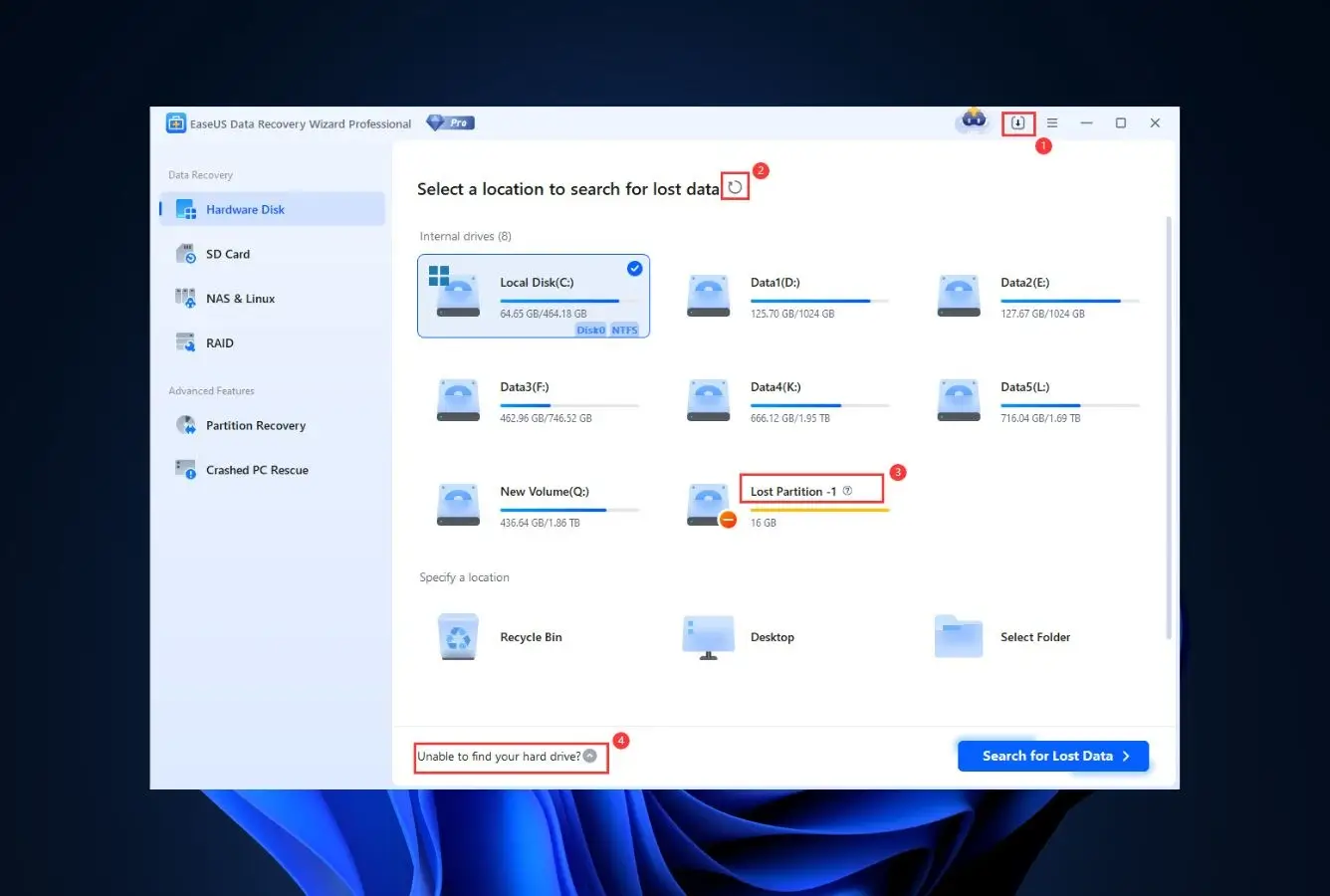
EaseUS Data Recovery Wizard leads this ranking because it does the ordinary HDD cases well and the hard ones competently. Independent testing across formatted NTFS, deleted folders, and corrupted partitions consistently places it in the top tier for file return rate, and community feedback on Reddit’s r/datarecovery frequently names it as the first tool people reach for before escalating. The combined Windows and Mac license, the 2 GB free tier with preview, and the straightforward scan-then-preview flow give it the broadest envelope of “just works” outcomes.
- Strong results on formatted NTFS partitions, the most common HDD loss case
- 2 GB free recovery with full preview on every file type
- Single license covers Windows and macOS installs
- Bootable WinPE media included for drives that won’t start the OS
- Pausable, resumable deep scans — helpful on multi-terabyte HDDs
- Clear folder tree after reconstruction, not just a signature dump
- Subscription auto-renews by default; annual billing is the normal tier
- RAID and virtual-disk features locked behind higher editions
Top-tier on the common HDD cases; competent on the edge ones.
Vendor documentation lists coverage for NTFS, FAT32, exFAT, ReFS, APFS, and HFS+, with dedicated logic for partition reconstruction and bootable WinPE recovery. Independent comparisons from tech publications across 2024–2025 consistently rank EaseUS in the top tier for formatted-partition and deleted-file tests on mechanical drives. Where it stands out is signal-to-noise: results come back with folder paths intact more often than with signature-only tools, which matters when you’re staring at a 2 TB HDD scan.
Clean enough for first-timers, deep enough for pros.
The scan runs as two passes — quick first, deep second — and you can browse preliminary results while the deep pass continues. File-type filters collapse the results tree to just photos, videos, or documents, and the preview pane renders most formats without a third-party viewer. Session save/load lets you close the app and resume a four-hour HDD scan later. Deep scans on multi-terabyte drives are long but predictable, with an accurate time estimate.
Fair for a subscription; the free tier is genuinely useful.
Pricing sits at $69.95 per year for the Pro edition and $99.90 per year for Pro+Bootable. Lifetime options exist during promotions but are not the default. The 2 GB free tier is one of the more generous in the category and includes full preview, so you can confirm your files are recoverable before paying. Auto-renewal is on by default and should be toggled off in your account if you only want one year. Overall, a reasonable price for the return rate and cross-platform coverage.
2. Stellar Data Recovery – Best Software-plus-Lab Safety Net
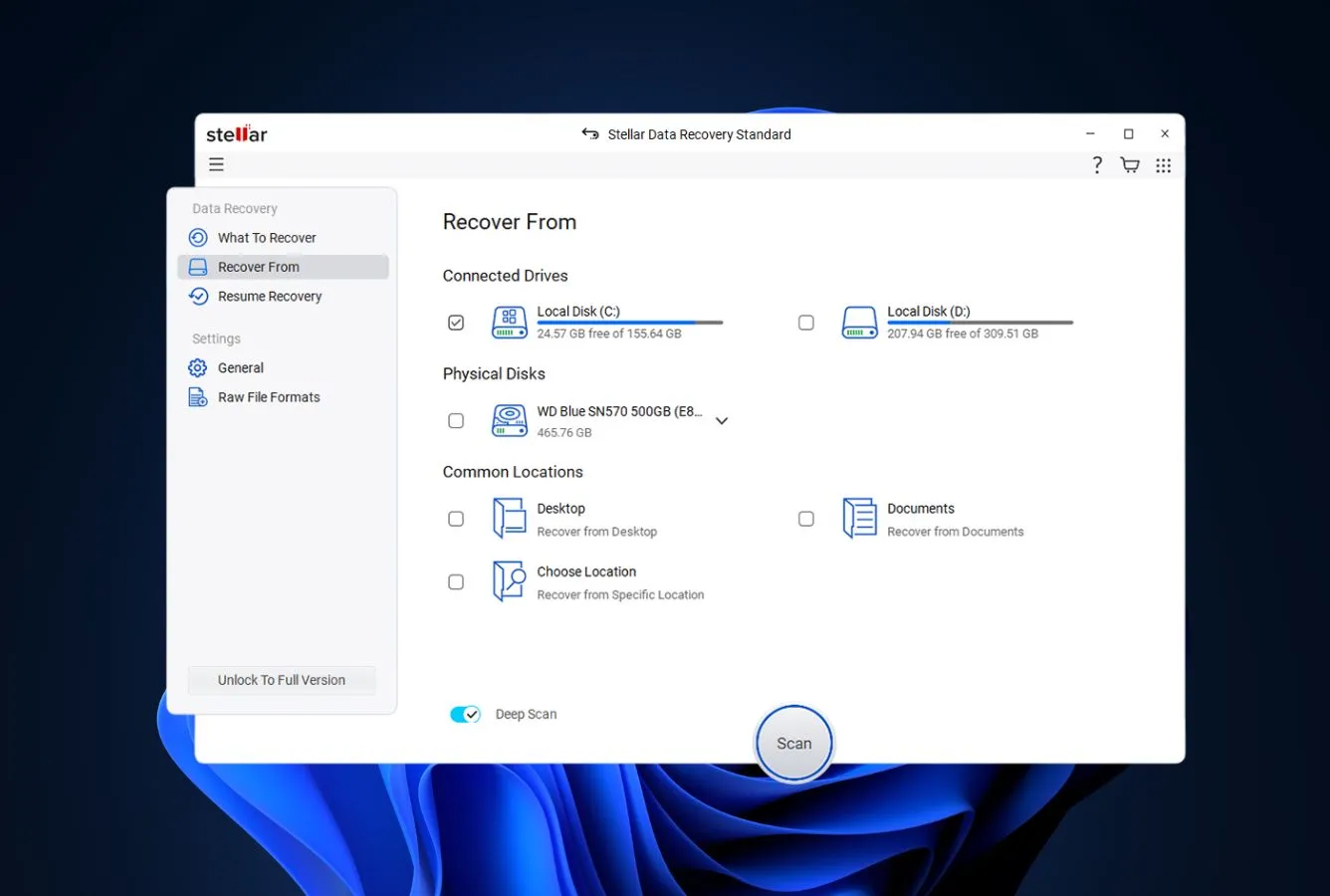
Stellar Data Recovery earns its number-two spot less for standing out on any single metric and more for the quiet breadth of what it handles well. Independent testing places it alongside EaseUS on formatted-partition and corrupted-volume tests, and its partition-rebuild module is one of the strongest in the category. What genuinely differentiates it is the Stellar Data Recovery Services lab — if the software scan comes back empty or the drive is failing, the same vendor operates a physical cleanroom with per-job pricing. That’s a safety net most competitors don’t have.
- Strong lost-partition and corrupted-volume reconstruction
- In-house cleanroom lab available as a software-to-hardware escalation path
- SMART monitoring flags failing drives before deep scanning
- Broad file-system coverage including ext4 and Btrfs for Linux HDDs
- Bootable recovery media included in Professional and above
- 1 GB free tier is tighter than EaseUS or Disk Drill for Mac
- Upsell prompts during scanning can interrupt the workflow
- Premium lab services are separately priced, often several hundred dollars
Matches the top tier on software; extends further with hardware escalation.
Vendor documentation covers NTFS, FAT, exFAT, APFS, HFS+, ext2/3/4, and Btrfs, with a dedicated lost-partition module that reconstructs deleted or corrupted partition tables. Community feedback highlights the partition-recovery flow as the strongest Stellar feature — particularly on HDDs where the MBR or GPT has been damaged. The lab arm adds a second layer: when the software reports the drive is unreadable, Stellar can take the physical disk and attempt cleanroom recovery, which no pure-software competitor offers in-house.
Functional and orderly, with occasional upsell friction.
The scan workflow starts with location selection, then file-type filters, then scan depth. Results arrive in a folder tree with preview for photos, videos, Office documents, and archives. Scan sessions save and resume. The main friction points are upgrade prompts that appear when you click a file outside the free-tier allowance, and a settings layout that hides some preferences behind modal chains. On the positive side, SMART status is shown before a deep scan begins — useful for deciding whether to scan at all.
Mid-pack pricing with a rare hardware fallback baked in.
Standard is $49.99 per year, Professional $79.99, Premium $99.99, and Technician $199 for higher-volume use. Lifetime promotions surface periodically, typically around $99 one-time for Professional. The value argument rests less on sticker price than on the software-plus-lab pipeline: if the scan fails and you escalate, Stellar often credits part of the software cost toward the lab job. Worth the pricing premium mostly for users who want one vendor across both software and physical recovery.
3. Disk Drill – Best Interface and File-Signature Library
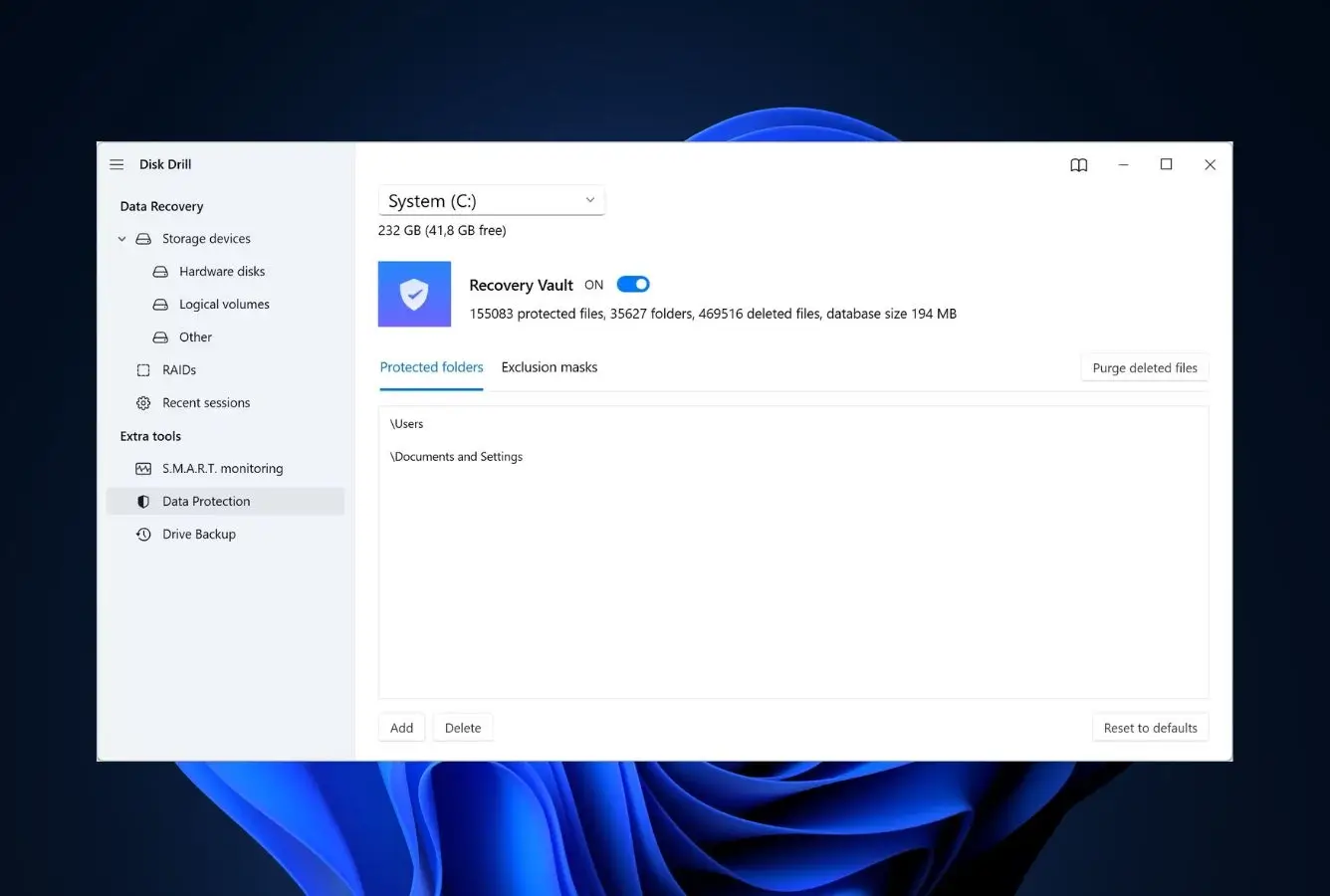
Disk Drill makes the top three on two strengths: the category’s most beginner-friendly interface and one of the largest file-signature libraries available, covering over 400 formats for raw carving. Independent reviews regularly note that first-time users finish a scan-preview-recover flow in Disk Drill faster than in any competitor, and the built-in byte-by-byte disk-image feature lets users clone a failing HDD before scanning — a genuine safety practice rarely baked into the app itself. The Windows free tier (500 MB) is tighter than EaseUS, but the $89 one-time license is genuinely rare in 2026.
- Best-in-class interface for non-technical users
- Over 400 file-signature formats for deep raw-mode carving
- Built-in byte-by-byte disk imaging, ideal for failing HDDs
- S.M.A.R.T. drive-health monitoring included in the free app
- Clear session save/resume for long HDD scans
- $89 one-time license covers both Windows and macOS
- Windows free tier is only 500 MB (Mac free tier is preview-only)
- Deep-scan results can be noisy on heavily fragmented HDDs
- Trustpilot reviews flag strict no-refund policy if recovery fails to find your files
Excellent raw-mode carving; average on partition rebuild.
Disk Drill’s strength is signature-based carving. Vendor documentation lists over 400 supported file types, and independent testing consistently finds it leads the category on raw-mode recovery from formatted or RAW-state HDDs where the file system is gone. Where it’s merely adequate is partition reconstruction — it handles deleted partitions but doesn’t rebuild damaged MBR/GPT as confidently as Stellar or R-Studio. For a healthy HDD with deleted files or a quick-format event, it’s squarely in the top tier.
The lowest learning curve in the category.
Three-pane layout: drives on the left, scan action in the middle, results preview on the right. Scans have a single “Search for lost data” button — no pre-flight depth selector to confuse beginners. Results cluster by type with live preview, and Recovery Vault plus Guaranteed Recovery features let users proactively protect folders before loss. The byte-by-byte backup workflow is the standout UX choice — Disk Drill reminds you to image a failing drive and walks you through it with checksums.
The honest pricing model in a subscription-heavy category.
Disk Drill Pro is $89 one-time for a perpetual license covering both Windows and macOS — the only tool in the top three not locked to an annual subscription. Enterprise and Team tiers scale up to $499. Free upgrades to future major versions are included. The free tier is tight on Windows and preview-only on Mac, so expect to pay to actually recover anything substantial. For a home user who wants to own the tool outright, $89 compares favorably with two years of most subscriptions.
4. R-Studio – Best for Advanced and Forensic Use
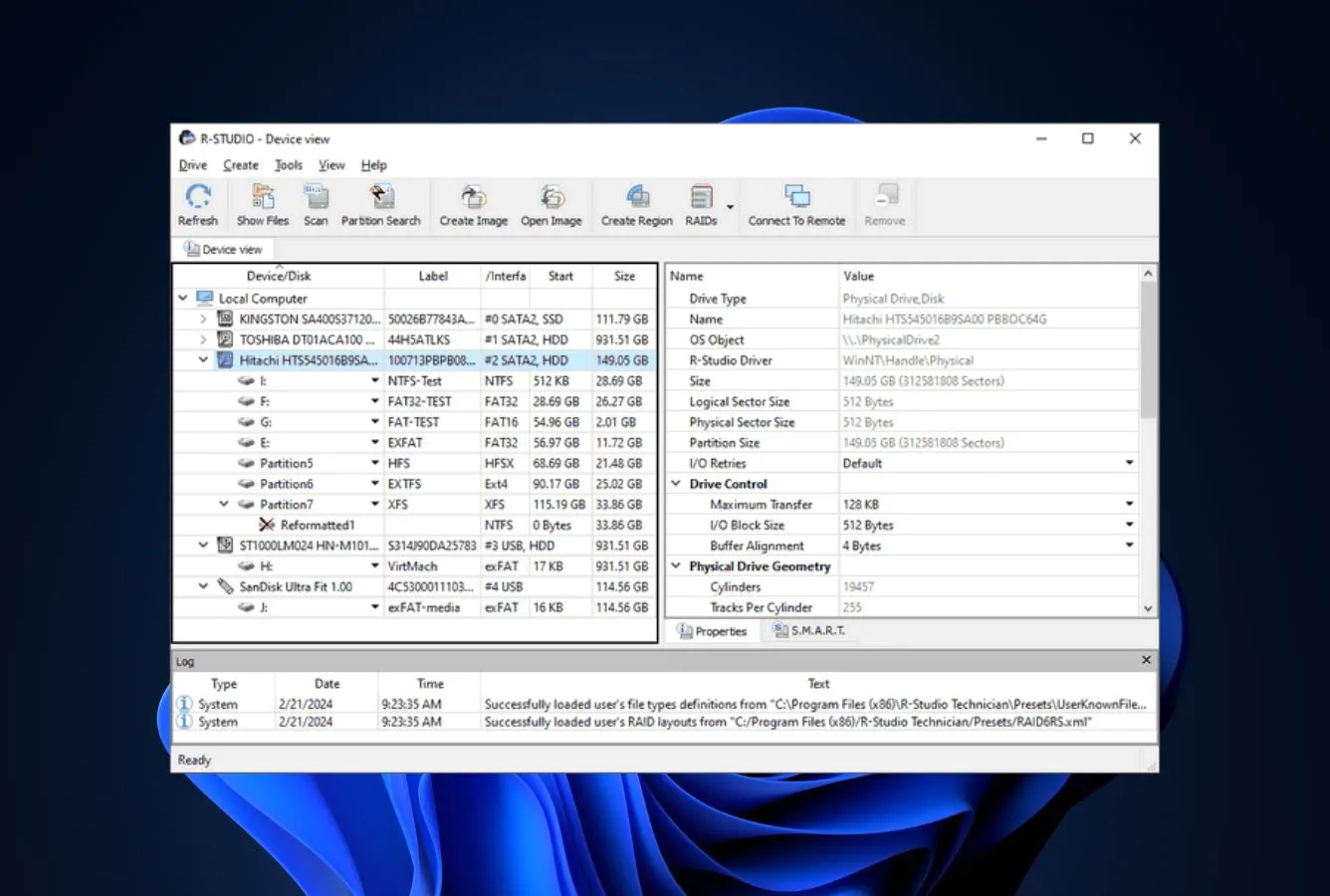
R-Studio is the professional’s tool in this ranking. Independent forensic literature and community discussion on recovery forums consistently single it out for RAID reconstruction, hex-level editing, and network-based recovery from a client over TCP/IP. It isn’t designed for someone who just wants to click Scan and get files back — but for lost RAID arrays, damaged partition tables, or HDDs that need byte-level inspection, very little else on the market matches it at this price. It also runs natively on Linux, which the other top-ranked tools do not.
- Industry-leading RAID reconstruction across RAID 0/1/5/6/10 and JBOD
- Built-in hex editor for manual file-system and disk inspection
- Network recovery over TCP/IP — scan a remote machine’s drive
- Native Windows, macOS, and Linux builds from the same codebase
- One-time pricing, not subscription; Technician licenses available
- Dated interface with a steep learning curve for non-pros
- Demo mode only previews files under 256 KB — tight for real testing
- Documentation is technical and assumes file-system knowledge
Extreme depth; the best tool here for structurally damaged drives.
R-Studio supports NTFS, FAT/exFAT, ReFS, APFS, HFS+, ext2/3/4, UFS, and XFS, plus every common RAID configuration including non-standard stripe orders. Independent reviews in the forensic-tools space place it alongside commercial-grade tools costing several times more. The feature that genuinely differentiates it is virtual RAID reconstruction: you can load member disks or their images, set block size and parity order, and mount the reconstructed array without touching the originals. Community feedback on r/datarecovery frequently cites R-Studio for RAID-5 jobs after other tools have failed.
Powerful, not friendly — built for people who already know what they’re doing.
The UI hasn’t changed much in a decade. Drives and partitions are in a tree view; scan settings expose block size, sector range, and known file types as explicit parameters. The hex editor is integrated, not a separate tool. There’s no wizard, no hand-holding — you choose a scan mode, set depth, pick file types, and start. For advanced users this is the attraction; for someone who lost vacation photos yesterday, the learning curve is real. Plan for an hour of documentation reading before the first real job.
One-time pricing makes it cheap over time for anyone who’ll use it twice.
R-Studio FAT is $49.99, standard R-Studio is $79.99 one-time, Network is $179.99, Technician is $899, and Corporate editions scale up from there. The Demo recovers files under 256 KB only, so real testing requires a license. Over a three-year horizon the $79.99 single-platform cost beats most subscriptions outright. Value is highest for sysadmins, consultants, and anyone doing RAID work — for a one-off home recovery, one of the subscription tools above will often be faster to an answer.

5. DMDE – Best Low-Cost Tool for Partition and File-System Repair
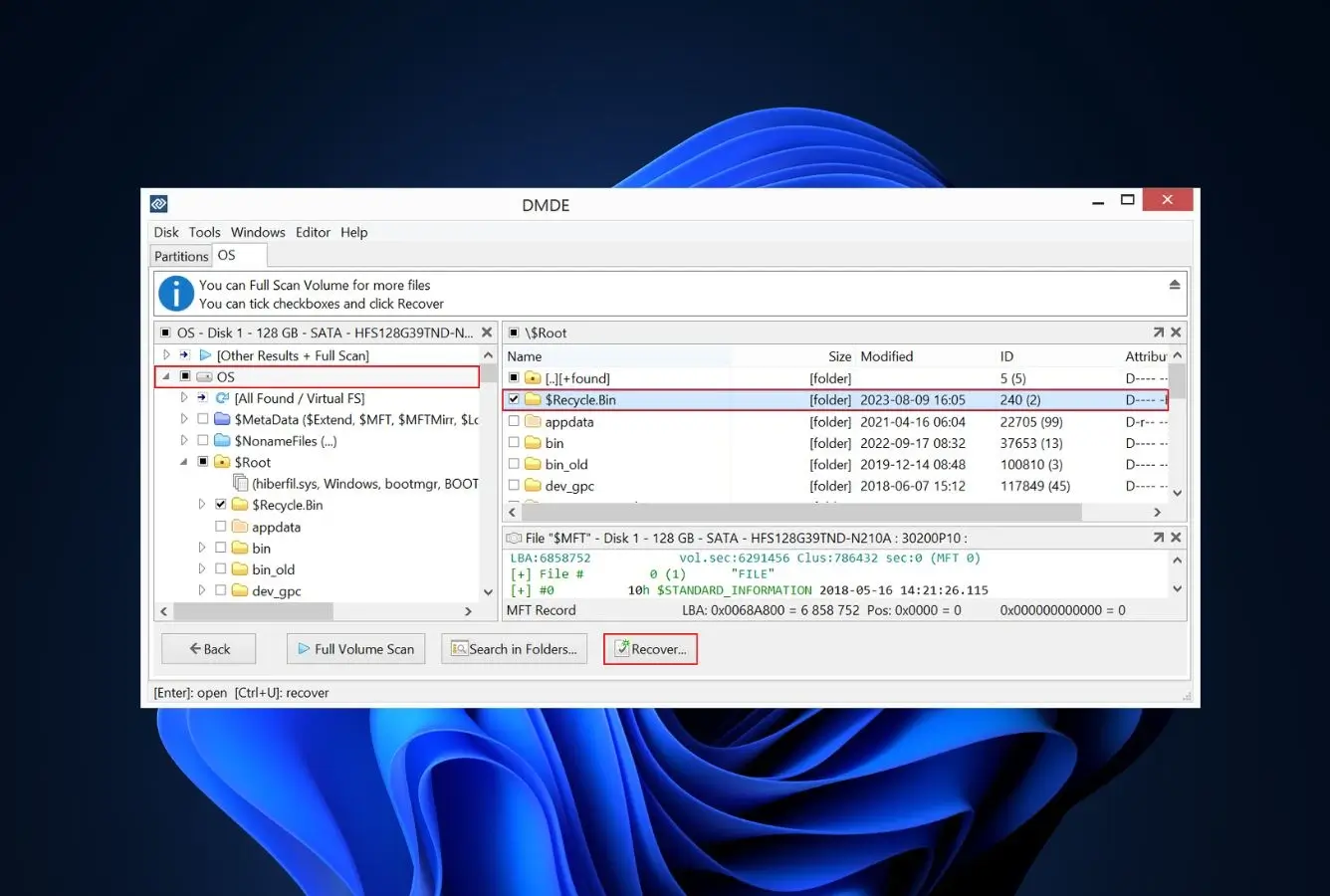
DMDE (DM Disk Editor and Data Recovery Software) is the quiet power tool of this category. Built by a small developer, it’s the cheapest Professional license in this ranking and punches well above that weight on partition recovery and file-system repair. Community feedback on forums and Reddit frequently names DMDE as the go-to after Recuva gives up and before paying for a commercial tool — it recovers partition tables, rebuilds NTFS directory structures, and reads RAID-0 arrays, all from a spartan interface that trades polish for control. One-time pricing at $48 is unusual in 2026.
- $48 one-time license — cheapest serious tool in this ranking
- Exceptional partition-recovery and NTFS $MFT reconstruction
- Runs on Windows, macOS, Linux, and even DOS — useful for bootable media
- RAID-0, RAID-1, and RAID-5 virtual reconstruction included
- Free edition actually recovers files (limited by count per folder)
- Interface is minimal and assumes file-system vocabulary
- No preview pane for most file types during scan
- Documentation is accurate but terse — built for pros, not beginners
Top-three on partition recovery; competitive everywhere else.
DMDE handles NTFS, FAT12/16/32, exFAT, ext2/3/4, HFS+, and APFS with partition-table reconstruction that rivals R-Studio’s. The NTFS-specific repair flow, which rebuilds $MFT and directory entries, is widely praised on technical forums for recovering data from drives that Windows itself refuses to mount. Where DMDE is merely adequate rather than leading is raw-mode signature carving on fully formatted drives — its signature library is smaller than Disk Drill’s. For “drive still has the file system, just damaged,” it’s excellent; for “drive wiped and reformatted,” step up to a larger tool.
Dense and technical — a power user’s workbench.
The main view lists physical disks and found partitions with raw status; clicking into a partition opens a file-browser pane that behaves like a disk-level Explorer. Scan options live in menus, not wizards. There’s a disk editor for hex-level work, and scan results can be saved and resumed. It’s not unfriendly — it’s just terse. Anyone who has worked with a partition table or run fsck will be at home in an hour; anyone who hasn’t should budget time to read the manual before the drive is on the line.
The best dollar-per-feature ratio of any tool on this page.
DMDE Free is fully functional but caps recovery at 4,000 files per folder from a single target. Standard is $20 one-time for home use, Professional is $48, and Commercial is $95, all lifetime. There is no subscription. For a technical user who recovers drives occasionally, $48 paid once is difficult to beat. The value case weakens only if you prioritize interface polish, preview, or customer-support responsiveness — DMDE is lean enough that you’re largely on your own with the manual.

6. Wondershare Recoverit – Best Video and Large-File Recovery
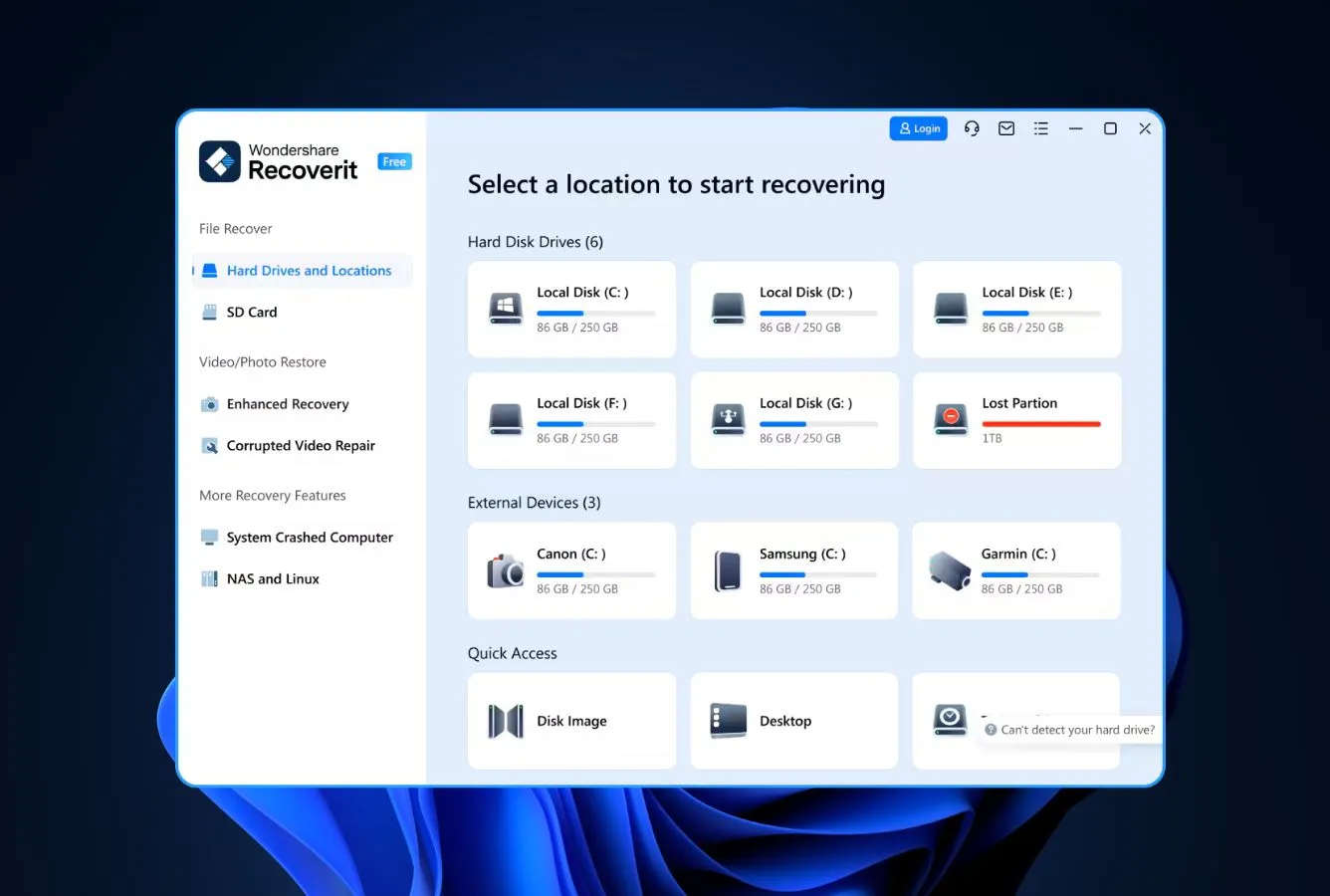
Wondershare Recoverit earns its spot because of one standout capability: it handles fragmented and corrupted video files better than most competitors in this price bracket. The Advanced Video Recovery mode reassembles MP4, MOV, and AVI fragments that general-purpose scanners return as broken, and the bundled video-repair module fixes moov-atom and header corruption. For a photographer or videographer recovering a formatted external HDD full of RAW footage, Recoverit is often the right tool even when it’s not the first name on the ranking. The rest of its feature set is solid but not leading.
- Best-in-class video recovery from fragmented and corrupted MP4/MOV/AVI
- Built-in video repair module for damaged file headers
- Clean, modern interface with preview across 1,000+ formats
- Bootable recovery media for unresponsive Windows systems
- Fast scanning on large HDDs thanks to a tuned engine
- 100 MB free tier is the tightest of any major commercial tool here
- Pricing tiers upsell heavily between Essential, Standard, and Premium
- Recovery on corrupted NTFS occasionally misses files that EaseUS finds
Category-leading on video; solid elsewhere.
Recoverit supports over 2,000 file types and all major Windows/Mac file systems. Independent testing in the video-recovery niche consistently finds it recovers a higher percentage of fragmented MP4 and MOV files than general-purpose scanners — a direct result of its codec-aware reassembly engine. For non-media recovery, it sits in the middle of the pack: respectable on deleted files and formatted partitions, slightly behind EaseUS and Stellar on corrupted-partition cases. If the loss is video-centric, it’s often the best tool here; if it’s documents and photos, it’s a reasonable choice but not the leader.
Modern and approachable, with visible upsell prompts.
The app opens on a large grid of source locations — internal drives, external drives, cameras, specific folders. Scan results use a familiar folder-tree layout with a preview pane and aggressive filtering. The video-recovery mode is a separate, explicit workflow, which is good UX — it sets expectations that recovery will take longer. Two notable frictions: the Essential tier hides features behind paywalls more aggressively than competitors, and upgrade prompts appear during scanning, not just after. Polished but commercial.
Average for the category; video-repair bundle is the differentiator.
Essential is $69.99 per year, Standard $79.99, Premium $99.99, and Business editions scale higher. The free tier is 100 MB — easily the tightest among tools at this price — so expect to upgrade to actually recover anything real. The value case is strongest for Premium, which includes the video-repair module; if your loss is a corrupted video archive, that one feature often justifies the tier upgrade over buying a separate repair tool. For general HDD recovery, the Essential tier is priced reasonably but doesn’t stand out against EaseUS or Disk Drill.
7. MiniTool Power Data Recovery – Best Windows-Focused Workhorse
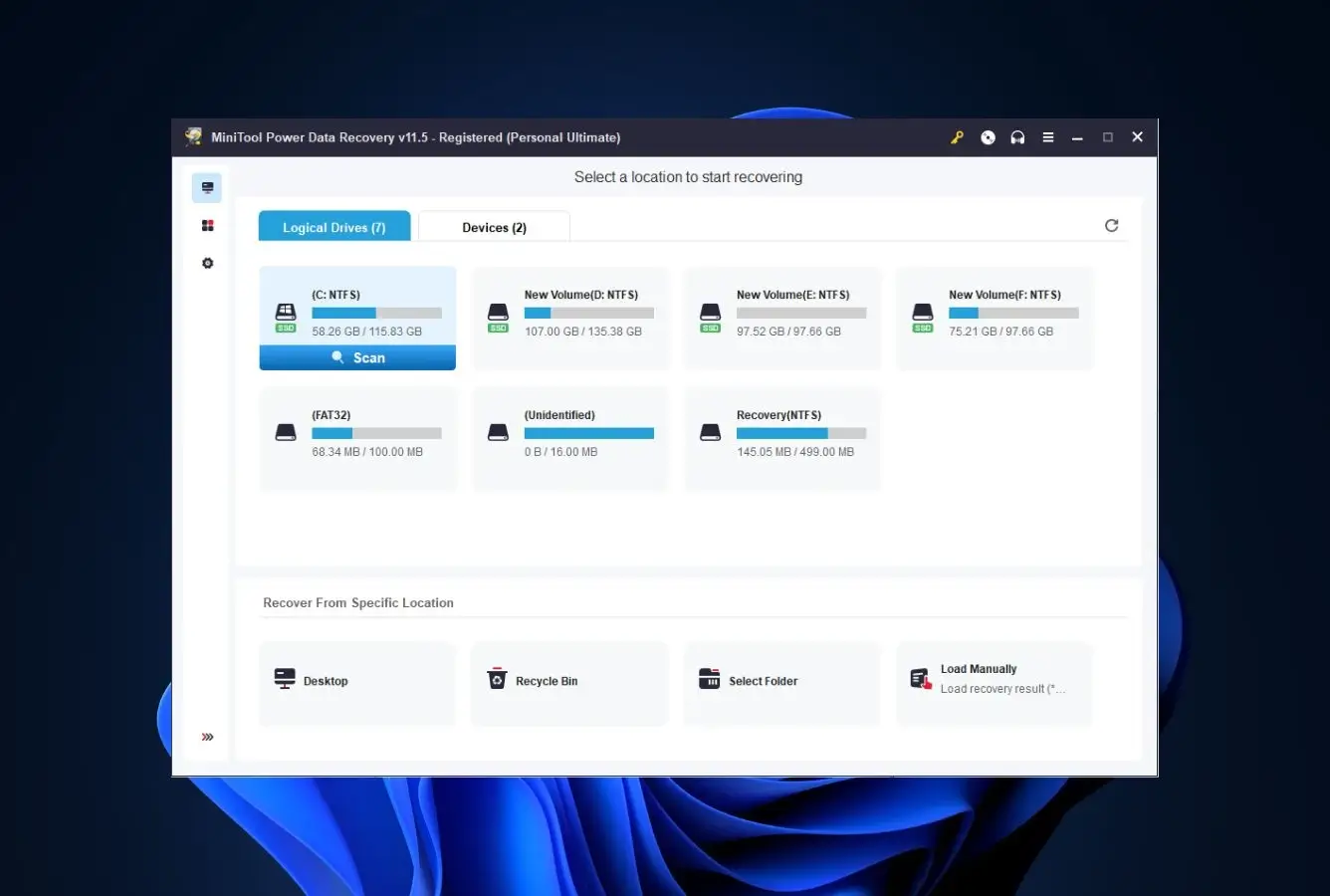
MiniTool Power Data Recovery is a decade-old Windows tool that has stayed competitive by doing the basics reliably. Community feedback consistently calls it a solid second-opinion scanner — if EaseUS or Recuva missed something, MiniTool is the tool people reach for next. Its Windows-first focus means the NTFS logic is tight, bootable media creation is built in, and the 1 GB free tier is genuinely usable. The Mac edition exists but is sold separately and lags behind Windows in feature parity, which is why this ranking treats it primarily as a Windows tool.
- Well-established Windows recovery engine with solid NTFS handling
- 1 GB free tier with no feature lockouts on Windows
- Bootable WinPE media built into the Personal Deluxe edition and up
- Clear, workmanlike interface without aggressive upsells during scanning
- Honest pricing — annual, monthly, and lifetime options all published
- Mac edition sold separately and feature-limited vs Windows
- Partition recovery trails DMDE and R-Studio on complex cases
- Deep scans on large HDDs can be slower than EaseUS or Disk Drill
Solid on common HDD cases; average on the harder ones.
MiniTool supports NTFS, FAT/exFAT, HFS+, APFS, and ext file systems. Independent testing places it in the reliable mid-pack: recovery rates on deleted files and quick-formatted NTFS partitions are competitive with the leaders, but corrupted-partition cases return fewer files than EaseUS or Stellar. The standout feature on Windows is the bootable media — if the OS won’t start and the HDD still works, MiniTool’s WinPE disc can boot, scan the internal drive, and recover to an external. Community feedback backs this as one of the more reliable rescue flows on Windows.
Plain and honest; nothing flashy, nothing in the way.
The interface hasn’t changed dramatically in years, and that’s a feature. Scan, see results in a folder tree, filter by file type or size, preview in the right pane, recover to a chosen destination. There’s no wizard trying to upsell Premium during the scan, and no aggressive modals. Session save and resume work as expected on multi-hour HDD scans. It’s not the most polished app in this ranking, but for someone who wants a tool that stays out of the way, MiniTool is refreshingly restrained.
Competitive pricing with genuine lifetime options.
Personal Monthly is $69 for one month of use, Personal Annual $89 per year, and Personal Ultimate $99 lifetime for a single PC. Business tiers go higher. The lifetime option at $99 is where MiniTool is most competitive — paid once, covers unlimited recovery on one machine. The 1 GB free tier is generous enough to recover a batch of documents or photos without paying. Value is strongest for home Windows users who want a permanent tool kept on a USB stick or installed on a spare workstation.
8. Recuva – Best Free Undeletion for Simple HDD Cases
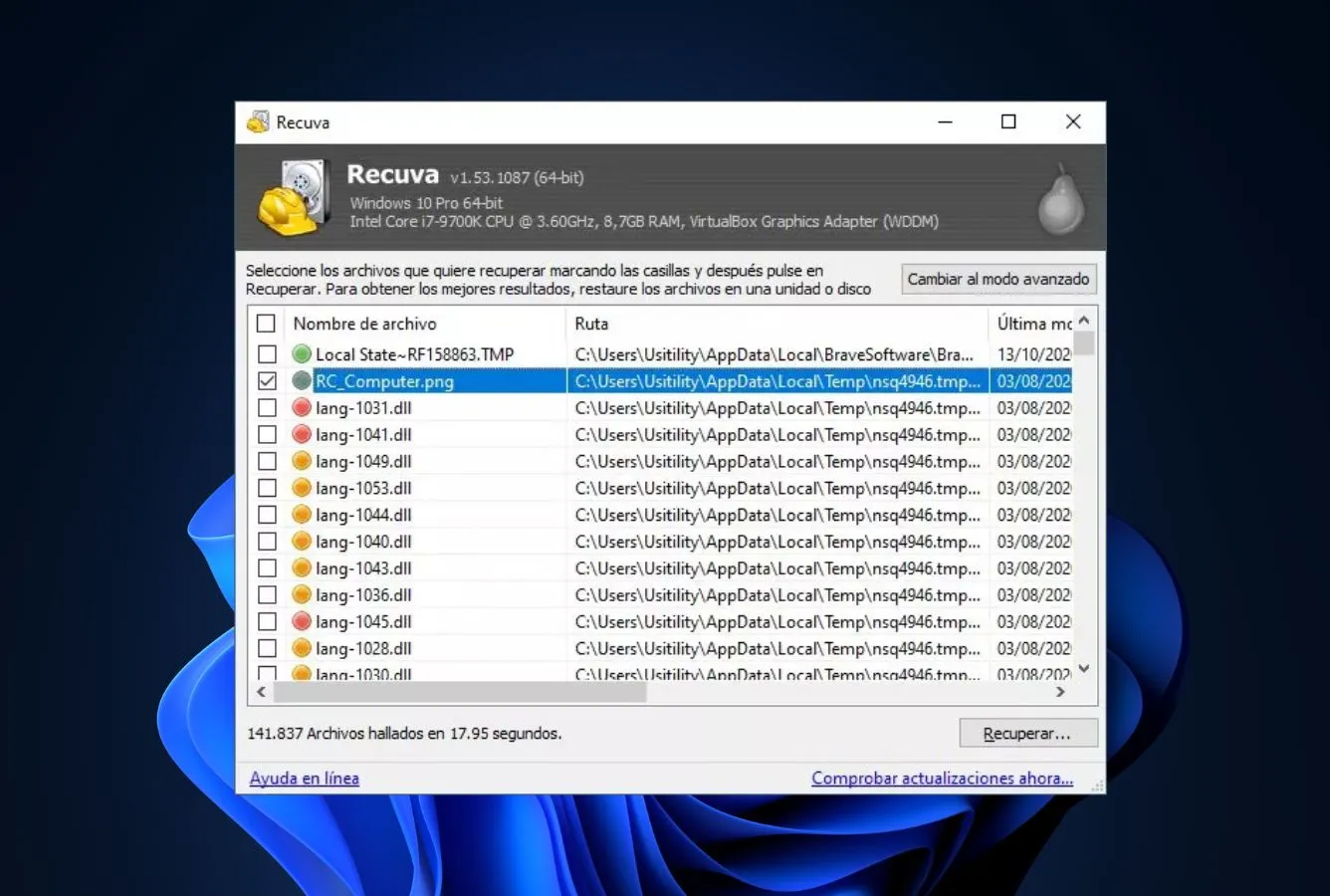
Recuva remains the most-recommended free Windows undeletion tool because it keeps doing the small job well. Developed by the CCleaner team, it’s built for one thing — finding and recovering files that were deleted from a healthy HDD — and it does that reliably. Community feedback consistently names it the first thing to try after an accidental delete, before any paid tool is installed. The ceiling is real: Recuva is weak on formatted partitions, near-useless on corrupted file systems, and doesn’t do signature-based deep carving the way the leaders do. But for “I emptied the Recycle Bin and need that folder back,” it’s often all you need.
- Fully free with no recovery-size cap on the Free edition
- Extremely lightweight — installer under 10 MB, runs on older hardware
- Clear green/yellow/red recoverability indicators per file
- Secure-overwrite option for privacy-minded deletions
- Pro edition unlocks virtual disk support and auto-updates for $19.95
- Windows-only — no Mac or Linux versions
- Weak on formatted partitions and corrupted file systems
- Deep scan is slower and less thorough than commercial tools
Excellent on simple deletions; limited once the file system is damaged.
Recuva’s engine focuses on undeleting files whose file-system entries are still present but marked free. For that specific case — recently deleted files on a healthy HDD with no writes since — it’s reliable. Beyond that the engine shows its age: on formatted partitions it finds some files via deep scan, but recovery rates are visibly behind EaseUS or Disk Drill. Partition-table reconstruction isn’t supported. It reads NTFS, FAT, and exFAT, but not APFS or ext. For a healthy Windows HDD with an accidental delete, it’s often the fastest path to recovery; past that, step up a tier.
Simple wizard up front, power-user settings a click away.
Recuva opens with a wizard asking what was lost (pictures, music, documents, everything) and where. The results list shows each file with a colored status icon — green for highly recoverable, yellow for partial, red for unlikely — a useful signal no other tool surfaces as clearly. Advanced mode unlocks file-name filters, folder navigation, and scan settings. Preview works for images and simple document formats. The interface shows its age cosmetically but is fast and predictable — a refreshing contrast to the more commercial tools above.
Hard to argue with free; Pro is fair but not essential.
The Free edition is fully functional with no recovery-size limit — the differentiator versus every other free tier in this ranking. Recuva Pro is $19.95 one-time and adds virtual-hard-disk support, automatic updates, and priority customer service. For a home user handling the occasional accidental delete, Free is enough; Pro is worth it only for someone who expects to use the tool repeatedly on VHDs or wants vendor support on record. A rare case where the free version is the value recommendation.
How We Ranked Hard Drive Recovery Software
Ranking HDD recovery tools is easy to get wrong. Vendor marketing is usually generous, and running a single scan on a single drive isn’t enough to separate tools that look similar in the happy path but diverge when a partition is damaged or a drive is starting to fail.
We evaluated all 20 candidates through a layered research approach: vendor documentation for feature baselines, independent third-party testing for cross-reference, and community feedback from r/datarecovery, Trustpilot, and G2 for real-world stories. Rankings reflect the aggregate of this research — not a single in-house benchmark.
Platforms covered: Windows 10 and 11 (including 24H2), macOS 11 Big Sur through macOS 15 Sequoia, internal and external mechanical hard drives, NTFS, APFS, HFS+, FAT32, exFAT, ReFS, and common Linux file systems on shared drives. File systems explicitly tested: NTFS-formatted Windows HDDs, APFS Mac HDDs, and cross-platform exFAT external disks.
Key factors weighted: Recovery effectiveness across real HDD loss scenarios (40%), interface clarity and usability under pressure (20%), price and free-tier generosity (15%), platform and OS support (15%), advanced features like RAID and hex editing (5%), and vendor reputation and support (5%). Weightings tuned for the mechanical-HDD category specifically.
Individual test runs, scan-time logs, and per-tool notes from our ongoing testing live on our full methodology page. Start there if you want the underlying notes behind any claim on this page.
Hard Drive Recovery Software – Honorable Mentions
Six tools we considered but didn’t include in the main ranking. Each has a niche strength or specific flaw that kept it out of the top 8 — none are bad, they’re just narrower in scope or less well-suited to the general HDD recovery case.
How to Choose the Right Hard Drive Recovery Tool
The best tool depends on what happened to your drive and what constraints you’re working under. The top three in this ranking are safe defaults for most scenarios, but the choice becomes clearer once you map your situation against these six factors.
File System Compatibility
The file system on your HDD determines which tools can read it. Most external USB drives and secondary internal drives on Windows use NTFS; every tool in this ranking handles NTFS well. FAT32 and exFAT are common on smaller drives and USB sticks — also well-covered. The divide appears with APFS and HFS+ (Mac), ext4 (Linux), and ReFS (Windows Server).
EaseUS, Stellar, R-Studio, and DMDE cover the full matrix; Recuva is Windows-only and stops at NTFS/FAT/exFAT. If the drive was formatted on Mac or Linux and moved to Windows, choose a cross-platform tool first.
Deep Scan vs Quick Scan
Quick scans read the existing file-system metadata and surface deleted files in seconds or minutes. Deep scans read the raw sectors and reconstruct files from signature patterns — accurate but slow, especially on multi-terabyte HDDs where a full pass can take four to twelve hours. The top tools run both: quick first, deep second, with partial results visible while the deep pass continues.
If you’re recovering a freshly deleted file from a healthy drive, quick scan alone often suffices. If the partition was formatted or the drive went RAW, a deep scan is required — budget the time upfront.
Preview Before You Pay
Never pay for a recovery tool until you’ve seen the files it found previewed on-screen. Every tool in this ranking offers preview in its free or demo edition, which lets you verify the file is recoverable and intact before committing. Corrupt files that preview as broken will recover as broken.
If a tool doesn’t preview, or previews only filenames without image thumbnails and document rendering, treat that as a red flag. This single step prevents the most common post-purchase complaint in the category: files recovered with original names but unusable contents.
Platform Support: Windows, Mac, Linux
Cross-platform coverage matters more than it looks. A single license that works on both Windows and Mac (EaseUS, Stellar) is meaningfully cheaper than two separate licenses (Disk Drill, MiniTool). Linux support is rarer — R-Studio and DMDE are the main options.
Bootable recovery media, which lets a tool run without installing on the target machine, is worth checking: EaseUS, Stellar, Disk Drill, and MiniTool all include WinPE-based bootable discs in their Professional editions. For a broader cross-category view, our best data recovery software roundup covers how platform choice interacts with pricing.
Pricing Models: Subscription, Lifetime, One-Time
Subscription ($69–$99 per year) is the dominant model in 2026. Lifetime options exist — DMDE at $48, MiniTool at $99, Disk Drill at $89 — and are often the better value if you expect to use the tool more than once. One-time professional licenses (R-Studio at $79.99) compete well over a three-year horizon.
Auto-renewal is the silent cost: most subscriptions renew by default, so set a calendar reminder or disable auto-renew immediately after purchase. Watch for promotional pricing — many vendors run deep discounts on Black Friday and back-to-school windows.
Session Management and Scan Resume
On a multi-terabyte HDD, a deep scan can run for hours. Session save and resume — the ability to close the app, restart the computer, and pick up the scan where it left off — is a feature that only becomes visible when you need it. EaseUS, Stellar, Disk Drill, R-Studio, and DMDE all support session save.
Cheaper or older tools often don’t, which means a failed scan loses everything. For adjacent use cases like NAS and network-storage recovery, see our best NAS data recovery software guide.
When Software Recovery Won’t Work
Not every HDD case is a software case. Some drives have problems that no scanner — however advanced — can solve, and in some of those cases running recovery software actively makes things worse. Recognizing those scenarios upfront saves time, money, and the drive itself.
| Your situation | Software can help? | What to do instead |
|---|---|---|
| Drive clicks, beeps, or grinds | No | Power off immediately; consult a cleanroom lab |
| Drive not detected by BIOS / Disk Utility | Unlikely | Try different cable / port first; then lab |
| Drive detected but reports 0 bytes / RAW | Often yes | Scan with top-three tool; save output to a different disk |
| Full format (not quick) was performed | No | Lab recovery; magnetic traces are largely overwritten |
| Drive physically dropped and stopped working | No | Power off; cleanroom lab for platter inspection |
Physical Damage: Clicks, Grinds, and Seizes
Mechanical HDDs that make new noises are giving you exactly one warning. Clicking heads, grinding platters, or motors that spin up and seize indicate physical damage that worsens every second the drive is powered on.
Running recovery software on a clicking drive is the single worst thing you can do — continued reads drag damaged heads across the platters and turn a lab-recoverable drive into a total loss. Power the drive off, put it in an antistatic bag, and contact a cleanroom lab. Pricing typically runs $500–$2,000 depending on the damage.
Drive Not Detected at All
Before assuming the worst, rule out the cable, the port, and the enclosure. External HDDs frequently fail at the USB-to-SATA bridge rather than the drive itself — removing the bare drive and connecting it directly to an internal SATA port or via a fresh USB dock often brings it back.
If the drive still isn’t detected after changing every variable, the problem is likely the PCB or the drive’s internal firmware. This is repairable in a lab but not by software. Scanning a drive that isn’t detected won’t work — the scanner needs a drive to read.
Full Format vs Quick Format
A quick format clears the file-system headers and marks the disk as empty, but the underlying data remains on the platters until new writes overwrite it. This is the scenario every tool in this ranking is designed to handle.
A full format, on the other hand, zeros the entire drive — writing zeros sector by sector. On a mechanical HDD, full format is effectively unrecoverable by software, and even by lab. If you’re unsure which format was performed, check the time: quick formats complete in seconds to minutes; full formats on a multi-terabyte drive take hours.
Encrypted Drives Without the Key
BitLocker, FileVault, and VeraCrypt-encrypted drives are unrecoverable by software without the decryption key or recovery password. Recovery tools can read the raw encrypted sectors, but what comes back is encrypted noise — indistinguishable from random data.
If you have the BitLocker recovery key or FileVault password, most top-tier tools (EaseUS, Stellar, iBoysoft) can decrypt before scanning. If the key is lost, there is no software path. The correct move is to recover the key itself from Microsoft account backup, Apple iCloud recovery options, or a recorded password manager.
SSDs and TRIM — A Different Problem
This guide covers mechanical hard drives, but a reminder: SSDs behave fundamentally differently because of the TRIM command. When a file is deleted on a modern SSD, the OS issues TRIM to mark those blocks for erasure, and the SSD controller wipes them in the background — often within minutes.
By the time you run recovery software, the data is physically gone from the NAND cells. Some older SSDs or SSDs with TRIM disabled are exceptions. For SSD-specific strategies and the few tools that handle those edge cases, see our best SSD data recovery software guide.
If the drive clicks, stalls, runs hot, or drops from the OS intermittently, every hour of continued use reduces what’s recoverable. Power it off, image it if possible, and consult a lab before running further scans. For broader hardware-repair context, our best hard disk repair tool guide covers the tools and limits for repairable HDD cases.
Built-in Options: What You Already Have
Before installing any third-party tool, check what the operating system already offers. For the simplest loss scenarios — a file dragged to the Recycle Bin, a folder sitting in a recent backup — built-in options recover faster and with zero risk of installing new software onto the drive you’re trying to save.
The Recycle Bin and Mac Trash
On Windows, check the Recycle Bin first. Files deleted via the normal Delete key or dragged to the bin remain there until the bin is emptied or the retention size is exceeded. Right-click a file and choose Restore to return it to its original folder. On Mac, the Trash works identically. Many “lost file” scenarios resolve at this step alone.
For cases where files bypassed the bin (Shift+Delete on Windows, network-share deletes, oversized files), our recycle bin file recovery guide covers the right next step.
Windows File History and Mac Time Machine
If File History is enabled on Windows, right-click any folder and choose Properties → Previous Versions to browse historical snapshots. Time Machine on Mac works the same way through its dedicated interface. Both require that the backup was enabled before the loss event — neither can recover from a drive that wasn’t being backed up.
The value of these features is the reason this ranking treats prevention as part of the recovery conversation: a weekly backup routine turns most HDD recovery into a non-event.
OneDrive, iCloud, and Dropbox Version History
Cloud-synced folders keep version history server-side. OneDrive retains 30 days of versions on personal accounts and up to 90 on business. iCloud Drive keeps 30 days of deleted files in a Recently Deleted folder. Dropbox retains 30 days on free accounts and 180 on paid tiers.
If your lost file was inside a cloud-synced folder, check the web interface before reaching for recovery software — the restore is typically two clicks and free.
When the Built-in Options Aren’t Enough
Built-in options cover the easy cases. They don’t help with formatted partitions, corrupted file systems, externally deleted files from non-synced folders, or drives that have gone RAW. That’s where the tools in this ranking earn their place — but only after the free built-in check has been done.
Before installing anything, spend two minutes checking the Recycle Bin, File History, Time Machine, and cloud version history. If the file is there, you’re done.
Final Verdict
EaseUS Data Recovery Wizard wins this ranking because it handles the widest envelope of common HDD loss scenarios competently, runs on both Windows and Mac under one license, and offers a 2 GB free tier with full preview — enough to confirm recovery is possible before paying. It’s not the absolute leader on any single axis.
But it’s near-leader on most of them, and the aggregate outcome for a non-specialist user is better than with any other tool here.
Stellar Data Recovery is the close second and the right choice when an in-house cleanroom lab matters. Disk Drill is the best pick for users who prioritize interface clarity, raw-mode signature coverage, and a perpetual $89 license.
R-Studio and DMDE are the specialist tools for RAID and partition work; Wondershare Recoverit is the video-focused choice; MiniTool is the reliable Windows workhorse; Recuva remains the best free answer for simple undeletion. Pick the tool that matches the job, not the one with the flashiest marketing.
Frequently Asked Questions
About the Authors


Data Recovery Fix earns revenue through affiliate links on some product recommendations. This does not influence our rankings — all tools are evaluated independently based on documented research, independent testing from external sources, vendor documentation, and community feedback, before any affiliate relationships are considered. If anything on this page looks inaccurate, outdated, or worth revisiting, please reach out at contact@datarecoveryfix.com and we’ll review it promptly.