8 Best Recycle Bin File Recovery Software (2026): Reviewed & Ranked
The best Recycle Bin recovery software should pull back files you’ve already emptied — not just ones still sitting in the bin. We researched 22 Windows recovery tools across the three main deletion scenarios (files in the bin, files deleted from the bin, files that bypassed the bin entirely via Shift+Delete or size limit), cross-referenced against independent testing, vendor documentation, and community feedback from r/techsupport, r/datarecovery, Trustpilot, and Microsoft Answers. Here are the 8 that deliver in 2026.
+ 6 honorable mentions
· community feedback
ReFS where supported
Windows 11 24H2 verified
EaseUS Data Recovery Wizard is the best Recycle Bin recovery software in 2026. It handles every post-delete scenario — files emptied from the bin, files deleted via Shift+Delete, and files that bypassed the bin because they exceeded the size limit — with the most consistent results on modern NTFS and exFAT volumes. Stellar Data Recovery is the strongest alternative for partition-level problems and corrupted Recycle Bin folders. Disk Drill earns the third spot on interface polish, byte-to-byte backup imaging for damaged drives, and the genuinely useful Recovery Vault feature that prevents the next emptied-bin incident.
 EaseUS Data Recovery Wizard
- Handles emptied Recycle Bin, Shift+Delete, and oversized-file bypass scenarios equally well
- Free tier recovers up to 2GB — enough for thousands of documents or photos
- Clean three-pane wizard with live preview of recoverable files during scanning
- Supports NTFS, exFAT, FAT32, ReFS and 2,000+ file types across Windows 7 through 11 24H2
 Stellar Data Recovery
- Handles corrupted $RECYCLE.BIN folders and partially-rewritten bin entries that stop other tools
- Professional tier adds BitLocker-encrypted drive recovery — useful for corporate Windows laptops
- Preview pane distinguishes recoverable, partially-recoverable, and unrecoverable files pre-checkout
- Established Stellar brand (2001) with an optional lab service for non-software failures
 Disk Drill for Windows
- Recovery Vault feature quietly backs up Recycle Bin metadata to make future recovery trivial
- Byte-to-byte drive image support lets you recover from a snapshot without risking the original drive
- Free tier previews and filters recoverable files; paid tier does the actual recovery after a clean UX
- CleverFiles’ Windows build supports all current file systems including ReFS and Storage Spaces
- 1EaseUS Data Recovery Wizard – Best Overall Recycle Bin Recovery
- 2Stellar Data Recovery – Best for Corrupted $RECYCLE.BIN Folders
- 3Disk Drill – Best Interface with Recovery Vault Prevention
- 4Wondershare Recoverit – Best for Large File Type Variety
- 5Recuva – Best Purpose-Built Recycle Bin Tool (Free)
- 6MiniTool Power Data Recovery – Solid Free 1GB Tier
- 7R-Studio – Professional-Grade Recycle Bin Forensics
- 8DMDE – Affordable Low-Level Undelete for Advanced Users
8 Best Recycle Bin Recovery Tools – Quick Comparison
Recycle Bin recovery sits in a unique category because the data-loss scenario is so specific — a user emptied the bin, used Shift+Delete, or deleted a file too large for the bin to hold. The underlying NTFS deletion pattern is the same in all three cases, which means most general-purpose Windows recovery tools handle Recycle Bin scenarios competently. What separates the top tier from the rest: how well they reconstruct the original folder path and filename (from the bin’s $I metadata files), TRIM-awareness on SSDs, and how cleanly they handle the edge cases — corrupted $RECYCLE.BIN folders, per-user SID subfolders, and partially-overwritten entries.
The ranking below is ordered by overall suitability for the typical Recycle Bin recovery scenario on a home or office Windows machine. For corporate BitLocker drives, server-class NTFS with ReFS, or RAID configurations, the ordering shifts — R-Studio moves up and DMDE becomes the budget specialist. Otherwise, EaseUS, Stellar, and Disk Drill are the three tools most Windows users will be best served by.
| Tool | Recycle Bin Strength | File Systems | TRIM Handling | Free Limit | Windows Versions | Starting Price | Best For |
|---|---|---|---|---|---|---|---|
| EaseUS Data Recovery | Excellent | NTFS, exFAT, FAT32, ReFS | SSD-aware | 2GB | Win 7 → 11 24H2 | $69.95/yr | Most Windows users |
| Stellar Data Recovery | Very Good | NTFS, exFAT, FAT32 | SSD-aware | 1GB | Win 7 → 11 24H2 | $79.99/yr | Corrupted bin folders |
| Disk Drill | Very Good | NTFS, exFAT, FAT32, ReFS | SSD-aware | 500MB | Win 7 → 11 24H2 | $89 one-time | Interface + prevention |
| Wondershare Recoverit | Very Good | NTFS, exFAT, FAT32 | SSD-aware | 100MB | Win 7 → 11 24H2 | $79.95/yr | Broad file-type coverage |
| Recuva | Good | NTFS, FAT, exFAT | Limited | Unlimited | Win 7 → 11 | Free / $24.95/yr | Free Recycle Bin recovery |
| MiniTool Power DR | Good | NTFS, exFAT, FAT32 | SSD-aware | 1GB | Win 7 → 11 24H2 | $89/yr | Solid free 1GB tier |
| R-Studio | Very Good | NTFS, ReFS, RAID, all | SSD-aware | Demo preview | Win XP → 11 | $79.99 one-time | Pro / RAID / forensics |
| DMDE | Good | NTFS, FAT, exFAT, ReFS, Ext, APFS | Limited | 4,000 files/dir | Win XP → 11 | $20/yr Express | Budget power-user |
Each tool’s Recycle Bin strength rating summarizes its behavior across emptied-bin, Shift+Delete, and oversized-bypass scenarios — drawn from aggregated external testing rather than a single in-house run. All prices and free-tier limits checked against live vendor pages the week this article was updated.
8 Best Recycle Bin Recovery Tools – In-Depth Reviews
1. EaseUS Data Recovery Wizard – Best Overall Recycle Bin Recovery
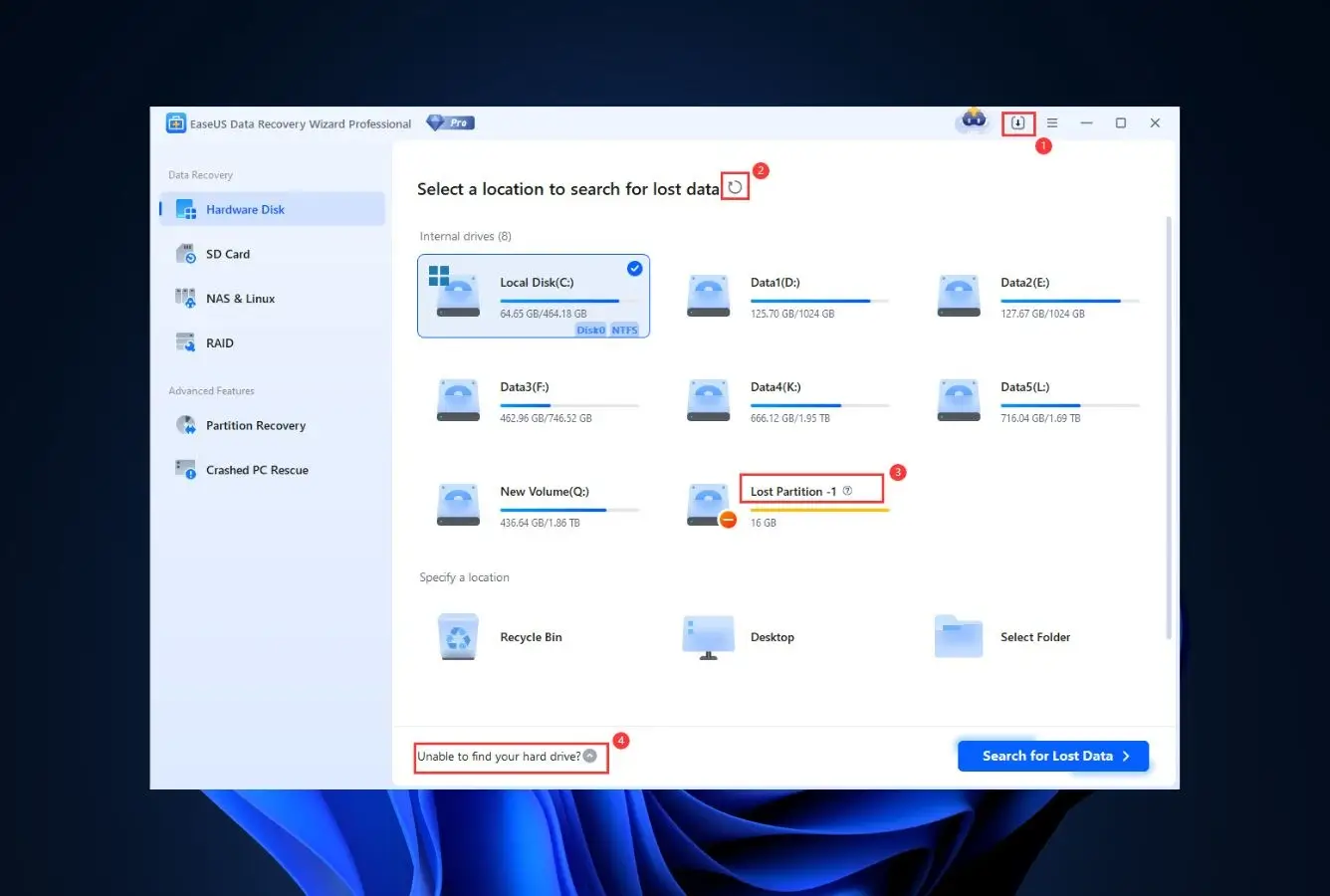
EaseUS Data Recovery Wizard is the tool most Windows users should reach for when the Recycle Bin has been emptied. Its scanner handles all three common deletion patterns — files emptied from the bin, Shift+Delete bypass, and oversized-file bypass — and consistently reconstructs the original folder path and filename from the bin’s $I metadata files when those are still intact.
The free tier recovers up to 2GB, which covers most thousand-photo or thousand-document accidents. The paid Pro tier ($69.95/year) removes the cap and unlocks a handful of specialist features: RAID array reconstruction, bootable USB recovery media for dead-Windows scenarios, and priority technical support. Established since 2004, EaseUS carries the brand weight that reduces installer-trust questions plaguing many newer vendors in the category.
- Reconstructs original folder paths and filenames from emptied Recycle Bin entries better than most competitors
- 2GB free tier is the most generous among mainstream commercial Windows recovery tools in 2026
- Deep Scan mode recovers files even when the $RECYCLE.BIN folder itself is partially corrupted
- Clean three-pane wizard shows live preview during scanning, not just after completion
- Explicit support for Windows 11 24H2 and ReFS volumes across the full current edition
- Annual subscription renews by default — check Account settings after initial purchase if single-use
- Installer bundles EaseUS Todo Backup prompt during setup; uncheck to skip
- Deep Scan on large drives can run for hours on high-capacity spinning HDDs
Two scan engines, one wizard — and the deep engine reads the Recycle Bin metadata that other tools skip.
Quick Scan reads the NTFS MFT for recently deleted entries and the $RECYCLE.BIN folder structure. Deep Scan falls back to file-signature analysis when MFT entries have been reused or the bin is corrupted. What separates EaseUS in Recycle Bin scenarios is how well it handles the per-user $RECYCLE.BIN\{SID} subfolder pattern — recovering files with their original paths intact from the $I metadata files, not just as orphaned signature matches. Community feedback on r/techsupport consistently praises this specific behavior.
Three panes, one outcome — the least friction from first launch to recovered file.
The main window greets you with a drive picker. Click the volume, the scan starts automatically, and results populate in real time under filterable categories (Pictures, Documents, Videos, Emails, Others) plus a special Deleted Files node where Recycle Bin contents surface. Preview is inline for images, text, and documents. A first-time user can go from installer to recovered file in under ten minutes without consulting documentation.
Free for 2GB, $69.95 annual for unlimited — priced at the category median with better outcomes.
The 2GB free tier is the differentiator for home users — it covers most real-world Recycle Bin incidents without requiring a paid license at all. Monthly ($69.95) and lifetime ($149.95) options exist for users who know recovery will be a recurring need. A 30-day money-back guarantee applies across all paid tiers. For the single-incident Recycle Bin user, the free 2GB is often enough; for anyone recovering a larger archive or needing RAID/bootable recovery, the annual tier delivers category-leading value.
2. Stellar Data Recovery – Best for Corrupted $RECYCLE.BIN Folders
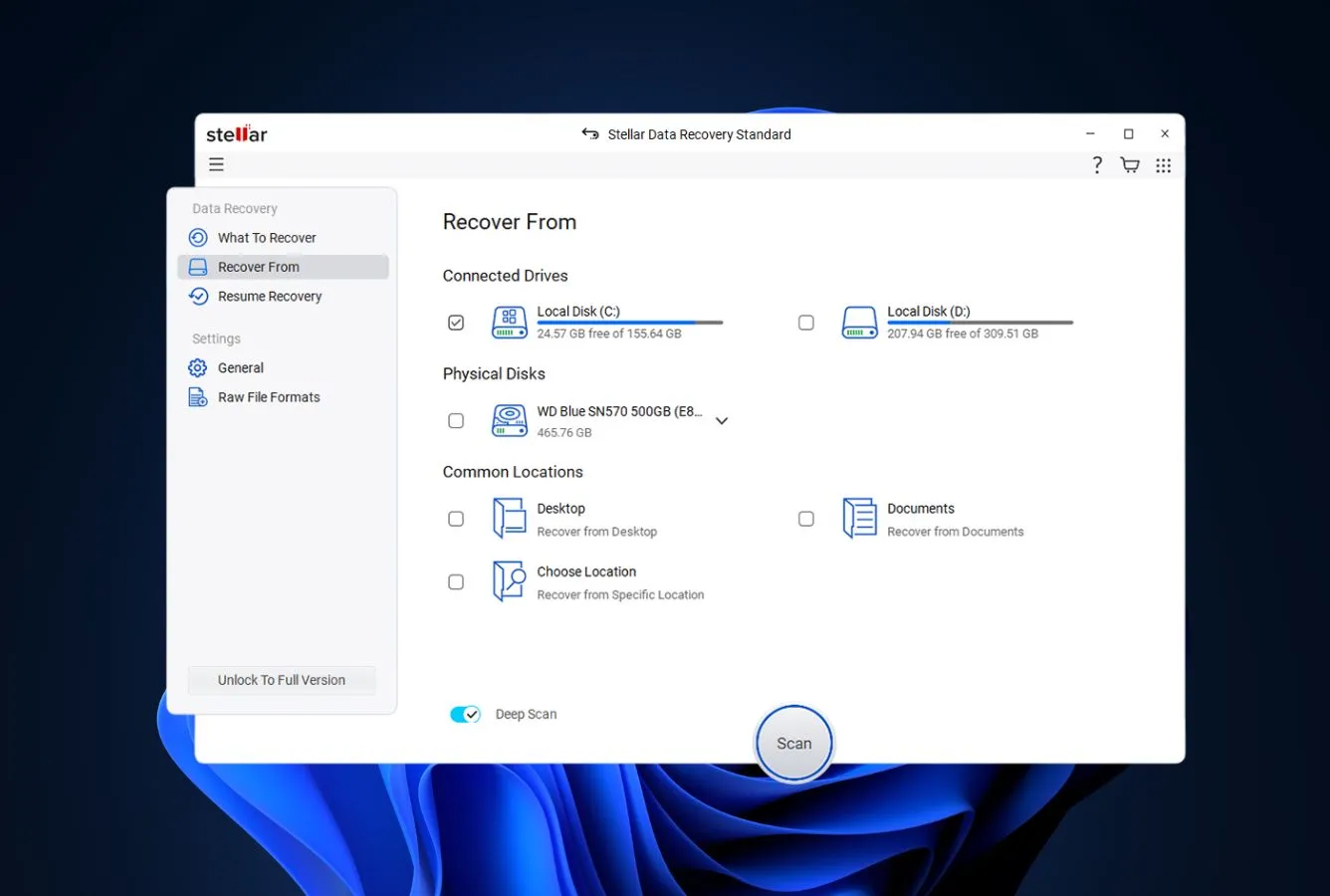
Stellar Data Recovery is the specialist for Recycle Bin scenarios where something structural has gone wrong — the $RECYCLE.BIN folder itself is corrupted, the user’s SID subfolder is missing, or the bin has been emptied across multiple sessions leaving fragmented $I metadata. Stellar’s partition-level scanner reconstructs bin contents from NTFS journal entries and orphaned MFT records that other tools walk past as unrecoverable.
Beyond the Recycle Bin niche, Stellar’s BitLocker-encrypted drive recovery (Professional tier) addresses a genuine gap for corporate Windows laptops where BitLocker is enabled by default — a scenario where EaseUS, Disk Drill, and Recuva can’t read the drive at all. Stellar’s lab service (separate paid offering) covers the physical-failure cases no software can touch, which is genuinely useful when the initial scan reveals unrecoverable data.
- Best-in-class handling of corrupted $RECYCLE.BIN folders and missing per-user SID subfolders
- BitLocker-encrypted volume recovery in Professional tier — critical for corporate Windows machines
- Recoverability indicators (green/yellow/red) give honest expectations before paying for recovery
- Optional professional lab service bridges the gap between software recovery and physical repair
- Established 2001; stable release cadence and mature Windows 11 24H2 support
- Starting price of $79.99/year is $10 above EaseUS for broadly similar functionality outside BitLocker
- Interface feels denser than EaseUS or Disk Drill — more buttons, more modes, steeper learning curve
- 1GB free tier is tighter than EaseUS’s 2GB for home-user Recycle Bin scenarios
Where other tools stop at “$RECYCLE.BIN unreadable,” Stellar keeps going.
Stellar’s deep scan doesn’t rely on the $RECYCLE.BIN folder being intact. When the folder is corrupted or the user’s SID subfolder is missing, Stellar walks the NTFS MFT for orphaned entries, cross-references NTFS USN journal records, and reconstructs file paths from remaining metadata. For the specific scenario of “I emptied the bin months ago and now the folder is weird,” Stellar consistently outperforms tools that depend on intact bin folder structure.
Honest upfront about what will and won’t recover — rare in this category.
Stellar’s scan-results view shows each file with a recoverability indicator: green (file data intact, recovery will succeed), yellow (partial recovery possible), red (file header found but data blocks overwritten). This honesty before checkout is rare — most competitors show only the scan list and let you discover failed recoveries after paying. The interface is denser than EaseUS, but the indicator system justifies the additional complexity.
$79.99/year sits mid-tier, but BitLocker support alone justifies the premium for corporate users.
Stellar’s Windows pricing: Standard $79.99/year (single scenario), Professional $99.99/year (BitLocker, image file recovery, lost partition), Premium $139/year (adds video/photo repair). For home users with plain NTFS Recycle Bin scenarios, EaseUS delivers comparable results for less. For BitLocker-encrypted corporate laptops or any Windows environment with partition-level damage, the Professional tier has no direct equivalent in this ranking — the premium is justified.
3. Disk Drill – Best Interface with Recovery Vault Prevention
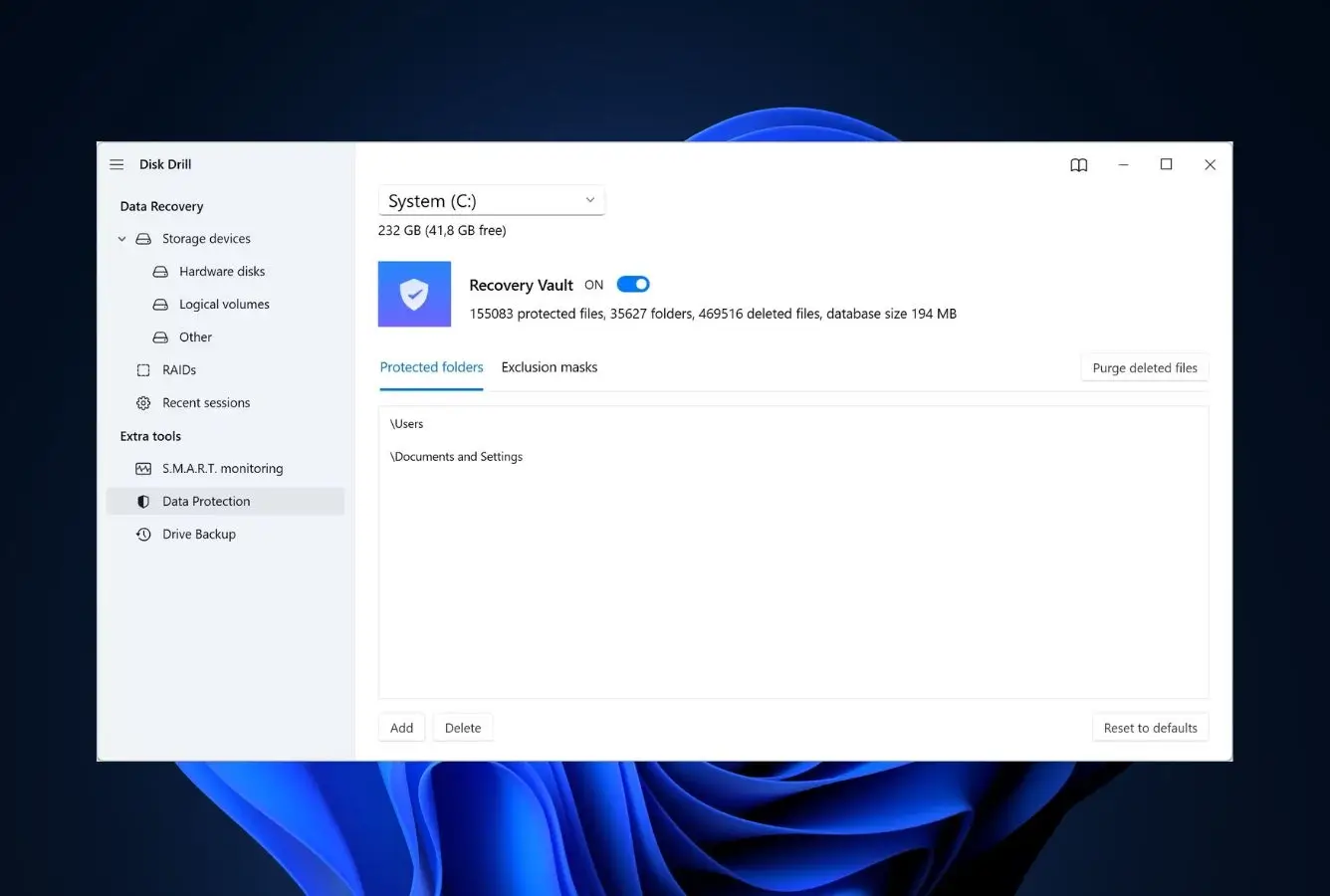
Disk Drill for Windows from CleverFiles earns third place on two distinct strengths: the cleanest interface in the category, and a preventive feature called Recovery Vault that none of its competitors replicate well. Recovery Vault quietly records metadata about files you delete, which means next-incident recovery is essentially instantaneous rather than requiring a full deep scan of the drive.
The recovery engine itself is competitive across standard Recycle Bin scenarios without being class-leading. Where Disk Drill shines is byte-to-byte disk imaging — letting you create a full snapshot of an ailing drive and perform recovery against the image rather than the original, protecting the source from further deterioration. The $89 one-time Pro license (lifetime upgrades) is unusual in a category dominated by annual subscriptions.
- Cleanest, most modern-looking interface in the Windows data recovery category as of 2026
- Recovery Vault proactively indexes deletions — turns next-incident recovery into one-click restore
- Byte-to-byte drive imaging creates a safe snapshot before running invasive deep scans on failing hardware
- $89 one-time Pro license (vs. annual subscriptions elsewhere) is meaningful long-term savings
- Full ReFS and Windows Storage Spaces support — uncommon in the mid-tier of this category
- 500MB free tier is the tightest among the commercial tools ranked here — barely enough for a single incident
- Recycle Bin recovery outcomes trail EaseUS on highly fragmented or partially overwritten files
- Recovery Vault only helps for future incidents — doesn’t retroactively recover already-emptied bins
Solid across standard scenarios, excellent when paired with preemptive Recovery Vault coverage.
Without Recovery Vault running beforehand, Disk Drill performs standard deep-scan recovery — competitive with Stellar and Wondershare on NTFS Recycle Bin reconstruction, but a step behind EaseUS on fragmented or partially overwritten entries. With Recovery Vault enabled in advance, the tool has a metadata snapshot of everything deleted from protected drives, turning Recycle Bin recovery from a deep-scan gamble into instantaneous restoration. The catch: Recovery Vault only helps for future incidents, not already-emptied bins.
The look-and-feel benchmark for Windows data recovery in 2026.
Disk Drill’s UI is the category’s most refined — a clean sidebar navigation, generous whitespace, and typography that looks designed rather than wireframed. Scanning progress is visualized in a way that makes deep-scan wait times feel purposeful rather than interminable. The recovered-files list uses a flat, browseable interface that first-time users grasp immediately. For a non-technical user opening a recovery tool for the first time, Disk Drill is the gentlest introduction on offer.
Pay once, own it forever — genuinely rare pricing in 2026 data recovery.
Disk Drill Pro for Windows is $89 one-time with lifetime upgrades, placing it as the category’s only major tool with a true one-time license in 2026. Annual plans exist for organizations ($89/year for Pro + Recovery Vault updates) but the one-time tier is the noteworthy pricing innovation. Over a three-year horizon, Disk Drill costs roughly half of EaseUS or Stellar annual renewals. The $89 one-time is the best long-term value if you need recovery capability on-hand rather than in a single emergency.

4. Wondershare Recoverit – Best for Large File Type Variety
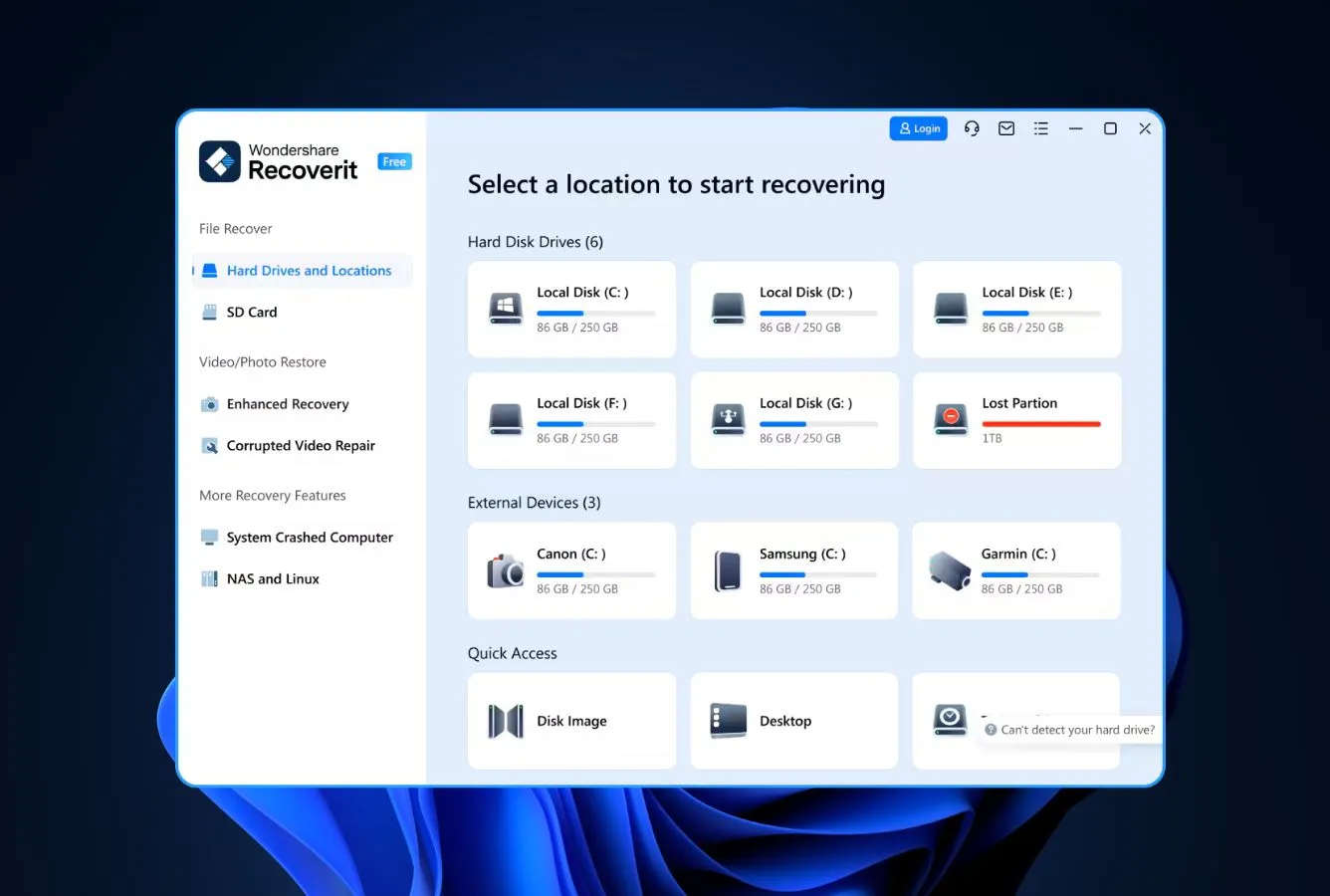
Wondershare Recoverit enters the ranking at fourth on one genuinely differentiated strength: the widest file-type coverage in this category. Where EaseUS handles the common document, image, and video formats, Recoverit extends coverage to more specialized extensions — Photoshop PSD layers, AutoCAD DWG files, Illustrator AI archives, video project files for Final Cut and Premiere — from Recycle Bin scenarios with file-signature accuracy that edges out the generalists.
The Windows build is polished (Wondershare invests heavily in UX across their Filmora/PDFelement suite) and current-version Windows 11 24H2 support is complete. The $79.95 annual tier sits in the middle of the category price band. The 100MB free tier is the category’s tightest — genuinely a preview rather than a usable free path for actual Recycle Bin recovery. For creative professionals with specialized file types in their workflow, Recoverit’s breadth is worth the jump from EaseUS.
- Widest file-type coverage in the category — specialty formats for creative workflows beyond mainstream media
- Polished UI consistent with Wondershare’s broader Filmora/PDFelement product suite
- Video-focused advanced algorithms improve recovery of fragmented video file reassembly
- Current Windows 11 24H2 support is complete; regular update cadence
- 30-day money-back guarantee and transparent pricing page
- 100MB free tier is barely a preview — single-incident home users hit the limit immediately
- Deep Scan on modern SSDs completes slower than EaseUS, Stellar, or Disk Drill in community benchmarks
- Installer and in-app upsell prompts for other Wondershare products are more frequent than competitors
Specialty file-type strength is where Recoverit leads a competent mid-tier field.
Wondershare’s signature-analysis database covers specialty creative formats (PSD, AI, DWG, PRPROJ, AEP, FCPBUNDLE) that most Recycle Bin recovery tools either skip entirely or recover as corrupted. On emptied-bin scenarios involving these formats, Recoverit pulls back intact files where EaseUS and Stellar return partial recoveries. For mainstream file types (DOCX, JPG, MP4, PDF), performance is competitive but not category-leading. Video recovery specifically benefits from Recoverit’s fragmented-file reassembly algorithms.
Wondershare’s design system applied to recovery — consistent, approachable, polished.
Recoverit’s Windows build shares its visual language with the rest of Wondershare’s suite. The drive picker, scan progress view, and filterable file-type tabs all feel consistent with Filmora or PDFelement users’ expectations. Results group into seven tabs (Photos / Videos / Audio / Documents / Emails / Archives / Others) with inline thumbnail preview, timestamps, and original-path metadata where available. Upsell prompts during scanning are more frequent than EaseUS or Disk Drill; not deal-breakers but noticeable.
$79.95/year for creative-workflow specialists; mainstream users get comparable results for less.
Recoverit’s pricing: Essential ($79.95/year, one PC), Standard ($99.95/year, adds video repair), Advanced ($139.95/year, adds NAS/Linux). For standard Recycle Bin recovery on Windows, EaseUS delivers comparable outcomes at lower pricing. For creative professionals whose deleted files routinely include PSD layer files, CAD drawings, or video project bundles, Recoverit’s file-type coverage justifies the premium. A 30-day money-back guarantee applies.

5. Recuva – Best Purpose-Built Recycle Bin Tool (Free)
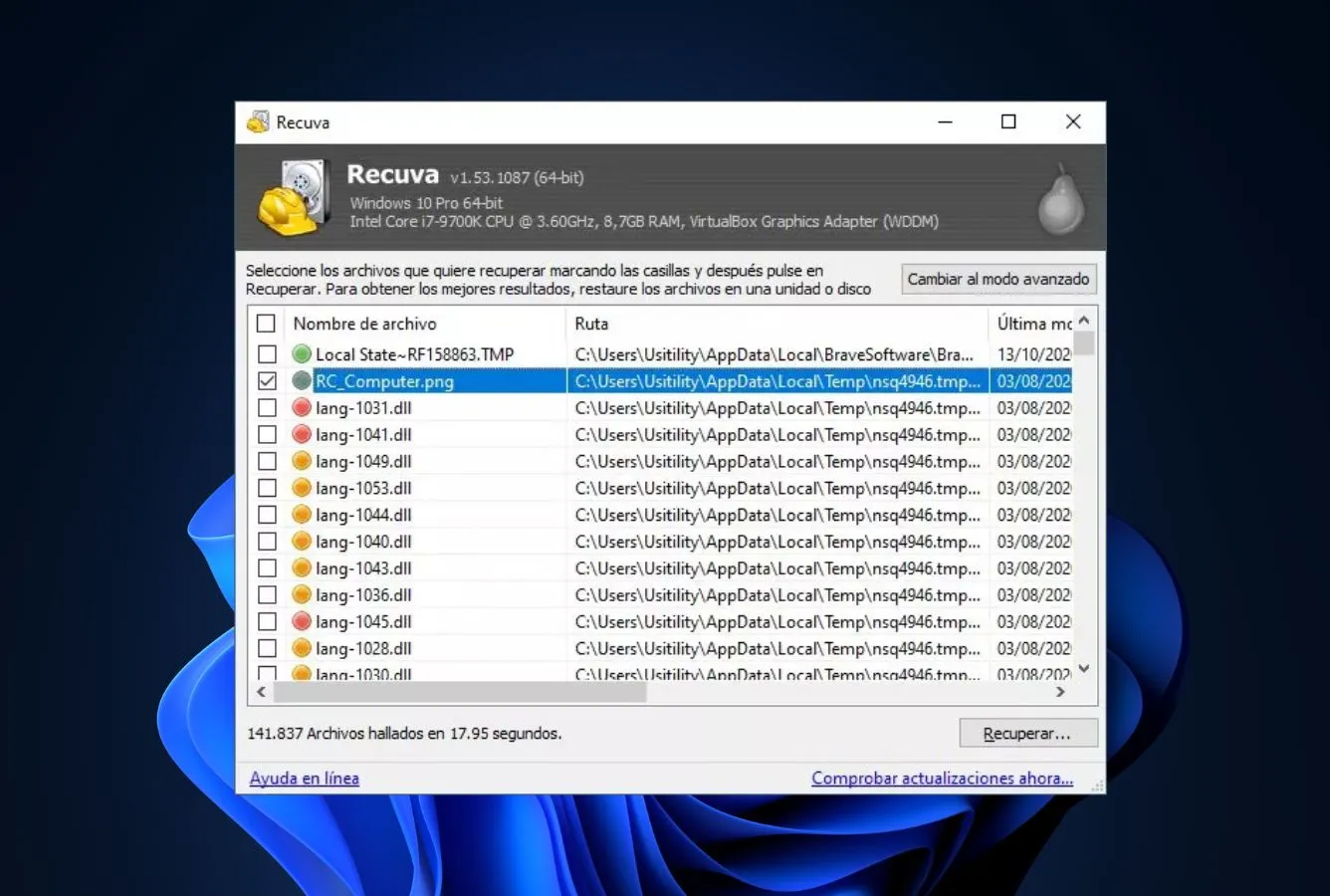
Recuva from Piriform was built specifically around Recycle Bin and Shift+Delete recovery — the category niche this listicle covers. Its Wizard interface explicitly asks “Are you sure you emptied the Recycle Bin?” as a scan configuration step, tuning the scan approach accordingly. The free tier is genuinely unlimited for personal use, with no file-size cap or recovered-count gate. For a user whose sole goal is pulling files back from an emptied bin on a relatively recent deletion, Recuva is often the fastest path to success.
The limitations appear when scenarios deviate from the purpose-built workflow. Recuva’s scan engine hasn’t received a major architectural update in years — TRIM-awareness on modern NVMe SSDs is weaker than EaseUS or Disk Drill, and ReFS support isn’t included. Piriform was acquired by Avast in 2017 and now sits under Gen Digital (which also owns Norton). Development velocity reflects the consolidated-portfolio reality: stable, maintained, but no longer pushing the category forward.
- Purpose-built around Recycle Bin recovery — the Wizard workflow is the most scenario-specific in the category
- Genuinely unlimited free tier for personal use — no file-count cap or size limit
- Deep Scan mode handles overwritten Recycle Bin entries and emptied-bin-with-reuse scenarios
- Portable version runs from USB without installation — ideal when you don’t want to write to the affected drive
- Established since 2007 with millions of installs; the default Windows power-user recommendation
- Scan engine hasn’t received a major architectural update since 2022 — TRIM-awareness on NVMe SSDs lags modern tools
- No ReFS support (Windows Server / enterprise edge cases) and weaker results on heavily fragmented drives
- Pro tier at $24.95/year mostly adds VHD/VHDX support and priority support — limited value for home users
Excellent for classic Recycle Bin scenarios, weaker on modern storage edge cases.
On HDDs and older SATA SSDs with classic NTFS Recycle Bin scenarios, Recuva’s recovery rate stays competitive with newer commercial tools — especially when the deletion is recent and Deep Scan isn’t required. The weakness: on modern NVMe SSDs with aggressive TRIM, Recuva misses files that EaseUS and Disk Drill still find, because the newer tools’ scan engines better handle partial-block TRIM states. Virtual hard drive (VHD/VHDX) recovery requires the paid Pro tier, a limitation specifically flagged by users who work with Hyper-V on Windows.
The Wizard is the draw — nothing else in the category asks better questions up front.
Recuva launches into its Wizard by default. Step 1 asks what type of files you’re looking for (pictures, music, documents, video, compressed, emails, other, all). Step 2 asks where they were last seen, with “In the Recycle Bin” as a prominent radio option. Step 3 offers the Deep Scan toggle with a plain-English explanation. Results appear as a flat table with colored dots indicating recoverability. The interface hasn’t changed meaningfully in nearly a decade, which is either a strength (familiarity, predictability) or a weakness (dated look) depending on your priorities.
Free tier is the most generous in the category — Pro tier’s value is narrow.
Recuva Free covers virtually everything a home user needs for Recycle Bin recovery, with no artificial caps. Recuva Pro at $24.95/year is the category’s cheapest paid tier but also the most narrowly-valuable upgrade — it mainly adds VHD/VHDX support, automatic updates, and premium customer support. Most home users never need the Pro features; power users working with Hyper-V or recovery-adjacent professional workflows might. For pure Recycle Bin recovery, the free tier is almost always enough.
6. MiniTool Power Data Recovery – Solid Free 1GB Tier
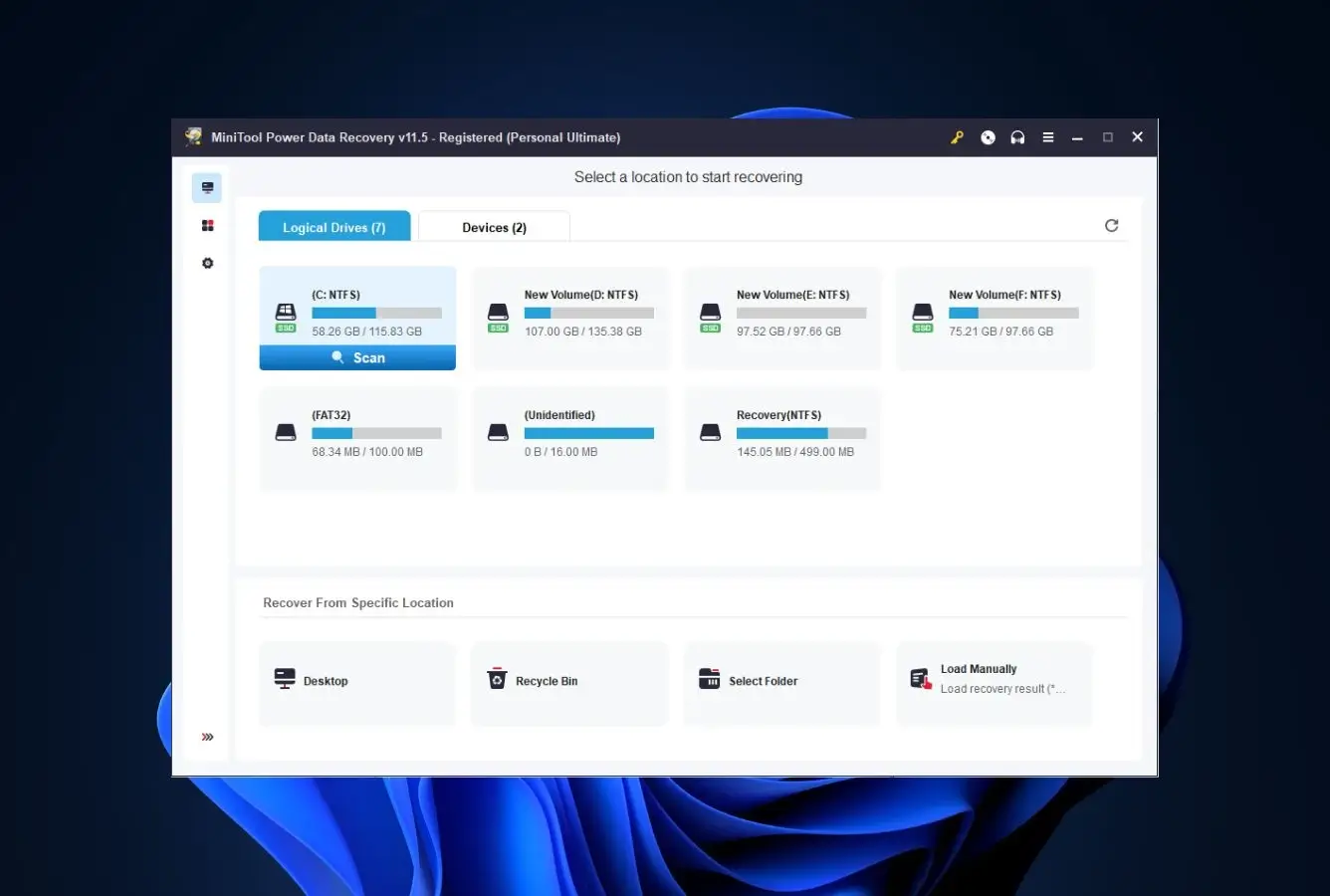
MiniTool Power Data Recovery from MiniTool Solution (Canada) includes a dedicated “Recycle Bin” recovery module in its main module selector — one of the few tools in this ranking that explicitly treats Recycle Bin recovery as a first-class scenario rather than a subset of general deletion recovery. The 1GB free tier is generous enough to cover most single-incident home recoveries, positioning MiniTool as a fair Recuva alternative for users who want a more modern scan engine at zero cost.
The product ships alongside MiniTool Partition Wizard and MiniTool ShadowMaker Backup in a broader utility suite. Recycle Bin scanning completes quickly; the scan-results UI is functional rather than polished. The weakness: community feedback frequently flags aggressive upgrade prompts in the free tier and occasional issues with scan-result persistence between sessions. For users who don’t mind those rough edges and want a credible free alternative to Recuva with better TRIM-awareness, MiniTool is a reasonable pick.
- Dedicated Recycle Bin recovery module in the main UI — not buried under generic “deleted files” path
- 1GB free tier is twice what Disk Drill offers and four times what Wondershare Recoverit does on the free path
- Modern scan engine handles NTFS TRIM on modern SSDs better than Recuva’s legacy engine
- Bootable recovery media available in paid tier for recovering from unbootable Windows installations
- Part of an established utility suite (Partition Wizard, ShadowMaker) that’s trusted in the Windows power-user community
- Scan-results UI is functional but visually dated compared to Disk Drill, EaseUS, or Stellar
- Community feedback on r/techsupport flags aggressive upgrade prompts and occasional scan-session persistence issues
- $89/year paid tier is on the higher end of the mid-range, without a differentiated feature to justify the premium
The dedicated Recycle Bin module is the draw — general scanning is solidly mid-tier.
Selecting the Recycle Bin module in MiniTool’s launch screen targets the scanner directly at the $RECYCLE.BIN folder and orphaned bin entries in the MFT, skipping the broader whole-drive scan that other tools run by default. This focused approach returns results faster for bin-specific scenarios. For general whole-drive recovery (formatted partitions, deleted partitions), MiniTool’s results are competent but trail EaseUS and Stellar on fragmented or partially overwritten files.
Functional — the module selector is a genuinely useful organizing idea.
MiniTool’s launch screen shows four modules: Logical Drives (standard scan), Devices (external and unrecognized), Recoverable Partitions (lost partition scan), and Recycle Bin (bin-specific). This organizing principle helps users match their scenario to the right scan mode without understanding the underlying difference. The results UI and preview pane are less refined than Disk Drill’s or EaseUS’s. Upgrade prompts during free-tier scanning are more frequent than competitors.
$89/year is at the top of the mid-tier band without a category-leading feature to justify it.
MiniTool Power Data Recovery pricing: Monthly ($89), Annual ($109), Lifetime ($149) — those are the current retail prices at time of research. The 1GB free tier is the real value. For paid users, EaseUS at $69.95/year delivers better outcomes across most scenarios at lower cost. For users committed to the MiniTool suite for Partition Wizard or ShadowMaker specifically, bundled licensing may shift the math.
7. R-Studio – Professional-Grade Recycle Bin Forensics
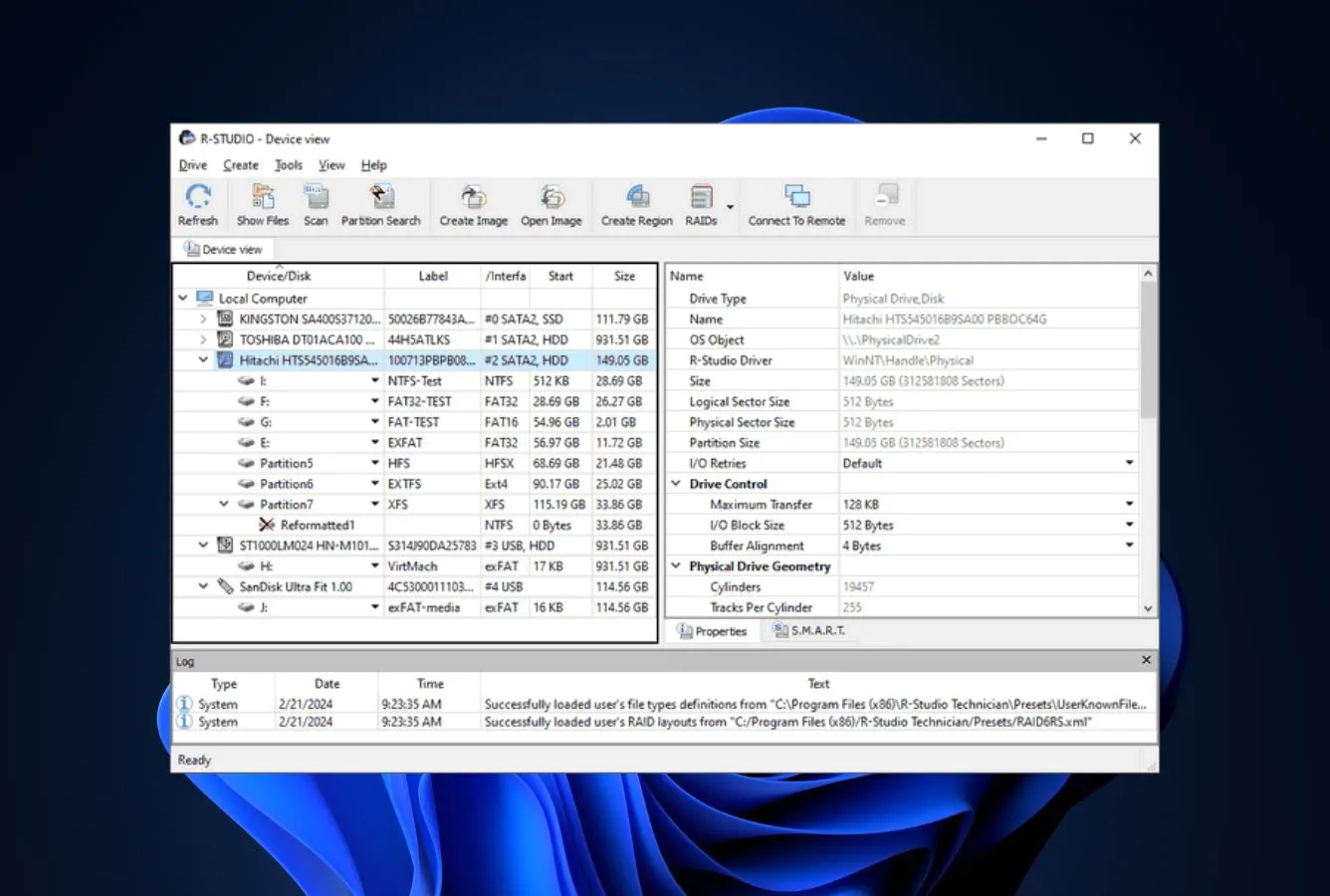
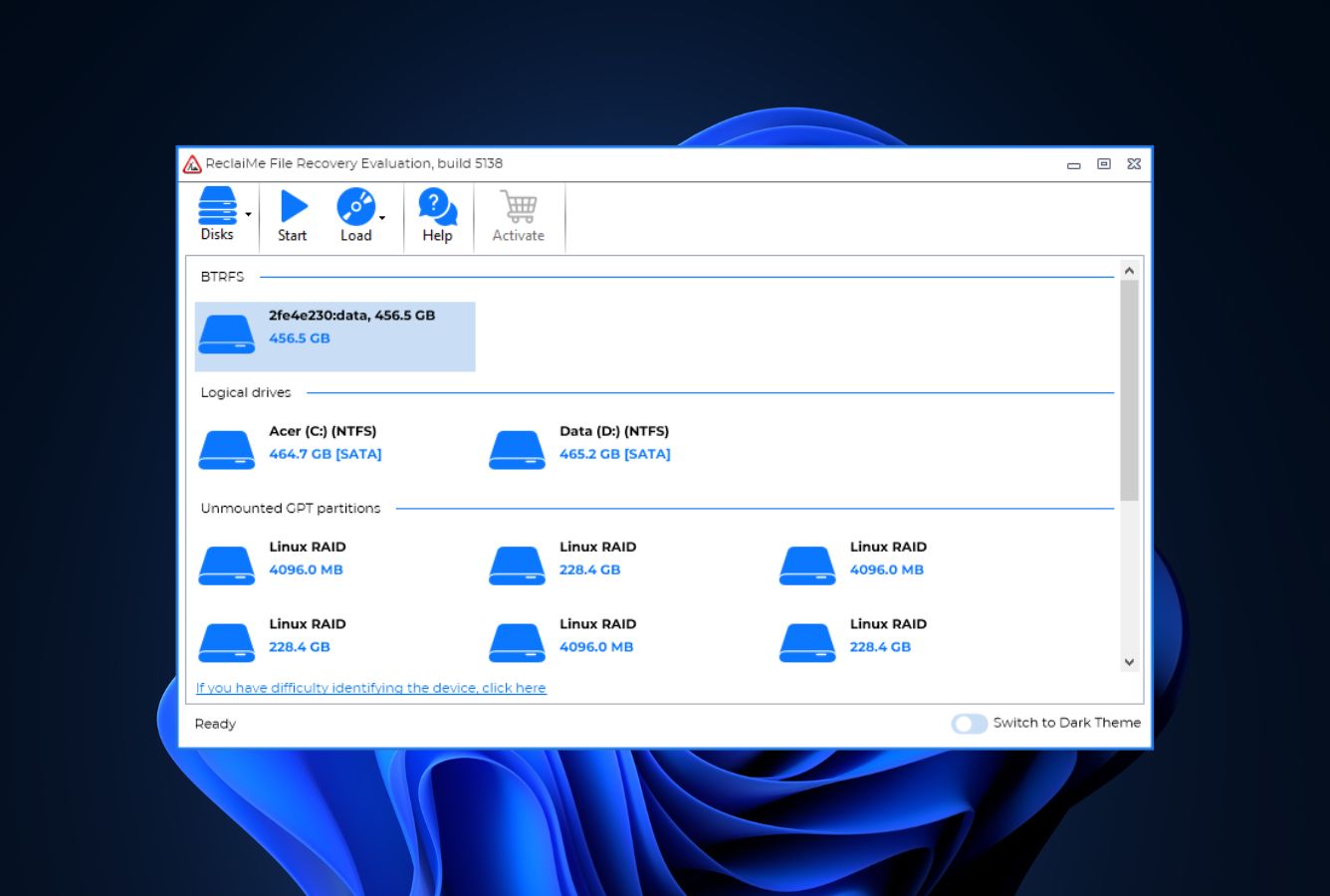
R-Studio from R-Tools Technology (R-TT) is the tool professional data recovery technicians and forensics specialists actually run in the field. It reads the NTFS MFT at hex level, reconstructs RAID configurations automatically, supports every significant file system from NTFS and ReFS through APFS and ext4, and handles Recycle Bin recovery as a specialized case of its broader forensic-recovery capability.
For a casual Recycle Bin recovery scenario, R-Studio is overkill — and its interface complexity reflects that professional positioning. The Windows-only tier ($49.99 one-time) or the Network edition covering all platforms ($179.99 one-time) earns its place in this ranking for exactly one scenario: professional technicians, IT support staff, and forensics engineers who recover files for a living and need a tool whose engine won’t give up where consumer tools do. The $79.99 one-time perpetual license for the standard edition remains one of the best long-term values for professionals.
- Professional-grade scan engine that reads NTFS MFT, USN journal, and $RECYCLE.BIN metadata at hex level
- Broadest file-system coverage in the category — NTFS, ReFS, FAT, exFAT, ext, HFS+, APFS, Btrfs
- Automatic RAID configuration detection across RAID 0/1/4/5/6 and custom striping patterns
- One-time perpetual licenses with free incremental updates — no annual subscription trap
- Network edition enables recovery from remote machines across LAN — unique in this ranking
- Steepest learning curve in this ranking — the interface assumes familiarity with file-system internals
- Demo mode is preview-only with no free recovery tier at all — commit before you see results
- Overkill for the average home user’s Recycle Bin scenario; EaseUS or Recuva are better starting points
Forensic-tier — this is the tool you escalate to when consumer tools give up.
R-Studio’s scan engine works at the raw file-system level: hex-editing MFT entries, reconstructing fragmented files from data-run metadata, and walking USN journal records to find bin entries that other tools’ MFT-based scanners miss. For complex scenarios — emptied Recycle Bin after a Windows upgrade that partially overwrote MFT entries, or bin recovery from a RAID 5 volume where one drive has failed — R-Studio routinely recovers what consumer tools declare unrecoverable. For plain Recycle Bin recovery on a single NTFS volume, the depth is unnecessary.
Feels like professional forensics software — because that’s exactly what it is.
R-Studio’s interface is a multi-pane view with a drive tree, hex editor, file previewer, and RAID constructor visible simultaneously. For first-time users unfamiliar with file-system internals, the learning curve is steep — there’s no wizard, no “I emptied my Recycle Bin” fast path, and the assumption is the operator knows what they’re doing. For experienced technicians, the density is a feature: every operation the engine supports is one panel away.
One-time pricing at tiers that match professional use patterns.
R-Studio pricing: Windows-only FAT ($49.99 one-time), Windows ($79.99 one-time), Network ($179.99 one-time across all platforms), Technician ($899 one-time for data-recovery-service operators). All are perpetual licenses with free point updates. For home users, $79.99 one-time is attractive versus annual subscriptions, but the learning curve gates much of the value. For IT support technicians and data recovery professionals, R-Studio at $79.99–$179.99 delivers more per dollar over a multi-year horizon than any subscription-based competitor.

8. DMDE – Affordable Low-Level Undelete for Advanced Users
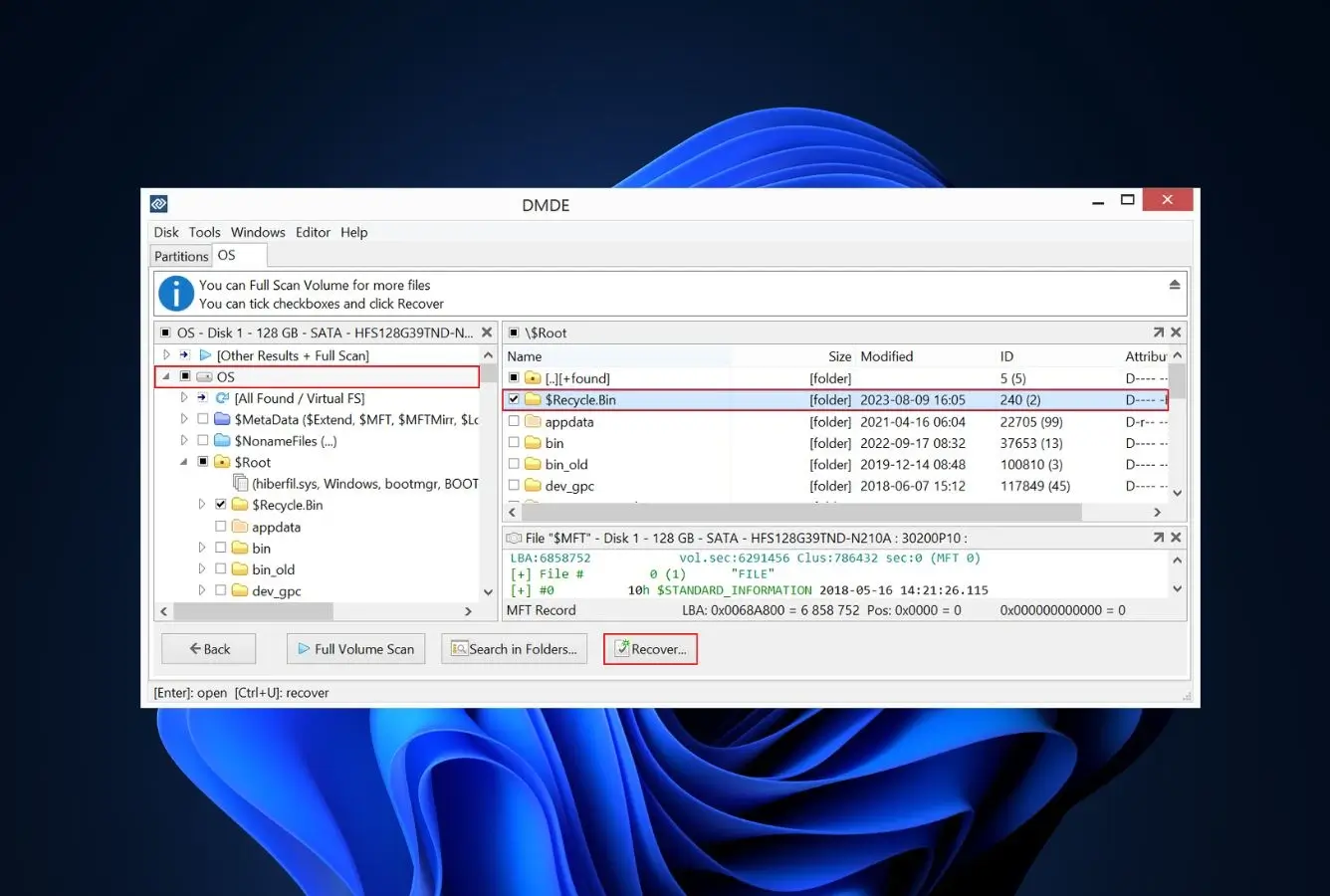
DMDE (DM Disk Editor and Data Recovery Software) is the budget alternative to R-Studio. Developed since 2006 by Dmitry Sidorov as a solo project, it delivers forensic-tier recovery depth at hobbyist pricing — Express tier at $20/year, Standard at $48 perpetual, Professional at $95 perpetual. The scan engine reads the NTFS MFT directly, handles Recycle Bin scenarios with all per-user SID subfolders, and works across Windows, Linux, macOS, and DOS from the same codebase.
The free tier is unusually generous: recover up to 4,000 files per directory per session, with no cap on the number of sessions. For single-incident Recycle Bin recovery from a typical home PC’s $RECYCLE.BIN, the free tier often completes the job without ever needing a paid license. The trade-off is interface complexity — DMDE’s UI is minimalist verging on sparse, the ZIP-file download occasionally trips Windows Defender, and there’s no friendly wizard to guide first-time users through the scan configuration. For technical users who prioritize capability over polish, DMDE is the best-value entry in this ranking.
- Most generous free tier among professional-grade tools — 4,000 files per directory per session, unlimited sessions
- Express tier at $20/year is the cheapest paid option in the professional-depth bracket of this ranking
- Broad file-system coverage including NTFS, ReFS, ext4, APFS, btrfs from a single Windows executable
- Portable — no installation, runs from any folder or USB drive without touching the affected volume
- Active solo development since 2006 with steady release cadence; developer responsive on user forums
- ZIP-file distribution occasionally triggers Windows Defender false-positive warnings during download
- UI is minimalist to the point of spartan — no wizard, no hand-holding, assumes operator familiarity
- TRIM-awareness on modern SSDs trails EaseUS, Disk Drill, and Stellar for recent deletions
Solid enough for 90% of Recycle Bin scenarios at a fraction of R-Studio’s price.
DMDE’s scan engine directly reads the NTFS MFT, $RECYCLE.BIN folder structure, and underlying data clusters. For emptied-bin recovery on HDDs or older SSDs, results are competitive with mid-tier commercial tools. Recycle Bin metadata reconstruction (original paths, filenames from $I files) works reliably when those metadata files are still present. On modern NVMe SSDs with aggressive TRIM, results fall behind EaseUS, Disk Drill, and Stellar — DMDE’s scan engine hasn’t received the specific TRIM-state handling that newer commercial tools have.
Powerful if you know what you’re doing, opaque if you don’t.
DMDE launches into a three-pane view: device tree, directory tree, file listing. Recycle Bin recovery requires manually navigating to the drive’s $RECYCLE.BIN path and drilling into the per-user SID subfolder. No wizard. No “I emptied the Recycle Bin” quick path. Preview works for common image formats. For power users comfortable with Windows file-system internals, this density is a non-issue; for casual users it’s intimidating. The ZIP-based portable distribution is a genuine strength — no installer footprint, runs from anywhere.
Best price-to-depth ratio in this ranking — if you can navigate the UI.
DMDE tiers: Free (4,000 files per directory, unlimited sessions), Express $20/year (removes batch limit, Windows only), Standard $48 perpetual (Windows + Linux + DOS + macOS), Professional $95 perpetual (adds scripting, pro features). The Free tier alone often covers home-user Recycle Bin incidents. The Express tier at $20/year is the cheapest paid entry in this ranking. For technically-confident users who don’t need hand-holding, DMDE delivers more recovery depth per dollar than any alternative in this list.
How We Evaluate Recycle Bin Recovery Tools
Recycle Bin recovery is a narrow category with specific failure modes that generic “Windows data recovery” evaluations don’t always catch. A tool that reports excellent recovery rates on formatted-drive tests can still struggle with corrupted $RECYCLE.BIN folder structure or per-user SID subfolders. Our evaluation draws on three evidence streams: vendor documentation for feature baselines and supported file systems, independent third-party testing sources for cross-referenced recovery outcomes, and community signal from r/techsupport, r/datarecovery, Microsoft Answers, Trustpilot, and G2 for real-world operator experience.
Windows versions covered: Windows 11 24H2 (current), 23H2, Windows 10 (22H2 and older supported builds), Windows 8.1, Windows 7 for legacy tool compatibility where vendors still publish support. File systems covered: NTFS (all editions), exFAT (removable media), FAT32 (legacy), ReFS (enterprise/server volumes). Scenario-specific weight: recovery capability on the three Recycle Bin scenarios (40%), usability on a casual emptied-bin situation for non-technical users (20%), safety and installer behavior (15%), differentiated features like Recovery Vault or BitLocker support (15%), Windows version and file-system coverage (5%), pricing transparency (5%).
Per-tool compatibility notes, independent-testing cross-references, and community-signal aggregation behind this ranking are documented in full on our methodology page. Start there to audit the evidence behind any specific score.
Honorable Mentions – Runners Up
Worth knowing about, but not quite the main eight. Some entries here are older mainstays like Puran that still work fine on classic HDD scenarios but haven’t kept up with modern TRIM handling. Others, like Microsoft’s free Windows File Recovery CLI, solve the problem from a different angle than the GUI tools above. A few are legitimately competitive tools whose pricing structure, installer behavior, or ergonomics kept them from the top eight despite solid recovery engines underneath.
How to Choose the Right Tool for Your Scenario
The right Recycle Bin recovery tool depends less on marketing claims than on what exactly happened to your files. Match the scenario below to the shortlist of tools most likely to succeed — and stop writing new data to the affected drive the moment you realize recovery is needed, regardless of which tool you eventually pick.
Files Still in the Recycle Bin — No Software Needed
If the Recycle Bin hasn’t been emptied, the file is still recoverable with zero software required. Open the Recycle Bin from the desktop, right-click the file, and select Restore — Windows returns it to its original folder path automatically. This is the fastest, safest recovery path and works for 100% of cases where the bin is intact. Only move to recovery software after confirming the file isn’t in the bin.
Just Emptied the Recycle Bin — Move Fast
For freshly emptied Recycle Bin scenarios on a typical home PC, EaseUS Data Recovery Wizard or Recuva Free are the fastest paths to success. Both handle the common NTFS deletion pattern well, both let you recover without paying if the total data volume fits their free tier. The critical variable is speed — on modern SSDs, TRIM can render files unrecoverable within hours. Install the recovery tool to a different drive than the one containing deleted files, run a quick scan first, and commit to recovery immediately when preview shows the right files.
Corrupted or Weird-Looking $RECYCLE.BIN Folder
If you open File Explorer’s hidden-files view and the $RECYCLE.BIN folder at the drive’s root looks corrupted, has unusual subfolders, or can’t be read at all, consumer tools often fail to deliver. Stellar Data Recovery’s partition scanner is the strongest fit for this scenario — it reconstructs bin contents from NTFS journal entries even when the folder structure is damaged. R-Studio and DMDE also handle this well if you’re comfortable with their heavier interfaces.
BitLocker-Encrypted Corporate Windows Laptops
If the affected Windows PC has BitLocker enabled (increasingly common on corporate-issued laptops and Windows 11 Pro installations), most consumer recovery tools can’t read the drive at all. Stellar Data Recovery’s Professional tier ($99.99/year) handles BitLocker-encrypted volume scanning with the recovery key provided by your IT department. R-Studio’s network edition is the other option for managed environments. EaseUS, Disk Drill, and Recuva can’t work with BitLocker drives without decryption first.
Modern NVMe SSD with TRIM Enabled
Windows 10 and 11 ship with TRIM enabled by default on NVMe SSDs, which drastically shortens the recovery window after emptying the Recycle Bin — often to minutes or hours rather than days. If your system is on an NVMe SSD, prioritize tools with modern TRIM-awareness: EaseUS, Disk Drill, Stellar, or Wondershare Recoverit. Recuva’s legacy scan engine handles this scenario less well. DMDE and R-Studio recover more on SSDs than Recuva but slightly less than the top-three commercial tools.
External USB Drives, Memory Cards, and Network Shares
External USB drives have their own $RECYCLE.BIN folder at the drive root (visible when you enable “Show hidden files” in File Explorer). The same recovery tools that work on internal drives handle external USB the same way — pick the external drive as the scan target. Memory cards usually don’t use the Recycle Bin at all and require a different approach — see our SD card recovery guide for the card-specific workflow. Network and mapped drives typically bypass Recycle Bin entirely; check the server or NAS snapshot settings before software recovery. If the external drive itself is the source of the data loss (failed mechanical HDD, corrupted external disk), our free hard drive recovery guide covers drive-specific scenarios that go beyond Recycle Bin recovery.
Safety First — Where to Download From
Download recovery software only from each vendor’s canonical domain: easeus.com, stellarinfo.com, cleverfiles.com, recoverit.wondershare.com, ccleaner.com (for Recuva), minitool.com, r-studio.com, and dmde.com. Third-party aggregator sites routinely repackage these installers with bundled adware — the top community-reported source of Windows adware in the recovery category specifically. If Windows Defender or SmartScreen flags the download, double-check you’re on the vendor domain before overriding the warning.
When Software Can’t Recover from the Recycle Bin
Recycle Bin recovery has hard limits. Understanding them upfront saves hours of scanning for files that the NTFS and Windows storage stack have already made mathematically unrecoverable. Match your scenario below before committing to a recovery attempt.
| Your situation | Software can help? | What to do instead |
|---|---|---|
| Files still visible in Recycle Bin (not emptied) | Yes | Right-click → Restore in File Explorer; no software needed |
| Emptied bin recently, minimal drive activity since | Yes | EaseUS, Recuva Free, Stellar, or Disk Drill — quick scan first |
| Emptied bin weeks ago on heavily-used SSD with TRIM | Likely No | Try modern TRIM-aware tools (EaseUS, Disk Drill); expect partial results |
| Factory-reset Windows with “Remove files and clean drive” | No | Clean-drive reset explicitly overwrites data; recovery not possible |
| Drive is physically failing (SMART errors, strange noises) | No | Stop immediately. Professional cleanroom recovery service |
The Data Was Overwritten
The underlying reality of Recycle Bin recovery: when Windows “deletes” a file, it marks the disk sectors as free but leaves the data intact until something new is written there. Every minute you keep using the computer — downloading browser cache, updating Windows, installing software, receiving emails — new writes may land on those freed sectors. Once they’re overwritten, the data is mathematically gone. No software can reconstruct overwritten sectors. This is the most common reason recovery fails.
TRIM Processed the SSD Cells
On NVMe and SATA SSDs with TRIM enabled (default on Windows 10 and 11), emptying the Recycle Bin triggers Windows to send TRIM commands for the affected cells. The SSD controller then proactively erases those flash cells during garbage collection — usually within minutes to hours. After garbage collection completes on a TRIM’d cell, the data is gone at the hardware level. Recovery software queries the SSD and receives zeros back from TRIM’d cells regardless of what originally lived there.
Clean-Drive Factory Reset Wipes Everything
Windows 10 and 11’s “Reset this PC” feature offers two modes: “Keep my files” and “Remove everything.” The latter has a sub-option called “Clean the drive” (or similar) that explicitly writes zeros across the entire drive after the reset completes. If you selected this option, all data — including anything that was in the Recycle Bin before — is permanently gone. Standard factory reset without clean-drive may leave some data recoverable, but reset + clean-drive is a hard stop.
Windows Storage Spaces and ReFS Complications
Windows Storage Spaces (software RAID) and ReFS (the next-generation file system for Windows Server) add complexity that most consumer recovery tools handle poorly. A deleted file on a Storage Spaces volume is distributed across multiple physical drives with parity, and recovering it requires understanding the Storage Spaces layout. R-Studio and DMDE handle these scenarios; most consumer tools (including EaseUS and Recuva) don’t fully support them. For Windows Server or Storage Spaces environments, start with R-Studio’s demo to evaluate recoverability before paying.
Physical Drive Failure Won’t Be Fixed by Software
If the drive is clicking, reporting SMART errors, or failing to mount in Windows, software recovery is the wrong path. Running a deep scan on a failing drive accelerates the failure, often pushing recoverable data into unrecoverable territory. Stop, power down, and contact a professional cleanroom recovery service. Prices range from $300 to $2,500+ depending on drive type and damage extent. Our hard drive recovery guide covers the physical-damage decision tree in more detail.
Every new file written to the drive risks overwriting the data you’re trying to recover. Don’t download recovery software to the affected drive, don’t install it there, don’t let Windows Update run. Power the machine down, boot from another drive or USB if possible, and connect the affected drive as external for scanning. On modern SSDs with TRIM, speed matters more than tool choice.
Built-in Windows Recovery Options (Check These First)
Before downloading anything, check Windows’ built-in recovery paths. The file you think is permanently gone may still be sitting in the Recycle Bin, in File History, in a Previous Version, or on OneDrive — zero-cost, zero-install, and safer than running a third-party tool on a fragile drive.
Check the Recycle Bin First (Obviously)
Double-click the Recycle Bin icon on the desktop. If Windows didn’t actually empty the bin — or if the deletion happened on an external USB drive where the bin is less visible — the file is often right there waiting to be restored. Right-click, Restore, done. This resolves more “lost file” cases than any software tool in this ranking. If the file genuinely isn’t in the bin, then move to recovery software.
File History — If You Had It Enabled
Windows File History is the built-in backup feature that automatically saves versions of files from the Documents, Pictures, Music, Videos, and Desktop folders to an external drive or network share. If File History was enabled before the deletion (Settings → System → Storage → Advanced storage settings → Backup options), you can restore lost files via the File History applet in Control Panel. Zero software needed, zero cost. Most home users don’t have File History enabled, but it’s worth checking.
Previous Versions (Volume Shadow Copy)
Right-click any folder in File Explorer and select “Restore previous versions.” If Windows’ Volume Shadow Copy service took snapshots before the deletion, previous versions of the folder appear with timestamps. Right-click a version and select Restore. This feature relies on System Protection being enabled for the drive — check System Properties → System Protection to confirm and adjust. Previous Versions is turned off by default on most non-system drives.
OneDrive Recycle Bin
If the deleted file was in a OneDrive-synced folder (which includes Desktop, Documents, and Pictures for most Windows 11 users with default setup), OneDrive keeps its own Recycle Bin at onedrive.live.com for 30 days after deletion. Sign into the OneDrive web interface, open the Recycle Bin icon in the left sidebar, and restore. This is the single most under-used Windows recovery path — many users don’t realize Desktop files sync to OneDrive and are recoverable there.
When Built-in Options Aren’t Enough
If the file isn’t in the Recycle Bin, File History wasn’t enabled, Previous Versions is empty, and OneDrive didn’t have it — that’s when the tools in the main ranking above become relevant. Start with EaseUS, Recuva Free, or Disk Drill for typical scenarios. Move to Stellar for BitLocker or corrupted-bin cases. Move to R-Studio or DMDE for professional-grade complexity. Move to a professional cleanroom service for physical drive failure.
The fastest fix for Recycle Bin recovery is never needing it. Ten minutes in Settings enabling File History to an external drive, turning on OneDrive’s Known Folder Move, and optionally configuring Windows Backup eliminates most of the scenarios this ranking’s tools exist to solve. If built-in options come up empty, our free Windows data recovery guide lists the no-cost tools that handle Recycle Bin emptying and other common Windows scenarios.
Final Verdict
EaseUS Data Recovery Wizard is the best Recycle Bin recovery software for Windows in 2026. It handles all three common Recycle Bin scenarios — emptied bin, Shift+Delete, oversized bypass — with category-leading consistency on NTFS, exFAT, FAT32, and ReFS volumes. The 2GB free tier is enough for most real-world home incidents without paying anything. Established brand trust since 2004 and full Windows 11 24H2 support close the deal.
Beyond the winner: Stellar Data Recovery is the specialist for corrupted $RECYCLE.BIN folders and BitLocker-encrypted corporate laptops. Disk Drill offers the cleanest interface plus Recovery Vault’s preventive metadata snapshots, priced as a one-time $89 perpetual license in a category dominated by annual subscriptions. Wondershare Recoverit leads on specialty creative file types. Recuva remains the free default for classic emptied-bin scenarios on older hardware. MiniTool Power Data Recovery ships a dedicated Recycle Bin module with a decent 1GB free tier. R-Studio is the professional tool for technicians who recover files for a living. DMDE delivers forensic depth at hobbyist pricing for technical users comfortable with spartan UIs.
Frequently Asked Questions
About the Authors


Data Recovery Fix earns revenue through affiliate links on some product recommendations. This does not influence our rankings — all tools are evaluated independently based on vendor documentation, independent third-party testing, and community feedback before any affiliate relationships are considered. If anything on this page looks inaccurate, outdated, or worth revisiting, please reach out at contact@datarecoveryfix.com and we’ll review it promptly.