8 Best SSD Data Recovery Software for Windows & Mac (2026): Reviewed & Ranked
The best SSD data recovery software has to fight a shorter clock than hard-drive recovery. TRIM, wear-leveling, and hardware encryption all work against you. We cross-referenced 24 recovery tools across NVMe and SATA SSD scenarios on both Windows (NTFS, exFAT) and Mac (APFS, HFS+), pulling from vendor documentation, independent testing, and community feedback on r/datarecovery, r/buildapc, MacRumors forums, and Trustpilot. Here are the 8 that still deliver results in 2026 despite the TRIM clock.
+ 6 honorable mentions
· community feedback
ReFS & HFS+ where supported
Win 11 24H2 · macOS 15
EaseUS Data Recovery Wizard wins overall for SSD recovery in 2026. Its scan engine has received multiple TRIM-awareness updates over the past three years and now consistently recovers files from NVMe SSDs in the minutes-to-hours window before controller garbage collection finishes its work. Disk Drill earns second place for the cleanest cross-platform experience — identical Windows and Mac builds, APFS-fluent on modern Macs, and Recovery Vault’s preventive metadata snapshots that make future SSD incidents recoverable without a scan. Stellar Data Recovery rounds out the top three with specialized handling for encrypted SSD volumes (BitLocker, FileVault) that most consumer tools skip entirely.
 EaseUS Data Recovery Wizard
- TRIM-aware scan engine updated specifically for modern NVMe controllers
- Parallel Windows and Mac builds with near-identical feature parity across platforms
- 2GB free tier recovers real-world SSD incidents without immediate purchase
- Covers NTFS, exFAT, FAT32, APFS, HFS+ — every mainstream SSD file system
 Disk Drill
- Identical builds for Windows and Mac — single license workflow across both platforms
- Recovery Vault proactively snapshots SSD file metadata before deletion happens
- Byte-to-byte imaging preserves failing SSDs without running invasive scans on them directly
- APFS support includes encrypted volumes when FileVault password is available
 Stellar Data Recovery
- BitLocker and FileVault decryption support during recovery with the unlock key
- Rebuilds corrupted APFS containers and NTFS partition tables other tools skip
- Recoverability indicators (green/yellow/red) show success probability pre-purchase
- Optional cleanroom lab service for physical SSD failures software can’t resolve
- 1EaseUS Data Recovery Wizard – Best Overall SSD Recovery
- 2Disk Drill – Best Cross-Platform SSD Experience
- 3Stellar Data Recovery – Best for Encrypted SSD Volumes
- 4R-Studio – Best Professional SSD Forensics
- 5Wondershare Recoverit – Best for Creative SSD File Types
- 6UFS Explorer – Best for NVMe & Enterprise SSD Recovery
- 7DMDE – Best Budget Cross-Platform SSD Tool
- 8MiniTool Power Data Recovery – Solid Windows + Mac Freemium
8 Best SSD Recovery Tools – Quick Comparison
SSD recovery ranking depends on three variables that don’t matter as much for HDD recovery: how well the scan engine handles the narrow window between deletion and TRIM completion, whether the tool can work with encrypted SSDs (SED/OPAL controllers, BitLocker volumes on Windows, FileVault on Mac), and cross-platform parity — because SSDs increasingly move between Windows and Mac workflows (external NVMe enclosures used on both, Apple Silicon Macs paired with Windows workstations in creative shops).
Tools ordered below by overall suitability for the most common SSD recovery scenario: a modern NVMe or SATA SSD, 500GB to 4TB, running either Windows 11 or recent macOS, with TRIM enabled and the deletion noticed within hours to days. The ranking shifts for specialized scenarios — R-Studio and UFS Explorer move up for enterprise NVMe, RAID SSD arrays, or Linux-hosted drives; DMDE becomes the budget specialist; the top three hold for most home and prosumer cases.
| Tool | SSD Performance | Platforms | File Systems | Encrypted SSDs | Free Limit | Starting Price | Best For |
|---|---|---|---|---|---|---|---|
| EaseUS Data Recovery | Excellent | Windows, Mac | NTFS, exFAT, APFS, HFS+ | Software-encrypted | 2GB | $69.95/yr | Most Windows/Mac SSD users |
| Disk Drill | Very Good | Windows, Mac | NTFS, exFAT, APFS, HFS+ | FileVault, BitLocker | 500MB (Win) | $89 one-time | Cross-platform workflows |
| Stellar Data Recovery | Very Good | Windows, Mac | NTFS, exFAT, APFS, HFS+ | BitLocker, FileVault | 1GB | $79.99/yr | Encrypted + corrupted SSDs |
| R-Studio | Excellent | Win, Mac, Linux | NTFS, APFS, ReFS, ext, all | Via credentials | Demo preview | $79.99 one-time | Pro / RAID / forensics |
| Wondershare Recoverit | Very Good | Windows, Mac | NTFS, exFAT, APFS, HFS+ | Software only | 100MB | $79.95/yr | Creative file types |
| UFS Explorer | Excellent | Win, Mac, Linux | NTFS, APFS, ZFS, Btrfs, all | BitLocker, LUKS, FileVault | 768KB/file trial | $65 one-time (Std) | NVMe & enterprise SSDs |
| DMDE | Good | Win, Mac, Linux, DOS | NTFS, APFS, Btrfs, all | Limited | 4,000 files/dir | $20/yr Express | Budget power-user |
| MiniTool Power DR | Good | Windows + Mac version | NTFS, exFAT, APFS, HFS+ | Software only | 1GB | $89/yr | Mid-tier freemium |
Performance ratings capture how each tool behaves on NVMe and SATA SSDs specifically — weighted toward TRIM window handling and encrypted-volume support, not generic HDD recovery. All pricing and free-tier limits drawn from vendor pages at time of publication.
8 Best SSD Recovery Tools – In-Depth Reviews
1. EaseUS Data Recovery Wizard – Best Overall SSD Recovery
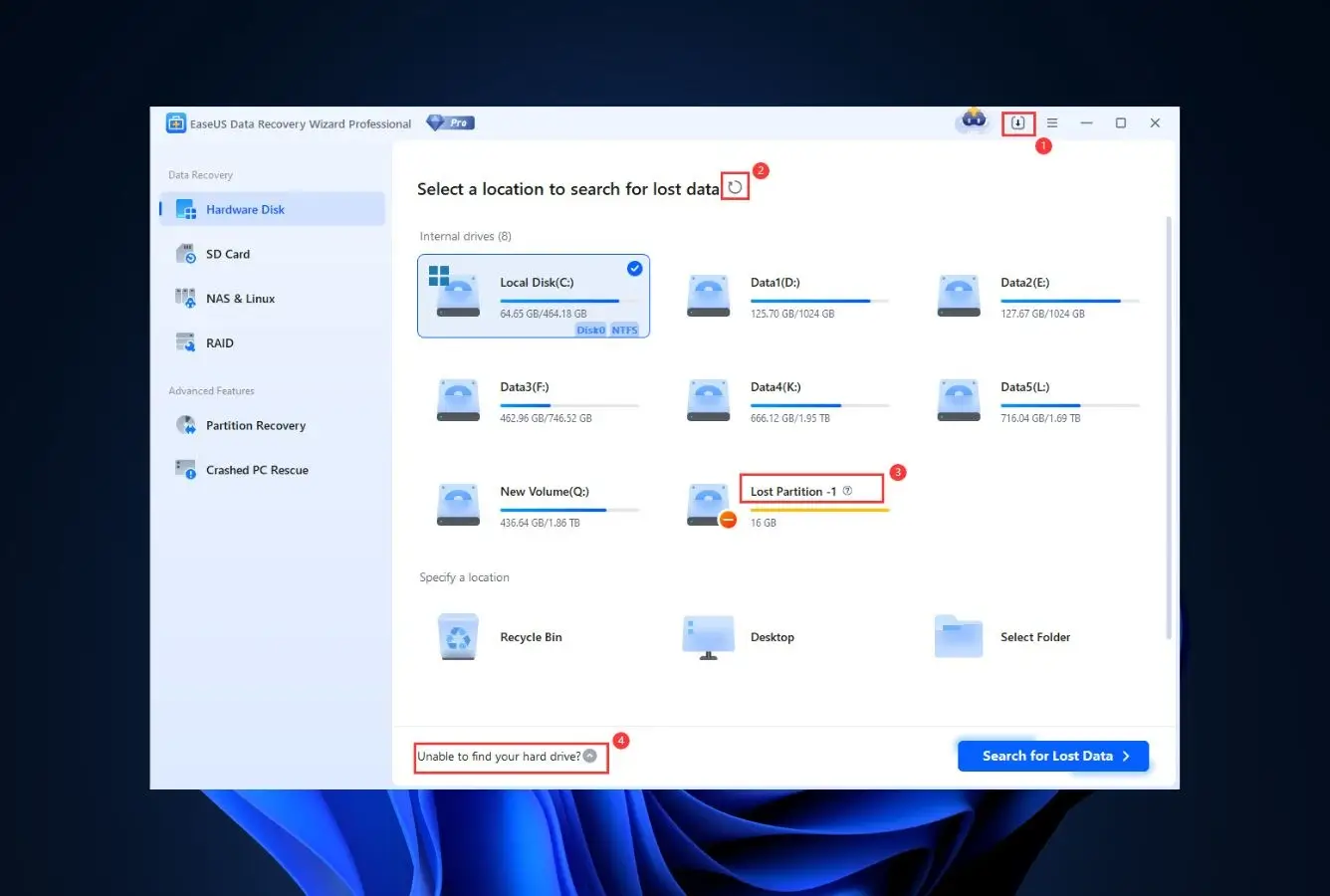
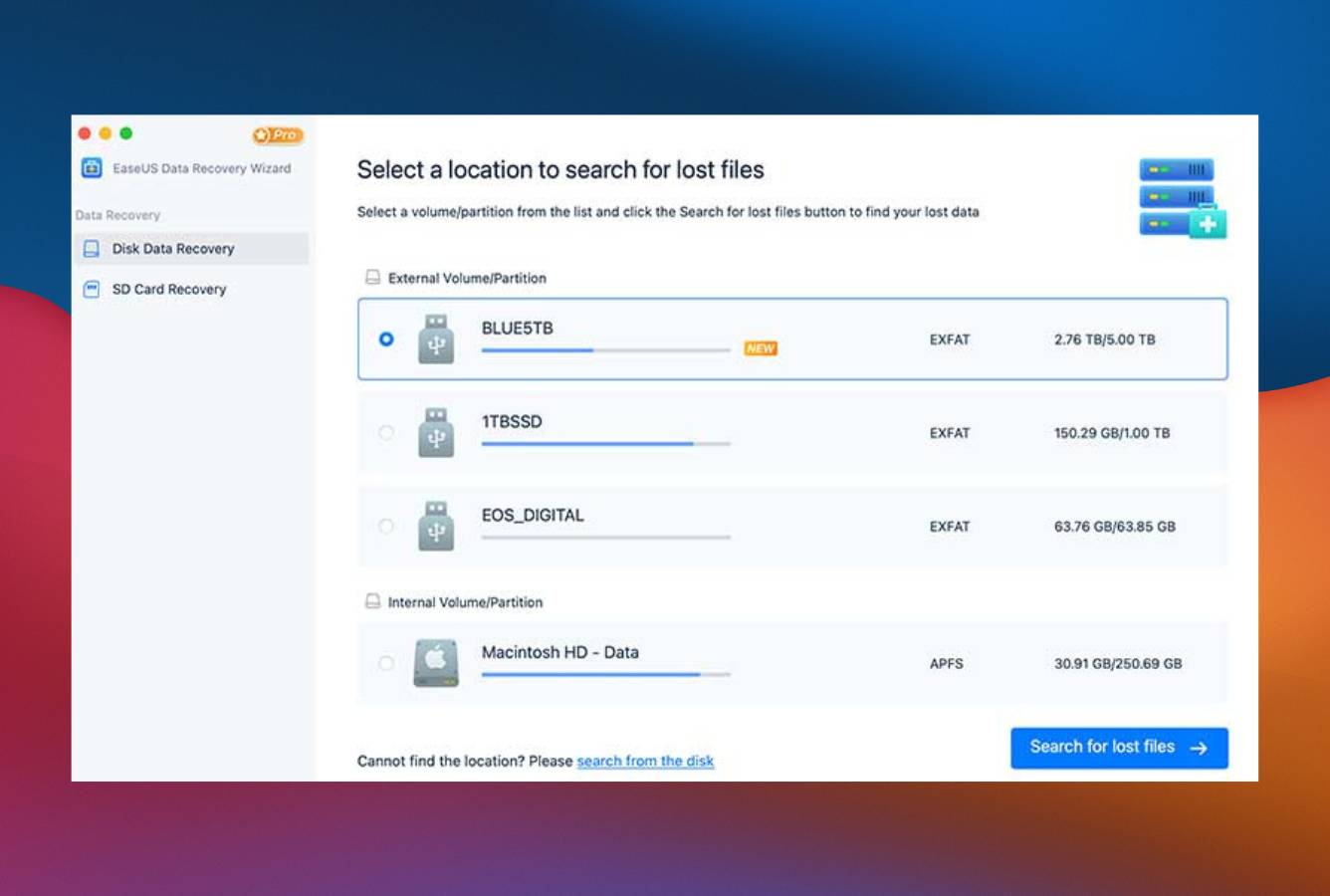
EaseUS Data Recovery Wizard is the SSD recovery tool most Windows and Mac users should reach for first. Between 2023 and 2025, EaseUS pushed multiple updates specifically targeting NVMe TRIM behavior — the kind of iterative engineering most competitors didn’t bother with — and the payoff shows in how often it recovers files from SSDs where older tools return empty scans.
What makes EaseUS the default SSD pick in 2026: parallel Windows and Mac builds with near-identical feature parity (many cross-platform competitors ship a stripped-down Mac version), full APFS support including encrypted volumes when FileVault credentials are provided, and a 2GB free tier that covers most single-incident home SSD recoveries without forcing a purchase. The annual $69.95 Pro tier adds raw partition scanning, bootable USB for dead-Windows scenarios, and removes the 2GB cap for professional workflows.
- Scan engine updated multiple times since 2023 with NVMe-specific TRIM timing improvements
- Feature-parallel Windows and Mac builds — not a stripped-down port on one platform
- 2GB free tier covers real-world SSD recovery incidents without immediate purchase
- APFS support includes FileVault-encrypted volumes (with recovery key) — rare in the freemium tier
- Active vendor with predictable update cadence and responsive support — safer than abandoned tools
- Annual subscription renews by default; check account settings after purchase to disable auto-renewal
- Can’t scan internal Apple Silicon Mac SSDs due to Apple’s Secure Enclave restrictions (no tool can)
- Windows installer prompts to bundle EaseUS Todo Backup during setup — uncheck to skip
Beats the TRIM clock more often than any competitor because the team built for it explicitly.
NVMe TRIM processing is the critical variable in modern SSD recovery, and EaseUS is the only mainstream tool whose public release notes show repeated NVMe-specific engine work. Community feedback on r/datarecovery consistently places EaseUS at the top when users report tight recovery windows on recent deletions. For SATA SSDs, the margin narrows — most good tools recover similar amounts — but on NVMe, EaseUS’s edge is consistent across user-reported outcomes.
The wizard that doesn’t feel like a wizard — automatic, immediate, live preview.
Opening EaseUS on Windows or Mac drops you straight to a drive picker. Click the SSD, scanning starts automatically, and results populate in real time across filterable categories. The live preview during scanning is the killer feature for SSD recovery specifically — on a 2TB NVMe, you can see whether the files you need are coming back within the first 60 seconds instead of waiting for a 30-minute full scan to complete. The Mac build mirrors the Windows UX with only minor platform-specific adaptations.
2GB free covers most home SSD incidents; $69.95/year is the category-value benchmark for Pro.
The free 2GB tier is where most home users land their recovery — photos, documents, project files rarely exceed 2GB total for a single incident. The Pro tier at $69.95/year unlocks unlimited recovery, adds raw partition scanning, and includes technical support. Lifetime Pro is available at $149.95 for workflows where recovery capability needs to stay on-hand. Monthly ($69.95/month) exists but rarely makes economic sense versus the annual tier. A 30-day money-back guarantee applies across all paid tiers.
2. Disk Drill – Best Cross-Platform SSD Experience
Disk Drill is the best choice for anyone who lives in both Windows and Mac workflows — creative professionals shuttling external NVMe enclosures between machines, developers maintaining parallel Mac/Windows setups, or households where one family member uses each platform. CleverFiles ships true feature parity between the Windows and Mac builds, and a single Pro license activates on both without extra cost.
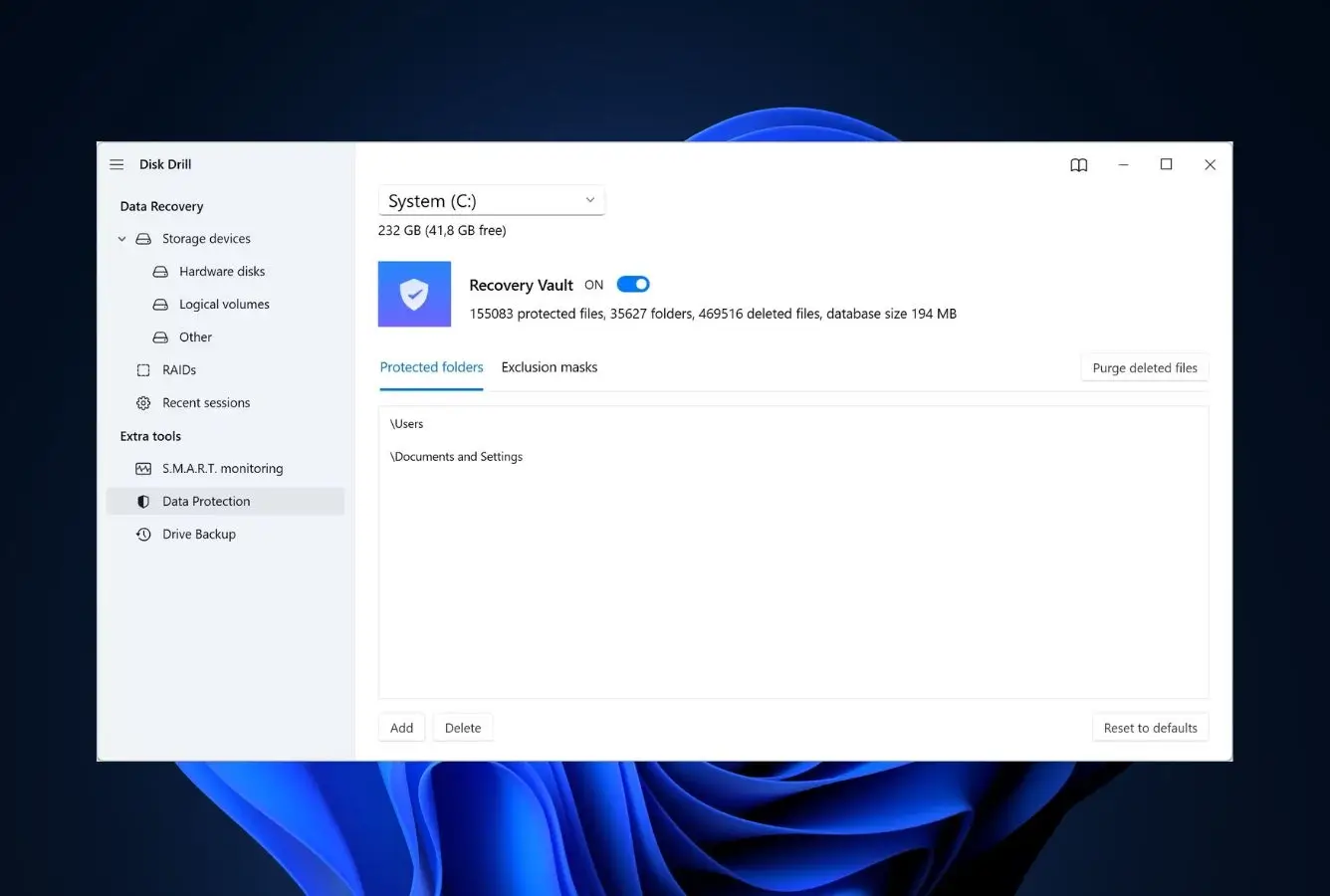
The differentiator that moves Disk Drill up to #2 specifically for SSDs is Recovery Vault — a background service that snapshots SSD file metadata before deletion. For a recovery category where the TRIM clock works against you, proactive metadata snapshots turn next-incident recovery from a deep-scan gamble into instant restore. The $89 one-time Pro license (covers both Windows and Mac, lifetime upgrades) is genuinely rare pricing in a category dominated by annual subscriptions.
- True feature parity across Windows and Mac builds — single $89 license activates on both platforms
- Recovery Vault pre-snapshots SSD metadata, making future incidents recoverable without scanning
- Byte-to-byte drive imaging preserves failing SSDs so scans run against the image, not the original
- Native APFS support including encrypted FileVault volumes when password is provided
- One-time pricing model — no annual subscription renewal anxiety
- Free Windows tier is only 500MB (Mac build has preview-only free tier) — tightest in this ranking
- Recovery Vault only protects future SSD deletions — can’t retroactively help already-deleted files
- TRIM-window recovery outcomes trail EaseUS on very recent NVMe deletions in community tests
Competitive across mainstream SSDs, transformative when Recovery Vault ran ahead of time.
Disk Drill’s standard SSD scan engine competes with EaseUS and Stellar on typical NVMe and SATA SSD scenarios — not always the winner, but consistently in the top tier. The transformation happens when Recovery Vault has been active on the drive before deletion. With Vault’s metadata snapshots in place, recovery becomes instant: Disk Drill reads its stored index and restores the file directly, bypassing the entire scan-and-reconstruct flow. For SSDs where TRIM makes standard recovery uncertain, pre-deployed Vault is the single most effective protection strategy in this ranking.
The category’s design benchmark — a recovery tool that looks designed, not engineered.
Disk Drill’s UI is the refinement benchmark for this category on both platforms. The Mac build feels native to macOS with SF Pro typography, proper sidebar navigation, and the kind of visual hierarchy you expect from a well-built Mac app. The Windows build translates the same design sensibility to Windows 11’s Fluent conventions. For a non-technical user opening an SSD recovery tool for the first time in panic, Disk Drill is the gentlest introduction on offer — and that matters when your professional photos or work archive are on the line.
$89 one-time for Windows + Mac is the best long-horizon deal in SSD recovery.
Disk Drill Pro at $89 one-time (lifetime upgrades) activates on both Windows and Mac from a single license — effectively half the long-term cost of any annual-subscription competitor over three-plus years. Annual Pro renewals at $89/year exist for organizations wanting continuous updates. Enterprise tier at $499 adds bulk licensing and commercial use rights. For any household or workflow that might need SSD recovery across both operating systems over multiple years, the $89 one-time is the best long-term value in this ranking.
3. Stellar Data Recovery – Best for Encrypted SSD Volumes
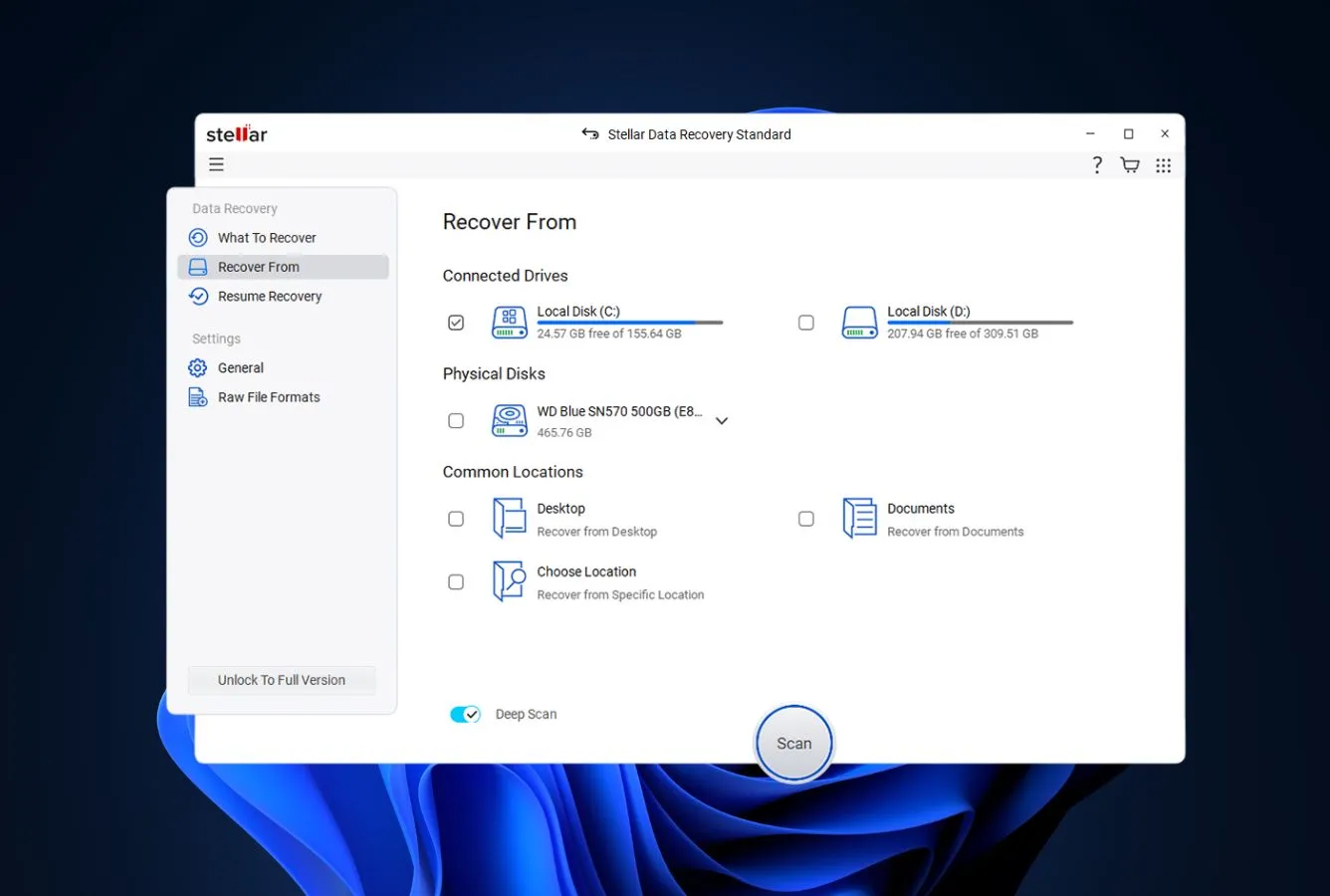
Stellar Data Recovery takes third place on one genuine specialization: it reads and decrypts the SSD volumes most other consumer tools can’t touch. BitLocker on Windows 11 Pro corporate laptops is increasingly enabled by default; FileVault on macOS is enabled by default since Big Sur. Both produce encrypted SSD volumes that EaseUS Free, Disk Drill Free, and Recuva can’t read at all — Stellar’s Professional tier handles both with the recovery key or password.
Beyond the encrypted-SSD niche, Stellar handles corrupted APFS containers and damaged NTFS partition tables better than most competitors — scenarios where the file system metadata itself is compromised, not just individual files. The paid pricing sits slightly higher than EaseUS at $79.99/year for the baseline Windows tier, with Mac tier priced similarly. The Professional tier ($99.99/year) adds the encrypted-volume support that justifies the premium for corporate users.
- BitLocker and FileVault decryption support during SSD recovery with appropriate credentials
- Repairs corrupted APFS containers and damaged NTFS partition tables that stop other tools
- Recoverability indicators shown pre-purchase (green/yellow/red) give honest expectations
- Established 2001 vendor with an optional cleanroom lab service for physical SSD failures
- Mature Mac build with full APFS support matching the Windows NTFS feature set
- Encrypted volume support requires Professional tier ($99.99/year) — not in baseline $79.99 plan
- Interface density is higher than EaseUS or Disk Drill — more tabs, more modes
- 1GB free tier is tighter than EaseUS for typical home SSD scenarios
The only consumer-priced tool that seriously handles encrypted SSD recovery.
When your SSD’s volume is encrypted — BitLocker on corporate Windows, FileVault on modern Macs — most recovery tools see ciphertext and stop. Stellar Professional reads the encryption metadata, prompts for the recovery key or password, and decrypts on the fly during scanning. This capability alone makes Stellar the default pick for BitLocker-enabled laptops and FileVault-enabled Macs. On non-encrypted SSDs, Stellar’s scanning is competent but not category-leading; on encrypted ones, it’s the only consumer-priced tool that works.
More buttons than EaseUS, but the honesty around recoverability justifies the density.
Stellar’s scan-results view shows each file with a colored recoverability dot — green means the data is intact and recovery will succeed, yellow indicates partial recovery is likely, red signals the file header exists but the data blocks were overwritten. This pre-purchase honesty is rare and genuinely useful for SSD recovery where TRIM makes recoverability hard to predict. The trade-off: more panels and configuration options than lighter competitors, with a modest learning curve for first-time users.
Baseline $79.99/year positioning; Professional $99.99 earns it when encryption is involved.
Stellar Windows tiers: Standard $79.99/year (baseline recovery), Professional $99.99/year (BitLocker, lost partition, image recovery), Premium $139/year (adds video/photo repair). Mac tiers follow similar pricing with Professional also at $99.99/year. For non-encrypted SSD scenarios, EaseUS delivers comparable results for less. For BitLocker-enabled Windows 11 Pro corporate SSDs or FileVault-enabled Macs, Professional tier has no meaningful competitor at consumer pricing — the $99.99 premium is justified by what it unlocks.
4. R-Studio – Best Professional SSD Forensics
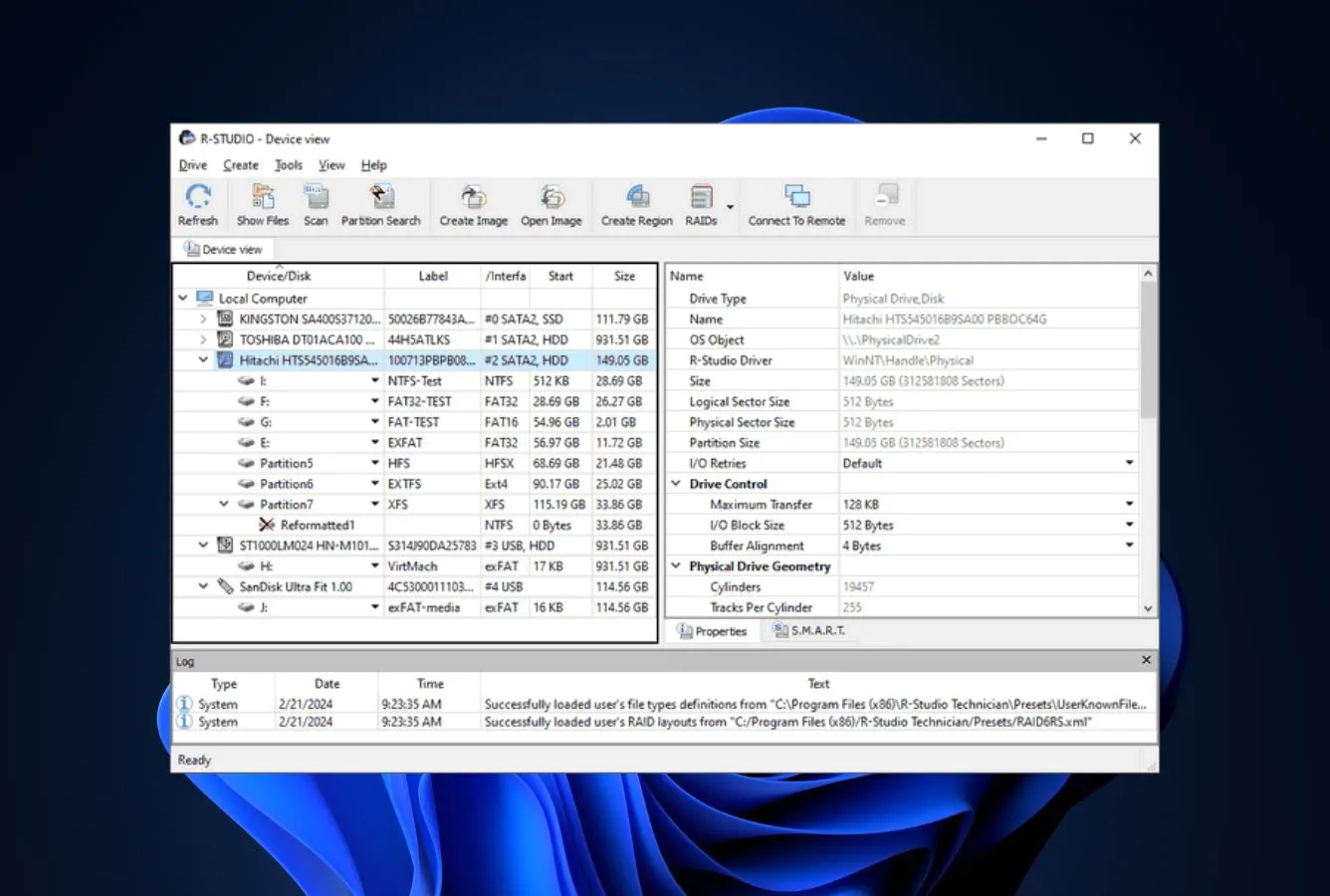
R-Studio from R-Tools Technology is the forensic-grade cross-platform tool professional data recovery technicians run on the cases consumer tools give up on. It handles NVMe RAID 0 arrays reconstructing themselves from stripes, degraded SSD arrays where one drive failed, SSD data loss after aborted firmware updates, and every other advanced scenario that needs forensic-level control rather than wizard-driven simplicity.
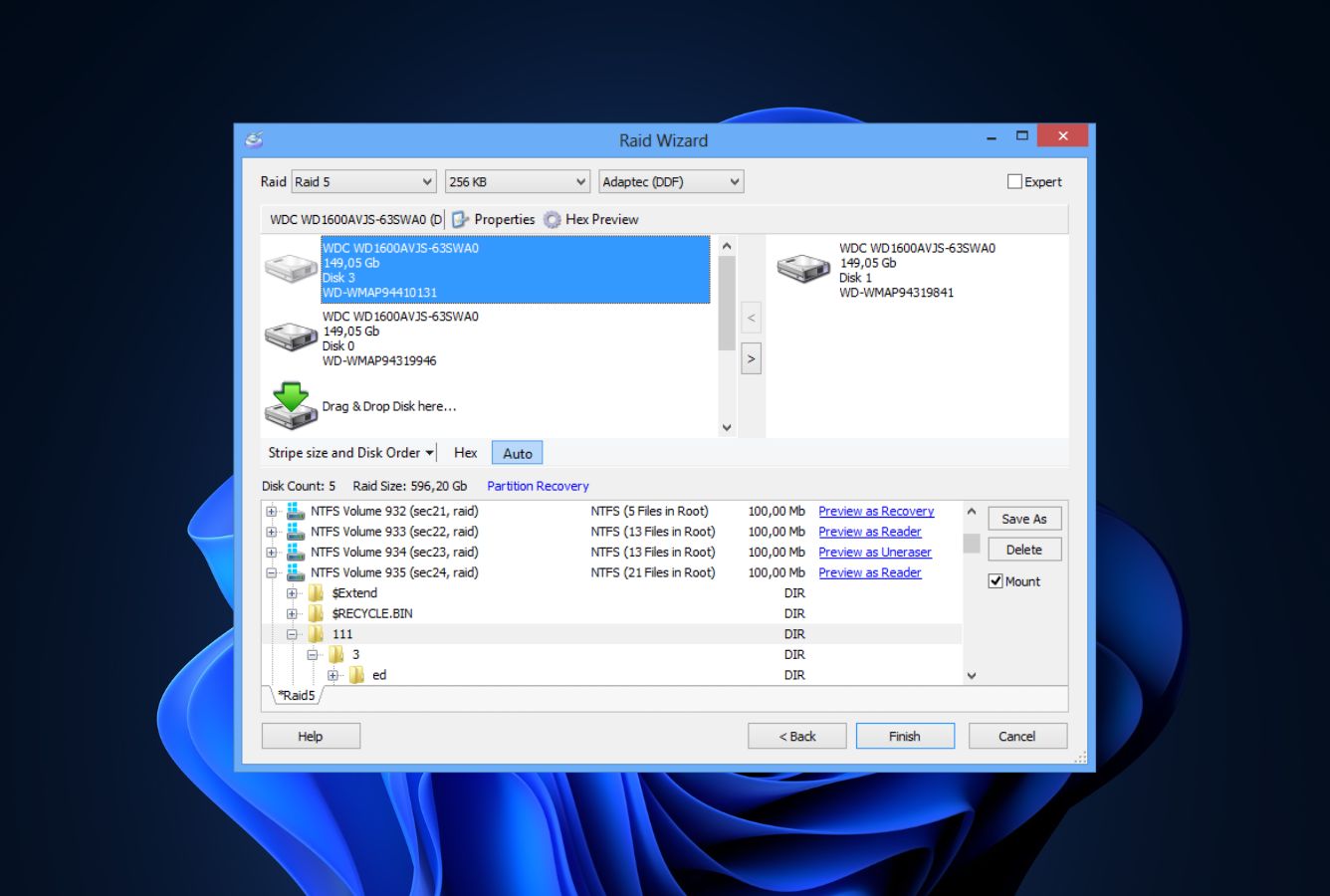
What distinguishes R-Studio for SSD recovery specifically: native support for SSD-hosted file systems across all three major operating systems (NTFS, APFS, ReFS, ext4, HFS+, Btrfs from the same binary), automatic RAID 0/1/4/5/6 reconstruction that matters for NVMe RAID enclosures, and one-time perpetual pricing that makes it economically viable for technicians who need recovery capability on-hand indefinitely rather than on an annual lease.
- Forensic-level scan engine reads NTFS MFT and APFS structures at hex level with full control
- Automatic RAID reconstruction for RAID 0 through 6 — critical for multi-SSD NVMe enclosures
- True cross-platform: identical binary on Windows, macOS, Linux with all file systems available
- One-time perpetual licensing with free point updates — no annual renewal pressure
- Network edition recovers from remote SSDs across LAN — unique in this ranking
- Steepest learning curve in this ranking — assumes familiarity with file system internals
- Demo mode is preview-only — no free recovery tier, full commit required for actual recovery
- Interface density is unforgiving for first-time SSD recovery in a panic scenario
The ceiling of this category — what pros reach for when nothing else recovers the SSD.
R-Studio’s scan engine operates at the level where SSD recovery becomes possible when wizard-driven tools fail: hex-edit NTFS MFT entries to find orphaned records, reconstruct APFS B-tree fragments manually, walk the USN journal for deleted file traces, and assemble RAID configurations where one SSD member is absent. For stripped NVMe RAID arrays, failing-drive scenarios where one SSD reports SMART errors, and enterprise-grade file systems, R-Studio routinely recovers what consumer tools declare impossible.
Built for professional workflows — the density is the feature, not the bug.
R-Studio opens to a multi-pane view: drive tree on the left, hex editor for deep inspection, file preview pane, and RAID constructor, all visible simultaneously. There’s no wizard, no “scan my SSD” fast path, no hand-holding — the assumption is the operator knows what they’re doing. For professional data recovery technicians who recover SSDs for a living, this density is exactly right. For a home user in panic mode, it’s a wall. The Mac and Linux builds match the Windows version’s density closely.
One-time perpetual pricing that matches professional use patterns.
R-Studio licensing: Windows-only FAT ($49.99 one-time, limited file system support), Windows ($79.99 one-time), Network ($179.99 across Windows/Mac/Linux), Technician ($899 one-time for data-recovery-service operators). All are perpetual licenses with free point updates. For a home user with a single SSD emergency, $79.99 is attractive but the learning curve gates much of the value. For IT support technicians, freelance recovery specialists, or MSPs handling SSDs regularly, R-Studio at $79.99–$179.99 delivers more per dollar over multiple years than any subscription-based competitor.

5. Wondershare Recoverit – Best for Creative SSD File Types
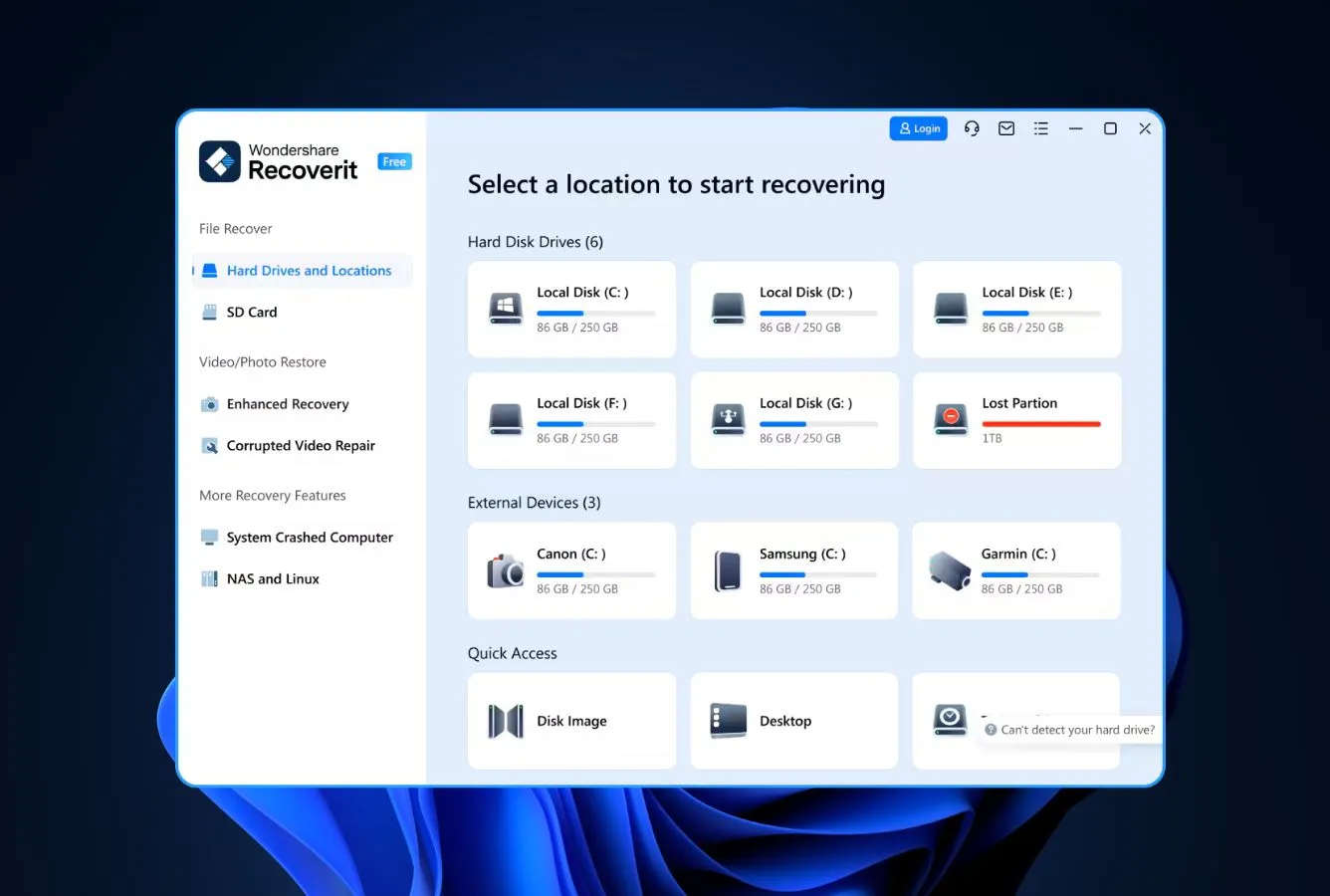
Wondershare Recoverit earns its place on one distinct strength: the deepest specialty file-type signature database in this category. Creative professionals losing SSD-hosted Adobe Photoshop PSD layer files, Premiere PRPROJ sequences, After Effects AEP projects, Final Cut Pro bundles, or AutoCAD DWG drawings get better signature recognition from Recoverit than from EaseUS or Stellar — the difference between recovering intact project files versus broken headers.
The cross-platform story is complete: parallel Windows and Mac builds with APFS support, FileVault password handling on Mac for encrypted SSD volumes, and the same polished Wondershare design language as Filmora and PDFelement. The weakness is the free tier — 100MB is barely enough for a preview, forcing a paid upgrade for any real single-incident SSD recovery. For creative professionals whose SSDs routinely carry specialty file types, Recoverit’s signature depth justifies the premium over the generalist tools.
- Deepest file-signature database for specialty creative formats (PSD, AI, DWG, PRPROJ, AEP)
- Video-specific fragmented-file reassembly algorithms improve recovery of multi-GB footage from SSDs
- Parallel Windows and Mac builds with consistent Wondershare design language across both
- APFS support includes FileVault-encrypted SSD volumes with password authentication
- Advanced tier adds video repair — rebuilds corrupted video headers after incomplete SSD writes
- 100MB free tier is the tightest in this ranking — forces paid upgrade for any meaningful SSD recovery
- Community benchmarks show slower deep-scan completion on large NVMe SSDs vs EaseUS or Disk Drill
- In-app upsell prompts for other Wondershare products appear more frequently than competitors
Specialty file-type depth is the edge; general NVMe performance is competent but not leading.
Recoverit’s file-signature database covers creative formats that EaseUS, Stellar, and Disk Drill either skip or recover with broken metadata: Photoshop PSD layer structures, Premiere Pro PRPROJ with linked sequences, After Effects AEP compositions, Final Cut Pro library bundles, and vector formats like AI and EPS. On these specialty files from SSDs, Recoverit pulls back intact projects where generalists return corrupted headers. On mainstream SSD recovery (DOCX, JPG, MP4, PDF), performance is competent but community benchmarks don’t put Recoverit in the top three.
Polished Wondershare design consistent with Filmora and PDFelement — approachable, a bit busy.
Recoverit shares its visual language with Wondershare’s broader creative suite, which helps if you already use Filmora or PDFelement. The scan-results UI groups files into seven tabs (Photos, Videos, Audio, Documents, Emails, Archives, Others) with inline thumbnail previews, timestamps, and original-path metadata where available from the SSD’s file system. In-app upsell banners for other Wondershare products during scanning are more frequent than competitors — not deal-breakers, but noticeable in a recovery moment when you want focused calm.
$79.95/year aligned with creative-workflow specialists; overkill for mainstream SSD files.
Recoverit pricing: Essential $79.95/year (one PC), Standard $99.95/year (adds video repair for corrupted SSD video headers), Advanced $139.95/year (adds NAS and Linux recovery). For mainstream SSD recovery on Windows or Mac, EaseUS delivers comparable outcomes at lower pricing. For photographers, video editors, 3D artists, or anyone whose SSD routinely carries specialty creative formats, Standard or Advanced tier’s specialty file-type depth justifies the premium over generalists. A 30-day money-back guarantee applies.

6. UFS Explorer – Best for NVMe & Enterprise SSD Recovery
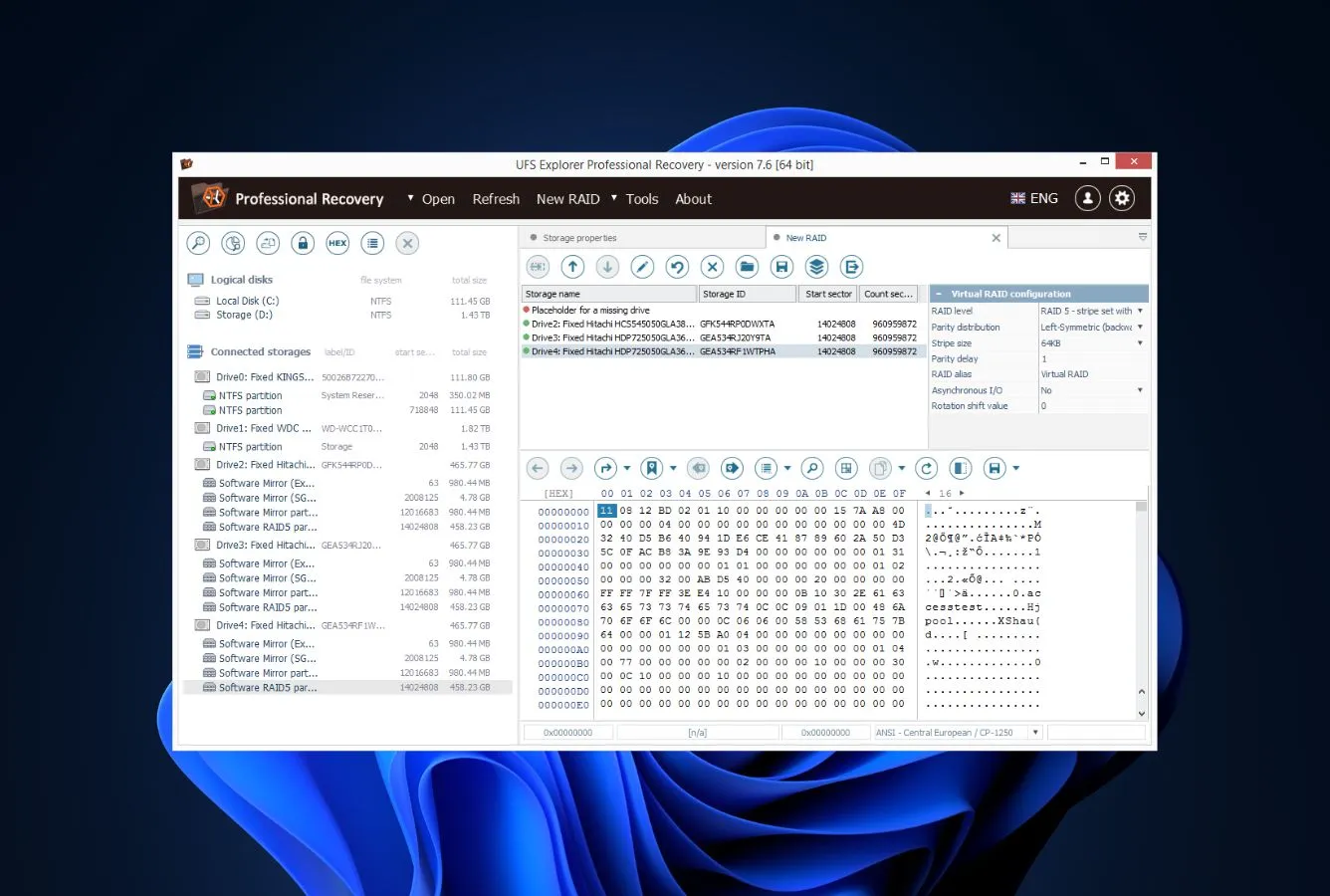
UFS Explorer from SysDev Laboratories is the professional-tier tool for NVMe and enterprise SSD recovery that most consumer-focused rankings overlook. Its three-edition lineup — Standard ($65 one-time), RAID ($300), and Professional ($699+) — covers everything from home NVMe emergencies up to enterprise SSD arrays with ZFS RAID-Z, VMware VMFS, and LVM thin-provisioning support that no mainstream consumer tool touches.
For SSD-specific scenarios, UFS Explorer shines on three fronts: a read-once mode that minimizes wear on failing SSDs by saving processed sectors to a sparse image file; native S.M.A.R.T. monitoring during scans to watch drive health deteriorate in real time; and the broadest file-system coverage in this ranking, from standard NTFS/APFS through ZFS (Solaris and TrueNAS SSD arrays) to Btrfs on modern Linux SSD deployments. The Mac build works on external SSDs but hits the Apple Silicon internal-drive wall all tools share.
- Broadest file system coverage in the category — NTFS, APFS, ZFS, Btrfs, F2FS, VMFS, LUKS, and more
- Read-once mode minimizes wear on failing SSDs by caching processed sectors to a sparse image
- Native S.M.A.R.T. monitoring during scanning tracks SSD health in real time as you work
- One-time perpetual pricing — Standard $65, RAID $300, Professional $699+ — with free point updates
- Read-only operation guarantees no changes are written to the affected SSD during scanning
- Trial mode limits recovered files to 768KB each — almost unusable as a real free tier
- Licenses are platform-specific — switching Windows to Mac requires a separate license
- Interface leans technical; operator must know file-system basics to navigate the scan options
Engineered for the SSD scenarios consumer tools don’t attempt — enterprise, ZFS, RAID, encrypted.
UFS Explorer’s low-level scan engine handles SSD scenarios that mainstream consumer tools ignore: ZFS RAID-Z arrays on TrueNAS with NVMe pools, Windows Storage Spaces SSD pools, LVM thin-provisioned Linux SSDs, encrypted volumes with BitLocker/FileVault/LUKS credentials, and VMware VMFS datastores hosting virtual machines on SSD. The read-once mode is specifically valuable for failing SSDs — it reads each sector once, caches the result to a sparse image, and works from the cached image for subsequent analysis, minimizing wear on a drive that’s already showing errors.
Technically focused — more capable than pretty, which is the right trade for SSD pros.
UFS Explorer’s interface reflects its engineering roots at SysDev Labs. The drive-and-partition tree on the left, file listing on the right, configuration panels across the top — no wizard, no onboarding flow, minimal visual polish. Operators comfortable with file-system internals find the layout efficient; newcomers to recovery will struggle without prior context. For SSD recovery professionals who need low-level control (imaging options, scan-range definition, custom IntelliRAW rules), the interface density earns its complexity.
Standard at $65 one-time is an outstanding single-SSD deal; Professional scales to enterprise work.
UFS Explorer tiers: Standard $65 one-time (personal, single OS), Standard Network $195, RAID $300 (adds RAID reconstruction), Professional $699+ (full feature set, forensic imaging, virtualization support). All perpetual licenses. For a single-SSD home incident, Standard at $65 delivers professional-grade recovery depth at less than half the annual cost of EaseUS or Stellar Pro. For enterprise NVMe arrays or data recovery service operators, the RAID or Professional tier is the only tool in this ranking built for the workload.

7. DMDE – Best Budget Cross-Platform SSD Tool
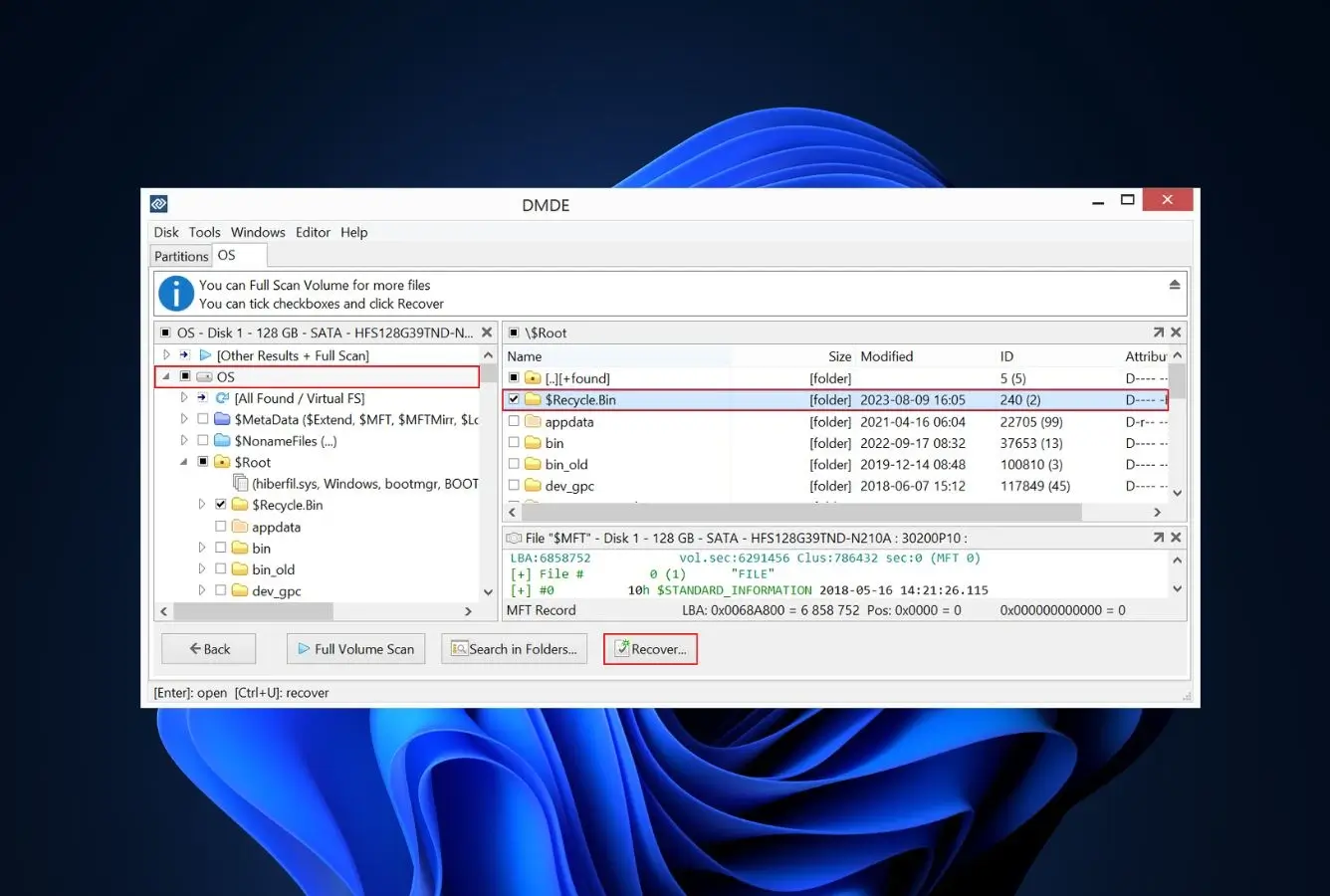
DMDE (DM Disk Editor and Data Recovery Software), developed since 2006 by independent engineer Dmitry Sidorov, is the budget alternative to UFS Explorer for cross-platform SSD work. The same executable runs on Windows, macOS, Linux, and DOS — rare in any recovery tool category — and the scan engine reads SSD partitions across NTFS, APFS, Btrfs, ReFS, and more from that single binary.
For SSD recovery specifically, DMDE’s free tier is genuinely generous: recover up to 4,000 files per directory per session with no limit on the number of sessions, which covers many single-incident home SSD recoveries without ever triggering a paid license. The $20/year Express tier removes the batch limit on Windows; $48 perpetual Standard adds Linux/macOS/DOS support; $95 Professional tier unlocks commercial use and scripting. The trade-off is interface austerity — no wizard, no hand-holding, ZIP-file distribution that occasionally trips Windows Defender false positives.
- Most generous free tier in the professional SSD tool bracket — 4,000 files per directory per session
- Same binary on Windows, macOS, Linux, and DOS — no platform-specific licensing for basic use
- Express tier at $20/year is the cheapest paid option across any ranking in this SSD category
- Broad file-system support from a single executable — NTFS, APFS, Btrfs, ReFS, Ext, HFS+
- Portable — no installer footprint, runs from any folder or USB drive without touching the affected SSD
- ZIP-file distribution on Windows occasionally triggers Defender false-positive warnings during download
- Interface is spartan — no wizard, no onboarding, assumes prior experience with file-system structures
- TRIM-window recovery on recent NVMe deletions trails EaseUS, Disk Drill, and Stellar in community tests
Strong fundamentals, modest TRIM-awareness — best value for non-urgent SSD scenarios.
DMDE’s scan engine directly reads the SSD’s file system structures (NTFS MFT, APFS B-tree, Btrfs subvolumes) and reconstructs deleted file metadata with professional-grade accuracy. For SATA SSD recovery where the TRIM window isn’t a pressing concern, DMDE delivers outcomes comparable to mid-tier commercial tools. For recent NVMe deletions where TRIM aggressively garbage-collects cells, DMDE’s engine lags the top-three tools that’ve invested in specific NVMe-timing optimization — Sidorov’s development cadence is steady but modest, and the engine hasn’t received EaseUS-level NVMe-specific tuning.
Capable in the right hands, intimidating everywhere else — that’s the Sidorov trade-off.
DMDE launches into a three-pane view: device tree with NVMe namespaces, directory tree showing detected partitions, file listing with recover toggles. SSD recovery requires manual navigation to the target partition and directory — no “recover my SSD” guided flow, no file-type pre-filter wizard. For power users comfortable with Windows Disk Management or Linux fdisk-level thinking, the density is efficient. For casual users in an SSD emergency, it’s a wall that sends most back to EaseUS or Disk Drill. The portable ZIP distribution is a genuine strength when you shouldn’t be writing to the affected drive.
Best depth-per-dollar in this ranking — if you can navigate the learning curve.
DMDE tiers: Free (4,000 files per directory, unlimited sessions), Express $20/year (removes batch limit, Windows only), Standard $48 perpetual (Windows + Mac + Linux + DOS), Professional $95 perpetual one-OS / $133 multi-OS (adds scripting and commercial use rights). For home SSD incidents fitting within 4,000 files per directory, the free tier handles it. For technically-confident users building long-term recovery capability across platforms, Standard at $48 perpetual is the best value in this ranking bar none. For organizations, Professional licensing is still below most annual-subscription competitors over multi-year horizons.
8. MiniTool Power Data Recovery – Solid Windows + Mac Freemium
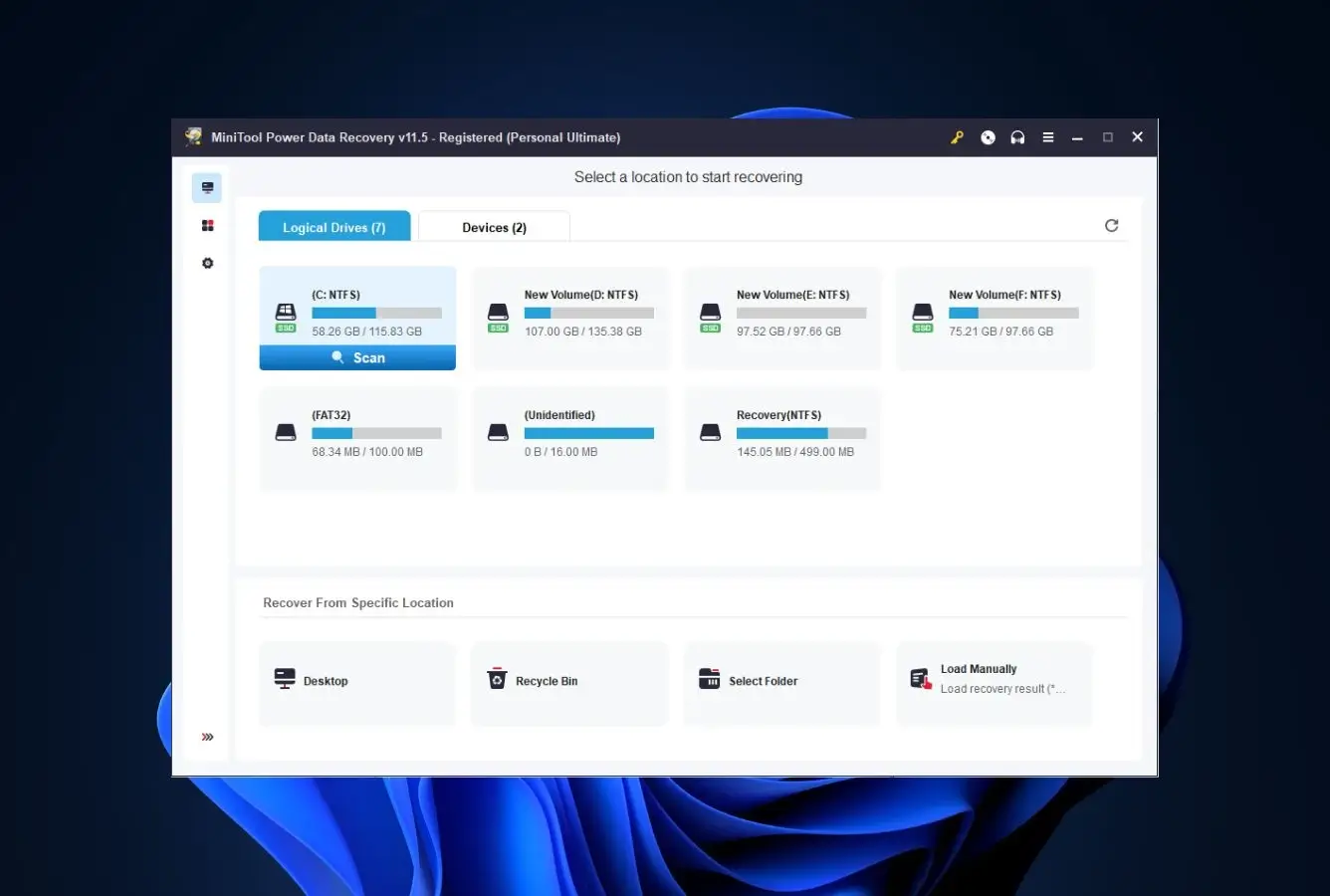
MiniTool Power Data Recovery rounds out the ranking as the credible freemium option for mainstream SSD recovery. MiniTool Solution (based in Canada) ships separate Windows and Mac builds — the Mac product is branded MiniTool Mac Data Recovery and sold separately rather than as one unified license — with module-driven UI that surfaces SSD-specific device scanning as a first-class workflow rather than a subset of general recovery.
The 1GB free tier is the second-most-generous among mainstream commercial tools in this ranking (behind only EaseUS’s 2GB), giving casual users a real path to successful recovery without paying. The scanner is modern and handles NTFS, exFAT, APFS, and HFS+ on SSDs with reasonable TRIM-awareness. Where MiniTool doesn’t match the top tier: the scan-results UI feels dated next to Disk Drill or EaseUS, and community feedback flags more aggressive upgrade prompts in the free tier than the category average.
- 1GB free tier is the second-most-generous among commercial SSD recovery tools in this ranking
- Module selector surfaces Devices tab for device-level NVMe scanning — a useful organizing pattern
- Bootable recovery media in paid tier handles SSDs hosting unbootable Windows installations
- Part of established MiniTool utility suite (Partition Wizard, ShadowMaker) with strong brand recognition
- Active development cadence with regular Windows 11 24H2 and macOS 15 compatibility updates
- Windows and Mac products sold as separate licenses — no unified cross-platform pricing like Disk Drill
- Scan-results UI feels visually dated next to Disk Drill, EaseUS, or Stellar on both platforms
- Free-tier upgrade prompts during scanning are more frequent than the category average
Solid mid-tier SSD engine; the Devices module surfaces the right scan for the scenario.
MiniTool’s launch screen offers four scan modules: Logical Drives (standard SSD partition scan), Devices (device-level scan of an entire NVMe drive, useful when partitions are missing), Recoverable Partitions (reconstructs lost partitions from SSD), and a dedicated entry for each major scenario. This organizing principle helps users match their SSD situation to the right scan mode — a small but meaningful usability win. General scanning on NTFS and APFS SSDs is competitive with other mid-tier tools; on aggressive-TRIM NVMe scenarios, MiniTool trails the top three.
Functional over fashionable — the module selector is the one meaningful usability investment.
MiniTool’s launch screen showing four scan modules is genuinely useful — it turns “I have an SSD problem” into a specific scan choice without requiring user understanding of the underlying difference. The results UI and preview pane are less refined than Disk Drill or EaseUS; typography and spacing feel wireframed rather than designed. Upgrade prompts during free-tier scanning appear more often than competitors, which creates mild friction during an already-stressful recovery moment.
$89/year Windows, separate Mac pricing — only attractive inside an existing MiniTool suite commitment.
MiniTool Power Data Recovery pricing: Monthly $89, Annual $109, Lifetime $149 (Windows Personal). The separate MiniTool Mac Data Recovery adds an additional annual or lifetime spend for Mac users. For Windows-only SSD recovery, EaseUS at $69.95/year delivers better outcomes for less cost. For users already committed to MiniTool Partition Wizard or ShadowMaker specifically, bundled licensing may shift the math. Standalone SSD recovery value proposition is mid-tier — the 1GB free tier is the real draw.
How We Evaluate SSD Recovery Tools
SSD recovery is a narrower category than general data recovery because TRIM, wear-leveling, and hardware encryption create failure modes that don’t apply to HDD recovery. Our evaluation draws on vendor documentation for feature coverage baselines, independent third-party testing from sources that specifically run NVMe and SATA SSD scenarios (not just formatted-HDD tests), and community feedback from r/datarecovery, r/buildapc, MacRumors, Trustpilot, and SSD-focused YouTube channels that publish recovery walkthroughs.
Platforms covered: Windows 11 24H2 (current), Windows 10 22H2, macOS 15, macOS 14, macOS 13 for recent Apple Silicon Mac external SSD scenarios. SSD types covered: NVMe (PCIe 3.0/4.0/5.0), SATA SSDs (2.5″ and M.2 SATA), external NVMe in USB 3.2/Thunderbolt enclosures, consumer and prosumer drives. File systems: NTFS, exFAT, FAT32, ReFS on Windows SSDs; APFS (including encrypted APFS), HFS+ on Mac SSDs; cross-platform exFAT on external drives. Scenario weight: NVMe TRIM-window recovery (30%), encrypted SSD volume support (20%), cross-platform parity (15%), interface usability for non-technical users (15%), advanced SSD capabilities like imaging and RAID (15%), pricing transparency (5%).
We publish the weighting math, per-vendor NVMe controller test matrices, and the feedback threads that raised or lowered any given tool’s placement on our methodology page. Read it first if you want to challenge a ranking or verify a specific claim.
Honorable Mentions – Runners Up
Six additional SSD recovery tools we reviewed but didn’t place in the main eight. Each one solves some piece of the SSD recovery problem well — specialized free tier, niche enterprise feature, familiar brand — but carries a constraint that disqualified it from the top positions for the typical Windows or Mac SSD scenario.
How to Choose by SSD Scenario
The right SSD recovery tool depends on which specific SSD failure mode you’re dealing with. Match your scenario below to the shortlist of tools built for it — and critically, stop writing new data to the affected SSD the instant you realize recovery is needed. On NVMe drives, every minute of continued use shrinks the recoverable set.
Recent Deletion on NVMe SSD — Race the TRIM Clock
For an NVMe SSD deletion discovered within minutes to a few hours, EaseUS Data Recovery Wizard is the fastest path to success — its scan engine has the most NVMe-specific tuning of any mainstream tool. Disk Drill runs a close second with comparable outcomes and a cleaner interface. Install the recovery tool to a different drive (not the affected NVMe), launch immediately, run the quick scan first, and commit to recovery the moment preview shows your files. On NVMe, this window is measured in minutes to hours, not days.
BitLocker or FileVault Encrypted SSDs
If your Windows SSD has BitLocker enabled (default on Windows 11 Pro corporate laptops) or your Mac SSD has FileVault enabled (default since Big Sur), Stellar Data Recovery Professional tier is the primary option — it prompts for the recovery key or password during scanning and decrypts on the fly. R-Studio and UFS Explorer also handle encrypted volumes with credentials. EaseUS, Disk Drill, Recoverit, and MiniTool’s baseline tiers can’t read encrypted SSDs at all. The prerequisite is having the recovery key or password; without it, software recovery isn’t possible regardless of tool choice.
Apple Silicon Mac Internal SSD
If the lost data is on an Apple Silicon Mac’s internal SSD (M1 through M4), no third-party tool in this ranking can scan it — Apple’s Secure Enclave hardware encryption locks third-party software out. The recovery path is Time Machine backups, iCloud Drive versions, or Mac-specific data recovery services that have Apple’s authorized workflow. External SSDs connected to the same Apple Silicon Mac work normally — EaseUS, Disk Drill, Stellar, and the rest scan external APFS/HFS+ SSDs without issue. This limitation applies universally; no software vendor has a workaround.
NVMe RAID Arrays and Enterprise SSDs
For NVMe RAID 0 or RAID 5 arrays, multi-drive Storage Spaces pools on Windows Server, ZFS RAID-Z pools on TrueNAS with NVMe, or VMware VMFS datastores, R-Studio and UFS Explorer are the only tools in this ranking with the file-system breadth and RAID reconstruction logic to handle them. DMDE covers similar ground at lower pricing but with a steeper learning curve. EaseUS, Stellar, Recoverit, MiniTool, and Disk Drill are consumer-focused and handle RAID SSD scenarios poorly or not at all.
Failing SSD Showing SMART Errors or Read Failures
If your SSD is producing read errors, reporting SMART warnings, or occasionally disappearing from system detection, software scanning accelerates the failure. Image the drive first with UFS Explorer or R-Studio’s disk-imaging feature (read-once mode minimizes wear), then run recovery scans against the image rather than the original SSD. Disk Drill’s byte-to-byte imaging serves the same purpose for less technical users. If the SSD is completely undetectable, software recovery is impossible — professional chip-off recovery services (typically $500–$3,000) are the remaining option.
External NVMe or SATA SSDs on USB/Thunderbolt Enclosures
External SSDs in USB 3.2 or Thunderbolt enclosures usually don’t pass TRIM commands through the USB bridge, which means deleted files often remain recoverable for days or weeks — far longer than on internal SSDs. This is the easiest SSD recovery scenario and any tool in the main ranking handles it well. For external SSDs used across both Windows and Mac machines (common in creative workflows), Disk Drill’s unified cross-platform license is the best operational fit; for a single-platform external SSD incident, EaseUS Free is often enough. External SSDs that connect via a standard USB flash-drive form factor behave like large USB drives from a recovery perspective — our USB data recovery guide covers the USB-specific failure modes that overlap with external SSD scenarios.
Which SSD File System Are You Working With?
For NTFS-formatted Windows SSDs, every tool in this ranking works. For APFS-formatted Mac SSDs (including encrypted APFS), EaseUS, Disk Drill, Stellar, Recoverit, R-Studio, UFS Explorer, DMDE, and MiniTool Mac all handle it. For ReFS on Windows Server, R-Studio and UFS Explorer have the deepest support. For exFAT on cross-platform external SSDs, every tool works equivalently. For ZFS, Btrfs, or F2FS on Linux SSD installations, UFS Explorer, R-Studio, and DMDE are the only options. If your SSD scenario involves SD cards or microSD in an adapter, see our SD card recovery guide for the card-specific workflow.
When SSD Recovery Hits a Wall
SSD recovery has harder physical limits than HDD recovery. Understanding them before committing to a scan saves hours of fruitless effort. Match your situation below to the right path — software recovery, professional service, or acceptance that the data is unrecoverable at the hardware level.
| Your situation | Software can help? | What to do instead |
|---|---|---|
| Deletion noticed within minutes on NVMe SSD, drive idle since | Yes | EaseUS or Disk Drill immediately; install to a different drive |
| Emptied bin days ago on active NVMe with TRIM enabled | Usually No | TRIM likely processed already; try anyway but expect limited results |
| Apple Silicon Mac internal SSD, no Time Machine backup | No | Apple authorized data services or accept the loss — no software workaround |
| BitLocker/FileVault SSD without the recovery key | No | Encryption is doing its job; without the key, data stays encrypted |
| SSD shows SMART errors but still detected | Maybe | Image first with UFS Explorer read-once, recover from the image |
| SSD completely bricked or undetectable | No | Professional chip-off recovery service ($500–$3,000) |
TRIM Finished Its Work
The fundamental SSD recovery constraint: once the controller has processed the TRIM commands for deleted cells, those cells are physically erased at the NAND level. No software — not EaseUS, not R-Studio, not UFS Explorer, not any cleanroom service — can recover data that no longer exists on the silicon. TRIM processing on modern NVMe drives usually completes within minutes to hours of emptying the Recycle Bin or equivalent deletion. After that window closes, the recovery attempt returns zeros regardless of which tool you try.
Hardware Encryption Without the Key
Self-encrypting SSDs (SED/OPAL drives, Apple Silicon internal SSDs, some enterprise NVMe) encrypt data at the controller level before storing it on NAND. Without the hardware key — which is tied to the drive’s controller and secure enclave — recovery tools read ciphertext and have no way to derive plaintext. This is fundamentally different from software encryption (BitLocker, FileVault, LUKS), where the recovery key or password enables decryption if you have it. For hardware encryption without the key, software recovery simply can’t work.
Controller Failure on the SSD
When an SSD’s controller chip fails electrically — from power surge, sudden shutdown during firmware update, or component wear — the NAND chips holding your data may be intact, but the controller’s mapping between logical block addresses and physical cells is lost. Software can’t read the drive because the controller that translates addresses is dead. Professional chip-off services extract the NAND chips directly and attempt to reconstruct the mapping from firmware backups or manufacturer-specific knowledge. Costs run $500 to $3,000+ depending on the controller and drive. Success rates vary significantly by drive model.
Storage Spaces and Software RAID SSD Pools
Windows Storage Spaces pools and software RAID arrays spanning multiple SSDs distribute data across drives with parity in complex patterns. Consumer recovery tools that handle single-SSD recovery fluently often fail on Storage Spaces pools because they don’t understand the distribution layout. R-Studio, UFS Explorer Professional, and DMDE handle Storage Spaces and software RAID SSD pools; EaseUS, Stellar baseline, Disk Drill, MiniTool, and Recuva typically don’t. Start with R-Studio’s demo or UFS Explorer’s trial to evaluate recoverability before committing to a paid tier.
Physical SSD Failure or Water Damage
If the SSD suffered physical damage — dropped, exposed to water, electrical surge, or thermal event — stop trying to power it on. Every power cycle risks further damage. Software recovery can’t help with physical failure; send the drive to a reputable cleanroom recovery service. Expect $500–$3,000+ depending on the damage and drive model. For business-critical or sentimental data, it’s often worth the cost. Our hard drive recovery guide covers physical-damage decision trees that apply equally to SSDs.
On SSDs, the TRIM clock is unforgiving. Each passing minute increases the chance the controller has garbage-collected the cells holding your deleted files. Don’t install recovery software on the affected drive, don’t let Windows Update run, don’t let macOS sync iCloud in the background. Power down if possible, boot from another drive, connect the affected SSD externally for scanning. Speed of response matters more than tool choice once TRIM is in play.
The TRIM Reality (Understanding the Clock)
Every SSD recovery decision depends on understanding one mechanism: TRIM. Getting TRIM right in your mental model is the difference between a realistic recovery attempt and a wasted afternoon scanning cells that were physically erased hours earlier. Here’s the straight version.
What TRIM Actually Does
When you delete a file on an SSD, the operating system sends a TRIM command to the SSD controller saying “these logical block addresses are no longer in use.” The controller records this in its internal mapping but doesn’t immediately erase the NAND cells — that happens later during a background operation called garbage collection. The window between the TRIM command and garbage collection completing is the window during which TRIM-aware recovery software can still read the data. On modern NVMe drives, that window is typically minutes to a few hours. On older SATA SSDs, it can stretch to hours or even days.
How Recovery Tools Beat the Clock
TRIM-aware recovery tools — EaseUS, Disk Drill, Stellar — query the SSD controller for cells that have been TRIM-marked but not yet garbage-collected, and read them before the controller finishes its work. This requires specific engineering for each SSD controller family, which is why EaseUS’s multiple NVMe-focused engine updates since 2023 produce meaningfully better outcomes than tools whose engines haven’t been updated for modern NVMe. Legacy tools that scan at the logical block level without controller awareness see zeros from TRIM-marked cells regardless of whether garbage collection has actually completed.
Why SATA SSDs Give You More Time Than NVMe
SATA SSDs are generally older designs with slower controllers and less aggressive background garbage collection. The window between TRIM and actual erasure stretches longer because the controller has fewer cycles to spend on housekeeping. NVMe drives — especially PCIe 4.0 and 5.0 generations — have fast controllers that garbage-collect aggressively during idle moments, shrinking the recoverable window dramatically. If you delete a file on a Samsung 990 Pro or WD Black SN850X and keep using the system for an hour, the cells are likely gone. The same incident on a SATA Samsung 870 EVO might stay recoverable for a full day.
External SSDs: TRIM Often Doesn’t Pass Through USB
USB storage bridges historically don’t forward TRIM commands from the host OS to the SSD controller inside the enclosure. Modern UASP-capable USB 3.2 enclosures increasingly do pass TRIM through, but many consumer-grade USB-to-NVMe enclosures still don’t. The practical implication: files deleted from an external USB-connected SSD often remain recoverable for days or weeks, not minutes to hours. This is one of the few good news in SSD recovery. Thunderbolt enclosures generally do forward TRIM, so Thunderbolt-connected external SSDs behave more like internal drives for recovery purposes.
Disabling TRIM After Deletion Doesn’t Help
A common misconception: “I’ll disable TRIM on my SSD to stop it from erasing my deleted files.” This doesn’t work. TRIM commands for already-deleted files have typically already been sent to the controller at the moment of deletion — disabling TRIM now affects future deletions, not past ones. If garbage collection has already processed those cells, the data is already gone. Stop the SSD from further use (which is the actual protective measure), run recovery as soon as possible, and accept that TRIM commands already-dispatched are already executing.
Disk Drill’s Recovery Vault, Apple’s Time Machine, Windows File History, cloud backup to OneDrive/iCloud/Google Drive, or a simple monthly external-drive backup all make SSD recovery unnecessary. Given how hard TRIM makes SSD recovery, thirty minutes spent configuring a backup solution today saves hours of stressful scanning and potentially unrecoverable data later.
Final Verdict
EaseUS Data Recovery Wizard is the best SSD data recovery software for Windows and Mac in 2026. Its scan engine has received multiple NVMe-specific TRIM-awareness updates since 2023, delivers parallel Windows and Mac builds with real feature parity, supports every mainstream SSD file system (NTFS, exFAT, APFS, HFS+), and offers the category’s most generous 2GB free tier. For the typical SSD recovery scenario — recent deletion, modern NVMe or SATA drive, home or prosumer workflow — EaseUS is the fastest path to recovered files.
Beyond the winner: Disk Drill is the cross-platform default for shared Windows and Mac workflows, with Recovery Vault prevention and one-time $89 pricing across both platforms. Stellar Data Recovery is the specialist for BitLocker and FileVault encrypted SSDs — the only consumer-priced tool that reliably handles encryption. R-Studio is the forensic-grade choice for NVMe RAID and complex SSD scenarios. Wondershare Recoverit leads on specialty creative file types. UFS Explorer is the NVMe and enterprise specialist with the broadest file-system coverage here. DMDE delivers professional depth at hobbyist pricing. MiniTool rounds out freemium options with a solid 1GB Windows tier.
Frequently Asked Questions
About the Authors


Data Recovery Fix earns revenue through affiliate links on some product recommendations. This does not influence our rankings — all tools are evaluated independently based on vendor documentation, independent third-party testing, and community feedback before any affiliate relationships are considered. If anything on this page looks inaccurate, outdated, or worth revisiting, please reach out at contact@datarecoveryfix.com and we’ll review it promptly.