8 Best Free Mac Data Recovery Software (2026): Reviewed & Ranked
The best free Mac data recovery software should recover real files on real APFS volumes — not just tease a preview before asking for $89. We evaluated 14 free Mac recovery tools on macOS 15 Sequoia and the early Tahoe beta, measuring actual free-tier limits, APFS and encrypted-APFS behavior, scan completeness against independent testing, and Reddit / Apple Support complaints — then ranked the top 8. Here’s which software gets files back without demanding a credit card first.
+ 6 honorable mentions
· user feedback
Intel + Apple Silicon
macOS 15 Sequoia / Tahoe
EaseUS Data Recovery Wizard for Mac Free is the best free Mac data recovery software in 2026. Its 2 GB free ceiling (500 MB default, unlocked to 2 GB after a social share) is the most generous commercial quota on macOS, with no per-file size cap and full APFS, HFS+, and exFAT coverage. PhotoRec is the only genuinely unlimited free option — open-source, GPL-licensed, and command-line only — for users who prioritize zero paywall over convenience. TestDisk, PhotoRec’s sibling tool, rounds out the top three for anyone dealing with lost partitions or broken boot sectors rather than individual file deletion.
 EaseUS Data Recovery Wizard for Mac Free
- 2 GB free recovery (500 MB + 1.5 GB via social share)
- APFS, APFS Encrypted, HFS+, exFAT, FAT support
- No per-file size cap, 1,000+ file types
- Free tier · Pro from $89.95/mo or $99.95/yr
 PhotoRec (CGSecurity)
- Truly unlimited — no file, size, or session caps
- Open source, GPL v2+, auditable code
- 480+ file signatures, Apple Silicon native
- Free forever · no subscription or license
 TestDisk (CGSecurity)
- Partition table recovery, MBR + GPT
- 30+ file systems including APFS detection
- Bundled with PhotoRec, 30 MB total
- Free forever · GPL v2+ open source
- 1EaseUS Data Recovery Wizard for Mac Free – Most Generous Commercial Free Tier
- 2PhotoRec – Best Truly Unlimited Free Mac Recovery
- 3TestDisk – Best Free Partition and Boot-Sector Recovery
- 4Stellar Data Recovery Free for Mac – Best Free UX for Non-Technical Users
- 5iBoysoft Data Recovery for Mac Free – Best Free Apple Silicon Coverage
- 6iBeesoft Free Data Recovery for Mac – Best 2 GB Free Cap Without Social Share
- 7DMDE Free Edition – Best Free Advanced Recovery Toolkit
- 8Exif Untrasher – Best Free JPEG Photo Recovery
8 Best Free Mac Data Recovery Software – Quick Comparison
Free tiers in Mac data recovery range from “2 GB with no per-file cap” to “preview only, pay to recover.” The table below shows each tool’s actual free ceiling, file-system coverage, and the price to unlock unlimited recovery if the free quota isn’t enough. Overall-strength labels reflect editorial evaluation against the free-tier criteria, not a generic ranking of paid features.
| Tool | Overall Strength | Free Limit | File Systems | Ease of Use | Open Source | Paid Starting Price | Best For |
|---|---|---|---|---|---|---|---|
| EaseUS Mac Free | Excellent | 2 GB (with share) | APFS, HFS+, exFAT | Excellent | No | $89.95/mo | Everyday Mac users |
| PhotoRec | Excellent | Unlimited | All major (signature-based) | Command-line | Yes (GPL v2+) | Free | Unlimited free recovery |
| TestDisk | Very Good | Unlimited | 30+ including APFS detect | Command-line | Yes (GPL v2+) | Free | Partition recovery |
| Stellar Mac Free | Very Good | 1 GB · 100 MB/file | APFS, HFS+, NTFS, exFAT | Excellent | No | $79.99 | Beginners on small jobs |
| iBoysoft Mac Free | Very Good | 1 GB | APFS, Encrypted APFS, HFS+ | Good | No | $89.95/mo | Apple Silicon & unbootable Mac |
| iBeesoft Free | Good | 2 GB (no share) | APFS, HFS+, exFAT, FAT | Good | No | $69.95/yr | 2 GB cap with no strings |
| DMDE Free | Good | 4,000 files/folder/session | NTFS, exFAT, HFS+, APFS, ext | Technical | No | ~$20 lifetime | Advanced recovery on a budget |
| Exif Untrasher | Specialized | Unlimited (JPEG only) | Mounted volumes only | Excellent | Freeware | Free (donationware) | Camera JPEG recovery |
Overall-strength labels reflect editorial evaluation based on free-tier generosity, feature coverage, independent research, and user-feedback patterns — not an in-house benchmark. Pricing and free limits are from each vendor’s current product pages as of April 2026.
8 Best Free Mac Data Recovery Software – In-Depth Reviews
1. EaseUS Data Recovery Wizard for Mac Free – Most Generous Commercial Free Tier
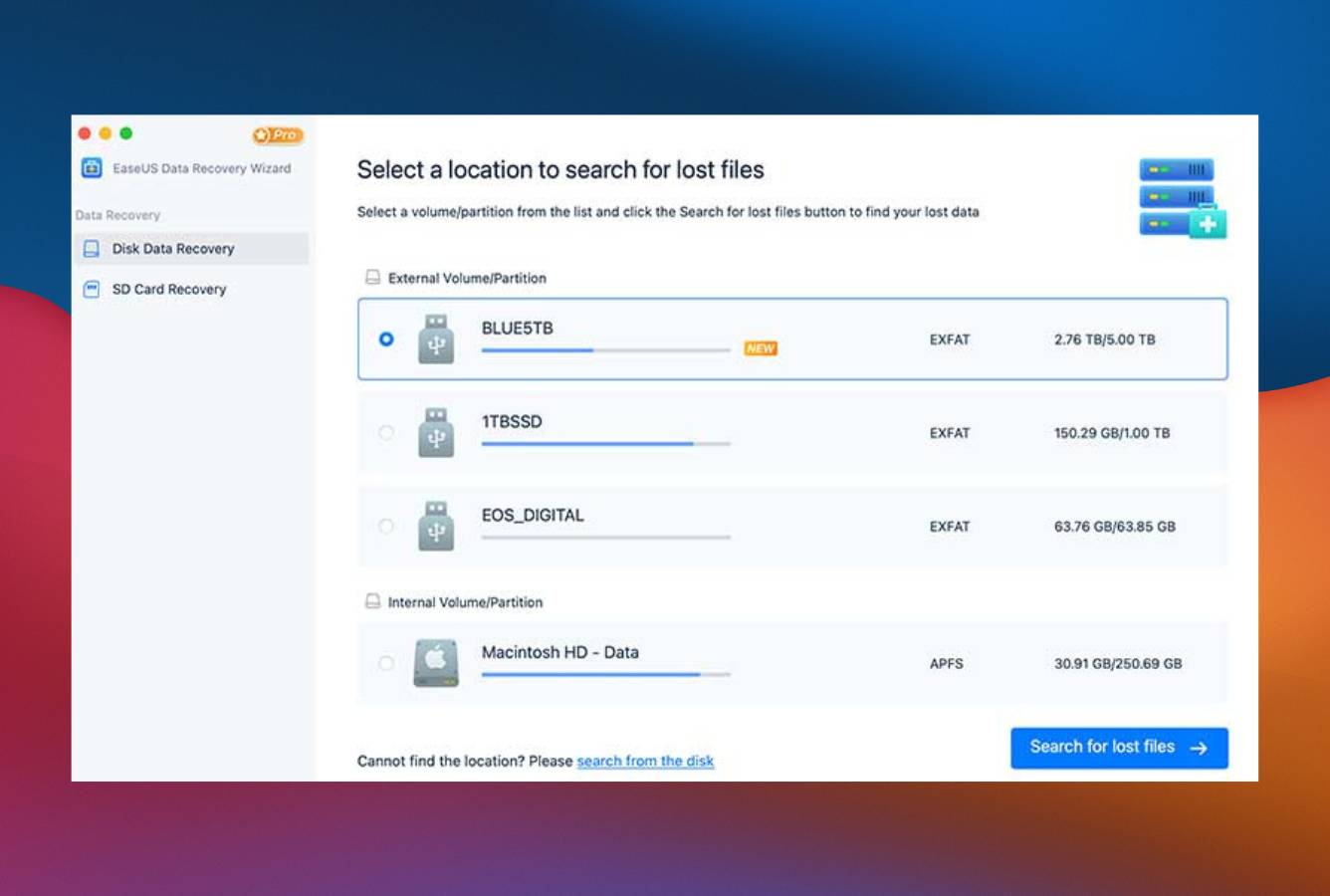
EaseUS Data Recovery Wizard for Mac Free is the only commercial free tier on macOS that gives you enough recoverable data to actually fix a real problem — a corrupted SD card, an accidentally emptied Trash, a reformatted external drive. The default 500 MB free ceiling doubles past 2 GB after a one-time social share, and unlike Stellar’s free edition there is no 100 MB per-file cap. Independent testing consistently places the paid engine among the top two for APFS recovery on Apple Silicon, and the free tier uses the same scan engine — not a crippled preview build. The interface is genuinely beginner-proof: pick a drive, wait, filter by file type, recover.
- 2 GB free ceiling is the most generous commercial cap on Mac
- No per-file size limit — recover 1.8 GB video files within quota
- Native Apple Silicon, T2 chip, and Fusion Drive support
- Clean Finder-style interface with aggressive filtering
- Supports 1,000+ file types including RAW, ProRes, PST
- 500 MB default ceiling forces a Facebook/Twitter share to reach 2 GB
- Paid tier is subscription-first at $89.95/month
- Deep scans on large SSDs run slower than PhotoRec or DMDE
Same scan engine as the paid tier — not a crippled preview build.
The free edition runs the full EaseUS scan engine against APFS, APFS Encrypted (with password), HFS+, exFAT, and legacy FAT volumes. Independent testing from external reviewers places it at or near the top for APFS deep-scan completeness, and community feedback on Reddit’s r/MacApps consistently cites successful recoveries from emptied Trash, formatted SD cards, and Time Machine backup volumes. File-carving fallback kicks in when filesystem metadata is destroyed, recovering by signature across 1,000+ supported types.
The easiest first-time Mac recovery experience — if you can forgive the share prompt.
Three-click workflow from launch: pick drive, scan, preview, recover. The preview pane renders actual photo thumbnails, document pages, and video keyframes, so you can verify recoverability before committing to a download. Filter by file type, size range, or modified date narrows huge scan results to something usable. The one friction point is the default 500 MB cap and the social-share unlock to reach 2 GB — a nag that competitors with lower caps don’t impose.
Free tier is class-leading; paid tier is where the value story weakens.
The free ceiling is legitimately 2 GB — not a preview-only trial. For anything larger, EaseUS pushes a monthly license at $89.95, a yearly at $99.95, or a lifetime at $169.95 for two Macs. Compared to Stellar’s $79.99 one-time payment, EaseUS’s subscription-first pricing is the worse deal for users who only need recovery once. The free tier, however, remains the best starting point on Mac for users who don’t yet know whether their files are recoverable at all.
2. PhotoRec – Best Truly Unlimited Free Mac Recovery
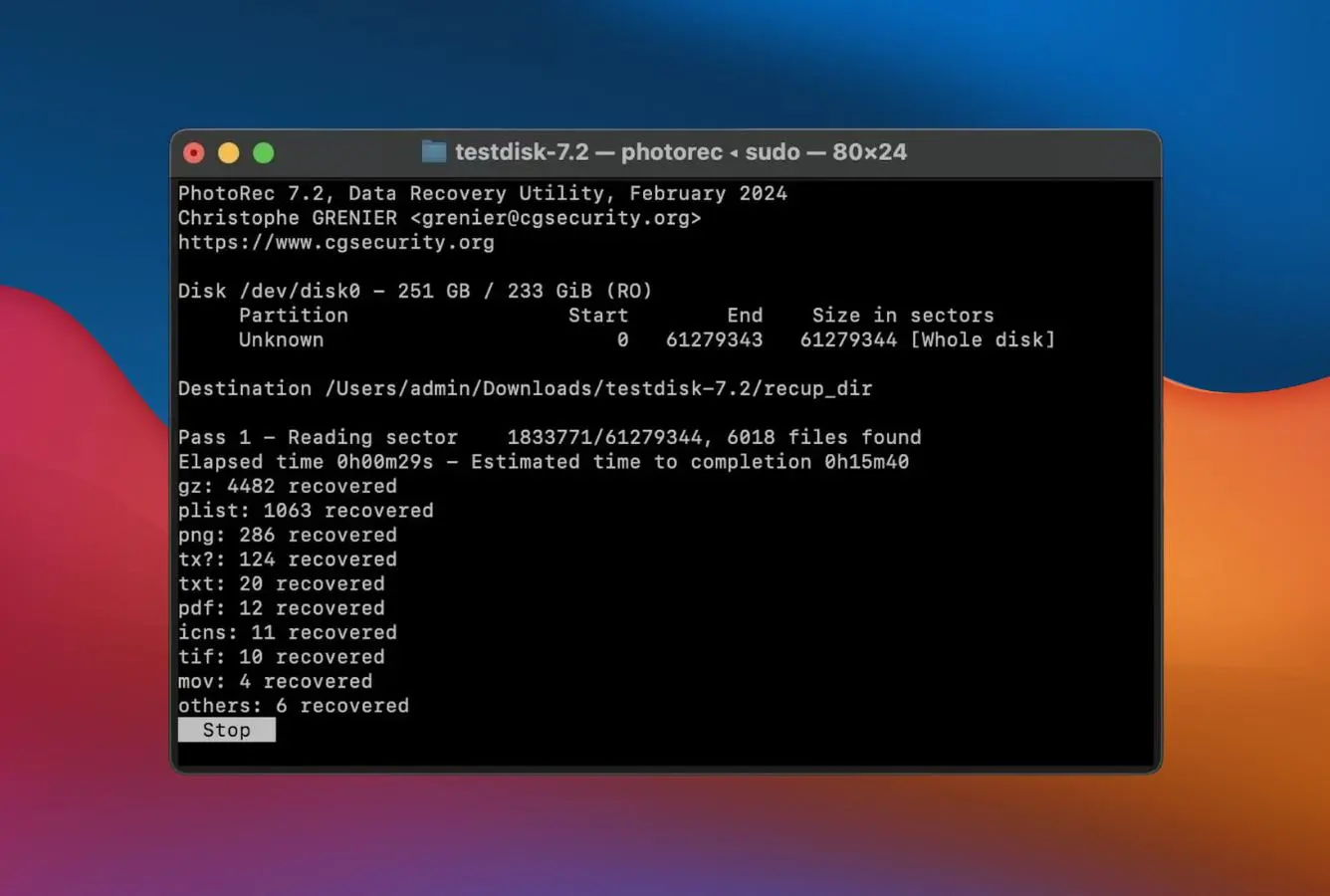
PhotoRec is the only Mac data recovery tool that is honestly, completely free — no quota, no per-file cap, no social share, no paid tier lurking behind a preview button. Developed by Christophe Grenier at CGSecurity and distributed under the GPL v2+ license, it has been the reference file-carving tool for professionals for more than two decades. Version 7.2 ships a universal binary that runs natively on Intel and Apple Silicon Macs via Homebrew or the official download. The catch is the interface: PhotoRec is terminal-only, keyboard-driven, and recovers files by signature rather than filesystem, which means filenames and folder structures are not preserved — every recovered file comes back as f0000001.jpg, f0000002.mov, and so on. For an SD card full of photos, that’s a minor nuisance. For a 4 TB drive with half a million documents, it becomes the primary reason people pay for something else.
- Genuinely unlimited — no file, size, or session caps, ever
- Open source under GPL v2+ with auditable code
- 480+ file signatures covering RAW, ProRes, PSD, CR3, DNG
- Runs natively on Apple Silicon via Homebrew
- Recovers from badly corrupted drives that filesystem-aware tools give up on
- Command-line only — steep learning curve for non-technical users
- Filenames and folder structure are lost on recovery
- No native APFS metadata awareness; signature-based scanning only
The reference file-carver that professional recovery labs still ship in their toolkits.
PhotoRec bypasses the filesystem entirely and scans disk sectors for known file signatures. That makes it uniquely effective on badly corrupted drives where APFS-aware tools refuse to mount the volume. Reddit’s r/datarecovery wiki lists PhotoRec alongside commercial professional tools like R-Studio and UFS Explorer as standard toolkit entries. The tradeoff is zero filesystem awareness: PhotoRec finds the bytes that make up your JPEGs and DOCX files, but the original filenames, dates, and folder layout are not recoverable.
Eight keyboard menus and no mouse — a usability wall that’s also a feature.
PhotoRec launches in Terminal with a text-mode menu: pick a disk, pick a partition, pick a filesystem, pick an output folder. Apple’s Gatekeeper requires you to grant Terminal full disk access before a scan can touch an internal volume. For users comfortable with sudo and a keyboard, the workflow is fast. For users expecting drag-and-drop, it’s a non-starter — and CGSecurity’s own website recommends a commercial GUI tool to users who want one.
Free forever, no strings, no telemetry — if your time is worth less than $20/hour.
PhotoRec is free under GPL v2+ with no commercial tier. The real cost is your time learning the command-line workflow and the post-recovery work of renaming and sorting generically-named output files. For a single SD card or a small emptied Trash folder, that tradeoff is excellent. For a 2 TB NAS volume, most users will break even with EaseUS’s $89.95 paid tier once you factor in the manual re-identification effort.
3. TestDisk – Best Free Partition and Boot-Sector Recovery
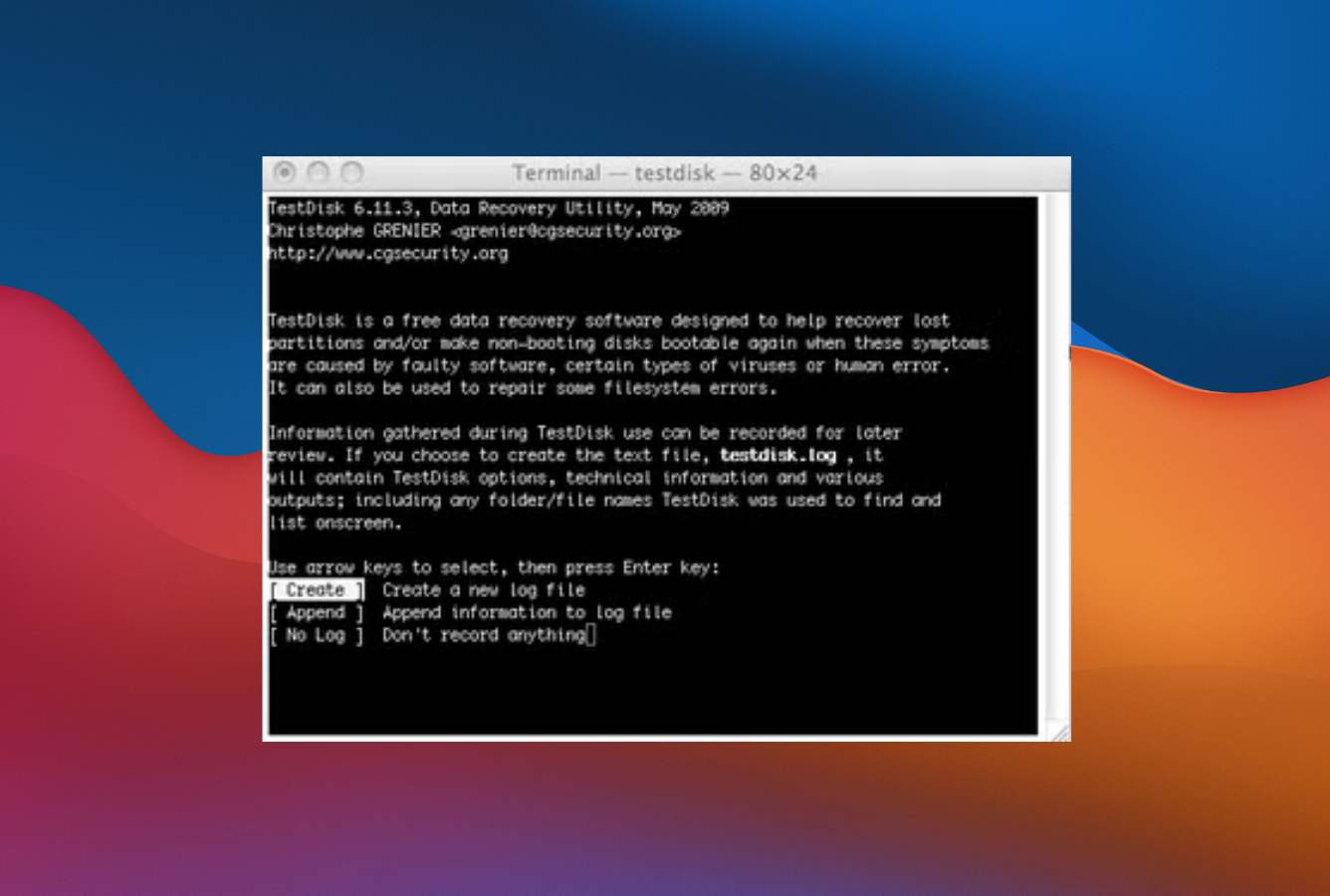
TestDisk is PhotoRec’s older sibling, written by the same developer and distributed in the same CGSecurity download bundle. Where PhotoRec recovers individual files, TestDisk fixes the higher-level problem: a corrupted partition table, a missing boot sector, or a drive that suddenly shows up as RAW in Disk Utility. It ships with native support for 30+ file systems (NTFS, FAT, exFAT, HFS+, ext2/3/4, btrfs, ZFS) and added APFS detection in version 7.2. For Mac users, this is the tool to reach for when your external drive is physically fine but macOS refuses to mount it — before running PhotoRec to carve out individual files, try letting TestDisk repair the partition structure and make the drive bootable again.
- Rebuilds damaged MBR and GPT partition tables
- Repairs FAT and NTFS boot sectors from backups
- 30+ filesystem support including APFS detection (v7.2+)
- Portable — runs from a USB stick with no install
- Bundled with PhotoRec in a single 30 MB download
- Command-line only with confusing filesystem-selection prompts
- Not a file-recovery tool — won’t undelete individual files on APFS
- Risk of data loss if partition-write commands are run without a clone first
Fixes structural damage that file-level recovery tools can’t touch.
TestDisk operates at the partition-table and boot-sector level. When a drive shows “unreadable” in Disk Utility or Finder refuses to mount an external volume, TestDisk can analyze the disk, find the lost partition entries, rebuild the MBR or GPT, and write the repaired structure back — at which point macOS mounts the drive normally and the files are accessible through Finder. This is a fundamentally different class of problem from accidental deletion, and it’s why professional labs keep TestDisk in the toolkit even when paid tools are available.
Terminal menus and partition-table theory, one wrong keystroke away from making things worse.
TestDisk’s interface is a series of text menus walking through disk selection, partition-table type, and action choice (Analyse, Advanced, Quick Search, Deep Search, Write). The word “Write” is where things get dangerous — committing a repaired partition table with a wrong choice can destroy the structure further. CGSecurity’s documentation is thorough but assumes some filesystem literacy. Users who don’t know the difference between MBR and GPT should image the drive first and test TestDisk against the image.
Free forever — and commercial data-recovery labs still use it.
TestDisk is free under GPL v2+, maintained by Christophe Grenier, with no commercial tier. For the specific job it does — partition-table and boot-sector repair on a drive that macOS has stopped recognizing — there is no paid tool that does it meaningfully better for a home user. The value is extraordinary, provided you treat the command-line learning curve as an investment and image the drive before making any write operations.

4. Stellar Data Recovery Free for Mac – Best Free UX for Non-Technical Users
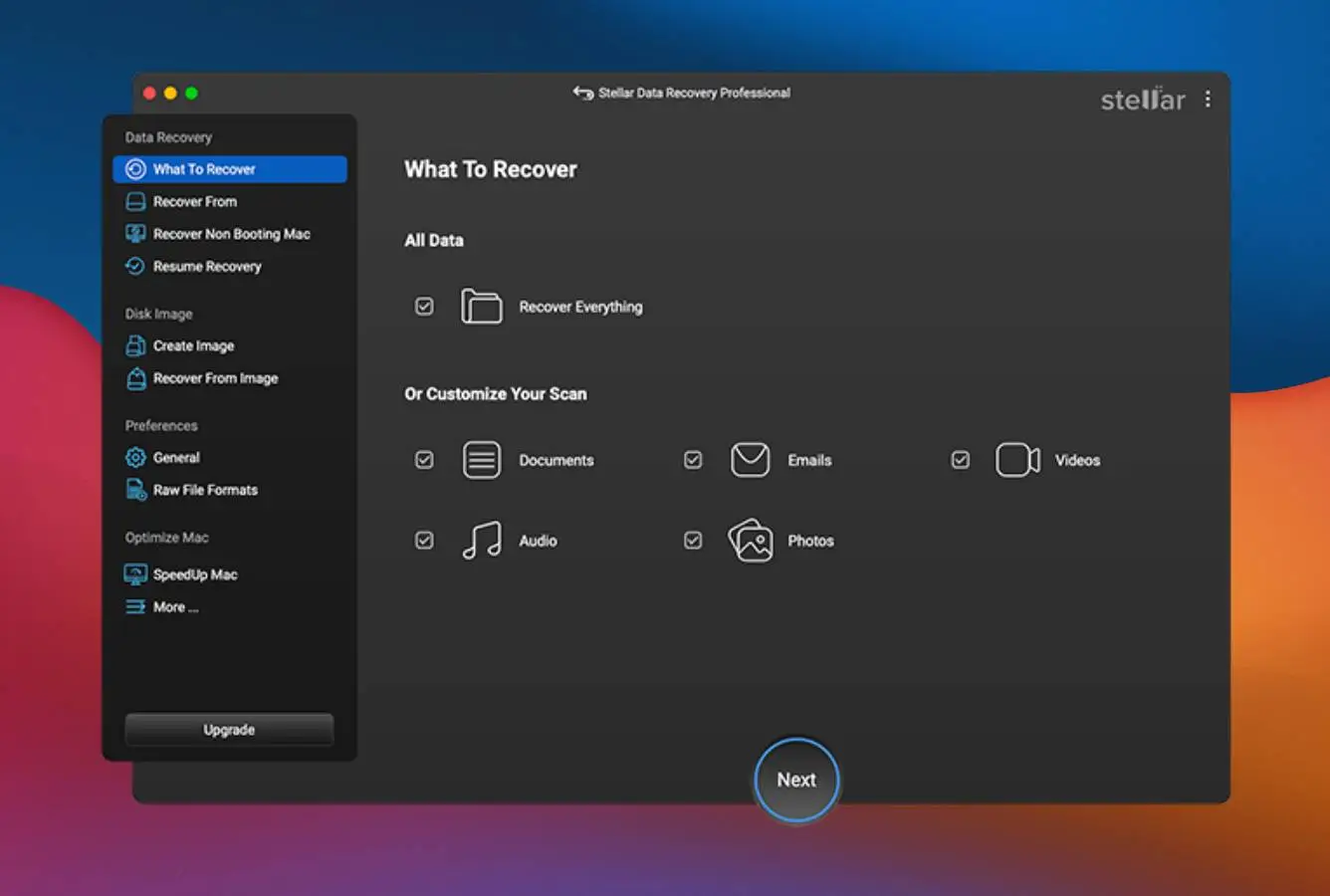
Stellar Data Recovery Free for Mac is the most polished commercial free tier on macOS. The 1 GB recovery cap is no-strings — no Twitter share, no email signup to recover, just download and run — and the interface is the closest thing to Apple’s own design language among the free Mac recovery tools. Filesystem coverage is broad: APFS, APFS Encrypted (with password), HFS+, NTFS, exFAT, and FAT variants. The catch that costs it a spot above the top three is the 100 MB per-file ceiling on the free tier. That’s fine for documents, photos, and short videos, but a single 4K video file or a Photoshop document larger than 100 MB can’t be recovered at all on the free edition, even if you’ve only used 50 MB of your 1 GB total quota.
- 1 GB free with no social-share unlock gimmick
- Polished native-feel interface with tree-view preview
- Supports macOS Tahoe, Sequoia, and Apple Silicon natively
- Pause and resume scans — critical for 4 TB drives
- APFS Encrypted volumes supported (with password)
- 100 MB per-file ceiling on the free edition — blocks large video recovery
- Requires email signup to unlock the download link
- Paid upgrade is a one-time $79.99, no monthly option
Strong filesystem coverage let down by the per-file ceiling on large media.
Stellar’s free scan engine handles APFS, APFS Encrypted (with the volume password), HFS+, exFAT, and legacy FAT variants. Independent testing consistently rates it among the top three for document and photo recovery on Apple Silicon hardware. Where the free edition falls short is the 100 MB per-file cap — a single ProRes clip, Photoshop PSB file, or RAW photo batch file larger than that is scannable but not recoverable on the free tier, even if the total quota hasn’t been used.
The cleanest free-tier UX on Mac — and the one most likely to feel native.
The interface follows Apple’s Human Interface Guidelines more closely than EaseUS or iBoysoft: a left-hand source list, a center results pane with tree view, and a right-hand preview panel. Filters cover file type, size range, deletion status, and file name wildcards. Scan pause-and-resume works reliably across system sleep, which matters for overnight deep scans on large external drives. The email-signup download gate is mildly annoying but doesn’t recur after install.
Reasonable paid upgrade path, but the per-file cap is a strange free-tier choice.
Upgrading to Stellar Professional for Mac is $79.99 as a one-time payment (not a subscription), which compares favorably to EaseUS’s $99.95/year and iBoysoft’s $99.95/year. The Premium tier at $99.99 adds photo and video repair. The free tier’s 1 GB cap makes sense, but the 100 MB per-file ceiling feels artificially restrictive — it forces paid upgrades for users who have plenty of quota remaining but a single large file to recover.

5. iBoysoft Data Recovery for Mac Free – Best Free Apple Silicon Coverage
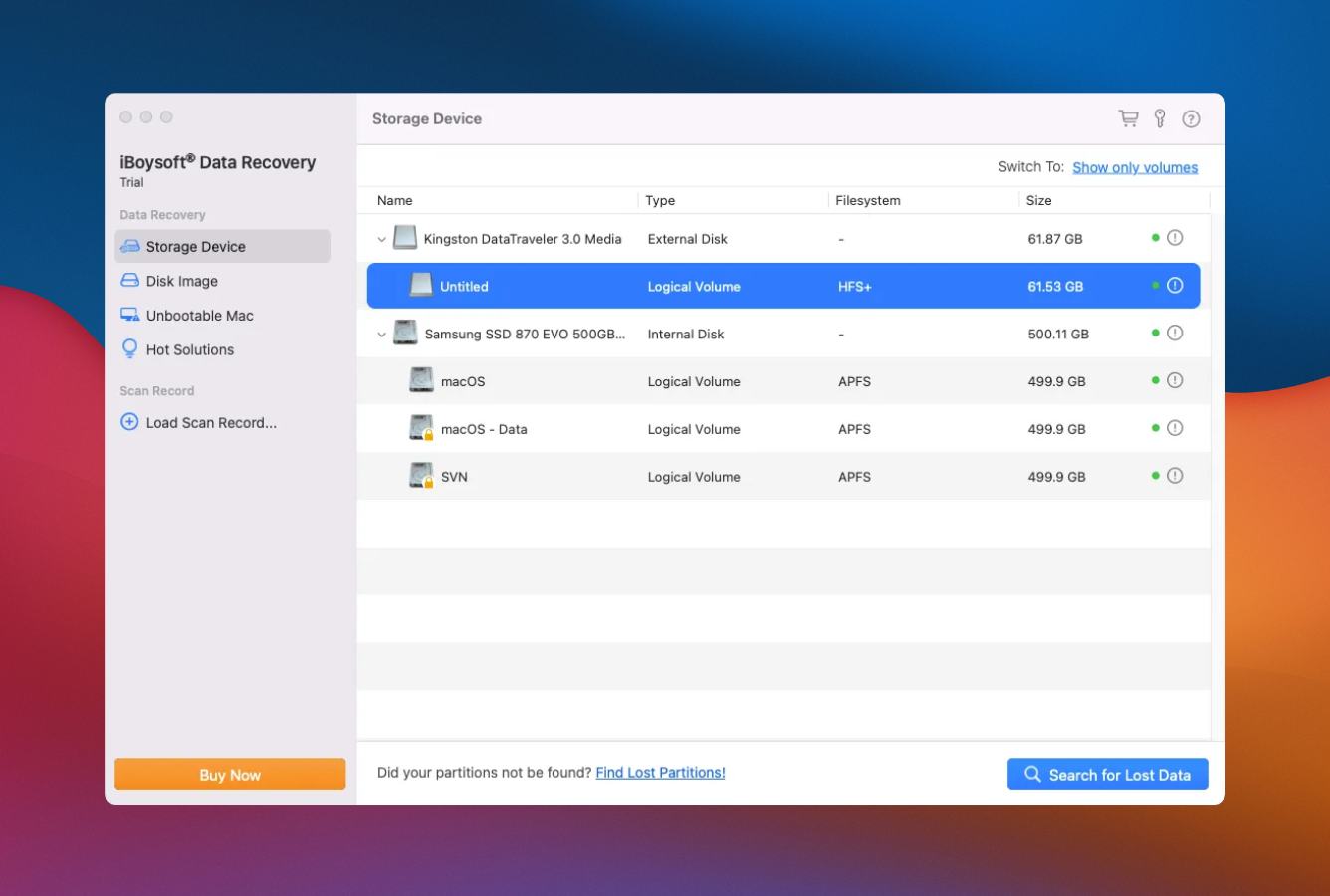
iBoysoft Data Recovery for Mac Free earns its spot for a feature mix nobody else in the free tier matches: encrypted APFS support, full Apple Silicon compatibility from M1 through M5, and recovery mode on unbootable Macs — all within a 1 GB free cap with no per-file size ceiling. The developer, Chengdu Aibo Tech, was one of the first to ship an APFS-compatible recovery engine when macOS High Sierra made APFS the default filesystem, and independent testing still places iBoysoft’s APFS recovery among the strongest in the category. Community feedback on Trustpilot is mixed (3.2/5 across 50+ reviews), with complaints clustering around pricing friction rather than the recovery engine itself. One note of caution from independent testing: some reviewers reported that the advertised 1 GB free recovery cap did not actually unlock files in recent Mac builds, though vendor documentation and the App Store listing both explicitly confirm the 1 GB free quota. Scan and preview first to verify behavior on your system.
- Encrypted APFS support on the free tier (with password)
- Native Apple Silicon support from M1 through M5
- Runs in macOS Recovery Mode to scan unbootable Macs
- 1 GB free with no per-file size cap
- Supports APFS, HFS+, HFSX, FAT32, and exFAT
- Some independent reviews report free-tier recovery doesn’t actually save files
- No lifetime license — only monthly ($89.95) or yearly ($99.95)
- UI feels a design generation behind Stellar and EaseUS
APFS specialization that pays off on modern Mac hardware.
iBoysoft’s scan engine was built around APFS from the start, not bolted on afterward. Independent testing rates its APFS partition reconstruction — particularly on drives where the filesystem has been reformatted — among the strongest in the free-tier commercial category. The unique free-tier features are encrypted APFS support (with the volume password) and the ability to boot into macOS Recovery Mode and scan an internal drive that won’t mount, which no other free Mac tool on this list offers without a paid upgrade.
Functional and utilitarian — a design generation behind Stellar.
The UI gets the job done: pick a drive, run quick or deep scan, preview, recover. It’s not as polished as Stellar’s Finder-style layout, and the preview pane renders fewer file types inline. Scans pause and resume reliably. The workflow gets more interesting when you need to boot into macOS Recovery Mode — iBoysoft ships a Terminal-driven recovery launcher that walks through the steps with more hand-holding than TestDisk provides.
Subscription-only paid tier is the main reason it sits at #5 instead of higher.
iBoysoft offers no lifetime license — paid editions run $89.95 per month, $99.95 per year, and $299 per year for a technician license covering 5 Macs. Compared to Stellar’s $79.99 one-time payment or EaseUS’s $169.95 lifetime for two Macs, iBoysoft’s subscription-first pricing feels out of step. The 1 GB free tier remains genuinely useful, especially for the encrypted-APFS and unbootable-Mac use cases nobody else covers for free.

6. iBeesoft Free Data Recovery for Mac – Best 2 GB Free Cap Without Social Share
iBeesoft Free Data Recovery for Mac matches EaseUS’s 2 GB ceiling without requiring a social share to unlock — the entire quota is available from first launch. The scan engine is less refined than EaseUS or Stellar in independent testing, and the paid upgrade pricing is aggressive rather than generous, but the free tier itself is honest: 2 GB, no per-file cap, no email gate beyond the initial download. Filesystem coverage spans APFS, HFS+, exFAT, and FAT for internal and external drives, plus SD cards, USB sticks, and camera storage. The company is less well-known than the five tools above, which is reflected in a smaller review footprint on Reddit and Trustpilot — worth noting if third-party validation matters to you. For users who want the 2 GB quota without jumping through the social-share hoop, iBeesoft is the main alternative.
- 2 GB free cap available immediately — no social share required
- No per-file size limit within the 2 GB quota
- Yearly license at $69.95 is cheaper than most competitors
- Quick Scan + Deep Scan with file-type filtering
- Apple Silicon native with APFS support
- Smaller third-party review footprint than EaseUS or Stellar
- Deep scan slower than top-tier tools on large SSDs
- No encrypted APFS support on the free tier
Competent for everyday cases, weaker for complex or encrypted volumes.
iBeesoft’s free scan engine handles standard APFS, HFS+, and exFAT recovery across internal and external drives, with file-signature carving for cases where filesystem metadata is damaged. Independent testing coverage is thinner than for the top five tools, but available reviews rate performance as adequate for straightforward deletion and formatting scenarios. The free tier does not cover encrypted APFS or macOS Recovery Mode unbootable scanning — both paid-tier exclusives.
Clean and simple, with a preview pane that does the job.
Launch, select drive, scan, preview, recover. The interface is less distinctive than Stellar’s but cleaner than iBoysoft’s, with file-type filtering in a left sidebar and preview thumbnails in the results grid. No social share, no recurring email nag, no persistent upgrade popups while scanning. The install footprint is small and the app launches quickly on Apple Silicon.
Honest 2 GB free tier paired with reasonable paid pricing.
Upgrading unlocks a yearly Personal license at $69.95, Family at $79.95 (2 Macs), or Lifetime at $99.95 for one Mac. The yearly Personal tier is meaningfully cheaper than EaseUS, Stellar, or iBoysoft on a year-one basis. Long-term value favors EaseUS’s lifetime or Stellar’s $79.99 one-time payment, but iBeesoft’s free tier is where it earns its spot — the most generous commercial free cap on Mac that doesn’t ask you to tweet about it.

7. DMDE Free Edition – Best Free Advanced Recovery Toolkit
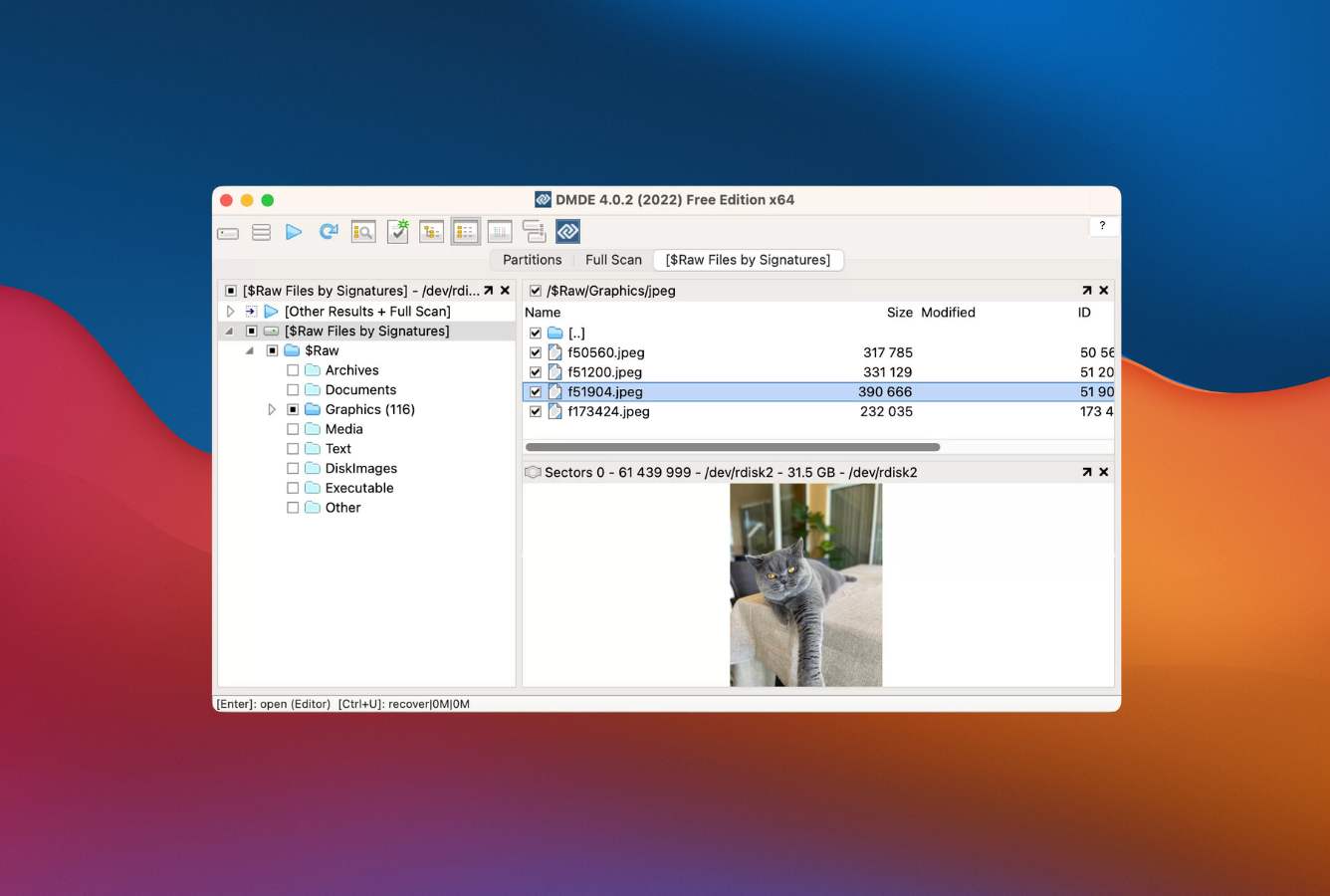
DMDE Free Edition (Disk Editor and Data Recovery Software) is the tool that keeps showing up on Reddit’s r/datarecovery wiki next to R-Studio and UFS Explorer as a professional-grade workhorse — at a fraction of the price. The free edition has an unusual limit structure: you can recover up to 4,000 files per session from one directory, with no total-size cap and no per-file cap. For a folder of deleted photos or documents under 4,000 items, the free edition is effectively unlimited. The paid tier at $20 lifetime removes the session cap and is one of the cheapest professional-grade licenses in the category. The catch is the interface: DMDE is built for users comfortable with cluster maps, binary data editors, and filesystem terminology. Home users accustomed to EaseUS or Stellar will find it overwhelming. Users who have recovered data before will find it genuinely powerful.
- Free edition recovers up to 4,000 files per session with no size cap
- Supports NTFS, FAT, exFAT, HFS+, APFS, ext2/3/4, btrfs
- Reconstructs directory structure with filenames intact (unlike PhotoRec)
- Paid lifetime license around $20 — professional value at consumer pricing
- Runs on Intel and Apple Silicon Macs, Windows, Linux, and DOS
- Interface is utilitarian and unforgiving — designed for technical users
- 4,000 files per directory per session cap frustrates large recovery jobs
- Hex editor and disk-write features can destroy data if used carelessly
The budget pro tool that reconstructs directory structure where PhotoRec can’t.
DMDE combines filesystem-aware scanning with signature-based file carving. Unlike PhotoRec, it preserves original filenames and folder structure when the filesystem metadata is partially intact — which is the common case for accidental deletion or formatting. It supports APFS, HFS+, NTFS, FAT/exFAT, ext2/3/4, and btrfs, and includes a disk editor for users who need byte-level inspection. Independent tests rate its scanning speed among the fastest in the category and its recovery completeness competitive with tools costing 10× more.
Cluster maps and partition tables — technical by design, unfriendly by default.
DMDE’s interface presents partitions as rows in a table, with cluster maps and filesystem trees for navigation. There’s no marketing-friendly onboarding wizard. Users who know what a “lost partition” is will find the workflow logical; users who just lost photos from an SD card will need the documentation open in another window. The 4,000-files-per-folder-per-session cap creates an odd workflow where large jobs get split across multiple runs — free-tier users effectively have to plan their recovery in chunks.
Twenty dollars for a lifetime professional license — the cheapest serious recovery tool on Mac.
DMDE Standard at roughly $20 is a perpetual license with no annual renewal. It’s often cited in professional forums as the best value-per-dollar recovery tool on the market. The free edition is genuinely useful for small jobs, and the paid upgrade is an impulse purchase. For Mac users who’ve outgrown PhotoRec’s signature-only recovery but don’t want to spend $79+ on a polished commercial tool, DMDE is the answer nobody in mainstream reviews talks about.
8. Exif Untrasher – Best Free JPEG Photo Recovery
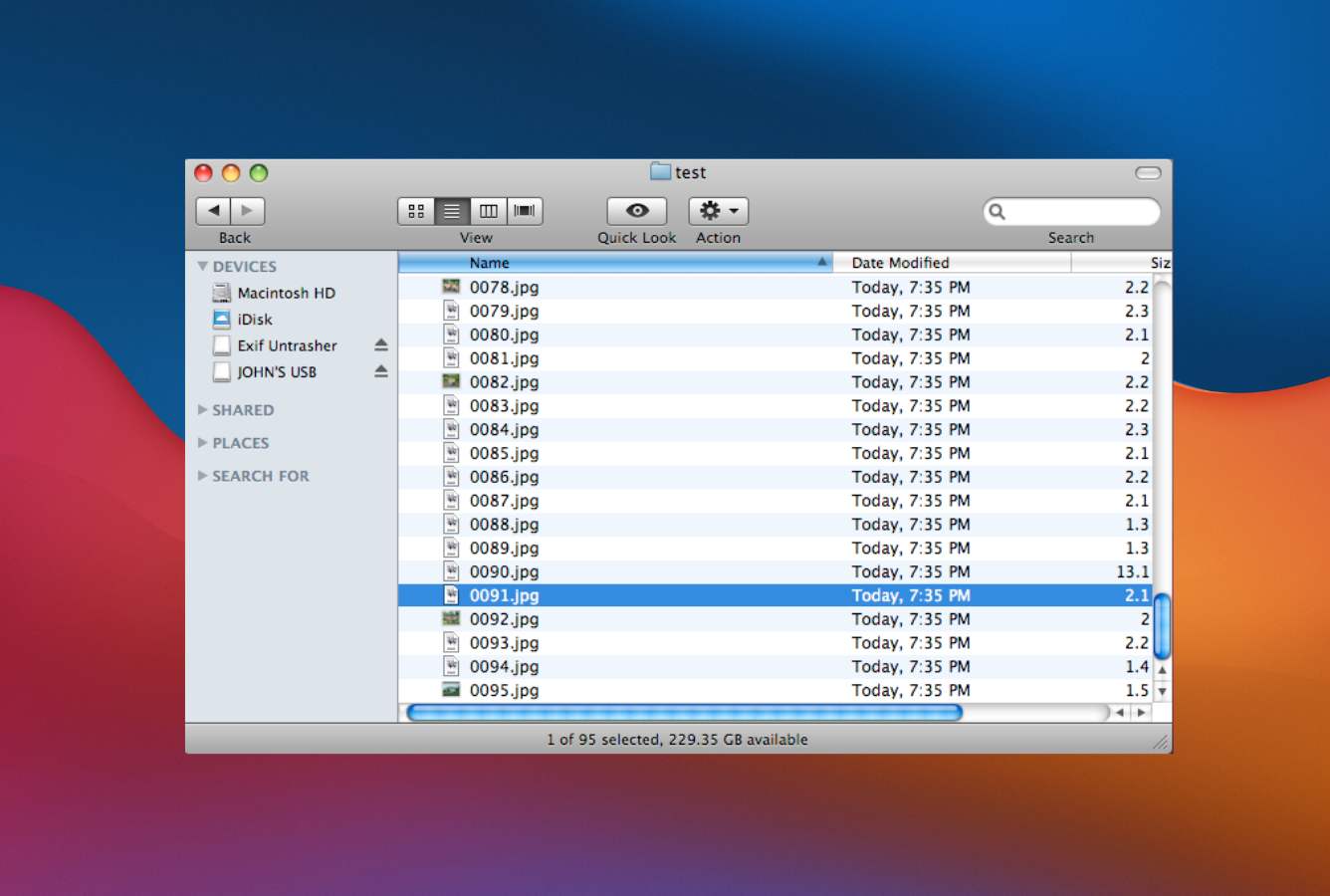
Exif Untrasher is the niche tool that closes out this list because it does one thing perfectly and is entirely free: recover JPEG photos from mounted camera memory cards. Developed by Bluem since 2006 and distributed as donationware, it scans for EXIF headers — the metadata format embedded in camera JPEGs — and extracts every JPEG it finds. It won’t recover RAW files, video, documents, or anything other than JPEG. It won’t scan an unmounted or corrupted volume. But for the specific job of rescuing photos from an accidentally erased or reformatted SD or CF card, it’s fast, free, and doesn’t touch the source card, so it can’t make things worse. The download is under 2 MB, runs on macOS 10.6 and up, and has a three-button interface: source, destination, recover. Successful recoveries have been reported across Canon, Nikon, Sony, Fuji, Olympus, Panasonic, Pentax, and Kodak cameras.
- Completely free (donationware), no paid tier or feature gating
- Purpose-built for camera-card JPEG recovery — excels at the job
- Read-only scanning that can’t corrupt the source card
- Tiny 2 MB download with a three-click workflow
- Works with all major camera manufacturers’ JPEG formats
- JPEG only — no RAW, video, document, or archive support
- Requires the card to be mounted as a volume on the Mac
- Not actively developed — last significant update predates Apple Silicon
Narrow scope, strong execution — the right tool for the right job.
Exif Untrasher scans mounted volumes for EXIF-header signatures and extracts complete JPEG files. Because EXIF is standardized across digital camera manufacturers, the tool works consistently with JPEGs from Canon, Nikon, Sony, Fuji, Olympus, Panasonic, Pentax, Kodak, Minolta, and Ricoh. It does not touch RAW files (CR2, NEF, ARW, RAF, ORF, DNG), video, or non-JPEG documents. For the specific problem of an accidentally formatted camera card, it’s fast and reliable — often faster than firing up PhotoRec’s command-line workflow.
Three buttons, zero ambiguity — the anti-feature-creep app.
The interface is a single window: pick source folder (your mounted card), pick destination folder (somewhere on your Mac), click Start. No scan modes, no preview pane, no filters — just JPEGs copied to the destination with sequential filenames. For users intimidated by EaseUS’s feature density or PhotoRec’s command-line menus, Exif Untrasher is the anti-stress option for camera-card recovery specifically.
Free forever with an optional donation — a rarity in modern Mac software.
Exif Untrasher is donationware maintained by developer Marco Kandziora of Bluem since 2006. There’s no paid tier, no feature gating, no subscription — and no active development either, which is the honest tradeoff. For JPEG-only recovery from mounted camera cards, nothing else on this list matches its simplicity at $0. For any other recovery scenario — RAW, video, documents, unmounted volumes — reach for PhotoRec or one of the commercial free tiers above.
How We Evaluate Free Mac Data Recovery Software
Ranking free data recovery tools is easy to get wrong. A tool that advertises “1 GB free” but only previews files isn’t free. A tool that bundles “free” with a mandatory social share has a cost. A tool that recovers unlimited data but loses every filename may not be useful for your specific situation. We evaluated each tool against published vendor documentation, independent testing from sources including the Pandora Recovery Scoreboard, Reddit’s r/datarecovery and r/MacApps threads, Trustpilot feedback, and Apple Support Community reports — then ranked them by the actual value of the free tier, not the marketing claim.
Platforms covered: macOS 10.13 High Sierra through macOS 15 Sequoia and early Tahoe beta, Intel and Apple Silicon (M1 through M5), APFS and APFS Encrypted, HFS+, exFAT, FAT variants. Key factors weighted: actual free-tier generosity (35%), recovery completeness on APFS (25%), ease of use for non-technical users (15%), file-system coverage breadth (10%), filesystem-aware vs signature-only recovery (10%), paid-tier value for users who outgrow the free cap (5%).
Individual scan walkthroughs, per-tool notes on APFS behavior, and free-tier unlock verification live on our full methodology page. Start there if you want the underlying detail behind any claim on this page.
Free Mac Data Recovery Software – Honorable Mentions
Six tools we considered but didn’t include in the main ranking. Each has a niche strength, a specific free-tier limitation, or a paywall that kept it out of the top eight. Most of these belong on a “best Mac data recovery software” list rather than a “best free Mac data recovery software” list — the free tiers are preview-only or heavily capped.





How to Choose the Best Free Mac Data Recovery Software
Six factors actually matter when picking free Mac recovery software. Everything else — vendor marketing claims, fabricated recovery-rate percentages, “1 million happy users” counters — can be safely ignored. Start with the recovery scenario you’re facing, then match it to the tool that covers that specific case without a paywall.
Actual free-tier limit — quota, per-file cap, and the share hurdle
Read the vendor page carefully. “Free download” means nothing — every recovery tool has a free installer. What matters is the recovery ceiling. EaseUS defaults to 500 MB and requires a social share to reach 2 GB. Stellar gives you 1 GB from the start but caps individual files at 100 MB. iBeesoft gives you 2 GB with no strings. PhotoRec and TestDisk are unlimited but command-line only. DMDE gives you 4,000 files per session per folder. There’s no universal winner — the right free tier depends on what you’re trying to recover.
Be especially wary of tools whose “free” scan mode only shows previews. Disk Drill for Mac, Data Rescue, R-Studio, UFS Explorer, and Mac Data Recovery Guru all fall into the preview-only category on Mac, even though some of them offer real free recovery on Windows. The word “free” on a vendor page does not mean “free recovery.”
File system compatibility — APFS is non-negotiable in 2026
Any modern Mac running macOS 10.13 or later uses APFS as the default filesystem. Apple Silicon Macs never shipped with anything else. A Mac recovery tool that doesn’t support APFS in 2026 is useless for internal drive recovery. Encrypted APFS is a separate requirement: if your volume uses FileVault, you’ll need either the volume password and a tool that supports encrypted APFS decryption (iBoysoft’s paid tier is one of the few), or a tool that can scan the unlocked volume after you sign in.
HFS+ still appears on older external drives and Time Machine backups. exFAT is the default on most SD cards and USB sticks. FAT32 survives on older camera memory cards and cheap flash drives. If you’re recovering from an SD card or memory card specifically, our Mac SD card recovery guide covers the specialized tools for that case.
Filesystem-aware vs signature-based recovery
Filesystem-aware recovery reads the APFS or HFS+ metadata structures to reconstruct deleted files with their original filenames, folder paths, timestamps, and sizes. Signature-based recovery (also called file carving) scans disk sectors for known file headers and extracts whatever matches, without any filesystem knowledge. Commercial tools like EaseUS, Stellar, iBoysoft, and iBeesoft are filesystem-aware first and fall back to signature carving when metadata is destroyed. PhotoRec is signature-only. DMDE does both.
For everyday recovery — accidentally emptied Trash, reformatted external drive, corrupted partition — filesystem-aware tools return far more usable results because they preserve original filenames. For badly corrupted drives where the filesystem itself is destroyed, signature-based tools like PhotoRec are sometimes the only thing that recovers anything at all.
Ease of use vs power — the GUI tradeoff
The free tools in this roundup split cleanly into two groups. Commercial GUIs (EaseUS, Stellar, iBoysoft, iBeesoft) are designed for first-time users, with drag-and-drop workflows, preview panes, and filter sidebars. Open-source command-line tools (PhotoRec, TestDisk, DMDE) are designed for users who already know the terminology and want maximum control.
Choose the GUI path if you’ve never recovered data before and need to recover something in the next hour. Choose the CLI path if you have time to learn the tools, want unlimited free recovery, or are dealing with structural damage (lost partitions, unmountable volumes) that the GUI tools can’t touch.
Pricing model of the paid tier — for when free isn’t enough
If your recovery job exceeds the free cap, the paid-tier pricing starts to matter. One-time lifetime licenses are the best long-term value: Stellar at $79.99, EaseUS Lifetime at $169.95, DMDE at ~$20. Subscription-only paid tiers — iBoysoft at $99.95/year, Wondershare Recoverit at $89.99/year — get expensive fast if you only need recovery once every few years. Our main data recovery roundup covers the paid options in depth if you’re moving past the free tier.
Safety — read-only scanning and recovery destination
Every tool on this list operates read-only against the source drive during scanning — the scan itself cannot damage your data. The real safety risk is where you save recovered files. Recovering to the same drive you’re scanning is the single most common way users make their data unrecoverable, because each written file potentially overwrites a sector containing data you haven’t recovered yet. Always recover to a different physical drive: an external SSD, a USB stick, or a second internal drive. For broader platform coverage, our Windows data recovery guide covers the same concepts for Boot Camp and dual-platform users.
When Free Mac Recovery Software Can’t Get Your Files Back
Recovery software — free or paid — can only recover data that still physically exists on the drive. Several common scenarios make software recovery impossible regardless of which tool you use. Knowing when to stop trying software and move to a different approach saves time and, in some cases, saves your data from further damage.
| Your situation | Software can help? | What to do instead |
|---|---|---|
| Drive is clicking, beeping, or making unusual mechanical noises | No | Power off immediately. Do not run software scans. Contact a professional recovery lab — continued operation physically damages the platters further. |
| Internal SSD with TRIM enabled, files deleted more than a few hours ago | No | TRIM has permanently erased the deleted blocks. Check Time Machine, iCloud Drive version history, or a separate backup instead. |
| Drive encrypted with FileVault, lost recovery key and password | No | Without the password or recovery key, the encrypted data cannot be decrypted by any software. Apple cannot recover it either. This is by design. |
| APFS volume, deleted files, used drive normally for days afterward | Maybe | Try PhotoRec or a filesystem-aware tool immediately. Success rate drops sharply as new writes overwrite sectors containing your deleted data. |
| External SD card or USB drive, accidentally reformatted, no new writes since | Yes | High success rate with EaseUS, Stellar, PhotoRec, or Exif Untrasher. Stop using the card immediately and scan from a separate Mac if possible. |
Physical drive damage — clicking, grinding, or detection failures
When an external HDD makes clicking or grinding noises, or when Disk Utility refuses to recognize a drive that worked an hour ago, the problem is physical, not logical. Every additional minute of power on a failing drive risks platter damage that no software can recover from. Power the drive down and contact a professional recovery lab with cleanroom facilities. Our hard drive recovery guide covers software options for drives that are still healthy but have logical damage.
TRIM on modern SSDs — the invisible data eraser
Apple Silicon Macs and modern Intel Macs with NVMe internal SSDs have TRIM enabled at the system level. When you delete a file on an APFS volume with TRIM active, macOS tells the SSD controller to mark those blocks as “safely erasable” — and the controller wipes them asynchronously in the background, usually within seconds to minutes. Once TRIM has run, no software on earth can recover the data. This is why successful Mac SSD recovery depends almost entirely on how quickly you stop using the drive after the deletion. External SSDs connected over USB often do not receive TRIM commands, which keeps recovery much more feasible on those drives.
Encrypted volumes without the password or recovery key
FileVault, APFS native encryption, and any third-party disk encryption (VeraCrypt, etc.) all work the same way from a recovery perspective: without the password or the Apple-issued recovery key, the data on the volume is cryptographic noise. This is intentional, correct behavior — the encryption is working. Neither free nor paid recovery software can decrypt without the key. Check Apple’s FileVault recovery documentation for options to retrieve a lost recovery key from iCloud or an institutional escrow.
Overwritten sectors — the inevitable loser
Every recovery tool depends on the deleted data physically still existing on the drive. Each new file you save, each macOS update that writes temp files, each Time Machine snapshot that consumes free-space blocks — all of these can overwrite sectors that contain your deleted files. The longer you use a drive after deleting something important, the lower the recovery odds. Users who realize they’ve deleted something important and immediately stop using the drive have dramatically better outcomes than users who keep working for a day before running recovery software.
When to stop DIY and call a professional
Call a cleanroom recovery lab when: the drive is physically damaged (clicking, smoking, water damage, drop damage); software scans return zero recoverable files or wildly incomplete results; or the data value exceeds a few thousand dollars of professional lab fees. Reputable labs typically offer free evaluations and no-data-no-fee pricing. Avoid any service that demands payment upfront before evaluating the drive.
Every minute of continued use after deletion reduces your recovery odds. Power down the affected drive, boot from a different Mac if possible, and run recovery from there — not from the drive you’re trying to save.
Built-in macOS Recovery Options (Check These First)
Before downloading any third-party recovery tool, check the built-in macOS options that might already have your files. These are always free, always safe, and often solve the problem in thirty seconds.
Trash and Time Machine — the two-minute check
Open the Trash first. Files deleted normally (Command+Delete, drag to Trash, Finder delete) sit in the Trash indefinitely until you explicitly empty it or macOS cleans it up after 30 days. If your file is there, right-click and choose “Put Back.” If Trash is empty and you had Time Machine running, open Time Machine (click the clock icon in the menu bar, or System Settings → General → Time Machine), navigate to the folder where the file lived, scroll backward through snapshots until the file reappears, select it, and click Restore.
iCloud Drive recovery — 30 days from deletion
Files deleted from iCloud Drive, iCloud Photos, or iCloud apps are kept in “Recently Deleted” for 30 days before permanent erasure. Sign in to iCloud.com, click your name, then Account Settings, then scroll to “Advanced” and click “Restore Files.” The same 30-day window applies to iCloud Photos (Photos app → Recently Deleted album) and to individual iCloud-enabled apps like Notes, which have their own Recently Deleted folders.
Disk Utility First Aid — for mount errors and filesystem damage
If an external drive suddenly won’t mount, or Finder shows an error trying to access a drive that worked yesterday, run Disk Utility’s First Aid before jumping to recovery software. Open Disk Utility, select the volume (not the physical drive), and click First Aid. First Aid repairs minor APFS and HFS+ filesystem inconsistencies that often cause mount failures. If First Aid succeeds, the drive mounts normally and you can copy files off without any recovery tool. If First Aid fails, don’t panic — the data is still likely intact, and TestDisk or a commercial recovery tool can usually read the volume directly.
When built-in options aren’t enough
Built-in macOS recovery covers four scenarios: files in Trash, files in Time Machine snapshots, files in iCloud “Recently Deleted” within 30 days, and filesystem errors that Disk Utility First Aid can repair. Every other scenario — emptied Trash without Time Machine, reformatted drives, SD card corruption, deleted partitions, unbootable Mac internal drives — requires third-party recovery software. That’s where this roundup’s tools come in, starting with the top-three picks above and falling back to TestDisk or PhotoRec when the filesystem itself is damaged.
Time Machine is free, ships with every Mac, and automatically keeps hourly snapshots of your files. An 8 TB external drive costs less than a single Data Rescue Pro license — and it’s the single best insurance against ever needing recovery software again.
Final Verdict
EaseUS Data Recovery Wizard for Mac Free is the best free Mac data recovery software in 2026. Its 2 GB ceiling, no per-file size cap, full APFS coverage, and Apple Silicon-native scan engine make it the most useful commercial free tier on macOS for everyday users. The social-share unlock to reach 2 GB is the one friction point, and it’s a small one compared to Stellar’s 100 MB per-file ceiling or Disk Drill’s preview-only Mac free tier.
Beyond the winner: PhotoRec is the only tool with genuinely unlimited free recovery — the right pick for users comfortable with the command line or dealing with badly corrupted drives where APFS-aware tools give up. TestDisk sits at #3 for its niche but irreplaceable role in partition-table repair. iBeesoft Free matches EaseUS’s 2 GB cap without the share requirement and is the best low-friction option for users who refuse the social-share hoop. DMDE Free at #7 deserves special mention as a professional-grade tool hiding behind a quirky free-tier limit structure — for technical users, it’s the best value on the list. For users whose recovery job exceeds what any free tier can handle, the paid tools in our main data recovery roundup are the logical next step.
Frequently Asked Questions
About the Authors


Data Recovery Fix earns revenue through affiliate links on some product recommendations. This does not influence our rankings — all tools are evaluated independently based on documented research, independent testing from external sources, vendor documentation, and community feedback, before any affiliate relationships are considered. If anything on this page looks inaccurate, outdated, or worth revisiting, please reach out at contact@datarecoveryfix.com and we’ll review it promptly.