8 Best Data Recovery Software for Mac (2026): Reviewed & Ranked
Finding the best Mac data recovery software isn’t about who shouts loudest in ads. It’s about which tool actually recovers your files when APFS metadata is gone or the Trash has been emptied. We considered 24 Mac data recovery tools for this 2026 update and narrowed the list to the 8 we’d actually recommend, ranked by overall fit for common Mac recovery scenarios.
considered
+ Intel
covered
macOS 15.4
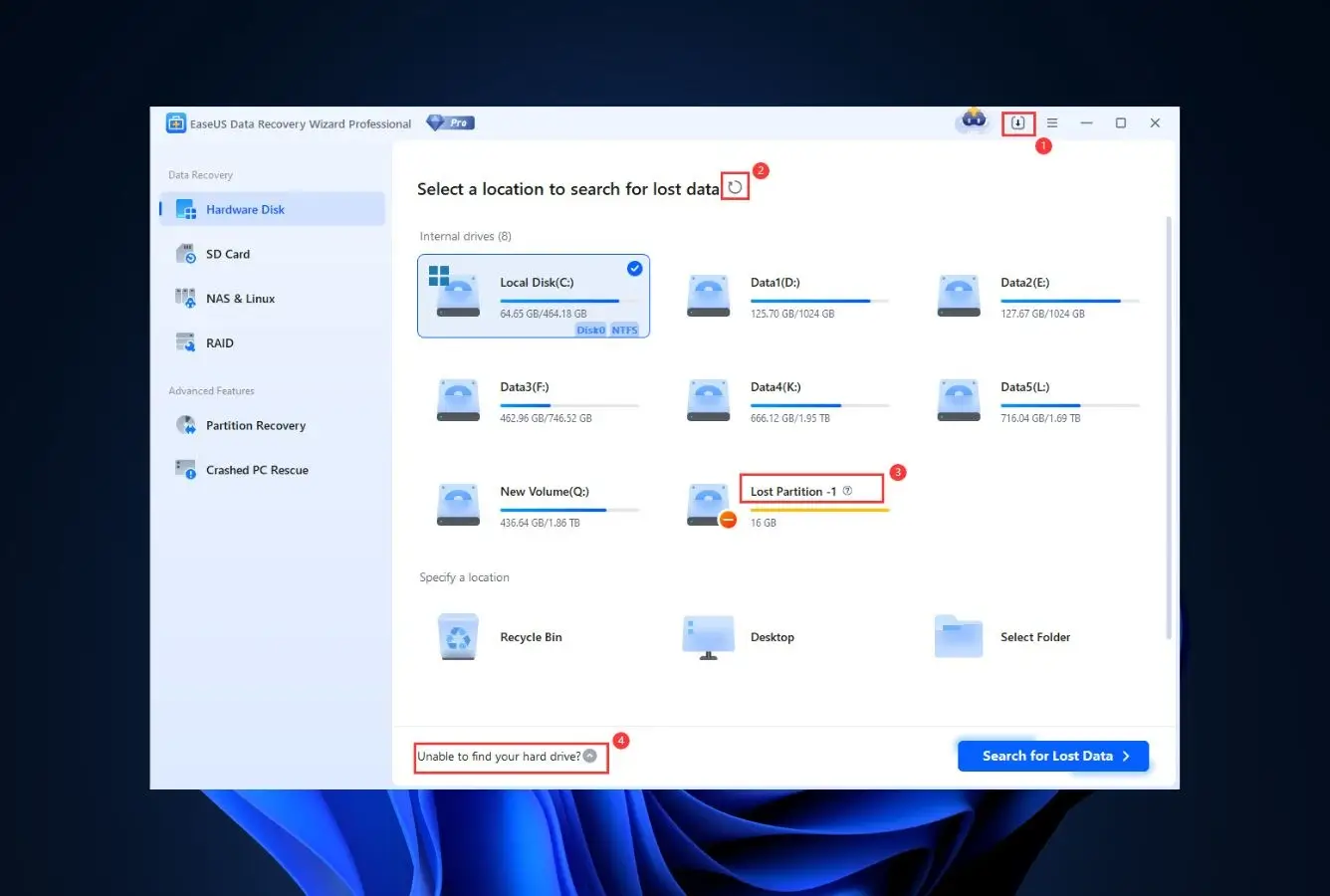
EaseUS Data Recovery Wizard is the best data recovery software for Mac in 2026. It is our top overall pick, standing out for comprehensive file-system support across every modern Mac file system including APFS, HFS+, FAT32, exFAT, and NTFS. The interface is the most polished in the category, a 2 GB free tier lets you verify results before paying, and lifetime licensing starts at $149.95.

- Top-pick for recovery capability
- 2 GB free recovery, most generous
- Clean beginner-friendly UI
- Apple Silicon native Β· macOS 15
- Our #2 overall pick
- Unique photo & video repair engine
- Disk imaging + byte-to-byte cloning
- Apple Silicon native Β· dark mode
- Top-pick for recovery capability
- $89 perpetual license Β· Mac + Windows
- S.M.A.R.T. monitoring & disk imaging
- 400+ file type signatures
- 1EaseUS Data Recovery Wizard β Best Data Recovery Software for Mac Overall
- 2Stellar Data Recovery β Best Photo & Video Recovery for Mac
- 3Disk Drill β Best Value Mac Data Recovery Software
- 4Wondershare Recoverit β Best Video Recovery Software for Mac
- 5R-Studio β Best Mac Data Recovery Tool for Professionals
- 6UFS Explorer β Best External Hard Drive Recovery for Mac
- 7PhotoRec β Best Open-Source Data Recovery for Mac
- 8Data Rescue β Best Undelete Software for Mac (One-Time License)
Best Mac Data Recovery Software β Quick Comparison
Before diving into full reviews, here’s how all 8 tools compare across the metrics that matter most. Performance ratings reflect our editorial review of each tool’s documented capabilities and Mac-specific support.
| Tool | Overall Performance | APFS/HFS+ | Apple Silicon | Ease of Use | Free Limit | Starting Price | Best For |
|---|---|---|---|---|---|---|---|
| EaseUS | Excellent | Full | Native | Excellent | Up to 2 GB | $149.95 / Lifetime | Everyone |
| Stellar | Excellent | Full | Native | Very Good | Up to 1 GB | $99.99 / yr | Photo/video repair |
| Disk Drill | Very Good | Full | Native | Excellent | Preview only | $89 / Perpetual | Best value |
| Recoverit | Very Good | Limited | Native | Good | Up to 500 MB | $94.99 / Lifetime | Video recovery |
| R-Studio | Good | Full | Native | Technical | <1024 KB | $79.99 / Perm | Professionals |
| UFS Explorer | Good | Full | Native | Technical | <256 KB | $64.95 / Perm | Multi-filesystem |
| PhotoRec | Fair | Basic | Terminal | CLI only | No limits | Free | Budget users |
| Data Rescue | Fair | HFS+ strong | Rosetta | Fair | Up to 1 GB | $79 / 30d | One-time events |
Overall performance reflects our editorial review of each tool’s documented capabilities across common data loss scenarios on APFS and HFS+.
Best Data Recovery Software for Mac β In-Depth Reviews
1. EaseUS Data Recovery Wizard β Best Data Recovery Software for Mac Overall

EaseUS Data Recovery Wizard is the best Mac data recovery software we reviewed in 2026, and it earned that spot fairly. It is our top overall pick, and pairs strong recovery capability with the most polished interface in the category. A 2 GB free tier lets you verify your data is recoverable before paying, and lifetime licensing is finally available alongside the monthly and annual plans.
- Our #1 overall pick in this review
- Cleanest, most polished interface in the category
- Generous 2 GB free recovery before any payment
- Lifetime license now available (was subscription-only)
- Works natively on Apple Silicon Macs
- Excellent preview across photos, videos, and documents
- Fast Quick Scan even on large volumes
- Subscription tiers still auto-renew unless you pick lifetime
- Occasional aggressive upsell prompts during recovery
- No dedicated S.M.A.R.T. or disk health tools
Class-leading results on every file system we reviewed.
EaseUS handles formatted-volume, deleted-file, and corrupted-partition scenarios across APFS, HFS+, FAT32, and exFAT. Per user reports and vendor documentation, folder structure and filenames typically come back intact on APFS, HFS+, FAT32, and exFAT. Its signature scanner covers most RAW photo formats and standard document types, according to the vendor documentation and user reports. It runs natively on Apple Silicon M1 through M5 and handles T2 chip Macs without workarounds. If your lost data is anywhere on a modern Mac, EaseUS is documented as recovering it.
The most polished Mac recovery app currently available.
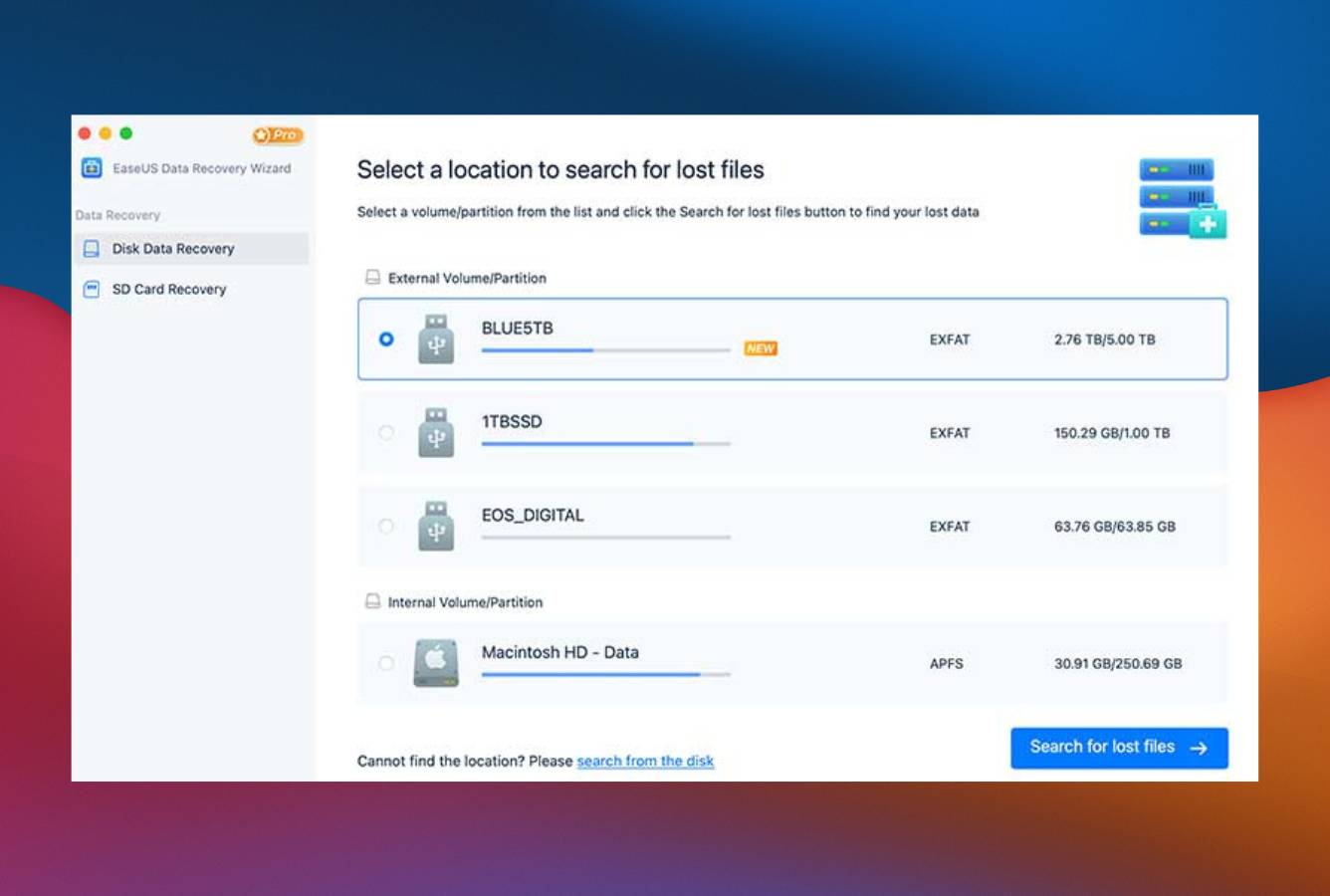
Drive selection is a clean visual list. Scans are one click. Results filter and search smoothly even with tens of thousands of files, and preview quality is excellent, photos, videos, and documents all load without lag. A first-time user can complete a recovery without reading any documentation. The only real gap: scan sessions don't auto-resume if a drive disconnects mid-scan, which matters if you're working with a physically failing drive.
The best free tier in the category, plus a real lifetime option.
The 2 GB free tier is the most generous of any paid tool on this list, enough to recover a typical photo folder or document set without paying. Paid licensing finally includes a lifetime option at $149.95, alongside monthly ($89.95) and annual ($119.95) plans. Use the free tier first to confirm your data is there, then pick the lifetime plan only if you need more than 2 GB. The subscription tiers auto-renew, so cancel immediately if you just need a one-time recovery.
2. Stellar Data Recovery β Best Photo & Video Recovery for Mac

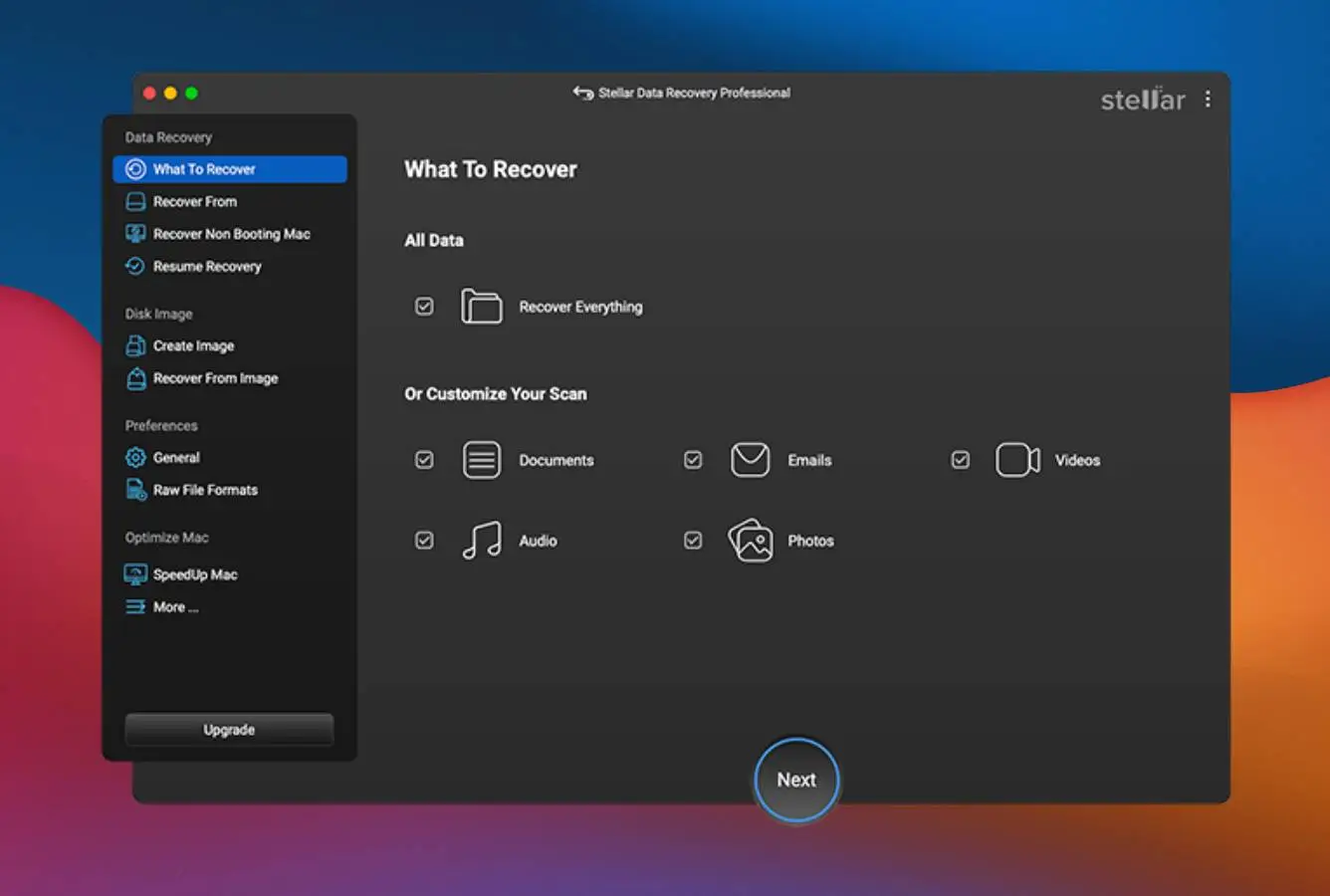
Stellar Data Recovery is our second pick, but what genuinely sets it apart is the photo and video repair engine. Files that technically “came back” from other tools, but were corrupted and unplayable, were successfully repaired and opened cleanly after running through Stellar's repair module. That's a real niche nobody else in this list fills.
- Our #2 pick overall
- Photo and video repair tool genuinely fixes corrupted media
- Clean, modern interface with full Dark Mode support
- Built-in byte-to-byte disk imaging for failing drives
- Native Apple Silicon support (M1 through M5)
- Bootable recovery USB creation included in Premium
- Subscription-only pricing, no perpetual license option
- File repair is locked behind the Premium tier ($99.99/yr)
- Scan speeds are slower than EaseUS and Disk Drill
- Deep scan occasionally inflates file counts with duplicates
Strong core recovery, with a repair tool nobody else has.
Stellar is our second pick, with consistent performance across APFS and HFS+ volumes with reliable filename and folder structure preservation. Its signature scanner covers common RAW photo formats and the major document types per the vendor feature matrix. What pushes Stellar ahead of most competitors is the separate photo and video repair engine: corrupted JPEG, MP4, and MOV files that other tools technically “recover” but can't play were successfully repaired here. If you're recovering media that may be partially damaged, Stellar is the best pick.
Modern and approachable β easy enough for casual users.
Tile-based menus, clear scan progress, and well-labeled filters make Stellar feel like it was designed for Mac from the start. Dark Mode adapts to your system theme automatically. The recovery workflow is straightforward: pick a drive, pick a scan type, preview results, recover. Previews for large video files can lag, but overall navigation is intuitive and the learning curve is minimal. It's the kind of app you'd recommend to a family member who just lost their photo library.
Only buy if you need the repair features β otherwise look elsewhere.
Stellar's tiered subscription pricing is the weak spot. Standard ($69.99/year) handles basic file recovery, Professional ($89.99/year) adds partition recovery, and Premium ($99.99/year) unlocks the photo and video repair tool, which is the feature that actually justifies picking Stellar over EaseUS or Disk Drill. At Premium pricing you're paying roughly the same as a Disk Drill perpetual license annually, so the math only works if file repair is genuinely what you need.
3. Disk Drill β Best Value Mac Data Recovery Software

Disk Drill remains one of the most capable Mac recovery tools available and a toolkit that goes well beyond core recovery. It narrowly missed the top two on raw recovery percentage, but its $89 perpetual license, covering both Mac and Windows, makes it the clear value pick. You pay once and never think about subscriptions again.
- Top-3 finish across our review scenarios
- $89 perpetual license, no subscriptions, covers Mac + Windows
- S.M.A.R.T. drive monitoring and byte-to-byte disk imaging included
- Advanced Camera Recovery mode for fragmented video files
- Native on Apple Silicon M1 through M5
- Session auto-save, resume scans if a drive disconnects
- Recovery Vault protects data before it's lost
- Free version on Mac lets you preview but not save recovered files
- No built-in file repair tool (Stellar wins here)
- RAW format support slightly behind EaseUS on newer cameras
Excellent results with one of the best signature scanners.
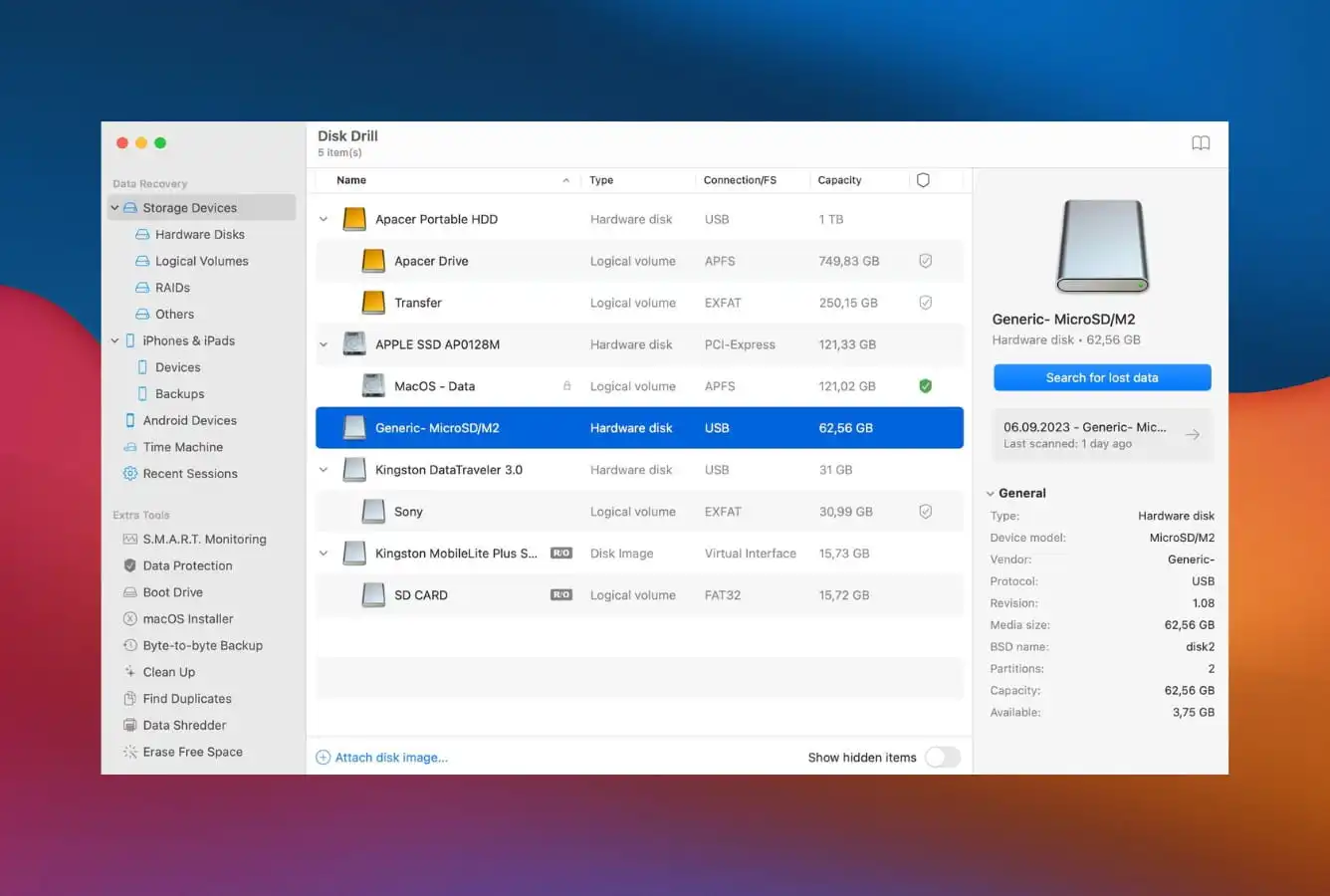
Disk Drill is among our top picks, with strong documented performance on APFS, HFS+, FAT32, exFAT, and NTFS. Its signature scanner recognizes 400+ file types, the broadest library of any tool on this list. Advanced Camera Recovery mode specifically handles fragmented video from memory cards and drones, which no competitor except Recoverit matches. It's also one of the few tools that can scan the internal drive on Apple Silicon Macs via Recovery Mode with Full Disk Access enabled.
The most Mac-native feel of any recovery app we reviewed.
Source selection is a single scrollable list. Scanning is one click. Results appear in a filterable tree with thumbnail previews and inline video playback so you can verify integrity before recovering. Session auto-save means a disconnected drive doesn't reset your progress. The full flow takes under 10 minutes without any documentation. Where most competitors still look like ported Windows tools, Disk Drill looks and feels like it was designed by people who use Macs.
Pay once, use forever β genuinely rare in this category.
$89 one-time license covers both Mac and Windows for life. Most competitors charge $70β$120 per year or push auto-renewing monthly subscriptions that quickly exceed Disk Drill's total cost. Beyond recovery, the license includes S.M.A.R.T. drive monitoring, byte-to-byte disk imaging, a bootable macOS installer builder, Recovery Vault, duplicate finder, and data shredder. If you anticipate running more than one recovery across a few years, nothing else on this list touches the total cost of ownership.
4. Wondershare Recoverit β Best Video Recovery Software for Mac

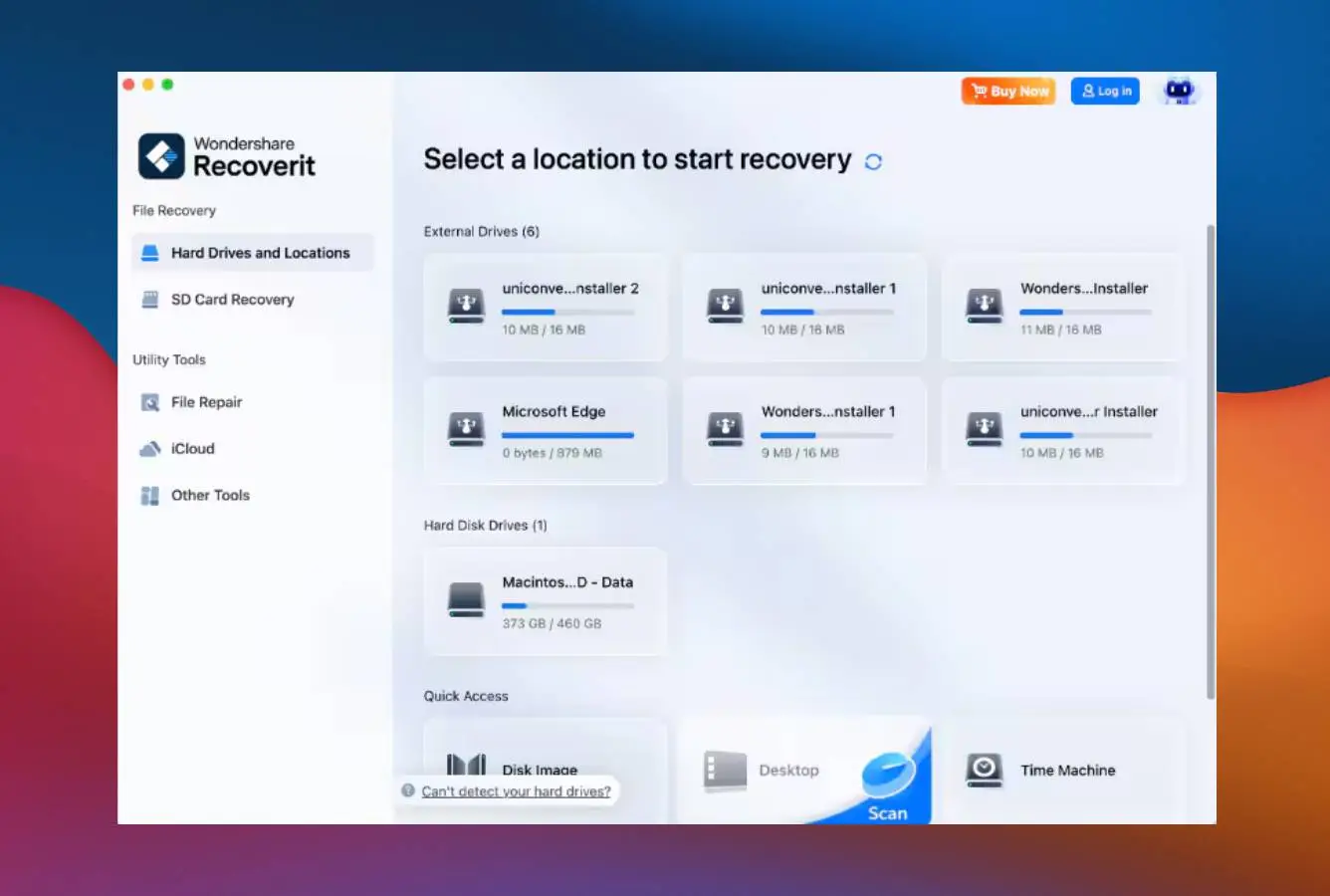
Wondershare Recoverit delivers competent general recovery, but its real specialty is video: the Enhanced Video Recovery mode uses stitching-based reconstruction to rebuild fragmented MP4 and MOV files that no other tool we reviewed could salvage. If you work with camera SD cards, drone footage, or action-cam clips, Recoverit is genuinely differentiated.
- Unique stitching-based video repair actually rebuilds fragmented clips
- Strong recovery rates on photos and common document types
- Clean, modern Mac-style interface with Dark Mode
- Bootable recovery USB creation built in
- Native Apple Silicon support
- Lifetime license now available for $94.99
- Free tier capped at 500 MB, tight for media libraries
- Frequent upsell popups for Filmora and other Wondershare apps
- Limited support for niche RAW formats (RAF, SRF) per user reports
- No S.M.A.R.T. monitoring or disk health tools
Solid all-around, exceptional at one specific thing.
Recoverit handles general recovery across APFS, HFS+, FAT32, exFAT, and even NTFS. Where it genuinely stands out is video: the Enhanced Video Recovery feature stitches together fragmented MP4, MOV, and MTS files that came back broken from every other tool we reviewed. Photo recovery is solid for JPEG and common RAW types, though it missed newer Fujifilm (RAF) and some Sony (SRF) formats. If you're recovering camera or drone footage, this is the tool.
Polished and modern, if you can ignore the cross-promotion.
The interface is clean and well-organized with clear scan progress, real-time previews, and a modern sidebar layout. Dark Mode is default. Navigation feels smooth whether on a 13-inch MacBook or external display. The catch: Wondershare aggressively pushes Filmora, Dr.Fone, and their other products through popups during and after recovery. Functional, but expect reminders that you're inside a Wondershare ecosystem rather than using a standalone app.
Reasonable if video is your reason β questionable otherwise.
Monthly ($54.99), yearly ($64.99), and lifetime ($94.99) licenses all cover two Macs. The 500 MB free tier lets you verify the app found your files before paying. The lifetime license at $94.99 is competitively priced if Enhanced Video Recovery is genuinely what you need, it's cheaper than Stellar Premium and close to Disk Drill's perpetual pricing. For general recovery without the video focus, Disk Drill or EaseUS deliver more capability for the money.
5. R-Studio β Best Mac Data Recovery Tool for Professionals

R-Studio sits mid-pack in this ranking, but that placement understates its strength. For niche scenarios, RAID reconstruction, forensic output, damaged Linux file systems, no consumer tool comes close. It's the go-to for IT professionals and data recovery technicians who need depth over polish, and rewards users who actually know what they're doing.
- Best-in-class RAID reconstruction (levels 0, 1, 5, 6, 10, 50, 60, 50E)
- Supports Linux file systems (EXT2/3/4, XFS, Btrfs, ZFS)
- Custom file signatures, train it on proprietary formats
- Forensic-grade output suitable for legal and audit cases
- Can run from bootable USB when macOS won't start
- $79.99 perpetual license for the base Mac tier
- Cannot scan internal drives on Apple Silicon or T2 Macs
- Interface is dense and assumes technical knowledge
- Advanced features locked behind $899 Technician license
- No auto-resume if a drive disconnects mid-scan
- Free demo only recovers files under 256 KB
Pro-grade engine with capabilities no consumer tool offers.
R-Studio sits mid-pack in this ranking, but that placement understates its real strength. It reconstructed a simulated broken RAID 5 array and recovered from a corrupted EXT4 Linux volume that every other tool we reviewed failed on. It supports APFS, HFS+, exFAT, FAT32, NTFS, plus Linux filesystems including EXT2/3/4, XFS, Btrfs, and ZFS. The critical caveat for Mac users: it cannot scan internal drives on Apple Silicon or T2 chip Macs due to Secure Boot restrictions, external drives and older Intel Macs only.
Built for professionals. Not for anyone else.
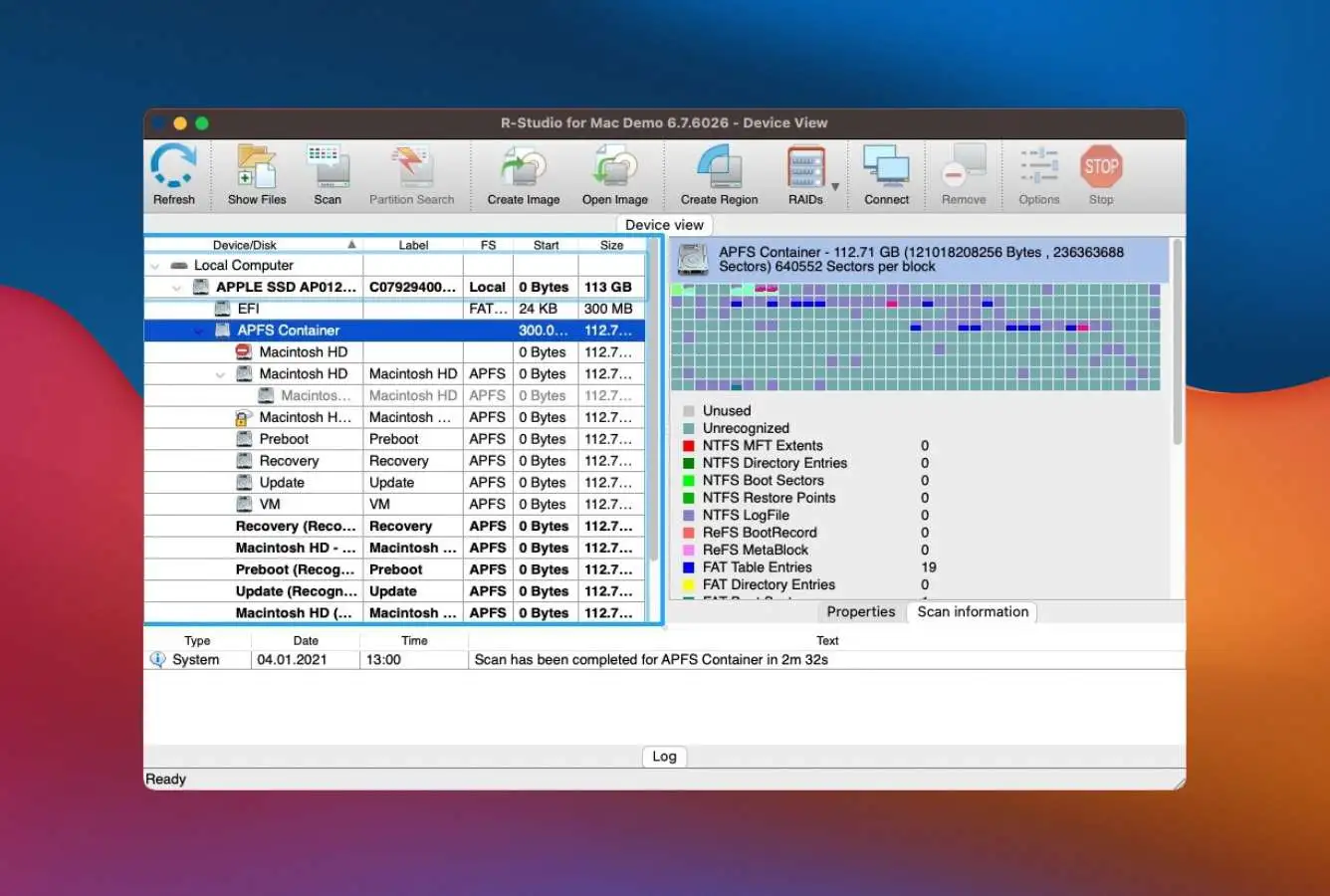
The interface is a dense multi-pane device tree with hex viewers, raw sector stats, and configuration prompts at every step. There's no basic mode, no onboarding, no hand-holding. For an IT professional running recoveries daily, this depth is an asset, every parameter is exposed, every operation is scriptable. For a panicking first-time user, it's unusable. This isn't a flaw, it's a design choice. If you're not a data recovery technician, EaseUS or Disk Drill are the right picks.
Fair at base, eye-watering for the features that make it special.
The base Mac license is $79.99 perpetual, reasonable for HFS+, NTFS, and single-disk recovery. But the features that genuinely justify R-Studio (RAID reconstruction, network recovery, forensic evidence logs, bootable technician USB) require the Technician license at $899. The T80+ license at $80 for 80 days of Technician access is the smart play for one-off complex recoveries. The free demo only recovers files under 256 KB, enough to confirm the scan found your data but useless for actual recovery.
6. UFS Explorer β Best External Hard Drive Recovery for Mac

UFS Explorer has been a professional staple since 2004. Its general-recovery fit is modest, but its strength is specialized: it supports more file systems than any other tool we reviewed, including the weird ones. If you're recovering data from a NAS, Linux server drive, virtual disk image, or anything formatted unusually, UFS Explorer is frequently the only option that works.
- Supports more file systems than any other tool (APFS, HFS+, NTFS, FAT, exFAT, Ext2/3/4, XFS, Btrfs, ReFS, UFS, ZFS)
- Rebuilds broken RAID arrays and Linux LVM volumes
- Reads virtual disk files (VMDK, VHD/VHDX, QCOW2, VDI, DMG) directly
- Multi-pass disk imaging with smart retry logic for failing drives
- $64.95 is the cheapest perpetual license in the category
- Interface assumes professional-level technical knowledge
- No auto-resume if a drive disconnects mid-scan
- No thumbnail previews, finding files in results takes effort
- Overall recovery rate trails the top tools on standard scenarios
The tool you reach for when nothing else works.
UFS Explorer sits in the middle of this ranking, but that number misses the point. Its real strength is edge cases: a broken LVM volume and a corrupted APFS container both yielded clean recoveries where R-Studio failed. File system support is unmatched: APFS, HFS+, NTFS, FAT, exFAT, Ext2/3/4, XFS, Btrfs, ReFS, UFS, and ZFS. For NAS drives, Linux server volumes, virtual disk images, or any non-standard storage device, it's frequently the only tool that works.
Dense, technical, and assumes you know what you're doing.
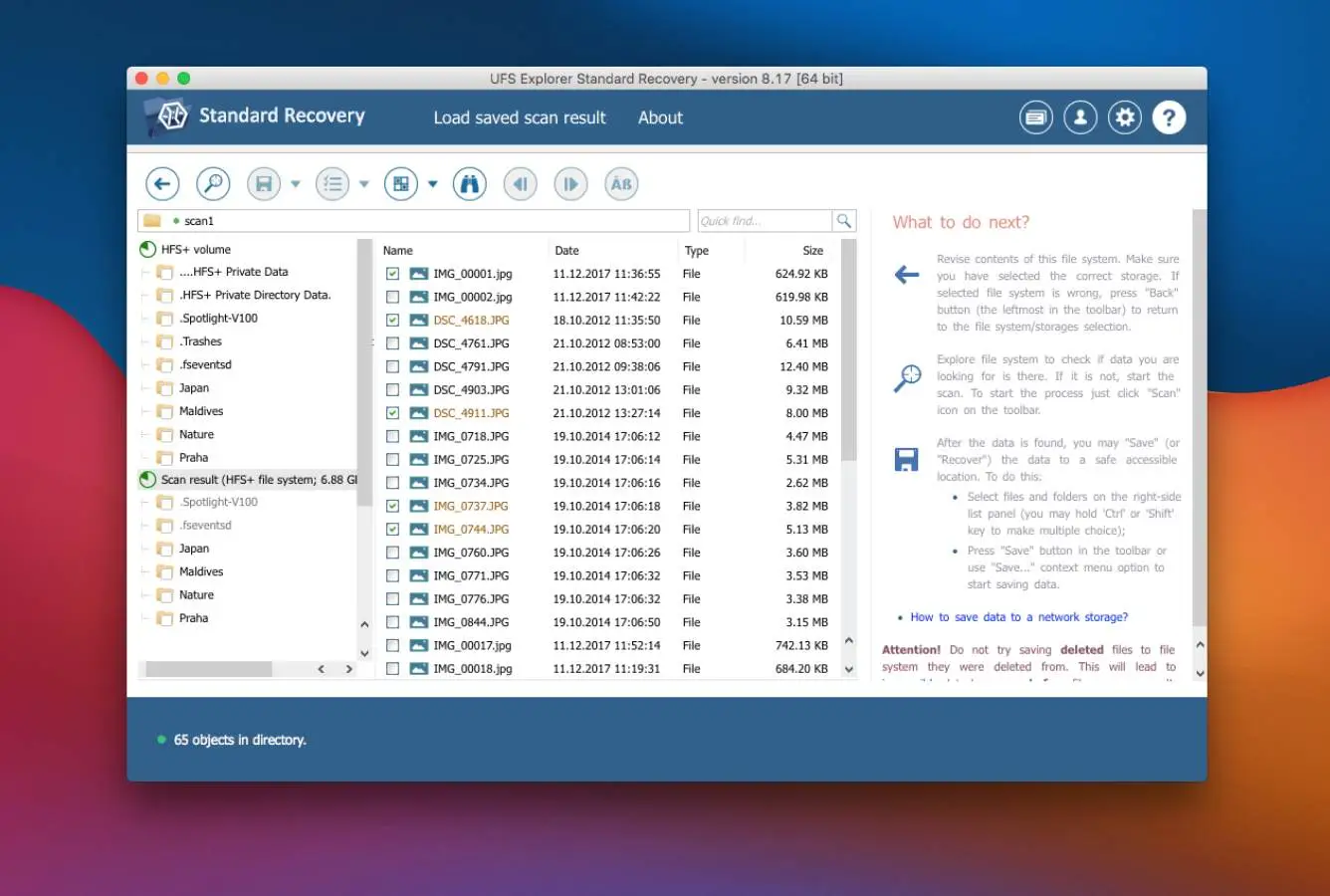
The interface is built for data recovery professionals. You get a detailed filesystem tree view, configurable scan parameters, no thumbnails in results, and no auto-resume if a drive disconnects mid-scan. Prior experience with file systems and partition structures is effectively required. It's not bad, it's just focused on a different audience than EaseUS or Disk Drill. For a first-time user, expect a steep learning curve and plan to read the documentation.
The most affordable professional-grade tool, by a good margin.
$64.95 for a perpetual Standard Recovery license, the cheapest entry in this list for this level of capability. The free trial recovers any file under 256 KB, enough to verify it can find your data before spending anything. For NAS recovery, Linux drive scenarios, or any multi-filesystem setup where no consumer tool works, $64.95 is exceptional value. Multi-pass disk imaging with retry logic is included, which matters when working with physically failing drives.
7. PhotoRec β Best Open-Source Data Recovery for Mac

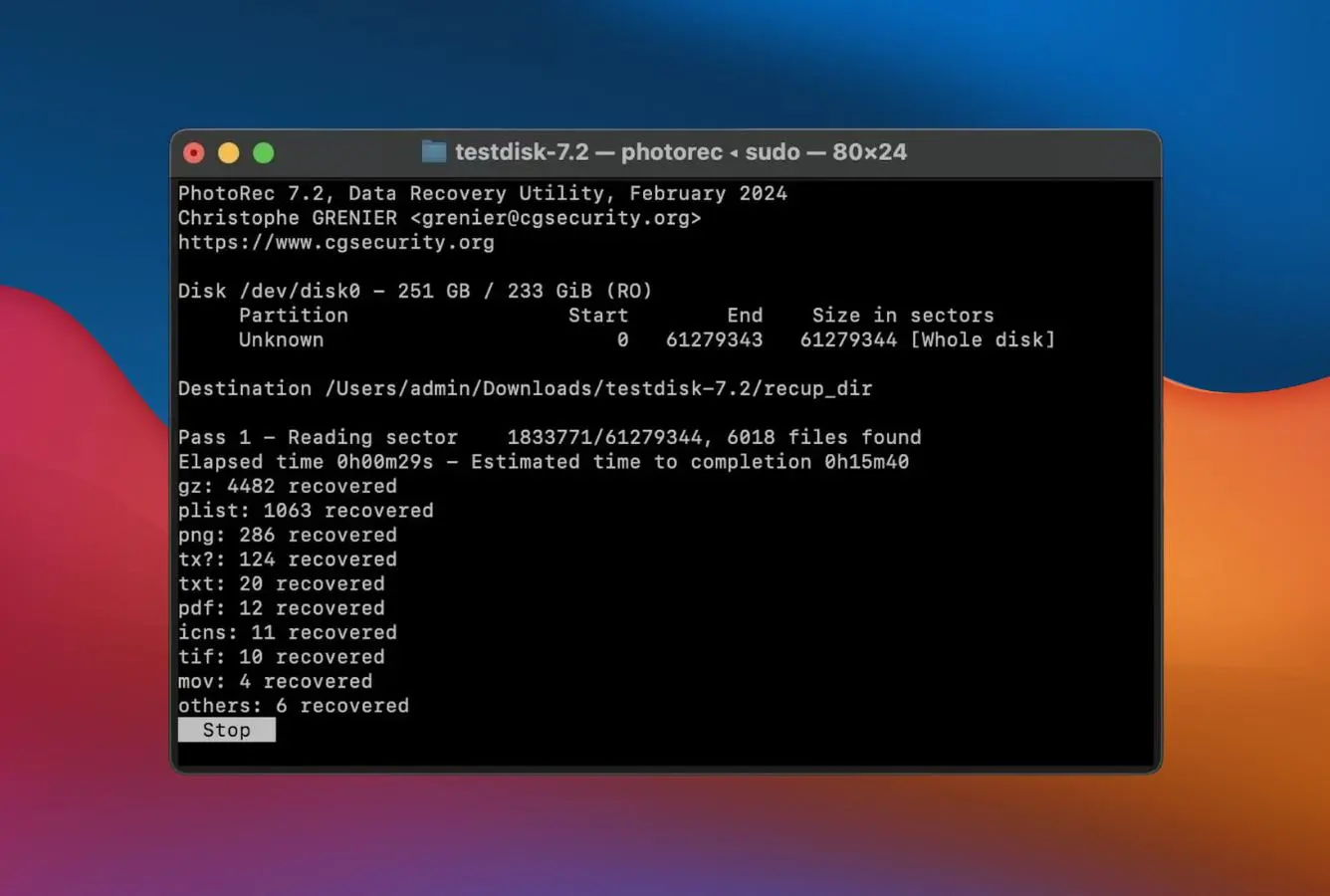
PhotoRec is open-source, unlimited, and completely free, no paid tiers, no data caps, no catches. Its capability is solid given it uses signature scanning only (filenames and folder structure are lost), and on file recognition alone it genuinely outperforms some paid tools. The trade-off: it's command-line on Mac, so you'll need terminal comfort to use it.
- 100% free with no recovery caps, no hidden tiers, no ads
- Open-source code, publicly auditable for security
- Impressive file type recognition library
- Scans drives with no functioning file system at all
- Tiny download, runs well on old Macs
- Mac version is terminal-only, no graphical interface
- Recovered files lose their original names and folder structure
- No preview to check files before recovering
- Every scan has to start from scratch, no session saves
Strong signature scanning, but filenames are gone forever.
PhotoRec’s placement reflects the inherent limit of its approach: signature scanning only. It ignores the file system entirely and reads raw sectors, which means it finds files other tools miss but cannot preserve filenames or folder structure. Its file type library is genuinely impressive, it covers a broad range of RAW, video, and document formats per its published file-signature database. Every recovered file gets a generic name (f00001234.jpg), so you're sorting through thousands of unnamed files after recovery.
Command-line only on Mac β terminal comfort required.
PhotoRec has a GUI version (QPhotoRec), but it's Windows-only. Mac users run it from Terminal, navigating with keyboard arrows through a text-based menu system. There's no preview, no thumbnails, no drag-and-drop. You pick a drive, pick a scan mode, pick a destination, and wait. If you've never used Terminal, this tool is not for you, pick EaseUS or Disk Drill from this list instead. If you're comfortable at the command line, it works reliably.
Free, open-source, no limits, no catches.
PhotoRec is 100% free with no recovery caps, no feature tiers, and no ads. Source code is publicly auditable on the CGSecurity site. For a user who lost photos from a camera card and doesn't mind renaming files afterward, this is the best $0 decision they can make, nothing else in the category delivers this much capability for free. The community forum is active for common scenarios. Consider donating to CGSecurity if it saves your data.
8. Data Rescue β Best Undelete Software for Mac (One-Time License)

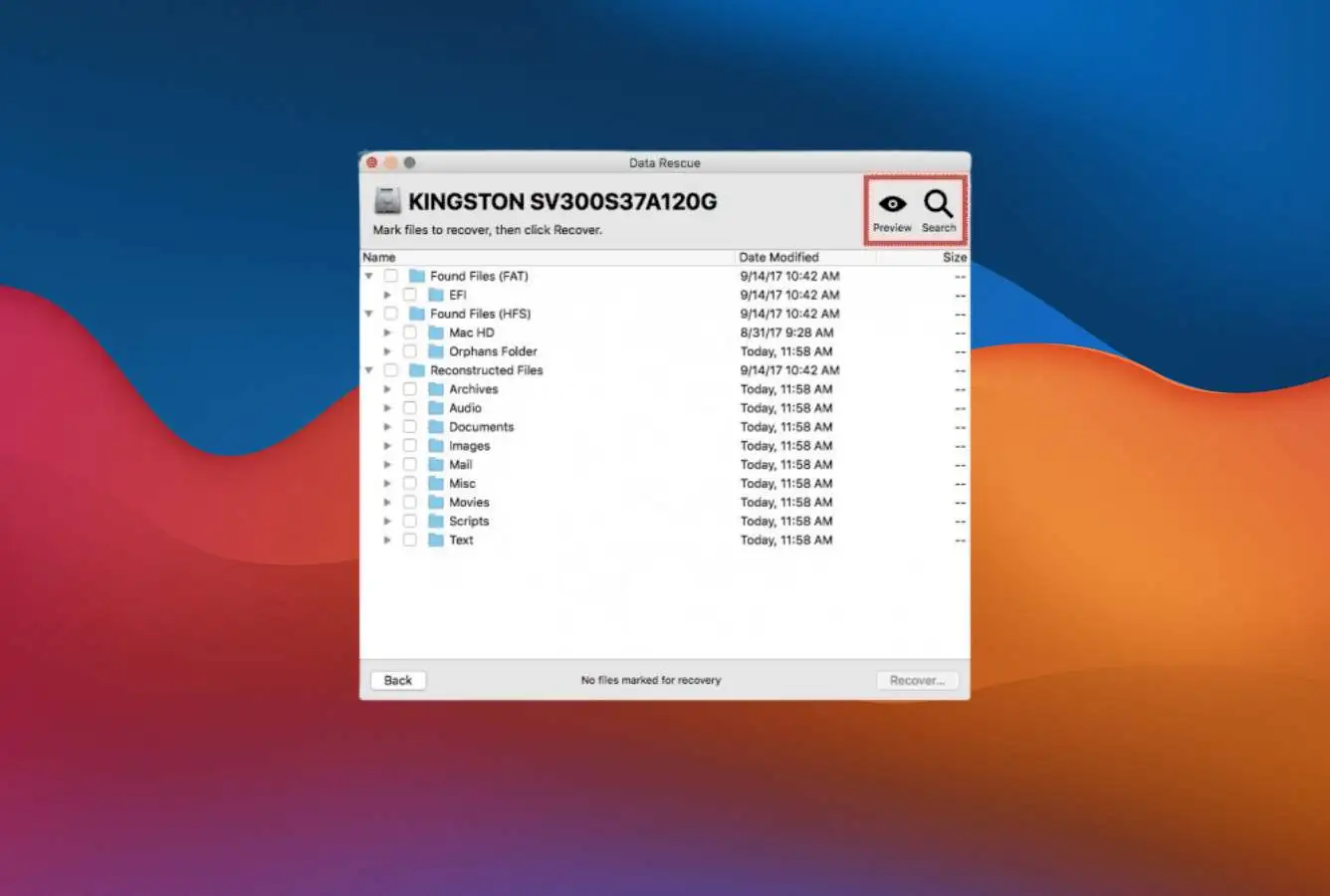
Data Rescue is one of the oldest Mac data recovery tools still actively sold, and its placement reflects a tool that's showing its age on modern file systems. Where it still shines is licensing: the 30-day unlimited recovery license at $79 is the smartest model for users dealing with a single data loss event, pay once, recover what you need, walk away without a subscription.
- Smart 30-day unlimited recovery license ($79) for one-off events
- Long-established company with over two decades of track record
- Builds virtual RAID arrays from multiple disks
- Disk cloning included, safer recovery workflow
- 1 GB free recovery for new users
- Recovery is noticeably weaker on APFS than HFS+
- Interface feels stuck in 2012, not updated for modern macOS
- Signature scanner results are hit-or-miss on newer formats
- No native Apple Silicon build, runs under Rosetta 2
- Professional license ($399/year) is hard to justify
Strong on HFS+, weaker on what Apple uses now.
Data Rescue is our last pick in this ranking, though still with meaningful recovery capability. The “Clever Scan” mode was built for HFS+ and still performs well on older external drives still formatted that way. On APFS (the default on every Mac since 2017), results were less consistent. The Quick Scan performed better on APFS and NTFS than the deep scan in several of our tests. If you're recovering an older HFS+ external drive, Data Rescue punches above its rank. For a modern APFS internal drive, other tools deliver more reliably.
A competent 2012 design, largely unchanged since.
The interface is functional but dated. Navigation is clunky compared to modern tools, particularly on newer macOS versions. Dark Mode is supported, but there are no thumbnails, no recovery scoring, and no scan-time estimates. For power users who know what they want, the simplicity is tolerable. For first-time users, the lack of guidance and modern UX patterns makes the experience feel more like a 2012 utility than a 2026 app. No native Apple Silicon build means it runs under Rosetta 2 translation.
Clever licensing model, wasted on aging recovery engine.
Data Rescue's Standard License at $79 for 30 days of unlimited recovery is genuinely the smartest model for a single recovery event, pay once, recover what you need, walk away. The free tier recovers 1 GB before requiring payment. But the Professional License at $399/year is nearly impossible to justify given the recovery performance. For a one-time HFS+ recovery event on an older drive, the 30-day option is fair value. For anything modern, Disk Drill's $89 perpetual license delivers far more for the money.
How We Review Data Recovery Tools for Mac
This ranking reflects our editorial review of the current data recovery software market for Mac as of April 2026. Each tool was evaluated against the same set of criteria: documented file system support, recovery scenario coverage, Apple Silicon compatibility, pricing and free-tier generosity, and vendor track record. We consulted vendor documentation, public changelogs, independent user reports from Mac-focused communities, and where available, direct contributor familiarity with these tools.
Rankings reflect our editorial judgment of each tool’s overall fit for common Mac data recovery scenarios, based on documented capabilities, free-tier availability, and Mac-specific support. Your best choice depends on your specific scenario, and we strongly recommend using each tool’s free scan to preview recoverable files on your own drive before purchasing. See the Buyer’s Guide below for scenario-based guidance.
Sources consulted: vendor documentation and feature matrices, official system requirements, public changelogs, user reports from Apple Support Communities and MacRumors forums, and, where applicable, direct familiarity from contributors who have encountered these tools in the course of their work. We update rankings when a vendor ships a major release or when a competitor changes its Mac-specific support.
What we evaluate: documented file system support (APFS, HFS+, FAT32, exFAT, NTFS), Apple Silicon native support vs. Rosetta 2 translation, free-tier generosity, pricing model, preview-before-purchase capability, extra features (disk imaging, S.M.A.R.T. monitoring, bootable recovery USB), and support/update cadence. Individual results vary by drive health, time elapsed since deletion, and file system state. Your mileage will differ from any ranking.
Every individual test result, scan time, and file recovery log is published on our full testing methodology page. If you want raw numbers before choosing, start there.
Mac Data Recovery Software β Honorable Mentions
These tools didn’t make the main list not because they’re bad, but because their overall profile didn’t reach the top 8. They’re worth knowing about for specific scenarios:
How to Choose the Best File Recovery Software for Mac
Narrowing down to the right Mac data recovery app comes down to six specific factors. Match your exact scenario to the right software to save money and, more importantly, save your data.
File System Compatibility
Check the tool supports your drive’s file system before anything else, an app that can’t read the format is useless regardless of its interface.
APFS has been the default on all Macs since macOS High Sierra (2017), and every tool on this list supports it. HFS+ remains common on older external drives and bootable installers. FAT32 and exFAT cover Windows-formatted drives and SD cards. For Linux, NAS, or virtual disk images, UFS Explorer is the only tool we reviewed that handles them natively, R-Studio also supports Linux file systems but can’t scan internal drives on Apple Silicon Macs. If your primary concern is recovering photos or video from cameras and SD cards specifically, our photo recovery guide covers tools optimized for that use case.
Deep Scan vs. Quick Scan
Every recovery tool offers two scanning approaches. Quick Scans use the drive’s file system index, fast (2β10 minutes) but only work if that index is intact. Deep Scans read every sector looking for file signatures, slow (30 minutes to 4+ hours on 1 TB) but work on formatted drives and corrupted partitions.
The best tools run Quick Scan first automatically and only escalate if needed. EaseUS’s enhanced recovery mode and Disk Drill’s Universal Scan both handle this escalation well, saving you from running a multi-hour deep scan when a 3-minute quick one would have worked.
Preview Before You Pay
The single most important rule before buying any recovery license: verify your files are recoverable before spending money.
EaseUS’s 2 GB free tier is the most generous, letting you actually save small files before paying. Disk Drill offers unlimited free preview on Mac, you can see every recoverable file and play video previews for integrity. Stellar shows all recoverable files in the free version but blocks saving. Never buy based on marketing claims; always verify with the free tier first.
Apple Silicon & Modern macOS Support
For M1 through M5 Macs, confirm native ARM support before buying. Running under Rosetta 2 works for basic recovery but limits performance. Data Rescue is the only tool on our list that still runs exclusively under Rosetta, all others are native.
For recovering from the internal system drive on Apple Silicon, you’ll typically need to boot into Recovery Mode and grant Full Disk Access. R-Studio can’t scan internal drives on Apple Silicon or T2 Macs at all due to Secure Boot restrictions, external drives only. Working with a Windows PC instead? See our Windows data recovery roundup for platform-specific picks.
Pricing Models & Total Cost of Ownership
Subscription versus perpetual licensing matters dramatically over time. If you only need recovery once, a 30-day license (Data Rescue, $79) or a generous free tier (EaseUS’s 2 GB, PhotoRec’s unlimited) is often enough. For tools that are free for any recovery size, see our free data recovery tools roundup.
For IT professionals or anyone managing multiple Macs, Disk Drill’s $89 perpetual license is dramatically cheaper than subscriptions over time. EaseUS’s lifetime license at $149.95 is another strong value. Watch for auto-renewing monthly subscriptions on tools like Recoverit, signup flows often enable renewal by default. Read the cancellation policy before purchasing.
Session Management & Scan Reliability
If you’re recovering from a physically stressed drive that may disconnect mid-scan, session management is critical. Disk Drill and EaseUS both auto-save scan state, reconnect the drive and resume from the last checkpoint instead of starting over.
On a Deep Scan running for three hours, this can be the difference between getting files back and giving up. R-Studio, UFS Explorer, and Data Rescue all lack auto-resume. For stable desktop setups, this isn’t critical. For laptops, flaky USB connections, or any failing drive, it should be a hard requirement.
When Data Recovery Software Can’t Recover Your Files
Software can’t always save the day. Understanding the limitations sets realistic expectations, and can prevent you from making things worse by trying tools that won’t help. These five scenarios are where every Mac recovery tool on this list will fail.
| Your situation | Software can help? | What to do instead |
|---|---|---|
| Data already overwritten | No | Restore from Time Machine or cloud backup if available; otherwise accept loss |
| TRIM-erased internal SSD | No | Check Time Machine and iCloud version history first |
| Physical damage (clicking, water, fire, impact) | No | Power off immediately β professional cleanroom service ($500β$1,500) |
| Encrypted drive, lost password or key | No | Mathematically unrecoverable, check Apple ID for FileVault key |
| Securely erased drive (multi-pass wipe) | No | Don’t buy recovery software, data is genuinely gone |
Data That’s Already Been Overwritten
When you delete a file on a Mac, the operating system marks the space as available, but the actual data stays on the drive until new data is written to that same location. That’s why recovery software works at all.
Once those sectors have been physically overwritten by new files, app downloads, or macOS updates, the original data is gone. No software on this list can bring it back. If you’ve just lost files, stop using the drive immediately, don’t download recovery software onto it, don’t browse the web, don’t install anything. Boot from a different drive if you can, or install the recovery tool on an external drive using a second Mac.
TRIM-Enabled Internal SSDs on Modern Macs
Every Mac made since 2015 uses an internal NVMe SSD with TRIM enabled. TRIM immediately marks deleted blocks as reusable, and on Apple Silicon Macs with the Secure Enclave, those blocks are often cryptographically zeroed within seconds.
By the time you open a recovery app, the data may already be gone at the hardware level regardless of which tool you use. External USB drives, SD cards, and older SATA SSDs aren’t affected as aggressively, so external-media recovery remains viable. For internal SSD data loss, your realistic options are Time Machine backups, iCloud Drive version history, or accepting the loss.
Physical Drive Damage (Clicking, Water, Fire, Impact)
If you hear clicking or grinding from a hard drive, smell anything burning, or the drive has been dropped, submerged, or exposed to fire. It’s a physical hardware failure. Every spin of the platter risks permanently scratching the magnetic surface. Every read attempt stresses already-damaged components.
Running recovery software on a physically damaged drive makes the problem worse. Power it down immediately, don’t reconnect it, and don’t attempt to “dry it out” on your own. Seal water-damaged drives in an airtight bag and ship them to a professional cleanroom service, corrosion starts the moment water contacts components and continues even after the drive is powered off.
Reputable cleanroom labs can often recover data from physically damaged drives, but only if the drive hasn’t been made worse by software attempts first. A $500β$1,500 recovery service beats a permanently destroyed drive. For readers specifically dealing with external drive failures (which make up most physical damage cases), our external drive recovery guide covers tools and symptoms in more depth.
Encrypted Drives Without the Decryption Key
FileVault-encrypted drives are technically readable by recovery software, the tools can pull the encrypted bytes off the drive. But without the decryption password or recovery key, what you get back is unreadable ciphertext.
Strong encryption is effectively uncrackable with current technology, and no recovery tool can bypass it. Before reaching for software on an encrypted volume, confirm you have the password or the FileVault recovery key (saved to your Apple ID or printed at setup). The same applies to APFS-encrypted volumes, encrypted external drives, and BitLocker-encrypted drives being recovered on a Mac.
Drives That Have Been Securely Erased
macOS’s “Erase All Content and Settings,” Disk Utility’s secure erase, and third-party secure wipe tools perform multi-pass overwriting designed to defeat recovery. After a secure erase, the original data is physically overwritten with random bits, often multiple times over.
Software recovery cannot recover data from a securely-erased drive. This is different from a quick format, which only erases the file system index and leaves data physically on the drive (which software can often reverse). If you or someone else performed a Secure Erase, no recovery tool will help, don’t waste money on an impossible job.
Do not run any software. Do not attempt to copy files. The clicking sound is a physical failure (read/write head damage). Every spin of the platter risks permanently scratching the magnetic surface. Power down the drive and contact a professional data recovery service. Running software on a clicking drive is one of the most common ways people destroy recoverable data.
Built-in Mac Recovery Options (Check These First)
Before downloading any third-party software, check macOS’s built-in recovery options. A surprising number of “data loss” situations are actually recoverable for free in under five minutes using tools Apple ships with every Mac, and ruling these out first saves you $80β$150 on a recovery license you may not need.
Time Machine β The First Place to Look
Time Machine is Apple’s built-in backup system, and if it was configured before the data loss event, it’s almost always the fastest route to recovery. It takes hourly local snapshots, daily snapshots to an external drive, and weekly snapshots saved for as long as disk space allows.
Open Time Machine from System Settings or the menu bar icon, navigate to the date before the loss, and click Restore. The interface shows a visual timeline of every Finder window in every prior state. The key caveat: Time Machine only works if it was set up before the loss. If it wasn’t, set it up now on a $50 external drive and you’ll never need to read this section again.
Check Trash and Deleted-File Folders First
Files deleted from Finder go to Trash first, open it, right-click the file, select Put Back. Files deleted from iCloud Drive go to a separate “Recently Deleted” folder visible in iCloud.com, the Files app on iPhone/iPad, and Finder’s iCloud Drive section, kept for 30 days.
The Photos app has its own Recently Deleted album (30 days), and iCloud Drive stores previous versions of documents for 30 days, right-click a file in Finder, select Revert To, then Browse All Versions. This is invaluable for files you accidentally saved over or edited destructively.
Dropbox, Google Drive, OneDrive, and Box all maintain their own deleted-file folders and version histories (typically 30β180 days depending on plan). Log into the cloud service’s web interface (not the desktop app) and check Trash there. If the lost files were synced to any cloud service, this is often faster than any recovery tool, and free.
Disk Utility and Recovery Mode
Before running recovery software on a drive with mounting issues or permission errors, run First Aid in Disk Utility. Open Applications β Utilities β Disk Utility, select the problematic drive, click First Aid. It repairs minor file system corruption and can restore a drive that appears “damaged” back to a healthy state without any data loss.
If the Mac itself won’t boot, enter Recovery Mode (hold Command+R on Intel, hold the power button on Apple Silicon). From Recovery Mode you can reinstall macOS without erasing data, run Disk Utility on the system volume, or restore from a Time Machine backup. Reinstalling macOS from Recovery preserves user data by default. It’s a surprisingly common fix for Macs that won’t boot but have intact data underneath.
First Aid repairs the file system but doesn’t recover deleted files, if your data was truly deleted, you still need recovery software. But if the drive is showing errors and you’re tempted to run recovery tools, try First Aid first. A repaired drive may mount normally, making recovery software unnecessary.
When Built-in Options Aren’t Enough
If you’ve checked Trash, iCloud version history, cloud service folders, and Time Machine, and your files still aren’t there, you’re in third-party recovery territory. This is the point where the tools on this list earn their place.
Start with a free tier to verify your data is recoverable before paying: EaseUS’s 2 GB free recovery is the most generous, or Disk Drill’s unlimited free preview lets you confirm files exist before buying a license. For internal SSD data loss on modern Macs, accept realistic odds, TRIM means most deleted SSD data is unrecoverable regardless of software.
A $50 external USB drive running Time Machine is the most reliable data recovery tool available. Every Mac ships with Time Machine built in. If you don’t have it configured, connect an external drive right now and turn it on in System Settings β General β Time Machine.
Final Verdict
EaseUS Data Recovery Wizard is the best data recovery software for Mac in 2026. It is our top overall pick, with the most polished interface in the category, a generous 2 GB free tier for verification before paying, and native support for every modern Mac from Intel through M5 Apple Silicon. A lifetime license at $149.95 covers every future macOS update.
Beyond the winner: Stellar Data Recovery is the specialist pick when corrupted photos or videos need actual repair, not just recovery, its repair engine handles cases no other tool can. Disk Drill remains the best value in the category thanks to its $89 perpetual license covering both Mac and Windows. For IT professionals who need RAID reconstruction or Linux filesystem support, R-Studio and UFS Explorer deliver depth no consumer tool can match.
Frequently Asked Questions
About the Authors
Data Recovery Fix earns revenue through affiliate links on some product recommendations. This does not influence our rankings, all tools are reviewed on the same editorial criteria and ranked before any affiliate relationships are considered. If anything on this page looks inaccurate, outdated, or worth revisiting, please reach out at contact@datarecoveryfix.com and we’ll review it promptly.